

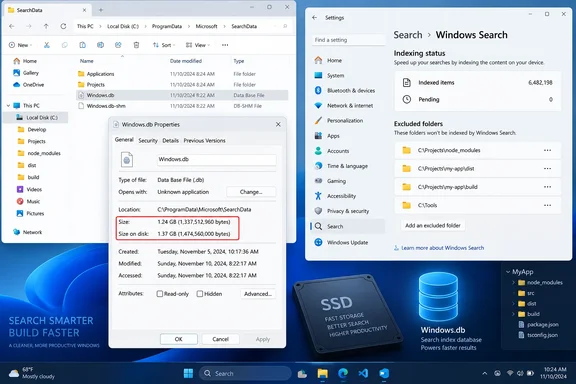
Windows.db file after you delete a project folder, but the first thing to check is whether it is actually consuming that much SSD space. Korben’s September 18 test found that adding 3,000 text files grew the index database and deleting them did not reduce its reported file length; a rebuild then made the number fall sharply. Microsoft’s own troubleshooting guidance confirms the underlying behavior, but it also exposes a measurement flaw in the popular PowerShell check: the database’s ordinary file size is not necessarily its real on-disk footprint.
That distinction changes the practical advice. Windows Search uses a sparse, compressed ESE database, and Microsoft says the Size value in Explorer — as well as a basic file-length query — can include space previously allocated to the database. The figure that represents disk capacity currently consumed is Size on disk, available from the file’s Properties dialog.
In other words, an index that appears not to have “shrunk” may be holding logical capacity for future indexing while already using less physical disk space than its headline number suggests. Rebuilding the index remains a supported way to reset it, but it should be a response to a verified storage or search-performance problem rather than a ritual cleanup step.
The PowerShell number can overstate the problem
Korben’s article points Windows 11 users to this location:
C:\ProgramData\Microsoft\Search\Data\Applications\Windows\Windows.db
That location is correct for Windows 11; Windows 10 normally uses Windows.edb in the same directory. The supplied PowerShell command reads the file’s .Length property, which measures the logical length of Windows.db. It is useful for seeing that the database has expanded, and for comparing an index before and after a workload in broad terms.
It is not the measurement Microsoft tells administrators to use when assessing actual disk usage. Microsoft specifically warns that Windows Search’s compression and sparse-file behavior can make the ordinary file-size value inaccurate. The database can report space that was previously used or reserved even if NTFS is no longer allocating all of it to the file.
That makes Korben’s experiment more interesting, but less conclusive than presented. The index item count fell from 3,466 to 465 after the 3,000 test files were deleted, while the database’s logical size remained elevated. That is evidence that Windows did not immediately compact the database file. It does not, by itself, establish that the same amount of SSD capacity remained occupied.
For a reliable before-and-after check, open File Explorer, paste the path above into the address bar, right-click Windows.db, select Properties, and compare the two separate values:
Sizeis the file’s logical length and can include historical allocation.Size on diskis the relevant figure for free-space planning and is the value Microsoft says to use.
On a managed fleet, this distinction prevents a familiar support mistake: escalating a handful of large-looking search databases as a disk-capacity incident when the affected machines may have considerably more free space than the raw file-length figures suggest.
Why developer folders are unusually expensive to index
The broader warning in Korben’s report is sound. Windows Search does more than catalog filenames and paths. Microsoft says it indexes file properties and, for supported text-bearing formats, file contents as well. That is what makes a search for a word inside a document return a useful result instead of merely finding files whose names happen to match.
The tradeoff becomes severe with source trees and generated output. Microsoft’s own documentation says the search index is generally less than 10 percent of the indexed content size, but calls out two exceptions: lots of files smaller than 4 KB and computer code. Both can make index storage disproportionately large.
That puts common development directories in the danger zone:
- Dependency trees such as
node_modules, package caches, and language-specific build caches can contain vast numbers of small files with little value in Start menu or File Explorer search. - Build and distribution directories can be regenerated, so indexing their contents often duplicates storage and background work without improving day-to-day file discovery.
- Virtual machine disks, game libraries, source-control metadata, and temporary export folders can add high churn or large volumes of material that few users need searchable by content.
- A redirected Documents folder, including one synchronized through OneDrive, can bring an unexpectedly large work hierarchy into Classic mode because Windows indexes the location rather than judging whether its contents are personal documents or development artifacts.
Korben correctly identifies the three configurations most likely to expose the problem: users who enable Enhanced indexing, users whose known folders point to a sync location, and users who place projects or virtual machines under Documents. The fourth group worth adding is corporate users with Outlook data. Microsoft says Outlook mailboxes stored locally are indexed by default, and unusually large mailboxes can contribute to Search Indexer performance problems.
Use the indexed-item count as an early warning
The fastest health check is not the database file at all. In Windows 11, go to Settings > Privacy & security > Searching Windows and look at the Indexed count. Microsoft’s current operational guidance puts a typical PC below 30,000 indexed items and describes up to 300,000 as plausible for a power user. At more than 400,000 items, the company says users may begin to encounter performance problems; Windows Search can attempt up to one million items, after which it may fail or consume excessive CPU, memory, or disk resources.
Those are thresholds for investigation, not automatic evidence of failure. A workstation with 450,000 legitimately searchable legal documents or a local mail archive has different needs from a laptop carrying a cloned Git monorepo, several package caches, and generated binaries. But the count gives users and IT staff a useful way to find the machines where indexing scope has become careless.
Search status also matters. Windows can deliberately slow or pause indexing while the PC is busy, running on battery, in Game Mode, or performing an operating-system upgrade. If results are incomplete immediately after a scope change, the first response should be to let the computer remain powered and idle long enough to finish its work. Microsoft says a full rebuild can take up to 24 hours, even though a lightly populated index may complete much sooner.
Exclude high-churn folders before rebuilding
The durable fix is to reduce the content Windows has no business indexing. In Settings > Privacy & security > Searching Windows, select Add an excluded folder and choose specific directories such as build outputs, dependency folders, caches, VM storage, or game-install folders.
For more granular control, select Advanced indexing options, then use Modify to change indexed locations. The File Types tab in the same Advanced options panel can also be valuable where the problem is content extraction rather than location: Windows allows particular extensions to be indexed as properties only instead of properties and file contents. That preserves filename-based discovery while preventing the indexer from parsing the inside of those files.
Avoid the blunt fixes. Disabling the Windows Search service removes the feature rather than tuning it, and can leave searches incomplete or slow across Windows features and applications. Microsoft documents that File Explorer, Microsoft Edge history search, and offline Outlook search use the index. Excluding all of Documents or all of Desktop may save capacity, but it also removes locations many people expect Start and Explorer to find instantly.
The correct sequence is to exclude a narrowly defined folder, wait for the indexed-item count to settle, then verify that the files users actually need remain discoverable. In an enterprise environment, that validation should include the applications that depend on local search, particularly classic Outlook deployments.
Rebuild only after confirming the storage impact
Once unnecessary locations are excluded, Windows 11 offers a supported reset path: Settings > Privacy & security > Searching Windows > Advanced indexing options > Advanced > Rebuild. Search results can be incomplete during the rebuild, because the existing catalog is being discarded and recreated.
A rebuild can reclaim empty database space, and Korben’s virtual-machine test shows why it is tempting: the reported index size fell from 16.81 MB to 1 MB after rebuilding the remaining 465-item index. Microsoft also lists index rebuilding as a tuning measure and provides a more invasive offline defragmentation approach for administrators handling a confirmed oversized index database.
But a rebuild is not a substitute for correcting scope. If an enormous OneDrive hierarchy, source tree, or Outlook cache remains selected, Windows will simply rebuild the same large catalog. Measure Size on disk first, exclude the content that does not need indexing, and rebuild only if the recovered capacity or improved performance justifies the temporary search disruption.
The immediate consequence is straightforward: a large Windows.db shown by a PowerShell .Length check is a reason to inspect Windows Search settings, not proof that Windows has silently consumed that same amount of SSD space.