

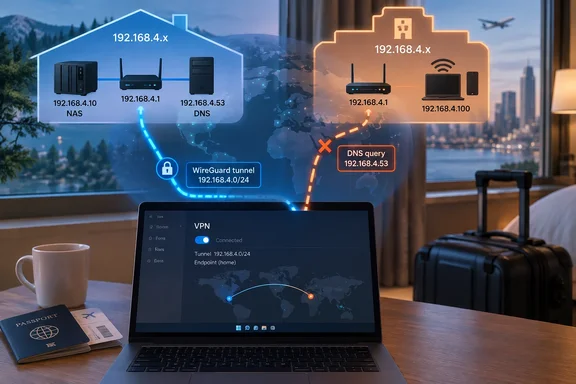
The setup: a fake hotel built to collide
The author's eero hands out 192.168.4.0/22. He runs a self-hosted WireGuard server in a Proxmox container and filters DNS through a Technitium server at 192.168.4.61.
To simulate a hotel, he used a GL.iNet Mudi 7 on Google Fi cellular and gave its LAN the address 192.168.4.61. That is the same address as his home DNS server. The test laptop ran Windows 11 with WireGuard for Windows in split-tunnel mode. Only 192.168.4.0/22 went into the tunnel, and DNS pointed at 192.168.4.61. A PowerShell script captured the route table, neighbor table, reachability and DNS answers for each run.
These are the author's own findings. I haven't reproduced them.
Why overlap matters: how Windows picks a route
Two documented rules do most of the work here.
- Longest prefix wins. Microsoft's documentation says that when several routes match a destination, Windows prefers the longest prefix length. If prefix lengths tie, the lower metric wins.
- AllowedIPs become routes. WireGuard for Windows takes each peer's allowed IPs and adds them to the routes for the WireGuard interface. For non-default routes, it leaves routing and DNS to ordinary Windows behavior.
In WireGuard, AllowedIPs is therefore both a peer filter and a set of routes. A more specific local route can beat your broader VPN route. One networking write-up makes the same point from the other direction. If the client's list doesn't cover the remote subnet, traffic leaves over the local Wi-Fi, where it either dies or reaches a completely different device with that address.
What the tests showed
| Hotel network | Target | Result | Route used | DNS answered by |
|---|---|---|---|---|
| 192.168.4.0/22 (same size) | NAS at 192.168.7.69 | Reachable | Tunnel | Technitium |
| 192.168.4.0/24 | Caddy at 192.168.4.64 | Reachable, on retry | Tunnel | Travel router |
| 192.168.4.0/24 | NAS at 192.168.7.69 | Reachable | Tunnel | Travel router |
| /24, with a phone at .64 | Caddy at 192.168.4.64 | Not reachable | Wi-Fi | Travel router |
| /24, plus /32 routes | Caddy at 192.168.4.64 | Reachable | Tunnel | Technitium |
| 10.73.19.0/24 (no overlap) | Caddy at 192.168.4.64 | Reachable | Tunnel | Technitium |
Same-size ranges: the tunnel wins
With an identical /22 on both sides, the prefix lengths tied and the metric decided. The author saw an effective metric of 5 for the tunnel against 286 for Wi-Fi. Those numbers come from his setup and are not guaranteed Windows defaults. Home addresses went through WireGuard. The cost fell on the hotel side, because devices on the local network in that range became unreachable from the laptop. That includes a captive portal.
A smaller local range: it depends on who answers
When the hotel network shrank to a /24 inside the home /22, the local route was the more specific one. In theory, every 192.168.4.x address should have gone to Wi-Fi. The author instead saw this:
- Pings to the Caddy server first returned "Destination host unreachable" from the laptop itself. Two timeouts followed, then replies arrived through the tunnel.
- The author attributes this to Windows trying Wi-Fi first, getting no ARP answer, marking the neighbor unreachable and falling back to the tunnel.
- That fallback is his observation. Microsoft's routing documentation covers prefix and metric selection, but not this retry sequence. Don't assume Windows will always rescue you this way.
- When he gave his iPhone the static address 192.168.4.64 on the travel router, Caddy's address went to the phone. TCP failed, and ping TTL was 64 instead of the 63 seen through the tunnel.
- The NAS at 192.168.7.69 kept working throughout, because the hotel range never covered it.
This is why the collision feels flaky rather than broken. Whether a given address breaks depends on whether something local happens to answer for it.
DNS: the quiet failure
The hotel router sits on its own network by definition. In the test it held 192.168.4.61, so lookups aimed at the Technitium address went out over Wi-Fi to the travel router.
- Public sites kept loading, so nothing looked wrong.
- Lab hostnames came back empty.
- A Grammarly telemetry domain that Technitium blocks resolved to real AWS addresses.
- Technitium's query log showed no queries arriving from the tunnel for those lookups.
Some apps still resolved correctly. The author's explanation is that both adapters listed 192.168.4.61 as DNS, and the Windows resolver appears to ask the lowest-metric adapter first, which is the tunnel. He says he didn't isolate this behavior, and he also saw the system resolver fall through to the hotel's answer when the tunnel was slow. Treat this as a plausible account, not a documented Windows rule. WireGuard's own documentation says only that ordinary multihomed DNS resolution applies in this configuration.
The practical upshot is that apps using the system resolver may keep working. Tools that query the server address directly may be answered by whoever owns that address on the local network.
Fixes, from band-aid to cure
Pin critical hosts with /32 routes
Add host routes to the peer's AllowedIPs alongside the broader range. For example, the author added 192.168.4.64/32 and 192.168.4.61/32 next to the /22. A /32 is the most specific route possible, so it beats a local /24. With the phone still on the hotspot, Caddy and Technitium both came back through the tunnel.
Limits to keep in mind:
- It only covers the addresses you list. The next hotel may collide with a different host.
- The server side must still permit and route those destinations.
- If you pin only one address, make it your DNS server. That is the address that failed first in the test.
Server-side NAT
Another design option is NAT on the VPN server, so remote clients see home resources under a different range. A general WireGuard NAT explainer notes that you can masquerade a LAN behind unique tunnel addresses to communicate without exposing overlapping LANs. It needs careful routing and firewall work, and it isn't a turnkey fix with plain WireGuard.
Renumber your home network
The broadest fix is to stop overlapping. When the author moved the travel router to 10.73.19.0/24, everything worked with no /32 routes and no retries. You can't renumber a hotel, so the network that has to move is yours. His advice is to pick an unusual range inside 10.0.0.0/8, with a random third octet, and avoid common defaults such as 192.168.0.x, 192.168.1.x, 10.0.0.x and his eero's 192.168.4.0/22.
No range is collision-proof, so check whatever you choose against your workplace and other VPN peers. Renumbering also means updating DHCP reservations, static addresses, firewall rules, DNS records and the VPN config.
A quick diagnosis checklist
If you're on the road and something feels off:
- Run
ipconfig /alland compare the Wi-Fi adapter's address, mask and gateway with your home range. Microsoft's DNS client troubleshooting guidance starts with this command. - Look at the route table for overlapping prefixes. Does a more specific local route cover your home hosts?
- Test the DNS server address by IP. Microsoft suggests pinging it, though a failed ping isn't conclusive if ICMP is blocked.
- Use
nslookupwith a name only your home resolver knows.nslookupbypasses the client cache. - Check your resolver's query log, if you have one. Missing queries from the tunnel are the strongest sign the lookups went elsewhere.
- If the ranges overlap, add a /32 for your DNS server and re-test.
The eero observation
The author also reports that his WireGuard server stopped receiving packets after about three minutes. He says the eero stopped honoring the port forward for a quiet static-IP container it considered offline. He says switching to a DHCP reservation helped, and that a ping every 20 seconds fixed it.
I couldn't verify this against eero documentation. eero's support page confirms that the app supports IPv4 reservations and device-linked port forwards, but it doesn't describe that behavior or recommend pings. Treat it as one user's experience. If your self-hosted tunnel dies after a few minutes behind an eero, a DHCP reservation is a reasonable thing to try.
Bottom line
This is a design problem, not a bug. Windows is following its routing rules, and your home subnet is the part you can change. The XDA tests suggest the collision shows up as occasional retries and silently bypassed DNS, not as a dead VPN. Fix it before the next hotel stay, not from the lobby.
References
- Your router's default IP range is sabotaging your WireGuard VPN XDA · 2026-10-02T12:00:17+00:00
- Interface (microsoft-windows-dns-client-interfaces-interface) | Microsoft Learn learn.microsoft.com
- Metric (microsoft-windows-tcpip-interfaces-interface-routes-route-metric) | Microsoft Learn learn.microsoft.com