

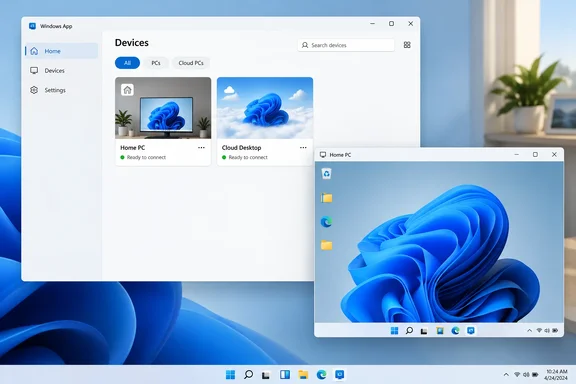
What changed in Windows App
The new GA feature lets users add and manage direct connections to physical or virtual Windows PCs from within the Windows App. Microsoft calls it the "modern way to connect to remote PCs."
Here's what the release includes:
- Add a PC by address. You can add a remote PC by entering its PC name or IP address.
- Settings for each connection. You can customize display settings and configure local resource redirection, giving users more control over how the remote session works.
- Saved connections and Favorites. Neowin says you can save remote PC connections inside the app and pin frequently used PCs to Favorites for quicker access later. Microsoft's overview of Windows App describes the same idea: you can reach Windows across multiple different services and remote PCs from a single place, and pin your favorites you access most.
- No work or school account needed in the app. A work or school account is not required for Remote PC connections in Windows App. Users will instead authenticate when they connect to the remote PC.
The sign-in change matters most for home users. In Microsoft's words, you only need to sign in to Windows App to connect to Azure Virtual Desktop, Windows 365 Cloud PCs, Microsoft Dev Box, Remote Desktop Services. For the platforms that support remote PC connections, you can use Windows App without signing in. Signing in to the app itself still requires a Microsoft work or school account provided by your administrator. You can't sign in to Windows App using a personal Microsoft account (MSA). A home user connecting to a home PC can skip the app sign-in completely. You still need a valid account on the remote machine.
Summary: Windows App on Windows now has a supported place to store, open and tune direct PC connections. It sits alongside Windows 365, Azure Virtual Desktop and Dev Box, and it doesn't make you sign in to the app.
How this fits the Remote Desktop timeline
The original Store app has been on its way out for some time. Microsoft's documentation says the Remote Desktop app for Windows from the Microsoft Store reached end of support on May 27, 2025. It's no longer available for installation or download. Users must transition to Windows App. A later cutoff followed: starting September 30, 2025, connections to Windows 365, Azure Virtual Desktop, and Microsoft Dev Box will be blocked when using the Remote Desktop app. Connections to Remote Desktop Services and remote PC connections will remain unaffected.
Microsoft's Windows 365 documentation also lists a separate date for the MSI-based Remote Desktop client for Windows. It lost support on March 27, 2026, and Microsoft told users to move to Windows App for Azure Virtual Desktop and Windows 365 access.
So until now, anyone who connected to a home or office PC from the old Store app had nowhere obvious to go in Windows App, because that feature was only in preview. GA fills that gap.
Windows App doesn't replace everything yet
Neowin's headline calls this a Remote Desktop app replacement. That's fair for the retired Store app. It isn't true for every Remote Desktop tool, and two limits are worth knowing.
1. MSTSC is still around. The Remote Desktop Connection client built into Windows (mstsc.exe) is a separate program from the retired Store app. Microsoft's own guide still sends people to it for connections to Remote Desktop Services.
2. Windows App on Windows can't connect to Remote Desktop Services (RDS). Microsoft's Windows Server documentation says Windows App replaces the Remote Desktop client and it's available for all platforms, but you can't currently connect to Remote Desktop Services using Windows App from all platforms, so you might still need to use the Remote Desktop client. Its platform table shows Windows as unsupported for RDS in Windows App. If your company publishes desktops or RemoteApps through an on-premises RDS farm, keep your current client for now.
A documentation mismatch: Microsoft's Learn guide for Windows App still says Remote PC connections are in preview on Windows. To connect to a remote PC using a generally available application, continue to use the Remote Desktop Connection app that comes with Windows (also known as MSTSC). The GA news is newer, so the Learn page looks like it simply hasn't been updated. Admins who need GA status for compliance should keep that in mind and expect the page to change.
Summary: Windows App now covers direct PC connections on Windows. RDS users on Windows still need the older client, and MSTSC hasn't gone anywhere.
Step by step: connecting to a remote PC with Windows App
Prepare the host PC
- Check the Windows edition. You can use Remote Desktop to connect to computers running Windows Professional, Enterprise, Education editions, and Windows Server editions. However, Windows Home editions can't serve as Remote Desktop hosts, though they can be used as clients to connect to other systems that support Remote Desktop hosting. Windows App can't turn a Home PC into a host.
- Turn on Remote Desktop. On the target PC, open Settings > System > Remote Desktop and switch it on. Microsoft notes that enabling Remote Desktop opens a port on your PC, making it accessible to devices on your local network.
- Allow the right users. In those settings, pick the users who can connect. Microsoft's FAQ says administrators can connect by default. Other users may need to be added to the Remote Desktop Users group.
- Write down the PC name. You'll enter it on the client.
Add the PC on the client
According to Microsoft's Learn guide for Windows App on Windows:
- Install or update Windows App from the Microsoft Store. Microsoft also offers it as a standalone .msix installer.
- Open the app and select the plus (+) icon to add a remote PC.
- In the PC Name box, enter the target's hostname or IP address.
- If you want, open Additional settings to set a display name, display options and access to local resources. Microsoft says all redirections are off by default.
- Choose Add to save the PC to the Devices tab, or Add & Connect to save it and connect right away.
- Windows App asks for the account to use on the remote PC.
What success looks like: the PC shows up as a card on the Devices tab, you're prompted for remote credentials, and the remote desktop opens. Next time, you just select the card and connect.
Because redirection starts switched off for each saved PC, your clipboard, drives, microphone and camera aren't shared until you turn them on. Check those settings on every saved PC rather than assuming they match.
Troubleshooting: common reasons it won't connect
Microsoft's Remote Desktop FAQ covers most of these, and they apply to every client, including Windows App:
| Symptom | Likely cause | Fix |
|---|---|---|
| PC can't be found | Name doesn't resolve | Microsoft says many home networks need the IP address instead of the hostname |
| Connection times out | Firewall blocking RDP | Allow Remote Desktop through Windows Firewall. For other firewalls, open port 3389 |
| No response at all | Host is asleep or hibernating | Set sleep and hibernation on the host to Never |
| Sign-in screen appears but you're rejected | Account lacks permission | Add the account to Remote Desktop Users or an admin group |
| Works at home, fails from outside | Host isn't reachable from the internet | Use a VPN or gateway your organization provides |
| Can't set up the host at all | Windows Home edition | Upgrade to Pro, or use a different remote access tool |
A security reminder: enabling Remote Desktop opens a listening port. Don't expose port 3389 directly to the internet. A VPN or gateway is the safer way to reach a PC from outside, and it's what Microsoft's guidance points corporate users toward.
Who benefits, and who should wait
- Home and small-office users get a supported, saved-connection experience without signing in to the app. If you were still clinging to the old Store app, this is the replacement.
- Hybrid IT shops get one client that covers Cloud PCs, AVD and Dev Box plus direct PC connections. That means less "which app do I open?" at the help desk.
- RDS-heavy organizations should keep MSTSC or the Remote Desktop client on Windows until Windows App supports RDS there.
- Admins who are cautious about documentation may want to wait for Microsoft Learn to drop the preview label before writing GA status into internal standards.
Is it a big launch? Not really. It's the kind of quiet change that ends a few support tickets, though. Microsoft has been moving remote access into Windows App one piece at a time, and direct PC connections reaching GA is one of the most visible pieces so far. Readers working on wider migrations can find related WindowsForum discussion about Windows 365, Azure Virtual Desktop and hardening Remote Desktop on Windows 11.
References
- Microsoft makes Remote PC connections on Windows GA as Remote Desktop app replacement Neowin · 2026-10-07T06:58:01+00:00
- Connect to Windows devices and apps with Windows App - Windows App | Microsoft Learn learn.microsoft.com
- Accessing Cloud PCs | Microsoft Learn learn.microsoft.com