

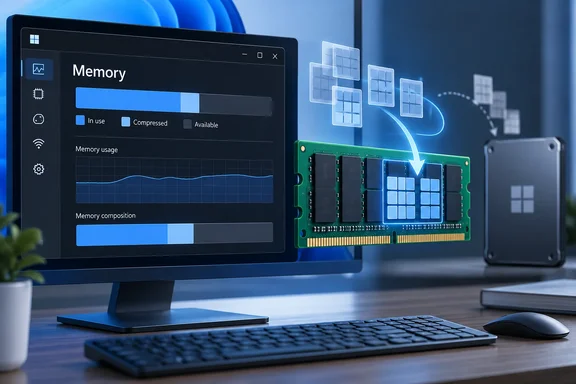
XDA’s Abhinav Raj makes the case for leaving the feature alone on most PCs. That is sensible advice as a starting point—but the more useful question is what the compressed-memory number actually tells you.
What Windows is compressing
Applications use memory in pages. When Windows needs to reclaim physical RAM, it can trim less-active pages from an application’s working set. For some data, it can compress those pages into a store held in RAM rather than immediately writing them to the disk-backed pagefile. If the application needs the data again while it remains there, Windows can decompress it without fetching it from storage. Microsoft describes the intended benefit as fewer hard page faults: occasions when needed data must be read from disk.
There are two important qualifications. Compression consumes CPU work, so it is a tradeoff rather than free performance. And it does not abolish paging: a Microsoft-authored Windows memory reference notes that the compressed store can itself later be paged out to disk. This is RAM management, not compression of documents or Windows installation files to save drive space.
In short: Windows is spending some processing time to keep more potentially useful data resident in RAM. Whether that helps a particular workload cannot be determined from the existence of compressed memory alone.
How to read the Task Manager figure
Open Task Manager → Performance → Memory and look for In use (Compressed). The amount in parentheses is included in the “In use” total; do not add the two numbers together. It is a snapshot of compressed memory, not a tally of bytes already written to the pagefile or a measurement of how much performance you have lost.
Raj reports one example from his 32GB PC: 9.3GB in use, including 409MB compressed, with browser tabs and background applications running. That illustrates the display, but it is not a benchmark or a target for other PCs. In particular, the figure does not prove that precisely 409MB would otherwise have been on disk. Windows has other ways to manage pages, and the outcome depends on what the system needs next.
Nor is there a universal “too much compression” threshold. Several gigabytes might merit investigation if the machine is also persistently slow, but the number by itself cannot identify a memory leak, quantify CPU overhead, or show whether disk paging is causing the slowdown. Microsoft’s performance guidance treats available memory, commit, process usage and paging activity as separate pieces of a diagnosis—not interchangeable readings.
What to do if the PC feels sluggish
- Check the whole Memory view, including available memory and the in-use total, rather than focusing only on the parentheses.
- Look at the workload. In Task Manager’s Processes view, identify applications using substantial memory and consider whether you need them all open. A single process figure may not account for every kind of system memory use.
- Compare readings with the symptom. Does the machine slow down only with a particular combination of apps, or even after a fresh start? A snapshot taken while everything runs smoothly is weak evidence for a performance fix.
- Investigate a suspected leak separately. Microsoft advises checking committed memory and using more detailed tools when tracking application or service leaks; the compressed figure alone will not name the culprit.
Microsoft documents commands to enable and disable memory compression, so it is a configurable feature—not an untouchable component. But the existence of a switch is not evidence that flipping it improves your PC. If memory pressure is the real problem, turning off one way Windows handles it may simply change where the pressure appears. The practical default is to measure the slowdown first and leave compression alone unless a controlled troubleshooting comparison gives you a reason to change it.
References
- Windows has been quietly compressing your memory in the background for years, and here's why it matters - xda-developers.com xda-developers.com · 2026-09-28T00:00:16+00:00
- Memory Compression in Windows 10 RTM | Microsoft Learn learn.microsoft.com