

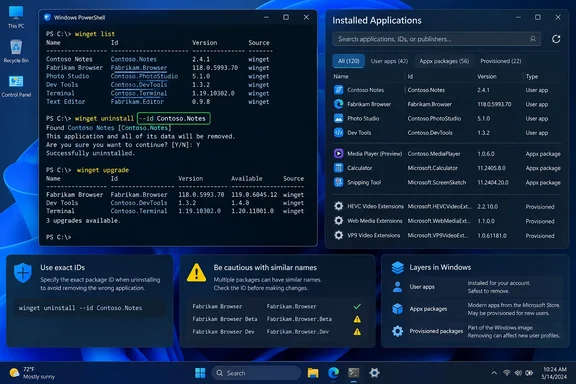
A new How-To Geek walkthrough makes the case for using Windows Package Manager, better known by its winget command, to find and uninstall apps such as Clipchamp, then keep the rest of a system updated with winget upgrade --all. Microsoft’s current WinGet documentation confirms the core capability: winget list enumerates installed software from more than just WinGet installations, and winget uninstall can remove a selected application even if it was installed by some other method.
For home users, that is a convenient alternative to clicking through Settings. For administrators, the more valuable lesson is that WinGet gives them a consistent command surface for reviewing software before acting on it. The risky part begins when a list of installed packages is mistaken for a list of safe removals.
Use IDs to make removals repeatable
How-To Geek demonstrates uninstalling Clipchamp by pasting the long MSIX package identifier shown by winget list, then shows that an application name in quotation marks can work as well. Both approaches can succeed, but Microsoft’s documented syntax points to a less ambiguous pattern for machines you care about: specify the identifier explicitly and require an exact match.
winget uninstall --id Microsoft.Clipchamp -e
The actual identifier varies with the package source and how the app was installed, so the first command should be a targeted lookup rather than a blind paste from a screenshot:
winget list --name Clipchamp
Then verify what WinGet found before removal. If the entry has a stable package ID, use it with --id and -e; if it does not, use the displayed installed-package name carefully. The point is to avoid letting WinGet interpret a partial name that could return more than one match.
Microsoft documents this behavior plainly: an ambiguous uninstall query produces multiple selections and requires additional filtering. That is a useful guardrail, but it is not a substitute for precision. A cleanup routine that says “remove everything with this word in its name” is the sort of shortcut that turns a quick setup task into a repair job.
WinGet can also query several sources, including the Microsoft Store. If Store agreement prompts are getting in the way of a routine uninstall, Microsoft says --source winget prevents the client from querying the Store source for that operation. That is a practical option when the target is known to be in the community repository, though it should not be added automatically to every command: restricting the source can cause WinGet to miss an application registered elsewhere.
The installed-app list is not a bloatware verdict
winget list is useful precisely because it inventories software installed by WinGet and software that arrived via an OEM image, Microsoft Store, MSI installer, or another deployment mechanism. It is not a curated list of optional applications.
The How-To Geek advice to inspect uncertain entries with winget show is sensible, but readers should understand the limitation. winget show describes an available package from a configured source. It may help identify Vortex, Clipchamp, PowerToys, or a familiar vendor installer, but it does not prove that a mysterious installed component is unnecessary on the local machine.
For unfamiliar entries, start with narrower questions:
- Is the software tied to a device driver, VPN client, endpoint security product, backup agent, printer suite, or corporate management tool?
- Does the entry belong to an application that has its own updater or plug-in architecture?
- Is it installed for the current user only, or for the whole machine?
- Does the system have more than one user profile, meaning that removing an app from one profile would leave it available in another?
Those distinctions are especially relevant on shared PCs and managed Windows endpoints. Microsoft’s Appx documentation says Remove-AppxPackage removes an app package from a user account by default; using -AllUsers changes the scope and requires elevation. That is very different from casually deleting an entry from a single user’s installed-app list.
The practical rule is simple: uninstall named applications you deliberately do not use, such as a trial utility, an OEM offer, or a one-off tool installed for a project. Do not turn Windows cleanup into a scavenger hunt for packages with unfamiliar publisher names.
WinGet handles ordinary removal; Appx servicing handles Windows images
The submitted guide correctly notes that WinGet cannot uninstall every inbox component. But the fallback needs more care than “use Remove-AppxPackage instead.”
Remove-AppxPackage is a PowerShell Appx cmdlet, not a universal Windows component remover. Microsoft documents it for removing Appx and MSIX packages from a user account, including unwanted inbox apps. Microsoft also warns that Appx-package removal can be irreversible and that system packages marked non-removable cannot be removed.
There is a second, easily missed layer: provisioning. A provisioned app is staged in the Windows image so that it is registered for newly created user accounts. Removing an app from the current account does not necessarily stop Windows from making it available to the next account created on that PC.
For image-level work, Microsoft documents Remove-AppxProvisionedPackage and DISM’s /Remove-ProvisionedAppxPackage. Those tools remove the provisioning setting so that an app is not registered for new user accounts. They do not, by themselves, clean the app out of existing user profiles. To fully remove an unwanted inbox app from a multi-user image, administrators may need both actions: remove it from existing profiles and deprovision it for future ones.
That distinction gives “from day one” a more precise meaning. On a personal PC with one account, a WinGet uninstall may be all that is needed. On a Windows 11 reference image, a shared family PC, or an enterprise device, it can be only the first layer of the job.
Microsoft Edge is the wrong test case for a debloat script
How-To Geek reports that a WinGet uninstall attempt for Microsoft Edge failed with exit code 93, even when using a force option. That result is consistent with publicly reported WinGet issues, but it should not be generalized into a universal technical rule that Edge can never be removed.
Microsoft’s current Edge policy documentation says the normal ability to uninstall Edge is region-dependent. In the European Economic Area, supported Windows 10 22H2 and Windows 11 23H2-or-later configurations have provisions for uninstalling Edge; Microsoft also documents an enterprise policy that can uninstall it on domain-joined EEA devices. Outside the EEA, users generally do not have the same supported removal path.
For U.S. Windows users, a failed WinGet command is therefore expected behavior rather than evidence that another removal tool should be tried. More importantly, Microsoft says applications, widgets, and progressive web apps that depend on Edge can stop being available if the browser is uninstalled. The browser is also separate from the WebView2 runtime in important ways, making “remove Edge because I do not browse with it” an unreliable cleanup criterion.
Do not use third-party Edge-removal scripts on a working Windows installation merely to reduce the visible app count. Set another browser as the default, remove shortcuts if desired, and leave a supported servicing path intact.
Treat winget upgrade --all as a change window
The guide’s other recommendation—using winget upgrade --all—is one of WinGet’s strongest everyday uses. Microsoft confirms that the command attempts to update every installed package for which WinGet can identify an available update. The word attempts deserves attention.
Some applications do not expose usable version data, some packages are pinned, some installers require interaction, and some updates can fail. Microsoft recommends previewing the available upgrades with winget upgrade before invoking --all; that should be normal practice, especially on a workstation with development tools, line-of-business applications, drivers, or software that may require a reboot.
A safer maintenance sequence is:
winget upgrade
winget upgrade --id Vendor.AppName -e
Use winget upgrade --all after reviewing the candidates and when there is time to test the machine afterward. It is appropriate for a personal PC’s routine maintenance window; it is not equivalent to enterprise patch management, compliance reporting, or controlled software deployment.
WinGet is worth using on a fresh Windows installation because it reduces repetitive clicking and makes software maintenance easier to audit. The durable result comes from restraint: remove applications you can identify, use exact IDs for repeatable actions, distinguish a user-level uninstall from deprovisioning, and do not force WinGet to remove components Windows is deliberately protecting.
References
- How I use WinGet commands to keep Windows bloat-free from day one How-To Geek · 2026-09-16T17:00:13+00:00