

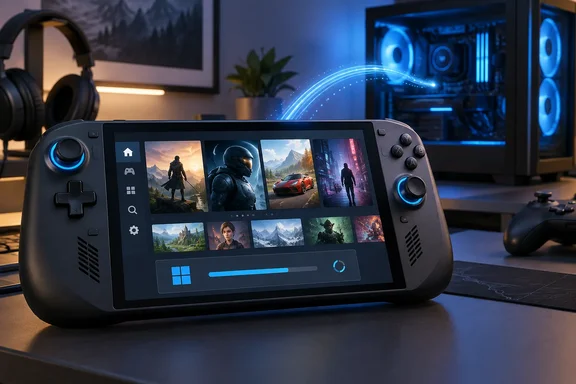
Below is what changed, which features are free for everyone and which are paid Early Access, and the setup requirements that are easy to miss in the changelog.
What Winhanced is, briefly
Winhanced is a controller-friendly shell for Windows handhelds. Windows Central's Adam Hales describes it as a launcher that essentially replaces Xbox Mode. Instead of simply running the Xbox app full screen, it offers a complete interface that connects Xbox, Steam, GOG and Epic libraries and also handles emulators and other apps. Digital Citizen says it is designed for devices like the Xbox Ally X, ROG Ally, Lenovo Legion Go, and other portable systems, and positions it as an alternative to Steam Big Picture Mode and Microsoft's still developing Xbox handheld experience.
It also connects to Windows more deeply than most launchers. TechSpot's download listing says Winhanced is the first third-party app that can register as your Windows Full Screen Experience home app. So it isn't just an app you open. It can be the first thing you see when you pick up the device.
Summary: Winhanced is a third-party Windows shell for handhelds that combines several game stores and device controls in one controller-driven interface. It can also replace the Xbox app as the Full Screen Experience home app.
The 0.9.9.9 headline features
The developer's release notes, dated September 27, 2026, summarize the update: Winhanced 0.9.9.9 adds the new Streaming Companion, so you can play the games on your gaming PC from your handheld. You can also install Windows updates, hear music for your games, and make your own game collections.
Windows Central marked which features are public and which are Early Access. Here is that split:
| Feature | Access |
|---|---|
| Friend cards (messages, status, profiles) | Public |
| Better Discord, Steam, Xbox and PlayStation integration | Public |
| PC streaming via the Streaming Companion | Public |
| Windows updates inside Winhanced | Public |
| Improved driver detection | Public |
| Game theme music, including custom tracks | Public |
| Resumable Epic and GOG downloads | Public |
| Custom game collections | Early Access |
| Controller-navigable Discord server browser | Early Access |
The developer's notes add one more item to the public list: Favorites. The star on a game's page, the Favorites filter and the Favorites list are now open to everyone, and any stars you already added are kept.
According to the developer, there is one installer for everyone. Patreon backers sign in inside the app to turn on Early Access features. Earlier release notes on Patreon say you sign in with your Patreon ($5+/month) or Discord (Supporter+ or Youtuber/Press roles) account. That was written for an April build, so check the current terms before you pay.
Summary: Most of the headline features are free. Custom collections and the Discord server browser require an Early Access sign-in.
Streaming Companion: your gaming PC in your hands
This is the biggest addition. The Companion is a separate app that runs on your gaming PC, not the handheld. The developer's setup instructions are: Install the Companion on your PC and keep Winhanced on the device you hold. Your PC's games show up in your library ready to stream, with a cloud icon.
Setting it up
According to the developer's release notes:
- Install Winhanced 0.9.9.9 on the handheld and turn on PC streaming in its settings.
- Install the Streaming Companion on the gaming PC.
- Open the Companion, pick a streaming app, and click Install.
- Make sure both devices are on the same home network. You don't pair anything manually.
- If you already use a supported streaming app, keep it and select it in the Companion's settings.
Once it's running, streamable games show a cloud icon in the library and in Recent Games. You can still install a game locally on the handheld if you prefer. A Desktop tile streams the whole PC screen, and you can change its picture. Quality presets fit your screen, every setting can be changed with a controller, and Moonlight, which displays the stream, lets you choose which button you hold to stop.
Wake-on-LAN has a catch
The developer says the Companion sets up the streaming app for you, so there is nothing to pair by hand, and Winhanced can wake your PC when you start a game. The release notes add a condition. You turn wake-up on per PC in Winhanced's PC streaming settings, but you still have to enable Wake on LAN yourself in that PC's BIOS and network settings. When you launch a game, Winhanced tries to wake the PC and waits up to a minute. The developer says it works best when the PC is connected to the router by cable.
That's standard Wake-on-LAN behavior, and it's where most people's setups fail. If your PC doesn't wake, check the BIOS setting and the network adapter's power-management options in Device Manager before blaming the launcher.
Two smaller details are useful. Before connecting, the Companion checks whether the PC's monitor is on and wakes it if it isn't. Virtual-display or custom-monitor setups are left to your streaming app. When you stop streaming, the game and the stream close on the PC, and Winhanced checks that a Steam game's files still exist, so a game you moved or deleted no longer looks ready to stream.
Summary: Streaming is free and needs almost no setup on a home network. Wake-on-LAN still needs BIOS and network configuration on the PC, and it works best over Ethernet.
Windows Update without the desktop
For a Windows handheld, this may be the most useful change day to day. Anyone who has tried to tap through Settings > Windows Update on a seven-inch touchscreen will appreciate it.
According to the release notes, the launcher's Update Center now has a Windows Updates section:
- Install everything with one button, or install updates one at a time.
- Updates are sorted the way Windows sorts them: Feature, Quality, Driver, Definition, then everything else. Each shows its size.
- You see progress, when Winhanced last checked, and a message when Windows needs a restart. Winhanced never restarts your device for you.
- Updates install one at a time. Some ask a question that you have to answer in Windows itself.
The developer adds one important warning. If Windows is already waiting to restart, restart first, or the updates may stop partway through. Anyone who has watched a cumulative update stall behind a pending reboot will recognize the problem.
Drivers
Driver detection has improved mainly on MSI and ASUS hardware. The notes say many more components now show the installed version instead of "Not Detected," so they can show as Up to Date or Updates Available. ASUS drivers for parts your device doesn't have no longer appear. Update Center now supports OneXPlayer too, covering BIOS, controller updates and other OneXPlayer software, but controller updates require the OneXConsole app. These are improvements, not a promise of full driver coverage for every handheld model.
Summary: You can now handle Windows updates from the launcher, but Winhanced won't reboot for you, and a pending restart should be done first.
Downloads that don't start over
The Epic and GOG changes will help anyone on hotel Wi-Fi. The developer says Epic and GOG downloads can pick up where they left off, download only what changed in an update, and fix a broken install.
Details from the release notes:
- Epic: Stopped downloads resume, even if the game was updated in the meantime. A new Repair button (game page > Game Options > Manage) checks every file, redownloads only missing or broken ones, and updates the game. It currently works only for Epic games, and you must be signed in to Epic.
- GOG: Downloads resume and keep files that are already correct. Canceling no longer deletes the game folder or damages files you already had.
- Both: Files are checked before downloading starts, so a large game may pause before progress appears, and the total size stays blank during the check. The developer notes that it is not frozen.
Summary: Resumable, change-only downloads make the PC storefronts much easier to use on a handheld. The pause before a large download starts is expected.
Per-game profiles, including eGPUs
The developer says each game now keeps separate settings for battery, plugged in, and an external graphics card, and that includes the game's own graphics settings. Plugging in an eGPU switches to its profile and keeps the handheld in Performance mode.
The in-game graphics part is the most interesting. With per-game settings turned on, Winhanced finds where a game saves its settings, saves a copy when you close the game, and restores the right copy before your next session. You could run low settings on battery and high settings when docked. The notes say this happens only between play sessions, never while the game is running. Supported Nvidia cards also get per-game options such as DLSS, frame generation and low latency, depending on the card and driver.
Hardware fixes: charge limits, fans and the OneXPlayer 3
The notes say handhelds get a battery charge limit and graphics memory settings. Charge limits of 80%, 90% or 100% (only 80% or 100% on Legion Go models) work on MSI Claw models, the ROG Ally and Ally X, the ROG Xbox Ally and Xbox Ally X, the Legion Go family, and the OneXPlayer 3. On ROG devices, Winhanced can set the limit but can't read it back, so it shows the limit you picked. The Intel graphics memory control is limited to certain MSI Claw models and the OneXPlayer 3.
The OneXPlayer 3 gets the most fixes, and the notes are candid about what was wrong. Fan settings used to be overwritten almost immediately. Now there is an eight-point curve from 30°C to 100°C, and the fan ignores anything under 20%. Power limits above 25W were accepted but never applied because of a second limit in the device. Winhanced can now raise that limit only if OneXConsole is installed. Without it, the slider stops at about 25W. Presets are Silent 12W, Balanced 20W and Performance 35W. Custom fan curves on the Legion Go and Go S should now match what the device reports.
This builds on 0.9.9.8, released September 4. In that update, the way Winhanced sets power limits on every handheld was rebuilt from measured numbers instead of guesswork.
The extras: music, friends and Discord
- Game theme music is off by default (Settings > General). You can choose a track per game or use a local MP3, WAV, FLAC, M4A, WMA or AAC file up to 200 MB.
- Friend cards now include Messages, Status and Profile panels for everyone, across Discord, Steam, Xbox and PlayStation.
- Discord server browser (Early Access) lets you browse shared servers and text channels with a controller. The developer notes you can't join voice channels because Discord doesn't let apps like Winhanced join calls.
Should you switch?
Hales is enthusiastic. He says Winhanced turned his Xbox Ally X from a device he complained about into one he actually wants to pick up, and he suggests people who found earlier builds buggy try again. He acknowledges that Xbox Mode is improving but says he'll keep using Winhanced.
That is one reviewer's experience, not a benchmark. The developer's claim that device consistency has reached a "1.0 level" is the developer's own assessment. Keep in mind too that Winhanced takes over power, fan and charge settings from vendor tools. That's convenient, but you're trusting a third party with low-level hardware control. The candid OneXPlayer notes are reassuring on that front, and they also show how much work went into getting it right.
My take, based on general industry experience: if you're using Microsoft's Full Screen Experience on a handheld and keep dropping back to the desktop for updates, drivers or resuming downloads, 0.9.9.9 fixes those specific problems. Streaming alone makes it worth trying for anyone with a gaming PC at home. If your handheld already works well with Steam Big Picture or Xbox Mode, a version 1.0 is apparently close.
References
- Winhanced's launcher update v0.9.9.9 solves my biggest complaints with Windows gaming handhelds - Windows Central Windows Central · 2026-09-28T10:31:52+00:00
- Winhanced Download | TechSpot techspot.com
- Winhanced Update Adds Achievements And Better Streaming For Windows Handheld Gaming PCs digitalcitizen.life