

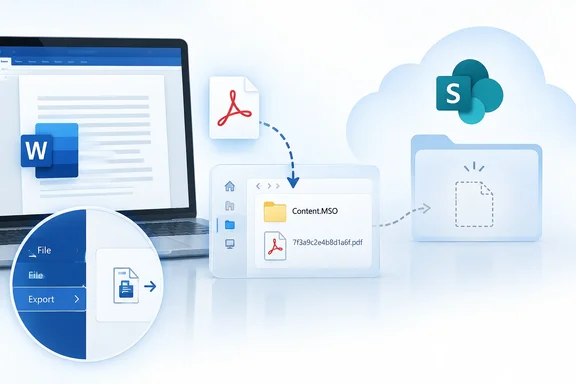
What Microsoft has confirmed
Microsoft's support notice for the issue was last updated on September 25, 2026. It applies to Word for Microsoft 365 after updating to Version 2609 (16.0.20430.x). According to Microsoft:
- Users may not be able to save Word documents as PDFs to SharePoint Online locations.
- Word shows no error. The PDF goes to
C:\Users\username\AppData\Local\Microsoft\Windows\INetCache\Content.MSOwith a random file name. - The problem only happens when you use Save/Save As, choose PDF as the file type, and pick a SharePoint location.
- The status is WORKAROUND, not fixed.
Microsoft also posted a service health incident. Penn's copy of Microsoft's incident feed shows an entry dated September 24 titled "Users may be unable to convert Microsoft Word desktop app documents to PDFs using Save As to SharePoint locations". So the issue was acknowledged on the Microsoft 365 admin side as well as on the consumer support page.
Summary: Microsoft confirms the bug on version 2609 builds and has offered workarounds, but no fix yet.
How it surfaced: a network drive and names like "458d72b7"
The first public report came earlier, on Microsoft Q&A on September 15. The poster said Word saved PDFs of network-drive documents into the Content.MSO folder with names like "1f10f000" and "458d72b7" instead of the original file name. They were running Word for Microsoft 365 MSO (Version 2609 Build 16.0.20430.20032) 64-bit · Print to pdf still works, but save as acts differently.
A volunteer moderator replied that Version 2609 Build 16.0.20430.20032 is in the Insider program's Current Channel (Preview). He suggested updating to the latest build to see whether the issue had been fixed. More reports arrived on September 24, including "Same issue here with version 2609. Is Microsoft considering a fix or do i have to roll back all my installations?"
The bug has also turned up in a second Q&A thread. There, an admin said the problem started with one PC earlier in the week, and now it's all of them. A moderator said it looked like the same Content.MSO bug.
Neowin reported the story as mainly affecting documents opened from "network locations". Microsoft's official scope is narrower.
Preview build or production build?
At first this looked like a problem only for Office Insiders. It isn't that simple:
| Build | Where it shows up | PDF bug reported? |
|---|---|---|
| 16.0.20430.20032 | Current Channel (Preview), September 8 | Yes, original Q&A report |
| 16.0.20430.20092 | Microsoft's Current Channel update history (September 22) and Preview notes | Yes, reproduced by users on Microsoft 365 Apps for business |
| 16.0.20326.20072 (Version 2608) | Previous build | Users say rolling back restores normal behavior |
In the Q&A thread, one admin tested Microsoft 365 Apps for business on build 20430.20092 across several PCs. Their results:
- Network DOCX saved as PDF to a network location: failed
- Network DOCX saved as PDF to a local folder: worked
- Local DOCX saved as PDF to a local folder: worked
Rolling the same PC back to 16.0.20326.20072 fixed the network-to-network case. Microsoft's release notes for the later 2609 builds only say "various fixes" or list resolved issues without naming this one. Its known-issue notice still covers the whole 16.0.20430.x build family.
A caution on reading this: Microsoft has confirmed SharePoint Online only. The network-drive reports are credible but come from users. Microsoft hasn't said every SMB share or on-premises file server is affected. Microsoft also hasn't said every version 2609 install is affected, or that only Preview builds are.
Summary: Build 20092, which reached the Current Channel, is still affected according to users. Updating within version 2609 is not a confirmed fix.
How to find a "missing" PDF
If a PDF seems to have disappeared after Save As, check the cache folder before you rebuild the document:
- Open File Explorer.
- Paste
%LOCALAPPDATA%\Microsoft\Windows\INetCache\Content.MSOinto the address bar and press Enter. This is the same asC:\Users\<username>\AppData\Local\Microsoft\Windows\INetCache\Content.MSO. - Switch to Details view and sort by Date modified. The file names are random, so the time you saved and the file type are your best clues.
- Open the likely file to check it. Then copy it to where it belongs and give it a proper name.
Two cautions. Microsoft names this location but doesn't promise that every PDF can be recovered from it. And don't clear the Content.MSO folder as a "fix". Microsoft doesn't recommend that anywhere, and it could delete the file you're looking for.
Workarounds, in order of how official they are
Microsoft-supported:
- Export instead of Save As. Go to File > Export > Create PDF/XPS Document, choose where to save, and publish. This skips the broken Save As path.
- Save to another location first. Microsoft only says to save to "an alternative location". In practice, that means saving the PDF locally and then uploading or moving it to SharePoint.
User-reported (not Microsoft guidance):
- Print to PDF. Several users say it still works. One admin called it "Not ideal, but it works." Microsoft Print to PDF can handle hyperlinks and document structure differently from Word's own PDF export. That's our general industry experience, not a documented part of this bug. If accessibility tags matter to you, use Export.
- Roll back to Version 2608. The original poster reported "Problem solved by rolling back to previous version 2608 Build 20326.20072." Their method was to run this from an elevated Command Prompt in
C:\Program Files\Common Files\Microsoft Shared\ClickToRun:
OfficeC2RClient.exe /update user updatetoversion=16.0.20326.20072
They then turned off automatic updates. That trade-off matters. Pausing Office updates also delays security fixes, and one admin noted that the rollback won't last if auto-update is left on. In a managed environment, do rollbacks through your normal deployment tools and track them as a temporary exception.
Moderators in both threads also asked affected users to report the bug through Help > Feedback > Report a problem in Word. More reports give Microsoft more telemetry to work with.
Why IT admins should care
The worst part of this bug is that Word stays quiet. When a save fails with an error, people try again. When it fails silently, people assume the file is saved and email the link. Anyone who opens the SharePoint folder later finds nothing there.
Consider an accounts team exporting invoices into a document library that a Power Automate flow watches. No PDF arrives, so the flow never runs, and nobody notices until a customer asks where the invoice is. Also, an unrenamed PDF left in a user's local cache is outside SharePoint's retention and sharing controls. We found no evidence of data leaking because of this. But records managers may not like finished documents collecting in AppData.
Practical steps for admins:
- Check which devices are on 16.0.20430.x builds, especially in groups that export PDFs to SharePoint.
- Tell users to use File > Export for PDFs until Microsoft marks the issue fixed.
- Keep an eye on the service health incident and Microsoft's known-issues page for Word.
- Treat rollbacks as a last resort and keep them temporary.
It has also been a rough month for Office updates. Microsoft recently paused KB5002907 after it broke Office licenses and, in some cases, removed Office apps entirely. The two problems aren't related, but together they suggest keeping validation rings for Office builds, just as many organizations already do for Windows updates.
Bottom line: If a Word PDF you saved to SharePoint Online seems to have vanished, look in Content.MSO. Use File > Export > Create PDF/XPS Document until Microsoft ships a fix.
References
- Microsoft confirms Word can save PDFs to the wrong folder with random filenames Neowin · 2026-09-28T19:54:01+00:00
- Word Save As PDF Exports to INetCache\Content.MSO with Random Filename Instead of Source Folder - Microsoft Q&A learn.microsoft.com
- Users cannot use Save As to create PDFs and store them in SharePoint in Word for Windows | Microsoft Support support.microsoft.com