

Windows has a handful of underappreciated, built‑in knobs that can produce surprisingly large speed and responsiveness gains without spending a dollar — and four in particular deserve attention: virtual memory (page file), Fast Startup, visual animations and effects, and per‑process priority. The original XDA piece neatly lists those four, but the real story is about when to use each tweak, the trade‑offs involved, and how to apply them safely so you get measurable improvements without introducing stability or data‑loss risks. This feature explains what each setting does, verifies the important technical claims, highlights real benefits and pitfalls, and gives step‑by‑step, recoverable guidance for Windows users who want a faster PC now.
Windows is a complex system balancing responsiveness, stability, and compatibility across millions of hardware combinations. Over time, installs, drivers, background apps and accumulated data can make a once‑spry machine feel sluggish. Hardware upgrades — NVMe SSDs, more RAM — deliver the largest single improvements, but software and OS settings can recover a lot of perceived speed. The four tweaks discussed here are all built into Windows and can be reversed, but each has its own context where it helps most and times when it should be avoided. Practical testing and careful backups are the sensible first steps before changing system settings.
Source: XDA 4 lesser-known Windows features that help make your PC faster
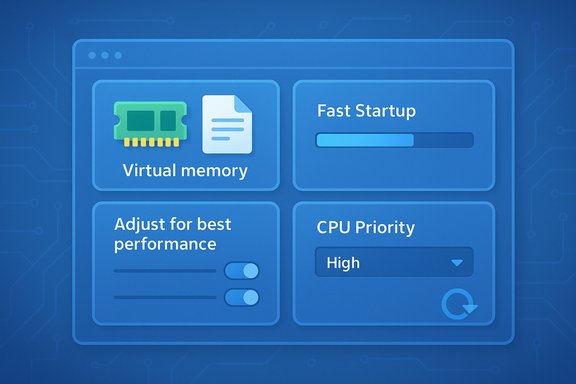 Background / Overview
Windows is a complex system balancing responsiveness, stability, and compatibility across millions of hardware combinations. Over time, installs, drivers, background apps and accumulated data can make a once‑spry machine feel sluggish. Hardware upgrades — NVMe SSDs, more RAM — deliver the largest single improvements, but software and OS settings can recover a lot of perceived speed. The four tweaks discussed here are all built into Windows and can be reversed, but each has its own context where it helps most and times when it should be avoided. Practical testing and careful backups are the sensible first steps before changing system settings. 1. Virtual memory (the page file): what it is, when changing it helps
What the page file does
Windows uses a page file (pagefile.sys) as virtual memory: when physical RAM is exhausted, the OS can move inactive memory pages to disk so active processes keep running. That prevents out‑of‑memory errors and system freezes, especially under heavy workloads (large VMs, video editing, big data sets). The page file is also used when Windows creates crash dumps after a Blue Screen — having a properly sized page file on the boot drive is therefore important for diagnostics.Common recommendation vs modern guidance
Older heuristics recommended setting the page file to 1.5× the installed RAM (initial) and 3× RAM (maximum) — you’ll still see that guidance in many tutorials. That formula has historical roots and is still occasionally useful as a starting point on low‑RAM systems. However, modern Microsoft guidance and experienced Windows sources generally advise letting Windows manage the page file automatically in most cases; manually changing it is primarily for specific scenarios (server workloads, diagnostic needs, or systems with extreme storage constraints). In short: automatic management is safe for most users; manual sizing is an advanced, situational choice.When to consider increasing or moving the page file
- You run memory‑heavy apps that exhaust RAM (and you still see slowdowns or out‑of‑memory errors).
- You need guaranteed space for crash dumps (kernel/full memory dumps require a page file on the system drive).
- You want to move it off a small, nearly full system partition to a larger internal disk (do not move it to a removable USB drive unless using ReadyBoost‑style scenarios — and even then, performance is limited).
How to change it (safe, step‑by‑step)
- Open Start → search for “View advanced system settings” → open System Properties.
- Under Performance, click Settings → Advanced → Change under Virtual memory.
- Uncheck Automatically manage paging file size for all drives to customize.
- Either choose System managed size (recommended), or Custom size and set Initial/Maximum values. If you choose custom, document your previous values and reboot after changes.
- Restart and monitor memory usage (Task Manager → Performance → Memory) to confirm behavior.
Risks, gotchas and practical tips
- Setting no page file can cause applications that expect virtual memory to fail; do not disable it permanently unless you know your use case.
- Making initial and maximum sizes identical reduces dynamic resizing overhead, but uses fixed disk space.
- On systems with modern large RAM (16–64 GB), the default Windows management is usually optimal; manual tweaks rarely help.
- If you need speed more than capacity, adding physical RAM is the most effective option (and far preferable to relying on a page file on a slow HDD).
2. Fast Startup: how it shortens boot time — and when it backfires
What Fast Startup is
Fast Startup (also called hybrid shutdown) saves a trimmed snapshot of the kernel and loaded drivers to the hibernation file when you shut down. On next power‑on Windows restores that snapshot instead of performing a full cold boot, usually cutting several seconds (or more) from time‑to‑lock‑screen on many systems. This has been in Windows since Windows 8 and remains available in Windows 10/11.Real gains and an anecdote
Boot time gains depend on hardware. Systems with HDDs or older SATA SSDs typically see larger absolute improvements; NVMe SSD systems still benefit but by smaller margins. The XDA author’s reported example (37.5s → 16.5s) is an anecdote — useful to show practical impact, but brand‑ and configuration‑specific. Treat single examples as illustrative, not guaranteed. Always measure on your hardware.Where Fast Startup causes problems
- Dual‑boot systems (Windows + Linux): Fast Startup leaves NTFS partitions in a state similar to hibernation, which can make them read‑only or unsafe to mount from Linux. That can cause data corruption or refused mounts.
- Disk or device replacement workflows: Removing a drive that was “open” in a hybrid state can lead to confusing file states.
- Some updates and driver installs require a full shutdown/restart; Fast Startup can interfere with their proper application.
- Full disk encryption (BitLocker) and some firmware scenarios can interact unexpectedly with hybrid boot; administrators should validate behavior.
How to enable or disable Fast Startup safely
- Control Panel → System and Security → Power Options → Choose what the power buttons do.
- Click Change settings that are currently unavailable, then check or uncheck Turn on fast startup and Save changes.
- If the option is missing, ensure hibernation is enabled (powercfg /h on from an elevated command prompt).
Recommendation
- If you run a single‑OS Windows PC and want faster cold boot times, enable Fast Startup and test for stability.
- If you dual‑boot, use Linux, perform low‑level disk operations, or rely heavily on certain firmware tools, disable Fast Startup to ensure clean shutdowns and avoid file system problems. Always create a restore point before altering this setting.
3. Minimal animations / visual effects: an instant perceived speed boost
Why turning off animations helps
Animations, shadows, transparency, and compositing improve the look and feel of the desktop but consume CPU/GPU cycles and can add small delays to UI actions. On older machines or systems with limited GPU/CPU/RAM, disabling these effects produces immediate snappiness: windows open faster, lists render without fades, and the system feels more responsive. Microsoft’s own guidance lists adjusting visual effects as a first, supported performance tip.How to adjust visual effects
- Start → search Adjust the appearance and performance of Windows → open it.
- Under Visual Effects, pick Adjust for best performance to disable everything, or Custom to selectively keep a few effects you like (for example, keep font smoothing).
- Apply, then restart if prompted. You can also disable transparency in Settings → Personalization → Colors.
Practical configuration tips
- For older laptops or machines with <8 GB RAM, choose Adjust for best performance for a clear benefit. On modern desktops with discrete GPUs, visual effects have negligible performance cost for most users.
- If you want a balance, use Custom and disable the heaviest items (animate windows, taskbar animations, shadows) while keeping Smooth edges of screen fonts for readability.
- The change is low‑risk and reversible; compare with a simple before/after subjective test and a quick Task Manager check on GPU/CPU usage while opening apps.
4. Assigning higher priority to a process: when it helps and why “Realtime” is dangerous
What changing process priority does
Windows schedules CPU time by combining process priority and thread scheduling. Raising a process’s priority causes the OS to give it preference when the CPU becomes available, improving responsiveness for CPU‑bound workloads (e.g., short rendering tasks, a foreground game competing with background services). But priority is not a magic performance multiplier: it only affects scheduling, not single‑thread CPU speed or I/O bottlenecks.How to change priority (safe steps)
- Press Ctrl+Shift+Esc → More details → Details tab.
- Right‑click the target process → Set priority → choose High (not Realtime).
- Use sparingly: change only for the current session process and test behavior (Task Manager shows CPU usage). Priority changes are not persistent across process restarts.
Why Realtime is usually a bad idea
- Realtime can starve critical system processes (input handling, Explorer, device interrupts), making the machine unresponsive or causing freezes. That’s why Task Manager warns you when selecting Realtime. The general guidance from Windows experts is to avoid Realtime, and prefer High or Above normal if you need more CPU attention.
When priority changes help
- Short, CPU‑bound tasks that must finish immediately (a single background encoding job you want finished fast) can benefit from a temporary High setting.
- Avoid raising priority for background services, indexing, or antivirus; deprioritize (set to Low) non‑critical tasks if they disrupt foreground work.
- Do not “High‑priority” everything — that defeats the scheduler and makes the system behave worse overall.
Putting the four tricks together in a safe optimization workflow
- Back up and create a system restore point before changing low‑level settings.
- Start with low‑risk adjustments: disable unnecessary startup apps (Task Manager → Startup) and set Visual Effects to a reasonable profile. Measure perceived performance.
- If you see memory pressure (high RAM use and page file utilization), evaluate the page file: prefer “System managed” unless you have a specific reason to set custom sizes. If increasing virtual memory, document values and monitor.
- If you need faster boot and aren’t dual‑booting, enable Fast Startup and confirm there are no negative effects; if you see instability or share disks with other OSes, disable it.
- Use process priority sparingly and never set Realtime for ordinary apps. If you need persistent priority changes, use scheduled startup scripts carefully — but prefer optimizing resource use and adding hardware (RAM/SSD) when possible.
Measuring impact and troubleshooting
How to measure
- Use Task Manager (Performance tab) to track CPU, memory, disk, and GPU before and after changes.
- For boot time, rely on Event Viewer Diagnostics‑Performance boot metrics (Event ID 100, BootDuration in ms) for reproducible measurements rather than a single stopwatch run. This avoids misleading single‑run anecdotes.
Troubleshooting common problems
- If the system becomes unstable after priority changes, reboot and avoid Realtime.
- If Fast Startup causes dual‑boot or mounting issues, disable it and run chkdsk on affected NTFS partitions if Linux reports mount errors.
- If you resize the page file and experience crashes or inability to create memory dumps, restore page file settings or set a system managed page file on the boot partition and reboot.
Critical analysis: strengths, limits, and risks of the four tweaks
Strengths
- These are free, built‑in adjustments that can yield rapid, tangible improvements for many users. Disabling heavy UI animations and tweaking startup apps offer high ROI with minimal risk. Fast Startup really does shorten boot times on many PCs. Temporary priority boosts can make a single app feel snappier in a pinch.
Limits
- None of these settings replaces hardware upgrades. If the system is CPU‑bound or I/O‑bound, scheduling tricks and animation toggles only mask fundamental bottlenecks. Increasing RAM or switching to an NVMe SSD will produce larger, more permanent gains. The page file can prevent crashes but cannot make physical RAM behave like more RAM; it is disk‑backed and therefore slower.
Risks
- Fast Startup can break cross‑OS workflows (dual boot) and complicate some firmware/driver workflows.
- Manual page file changes can remove the ability to generate useful dump files or cause odd stability problems if set incorrectly.
- Realtime priority is a blunt instrument that can freeze or crash a system. Misapplied process priority changes or disabling key services can render a system unusable. Always document previous values and keep recovery tools available.
Concrete, conservative recommendations (what to do right now)
- If you want a straightforward, low‑risk speed boost:
- Disable unnecessary startup apps (Task Manager → Startup).
- Set Visual Effects to Adjust for best performance or use the Custom option to turn off the heaviest items.
- If you’re concerned about memory pressure:
- Leave page file on System managed size unless you have a measurable reason to change it. If you change it, keep a note of prior settings and restart to confirm stability.
- If you want quicker boot times and don’t dual‑boot:
- Enable Fast Startup, test your workflow for a day or two, and disable it if you encounter stability issues or cross‑OS file errors. Create a restore point before toggling.
- If you need better responsiveness for a specific foreground app:
- Temporarily set its priority to High (not Realtime), monitor behavior, and revert when done. Avoid making priority changes global or permanent.
Final thoughts
Windows ships with several simple but effective levers that reclaim performance from existing hardware. The four techniques highlighted here are all legitimate — and they are exactly the sorts of practical, low‑cost fixes enthusiasts should try before shopping for new components. That said, users should treat them like surgical tools: small, precise changes with good measurement and the ability to revert. When used carefully — and combined with sensible housekeeping (disable needless autostart apps, keep drivers and updates current, and add RAM or an SSD if feasible) — these built‑in settings can make an older PC feel noticeably faster and more responsive without spending a dime.Source: XDA 4 lesser-known Windows features that help make your PC faster
