

If you right‑click your desktop in Windows 11 and wish a favorite app (Notepad++, Chrome, a portable tool) would appear where you can launch it instantly, there are four practical, tested ways to do that today — each with different safety, visibility, and maintenance trade‑offs. This guide distills the options, verifies the exact registry paths and commands you’ll need, explains why many tutorials “don’t work” the way people expect on modern Windows 11 builds, and gives step‑by‑step, copy‑ready instructions plus recovery tips so you can try them safely.
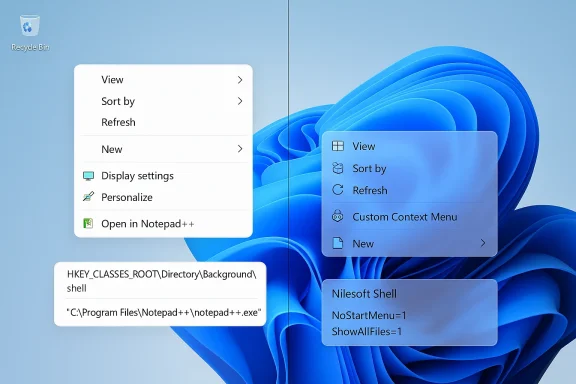
Windows 11 ships with two separate context‑menu systems: the modern (compact) menu you see when you right‑click normally, and the classic (full) menu that appears after you choose “Show more options” or press Shift + F10. The compact menu is a WinUI/modern shell experience and only accepts modern shell extensions or packaged apps that register with the new context menu APIs. Registry entries you add under the traditional shell keys will show up in the classic menu — they are not automatically promoted into the compact UI. This split is deliberate and has been documented by developers and the community; it’s the single most common source of confusion when people follow older “add to context menu” tutorials and think “nothing happened.”
Because of this architecture, the question “how do I add a program to the right‑click menu” branches into two separate practical answers:
HKEY_CLASSES_ROOT\Directory\Background\shell\<YourKeyName>\command
Set:
1.) Under HKEY_CLASSES_ROOT\Directory\Background\shell create a new key called NotepadPlusPlus.
2.) Set the (Default) value of NotepadPlusPlus to: Open Notepad++
3.) Under NotepadPlusPlus create a subkey named command.
4.) Set the (Default) value of the command key to: "C:\Program Files\Notepad++\notepad++.exe"
If you want the command to open the file you right‑clicked on, append "%1" after the executable path:
"C:\Program Files\Notepad++\notepad++.exe" "%1" — the quotes are essential if the path contains spaces. These exact steps and the recommended path/quoting behavior are documented widely and have been validated during testing on current Windows 11 builds.
item(title='Google Chrome' cmd='C:\Program Files\Google\Chrome\Application\chrome.exe' image='C:\Program Files\Google\Chrome\Application\chrome.exe')
Save the file (run Notepad as Administrator if editing installer files) and reload Shell (Ctrl + right‑click or the app’s reload command); the change appears instantly. The syntax and examples are documented on Nilesoft’s site.
reg add "HKCU\Software\Classes\CLSID{86ca1aa0-34aa-4e8b-a509-50c905bae2a2}\InprocServer32" /f /ve
This creates a CLSID/InprocServer32 key with an empty default value, essentially disabling the newer compact menu and restoring the full menu by default. Multiple troubleshooting guides and how‑tos document the exact key and include an undo command (reg delete ...) to return to the modern menu if you change your mind. Be aware: some users have reported that feature updates or particular builds can require re‑applying the tweak; it’s easy to run the command again if necessary.
Whichever method you pick, follow three simple rules:
Conclude by remembering the single quickest test: after you add an entry with the registry method, hold Shift and right‑click — if your item appears under the legacy menu, the change worked; if you need it in the compact menu, try the Custom Context Menu app or Nilesoft Shell.
Source: H2S Media How to Add a Program to the Right-Click Menu in Windows 11 (4 Safe Methods)
 Background / Overview
Windows 11 ships with two separate context‑menu systems: the modern (compact) menu you see when you right‑click normally, and the classic (full) menu that appears after you choose “Show more options” or press Shift + F10. The compact menu is a WinUI/modern shell experience and only accepts modern shell extensions or packaged apps that register with the new context menu APIs. Registry entries you add under the traditional shell keys will show up in the classic menu — they are not automatically promoted into the compact UI. This split is deliberate and has been documented by developers and the community; it’s the single most common source of confusion when people follow older “add to context menu” tutorials and think “nothing happened.”Because of this architecture, the question “how do I add a program to the right‑click menu” branches into two separate practical answers:
- If you’re satisfied seeing the entry inside the full/classic menu (Show more options) you can use the well‑known registry approach or simple GUI tools that write those keys.
- If you want the entry in the modern compact menu you need either a packaged/modern extension or a helper app that implements the modern shell contract; there are a small number of such tools in the wild.
Why the “it didn’t work” problem happens (technical short answer)
When you add keys under HKEY_CLASSES_ROOT\Directory\Background\shell (or file‑specific locations) you are creating the classic shell commands Explorer has used for decades. Windows 11’s compact menu intentionally hides those classic entries behind “Show more options,” so new registry entries are still present — they’re just inside the legacy menu. If you want a top‑level item in the compact menu, the extension must be implemented as a modern IExplorerCommand / packaged app or the system must be extended by a tool that registers as a modern shell extension. Multiple developer and community sources confirm this behavior and provide the official workaround paths.Method 1 — Registry Editor (classic menu; fastest, free)
This is the canonical, low‑dependency approach. It works on every Windows 11 edition and survives updates in almost all cases because it simply writes values into HKEY_CLASSES_ROOT. The trade‑off: entries created this way appear in the classic context menu (Show more options / Shift + right‑click), not in the compact modern menu.Why use it
- Universal: works without 3rd‑party installers or packaging.
- Fast: a single registry key plus a command value.
- Reversible: delete the key to remove the entry.
- No additional software running in the background.
Exact keys and an example (verified)
Create:HKEY_CLASSES_ROOT\Directory\Background\shell\<YourKeyName>\command
Set:
- (Default) on <YourKeyName> = Display name text (what you see in the menu)
- (Default) on command = Full quoted path to executable (and "%1" when you want the clicked file passed)
1.) Under HKEY_CLASSES_ROOT\Directory\Background\shell create a new key called NotepadPlusPlus.
2.) Set the (Default) value of NotepadPlusPlus to: Open Notepad++
3.) Under NotepadPlusPlus create a subkey named command.
4.) Set the (Default) value of the command key to: "C:\Program Files\Notepad++\notepad++.exe"
If you want the command to open the file you right‑clicked on, append "%1" after the executable path:
"C:\Program Files\Notepad++\notepad++.exe" "%1" — the quotes are essential if the path contains spaces. These exact steps and the recommended path/quoting behavior are documented widely and have been validated during testing on current Windows 11 builds.
Step‑by‑step (copy‑ready)
- Open Start → Run → regedit (accept UAC).
- Navigate to HKEY_CLASSES_ROOT\Directory\Background\shell.
- Right‑click shell → New → Key → name it (this will be the menu label’s internal key).
- With that key selected, double‑click (Default) → enter the display text you want.
- Right‑click your new key → New → Key → name it command.
- Select command and set its (Default) to the full quoted executable path (add "%1" if passing the selected file).
- Close regedit. Right‑click on the desktop and use Show more options or Shift + F10 to see the new entry.
Icon and position
- To set an icon: create a String Value named Icon in your primary key and set it to the full path of the .exe or .ico.
- To place an item at Top/Middle/Bottom add a String Value named Position with the value Top, Middle, or Bottom. These optional values are used by many community tutorials and registry editors.
Risks & best practices
- Always create a System Restore point before editing the registry. If you mistype a path or key you can delete just that key; a restore point is insurance against wider mistakes.
- If the entry doesn’t appear, restart Explorer or sign out/in. Double‑check quotes and the exact path. Common mistakes are missing quotes or typos in the executable path.
Method 2 — Easy Context Menu (Sordum) — GUI for the registry approach
If editing the registry sounds fragile or tedious, Easy Context Menu (Sordum) provides a portable GUI that writes the correct registry keys for you. It targets the classic menu (so items appear under Show more options).What it does
- Presents prebuilt shortcuts and commonly used actions you can add with checkboxes.
- Has a List Editor so you can add any custom program (path, display name, location).
- Includes a cleaner to disable unwanted context menu items added by other programs.
How to use it (short)
- Download and extract the portable package.
- Run the tool, use List Editor → Add to insert the EXE path and display name.
- Click Apply Changes; entries appear in the classic menu.
Pros and cons
- Pros: no manual registry edits, reversible via the tool, portable.
- Cons: still adds registry entries under the classic menu (Show more options). Because it writes registry keys, it inherits the same limitations as Method 1 for compact menu visibility.
Method 3 — Custom Context Menu (ikas‑mc / "Custom Context Menu" Store app) — modern menu entries
If your goal is to have items appear in the modern compact Windows 11 menu, the registry route isn’t enough. The modern API requires a packaged app or a shell extension that implements the modern IExplorerCommand interfaces. The most practical solution for end users has been the Custom Context Menu family (ContextMenuForWindows11) authored by ikas‑mc: it can add entries to the compact menu by registering itself as the modern extension and letting you configure nested or top‑level menu entries. The project is actively maintained on GitHub and is distributed through a Microsoft Store package as well as GitHub releases.How it works (short)
- The app is packaged and implements the modern contract, so menus created via it show inside the compact Windows 11 menu (or under the app’s top‑level node depending on configuration).
- Many third‑party tools (for example RightClickTools) can write configuration files for this app so their commands appear in the modern menu.
Install & usage summary
- Install Custom Context Menu from the Microsoft Store (or use the GitHub release if you prefer). The GitHub repository contains documentation and examples.
- Launch the app and add a new item by specifying the program path, display name, icon and matching rules (folder / file type / desktop).
- The app registers itself so your entries appear in the compact menu (often as subitems under the app entry). Restart Explorer if items don’t show immediately.
Pros and cons
- Pros: places entries in the modern menu; survives updates; no registry fumbling.
- Cons: behavior can vary — many users see their custom items nested under the app’s own entry or inside a subheading rather than the same top line as built‑in actions. The Store/GitHub packaging and app updates mean you’re relying on a third‑party project; check the GitHub changelog and read issues before use. Community sources confirm the app as the practical path to modern menu entries.
Method 4 — Nilesoft Shell (power‑user replacement / full control)
If you want absolute control — reorder items, show or hide entries conditionally, create submenus, separators, theming, and a single unified menu experience — Nilesoft Shell (often shortened to Shell) replaces the default context menu presentation by intercepting the right‑click event and rendering its own highly configurable menu. It’s open source, actively maintained, and distributed from the developer’s site and package managers (winget, scoop, chocolatey). Nilesoft’s documentation and downloads make this clear.What it gives you
- A plain‑text configuration file (shell.nss / modify.nss) where you describe menu items with a simple scripting syntax.
- Immediate reloading (Ctrl + right‑click or specific reload commands) so you can iterate quickly.
- Theming and conditional expressions for advanced workflows.
- Installer and portable builds; it can register/unregister cleanly if needed.
How to add an item (example)
Edit the config (modify.nss or shell.nss import) and add a line like:item(title='Google Chrome' cmd='C:\Program Files\Google\Chrome\Application\chrome.exe' image='C:\Program Files\Google\Chrome\Application\chrome.exe')
Save the file (run Notepad as Administrator if editing installer files) and reload Shell (Ctrl + right‑click or the app’s reload command); the change appears instantly. The syntax and examples are documented on Nilesoft’s site.
Pros and cons
- Pros: unmatched control, modern appearance, theming, conditional items, very fast. Many reviews praise it as the best option for power users and sysadmins who want deterministic, scriptable context menus.
- Cons: it is a shell hook — any low‑level shell modification carries some risk of interaction with other shell extensions or future Windows feature updates. The developer updates quickly when major Windows changes occur, but on extremely conservative systems where absolute stability is required, you may prefer registry or Store‑packaged options. Always test in a non‑critical environment first.
Restoring the classic menu permanently (and how to undo)
If you prefer the classic full menu by default (so registry additions show without Show more options), there is a small compatible registry tweak that masks the modern menu and reverts Explorer to the legacy style. The command used broadly by the community is:reg add "HKCU\Software\Classes\CLSID{86ca1aa0-34aa-4e8b-a509-50c905bae2a2}\InprocServer32" /f /ve
This creates a CLSID/InprocServer32 key with an empty default value, essentially disabling the newer compact menu and restoring the full menu by default. Multiple troubleshooting guides and how‑tos document the exact key and include an undo command (reg delete ...) to return to the modern menu if you change your mind. Be aware: some users have reported that feature updates or particular builds can require re‑applying the tweak; it’s easy to run the command again if necessary.
Removing or cleaning unwanted context menu entries
- Registry entries: delete the key you created under HKEY_CLASSES_ROOT\Directory\Background\shell or HKEY_CLASSES_ROOT\<filetype>\shell to remove.
- Easy Context Menu: open the app and uncheck the item(s), then Apply Changes.
- Nilesoft Shell: remove or comment the item from your .nss configuration and reload.
- Custom Context Menu: remove the entry from the app UI or delete the associated configuration JSON.
For pre‑existing clutter (programs that silently add entries), use ShellExView or Easy Context Menu’s Context Menu Cleaner to audit and disable shell extensions without uninstalling the program. This is standard practice when the menu becomes slow or overloaded.
Practical comparison & final recommendations
- If you want the quickest, free, and most durable method and you’re OK with the entry being under Show more options: use the Registry Editor method (Method 1). It’s minimal, transparent, and reversible.
- If you prefer a GUI and reversible tool that automates registry entries: use Easy Context Menu (Sordum). It’s portable and widely used, but it still adds classic entries.
- If you want items inside the modern compact Windows 11 menu and prefer a packaged/Store solution: try the Custom Context Menu (ikas‑mc / ContextMenuForWindows11). It’s the practical path into the modern menu because it implements the required modern shell contract; be mindful that items commonly appear under the app’s own heading rather than integrated at the exact same level as built‑in actions. Check the GitHub docs for the latest install guidance.
- If you want absolute, scriptable control and are comfortable with an active conductor for your menu, install Nilesoft Shell. It’s the most configurable and is recommended for power users and administrators; test compatibility on critical machines before broad deployment.
Troubleshooting — common issues and fixes
- Entry doesn’t appear: confirm the exact registry path and values, ensure quotes around executable paths that contain spaces, restart Explorer or sign out/in. Use “Show more options” or Shift + right‑click to see classic entries.
- Program does not launch: verify the command value points to the correct executable and that it is enclosed in double quotes. For file‑specific commands include "%1".
- Entry only shows under Show more options: expected for registry/Easy Context Menu entries; use Custom Context Menu or Nilesoft Shell for modern menu placement.
- Menu slow: too many shell extensions can slow context menu rendering. Use ShellExView or Easy Context Menu Cleaner to audit and disable unnecessary handlers.
- Changes disappeared after a Windows feature update: registry‑based program entries are generally persistent, but the classic‑menu restore tweak or third‑party hooks may be reset by feature updates — re‑apply the tweak or update the third‑party tool as needed. Community reports show re‑running the simple registry command or reinstalling the helper tool typically resolves the issue.
Security and stability notes (critical)
- Any tool that hooks the shell (Nilesoft Shell, some shell extensions) runs at a low system level; make sure you download from the official project page or GitHub releases and verify checksums where provided. Nilesoft’s site and project pages explicitly recommend downloading from their official channel to avoid malicious third‑party mirrors. Always scan downloaded installers with your AV and test changes on a noncritical machine first.
- Apps that place items in the modern compact menu must be packaged and implement the modern extension interfaces — that requirement is by design, and ad‑hoc hacks to make apps present there often fail or create compatibility issues. The Custom Context Menu approach works because it is a packaged solution that implements the contract rather than because it “edits” the OS.
Quick reference (cheat sheet)
- Registry (classic, free): HKEY_CLASSES_ROOT\Directory\Background\shell\YourKey\command → (Default) = "C:\Path\To\App.exe" "%1". Use Show more options or Shift + right‑click.
- Easy Context Menu (GUI, classic): Sordum’s portable tool — add/edit via List Editor, Apply Changes.
- Custom Context Menu (modern): ikas‑mc ContextMenuForWindows11 — packaged app that can add items into modern menu (often nested under its own heading). Check GitHub for install options and store packaging.
- Nilesoft Shell (full replacement): edit shell.nss / modify.nss; use item(...) lines to add programs; reload with Ctrl + right‑click. Best for advanced customization.
Final thoughts
Customizing the right‑click menu on Windows 11 still requires a small amount of knowledge about the platform’s two menu models. If you accept that registry‑based additions appear in the classic menu, a quick registry key or a portable tool will get the job done in minutes and is easy to undo. If you demand visibility in the modern compact menu, use a packaged modern solution (ikas‑mc’s Custom Context Menu) or adopt an advanced manager (Nilesoft Shell) that registers at the shell level.Whichever method you pick, follow three simple rules:
- Back up first (create a System Restore point).
- Use official downloads or GitHub releases for third‑party tools.
- Test changes on a noncritical machine if you manage many computers or run mission‑critical software.
Conclude by remembering the single quickest test: after you add an entry with the registry method, hold Shift and right‑click — if your item appears under the legacy menu, the change worked; if you need it in the compact menu, try the Custom Context Menu app or Nilesoft Shell.
Source: H2S Media How to Add a Program to the Right-Click Menu in Windows 11 (4 Safe Methods)
