


10thdimension
Active Member
Member details
- Joined
- Feb 12, 2026
- Messages
- 31
[SOLVED] KB5077181 Failing at 78–79% — Full Start‑to‑Finish Fix Guide (With ISO Checks + BitLocker Notes)
Posting this to help anyone dealing with the same issue I spent days fighting. My system refused to install KB5077181 (26200.7840) and always failed in the exact same way. Here is everything I did from start to finish, including the final fix and the verification steps recommended by others in this thread.
---------------------------------------
1. Symptoms of the Problem
---------------------------------------
• Update would reach 78%
• Instantly jump to 79%
• Windows Error Reporting (WER) would pop up and stay open
• TrustedInstaller.exe would crash
• CPU would drop to 0%
• Update would immediately fail
• Manual MSU installs failed the same way
• CBS logs showed error 0x800F0983 (PSFX_E_MATCHING_COMPONENT_DIRECTORY_MISSING)
This is classic behavior of a PSFX commit/hydration failure, often caused by a baseline/component mismatch or missing component directory.
---------------------------------------
2. Things I Tried That DID NOT Fix It
---------------------------------------
These did nothing to resolve the underlying issue:
• SFC /scannow
• DISM /restorehealth
• Resetting Windows Update components
• Clearing SoftwareDistribution
• Renaming Catroot2
• Manual MSU installs
• Safe Mode installs
• Reboots
• Removing optional features/languages
• Full OS reset (the failure returned immediately)
None of these touched the real corruption.
---------------------------------------
3. ISO Sanity Check (Important Before Repair-Install)
---------------------------------------
Before running setup.exe, I verified the ISO was the correct build and edition.
Command:
dism /Get-WimInfo /WimFile:X:\sources\install.wim
I confirmed:
• Architecture matched (x64)
• Edition matched (**Home**, Index 1)
• ServicePack Build was **7840**, which is newer than my broken system’s **7623**
This ensures “Keep personal files and apps” works and that the repair install actually lays down a newer servicing baseline.
---------------------------------------
4. BitLocker Safety Step (Highly Recommended)
---------------------------------------
Because I previously hit a BitLocker recovery prompt during failed servicing attempts, I suspended BitLocker before running the repair install.
Commands:
manage-bde -protectors -disable C:
(After everything was stable)
manage-bde -protectors -enable C:
To confirm BitLocker is fully re-enabled afterward:
manage-bde -protectors -get C:
---------------------------------------
5. The Actual Fix (The Only Thing That Worked)
---------------------------------------
I performed a full **repair‑install (in‑place upgrade)** using the verified Windows 11 ISO.
This rebuilds:
• WinSxS (component store)
• Servicing stack
• Catalogs and manifests
• PSFX delta structures
• Baseline component versions
This step completely resets the servicing chain without wiping apps or files.
---------------------------------------
6. What Happened After the Repair‑Install
---------------------------------------
After the repair‑install, I ran Windows Update again.
This time the behavior was totally different:
• It stayed at 78% for 15–20 minutes (normal during commit/hydration)
• TrustedInstaller used 1–2 GB RAM (normal)
• WER flashed briefly but did NOT stay open
• No crash
• No jump to 79%
• No rollback
Eventually it moved to 95%, then 100%, and completed successfully.
---------------------------------------
7. Post-Fix Verification (Recommended)
---------------------------------------
To confirm everything was correct, I ran:
winver
dism /online /get-packages | findstr /i 5077181
Both confirmed:
• System is now on the newer 26200.7840 baseline
• KB5077181 is properly installed
• Windows Update no longer offers the update
---------------------------------------
8. Final Result
---------------------------------------
Windows Update now shows:
• KB5077181 — Completed
• Windows Security Platform Update — Completed
• System fully up to date and stable
---------------------------------------
9. Optional Cleanup
---------------------------------------
After confirming stability for a day or two, you can safely remove the leftover Windows.old folder:
Settings → System → Storage → Temporary files
(or Disk Cleanup → “Previous Windows installation(s)”)
---------------------------------------
10. Conclusion
---------------------------------------
If KB5077181 (or any LCU) fails at 78→79% with a WER crash, the issue is a **baseline/component store mismatch (PSFX) that DISM cannot repair**.
A **repair‑install using correct or newer ISO media** is the fix.
Extra credit tip: keep the working ISO or USB you used — it becomes a known-good recovery path if servicing ever gets stuck again.
Optional cleanup (after confirming everything is stable):
Settings → System → Storage → Temporary files
Remove “Previous Windows installation(s)” (this deletes C:\Windows.old)
Note: Some OEM tools (like Dell SupportAssist) may automatically remove Windows.old or setup temp files. If you only see a small amount of cleanup data (e.g., ~5–6 GB), that’s normal — it just means the system already cleaned up the leftover setup files.
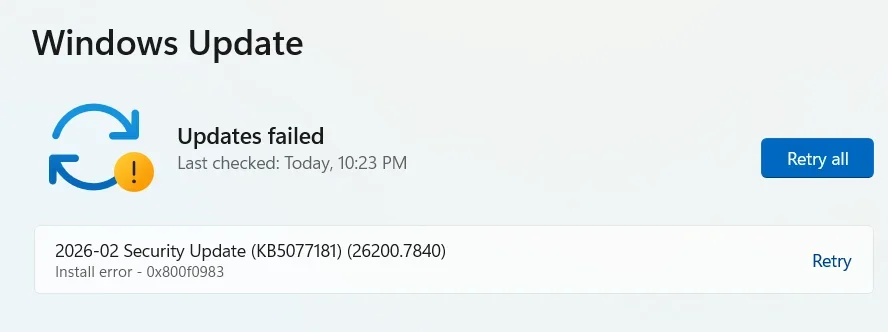
(Note: The screenshot below is from BEFORE the repair-install.)
Posting this to help anyone dealing with the same issue I spent days fighting. My system refused to install KB5077181 (26200.7840) and always failed in the exact same way. Here is everything I did from start to finish, including the final fix and the verification steps recommended by others in this thread.
---------------------------------------
1. Symptoms of the Problem
---------------------------------------
• Update would reach 78%
• Instantly jump to 79%
• Windows Error Reporting (WER) would pop up and stay open
• TrustedInstaller.exe would crash
• CPU would drop to 0%
• Update would immediately fail
• Manual MSU installs failed the same way
• CBS logs showed error 0x800F0983 (PSFX_E_MATCHING_COMPONENT_DIRECTORY_MISSING)
This is classic behavior of a PSFX commit/hydration failure, often caused by a baseline/component mismatch or missing component directory.
---------------------------------------
2. Things I Tried That DID NOT Fix It
---------------------------------------
These did nothing to resolve the underlying issue:
• SFC /scannow
• DISM /restorehealth
• Resetting Windows Update components
• Clearing SoftwareDistribution
• Renaming Catroot2
• Manual MSU installs
• Safe Mode installs
• Reboots
• Removing optional features/languages
• Full OS reset (the failure returned immediately)
None of these touched the real corruption.
---------------------------------------
3. ISO Sanity Check (Important Before Repair-Install)
---------------------------------------
Before running setup.exe, I verified the ISO was the correct build and edition.
Command:
dism /Get-WimInfo /WimFile:X:\sources\install.wim
I confirmed:
• Architecture matched (x64)
• Edition matched (**Home**, Index 1)
• ServicePack Build was **7840**, which is newer than my broken system’s **7623**
This ensures “Keep personal files and apps” works and that the repair install actually lays down a newer servicing baseline.
---------------------------------------
4. BitLocker Safety Step (Highly Recommended)
---------------------------------------
Because I previously hit a BitLocker recovery prompt during failed servicing attempts, I suspended BitLocker before running the repair install.
Commands:
manage-bde -protectors -disable C:
(After everything was stable)
manage-bde -protectors -enable C:
To confirm BitLocker is fully re-enabled afterward:
manage-bde -protectors -get C:
---------------------------------------
5. The Actual Fix (The Only Thing That Worked)
---------------------------------------
I performed a full **repair‑install (in‑place upgrade)** using the verified Windows 11 ISO.
This rebuilds:
• WinSxS (component store)
• Servicing stack
• Catalogs and manifests
• PSFX delta structures
• Baseline component versions
This step completely resets the servicing chain without wiping apps or files.
---------------------------------------
6. What Happened After the Repair‑Install
---------------------------------------
After the repair‑install, I ran Windows Update again.
This time the behavior was totally different:
• It stayed at 78% for 15–20 minutes (normal during commit/hydration)
• TrustedInstaller used 1–2 GB RAM (normal)
• WER flashed briefly but did NOT stay open
• No crash
• No jump to 79%
• No rollback
Eventually it moved to 95%, then 100%, and completed successfully.
---------------------------------------
7. Post-Fix Verification (Recommended)
---------------------------------------
To confirm everything was correct, I ran:
winver
dism /online /get-packages | findstr /i 5077181
Both confirmed:
• System is now on the newer 26200.7840 baseline
• KB5077181 is properly installed
• Windows Update no longer offers the update
---------------------------------------
8. Final Result
---------------------------------------
Windows Update now shows:
• KB5077181 — Completed
• Windows Security Platform Update — Completed
• System fully up to date and stable
---------------------------------------
9. Optional Cleanup
---------------------------------------
After confirming stability for a day or two, you can safely remove the leftover Windows.old folder:
Settings → System → Storage → Temporary files
(or Disk Cleanup → “Previous Windows installation(s)”)
---------------------------------------
10. Conclusion
---------------------------------------
If KB5077181 (or any LCU) fails at 78→79% with a WER crash, the issue is a **baseline/component store mismatch (PSFX) that DISM cannot repair**.
A **repair‑install using correct or newer ISO media** is the fix.
Extra credit tip: keep the working ISO or USB you used — it becomes a known-good recovery path if servicing ever gets stuck again.
Optional cleanup (after confirming everything is stable):
Settings → System → Storage → Temporary files
Remove “Previous Windows installation(s)” (this deletes C:\Windows.old)
Note: Some OEM tools (like Dell SupportAssist) may automatically remove Windows.old or setup temp files. If you only see a small amount of cleanup data (e.g., ~5–6 GB), that’s normal — it just means the system already cleaned up the leftover setup files.
(Note: The screenshot below is from BEFORE the repair-install.)
Attachments
Last edited:


