

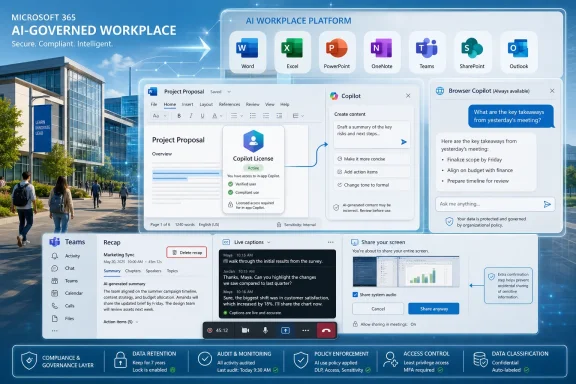
Seton Hall’s June 2026 Microsoft 365 update captures a broader Microsoft shift now playing out across campuses and enterprises: Copilot is becoming more tightly licensed inside Office apps, while Teams and SharePoint are being redesigned around AI-generated meeting records, reusable prompts, and stricter content controls. The story is not a grab bag of feature changes. It is Microsoft turning Microsoft 365 into a managed AI workplace platform, with licensing, retention, governance, and user experience all being adjusted at once.
The practical consequence is that AI in Microsoft 365 is no longer just a shiny assistant bolted onto Word or Teams. It is becoming a policy surface. Who gets AI inside Word, who can delete a meeting transcript, whether profanity appears in captions, and whether an AI recap can exist without a saved recording are now administrative and compliance decisions, not merely convenience settings.
For institutions like Seton Hall, that matters because Microsoft 365 is not just software. It is the operating layer for classes, advising sessions, committee meetings, research collaboration, and administrative work. When Microsoft changes the rules of that layer, the effects ripple through help desks, training materials, privacy reviews, and budget planning.
The most commercially important change in Seton Hall’s update is also the least surprising: Copilot features inside Word, Excel, PowerPoint, and OneNote are now limited to users with a Microsoft 365 Copilot license. Users without that license can still use Copilot Chat through the Microsoft 365 Copilot app or on the web, and Outlook remains an exception where Copilot features continue to be available.
That distinction sounds narrow until you consider how people actually work. Copilot in a browser tab is a helper; Copilot inside Word or Excel is part of the document workflow itself. Microsoft is effectively reserving the highest-friction-reducing version of Copilot for paid Copilot seats, while leaving a more general chat interface available to everyone else.
This is the oldest software business model in a new AI wrapper. Microsoft is not removing AI from the workplace so much as moving the most contextually convenient AI behind a higher-value license. The company can reasonably argue that in-app Copilot carries more cost, more complexity, and more value than a generic chat box, especially when it reasons over documents, spreadsheets, and presentations in place.
But users will experience the change less abstractly. If someone previously saw Copilot in Word or PowerPoint and now has to leave the app to use Copilot Chat elsewhere, that is not just a licensing clarification. It is a workflow downgrade.
For IT departments, the immediate problem is expectation management. The Copilot brand appears across Windows, Edge, Microsoft 365, Teams, Outlook, and the web, but the feature set changes depending on license, app, data access, tenant policy, and rollout stage. That is a recipe for tickets that begin with “Copilot disappeared” and end with a licensing matrix.
The browser version of Copilot Chat still has value. It can help draft text, summarize pasted material, brainstorm approaches, and answer general questions. But it is not the same as having a model embedded directly in the canvas where the work is being created.
That gap is especially visible in Excel and PowerPoint. A spreadsheet assistant is most useful when it can see the workbook, understand tables, help generate formulas, and explain trends without forcing users to shuttle data back and forth. A presentation assistant is most useful when it can work on the deck itself, not merely suggest what a deck might contain.
Microsoft’s choice also clarifies what it believes customers will pay for. The company is not betting that enterprises will buy Copilot merely for access to a chatbot. It is betting they will pay for the moments when AI is embedded in the normal flow of work: drafting in Word, analyzing in Excel, creating in PowerPoint, taking notes in OneNote, and summarizing in Teams.
That creates a two-tier Microsoft 365 experience. Licensed users increasingly get AI where they are already working. Unlicensed users get AI nearby.
Instead, Outlook appears to occupy a special middle ground. It is both a productivity app and a communications hub, and Microsoft has been steadily positioning Copilot Chat as a way to reason across inboxes and calendars. Keeping Outlook capabilities available helps maintain the daily usefulness of Copilot even for users without the full Microsoft 365 Copilot license.
There is also a strategic reason for that choice. Email is where many users first feel overwhelmed enough to want AI help. Summarizing threads, drafting replies, and extracting meeting context are easy-to-understand scenarios. Keeping that experience alive may serve as a funnel toward paid Copilot adoption rather than a giveaway that undermines it.
Still, Outlook’s exception will complicate messaging. A user may discover that Copilot works in Outlook but not in Word, then reasonably ask whether something is broken. The answer will be neither technical nor intuitive: it depends on Microsoft’s current licensing model.
That permanence is the point. Teams has become a machine for creating memory: recordings, transcripts, summaries, tasks, mentions, chapters, and notes. For years, the sales pitch was that no one had to miss anything again. Now Microsoft is acknowledging the other side of that promise: sometimes organizations need to forget.
The delete button does not solve every records-management problem. A transcript may have already been downloaded, copied, quoted, retained under another policy, or subject to legal hold. But it does give meeting organizers a visible control over the AI-generated residue of collaboration.
For education, healthcare, law, HR, and research environments, that control matters. Many meetings include sensitive material that is appropriate to discuss but not appropriate to preserve as searchable text. The more Teams turns speech into durable artifacts, the more organizations need a practical way to reduce unnecessary retention.
This is not just about embarrassment or misstatements. It is about data minimization. If Microsoft wants Teams to be trusted as an AI meeting layer, it has to give customers controls that make AI outputs manageable after the meeting ends.
That convergence creates power and risk in equal measure. A good recap can save an hour of rewatching, clarify decisions, and help absent participants catch up quickly. A bad or overexposed recap can preserve sensitive comments, distribute inaccurate AI summaries, or create confusion about what was formally decided.
The new deletion capability moves Teams closer to a model where the organizer is treated as the steward of meeting-generated content. That is sensible, but it also puts a lot of responsibility on individual users. Many organizers will not know when deletion is appropriate, when retention is required, or when files are unaffected by deleting the recap.
Seton Hall’s note that shared files remain available in their original locations is more important than it first appears. Users often think of a meeting as a single container, but Microsoft 365 stores meeting-related artifacts across Teams, OneDrive, SharePoint, Exchange, and other services. Deleting the recap is not the same as scrubbing every trace of the meeting.
This is where training has to catch up with product design. The user-facing interface says “delete recap content.” The governance reality says “understand which artifacts are meeting-generated, which are shared files, which are governed elsewhere, and which may still be discoverable.”
This is a small concession to a large design problem. Teams has accumulated so many functions — chat, meetings, channels, calls, files, apps, webinars, town halls, Copilot, recaps, tasks — that the interface can feel like a junk drawer for organizational life. Meeting chats are especially easy to lose because they are not quite private chats and not quite channel conversations.
For universities, that distinction matters. A class session, advising appointment, project meeting, and departmental event may all generate chats that need to be revisited later. If those conversations are buried among direct messages and group chats, important context disappears.
The dedicated Meeting chats area also reinforces Microsoft’s larger point: the meeting is becoming a persistent object. It has a chat, a recap, a transcript, a recording, notes, shared files, and eventually AI-generated summaries that may exist even without permanent transcripts. Teams is not merely hosting meetings; it is turning meetings into structured workspaces.
That may be good product strategy, but it changes user behavior. People will increasingly treat meeting chats as records of work rather than ephemeral side conversations. Institutions should assume that users will rely on them — and that some will be surprised when retention or access policies do not match their expectations.
That is the right default for accessibility. Live captions are not just a convenience for noisy rooms or multitasking employees. They are a critical accommodation for people who are deaf, hard of hearing, processing speech in a second language, or trying to follow a fast-moving meeting.
A profanity filter can distort meaning. In some contexts, a filtered word may be irrelevant. In others — a quoted incident, a harassment investigation, a classroom discussion, a safety briefing, or a legal matter — the exact word matters. Sanitizing speech can make captions less accurate and, in some cases, less useful.
The ability to re-enable the filter from the live captions settings gives users control, but the default has symbolic weight. Microsoft is choosing fidelity over politeness. That may irritate some organizations with conservative communication norms, but it is hard to argue that accessibility should begin from euphemism.
The change also reflects a broader maturation of collaboration tools. In the early pandemic era, the priority was simply making remote meetings work. In 2026, the argument is about whether the digital record of a meeting should be exact, filtered, summarized, deleted, or transformed by AI.
This is Microsoft’s agentic strategy arriving in a practical enterprise shape. Instead of every user writing a fresh prompt every time, an organization can encode repeatable work patterns as reusable skills. That moves prompt engineering out of the realm of individual cleverness and into shared operational infrastructure.
The SharePoint setting matters because SharePoint is where so much organizational knowledge already lives. Policies, templates, reports, departmental files, project documents, and institutional records are often stored there. If AI skills can operate within existing SharePoint permissions and security controls, Microsoft can pitch them as governed automation rather than shadow AI.
That is the optimistic version. The harder version is that reusable AI skills will create a new governance layer that most organizations are not yet staffed to manage. Who approves a skill that summarizes compliance documents? Who checks whether it misses required fields? Who updates it when the business process changes?
Microsoft’s answer is likely to be that natural language creation lowers the barrier. That is true, but it does not eliminate accountability. A reusable prompt can be just as wrong as a spreadsheet macro, only more plausible and harder to debug.
That is not cosmetic. Screen sharing is one of the most failure-prone actions in modern office life. The wrong browser tab, the wrong desktop, the wrong spreadsheet, the wrong chat window — every IT pro has either seen it happen or worried about it happening.
The extra confirmation step is particularly revealing. Software designers typically avoid adding clicks to common workflows, especially in meetings where speed matters. Microsoft is deciding that a little friction is preferable to a privacy incident.
That is the same product philosophy visible elsewhere in the update. Delete buttons, no-transcript recaps, permissions-aware AI skills, caption controls, and sharing confirmations all point to a Microsoft 365 that is trying to balance convenience against exposure. The company knows AI collaboration features are only as acceptable as the controls around them.
The redesigned controls may also help everyday users who find Teams cluttered. But for administrators, the more important change is that Microsoft is baking risk reduction into the meeting flow itself. Training users not to overshare is useful; designing the share panel so they are less likely to overshare is better.
This is Microsoft trying to thread a needle. Users want the productivity benefit of automated recaps. Legal, compliance, privacy, and security teams often worry about creating durable transcripts of sensitive conversations. An AI recap without a saved transcript offers a middle path.
But it is not a magic eraser. A generated summary is still a record. It may include sensitive information, it may be inaccurate, and it may become discoverable depending on the organization’s policies and legal context. The absence of a saved transcript reduces one category of risk, but it does not eliminate the need to govern the output that remains.
The license requirement also matters. Meeting organizers with a Microsoft 365 Copilot license will be able to enable or disable the feature before or during a meeting, and participants with Copilot access can review the summary afterward. That means the capability is not merely a Teams feature; it is part of the paid Copilot layer.
For institutions, this creates an interesting asymmetry. A licensed organizer may be able to generate an AI recap for a meeting that includes many unlicensed participants, but access to the finished AI output may still depend on Copilot entitlement. That could create confusion in classrooms, committees, and mixed-license departments unless policies are clearly communicated.
That memory is useful because modern work is fragmented. People miss meetings, skim documents, switch tasks constantly, and return to decisions weeks later without context. AI promises to make the institutional memory searchable, summarizable, and actionable.
But institutional memory is also dangerous. It can preserve informal remarks as formal records, expose sensitive data to broader audiences, and create confidence in AI summaries that may omit nuance. The more Microsoft 365 captures, the more customers need tools to limit, delete, classify, and explain that capture.
That is why the June 2026 update feels less like a feature roundup than a correction phase. Microsoft pushed AI into the productivity suite aggressively; now it is adding controls that make the push administratively survivable. The delete button is not a retreat from AI. It is an admission that AI-generated workplace memory needs an off switch.
The same applies to no-transcript recaps. Microsoft still wants Teams meetings to produce useful AI summaries. It just recognizes that some customers will reject that convenience if the price is permanent transcript retention.
A university can explain that Copilot Chat remains available without a full Copilot license, but users will focus on what they can see inside the apps they use every day. If Copilot appears in Outlook but not Word, or works in a Teams meeting for one organizer but not another, the support burden lands on campus IT.
There is also a fairness dimension. AI inside Office apps may become a productivity advantage for licensed groups. If one department can summarize documents in Word and generate recaps in Teams while another relies on web chat and manual notes, Microsoft’s licensing model becomes part of the institution’s internal resource politics.
Seton Hall’s update does the right thing by presenting the changes plainly. But the next step for any organization is translation into local policy. Who gets Microsoft 365 Copilot licenses? Which meetings should use AI recaps? When should transcripts be retained? Who may delete recap content? Should profanity filters be left off by default in classes and public events?
Those are not Microsoft questions. They are governance questions that Microsoft’s product changes now force customers to answer.
That churn is manageable when the change is a button color. It is much harder when the change affects AI access, transcript retention, meeting summaries, or screen-sharing safety. A Microsoft 365 update can now alter the compliance posture of ordinary work.
The result is that IT communications have to become more editorial. Simply forwarding Microsoft’s feature language is not enough. Users need to know what changed, who is affected, what they should do differently, and where local policy differs from Microsoft’s default.
That is particularly true for AI features because the branding is slippery. “Copilot” can mean a free chat surface, a paid Microsoft 365 add-on, an in-app assistant, a Teams meeting helper, a SharePoint skill, or a broader family of Microsoft AI experiences. The name alone no longer tells users what they are allowed to do.
Seton Hall’s June update is a useful example of local translation. It strips the changes down to practical terms: who gets in-app Copilot, what Teams organizers can delete, where meeting chats now live, how captions behave, and what is coming next. That kind of plain-language institutional layer is becoming essential.
Microsoft’s June 2026 Microsoft 365 changes show a company trying to make AI feel native without letting it become ungovernable. The next phase of Copilot will not be judged only by how well it drafts a paragraph or summarizes a meeting; it will be judged by whether institutions can afford it, explain it, audit it, and trust it when the meeting ends and the record remains.
The practical consequence is that AI in Microsoft 365 is no longer just a shiny assistant bolted onto Word or Teams. It is becoming a policy surface. Who gets AI inside Word, who can delete a meeting transcript, whether profanity appears in captions, and whether an AI recap can exist without a saved recording are now administrative and compliance decisions, not merely convenience settings.
For institutions like Seton Hall, that matters because Microsoft 365 is not just software. It is the operating layer for classes, advising sessions, committee meetings, research collaboration, and administrative work. When Microsoft changes the rules of that layer, the effects ripple through help desks, training materials, privacy reviews, and budget planning.
 Microsoft Draws a Harder Line Around Copilot’s Most Valuable Real Estate
The most commercially important change in Seton Hall’s update is also the least surprising: Copilot features inside Word, Excel, PowerPoint, and OneNote are now limited to users with a Microsoft 365 Copilot license. Users without that license can still use Copilot Chat through the Microsoft 365 Copilot app or on the web, and Outlook remains an exception where Copilot features continue to be available.That distinction sounds narrow until you consider how people actually work. Copilot in a browser tab is a helper; Copilot inside Word or Excel is part of the document workflow itself. Microsoft is effectively reserving the highest-friction-reducing version of Copilot for paid Copilot seats, while leaving a more general chat interface available to everyone else.
This is the oldest software business model in a new AI wrapper. Microsoft is not removing AI from the workplace so much as moving the most contextually convenient AI behind a higher-value license. The company can reasonably argue that in-app Copilot carries more cost, more complexity, and more value than a generic chat box, especially when it reasons over documents, spreadsheets, and presentations in place.
But users will experience the change less abstractly. If someone previously saw Copilot in Word or PowerPoint and now has to leave the app to use Copilot Chat elsewhere, that is not just a licensing clarification. It is a workflow downgrade.
For IT departments, the immediate problem is expectation management. The Copilot brand appears across Windows, Edge, Microsoft 365, Teams, Outlook, and the web, but the feature set changes depending on license, app, data access, tenant policy, and rollout stage. That is a recipe for tickets that begin with “Copilot disappeared” and end with a licensing matrix.
The App Boundary Is Now the Paywall
Microsoft has spent decades teaching users that the Office document is where work happens. That is why the new Copilot boundary matters. The distinction between “Copilot Chat is available” and “Copilot in Word is not available” may make sense to procurement teams, but it is much harder to explain to a faculty member preparing a syllabus or an analyst cleaning a spreadsheet.The browser version of Copilot Chat still has value. It can help draft text, summarize pasted material, brainstorm approaches, and answer general questions. But it is not the same as having a model embedded directly in the canvas where the work is being created.
That gap is especially visible in Excel and PowerPoint. A spreadsheet assistant is most useful when it can see the workbook, understand tables, help generate formulas, and explain trends without forcing users to shuttle data back and forth. A presentation assistant is most useful when it can work on the deck itself, not merely suggest what a deck might contain.
Microsoft’s choice also clarifies what it believes customers will pay for. The company is not betting that enterprises will buy Copilot merely for access to a chatbot. It is betting they will pay for the moments when AI is embedded in the normal flow of work: drafting in Word, analyzing in Excel, creating in PowerPoint, taking notes in OneNote, and summarizing in Teams.
That creates a two-tier Microsoft 365 experience. Licensed users increasingly get AI where they are already working. Unlicensed users get AI nearby.
Outlook Remains the Interesting Exception
The continued availability of Copilot features in Outlook is not a footnote. Email and calendar data are among the most valuable sources of workplace context, and Outlook remains one of the most heavily used Microsoft 365 apps. If Microsoft were simply trying to narrow Copilot everywhere, Outlook would seem like an obvious place to tighten access.Instead, Outlook appears to occupy a special middle ground. It is both a productivity app and a communications hub, and Microsoft has been steadily positioning Copilot Chat as a way to reason across inboxes and calendars. Keeping Outlook capabilities available helps maintain the daily usefulness of Copilot even for users without the full Microsoft 365 Copilot license.
There is also a strategic reason for that choice. Email is where many users first feel overwhelmed enough to want AI help. Summarizing threads, drafting replies, and extracting meeting context are easy-to-understand scenarios. Keeping that experience alive may serve as a funnel toward paid Copilot adoption rather than a giveaway that undermines it.
Still, Outlook’s exception will complicate messaging. A user may discover that Copilot works in Outlook but not in Word, then reasonably ask whether something is broken. The answer will be neither technical nor intuitive: it depends on Microsoft’s current licensing model.
Teams Gets a Delete Button Because AI Memory Has Become a Liability
The Teams change allowing meeting organizers to delete recap content is one of those features that sounds minor until you imagine the meeting types it affects. Recordings, transcripts, AI-generated summaries, and meeting notes can now be removed directly from the Recap page. Deleted content is permanently removed and cannot be restored, while files shared during the meeting remain in their original locations.That permanence is the point. Teams has become a machine for creating memory: recordings, transcripts, summaries, tasks, mentions, chapters, and notes. For years, the sales pitch was that no one had to miss anything again. Now Microsoft is acknowledging the other side of that promise: sometimes organizations need to forget.
The delete button does not solve every records-management problem. A transcript may have already been downloaded, copied, quoted, retained under another policy, or subject to legal hold. But it does give meeting organizers a visible control over the AI-generated residue of collaboration.
For education, healthcare, law, HR, and research environments, that control matters. Many meetings include sensitive material that is appropriate to discuss but not appropriate to preserve as searchable text. The more Teams turns speech into durable artifacts, the more organizations need a practical way to reduce unnecessary retention.
This is not just about embarrassment or misstatements. It is about data minimization. If Microsoft wants Teams to be trusted as an AI meeting layer, it has to give customers controls that make AI outputs manageable after the meeting ends.
The Recap Page Is Becoming the New Meeting File Cabinet
The Teams Recap page is quietly becoming one of the most important surfaces in Microsoft 365. It is no longer just a post-meeting convenience screen. It is where recordings, transcripts, shared files, notes, AI summaries, agendas, and follow-up tasks converge.That convergence creates power and risk in equal measure. A good recap can save an hour of rewatching, clarify decisions, and help absent participants catch up quickly. A bad or overexposed recap can preserve sensitive comments, distribute inaccurate AI summaries, or create confusion about what was formally decided.
The new deletion capability moves Teams closer to a model where the organizer is treated as the steward of meeting-generated content. That is sensible, but it also puts a lot of responsibility on individual users. Many organizers will not know when deletion is appropriate, when retention is required, or when files are unaffected by deleting the recap.
Seton Hall’s note that shared files remain available in their original locations is more important than it first appears. Users often think of a meeting as a single container, but Microsoft 365 stores meeting-related artifacts across Teams, OneDrive, SharePoint, Exchange, and other services. Deleting the recap is not the same as scrubbing every trace of the meeting.
This is where training has to catch up with product design. The user-facing interface says “delete recap content.” The governance reality says “understand which artifacts are meeting-generated, which are shared files, which are governed elsewhere, and which may still be discoverable.”
Meeting Chats Get Their Own Lane Because Teams Has Become Too Crowded
The new Meeting chats section is a classic Microsoft Teams quality-of-life change: overdue, useful, and easy to underestimate. By grouping conversations associated with meetings into a dedicated area of the chat list, Teams makes it easier to find discussions tied to classes, meetings, and events without digging through ordinary chats.This is a small concession to a large design problem. Teams has accumulated so many functions — chat, meetings, channels, calls, files, apps, webinars, town halls, Copilot, recaps, tasks — that the interface can feel like a junk drawer for organizational life. Meeting chats are especially easy to lose because they are not quite private chats and not quite channel conversations.
For universities, that distinction matters. A class session, advising appointment, project meeting, and departmental event may all generate chats that need to be revisited later. If those conversations are buried among direct messages and group chats, important context disappears.
The dedicated Meeting chats area also reinforces Microsoft’s larger point: the meeting is becoming a persistent object. It has a chat, a recap, a transcript, a recording, notes, shared files, and eventually AI-generated summaries that may exist even without permanent transcripts. Teams is not merely hosting meetings; it is turning meetings into structured workspaces.
That may be good product strategy, but it changes user behavior. People will increasingly treat meeting chats as records of work rather than ephemeral side conversations. Institutions should assume that users will rely on them — and that some will be surprised when retention or access policies do not match their expectations.
Captions Get More Accurate by Becoming Less Sanitized
The decision to disable the profanity filter by default for Teams live captions is a sharp reminder that accessibility and workplace decorum do not always point in the same direction. Microsoft’s stated rationale is straightforward: captions should more accurately reflect what is spoken during meetings, calls, and events.That is the right default for accessibility. Live captions are not just a convenience for noisy rooms or multitasking employees. They are a critical accommodation for people who are deaf, hard of hearing, processing speech in a second language, or trying to follow a fast-moving meeting.
A profanity filter can distort meaning. In some contexts, a filtered word may be irrelevant. In others — a quoted incident, a harassment investigation, a classroom discussion, a safety briefing, or a legal matter — the exact word matters. Sanitizing speech can make captions less accurate and, in some cases, less useful.
The ability to re-enable the filter from the live captions settings gives users control, but the default has symbolic weight. Microsoft is choosing fidelity over politeness. That may irritate some organizations with conservative communication norms, but it is hard to argue that accessibility should begin from euphemism.
The change also reflects a broader maturation of collaboration tools. In the early pandemic era, the priority was simply making remote meetings work. In 2026, the argument is about whether the digital record of a meeting should be exact, filtered, summarized, deleted, or transformed by AI.
SharePoint AI Skills Move Prompting From Craft to Infrastructure
The coming SharePoint custom AI skills feature is one of the more consequential items in the update because it points beyond chat. Users will be able to teach AI how to perform common tasks consistently, using natural language to create reusable prompts for work such as checking documents for required information, summarizing reports in a preferred format, or organizing content according to established standards.This is Microsoft’s agentic strategy arriving in a practical enterprise shape. Instead of every user writing a fresh prompt every time, an organization can encode repeatable work patterns as reusable skills. That moves prompt engineering out of the realm of individual cleverness and into shared operational infrastructure.
The SharePoint setting matters because SharePoint is where so much organizational knowledge already lives. Policies, templates, reports, departmental files, project documents, and institutional records are often stored there. If AI skills can operate within existing SharePoint permissions and security controls, Microsoft can pitch them as governed automation rather than shadow AI.
That is the optimistic version. The harder version is that reusable AI skills will create a new governance layer that most organizations are not yet staffed to manage. Who approves a skill that summarizes compliance documents? Who checks whether it misses required fields? Who updates it when the business process changes?
Microsoft’s answer is likely to be that natural language creation lowers the barrier. That is true, but it does not eliminate accountability. A reusable prompt can be just as wrong as a spreadsheet macro, only more plausible and harder to debug.
The August Teams Redesign Is About Preventing Human Error
The upcoming Teams meeting controls refresh sounds like interface housekeeping: microphone, camera, and screen sharing grouped in a simplified, center-aligned layout, with less-used options moved into a reorganized More menu. But the companion sharing redesign reveals the real target. Microsoft is adding live previews of screens and windows, a more organized sharing panel, and an extra confirmation step to reduce accidental sharing.That is not cosmetic. Screen sharing is one of the most failure-prone actions in modern office life. The wrong browser tab, the wrong desktop, the wrong spreadsheet, the wrong chat window — every IT pro has either seen it happen or worried about it happening.
The extra confirmation step is particularly revealing. Software designers typically avoid adding clicks to common workflows, especially in meetings where speed matters. Microsoft is deciding that a little friction is preferable to a privacy incident.
That is the same product philosophy visible elsewhere in the update. Delete buttons, no-transcript recaps, permissions-aware AI skills, caption controls, and sharing confirmations all point to a Microsoft 365 that is trying to balance convenience against exposure. The company knows AI collaboration features are only as acceptable as the controls around them.
The redesigned controls may also help everyday users who find Teams cluttered. But for administrators, the more important change is that Microsoft is baking risk reduction into the meeting flow itself. Training users not to overshare is useful; designing the share panel so they are less likely to overshare is better.
AI Recaps Without Saved Transcripts Are Microsoft’s Most Careful Compromise
The coming option for Microsoft 365 Copilot users to generate AI-powered meeting recaps without saving a meeting recording or transcript may be the most revealing feature in the whole update. It promises the value of AI meeting summaries — key points, decisions, action items — while reducing the need to retain the underlying meeting content.This is Microsoft trying to thread a needle. Users want the productivity benefit of automated recaps. Legal, compliance, privacy, and security teams often worry about creating durable transcripts of sensitive conversations. An AI recap without a saved transcript offers a middle path.
But it is not a magic eraser. A generated summary is still a record. It may include sensitive information, it may be inaccurate, and it may become discoverable depending on the organization’s policies and legal context. The absence of a saved transcript reduces one category of risk, but it does not eliminate the need to govern the output that remains.
The license requirement also matters. Meeting organizers with a Microsoft 365 Copilot license will be able to enable or disable the feature before or during a meeting, and participants with Copilot access can review the summary afterward. That means the capability is not merely a Teams feature; it is part of the paid Copilot layer.
For institutions, this creates an interesting asymmetry. A licensed organizer may be able to generate an AI recap for a meeting that includes many unlicensed participants, but access to the finished AI output may still depend on Copilot entitlement. That could create confusion in classrooms, committees, and mixed-license departments unless policies are clearly communicated.
Microsoft Is Building a Memory System, Then Selling the Forgetting Tools
The common thread across these updates is memory. Microsoft 365 now remembers meetings through recordings, transcripts, recaps, chats, notes, tasks, shared files, and AI summaries. It remembers documents through Copilot context. It remembers organizational processes through SharePoint AI skills.That memory is useful because modern work is fragmented. People miss meetings, skim documents, switch tasks constantly, and return to decisions weeks later without context. AI promises to make the institutional memory searchable, summarizable, and actionable.
But institutional memory is also dangerous. It can preserve informal remarks as formal records, expose sensitive data to broader audiences, and create confidence in AI summaries that may omit nuance. The more Microsoft 365 captures, the more customers need tools to limit, delete, classify, and explain that capture.
That is why the June 2026 update feels less like a feature roundup than a correction phase. Microsoft pushed AI into the productivity suite aggressively; now it is adding controls that make the push administratively survivable. The delete button is not a retreat from AI. It is an admission that AI-generated workplace memory needs an off switch.
The same applies to no-transcript recaps. Microsoft still wants Teams meetings to produce useful AI summaries. It just recognizes that some customers will reject that convenience if the price is permanent transcript retention.
Campus IT Will Feel the Change Before Most Users Understand It
In higher education, Microsoft 365 deployments are rarely uniform. Faculty, staff, students, administrators, researchers, contractors, and guests may all live in the same tenant or adjacent collaboration spaces with different licenses and expectations. That makes Copilot’s licensing boundary especially tricky.A university can explain that Copilot Chat remains available without a full Copilot license, but users will focus on what they can see inside the apps they use every day. If Copilot appears in Outlook but not Word, or works in a Teams meeting for one organizer but not another, the support burden lands on campus IT.
There is also a fairness dimension. AI inside Office apps may become a productivity advantage for licensed groups. If one department can summarize documents in Word and generate recaps in Teams while another relies on web chat and manual notes, Microsoft’s licensing model becomes part of the institution’s internal resource politics.
Seton Hall’s update does the right thing by presenting the changes plainly. But the next step for any organization is translation into local policy. Who gets Microsoft 365 Copilot licenses? Which meetings should use AI recaps? When should transcripts be retained? Who may delete recap content? Should profanity filters be left off by default in classes and public events?
Those are not Microsoft questions. They are governance questions that Microsoft’s product changes now force customers to answer.
The Admin Center Is Becoming a Newsroom for Workplace Policy
One underappreciated reality of Microsoft 365 administration is that product change is continuous. Features arrive through roadmap items, message center posts, targeted release, public preview, general availability, and tenant-specific rollouts. By the time most users notice a change, administrators may already have seen three slightly different descriptions of it.That churn is manageable when the change is a button color. It is much harder when the change affects AI access, transcript retention, meeting summaries, or screen-sharing safety. A Microsoft 365 update can now alter the compliance posture of ordinary work.
The result is that IT communications have to become more editorial. Simply forwarding Microsoft’s feature language is not enough. Users need to know what changed, who is affected, what they should do differently, and where local policy differs from Microsoft’s default.
That is particularly true for AI features because the branding is slippery. “Copilot” can mean a free chat surface, a paid Microsoft 365 add-on, an in-app assistant, a Teams meeting helper, a SharePoint skill, or a broader family of Microsoft AI experiences. The name alone no longer tells users what they are allowed to do.
Seton Hall’s June update is a useful example of local translation. It strips the changes down to practical terms: who gets in-app Copilot, what Teams organizers can delete, where meeting chats now live, how captions behave, and what is coming next. That kind of plain-language institutional layer is becoming essential.
The June Update Tells Admins Where the Next Tickets Will Come From
The clearest signal in this batch of Microsoft 365 changes is that AI adoption is moving from novelty to operational reality. The support issues will not only be about whether Copilot works. They will be about expectations, records, permissions, and defaults.- Users without a Microsoft 365 Copilot license should expect Copilot Chat to remain available through the Copilot app or web, but not as an embedded assistant in Word, Excel, PowerPoint, and OneNote.
- Teams meeting organizers now have a more direct way to delete recordings, transcripts, AI summaries, and notes from the Recap page, but shared files remain where they were originally stored.
- The new Meeting chats section should reduce Teams clutter, but it also reinforces the idea that meetings now produce persistent collaboration spaces.
- Live captions will be more literal by default because the profanity filter is disabled unless a user turns it back on.
- SharePoint custom AI skills will make repeatable prompting easier, but organizations will need ownership and review processes for the skills users create.
- AI meeting recaps without saved recordings or transcripts may reduce retention concerns, but the generated summary itself still needs to be treated as a business record.
Microsoft’s June 2026 Microsoft 365 changes show a company trying to make AI feel native without letting it become ungovernable. The next phase of Copilot will not be judged only by how well it drafts a paragraph or summarizes a meeting; it will be judged by whether institutions can afford it, explain it, audit it, and trust it when the meeting ends and the record remains.
References
- Primary source: Seton Hall
Published: Mon, 15 Jun 2026 20:23:44 GMT
Loading…
www.shu.edu - Official source: microsoft.com
Loading…
www.microsoft.com - Official source: support.microsoft.com
Loading…
support.microsoft.com - Official source: learn.microsoft.com

Intelligent recap for Teams calls, meetings, and events - Microsoft Teams
Learn how to manage intelligent recap for Teams calls, meetings, and events. Understand the licenses your users need to use intelligent recap for VoIP and PSTN calls and audio recap.learn.microsoft.com - Official source: techcommunity.microsoft.com

What’s New in Microsoft 365 Copilot | May 2026 | Microsoft Community Hub
Welcome to the May 2026 edition of What's New in Microsoft 365 Copilot! Every month, we highlight new features and enhancements to keep Microsoft 365 admins... techcommunity.microsoft.com
- Related coverage: windowscentral.com

Microsoft 365 is paywalling most of Copilot in its Office apps | Windows Central
Commercial customers will soon need a Microsoft 365 Copilot license to use Copilot Chat in Word, Excel, PowerPoint, and OneNote.www.windowscentral.com
- Related coverage: techradar.com

Microsoft Teams wants to make it easier to forget all your embarrassing meeting mistakes | TechRadar
Delete Microsoft Teams meeting content and pretend it never happenedwww.techradar.com - Related coverage: nubis365.com
</rdf:Alt> </dc:title> <dc:description> <rdf:Alt> <rdf:li xml:lang="x-default"/> </rdf:Alt> </dc:description> <dc:creator> <rdf:Seq> <rdf:li>Mike Wi
</rdf:Alt> </dc:description> <dc:creator> <rdf:Seq> <rdf:li>Mike Windsornubis365.com
- Related coverage: resources.synnexcorp.com
Loading…
resources.synnexcorp.com - Related coverage: nds.ox.ac.uk
Loading…
www.nds.ox.ac.uk