

Windows File History is a built-in Windows 10 and Windows 11 feature that can automatically save versioned copies of personal files to an external drive or network location, but Microsoft leaves it off by default and now hides it in Control Panel. That design choice says a great deal about where Windows backup is headed. Microsoft wants the consumer PC to orbit OneDrive, yet one of the most practical defenses against everyday data loss remains a local tool many users will never discover. The result is a strange modern Windows paradox: the feature most likely to rescue a ruined draft is treated like a museum piece.
There are many ways to lose work on a PC, and most of them are embarrassingly ordinary. A bad save, a careless overwrite, a botched edit, a file dragged into the wrong folder, a cleanup utility that removes more than expected — none of these are dramatic disasters. They are the tiny accidents that make personal computing feel fragile.
File History was built for exactly that class of failure. It is not a bare-metal recovery system, not a corporate disaster-recovery platform, and not a clone of your entire Windows installation. It is a quiet versioning engine for personal files.
That distinction matters. A traditional backup can answer the question, “Do I still have a copy?” File History answers the more useful question, “Can I get back the copy from before I ruined it?”
For writers, students, researchers, photographers, accountants, coders, and anyone who edits files over time, that is the difference between protection and archaeology. The value is not merely that a document exists somewhere else. The value is that yesterday’s version, last week’s version, and the version before the disastrous rewrite may still be there.
They are caused by users doing exactly what software asked them to do. You opened a document, deleted a section, hit Save, closed the app, and only later realized the old version was the one you needed. From the file system’s point of view, nothing has gone wrong. The latest version is present, healthy, and completely useless.
That is where File History’s design shows its age in a good way. It assumes the user’s current file may not be the best file. By keeping rolling copies at intervals, it creates a small archive of ordinary work, not just an emergency duplicate.
This is why comparing File History to Apple’s Time Machine is tempting, even if the two are not identical. The shared idea is that the operating system should remember previous states without making users manually name files “final,” “final2,” and “final_really_this_time.” Versioning turns panic into browsing.
The irony is that Windows has had this capability for more than a decade. File History arrived with Windows 8, survived Windows 10, and still works in Windows 11. It just no longer feels like part of the operating system’s main story.
File History, meanwhile, sits in the older Control Panel path under System and Security. You can still find it. You can still enable it. You can still restore files from it. But its placement sends a signal: this is not where Microsoft wants the average user to spend time.
That does not make the feature obsolete. It does make it politically inconvenient inside Windows.
Microsoft’s newer Windows Backup experience is more aligned with the company’s current strategy. It is account-based, cloud-facing, and designed around restoring a familiar environment across PCs. For many mainstream users, that is useful. A new laptop that remembers settings, apps, Wi-Fi credentials, and synced folders is a better experience than the old ritual of manually rebuilding a PC from scratch.
But Windows Backup and File History solve overlapping, not identical, problems. OneDrive sync can preserve files across devices, but sync is not the same thing as local versioned backup. If a bad change syncs quickly, the mistake follows you. If storage quotas, account access, network availability, or policy restrictions get in the way, the cloud-first story becomes more complicated than the marketing slide suggests.
File History is not glamorous because it does not deepen Microsoft’s services relationship with the user. It does not sell storage. It does not reinforce account sign-in. It does not turn the PC into a cloud endpoint. It just copies your files to a drive you control.
That may be precisely why it still matters.
OneDrive has real strengths. It offers off-device storage, cross-device access, ransomware recovery features in some plans, sharing, and integration with Microsoft 365. For users who live inside Microsoft’s ecosystem, it can be excellent.
But cloud backup also introduces constraints. You need an account. You need enough storage. You need a working connection when files are uploading or being retrieved. You need to understand which folders are being synced, which files are placeholders, and where your data physically resides. In managed environments, you also need policy permission.
File History is cruder, but its crudeness is clarifying. Plug in a drive, turn on the feature, and Windows keeps versions of supported personal folders. The backup target can be removed, stored offline, or kept disconnected except during backup windows. That is a very different risk model from always-on sync.
For security-minded users, this matters. A backup drive that spends most of its life unplugged is not invulnerable, but it is less exposed to account compromise and some classes of automated damage. A versioned local copy also gives users a fallback when the problem is not theft or disaster, but simple regret.
The lesson is not that local is better than cloud in every case. The lesson is that local and cloud protect against different failures. Microsoft’s interface increasingly treats cloud backup as the default answer, but users still benefit from a layered answer.
It also depends on coverage. File History is strongest when your important work lives in the folders and libraries it monitors. If you scatter projects across custom directories, secondary drives, development workspaces, or application-specific storage locations, you need to make sure those files are included. Otherwise you may discover, at the worst possible moment, that your backup plan covered your Pictures folder but not the folder where your actual work lived.
There is also the problem of habit. An external drive does nothing from a drawer. A network location does nothing if the laptop never reaches it. Like any backup system, File History is only useful when it actually runs.
Still, those limits are manageable because the feature is conceptually simple. It is not trying to be every kind of recovery system. It is trying to be a file-version safety net.
That narrowness is why it deserves more attention, not less. The average user does not lose a thesis chapter because Windows failed to boot. They lose it because the file still opens perfectly — just with the wrong contents.
A user who searches Windows 11 Settings for backup is far more likely to be steered toward Microsoft’s modern backup messaging than toward a local version-history workflow. A user who already knows the words “File History” can find the old Control Panel applet. A user who does not know those words may never learn that Windows can do this.
That is bad product design because the need is universal. People do not need to understand backup taxonomies to know they want yesterday’s copy of a file. The operating system should translate that need into a visible feature.
Instead, Windows has split its backup personality. The modern shell promotes account-linked continuity. The old shell contains the local versioning feature. The user is left to bridge the gap.
This is not merely an interface complaint. Discovery determines behavior. Features that are hidden might as well not exist for the majority of users, and backup features are especially vulnerable because people only go looking after something has gone wrong.
An inexpensive external SSD or hard drive remains one of the highest-value accessories a Windows user can buy. It is boring, but boring is a virtue in backup. A drive does not need to be innovative to be useful; it needs to be present when your working copy is gone.
For File History, capacity matters less than people think and more than they think. It matters less because documents, spreadsheets, notes, and many project files are relatively small. It matters more because versioning accumulates over time, especially for photos, videos, and large creative files.
The right approach is practical rather than precious. Use a drive large enough to hold multiple generations of your important files. Let File History run at a sensible interval. Periodically check that restores work. If the data is irreplaceable, add a second backup method.
That last point is the one backup professionals repeat until everyone gets tired of hearing it: a single backup is better than none, but it is not a strategy. File History can be one layer in a broader plan. For many home users, it may be the first layer they actually understand.
That does not require a lab. Create a harmless test file in Documents, let File History capture it, edit it, and then use the restore interface to retrieve the earlier version. The exercise takes minutes, and it changes backup from a vague promise into muscle memory.
This matters because recovery interfaces always feel more confusing under stress. When the missing file is a tax document, a client deliverable, or the only good draft of a chapter, even simple tools feel hostile. Familiarity is a form of resilience.
Testing also reveals assumptions. You may learn that a folder is not covered. You may discover that your external drive is too small. You may find that a laptop has not been connected to the backup target in weeks. These are annoying discoveries on a quiet afternoon and catastrophic discoveries at midnight.
The software industry loves invisible automation, but backup deserves occasional visibility. A system that silently fails is worse than one that asks for attention.
Yet File History embodies a kind of user-first computing that Windows still needs. It assumes your files matter, that your mistakes are normal, and that recovery should not require a subscription pitch. It gives the PC a memory longer than the current save state.
There is a broader trust issue here. Users are increasingly asked to let operating systems manage their files, sync their folders, optimize their storage, and clean up their disks. That can be convenient, but convenience without transparency breeds anxiety. A visible local version history gives users a concrete counterweight.
Microsoft does not need to choose between OneDrive and File History. A healthier Windows backup story would explain both. Use cloud sync for access and off-device resilience. Use File History for local versioned recovery. Use full-system imaging or enterprise backup where complete device restoration matters.
The company has all the pieces. What it lacks is a coherent, user-facing story that distinguishes sync, backup, versioning, and recovery in plain English.
That advice sounds mundane because backup always sounds mundane before the disaster. Afterward, it sounds like wisdom.
The best candidates are not just novelists and thesis writers, though they are obvious examples. Anyone with financial records, family photos, scanned documents, schoolwork, source files, design assets, music projects, or long-running spreadsheets has something that benefits from versioning. Even casual PC users accumulate files whose value is emotional rather than monetary.
File History will not make you disciplined. It will not organize your folders. It will not save files you never stored in a covered location. But it will quietly reduce the penalty for a very human category of mistake.
That is more than enough reason for Microsoft to stop treating it like a relic.
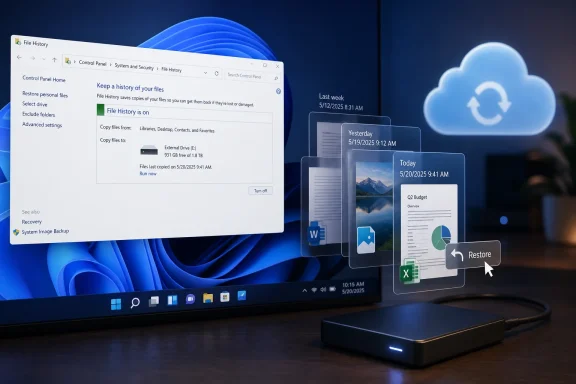 Microsoft’s Most Useful Backup Feature Is Hiding in Plain Sight
There are many ways to lose work on a PC, and most of them are embarrassingly ordinary. A bad save, a careless overwrite, a botched edit, a file dragged into the wrong folder, a cleanup utility that removes more than expected — none of these are dramatic disasters. They are the tiny accidents that make personal computing feel fragile.File History was built for exactly that class of failure. It is not a bare-metal recovery system, not a corporate disaster-recovery platform, and not a clone of your entire Windows installation. It is a quiet versioning engine for personal files.
That distinction matters. A traditional backup can answer the question, “Do I still have a copy?” File History answers the more useful question, “Can I get back the copy from before I ruined it?”
For writers, students, researchers, photographers, accountants, coders, and anyone who edits files over time, that is the difference between protection and archaeology. The value is not merely that a document exists somewhere else. The value is that yesterday’s version, last week’s version, and the version before the disastrous rewrite may still be there.
Version History Beats Backup When the Mistake Is Yours
Most backup conversations still revolve around hardware failure. That made sense in the era when spinning hard drives died noisily and laptops were less tightly integrated with cloud services. But many of the worst file losses today are not caused by broken hardware at all.They are caused by users doing exactly what software asked them to do. You opened a document, deleted a section, hit Save, closed the app, and only later realized the old version was the one you needed. From the file system’s point of view, nothing has gone wrong. The latest version is present, healthy, and completely useless.
That is where File History’s design shows its age in a good way. It assumes the user’s current file may not be the best file. By keeping rolling copies at intervals, it creates a small archive of ordinary work, not just an emergency duplicate.
This is why comparing File History to Apple’s Time Machine is tempting, even if the two are not identical. The shared idea is that the operating system should remember previous states without making users manually name files “final,” “final2,” and “final_really_this_time.” Versioning turns panic into browsing.
The irony is that Windows has had this capability for more than a decade. File History arrived with Windows 8, survived Windows 10, and still works in Windows 11. It just no longer feels like part of the operating system’s main story.
The Control Panel Exile Tells You Where Windows Is Going
In Windows 11, the center of gravity has moved decisively toward the Settings app, Microsoft accounts, OneDrive, and cloud-linked recovery. That is where new users are nudged. That is where Microsoft’s current interface language lives.File History, meanwhile, sits in the older Control Panel path under System and Security. You can still find it. You can still enable it. You can still restore files from it. But its placement sends a signal: this is not where Microsoft wants the average user to spend time.
That does not make the feature obsolete. It does make it politically inconvenient inside Windows.
Microsoft’s newer Windows Backup experience is more aligned with the company’s current strategy. It is account-based, cloud-facing, and designed around restoring a familiar environment across PCs. For many mainstream users, that is useful. A new laptop that remembers settings, apps, Wi-Fi credentials, and synced folders is a better experience than the old ritual of manually rebuilding a PC from scratch.
But Windows Backup and File History solve overlapping, not identical, problems. OneDrive sync can preserve files across devices, but sync is not the same thing as local versioned backup. If a bad change syncs quickly, the mistake follows you. If storage quotas, account access, network availability, or policy restrictions get in the way, the cloud-first story becomes more complicated than the marketing slide suggests.
File History is not glamorous because it does not deepen Microsoft’s services relationship with the user. It does not sell storage. It does not reinforce account sign-in. It does not turn the PC into a cloud endpoint. It just copies your files to a drive you control.
That may be precisely why it still matters.
Local Backup Is Not Nostalgia When the Cloud Has Trade-Offs
It is easy to caricature local backup as an old habit from the pre-cloud era. That is wrong. Local backup remains one of the simplest ways to reduce dependency on systems you do not fully control.OneDrive has real strengths. It offers off-device storage, cross-device access, ransomware recovery features in some plans, sharing, and integration with Microsoft 365. For users who live inside Microsoft’s ecosystem, it can be excellent.
But cloud backup also introduces constraints. You need an account. You need enough storage. You need a working connection when files are uploading or being retrieved. You need to understand which folders are being synced, which files are placeholders, and where your data physically resides. In managed environments, you also need policy permission.
File History is cruder, but its crudeness is clarifying. Plug in a drive, turn on the feature, and Windows keeps versions of supported personal folders. The backup target can be removed, stored offline, or kept disconnected except during backup windows. That is a very different risk model from always-on sync.
For security-minded users, this matters. A backup drive that spends most of its life unplugged is not invulnerable, but it is less exposed to account compromise and some classes of automated damage. A versioned local copy also gives users a fallback when the problem is not theft or disaster, but simple regret.
The lesson is not that local is better than cloud in every case. The lesson is that local and cloud protect against different failures. Microsoft’s interface increasingly treats cloud backup as the default answer, but users still benefit from a layered answer.
File History’s Limits Are Real, and That Is Part of the Point
The case for File History should not become mythology. It is not a full system image. It will not restore Windows, reinstall applications, preserve drivers, or rebuild a dead machine exactly as it was. Anyone who needs full-device recovery should use additional tools.It also depends on coverage. File History is strongest when your important work lives in the folders and libraries it monitors. If you scatter projects across custom directories, secondary drives, development workspaces, or application-specific storage locations, you need to make sure those files are included. Otherwise you may discover, at the worst possible moment, that your backup plan covered your Pictures folder but not the folder where your actual work lived.
There is also the problem of habit. An external drive does nothing from a drawer. A network location does nothing if the laptop never reaches it. Like any backup system, File History is only useful when it actually runs.
Still, those limits are manageable because the feature is conceptually simple. It is not trying to be every kind of recovery system. It is trying to be a file-version safety net.
That narrowness is why it deserves more attention, not less. The average user does not lose a thesis chapter because Windows failed to boot. They lose it because the file still opens perfectly — just with the wrong contents.
Microsoft Solved the Wrong Discovery Problem
The most frustrating part of File History’s current status is not that Microsoft has removed it. It has not. The problem is that Microsoft has made the better everyday recovery tool harder to discover than the cloud service it would rather promote.A user who searches Windows 11 Settings for backup is far more likely to be steered toward Microsoft’s modern backup messaging than toward a local version-history workflow. A user who already knows the words “File History” can find the old Control Panel applet. A user who does not know those words may never learn that Windows can do this.
That is bad product design because the need is universal. People do not need to understand backup taxonomies to know they want yesterday’s copy of a file. The operating system should translate that need into a visible feature.
Instead, Windows has split its backup personality. The modern shell promotes account-linked continuity. The old shell contains the local versioning feature. The user is left to bridge the gap.
This is not merely an interface complaint. Discovery determines behavior. Features that are hidden might as well not exist for the majority of users, and backup features are especially vulnerable because people only go looking after something has gone wrong.
The External Drive Still Has a Job
There is a tendency in consumer tech to treat physical storage as a failure of imagination. If the file is not in the cloud, the thinking goes, it is somehow less modern. That view is convenient for subscription businesses and unhelpful for users.An inexpensive external SSD or hard drive remains one of the highest-value accessories a Windows user can buy. It is boring, but boring is a virtue in backup. A drive does not need to be innovative to be useful; it needs to be present when your working copy is gone.
For File History, capacity matters less than people think and more than they think. It matters less because documents, spreadsheets, notes, and many project files are relatively small. It matters more because versioning accumulates over time, especially for photos, videos, and large creative files.
The right approach is practical rather than precious. Use a drive large enough to hold multiple generations of your important files. Let File History run at a sensible interval. Periodically check that restores work. If the data is irreplaceable, add a second backup method.
That last point is the one backup professionals repeat until everyone gets tired of hearing it: a single backup is better than none, but it is not a strategy. File History can be one layer in a broader plan. For many home users, it may be the first layer they actually understand.
The Best Backup Is the One You Test Before the Emergency
Turning File History on is only half the job. The other half is proving to yourself that it can restore something.That does not require a lab. Create a harmless test file in Documents, let File History capture it, edit it, and then use the restore interface to retrieve the earlier version. The exercise takes minutes, and it changes backup from a vague promise into muscle memory.
This matters because recovery interfaces always feel more confusing under stress. When the missing file is a tax document, a client deliverable, or the only good draft of a chapter, even simple tools feel hostile. Familiarity is a form of resilience.
Testing also reveals assumptions. You may learn that a folder is not covered. You may discover that your external drive is too small. You may find that a laptop has not been connected to the backup target in weeks. These are annoying discoveries on a quiet afternoon and catastrophic discoveries at midnight.
The software industry loves invisible automation, but backup deserves occasional visibility. A system that silently fails is worse than one that asks for attention.
The Rescue Feature Microsoft Forgot to Sell
File History is not a flagship Windows 11 feature because it does not fit the current Windows 11 narrative. Microsoft’s consumer pitch is increasingly about identity, cloud continuity, AI assistance, and services that follow the user across hardware. A local versioning tool from the Windows 8 era has none of that sheen.Yet File History embodies a kind of user-first computing that Windows still needs. It assumes your files matter, that your mistakes are normal, and that recovery should not require a subscription pitch. It gives the PC a memory longer than the current save state.
There is a broader trust issue here. Users are increasingly asked to let operating systems manage their files, sync their folders, optimize their storage, and clean up their disks. That can be convenient, but convenience without transparency breeds anxiety. A visible local version history gives users a concrete counterweight.
Microsoft does not need to choose between OneDrive and File History. A healthier Windows backup story would explain both. Use cloud sync for access and off-device resilience. Use File History for local versioned recovery. Use full-system imaging or enterprise backup where complete device restoration matters.
The company has all the pieces. What it lacks is a coherent, user-facing story that distinguishes sync, backup, versioning, and recovery in plain English.
A Small Ritual That Prevents a Large Regret
The practical advice is almost comically simple: if you create files you would be upset to lose, turn File History on. Search for Control Panel, open System and Security, choose File History, select an external drive or network location, and enable it. Then restore a test file so you know the path back.That advice sounds mundane because backup always sounds mundane before the disaster. Afterward, it sounds like wisdom.
The best candidates are not just novelists and thesis writers, though they are obvious examples. Anyone with financial records, family photos, scanned documents, schoolwork, source files, design assets, music projects, or long-running spreadsheets has something that benefits from versioning. Even casual PC users accumulate files whose value is emotional rather than monetary.
File History will not make you disciplined. It will not organize your folders. It will not save files you never stored in a covered location. But it will quietly reduce the penalty for a very human category of mistake.
That is more than enough reason for Microsoft to stop treating it like a relic.
The File History Lesson Windows Users Should Actually Remember
File History is not exciting, and that is why it is easy to underrate. Its importance comes from the specific gap it fills between cloud sync, recycle-bin recovery, and full-system backup.- File History is designed to preserve versioned copies of personal files, not to restore an entire Windows installation.
- File History remains available in Windows 10 and Windows 11, but Windows 11 largely leaves it in the older Control Panel experience.
- File History works best when important files live in covered folders or libraries and when the backup drive or network target is connected regularly.
- Windows Backup and OneDrive are useful, but they are not a complete substitute for local version history under the user’s control.
- A backup plan should be tested before it is needed, because an untested restore process is only a theory.
- The safest everyday setup for many users is layered: cloud sync for convenience, File History for local versions, and another backup method for full-device or archival protection.
References
- Primary source: MakeUseOf
Published: 2026-06-16T22:02:08.572248

The Windows feature that could save your life's work is off by default
Windows has a built-in version history tool that could save your novel, thesis, or work project — and it ships turned off. www.makeuseof.com
- Official source: support.microsoft.com

Backup and restore with File History - Microsoft Support
Learn how to configure File History and how to recover files and folders that have been deleted or accidentally changed.support.microsoft.com - Related coverage: windowscentral.com

How to use File History on Windows 11 | Windows Central
On Windows 11, you can still use File History to create a backup of your files to protect your data from accidental deletion, editing, and damage. Here's how.www.windowscentral.com - Official source: learn.microsoft.com

On Windows 11, where can I see the list of folders being backed up by File History? - Microsoft Q&A
On Windows 11, where can I see the list of folders being backed up by File History?learn.microsoft.com - Related coverage: pcworld.com

Windows 11's new Backup app: Everything you need to know | PCWorld
The new Windows Backup app brings additional backup and synchronization functions to Windows 10 and Windows 11. We show you what the app can do and what other alternatives are available directly in Windows.www.pcworld.com - Related coverage: guidingtech.com

How to Use File History to Backup and Restore Files on Windows 11 - Guiding Tech
Back up and restore your important files with ease by learning how to use File History on Windows 11.www.guidingtech.com
- Related coverage: techradar.com

Will Microsoft never learn? Leaked OneDrive app sparks fears of more pointless bloat in Windows 11 | TechRadar
The new OneDrive app looks slick, sure, but there are questions about the purpose of this potential addition to the OSwww.techradar.com - Related coverage: computerworld.com

How to use File History in Windows 10 and 11 – Computerworld
You can back up and restore files with Windows’ built-in File History tool — but there are key limitations you should know. www.computerworld.com
- Related coverage: windowslatest.com

Windows 11 is nagging users to try OneDrive to "fully backup" your PC
Windows 11 now feature "Windows Backup" as a system app. Microsoft is aggressively promoting its new OneDrive backup campaign on Windows 11. www.windowslatest.com
- Related coverage: tomsguide.com

Microsoft is reportedly developing a dedicated OneDrive app for Windows 11 — here's what it looks like | Tom's Guide
A native OneDrive app for Windows 11 has been discovered in Microsoft Servers with several new features.www.tomsguide.com