
Microsoft published new Dynamics 365 Field Service mobile updates on June 19, 2026, detailing opt-in controls for richer mobile grids, redesigned booking status selection, mobile-first notes, and faster lookup behavior across iOS, Android, and Windows. The headline is not that Field Service has gained one spectacular new feature; it is that Microsoft is sanding down the daily irritations that make mobile line-of-business apps feel like desktop software trapped behind glass. For technicians, dispatchers, and administrators, these are small changes with unusually practical consequences. For Microsoft, they are another sign that Dynamics 365’s frontline story increasingly depends on Power Platform configuration rather than one-size-fits-all app design.
Field service software has always had a credibility problem: the people who buy it usually sit at desks, while the people who live in it are often wearing gloves, standing in a basement, checking a part number in bad lighting, or trying to close out a work order from a truck cab. A mobile app that looks good in a demo can still fail in the field if the technician has to tap through too many screens to answer a simple question.
That is the context for Microsoft’s latest Dynamics 365 Field Service mobile changes. The updates are not framed as a sweeping rebuild, and that restraint matters. Microsoft is targeting the unglamorous but expensive friction points: lists that hide too much information, dropdowns that are awkward on phones, note-taking experiences borrowed from desktop timelines, and lookup fields that accidentally pull users into record pages when all they wanted was to select a value.
The release also reflects a more mature view of mobile enterprise software. Instead of pretending that every organization should accept the same screen flow, Microsoft is making these controls configurable. That makes adoption slower than a forced redesign, but it is also safer for the customers Field Service is built for: utilities, facilities companies, manufacturers, telecom operators, healthcare service teams, and anyone else whose mobile workflow is tied to real-world commitments.
The most important phrase in Microsoft’s announcement may be “opt-in and configurable.” That is not marketing filler. It is an admission that field service organizations do not merely use software; they operationalize it, train around it, audit it, and sometimes build union-sensitive or regulated processes on top of it.
Enterprise mobile apps often suffer from what might be called the tap tax. Every hidden field, every unnecessary avatar, every unlabeled value, and every forced record open adds time. Individually, these are seconds. Across a workforce, they become measurable delay, frustration, and support tickets disguised as “user adoption” problems.
The richer grid option is especially relevant for Field Service because the value of a mobile list depends on context. A booking list, asset list, contact list, or parts subgrid is not useful merely because it contains records. It is useful when the technician can answer the next operational question without interrupting the work: Which customer is this? Which asset is affected? Which part is already associated? Which site has the priority issue?
Removing row avatars is a telling detail. Avatars often make sense in consumer interfaces or people-centric collaboration apps, but in field service lists they can consume precious horizontal space while adding little meaning. A colored circle with initials is less useful than a labeled column that tells a worker whether an item is urgent, installed, pending, or tied to the right asset.
Showing column labels alongside values is another subtle but important improvement. Mobile screens compress information so aggressively that unlabeled values can become ambiguous. If a technician sees “Main,” “2,” and “Open” in a dense list, the app is forcing them to remember the view configuration. Labels reduce that memory burden.
The tradeoff is obvious: more columns can become more clutter. Microsoft’s approach gives administrators control, which means the success of this feature will depend on restraint. The goal is not to turn a phone into a spreadsheet. The goal is to expose the few fields that prevent needless navigation.
Dropdowns are a desktop inheritance. They work tolerably well with a mouse, a large monitor, and a seated user. They are less elegant when the user is holding a phone with one hand, moving between jobs, or trying to change status quickly without fat-fingering the wrong option.
A drawer-style selector is more consistent with modern mobile design. It can provide larger touch targets, better spacing, and a clearer sense of context. That matters because booking status is not decorative metadata in Field Service. It often drives downstream processes: dispatcher visibility, SLA tracking, customer communications, travel and labor reporting, and sometimes billing milestones.
The icon support is more than a cosmetic flourish if organizations use it carefully. In a high-volume mobile workflow, color and shape can help technicians recognize state faster than text alone. But the same warning applies here as with richer grids: visual language only works when it is governed. If every local team invents its own status iconography, the result is not clarity but folk art.
There is also an administrative wrinkle. Microsoft’s documentation indicates that enhanced booking status behavior may apply automatically for organizations already using the existing Booking Status control, while custom icon configuration still requires setup work. That distinction matters for IT teams planning change management. A control that changes interaction style automatically needs regression testing, even if it does not require a formal enablement project.
For WindowsForum readers who manage Microsoft environments, this is the familiar Power Platform bargain. You get flexibility and velocity, but you inherit the responsibility to test forms, placements, labels, device sizes, and offline scenarios before technicians discover the edge cases in production.
Microsoft says the new control offers a streamlined mobile experience for consuming past notes, supports multiple photos and videos per note, works in low- or no-connectivity environments with offline support, and integrates with Timeline so back-office users can still see technician notes where they already work. It also stores notes in the same table used by Timeline.
That last point is essential. Mobile-specific experiences often fail when they create a parallel record of reality. If a technician captures a useful note in the field but the dispatcher or manager cannot see it in the desktop workflow, the feature becomes another silo. Microsoft is trying to avoid that by making the mobile control a better input surface for the existing Timeline-backed process.
The support for multiple photos and videos per note is similarly grounded. Field service proof is increasingly visual. A technician may need to document before-and-after conditions, capture serial numbers, show site constraints, record damage, or provide evidence that a job was completed according to contract. For complex issues, a single attachment is often not enough.
Offline support is where the feature graduates from convenience to necessity. Field service happens in mechanical rooms, rural sites, basements, plants, parking structures, and customer locations with hostile Wi-Fi. A note-taking tool that only works when connectivity is perfect is not a field tool; it is an office tool with a smaller screen.
There is still a governance story waiting underneath the happy path. Richer media capture can increase storage consumption, retention obligations, privacy exposure, and eDiscovery complexity. Organizations that enable video-heavy proof-of-work workflows should decide what belongs in a note, what belongs in a formal attachment policy, and how long this material should live.
Mobile workflow is fragile because context is fragile. A technician editing a work order, selecting a related asset, or updating a field is often following a mental sequence. If a lookup value behaves like a hyperlink and yanks them into another record, the app has broken the sequence. Even if no data is lost, the user has to navigate back, reorient, and continue.
The new mobile lookup control adds a bottom-sheet style experience for finding and selecting related records. That design aligns with how modern mobile apps handle temporary selection tasks: keep the user anchored, present the choice, then return them to the form. The goal is not merely fewer taps; it is fewer opportunities for the user to lose their place.
This matters because lookups are everywhere in Dynamics. They connect work orders to accounts, assets, contacts, resources, price lists, incident types, service tasks, and custom tables. In a heavily customized Field Service environment, lookup behavior can define whether the app feels coherent or like a maze of blue links.
Administrators should pay attention to the phrase “can also be disabled within this new control.” Microsoft is not removing navigation as a concept; it is letting organizations decide where navigation is useful and where selection should remain selection. That distinction is central to good mobile form design.
A lookup on a dispatcher-facing desktop form may reasonably invite exploration. A lookup on a technician-facing mobile form may need to be deliberately boring. The best mobile workflow is often the one that refuses to surprise the user.
For administrators, the upside is obvious. Views, forms, controls, grids, and lookup behavior can be tuned to different business processes. A medical equipment service company and an HVAC contractor do not need identical mobile screens. A global manufacturer can pilot a control in one environment before rolling it out elsewhere.
The downside is that “configurable” can become “someone has to own this.” A good mobile experience requires product thinking inside the customer organization. Which fields matter in the list? Which statuses need icons? Which lookups should block click-through? Which notes should allow media? Which forms are too crowded? Which customizations hurt performance?
Microsoft’s own guidance around Field Service customization has long emphasized performance and usability concerns, especially when forms accumulate too many fields. The new controls do not repeal that warning. In fact, they make it more important. More display options can improve productivity only if administrators resist the temptation to expose everything.
There is also a release-management issue. Field Service environments tend to sit at the intersection of Dynamics 365, Power Apps, Dataverse, mobile clients, offline profiles, security roles, and sometimes custom integrations. A UI control change can ripple into training materials, support scripts, compliance procedures, and the assumptions of third-party extensions.
That complexity is not a reason to avoid the updates. It is a reason to treat them as operational changes rather than mere interface polish. In a field service organization, the interface is part of the process.
That does not mean enterprise apps should mimic consumer apps blindly. Field Service has harder constraints: offline data, permissions, auditability, record relationships, configurable business logic, and integrations with dispatch and finance. But it does mean that awkward desktop metaphors are harder to defend.
The booking status drawer, bottom-sheet lookup, mobile-first notes, and denser-but-clearer grids all point in the same direction. Microsoft is not trying to make Field Service mobile cute. It is trying to make it less alien on the devices where it is actually used.
This also fits a broader Microsoft pattern. Across Dynamics 365 and Power Platform, the company has been trying to turn configurable business applications into more task-specific experiences. The hard part is doing that without fragmenting the product into a thousand bespoke apps that cannot be governed.
For Windows IT pros, the operating-system angle is quieter but still relevant. Microsoft explicitly frames the mobile experience across iOS, Android, and Windows. That cross-platform posture reflects the reality of modern Microsoft estate management: Windows may dominate the back office, but frontline mobility is heterogeneous. The Microsoft stack has to work where the worker is, not just where the administrator is most comfortable.
The first step is inventory. Administrators should identify which forms, views, lists, subgrids, and lookups technicians actually use during a job. Many Field Service environments carry legacy customizations that made sense years ago but no longer match the current process. Adding better controls on top of stale design only preserves the wrong workflow more efficiently.
The second step is prioritization. Richer grids should start with high-frequency lists where opening records is a known pain. The note-taking control should be piloted where proof-of-work requirements are clear. Lookup click-through should be disabled in places where accidental navigation is common, not everywhere as a reflex.
The third step is field testing with real devices. A form that looks tidy in Power Apps maker tools can behave differently on older phones, ruggedized tablets, poor networks, or shared devices. Labels that seem obvious to administrators may not be obvious to technicians. Icons that look distinct on a desktop monitor may blur together in sunlight.
Training should also be proportional. These are not giant workflow redesigns, but they alter muscle memory. A technician who has used the same status dropdown for years will notice a drawer. A worker accustomed to tapping a lookup to investigate a record may need to understand when that behavior has been deliberately disabled.
The biggest mistake would be treating opt-in controls as purely cosmetic. In field service, user-interface changes can affect job completion, dispatch visibility, customer communication, and data quality. A cleaner tap path is still a process change.
The concrete implications are straightforward:
 Microsoft Is Fixing the Field Service App Where Work Actually Happens
Field service software has always had a credibility problem: the people who buy it usually sit at desks, while the people who live in it are often wearing gloves, standing in a basement, checking a part number in bad lighting, or trying to close out a work order from a truck cab. A mobile app that looks good in a demo can still fail in the field if the technician has to tap through too many screens to answer a simple question.That is the context for Microsoft’s latest Dynamics 365 Field Service mobile changes. The updates are not framed as a sweeping rebuild, and that restraint matters. Microsoft is targeting the unglamorous but expensive friction points: lists that hide too much information, dropdowns that are awkward on phones, note-taking experiences borrowed from desktop timelines, and lookup fields that accidentally pull users into record pages when all they wanted was to select a value.
The release also reflects a more mature view of mobile enterprise software. Instead of pretending that every organization should accept the same screen flow, Microsoft is making these controls configurable. That makes adoption slower than a forced redesign, but it is also safer for the customers Field Service is built for: utilities, facilities companies, manufacturers, telecom operators, healthcare service teams, and anyone else whose mobile workflow is tied to real-world commitments.
The most important phrase in Microsoft’s announcement may be “opt-in and configurable.” That is not marketing filler. It is an admission that field service organizations do not merely use software; they operationalize it, train around it, audit it, and sometimes build union-sensitive or regulated processes on top of it.
Richer Mobile Lists Attack the Tap Tax
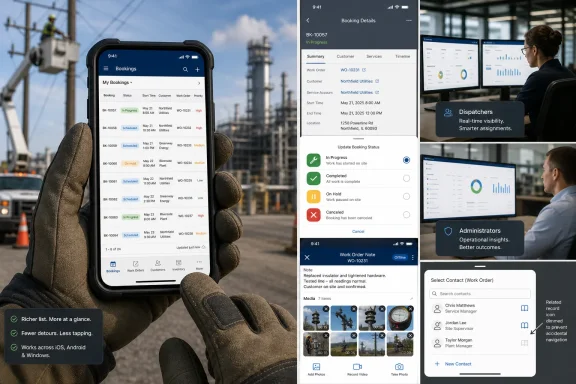
The Power Apps Grid on Mobile can now show more information directly in lists and subgrids. Microsoft says the control can display more than three columns, remove row avatars, and show column labels alongside values. On paper, that sounds like a minor layout change. In a technician’s day, it can be the difference between scanning a screen and opening ten records in a row.Enterprise mobile apps often suffer from what might be called the tap tax. Every hidden field, every unnecessary avatar, every unlabeled value, and every forced record open adds time. Individually, these are seconds. Across a workforce, they become measurable delay, frustration, and support tickets disguised as “user adoption” problems.
The richer grid option is especially relevant for Field Service because the value of a mobile list depends on context. A booking list, asset list, contact list, or parts subgrid is not useful merely because it contains records. It is useful when the technician can answer the next operational question without interrupting the work: Which customer is this? Which asset is affected? Which part is already associated? Which site has the priority issue?
Removing row avatars is a telling detail. Avatars often make sense in consumer interfaces or people-centric collaboration apps, but in field service lists they can consume precious horizontal space while adding little meaning. A colored circle with initials is less useful than a labeled column that tells a worker whether an item is urgent, installed, pending, or tied to the right asset.
Showing column labels alongside values is another subtle but important improvement. Mobile screens compress information so aggressively that unlabeled values can become ambiguous. If a technician sees “Main,” “2,” and “Open” in a dense list, the app is forcing them to remember the view configuration. Labels reduce that memory burden.
The tradeoff is obvious: more columns can become more clutter. Microsoft’s approach gives administrators control, which means the success of this feature will depend on restraint. The goal is not to turn a phone into a spreadsheet. The goal is to expose the few fields that prevent needless navigation.
Booking Status Gets a Finger-Friendly Redesign
The updated Booking Status control replaces the feel of a traditional dropdown with a clearly visible button that opens a drawer-based selection experience. Microsoft also highlights support for custom icons for booking status types. Again, this is not spectacular in the keynote-demo sense, but it is exactly the kind of change mobile users notice.Dropdowns are a desktop inheritance. They work tolerably well with a mouse, a large monitor, and a seated user. They are less elegant when the user is holding a phone with one hand, moving between jobs, or trying to change status quickly without fat-fingering the wrong option.
A drawer-style selector is more consistent with modern mobile design. It can provide larger touch targets, better spacing, and a clearer sense of context. That matters because booking status is not decorative metadata in Field Service. It often drives downstream processes: dispatcher visibility, SLA tracking, customer communications, travel and labor reporting, and sometimes billing milestones.
The icon support is more than a cosmetic flourish if organizations use it carefully. In a high-volume mobile workflow, color and shape can help technicians recognize state faster than text alone. But the same warning applies here as with richer grids: visual language only works when it is governed. If every local team invents its own status iconography, the result is not clarity but folk art.
There is also an administrative wrinkle. Microsoft’s documentation indicates that enhanced booking status behavior may apply automatically for organizations already using the existing Booking Status control, while custom icon configuration still requires setup work. That distinction matters for IT teams planning change management. A control that changes interaction style automatically needs regression testing, even if it does not require a formal enablement project.
For WindowsForum readers who manage Microsoft environments, this is the familiar Power Platform bargain. You get flexibility and velocity, but you inherit the responsibility to test forms, placements, labels, device sizes, and offline scenarios before technicians discover the edge cases in production.
Notes Finally Stop Pretending the Phone Is a Desktop
The new note-taking control may be the most consequential update in the set because notes are where field service reality meets the system of record. A work order can describe the plan, but notes capture the exception: the access panel was blocked, the part was substituted, the customer approved a workaround, the equipment failed in a way the checklist did not anticipate.Microsoft says the new control offers a streamlined mobile experience for consuming past notes, supports multiple photos and videos per note, works in low- or no-connectivity environments with offline support, and integrates with Timeline so back-office users can still see technician notes where they already work. It also stores notes in the same table used by Timeline.
That last point is essential. Mobile-specific experiences often fail when they create a parallel record of reality. If a technician captures a useful note in the field but the dispatcher or manager cannot see it in the desktop workflow, the feature becomes another silo. Microsoft is trying to avoid that by making the mobile control a better input surface for the existing Timeline-backed process.
The support for multiple photos and videos per note is similarly grounded. Field service proof is increasingly visual. A technician may need to document before-and-after conditions, capture serial numbers, show site constraints, record damage, or provide evidence that a job was completed according to contract. For complex issues, a single attachment is often not enough.
Offline support is where the feature graduates from convenience to necessity. Field service happens in mechanical rooms, rural sites, basements, plants, parking structures, and customer locations with hostile Wi-Fi. A note-taking tool that only works when connectivity is perfect is not a field tool; it is an office tool with a smaller screen.
There is still a governance story waiting underneath the happy path. Richer media capture can increase storage consumption, retention obligations, privacy exposure, and eDiscovery complexity. Organizations that enable video-heavy proof-of-work workflows should decide what belongs in a note, what belongs in a formal attachment policy, and how long this material should live.
Faster Lookups Are Really About Preventing Context Loss
Microsoft’s lookup improvements address one of the more irritating behaviors in model-driven mobile apps: the accidental journey into a related record. The company now lets administrators disable lookup hyperlink click-through, reducing mis-taps that send technicians away from the task at hand. It is a small control with a large philosophical point.Mobile workflow is fragile because context is fragile. A technician editing a work order, selecting a related asset, or updating a field is often following a mental sequence. If a lookup value behaves like a hyperlink and yanks them into another record, the app has broken the sequence. Even if no data is lost, the user has to navigate back, reorient, and continue.
The new mobile lookup control adds a bottom-sheet style experience for finding and selecting related records. That design aligns with how modern mobile apps handle temporary selection tasks: keep the user anchored, present the choice, then return them to the form. The goal is not merely fewer taps; it is fewer opportunities for the user to lose their place.
This matters because lookups are everywhere in Dynamics. They connect work orders to accounts, assets, contacts, resources, price lists, incident types, service tasks, and custom tables. In a heavily customized Field Service environment, lookup behavior can define whether the app feels coherent or like a maze of blue links.
Administrators should pay attention to the phrase “can also be disabled within this new control.” Microsoft is not removing navigation as a concept; it is letting organizations decide where navigation is useful and where selection should remain selection. That distinction is central to good mobile form design.
A lookup on a dispatcher-facing desktop form may reasonably invite exploration. A lookup on a technician-facing mobile form may need to be deliberately boring. The best mobile workflow is often the one that refuses to surprise the user.
The Power Platform Strategy Cuts Both Ways
These updates are inseparable from Microsoft’s broader decision to build Field Service mobile on the Power Platform and model-driven app infrastructure. That strategy gives customers a great deal of customization power. It also means the mobile experience can inherit both the strengths and the complexity of the platform underneath it.For administrators, the upside is obvious. Views, forms, controls, grids, and lookup behavior can be tuned to different business processes. A medical equipment service company and an HVAC contractor do not need identical mobile screens. A global manufacturer can pilot a control in one environment before rolling it out elsewhere.
The downside is that “configurable” can become “someone has to own this.” A good mobile experience requires product thinking inside the customer organization. Which fields matter in the list? Which statuses need icons? Which lookups should block click-through? Which notes should allow media? Which forms are too crowded? Which customizations hurt performance?
Microsoft’s own guidance around Field Service customization has long emphasized performance and usability concerns, especially when forms accumulate too many fields. The new controls do not repeal that warning. In fact, they make it more important. More display options can improve productivity only if administrators resist the temptation to expose everything.
There is also a release-management issue. Field Service environments tend to sit at the intersection of Dynamics 365, Power Apps, Dataverse, mobile clients, offline profiles, security roles, and sometimes custom integrations. A UI control change can ripple into training materials, support scripts, compliance procedures, and the assumptions of third-party extensions.
That complexity is not a reason to avoid the updates. It is a reason to treat them as operational changes rather than mere interface polish. In a field service organization, the interface is part of the process.
Frontline Software Is Being Judged by Consumer Standards
The deeper pressure behind Microsoft’s update is that frontline workers no longer give enterprise software a pass for being clumsy. The same people who struggle through a field service app at work use banking apps, maps, messaging apps, delivery apps, and camera workflows that are highly optimized for mobile. They know what friction feels like.That does not mean enterprise apps should mimic consumer apps blindly. Field Service has harder constraints: offline data, permissions, auditability, record relationships, configurable business logic, and integrations with dispatch and finance. But it does mean that awkward desktop metaphors are harder to defend.
The booking status drawer, bottom-sheet lookup, mobile-first notes, and denser-but-clearer grids all point in the same direction. Microsoft is not trying to make Field Service mobile cute. It is trying to make it less alien on the devices where it is actually used.
This also fits a broader Microsoft pattern. Across Dynamics 365 and Power Platform, the company has been trying to turn configurable business applications into more task-specific experiences. The hard part is doing that without fragmenting the product into a thousand bespoke apps that cannot be governed.
For Windows IT pros, the operating-system angle is quieter but still relevant. Microsoft explicitly frames the mobile experience across iOS, Android, and Windows. That cross-platform posture reflects the reality of modern Microsoft estate management: Windows may dominate the back office, but frontline mobility is heterogeneous. The Microsoft stack has to work where the worker is, not just where the administrator is most comfortable.
The Most Important Deployment Work Happens Before Enablement
The practical question for customers is not whether these controls are useful. Most of them clearly are. The question is how to adopt them without turning the mobile app into a live experiment on technicians.The first step is inventory. Administrators should identify which forms, views, lists, subgrids, and lookups technicians actually use during a job. Many Field Service environments carry legacy customizations that made sense years ago but no longer match the current process. Adding better controls on top of stale design only preserves the wrong workflow more efficiently.
The second step is prioritization. Richer grids should start with high-frequency lists where opening records is a known pain. The note-taking control should be piloted where proof-of-work requirements are clear. Lookup click-through should be disabled in places where accidental navigation is common, not everywhere as a reflex.
The third step is field testing with real devices. A form that looks tidy in Power Apps maker tools can behave differently on older phones, ruggedized tablets, poor networks, or shared devices. Labels that seem obvious to administrators may not be obvious to technicians. Icons that look distinct on a desktop monitor may blur together in sunlight.
Training should also be proportional. These are not giant workflow redesigns, but they alter muscle memory. A technician who has used the same status dropdown for years will notice a drawer. A worker accustomed to tapping a lookup to investigate a record may need to understand when that behavior has been deliberately disabled.
The biggest mistake would be treating opt-in controls as purely cosmetic. In field service, user-interface changes can affect job completion, dispatch visibility, customer communication, and data quality. A cleaner tap path is still a process change.
The Real Upgrade Is Fewer Detours Between the Truck and the Record
Microsoft’s Field Service mobile changes are best understood as a campaign against detours: detours into records just to read a field, detours into desktop-style timelines to capture a note, detours caused by mis-tapped lookups, and detours through cramped dropdowns to update status. That makes the update less flashy than an AI announcement, but probably more immediately useful to the people who carry the app.The concrete implications are straightforward:
- Organizations can configure mobile lists and subgrids to show more relevant fields at a glance, reducing unnecessary record opens.
- Booking status updates now have a more mobile-native interaction model, with drawer-based selection and support for custom status icons.
- The new note-taking control is designed for field capture, including multiple photos or videos per note and offline use.
- Lookup click-through can be disabled to prevent accidental navigation away from the task a technician is trying to complete.
- The new mobile lookup control uses a bottom-sheet selection pattern to make related-record selection feel less like desktop CRM.
- Because the controls are configurable and opt-in in important areas, administrators should pilot them against real workflows before broad deployment.
References
- Primary source: Microsoft
Published: 2026-06-19T19:10:12.146842
Field Service Mobile Updates: What’s New in Dynamics 365
Explore the latest Field Service Mobile updates in Dynamics 365, including enhancements to technician productivity, offline access, and usability.www.microsoft.com
