
Windows 11 Home users who see “Windows cannot find gpedit.msc” when trying to open the Group Policy Editor can still enable Clipboard History by editing the Registry values that control the feature and its corresponding Windows policy setting. That answer is both useful and slightly unsettling, because it reveals how much of Windows is governed by switches most consumers never see. The immediate fix is about Clipboard History, but the larger story is about Microsoft’s long-running habit of hiding administrative convenience behind edition boundaries. For home users, the Registry becomes the back door—not because it is elegant, but because Windows Home leaves too many front doors locked.
William’s problem begins with a missing command:
That absence is not a bug. It is a product decision. Microsoft has long treated Group Policy as a business and administrative feature, reserving the graphical policy editor for editions meant to live in offices, schools, managed fleets, and IT departments.
For most people, that distinction does not matter until it suddenly does. Windows 11 Home can browse the web, run Office, play games, join video calls, and use the Microsoft Store just fine. It is not a toy operating system. But when a user needs to change a policy-controlled behavior, the missing editor turns a simple toggle into a scavenger hunt.
Clipboard History is a perfect example because it feels like an ordinary consumer convenience. Press Windows+V, see recent copied items, paste the one you want. Yet beneath that friendly panel sits the same machinery administrators use to permit, block, or sync clipboard behavior across devices.
The trouble is that clipboards are not harmless. They often contain passwords, security codes, account numbers, medical details, customer records, or fragments of confidential documents. A feature that helps a home user recover a copied sentence can become a data-leak concern inside a business or remote desktop environment.
That is why Microsoft exposes clipboard behavior through policy. Administrators may want Clipboard History enabled, disabled, or restricted depending on the device, the user, and the data involved. In Pro and enterprise editions, the Local Group Policy Editor gives them a graphical way to control it.
On Windows Home, the same underlying setting may still exist, but the friendly policy front end is gone. The user is left to manipulate the Registry directly, which is technically valid but operationally riskier.
The advice in the column is correct to treat Registry Editor with caution. A mistyped value in the wrong location can do nothing, fix the issue, break a feature, destabilize the desktop, or—at the extreme—make Windows fail to start correctly. The Registry is not a settings app with guardrails and explanations. It assumes you know where you are going.
That said, the Registry is also the reason Windows Home is not completely helpless. Many policy settings ultimately map to Registry keys. Group Policy, mobile device management, and administrative templates often provide a safer interface for writing those values, but the values themselves may live in predictable places.
For Clipboard History, that means two areas matter. One is the current user’s Clipboard configuration, where Windows can be told to enable the feature. The other is the machine-wide policy location, where Windows can be told not to block it.
That part is personal. It belongs to the signed-in account, which is why it lives under
The second value is broader:
That distinction is the key to understanding why one toggle may not be enough. A user-level setting can say “turn this on,” while a policy-level setting can say “do not allow this at all.” If a restrictive policy exists, the user preference loses.
For Clipboard History, Microsoft’s own policy model treats
That is why the article’s fix checks both the user preference and the policy location. The first turns the feature on. The second makes sure the operating system is not being told to turn it off.
The subtle point is that Windows Home is not missing the concept of policy. It is missing the convenient editor. The rules are still part of Windows; the user just has fewer supported tools for viewing and changing them.
But the line is not always drawn where users expect it. Clipboard History is not Hyper-V. It is not Active Directory. It is not a compliance framework. It is a consumer-facing feature sitting inside Settings, activated with a keyboard shortcut Microsoft actively teaches users to press.
That is what makes this kind of support exchange feel odd. The feature is home-friendly, the failure is policy-shaped, and the official graphical tool for inspecting the relevant policy is withheld from the Home edition. The result is a newspaper advice column telling a residential user to open Registry Editor.
This is not a great user experience. It may be technically coherent inside Microsoft’s product matrix, but from the kitchen table it feels arbitrary. The person who bought a Windows PC at retail does not think in SKUs and administrative templates. They think: why does Windows say it cannot find the thing I was told to open?
The version also reminds us how Windows servicing has changed. Modern Windows 11 feature releases often share a common platform base with nearby versions, while Microsoft lights up features through enablement packages, staged rollouts, and configuration changes. The operating system increasingly behaves like a moving service rather than a static product burned onto a disc.
That makes troubleshooting more complicated. A user may have the right edition, the right version, and the right feature, yet still be affected by a policy, a staged rollout, a corrupted setting, or a sync state that does not match the visible UI. The old advice to “check your Windows version” is necessary, but no longer sufficient.
In William’s case, the edition is the decisive fact. Home explains the missing Group Policy Editor. The build number simply confirms that he is dealing with a contemporary Windows 11 installation where Clipboard History should be a normal supported feature.
Before editing, a cautious user should create a restore point or export the specific key being changed. Exporting a key creates a
The column’s instructions are appropriately narrow. Create or edit
The “32-bit” wording can confuse people using 64-bit Windows, but it is normal. Registry DWORD values are 32-bit data types, even on 64-bit Windows. The user is not choosing the wrong architecture; they are choosing the correct value type.
The keyboard shortcut is even simpler: press Windows+V. If Clipboard History is off, Windows usually offers to turn it on from that panel. If the feature turns on there, no Registry edit is needed.
The Registry becomes relevant when the normal toggle is missing, disabled, ineffective, or blocked by a policy warning. That is the difference between configuration and repair. Users should not reach for Regedit just because they can; they should reach for it when the supported UI path has failed and the specific Registry behavior is understood.
This is especially true for clipboard features because enabling history changes the privacy posture of the machine. A clipboard that remembers more is more convenient, but also more revealing to anyone with access to the session. Shared family PCs, remote support sessions, and unattended unlocked desktops all deserve a little more caution.
Local Clipboard History stores recent items for reuse. Cross-device clipboard sync, when enabled, adds another dimension by involving cloud-connected devices tied to the same account. That does not make the feature bad, but it does mean users should understand what they are enabling.
For most home users, the practical risk is not espionage. It is shoulder-surfing, family-device overlap, remote support exposure, or accidentally pasting the wrong sensitive item into the wrong place. The feature is still worth using, but it should be treated as a memory aid that remembers things you may not want remembered.
Administrators already understand this. That is why clipboard policy exists in the first place. The same setting that irritates William when it blocks a convenience feature may be essential in a workplace handling regulated data.
That shift is not inherently sinister. It has made Windows more secure and easier to recover than the malware-ridden consumer PCs of the 2000s. But it also means the boundary between consumer setting and administrative policy has blurred.
A Home user can run into enterprise-style behavior without ever joining a domain. A device may carry remnants of prior management, OEM configuration, school or work account influence, third-party hardening tools, or privacy utilities that set policy values and then disappear. The user sees a greyed-out toggle; Windows sees a policy.
That is why troubleshooting increasingly requires asking not only “what version of Windows is this?” but also “who or what has been allowed to manage it?” The answer may be Microsoft, an employer, a school, an OEM, a security app, or the user’s own past experiment.
The problem is that Registry workarounds are not a product strategy. They are a pressure valve. They let advanced users recover control, but they do not make the operating system more understandable for everyone else.
Microsoft could expose more policy-adjacent settings in Windows Home without shipping the full Group Policy Editor. It could present clearer messages when a feature is disabled by policy. It could tell users whether a setting is controlled by a Registry policy, a work account, an organization, or a local configuration tool. Windows often knows more than it says.
Instead, the system still too often collapses complex causes into vague symptoms. A missing
He needs to verify the setting in the current-user Clipboard key and the policy value in the machine-wide Windows System policy key. If both are set to allow Clipboard History, a restart should give Windows a clean chance to apply the configuration. After that, Windows+V should show the Clipboard History interface.
If it still does not work, the next suspects would be account policy, third-party privacy tools, system corruption, or a deeper Windows component issue. But the Registry steps address the obvious edition-related obstacle created by the missing Group Policy Editor.
There is a quiet irony here. Windows Home denies users the safer administrative interface, then leaves them with the sharper tool. That may make sense on a licensing spreadsheet, but it is not the hierarchy of risk a support technician would design.
 Windows Home Is Not Broken, but It Is Deliberately Blunt
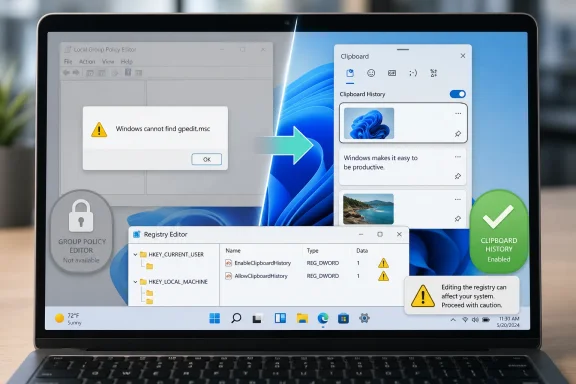
William’s problem begins with a missing command: gpedit.msc. On Windows 11 Pro, Enterprise, and Education editions, that command opens the Local Group Policy Editor, a management console that exposes hundreds of policy settings in a relatively readable tree. On Windows 11 Home, it simply is not there.That absence is not a bug. It is a product decision. Microsoft has long treated Group Policy as a business and administrative feature, reserving the graphical policy editor for editions meant to live in offices, schools, managed fleets, and IT departments.
For most people, that distinction does not matter until it suddenly does. Windows 11 Home can browse the web, run Office, play games, join video calls, and use the Microsoft Store just fine. It is not a toy operating system. But when a user needs to change a policy-controlled behavior, the missing editor turns a simple toggle into a scavenger hunt.
Clipboard History is a perfect example because it feels like an ordinary consumer convenience. Press Windows+V, see recent copied items, paste the one you want. Yet beneath that friendly panel sits the same machinery administrators use to permit, block, or sync clipboard behavior across devices.
Clipboard History Shows How Consumer Features Become Policy Problems
Clipboard History arrived as part of Microsoft’s broader push to make the Windows clipboard smarter. Instead of holding only the most recent copied item, Windows can store a short history in memory and optionally sync clipboard text across devices signed into the same Microsoft or work account. That is genuinely useful, especially for people who copy confirmation numbers, addresses, snippets of text, or repeated commands.The trouble is that clipboards are not harmless. They often contain passwords, security codes, account numbers, medical details, customer records, or fragments of confidential documents. A feature that helps a home user recover a copied sentence can become a data-leak concern inside a business or remote desktop environment.
That is why Microsoft exposes clipboard behavior through policy. Administrators may want Clipboard History enabled, disabled, or restricted depending on the device, the user, and the data involved. In Pro and enterprise editions, the Local Group Policy Editor gives them a graphical way to control it.
On Windows Home, the same underlying setting may still exist, but the friendly policy front end is gone. The user is left to manipulate the Registry directly, which is technically valid but operationally riskier.
The Registry Is the Oldest Power Tool Windows Still Hands to Everyone
The Registry is not a secret menu so much as Windows’ central configuration database. Applications, services, device drivers, shell components, user preferences, and system policies all use it. That makes it powerful, but also unforgiving.The advice in the column is correct to treat Registry Editor with caution. A mistyped value in the wrong location can do nothing, fix the issue, break a feature, destabilize the desktop, or—at the extreme—make Windows fail to start correctly. The Registry is not a settings app with guardrails and explanations. It assumes you know where you are going.
That said, the Registry is also the reason Windows Home is not completely helpless. Many policy settings ultimately map to Registry keys. Group Policy, mobile device management, and administrative templates often provide a safer interface for writing those values, but the values themselves may live in predictable places.
For Clipboard History, that means two areas matter. One is the current user’s Clipboard configuration, where Windows can be told to enable the feature. The other is the machine-wide policy location, where Windows can be told not to block it.
Two Registry Values Tell Windows Whether the Clipboard Can Remember
The first value William was instructed to check is under the current user hive:HKEY_CURRENT_USER\Software\Microsoft\Clipboard. The value name is EnableClipboardHistory, and setting it to 1 tells Windows that Clipboard History should be enabled for that user.That part is personal. It belongs to the signed-in account, which is why it lives under
HKEY_CURRENT_USER. It is analogous to flipping a user preference in Settings, except the column walks the reader directly to the place where Windows stores that preference.The second value is broader:
HKEY_LOCAL_MACHINE\SOFTWARE\Policies\Microsoft\Windows\System. The value name is AllowClipboardHistory, and setting it to 1 means Windows policy allows clipboard contents to be stored in history. This location matters because policy settings can override user preferences.That distinction is the key to understanding why one toggle may not be enough. A user-level setting can say “turn this on,” while a policy-level setting can say “do not allow this at all.” If a restrictive policy exists, the user preference loses.
The Policy Layer Is the Part Home Users Rarely See
Windows policy is not just for corporations, even if corporations are its most obvious customers. It is a layer of control built into the operating system. Some settings are exposed through Group Policy, some through mobile device management, some through Settings, and some only become visible when something goes wrong.For Clipboard History, Microsoft’s own policy model treats
AllowClipboardHistory as a device-scope control. In plain English, that means it is meant to decide whether the device allows clipboard history at all. If the value is 0, Windows should block the feature. If it is 1 or not configured in a restrictive way, Windows can allow it.That is why the article’s fix checks both the user preference and the policy location. The first turns the feature on. The second makes sure the operating system is not being told to turn it off.
The subtle point is that Windows Home is not missing the concept of policy. It is missing the convenient editor. The rules are still part of Windows; the user just has fewer supported tools for viewing and changing them.
Microsoft’s Edition Strategy Still Creates Strange Everyday Friction
It is easy to defend Microsoft’s edition split from an enterprise licensing perspective. Businesses need centralized management, domain integration, BitLocker management, virtualization features, and security controls that many home users will never touch. Charging more for those capabilities is ordinary software segmentation.But the line is not always drawn where users expect it. Clipboard History is not Hyper-V. It is not Active Directory. It is not a compliance framework. It is a consumer-facing feature sitting inside Settings, activated with a keyboard shortcut Microsoft actively teaches users to press.
That is what makes this kind of support exchange feel odd. The feature is home-friendly, the failure is policy-shaped, and the official graphical tool for inspecting the relevant policy is withheld from the Home edition. The result is a newspaper advice column telling a residential user to open Registry Editor.
This is not a great user experience. It may be technically coherent inside Microsoft’s product matrix, but from the kitchen table it feels arbitrary. The person who bought a Windows PC at retail does not think in SKUs and administrative templates. They think: why does Windows say it cannot find the thing I was told to open?
The Build Number Adds a Modern Wrinkle
William’s copied system information says Windows 11 Home, version 25H2, OS build 26200.8524. That matters because it places his machine on a recent Windows 11 release branch rather than an old or unsupported build. In other words, this is not a legacy Windows problem.The version also reminds us how Windows servicing has changed. Modern Windows 11 feature releases often share a common platform base with nearby versions, while Microsoft lights up features through enablement packages, staged rollouts, and configuration changes. The operating system increasingly behaves like a moving service rather than a static product burned onto a disc.
That makes troubleshooting more complicated. A user may have the right edition, the right version, and the right feature, yet still be affected by a policy, a staged rollout, a corrupted setting, or a sync state that does not match the visible UI. The old advice to “check your Windows version” is necessary, but no longer sufficient.
In William’s case, the edition is the decisive fact. Home explains the missing Group Policy Editor. The build number simply confirms that he is dealing with a contemporary Windows 11 installation where Clipboard History should be a normal supported feature.
Registry Fixes Should Be Precise, Boring, and Backed Up
The most important part of any Registry advice is not the command sequence; it is the discipline around the command sequence. The user should go only to the specified path, change only the specified value, and resist the temptation to browse around. Registry Editor rewards curiosity with ambiguity and punishes overconfidence.Before editing, a cautious user should create a restore point or export the specific key being changed. Exporting a key creates a
.reg file that can be re-imported later if the change needs to be reversed. That is not a substitute for a full backup, but it is a sensible minimum when changing a small area of the Registry.The column’s instructions are appropriately narrow. Create or edit
EnableClipboardHistory as a 32-bit DWORD and set it to 1. Create or edit AllowClipboardHistory as a 32-bit DWORD and set it to 1. Restart the computer.The “32-bit” wording can confuse people using 64-bit Windows, but it is normal. Registry DWORD values are 32-bit data types, even on 64-bit Windows. The user is not choosing the wrong architecture; they are choosing the correct value type.
The Safer First Stop Is Still Settings
Even though the Registry method is useful, it should not become the first instinct. On a healthy Windows 11 Home system, Clipboard History is normally controlled through Settings. The ordinary route is Settings, then System, then Clipboard, then Clipboard history.The keyboard shortcut is even simpler: press Windows+V. If Clipboard History is off, Windows usually offers to turn it on from that panel. If the feature turns on there, no Registry edit is needed.
The Registry becomes relevant when the normal toggle is missing, disabled, ineffective, or blocked by a policy warning. That is the difference between configuration and repair. Users should not reach for Regedit just because they can; they should reach for it when the supported UI path has failed and the specific Registry behavior is understood.
This is especially true for clipboard features because enabling history changes the privacy posture of the machine. A clipboard that remembers more is more convenient, but also more revealing to anyone with access to the session. Shared family PCs, remote support sessions, and unattended unlocked desktops all deserve a little more caution.
Clipboard Convenience Has a Security Shadow
Clipboard History is one of those features that feels trivial until you think about what you copy all day. Password managers may try to clear copied passwords after a short period. Banking sites may place account information on the clipboard. Two-factor codes, recovery keys, API tokens, and private messages all pass through the same temporary channel.Local Clipboard History stores recent items for reuse. Cross-device clipboard sync, when enabled, adds another dimension by involving cloud-connected devices tied to the same account. That does not make the feature bad, but it does mean users should understand what they are enabling.
For most home users, the practical risk is not espionage. It is shoulder-surfing, family-device overlap, remote support exposure, or accidentally pasting the wrong sensitive item into the wrong place. The feature is still worth using, but it should be treated as a memory aid that remembers things you may not want remembered.
Administrators already understand this. That is why clipboard policy exists in the first place. The same setting that irritates William when it blocks a convenience feature may be essential in a workplace handling regulated data.
Home PCs Are Becoming Administered Machines Whether Users Know It or Not
The deeper lesson is that modern home PCs increasingly resemble lightly managed endpoints. Microsoft accounts sync settings. OneDrive redirects folders. Defender enforces security baselines. Windows Update follows servicing channels. Edge, Office, and Store apps update independently. Even a personal laptop now contains layers of policy, identity, telemetry, and cloud configuration.That shift is not inherently sinister. It has made Windows more secure and easier to recover than the malware-ridden consumer PCs of the 2000s. But it also means the boundary between consumer setting and administrative policy has blurred.
A Home user can run into enterprise-style behavior without ever joining a domain. A device may carry remnants of prior management, OEM configuration, school or work account influence, third-party hardening tools, or privacy utilities that set policy values and then disappear. The user sees a greyed-out toggle; Windows sees a policy.
That is why troubleshooting increasingly requires asking not only “what version of Windows is this?” but also “who or what has been allowed to manage it?” The answer may be Microsoft, an employer, a school, an OEM, a security app, or the user’s own past experiment.
The Registry Workaround Is a Symptom, Not a Strategy
There is a familiar rhythm to Windows power-user advice: Microsoft hides or removes a convenient interface, enthusiasts discover the Registry value underneath, and users trade snippets that restore the behavior. Sometimes this is harmless. Sometimes it is brittle. Sometimes it keeps working for years.The problem is that Registry workarounds are not a product strategy. They are a pressure valve. They let advanced users recover control, but they do not make the operating system more understandable for everyone else.
Microsoft could expose more policy-adjacent settings in Windows Home without shipping the full Group Policy Editor. It could present clearer messages when a feature is disabled by policy. It could tell users whether a setting is controlled by a Registry policy, a work account, an organization, or a local configuration tool. Windows often knows more than it says.
Instead, the system still too often collapses complex causes into vague symptoms. A missing
gpedit.msc message tells the truth narrowly but explains nothing broadly. It says Windows cannot find the file. It does not say: you are using Windows Home, and this administrative editor is not included in your edition.William’s Fix Belongs in the Windows Survival Kit
The useful part of this episode is that the solution is concrete. William does not need to reinstall Windows. He does not need to buy a new PC. He probably does not need to upgrade to Pro just to use Clipboard History.He needs to verify the setting in the current-user Clipboard key and the policy value in the machine-wide Windows System policy key. If both are set to allow Clipboard History, a restart should give Windows a clean chance to apply the configuration. After that, Windows+V should show the Clipboard History interface.
If it still does not work, the next suspects would be account policy, third-party privacy tools, system corruption, or a deeper Windows component issue. But the Registry steps address the obvious edition-related obstacle created by the missing Group Policy Editor.
There is a quiet irony here. Windows Home denies users the safer administrative interface, then leaves them with the sharper tool. That may make sense on a licensing spreadsheet, but it is not the hierarchy of risk a support technician would design.
The Clipboard Fix Says More About Windows Than Clipboard History
This small support case leaves several practical lessons for Windows 11 Home users who are comfortable making targeted changes but do not want to turn their PC into a science project.- Windows 11 Home does not include the Local Group Policy Editor, so
gpedit.mscfailing to launch is expected behavior rather than a sign of a damaged installation. - Clipboard History can be controlled by both a user preference and a machine-level policy, which is why two Registry locations may need to be checked.
- The relevant Registry values are
EnableClipboardHistoryunder the current user Clipboard key andAllowClipboardHistoryunder the machine-wide Windows System policy key. - Registry edits should be narrow, documented, and backed up before changes are made, because Registry Editor does not provide the same guardrails as the Settings app.
- Clipboard History is convenient, but users should remember that copied passwords, codes, and private text may linger longer than expected.
- Upgrading from Home to Pro would restore access to the Group Policy Editor, but it is not necessary for this specific Clipboard History fix.
References
- Primary source: Odessa American
Published: 2026-06-21T17:10:18.581037
IT'S GEEK TO ME: Some Windows features can be enabled in Registry Editor - Odessa American
The Odessa American is the leading source of local news, information, entertainment and sports for the Permian Basin.www.oaoa.com - Related coverage: windowscentral.com
I dug through the Windows 11 Insider builds for June 2026 and found 7 features worth paying attention to | Windows Central
Microsoft's June Insider preview builds show a growing focus on polishing the OS experience across accessibility, updates, and performance.www.windowscentral.com - Related coverage: tomshardware.com
Windows 11 25H2 ISOs released after delays — upgrade switches on some features, now available for insiders | Tom's Hardware
Microsoft has released ISO install media for Windows 11 version 25H2, the next feature update in its annual release cycle.www.tomshardware.com - Official source: support.microsoft.com
Using the clipboard - Microsoft Support
Learn how to use and troubleshoot the clipboard in Windows to paste multiple items, pin items, and sync your clipboard to the cloud.support.microsoft.com - Official source: blogs.windows.com
Announcing Windows 11 Insider Preview Build 26200.5761 (Dev Channel)
Hello Windows Insiders, today we are releasing Windows 11 Insider Preview Build 26200.5761 (KB5064093) to the Dev Channel. Changes in Dev Channel builds and updates are documented in two buckets: new features, improblogs.windows.com - Related coverage: windowslatest.com
Leak shows Windows 11 25H2 with Build 26200, not a big release like Windows 11 24H2?
Windows 11 25H2 is indeed coming, and the odds of it being a minor release compared to Windows 11's 2024 Update are much higher. www.windowslatest.com
- Related coverage: windowsreport.com
Windows 11's latest Insider build 26100.6718 (24H2) & 26200.6718 (25H2) fixes update error 0x80070002, Blue-ray playback issues & more
Windows 11 Insider build 26100.6718 and 26200.6718 fixes update error 0x80070002, plus Blu-ray playback, battery icon, and Settings crashes. windowsreport.com
- Related coverage: arstechnica.com
Windows 11 25H2 update hits its last stop before release to the general public - Ars Technica
The 25H2 update will be a quiet one, after 24H2's under-the-hood overhauls.arstechnica.com - Official source: learn.microsoft.com
- Related coverage: beebom.com
Windows 11 25H2 is Rolling Out Ahead of Public Release | Beebom
Starting today, users can install the Windows 11 25H2 update; however, you must join the Windows Insider program in the Release Preview channel.beebom.com - Related coverage: howtogeek.com
How to Enable and Use Clipboard History on Windows 11
Stop the tedious "Copy, Paste, Copy, Paste" loop and pull from a list of clipboard entries. www.howtogeek.com
- Related coverage: techradar.com
Windows 11 25H2 installer is now out, but here's why you shouldn't be tempted to download the update yet | TechRadar
Don't be inclined to risk anything, it's still in previewwww.techradar.com