
Windows 11’s latest Field Guide update, published June 23, 2026 by Paul Thurrott, revisits Internet Connectivity in Windows 11, covering Wi-Fi, Ethernet, cellular data, Airplane mode, and Mobile hotspot as the practical plumbing behind Microsoft’s modern PC experience. The timing is almost too perfect: as Windows becomes more cloud-attached, AI-branded, account-driven, and subscription-aware, the network stack stops being background machinery and becomes the product’s front door. Thurrott’s screenshots may look like ordinary documentation fodder, but the subject is anything but ordinary. In 2026, “getting online” is no longer a setup step; it is the operating condition Windows increasingly assumes.
For decades, Windows treated connectivity as something adjacent to computing. You installed the OS, logged in locally, opened applications, saved files, and occasionally reached for a browser or mapped drive. The network mattered, but the PC still had a coherent offline identity.
Windows 11 has steadily inverted that relationship. The taskbar’s network icon now represents more than signal strength; it is the status light for Microsoft account sign-in, OneDrive sync, Store app licensing, passkey flows, Copilot-adjacent features, Teams work accounts, Edge profiles, Widgets, and the entire first-run experience for many consumer devices. If that icon is wrong, half the operating system feels wrong.
That is why a Field Guide chapter on Internet connectivity is more than a beginner’s tour. It is a map of Windows 11’s dependency chain. Wi-Fi, Ethernet, cellular, hotspot sharing, and Airplane mode are not just toggles in Quick Settings; they are the levers that decide whether the modern Windows shell feels seamless or hostile.
The old Control Panel-era mental model was adapter-first. The Windows 11 model is state-first: connected, metered, roaming, discoverable, public, private, managed, shared, or deliberately offline. That shift is subtle, but it is where the modern Windows experience lives.
Quick Settings borrows from mobile operating systems because most users now understand connectivity through phone rituals. Tap Wi-Fi, tap Cellular, toggle Airplane mode, pick a network, move on. Microsoft has spent years trying to make Windows feel less like an administrative console and more like a device.
That makes sense for consumers, and it is often faster even for experienced users. The problem is that Windows is not merely a device OS. It is also a workplace endpoint, a lab machine, a gaming rig, a kiosk, a developer workstation, a remote admin box, and a compliance target. A simplified front door is welcome only if the deeper rooms remain reachable.
In fairness, Windows 11 mostly preserves that split. Quick Settings handles common switching; Settings handles network profiles, adapter details, data usage, proxy, VPN, advanced sharing, and reset operations. The design is less about removing complexity than hiding it until the user has a reason to care.
Still, hiding complexity has consequences. When a Wi-Fi adapter disappears after a driver update, when a VPN rewrites routes, or when a captive portal refuses to surface cleanly, the friendly flyout quickly gives way to old-fashioned troubleshooting. Windows 11’s networking story is at its best when the simplified layer and the administrative layer agree; it is at its worst when the user must infer which layer is lying.
Microsoft’s own prioritization reflects that reality. When Ethernet and Wi-Fi are both available, Windows generally favors Ethernet because it is usually the more stable and performant path. That behavior is not glamorous, but it is exactly what users expect when they plug in a cable.
The continued importance of Ethernet also exposes the gap between consumer PC marketing and real-world IT. Thin laptops often ship without built-in RJ-45 ports, but enterprise desks are full of USB-C docks whose entire reason for existing is to restore wired networking, multiple displays, and predictable power. The port moved off the laptop, not out of the workflow.
For administrators, Ethernet is also a recovery channel. If Wi-Fi authentication breaks, if a certificate profile fails, if a device falls off mobile broadband, a cable can still bring the machine back into management. That fact alone keeps Ethernet strategically relevant long after marketing departments stopped photographing it.
Windows 11 does a decent job of smoothing the everyday user path. Network discovery, saved profiles, password entry, and automatic reconnection are routine enough that most users rarely think about them. That invisibility is a success.
But Wi-Fi’s complexity shows up under pressure. A laptop that works perfectly at home may stumble on enterprise WPA configurations. A conference room full of devices can turn a strong signal into a bad experience. A driver update can change roaming behavior. A captive hotel portal can confuse VPN, DNS, and browser expectations before the user even gets to email.
That is why the Settings app’s network details matter. Users may live in Quick Settings, but IT lives in properties: SSID, band, link speed, DNS, MAC randomization, profile type, metered status, and adapter driver. Windows 11’s job is to make those details available without forcing everyone through them every day.
The challenge is that Microsoft’s interface sometimes underestimates how often “normal” users need diagnostic truth. A signal icon can say the PC is connected while the user has no useful Internet path. To the operating system, link status and Internet reachability are different facts; to the user, they are the same problem.
Windows 11 supports PCs with physical SIMs, eSIMs, and external cellular modems, provided the user or organization has a carrier data plan. That qualifier is important. The feature is not just a Windows capability; it is a hardware, carrier, firmware, driver, and subscription capability that happens to surface in Windows.
The “Let Windows keep me connected” setting captures the user-facing promise. If enabled, Windows can automatically fall back to cellular when Wi-Fi or Ethernet is unavailable. That sounds simple, but it is a policy decision disguised as convenience.
For a field worker, automatic cellular fallback can be the difference between productivity and dead time. For a cost-conscious consumer, it can become an invisible meter running in the background. For an enterprise, it may be a compliance and cost-control issue, especially when devices roam internationally or sync large workloads over metered networks.
Microsoft is right to expose roaming and metered controls prominently in cellular settings. Cellular is not just another pipe. It is the pipe where every background sync, update, telemetry burst, cloud backup, and video meeting may have a line-item cost attached.
That distinction matters because Windows 11 is increasingly chatty by design. OneDrive syncs, Store apps update, Teams caches, Edge restores, Widgets refresh, Defender pulls signatures, and Windows Update waits for its turn. None of these activities is inherently bad, but together they can turn a limited data connection into a surprise.
The problem is that “metered” is advisory, not magical. It can reduce background data use, delay some updates, and alter app behavior, but it does not transform Windows into a fully offline-first OS. Users who assume the toggle is a hard firewall misunderstand the feature.
For administrators, the more realistic view is that metered status is a cost-management signal. It belongs alongside update rings, delivery optimization, VPN policy, cloud storage configuration, and endpoint management rules. A cellular laptop without a metered strategy is not a mobile productivity tool; it is an expense report waiting to happen.
Consumers should care too. Anyone tethering a laptop to a phone hotspot should consider marking that Wi-Fi network as metered. Windows may not stop every byte, but it will at least stop pretending the connection is a fiber line with no bill attached.
The feature is easy to justify. A laptop with Ethernet in a hotel room, cellular in the field, or a working Wi-Fi connection in a constrained environment can share access with a phone, tablet, test device, or colleague’s machine. In the real world, people improvise connectivity.
But improvised connectivity is exactly what enterprise networks try to control. A hotspot can bypass assumptions about segmentation, device posture, logging, and acceptable use. It can also create support confusion when downstream devices have connectivity problems caused by the host PC’s power state, VPN routing, firewall configuration, or adapter limitations.
Microsoft’s inclusion of mobile hotspot reflects a broader truth: Windows is both an endpoint and a platform for making other endpoints useful. The same flexibility that delights power users creates governance headaches. That tension is not a bug; it is the oldest Windows story in a new networking wrapper.
The right answer is not to pretend the feature does not exist. Organizations should decide whether to allow it, document the policy, and enforce that decision where necessary. Users will always find a network path; IT’s job is to make the approved path easier than the risky one.
That matters because modern PCs are rarely still. They sleep, wake, roam, scan, pair, sync, and reconnect. Wireless interfaces are not just conveniences; they are ambient behaviors. Airplane mode gives the user one broad control over that behavior, even if specific Wi-Fi or Bluetooth states may be remembered or restored depending on configuration.
The feature also matters beyond airplanes. Users rely on it during troubleshooting, battery conservation, presentations, sensitive meetings, lab work, travel, and moments when they simply want a machine to stop reaching outward. The name undersells the function.
For privacy-minded users, Airplane mode is not a complete security model, but it is a useful state. For IT pros, it is also a diagnostic shortcut: if disabling radios changes the symptom, the problem is somewhere in wireless, discovery, Bluetooth, cellular, or a service reacting to connectivity. That is not glamorous, but it is actionable.
Windows 11’s challenge is to keep this control understandable. A single airplane icon should not require a footnote about which radios are off, which ones were later re-enabled, and which device firmware behaviors remain outside Windows’ visibility. The more radios PCs gain, the more important that clarity becomes.
The Settings app is now good enough for most common networking work. It can show active connections, manage Wi-Fi and cellular, mark networks as metered, expose data usage, handle proxy settings, configure hotspot behavior, and reach advanced adapter information. For normal users, that is the right center of gravity.
But Windows networking has accumulated decades of operational muscle memory. Device Manager, Event Viewer, PowerShell, netsh, ipconfig, route tables, adapter properties, Group Policy, registry-backed settings, and MDM configuration profiles remain part of the job. Settings is the lobby, not the whole building.
This split can frustrate everyone. Consumers encounter advanced links that feel like trapdoors. Administrators encounter modern pages that summarize but do not fully explain. Microsoft’s task is not merely to move controls into Settings; it is to preserve diagnostic depth without making the interface feel like a museum of Windows eras.
The good news is that Windows 11 has improved substantially from the early days of split-brain configuration. The bad news is that networking is the category where partial abstraction fails most visibly. When a machine cannot connect, nobody cares that the UI is prettier.
In the old model, losing Internet access was inconvenient. In the new model, it can interrupt sign-in, file availability, app licensing, security posture, device compliance, remote help, and user expectations. Windows still runs offline, but much of the surrounding experience has been designed for reconnection.
This is where Internet connectivity becomes a product ethics issue, not just a technical one. If Windows requires or strongly encourages network access for setup, account recovery, sync, AI features, and services, it has an obligation to explain network state clearly. “Connected” is not enough. Users need to know whether they have local link, Internet reachability, captive portal blockage, DNS failure, metered status, roaming risk, or policy restriction.
Microsoft has improved some of this over the years, but Windows still too often collapses different failures into similar user-facing symptoms. A bad DNS resolver, a blocked Microsoft endpoint, a hotel portal, and a dead Wi-Fi link may all feel like “the Internet is broken.” For a modern OS, that is not precise enough.
The more Windows becomes a service client, the more it must become a better network narrator. The PC should not merely indicate whether it has a connection; it should explain what kind of connection, what Windows is doing with it, and what tradeoffs the user is accepting.
That is why consumer-oriented documentation can sometimes feel incomplete to administrators. The visible UI is only the beginning. A managed Windows device may be governed by Intune, Group Policy, carrier provisioning, VPN clients, endpoint detection tools, firewall baselines, and compliance rules that override or reshape what users see.
Cellular raises special questions. Always-connected laptops can improve resilience, especially for executives, field staff, emergency operations, and remote workers. They can also bypass poorly designed office network assumptions. A device that remains online outside the corporate LAN is only safe if management and security controls follow it there.
Wi-Fi has its own governance burden. Home networks, guest networks, public hotspots, conference networks, and phone tethering all become part of the enterprise access story. The perimeter did not disappear because vendors said “zero trust”; it dissolved because users took Windows laptops everywhere.
The practical takeaway is that networking can no longer be treated as plumbing owned by a separate team. Endpoint management, identity, security, networking, and user experience all intersect at the Windows network flyout. That little panel on the taskbar is where enterprise architecture meets a hurried employee in an airport lounge.
These are not obscure administrative details. They are everyday consequences. A student tethering to a phone, a traveler joining hotel Wi-Fi, a parent sharing a laptop hotspot, or a remote worker relying on an eSIM needs the OS to make tradeoffs legible.
Microsoft often assumes that users want fewer words. Sometimes they do. But networking is an area where sparse labels can create expensive misunderstandings. A short explanation beside the right toggle can prevent a support call, a data overage, or a security mistake.
The industry’s obsession with minimalist UI has not always served Windows well. PCs are powerful because they expose choices. The trick is not to hide those choices; it is to explain them at the moment they matter.
Plenty. Connectivity is the foundation on which Microsoft is building the next stage of Windows. Copilot-branded features, cloud sync, Microsoft account integration, app distribution, device management, remote work, and security telemetry all presume that the PC can get online and stay online in a way the user understands.
That makes the basics strategic. A confusing network state can make an AI feature look broken. A misclassified metered connection can turn cloud convenience into a data bill. A missing cellular policy can turn resilience into risk. A hotspot toggle can turn a helpful laptop into an unmanaged bridge.
Thurrott’s update lands because it documents the part of Windows that most people only notice when it fails. The screenshots are ordinary by design. The stakes are not.
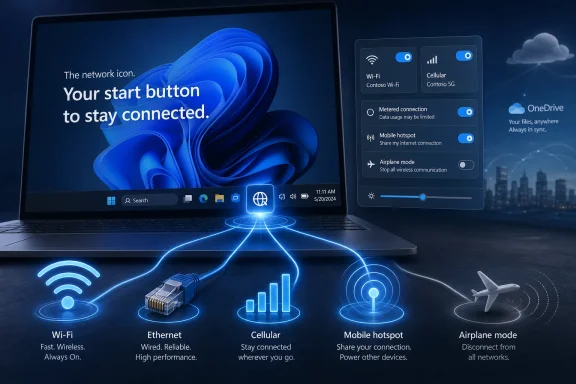 The Network Icon Became the Real Start Button
For decades, Windows treated connectivity as something adjacent to computing. You installed the OS, logged in locally, opened applications, saved files, and occasionally reached for a browser or mapped drive. The network mattered, but the PC still had a coherent offline identity.Windows 11 has steadily inverted that relationship. The taskbar’s network icon now represents more than signal strength; it is the status light for Microsoft account sign-in, OneDrive sync, Store app licensing, passkey flows, Copilot-adjacent features, Teams work accounts, Edge profiles, Widgets, and the entire first-run experience for many consumer devices. If that icon is wrong, half the operating system feels wrong.
That is why a Field Guide chapter on Internet connectivity is more than a beginner’s tour. It is a map of Windows 11’s dependency chain. Wi-Fi, Ethernet, cellular, hotspot sharing, and Airplane mode are not just toggles in Quick Settings; they are the levers that decide whether the modern Windows shell feels seamless or hostile.
The old Control Panel-era mental model was adapter-first. The Windows 11 model is state-first: connected, metered, roaming, discoverable, public, private, managed, shared, or deliberately offline. That shift is subtle, but it is where the modern Windows experience lives.
Quick Settings Is Microsoft’s Bet That Networking Should Feel Like a Phone
The most visible change in Windows 11 networking is not a protocol or driver model. It is the relocation of everyday network behavior into Quick Settings, the small flyout reached from the taskbar or with Win+A. That design choice says a lot about Microsoft’s aspirations for the PC.Quick Settings borrows from mobile operating systems because most users now understand connectivity through phone rituals. Tap Wi-Fi, tap Cellular, toggle Airplane mode, pick a network, move on. Microsoft has spent years trying to make Windows feel less like an administrative console and more like a device.
That makes sense for consumers, and it is often faster even for experienced users. The problem is that Windows is not merely a device OS. It is also a workplace endpoint, a lab machine, a gaming rig, a kiosk, a developer workstation, a remote admin box, and a compliance target. A simplified front door is welcome only if the deeper rooms remain reachable.
In fairness, Windows 11 mostly preserves that split. Quick Settings handles common switching; Settings handles network profiles, adapter details, data usage, proxy, VPN, advanced sharing, and reset operations. The design is less about removing complexity than hiding it until the user has a reason to care.
Still, hiding complexity has consequences. When a Wi-Fi adapter disappears after a driver update, when a VPN rewrites routes, or when a captive portal refuses to surface cleanly, the friendly flyout quickly gives way to old-fashioned troubleshooting. Windows 11’s networking story is at its best when the simplified layer and the administrative layer agree; it is at its worst when the user must infer which layer is lying.
Ethernet Remains the Boring Winner
Windows 11 may present Wi-Fi as the default lifestyle option, but Ethernet remains the quiet benchmark against which every other connection is judged. It is faster to trust, easier to diagnose, less vulnerable to local interference, and still the preferred answer for desktops, docks, offices, labs, and any machine expected to move large data reliably.Microsoft’s own prioritization reflects that reality. When Ethernet and Wi-Fi are both available, Windows generally favors Ethernet because it is usually the more stable and performant path. That behavior is not glamorous, but it is exactly what users expect when they plug in a cable.
The continued importance of Ethernet also exposes the gap between consumer PC marketing and real-world IT. Thin laptops often ship without built-in RJ-45 ports, but enterprise desks are full of USB-C docks whose entire reason for existing is to restore wired networking, multiple displays, and predictable power. The port moved off the laptop, not out of the workflow.
For administrators, Ethernet is also a recovery channel. If Wi-Fi authentication breaks, if a certificate profile fails, if a device falls off mobile broadband, a cable can still bring the machine back into management. That fact alone keeps Ethernet strategically relevant long after marketing departments stopped photographing it.
Wi-Fi Is Convenient Until It Becomes Infrastructure
Wi-Fi occupies the uncomfortable middle ground between consumer convenience and enterprise infrastructure. At home, it is the default connection method. In business, it is an authentication, roaming, certificate, driver, radio-density, and policy problem wearing a friendly icon.Windows 11 does a decent job of smoothing the everyday user path. Network discovery, saved profiles, password entry, and automatic reconnection are routine enough that most users rarely think about them. That invisibility is a success.
But Wi-Fi’s complexity shows up under pressure. A laptop that works perfectly at home may stumble on enterprise WPA configurations. A conference room full of devices can turn a strong signal into a bad experience. A driver update can change roaming behavior. A captive hotel portal can confuse VPN, DNS, and browser expectations before the user even gets to email.
That is why the Settings app’s network details matter. Users may live in Quick Settings, but IT lives in properties: SSID, band, link speed, DNS, MAC randomization, profile type, metered status, and adapter driver. Windows 11’s job is to make those details available without forcing everyone through them every day.
The challenge is that Microsoft’s interface sometimes underestimates how often “normal” users need diagnostic truth. A signal icon can say the PC is connected while the user has no useful Internet path. To the operating system, link status and Internet reachability are different facts; to the user, they are the same problem.
Cellular Turns the PC Into a Managed Mobile Endpoint
Cellular data is the most interesting piece of the Windows 11 connectivity story because it changes what a PC is. A cellular-equipped laptop is not merely portable; it is independently reachable, provisionable, and usable away from trusted Wi-Fi. It is closer to a tablet or phone in operational terms, even if the Windows desktop remains unchanged.Windows 11 supports PCs with physical SIMs, eSIMs, and external cellular modems, provided the user or organization has a carrier data plan. That qualifier is important. The feature is not just a Windows capability; it is a hardware, carrier, firmware, driver, and subscription capability that happens to surface in Windows.
The “Let Windows keep me connected” setting captures the user-facing promise. If enabled, Windows can automatically fall back to cellular when Wi-Fi or Ethernet is unavailable. That sounds simple, but it is a policy decision disguised as convenience.
For a field worker, automatic cellular fallback can be the difference between productivity and dead time. For a cost-conscious consumer, it can become an invisible meter running in the background. For an enterprise, it may be a compliance and cost-control issue, especially when devices roam internationally or sync large workloads over metered networks.
Microsoft is right to expose roaming and metered controls prominently in cellular settings. Cellular is not just another pipe. It is the pipe where every background sync, update, telemetry burst, cloud backup, and video meeting may have a line-item cost attached.
Metered Connections Are the Tiny Toggle With Outsized Consequences
The metered connection setting is one of Windows’ most underappreciated controls. It tells Windows and well-behaved apps that bandwidth is not free, unlimited, or necessarily fast. On cellular, Windows generally treats the connection as metered by default; Wi-Fi and Ethernet can be marked manually.That distinction matters because Windows 11 is increasingly chatty by design. OneDrive syncs, Store apps update, Teams caches, Edge restores, Widgets refresh, Defender pulls signatures, and Windows Update waits for its turn. None of these activities is inherently bad, but together they can turn a limited data connection into a surprise.
The problem is that “metered” is advisory, not magical. It can reduce background data use, delay some updates, and alter app behavior, but it does not transform Windows into a fully offline-first OS. Users who assume the toggle is a hard firewall misunderstand the feature.
For administrators, the more realistic view is that metered status is a cost-management signal. It belongs alongside update rings, delivery optimization, VPN policy, cloud storage configuration, and endpoint management rules. A cellular laptop without a metered strategy is not a mobile productivity tool; it is an expense report waiting to happen.
Consumers should care too. Anyone tethering a laptop to a phone hotspot should consider marking that Wi-Fi network as metered. Windows may not stop every byte, but it will at least stop pretending the connection is a fiber line with no bill attached.
Mobile Hotspot Makes the PC a Router, Whether IT Likes It or Not
Mobile hotspot is one of those Windows features that sounds small until it appears in a security review. Windows 11 can share an Internet connection over Wi-Fi or Bluetooth, turning the PC into a bridge for other devices. For a traveler, that can be a lifesaver. For an administrator, it can be a shadow network.The feature is easy to justify. A laptop with Ethernet in a hotel room, cellular in the field, or a working Wi-Fi connection in a constrained environment can share access with a phone, tablet, test device, or colleague’s machine. In the real world, people improvise connectivity.
But improvised connectivity is exactly what enterprise networks try to control. A hotspot can bypass assumptions about segmentation, device posture, logging, and acceptable use. It can also create support confusion when downstream devices have connectivity problems caused by the host PC’s power state, VPN routing, firewall configuration, or adapter limitations.
Microsoft’s inclusion of mobile hotspot reflects a broader truth: Windows is both an endpoint and a platform for making other endpoints useful. The same flexibility that delights power users creates governance headaches. That tension is not a bug; it is the oldest Windows story in a new networking wrapper.
The right answer is not to pretend the feature does not exist. Organizations should decide whether to allow it, document the policy, and enforce that decision where necessary. Users will always find a network path; IT’s job is to make the approved path easier than the risky one.
Airplane Mode Is Really a Trust Boundary
Airplane mode looks like the simplest networking feature in Windows 11. Click the button and radios go dark. In practice, it represents something more important: the user’s ability to assert a local boundary against wireless communication.That matters because modern PCs are rarely still. They sleep, wake, roam, scan, pair, sync, and reconnect. Wireless interfaces are not just conveniences; they are ambient behaviors. Airplane mode gives the user one broad control over that behavior, even if specific Wi-Fi or Bluetooth states may be remembered or restored depending on configuration.
The feature also matters beyond airplanes. Users rely on it during troubleshooting, battery conservation, presentations, sensitive meetings, lab work, travel, and moments when they simply want a machine to stop reaching outward. The name undersells the function.
For privacy-minded users, Airplane mode is not a complete security model, but it is a useful state. For IT pros, it is also a diagnostic shortcut: if disabling radios changes the symptom, the problem is somewhere in wireless, discovery, Bluetooth, cellular, or a service reacting to connectivity. That is not glamorous, but it is actionable.
Windows 11’s challenge is to keep this control understandable. A single airplane icon should not require a footnote about which radios are off, which ones were later re-enabled, and which device firmware behaviors remain outside Windows’ visibility. The more radios PCs gain, the more important that clarity becomes.
The Settings App Won the War, But the Old Tools Still Matter
Windows 11 continues Microsoft’s long migration from Control Panel and legacy dialogs into the Settings app. Networking is one of the areas where that migration is most visible and most fraught. Users want a clean place to manage connections; administrators still need the low-level truth.The Settings app is now good enough for most common networking work. It can show active connections, manage Wi-Fi and cellular, mark networks as metered, expose data usage, handle proxy settings, configure hotspot behavior, and reach advanced adapter information. For normal users, that is the right center of gravity.
But Windows networking has accumulated decades of operational muscle memory. Device Manager, Event Viewer, PowerShell, netsh, ipconfig, route tables, adapter properties, Group Policy, registry-backed settings, and MDM configuration profiles remain part of the job. Settings is the lobby, not the whole building.
This split can frustrate everyone. Consumers encounter advanced links that feel like trapdoors. Administrators encounter modern pages that summarize but do not fully explain. Microsoft’s task is not merely to move controls into Settings; it is to preserve diagnostic depth without making the interface feel like a museum of Windows eras.
The good news is that Windows 11 has improved substantially from the early days of split-brain configuration. The bad news is that networking is the category where partial abstraction fails most visibly. When a machine cannot connect, nobody cares that the UI is prettier.
The Cloud PC Era Needs Better Offline Honesty
Microsoft’s strategic direction is unmistakable. Windows is increasingly tied to cloud identity, cloud storage, cloud management, cloud security, and cloud-assisted experiences. That does not make local computing obsolete, but it changes the failure mode.In the old model, losing Internet access was inconvenient. In the new model, it can interrupt sign-in, file availability, app licensing, security posture, device compliance, remote help, and user expectations. Windows still runs offline, but much of the surrounding experience has been designed for reconnection.
This is where Internet connectivity becomes a product ethics issue, not just a technical one. If Windows requires or strongly encourages network access for setup, account recovery, sync, AI features, and services, it has an obligation to explain network state clearly. “Connected” is not enough. Users need to know whether they have local link, Internet reachability, captive portal blockage, DNS failure, metered status, roaming risk, or policy restriction.
Microsoft has improved some of this over the years, but Windows still too often collapses different failures into similar user-facing symptoms. A bad DNS resolver, a blocked Microsoft endpoint, a hotel portal, and a dead Wi-Fi link may all feel like “the Internet is broken.” For a modern OS, that is not precise enough.
The more Windows becomes a service client, the more it must become a better network narrator. The PC should not merely indicate whether it has a connection; it should explain what kind of connection, what Windows is doing with it, and what tradeoffs the user is accepting.
Enterprises See a Bigger Attack Surface Than a Bigger Convenience
For enterprise IT, Windows 11 connectivity is a policy surface. Every friendly toggle maps to a risk decision: Which networks may a device join? Can users enable hotspots? Are cellular connections allowed? Is roaming blocked? Are Wi-Fi profiles certificate-backed? Is traffic forced through VPN or secure access service edge tooling? Are metered networks respected by update policy?That is why consumer-oriented documentation can sometimes feel incomplete to administrators. The visible UI is only the beginning. A managed Windows device may be governed by Intune, Group Policy, carrier provisioning, VPN clients, endpoint detection tools, firewall baselines, and compliance rules that override or reshape what users see.
Cellular raises special questions. Always-connected laptops can improve resilience, especially for executives, field staff, emergency operations, and remote workers. They can also bypass poorly designed office network assumptions. A device that remains online outside the corporate LAN is only safe if management and security controls follow it there.
Wi-Fi has its own governance burden. Home networks, guest networks, public hotspots, conference networks, and phone tethering all become part of the enterprise access story. The perimeter did not disappear because vendors said “zero trust”; it dissolved because users took Windows laptops everywhere.
The practical takeaway is that networking can no longer be treated as plumbing owned by a separate team. Endpoint management, identity, security, networking, and user experience all intersect at the Windows network flyout. That little panel on the taskbar is where enterprise architecture meets a hurried employee in an airport lounge.
Consumers Need Fewer Mysteries and More Plain English
The consumer side of the story is less about policy and more about comprehension. Windows 11 gives users many ways to connect, but it does not always explain the implications in language people can act on. Cellular may cost money. Roaming may cost much more. Metered mode may reduce background usage but not stop it. Mobile hotspot may drain battery and expose a shared connection. Public and private network profiles affect discoverability.These are not obscure administrative details. They are everyday consequences. A student tethering to a phone, a traveler joining hotel Wi-Fi, a parent sharing a laptop hotspot, or a remote worker relying on an eSIM needs the OS to make tradeoffs legible.
Microsoft often assumes that users want fewer words. Sometimes they do. But networking is an area where sparse labels can create expensive misunderstandings. A short explanation beside the right toggle can prevent a support call, a data overage, or a security mistake.
The industry’s obsession with minimalist UI has not always served Windows well. PCs are powerful because they expose choices. The trick is not to hide those choices; it is to explain them at the moment they matter.
Thurrott’s Field Guide Update Is a Reminder That Basics Are Strategic
It is tempting to treat a Windows 11 Field Guide chapter on Internet connectivity as housekeeping. Wi-Fi works, Ethernet works, cellular works if the hardware and carrier cooperate, and Quick Settings gives everyone a familiar place to click. What is there to argue about?Plenty. Connectivity is the foundation on which Microsoft is building the next stage of Windows. Copilot-branded features, cloud sync, Microsoft account integration, app distribution, device management, remote work, and security telemetry all presume that the PC can get online and stay online in a way the user understands.
That makes the basics strategic. A confusing network state can make an AI feature look broken. A misclassified metered connection can turn cloud convenience into a data bill. A missing cellular policy can turn resilience into risk. A hotspot toggle can turn a helpful laptop into an unmanaged bridge.
Thurrott’s update lands because it documents the part of Windows that most people only notice when it fails. The screenshots are ordinary by design. The stakes are not.
The Small Toggles Now Carry the Weight of the Whole Windows Strategy
The practical lesson from Windows 11’s connectivity model is not that users need to memorize every network setting. It is that the simplest controls now sit atop a much larger stack of cloud expectations, cost decisions, and security assumptions. The PC has become more mobile, more managed, and more dependent on being honestly connected.- Windows 11 treats Wi-Fi, Ethernet, and cellular as complementary paths, but the operating system still tends to prefer the most reliable available connection.
- Cellular support is powerful only when hardware, carrier provisioning, eSIM or SIM setup, drivers, and data plans all line up correctly.
- Metered connection settings are essential for cellular and hotspot users because Windows and cloud-connected apps can otherwise consume data in the background.
- Mobile hotspot is useful for travelers and field work, but organizations should treat it as a policy-controlled network-sharing feature rather than a harmless convenience.
- Airplane mode remains an important user-controlled boundary for disabling wireless radios, troubleshooting connectivity, and managing battery or privacy expectations.
- Quick Settings is the right front door for everyday networking, but serious troubleshooting still requires deeper Windows tools and clearer diagnostic language.
References
- Primary source: thurrott.com
Published: 2026-06-23T22:10:13.350611
test-02 - Thurrott.com
 www.thurrott.com
- Official source: support.microsoft.com
Cellular settings in Windows - Microsoft Support
Learn how to find cellular settings on your Windows PC and change them if you need to.support.microsoft.com - Related coverage: staff.ces.funai.edu.ng
- Official source: learn.microsoft.com
Reference for Windows 11 settings - Windows apps | Microsoft Learn
This article provides reference information for accessing settings values on devices running Windows 11.learn.microsoft.com - Related coverage: windowscentral.com
How to enable or disable Airplane mode on Windows 11 and Windows 10 | Windows Central
Windows 11 includes multiple ways to enable or disable Airplane mode on your computer, and in this guide, I will show you how through Quick Settings, network settings, and Command Prompt.www.windowscentral.com - Related coverage: downloads.dell.com
Dell Wireless 5821E Qualcomm Snapdragon X20 Global Gigabit LTE Install Guide
Install Guidedownloads.dell.com
- Related coverage: delltechnologies.com
- Related coverage: dmi.es
XPS 15 Touch 2-in-1 Notebook
Dell XPS 15 (Model 9575) touch 2-in-1 notebook computer, codename La Ferrari.www.dmi.es
- Related coverage: nfm.com
XPS 15 Touch 2-in-1 Notebook
Dell XPS 15 (Model 9575) touch 2-in-1 notebook computer, codename La Ferrari.www.nfm.com
