

Windows 11 is getting one of those deceptively small features that can matter a lot in day-to-day use: a built-in network speed test surfaced directly from the taskbar. What looks like a convenience tweak is actually a telling sign of where Microsoft wants the shell to go in 2026: fewer detours, fewer third-party utilities, and more “micro-utilities” embedded in familiar places. The feature is now appearing in preview builds and, importantly, it does not appear to be a native benchmark engine so much as a shortcut into Microsoft’s broader web-based speed test experience.
Microsoft has been steadily reworking Windows 11’s taskbar and system tray from a static launcher into a richer control center. Over the last several release cycles, the company has introduced or experimented with improvements like taskbar icon scaling, revised hover behavior, context-aware quick settings, and small quality-of-life additions that are easy to overlook individually but meaningful when viewed together. The new speed-test entry fits that pattern almost perfectly.
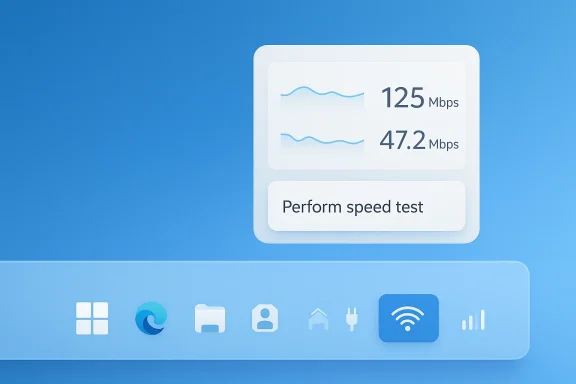
The current preview implementation is straightforward: users can right-click the network icon in the system tray or open the Wi-Fi and cellular quick settings pages to launch a Perform speed test option. Microsoft’s own Insider notes say the tool opens in the default browser and supports Ethernet, Wi-Fi, and cellular connections, which makes it a launch point rather than a fully integrated diagnostic subsystem inside Windows itself. That distinction matters, because it shapes both the technical value and the long-term expectations for the feature.
The timing is also important. This feature has moved from hidden experimentation in Insider channels into more visible preview exposure, suggesting Microsoft sees it as more than a minor internal test. It is part of a larger push to make Windows 11’s shell feel less like a passive frame around apps and more like an active service surface. In plain English, Microsoft wants the places users already click every day to do more work for them.
That said, the feature is not revolutionary in the sense of inventing something users could never do before. Windows users have long relied on browser-based speed tests, command-line tools, and third-party utilities. The novelty here is not measurement itself, but the collapse of friction: one click from the taskbar instead of hunting for a site, app, or shortcut. That is the real product story.
That design choice keeps the Windows shell lightweight, but it also keeps the feature strategically flexible. If Microsoft wants to update the service behind the button, it can do so without shipping a dramatic OS-level rewrite. That is both an advantage and a clue about how Microsoft prefers to evolve consumer-facing diagnostics in Windows 11.
The browser handoff also signals that the company is more comfortable integrating with existing Microsoft web assets than with building a deeply native measurement stack into the taskbar itself. For users, the practical result is still a faster path to results. For Microsoft, the result is lower maintenance complexity and more room to pivot later.
This matters because the taskbar is one of the most visible and repeated interaction points in Windows. If Microsoft can turn it into a place where people naturally check connectivity, battery, network health, and system state, the company effectively upgrades a piece of UI real estate into a mini control room. That is a subtle but powerful UX shift.
The more Microsoft does this, the more Windows 11 resembles a curated layer of quick actions rather than a purely desktop-centric shell. Some users will welcome that. Others will worry that the system tray is being turned into a billboard for Microsoft-curated services. Both reactions are understandable.
In the preview notes, Microsoft described the feature as something that can be launched either from the Wi‑Fi and cellular quick settings pages or by right-clicking the network icon. That dual entry point suggests the company is testing discoverability as much as functionality. If users can find it naturally, the feature has a stronger chance of making the transition to broad release.
The broader pattern here is familiar: Microsoft often plants a feature in Insider builds, then watches for user response before deciding whether to promote it. The taskbar speed test is therefore less a standalone event than a data point in a longer product experiment. Its permanence is not yet guaranteed, even if the direction seems promising.
It also tests how much users trust Windows to lead them to a Microsoft-curated web service for something as practical as network diagnostics. In consumer scenarios, that may feel seamless. In enterprise environments, it may feel like one more layer between the user and a direct technical answer. The enterprise reaction is likely to be more mixed than the consumer one.
The fact that Microsoft chose the taskbar for this feature rather than burying it deeper in Settings also reveals confidence in the shell as a distribution surface. The company clearly believes that if it can make the taskbar more action-oriented, users will reward the convenience with attention and adoption.
For professionals, the value is slightly different. The taskbar button becomes a fast triage tool during support calls, on-site troubleshooting, or routine checks after a network change. Even when the test itself is browser-based, the time saved by not hunting through menus can still matter in aggregate.
This is why small Windows shell additions often resonate more strongly than headline-grabbing features. They alter the texture of daily use. A convenience that saves only 15 seconds can become something people rely on dozens of times a week.
Still, there is a practical case for this approach. Web-delivered tooling can be updated centrally, can present richer visuals, and can be integrated with Microsoft’s broader consumer and search ecosystem. In other words, the value is in the pipeline, not necessarily the code running inside the taskbar itself.
The real question is whether users care more about where the test runs or how quickly it starts. Most consumers will probably choose speed and simplicity over architecture. Power users, naturally, will notice the difference.
For browser-based speed tests and network diagnostics sites, the competitive threat is not catastrophic. But the feature does reduce the number of times users need to search for a standalone test. Over time, convenience features like this can quietly shift habits, especially among less technical users who are satisfied with whatever is easiest.
The feature also reduces Windows’ reliance on user-installed troubleshooting apps. That is a familiar Microsoft pattern: if a task is common enough, it eventually becomes part of the platform story. The platform absorbs the workflow.
The broader lesson is that operating-system quality is often judged in tiny moments. If users can solve a common problem directly where they first notice the problem, they tend to perceive the platform as smarter and more modern. That perception matters as much as the actual utility.
If Microsoft wants Windows 11 to feel like an intelligent service layer, features like this are the right direction. But if it overdoes the web-handoff model, it risks making the OS feel less local and less self-contained. That tension will likely define a lot of Windows feature design in the near future.
There is also a psychology angle. A feature that lives near the system tray feels authoritative and built-in, even if it launches a browser page. That matters because users tend to trust the first tool the OS presents more than a website they had to search for themselves. Proximity influences trust.
For less technical users, the biggest benefit may be the removal of decision-making. They do not need to know which site to use, which tab to open, or whether they should run a download test or upload test first. They just click the OS-provided path and get an answer.
That said, the shortcut can still help frontline support staff. If the feature reduces call time by even a modest amount, the productivity gain across a large fleet could be real. The value is not in replacing enterprise tools; it is in trimming the first step of first-response troubleshooting.
The main enterprise concern is standardization. IT departments like tools they can document, restrict, and support with clear process boundaries. A feature that opens a browser and hands control to a web service is convenient, but it also introduces a dependency on external availability and a less deterministic user experience.
This can be beneficial because it prevents the shell from becoming bloated with hard-coded functionality. But it also means the OS increasingly depends on browser-mediated experiences to complete simple tasks. That is efficient, though perhaps not elegant in the traditional desktop sense. Elegance and efficiency are not always the same thing.
For Windows 11, the bigger UX story is consistency. Microsoft has spent a long time trying to make taskbar, Start, and quick settings feel coherent. The speed test supports that goal by turning the network icon into a functional control point rather than a purely informational indicator.
The design also leverages an existing mental model. People already associate the network icon with connectivity status, and adding a test action there feels natural. You do not need a tutorial to understand why it lives there. That low cognitive cost is a major strength.
If Microsoft keeps refining this pattern, the Windows shell could become more helpful without becoming more cluttered. The trick will be choosing which actions deserve to live there and which ones belong somewhere deeper.
It also aligns with the company’s broader ecosystem strategy. Microsoft has long favored experiences that bridge Windows, Bing, and online services, and this feature appears to sit comfortably inside that worldview. Whether users love that or not depends on how much they value local control versus integrated convenience.
The downside is that the result is only as good as the service and the browser path behind it. If there is a delay, a redirect, or a service outage, the feature’s perceived elegance evaporates quickly. Convenience features have very little room for failure.
That could make Windows 11 feel more modern and modular. It could also make the OS feel increasingly dependent on online services even for basic tasks. The balance Microsoft strikes will determine whether users see this as helpful integration or creeping dependency.
For now, the network speed test is a low-risk place to test the waters. It is broadly understandable, easy to explain, and clearly useful. Those are ideal ingredients for a feature that may later be used as a template.
The more interesting question is what comes after this. If Microsoft sees strong engagement, the system tray could evolve into a compact hub for diagnostics and service shortcuts that cover more than network performance. That would be a meaningful shift in how Windows distributes everyday actions across the shell.
Source: TechPowerUp Updated Windows 11 Taskbar Features Built‑in Network Speed Test - Available Now in Preview
 Overview
Microsoft has been steadily reworking Windows 11’s taskbar and system tray from a static launcher into a richer control center. Over the last several release cycles, the company has introduced or experimented with improvements like taskbar icon scaling, revised hover behavior, context-aware quick settings, and small quality-of-life additions that are easy to overlook individually but meaningful when viewed together. The new speed-test entry fits that pattern almost perfectly.The current preview implementation is straightforward: users can right-click the network icon in the system tray or open the Wi-Fi and cellular quick settings pages to launch a Perform speed test option. Microsoft’s own Insider notes say the tool opens in the default browser and supports Ethernet, Wi-Fi, and cellular connections, which makes it a launch point rather than a fully integrated diagnostic subsystem inside Windows itself. That distinction matters, because it shapes both the technical value and the long-term expectations for the feature.
The timing is also important. This feature has moved from hidden experimentation in Insider channels into more visible preview exposure, suggesting Microsoft sees it as more than a minor internal test. It is part of a larger push to make Windows 11’s shell feel less like a passive frame around apps and more like an active service surface. In plain English, Microsoft wants the places users already click every day to do more work for them.
That said, the feature is not revolutionary in the sense of inventing something users could never do before. Windows users have long relied on browser-based speed tests, command-line tools, and third-party utilities. The novelty here is not measurement itself, but the collapse of friction: one click from the taskbar instead of hunting for a site, app, or shortcut. That is the real product story.
How the Feature Works
At a functional level, the new taskbar option is designed to be extremely simple. A user invokes the network icon menu or the relevant quick settings panel, selects the speed test action, and Windows hands off to the browser to perform the measurement. Microsoft says the experience supports Ethernet, Wi‑Fi, and Cellular, which means it is intended to be broadly useful across device classes rather than limited to a single radio type.A Shortcut, Not a Native Benchmark
One of the most interesting aspects of the feature is what it is not. Based on the Insider descriptions and reporting around the preview builds, the speed test appears to launch a browser-hosted experience, with Microsoft effectively surfacing a convenience button in the shell. That means the taskbar is becoming a launchpad for web-powered utilities, not necessarily a place where Windows itself grows a new networking engine.That design choice keeps the Windows shell lightweight, but it also keeps the feature strategically flexible. If Microsoft wants to update the service behind the button, it can do so without shipping a dramatic OS-level rewrite. That is both an advantage and a clue about how Microsoft prefers to evolve consumer-facing diagnostics in Windows 11.
The browser handoff also signals that the company is more comfortable integrating with existing Microsoft web assets than with building a deeply native measurement stack into the taskbar itself. For users, the practical result is still a faster path to results. For Microsoft, the result is lower maintenance complexity and more room to pivot later.
- The option lives in familiar places: the system tray and Quick Settings.
- The test opens in the default browser rather than a standalone app.
- It supports multiple connection types, including Ethernet and cellular.
- The main value is reduced friction, not new diagnostic science.
Why the Taskbar Matters
Microsoft has spent years trying to make the taskbar feel more adaptable after a long stretch of criticism during the Windows 11 era. Taskbar icon scaling, grouped-window refinements, and notification-area polish all point to the same strategic goal: making the taskbar a meaningful operating surface again, not just a row of pinned apps. The speed test belongs to that camp of improvements.This matters because the taskbar is one of the most visible and repeated interaction points in Windows. If Microsoft can turn it into a place where people naturally check connectivity, battery, network health, and system state, the company effectively upgrades a piece of UI real estate into a mini control room. That is a subtle but powerful UX shift.
The more Microsoft does this, the more Windows 11 resembles a curated layer of quick actions rather than a purely desktop-centric shell. Some users will welcome that. Others will worry that the system tray is being turned into a billboard for Microsoft-curated services. Both reactions are understandable.
From Insider Experiment to Preview Reality
The network speed test did not appear out of nowhere. Microsoft first showed it in Insider channels, where the company has been testing changes to taskbar behavior and quick settings across Beta, Dev, and eventually broader preview distribution. Reporting around the feature initially described it as an Insider-only convenience, and later notes indicated it had become visible in release-oriented preview pathways.The Insider Pipeline
The Windows Insider Program has become Microsoft’s preferred proving ground for shell features that are visible but not mission-critical. That makes sense: a taskbar shortcut can be validated quickly, and the company can observe whether users understand it, ignore it, or misuse it. The speed test slot is exactly the kind of feature that benefits from real-world feedback before a full rollout.In the preview notes, Microsoft described the feature as something that can be launched either from the Wi‑Fi and cellular quick settings pages or by right-clicking the network icon. That dual entry point suggests the company is testing discoverability as much as functionality. If users can find it naturally, the feature has a stronger chance of making the transition to broad release.
The broader pattern here is familiar: Microsoft often plants a feature in Insider builds, then watches for user response before deciding whether to promote it. The taskbar speed test is therefore less a standalone event than a data point in a longer product experiment. Its permanence is not yet guaranteed, even if the direction seems promising.
- Insider testing often previews UI ideas before mainstream rollout.
- Dual entry points improve the odds of discoverability.
- Preview placement suggests Microsoft is measuring real-world usefulness.
- Final release details can still change, even after preview exposure.
What Microsoft Is Really Testing
On the surface, Microsoft is testing whether users appreciate a faster path to a common troubleshooting task. Underneath that, it is testing whether Windows 11 can become a more service-like environment where small tasks are delegated to browser-based experiences without forcing a context switch. That is a more consequential design question than it first appears.It also tests how much users trust Windows to lead them to a Microsoft-curated web service for something as practical as network diagnostics. In consumer scenarios, that may feel seamless. In enterprise environments, it may feel like one more layer between the user and a direct technical answer. The enterprise reaction is likely to be more mixed than the consumer one.
The fact that Microsoft chose the taskbar for this feature rather than burying it deeper in Settings also reveals confidence in the shell as a distribution surface. The company clearly believes that if it can make the taskbar more action-oriented, users will reward the convenience with attention and adoption.
Why a Speed Test Belongs in Windows
A network speed test is not glamorous, but it is one of those tools people reach for precisely when something is wrong. Slow downloads, laggy calls, and buffering streams are among the most common complaints in modern computing, and the first question is often whether the problem is the network, the ISP, the router, or the device. Surfacing a test from the taskbar shortens the path to that first answer.Troubleshooting in One Gesture
For home users, the feature is mainly about convenience. Instead of typing a site into the browser or remembering a shortcut, users can open the system tray and launch a test from the same place they look for Wi‑Fi status, sound, battery, and other quick signals. That makes the action more intuitive, especially for less technical users.For professionals, the value is slightly different. The taskbar button becomes a fast triage tool during support calls, on-site troubleshooting, or routine checks after a network change. Even when the test itself is browser-based, the time saved by not hunting through menus can still matter in aggregate.
This is why small Windows shell additions often resonate more strongly than headline-grabbing features. They alter the texture of daily use. A convenience that saves only 15 seconds can become something people rely on dozens of times a week.
The Browser Question
The browser handoff raises an important nuance. Some users may expect an “in Windows” diagnostic utility and feel disappointed when the result is a web page, even if the page is fast and reliable. That reaction is understandable, because the wording around “built-in” can imply a native engine rather than a launcher.Still, there is a practical case for this approach. Web-delivered tooling can be updated centrally, can present richer visuals, and can be integrated with Microsoft’s broader consumer and search ecosystem. In other words, the value is in the pipeline, not necessarily the code running inside the taskbar itself.
The real question is whether users care more about where the test runs or how quickly it starts. Most consumers will probably choose speed and simplicity over architecture. Power users, naturally, will notice the difference.
Competitive Implications
A native-feeling speed test shortcut may not seem like a major competitive move, but it reinforces a broader Windows strategy: reduce dependency on third-party utilities for everyday tasks. Every feature like this chips away at the space once occupied by small helper apps and browser bookmarks. That does not eliminate competition, but it does reframe it.Against Third-Party Tools
Utilities like Ookla’s Speedtest have become the default answer for millions of users, and the new Windows shortcut may actually route traffic toward that broader ecosystem rather than replace it outright. That is clever, because Microsoft can offer convenience while still leaning on a widely recognized measurement brand. In effect, it can own the front door without necessarily owning the entire back end.For browser-based speed tests and network diagnostics sites, the competitive threat is not catastrophic. But the feature does reduce the number of times users need to search for a standalone test. Over time, convenience features like this can quietly shift habits, especially among less technical users who are satisfied with whatever is easiest.
The feature also reduces Windows’ reliance on user-installed troubleshooting apps. That is a familiar Microsoft pattern: if a task is common enough, it eventually becomes part of the platform story. The platform absorbs the workflow.
- Third-party tools remain useful for advanced diagnostics.
- Microsoft is targeting casual and semi-technical workflows.
- Convenience can change user behavior faster than performance can.
- The shortcut model may drive more users toward browser-based tests.
Against Other Platforms
This is also a small but meaningful competitive gesture against ChromeOS, macOS, and mobile-first workflows, all of which have their own polished quick-access paradigms. Windows 11 has often been criticized when it feels fragmented or slow to surface obvious actions. Adding a one-click network check helps the OS feel more complete and less dependent on external knowledge.The broader lesson is that operating-system quality is often judged in tiny moments. If users can solve a common problem directly where they first notice the problem, they tend to perceive the platform as smarter and more modern. That perception matters as much as the actual utility.
If Microsoft wants Windows 11 to feel like an intelligent service layer, features like this are the right direction. But if it overdoes the web-handoff model, it risks making the OS feel less local and less self-contained. That tension will likely define a lot of Windows feature design in the near future.
Enterprise vs. Consumer Impact
Consumers will probably embrace the feature for the obvious reason: it saves time. When the streaming buffer spins or a game download crawls, the ability to check speed from the taskbar is satisfying and simple. For home users, it is the kind of small upgrade that feels immediately useful even if it is technically modest.Consumer Convenience
In consumer environments, speed tests are often used reactively. The user notices a problem, confirms whether the connection is healthy, and decides whether to reboot the router, switch Wi‑Fi bands, or call the ISP. The taskbar shortcut shortens the diagnosis loop and makes the operating system feel more helpful in the moment of frustration.There is also a psychology angle. A feature that lives near the system tray feels authoritative and built-in, even if it launches a browser page. That matters because users tend to trust the first tool the OS presents more than a website they had to search for themselves. Proximity influences trust.
For less technical users, the biggest benefit may be the removal of decision-making. They do not need to know which site to use, which tab to open, or whether they should run a download test or upload test first. They just click the OS-provided path and get an answer.
Enterprise Utility
Enterprises, meanwhile, will view the feature through a more controlled lens. Help desks and desktop support teams care about reproducibility, logging, and consistency. A browser-based speed test from the taskbar may be handy, but it is not a substitute for deeper networking telemetry or policy-driven diagnostics.That said, the shortcut can still help frontline support staff. If the feature reduces call time by even a modest amount, the productivity gain across a large fleet could be real. The value is not in replacing enterprise tools; it is in trimming the first step of first-response troubleshooting.
The main enterprise concern is standardization. IT departments like tools they can document, restrict, and support with clear process boundaries. A feature that opens a browser and hands control to a web service is convenient, but it also introduces a dependency on external availability and a less deterministic user experience.
User Experience and Design Philosophy
The Windows 11 speed test is part of a larger philosophy that can be summed up as “put the action where the problem appears.” If the network feels slow, the system tray is where users already look. If the action is there too, the UX becomes more intuitive and less fragmented. That is good design, even if it is not glamorous.Simplicity vs. Purism
There is a school of thought that says operating systems should do fewer things and do them natively. Another says the OS should be a concierge that gets users to the right service as fast as possible. Microsoft appears to be leaning toward the second camp here, and the speed test is a good example of that philosophy in practice.This can be beneficial because it prevents the shell from becoming bloated with hard-coded functionality. But it also means the OS increasingly depends on browser-mediated experiences to complete simple tasks. That is efficient, though perhaps not elegant in the traditional desktop sense. Elegance and efficiency are not always the same thing.
For Windows 11, the bigger UX story is consistency. Microsoft has spent a long time trying to make taskbar, Start, and quick settings feel coherent. The speed test supports that goal by turning the network icon into a functional control point rather than a purely informational indicator.
Discovery and Habit Formation
Good features fail when users do not know they exist. By placing the option in the system tray and quick settings, Microsoft gives it a chance to become part of habitual behavior. That is especially important for tools users only need occasionally, because those are the easiest to forget.The design also leverages an existing mental model. People already associate the network icon with connectivity status, and adding a test action there feels natural. You do not need a tutorial to understand why it lives there. That low cognitive cost is a major strength.
If Microsoft keeps refining this pattern, the Windows shell could become more helpful without becoming more cluttered. The trick will be choosing which actions deserve to live there and which ones belong somewhere deeper.
Technical and Product Context
From a technical standpoint, the feature is small but revealing. It suggests Microsoft is comfortable using the shell as a distribution surface for web-connected utilities, which is a pattern that could extend beyond network diagnostics in the future. Once one common troubleshooting tool gets this treatment, it is easy to imagine others following.The Web-First Model
A web-first model offers Microsoft flexibility. It can change the service, branding, measurement partner, or presentation layer without a full Windows update. That reduces the burden on OS servicing while allowing Microsoft to iterate more rapidly on the experience users actually see.It also aligns with the company’s broader ecosystem strategy. Microsoft has long favored experiences that bridge Windows, Bing, and online services, and this feature appears to sit comfortably inside that worldview. Whether users love that or not depends on how much they value local control versus integrated convenience.
The downside is that the result is only as good as the service and the browser path behind it. If there is a delay, a redirect, or a service outage, the feature’s perceived elegance evaporates quickly. Convenience features have very little room for failure.
A Signal for Future Shell Features
This kind of implementation may foreshadow more “one-click” taskbar actions tied to web services. Diagnostics, AI helpers, cloud account tools, and system health checks could all be candidates for the same model. The shell becomes a launch surface for actions, while the actual intelligence lives elsewhere.That could make Windows 11 feel more modern and modular. It could also make the OS feel increasingly dependent on online services even for basic tasks. The balance Microsoft strikes will determine whether users see this as helpful integration or creeping dependency.
For now, the network speed test is a low-risk place to test the waters. It is broadly understandable, easy to explain, and clearly useful. Those are ideal ingredients for a feature that may later be used as a template.
Strengths and Opportunities
The strongest argument for this Windows 11 addition is that it solves a real annoyance without demanding any new behavior from the user. It sits in an obvious place, launches fast, and targets a task almost everyone has needed at some point. Microsoft also gets a chance to make the taskbar feel more active, more useful, and more aligned with modern troubleshooting habits.- Reduces friction for a common task.
- Improves taskbar utility without adding clutter.
- Helps non-technical users troubleshoot connectivity.
- Fits existing user expectations around the network icon.
- Gives Microsoft a service-friendly feature that can evolve quickly.
- Reinforces Windows 11’s move toward quick actions and micro-utilities.
- Could become a template for other taskbar-based helpers.
Risks and Concerns
The biggest concern is that the feature may be oversold as “built-in” when, in practice, it appears to be a browser handoff. That is not necessarily a problem, but expectations matter, and users can be unforgiving when the implementation is less native than the headline sounds. There is also a risk that Microsoft leans too heavily on web-mediated tools for basic OS functions, which could make Windows feel more dependent on external services than some users want.- Users may expect a native benchmark rather than a browser launch.
- Internet dependency can undermine the tool’s usefulness during outages.
- Enterprise administrators may prefer more deterministic diagnostics.
- Web handoffs can feel less polished than true in-OS utilities.
- Overuse of service-linked features could blur OS boundaries.
- Microsoft may introduce confusion if labels are not consistent across builds.
- Rollout could change before broad release, limiting predictability.
Looking Ahead
The most likely near-term outcome is gradual expansion from Insider exposure toward broader preview and then mainstream release, assuming Microsoft is satisfied with uptake and feedback. If that happens, the taskbar speed test may end up feeling so obvious that people forget it was ever missing. That is often the mark of a well-placed Windows feature.The more interesting question is what comes after this. If Microsoft sees strong engagement, the system tray could evolve into a compact hub for diagnostics and service shortcuts that cover more than network performance. That would be a meaningful shift in how Windows distributes everyday actions across the shell.
- Watch for rollout from preview builds to general availability.
- Monitor whether the wording changes from “perform speed test” to something clearer.
- See whether Microsoft keeps the browser-based model or moves to deeper native integration.
- Look for similar taskbar shortcuts in other common troubleshooting areas.
- Pay attention to enterprise messaging, especially if policy controls are added.
Source: TechPowerUp Updated Windows 11 Taskbar Features Built‑in Network Speed Test - Available Now in Preview
