Windows 11 Taskbar Speed Test: One-click Web Launcher to Bing Speedtest

  • Thread Author
Microsoft’s latest Windows 11 rollout quietly tacked a one‑click internet check onto the Taskbar — but it isn’t the self‑contained diagnostic many users expected. Instead of shipping a native, in‑OS speed test engine, Microsoft added a “Perform speed test” launcher that opens your default browser and lands on Bing’s internet speed test — a web‑hosted widget that has historically delegated measurement work to the Speedtest (Ookla) backend. This change arrived as part of the recent preview servicing wave packaged under update KB5077241 and is now moving into general rollout with March’s Patch Tuesday servicing.

Blue desktop shows Speedtest app with a large GO button and a speed test popup.Background and context​

Microsoft has long experimented with where Windows should surface routine tooling. Over the last several years the company has favored discoverable touchpoints — the Taskbar, Quick Settings, and Settings pages — to surface lightweight utilities that help non‑technical users complete common tasks quickly. The new Taskbar speed‑test shortcut continues that trend: it places a one‑click pathway to an internet measurement directly where people already look when their connection seems off. The implementation, however, raises questions about what “built‑in” should mean in an operating system.
KB5077241 is an optional non‑security preview update Microsoft published in late February 2026 that bundles a cluster of quality‑of‑life changes — changes Microsoft typically ships to Release Preview channels before they are included in the following month’s mandatory Patch Tuesday package. The update lists improvements ranging from BitLocker reliability fixes and native Sysmon integration to the Taskbar speed‑test UI. Microsoft’s KB article for KB5077241 and the Windows Insider release notes document the builds and the rollout plan.
This isn’t the first time Microsoft has offered a network measurement tool. The company previously released a “Network Speed Test” application produced by Microsoft Research — a native app with a XAML interface that provided context such as connection type and historic results. The Windows ecosystem also has long supported the broader toolbox of network diagnostics — from iperf and ntttcp to third‑party web widgets like Speedtest and Fast.com — depending on the user’s needs. That historical lineage explains why some users were taken aback: they remember a proper native tool and expected Microsoft to do the same for the Taskbar shortcut.

What Microsoft shipped — the facts​

How the Taskbar control behaves​

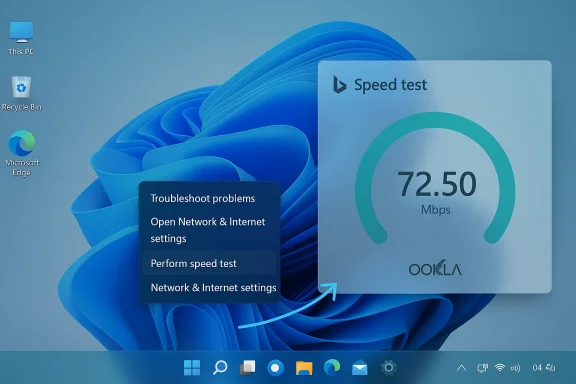
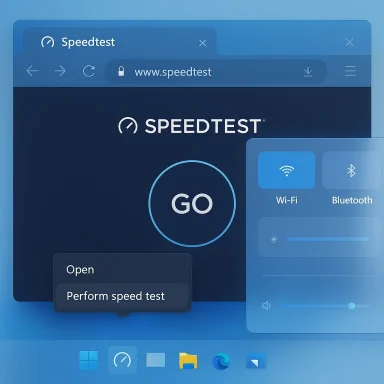
  • A new “Perform speed test” entry appears in two places: the right‑click context menu for the Taskbar network icon (system tray) and the Wi‑Fi quick‑settings flyout.
  • Selecting that entry opens your default web browser and navigates to Bing with a speed‑test widget presented — the same web experience you get when you search for “internet speed test” on Bing. Multiple outlets that examined the change confirm the behavior and the linking to Bing/Sppedtest.

Which update contained it​

  • The functionality was delivered in Release Preview Insider builds identified as 26100.7918 and 26200.7918 and distributed as the non‑security preview cumulative update KB5077241 on February 24, 2026. Microsoft’s support page for KB5077241 and the Windows Insider blog explain the preview rollout and feature set.

What the Bing widget uses​

  • Bing’s in‑search or toolbox speed test has, in recent years, leveraged the established Speedtest infrastructure — the measurement engine commonly associated with Ookla. That in‑browser test downloads and uploads data to measure throughput and latency, using test servers selected by location and routing. Multiple independent reporting outlets and reverse‑engineering of the Bing widget agree that Bing’s experience is powered by the Speedtest backend or equivalent Speedtest integrations.

Corporate context: Ookla sale to Accenture​

  • In a development that matters for anyone tracking the network‑measurement ecosystem, Ookla (the company behind Speedtest) was announced as being acquired by Accenture in early March 2026. That deal reshapes who controls some of the most widely used measurement infrastructure and has implications for enterprises that rely on Speedtest data or the Speedtest API.

Why this matters: practical and principled considerations​

Convenience first — and that’s a defensible design choice​

For mainstream users, the decision makes sense in a narrow UX sense. A single click from the Taskbar to a speed check is low friction and solves the typical day‑to‑day need: “Is my connection performing poorly right now?” The web widget is already maintained, benefits from global test server infrastructure, and can be updated independently of Windows itself. The shortcut also respects your default browser, so it honors user‑chosen defaults rather than forcing Edge or another browser. Those are pragmatic wins.

But “web launcher” vs “native tool” is not merely cosmetic​

There are several meaningful trade‑offs in delegating the measurement to a browser‑hosted third‑party widget rather than running the test locally in the OS:
  • Measurement accuracy and comparability. Web widgets typically perform active network tests by downloading/uploading test blobs to remote servers. That’s fine for quick checks, but those tests can vary by chosen test server, CDN paths, browser networking stacks, and other transient factors. Native tools or CLI tools (for example, iperf/iperf3 or ntttcp) can offer controlled client/server environments and richer diagnostics that better isolate ISP‑side issues versus local constraints. If you require reproducible measurements for troubleshooting or service‑level verification, the browser test is a blunt instrument.
  • Dependency on remote services. A web‑hosted test depends on both Microsoft’s Bing front end and the Speedtest backend (now part of the Accenture relationship). When third‑party services evolve, change terms, or encounter outages, the Taskbar launcher’s utility changes instantly. A native tool could, at least in principle, remain operational during web service interruptions and provide more predictable behavior over time.
  • Privaace area. Launching a browser to a web widget necessarily involves browser‑level networking, cookies, and potential third‑party telemetry by the test provider. Enterprises and privacy‑conscious users may prefer a local diagnostic that does not involve interacting with a web service. Microsoft’s documentation does not currently publish a granular privacy model for the Taskbar launcher; independent reporting suggests the launcher simply opens Bing, so privacy behavior will follow the chosen browser and the Bing/Speedtest privacy policies. That distinction matters for regulated environments.
  • Manageability and enterprise controls. IT admins ask whether the new Taskbar entry can be removed or blocked by policy. At time of writing, community reporting indicates there’s no documented Group Policy or Settings toggle specifically to remove the “Perform speed test” entry; the launcher respects OS defaults for URL handling but otherwise appears to be a permanent addition until Microsoft exposes a control or removes it. That lack of manageability is a real pain point for administrators who lock down UI affordances in corporate images. We flag this as an item Microsoft should address.

Technical deep dive: how browser‑based speed tests work — and their limits​

Browser‑hosted speed tests follow a relatively simple recipe: the client (your browser) requests a test file or session from a remote server, the server streams data back (download test), the client sends data back (upload test), and both sides measure throughput and latency. The test engine uses heuristics to pick transfer sizes, concurrency, and termination conditions to balance accuracy with data usage. For the quick checks that most users perform, this design is effective and low cost.
However, several technical caveats matter:
  • Browser networking stacks impose constraints. Modern browsers implement HTTP/2, HTTP/3 (QUIC), and varying TCP/IP parameters that affect throughput. The browser’s connection re‑use, congestion control defaults, and JavaScript timer granularity can introduce measurable differences compared to a dedicated native test harness.
  • Short tests bias toward transient capacity. A fast test that runs for a few seconds may not fully saturate the path or account for slow‑start effects, resulting in under‑ or over‑estimates depending on the network conditions and test implementation.
  • Server selection and path diversity affect outcomes. Web widgets typically choose test servers based on geolocation and latency heuristics. That is fine for consumer comparisons, but it can mask intermediariesring bottleneck vs last‑mile problem) that an IT pro would want to isolate.
For those reasons, professionals keeping service‑level agreements (SLAs) or diagnosing complex flows should prefer controlled tools such as iperf/iperf3, native Windows benchmarking utilities like ntttcp, or the standalone Speedtest app (which can offer different measurement semantics than the in‑browser widget). iPerf remains the industry standard for controlled throughput testing between two endpoints.

Privacy, telemetry and supply‑chain considerations​

The Taskbar shortcut’s reliance on Bing and the Speedtest ecosystem places several privacy and supply‑chain questions squarely in view:
  • Data collection and retention. When you run a web speed test, the measurement endpoint and the intermediary CDN may log IP addresses, timestamps, and performance metrics. Those logs might persist according to the provider’s policy. Enterprises that require strict data governance should treat browser speed tests as a network telemetry source and assess their retention and sharing policies accordingly. The new Taskbar launcher does not, as yet, publish a separate privacy statement clarifying what is logged when a user activates the shortcut.
  • Third‑party ownership changes. Ookla’s acquisition by Accenture in March 2026 is relevant: when a widely used measurement backend changes corporate hands, enterprises and researchers should reassess API access, contractual obligations, and the implications for aggregated measurement datasets. Control of measurement infrastructure can influence benchmarking, competitive reporting, and the availability of programmatic access for fleet testing.
  • Browser and extension surface. Because the feature opens a browser, any browser extensions, proxies, or security filters in the enterprise environment will influence or interfere with the test. That behavior is both a practical consequence and an operational concern: a browser extension designed to block tracking could (correctly) break or interfere with the measurement. Administrators should be mindful of this interplay.

UX and product critique — a journalist’s take​

From a product standpoint Microsoft chose the lower‑cost path: deliver a highly discoverable UX that points users at an already‑available measurement tool. That choice is defensible for casual usage: users now have a faster way to satisfy a common task.
But this is where the conversation must split: there’s a difference between a shortcut and a built‑in tool. Marketing language that suggests Windows “added an internet speed test” to the OS implies a native measurement path and an observable, managed experience inside Windows. The Taskbar launcher does not provide in‑OS results, history, or diagnostic metadata; it merely routes the user to a website. For power users and IT pros — precisely the audience that appreciates Windows’ diagnostic depth — the shortcut will feel incomplete and, frankly, a little tone deaf. Several community and tech outlets have made the same point.
Microsoft could have reasonably delivered both experiences: keep the quick web launcher for mainstream users, and provide a compact native measurement mode (or a path to a packaged native Speedtest/ntttcp/iperf integration) for advanced users and admins. The company has previously built full native speed‑test experiences, and the product trade‑offs here are primarily about investment and priority.

What users and administrators should do now​

If you’re a casual user:
  • Use the Taskbar shortcut for fast, situational checks. It will get you immediate answers about now performance, and it respects your default browser choice. For quick triage — “Is my ISP slow right now?” — it’s fine.
If you manage devices or need reproducible diagnostics:
  • Prefer controlled tools: use iperf3 for client/server throughput testing or a dedicated Speedtest app where available. These tools let you choose a server and run repeatable measurements.
  • Consider documenting the test method for your team (server, test duration, concurrency) so results are comparable.
  • If you need to remove or suppress the Taskbar entry for policy reasons, check Microsoft’s enterprise guidance as it becomes available; today there is no publicly documented Group Policy targeting the speed‑test launcher specifically, so look for updates in the official Windows IT Pro documentation or consider UI/lockdown approaches at the image‑build level. We recommend IT teams monitor Microsoft’s release notes for KB5077241 and subsequent Patch Tuesday updates for officially supported controls.

What Microsoft should fix next​

Product and policy recommendations:
  • Ship a clear enterprise control. Administrators need a simple Group Policy, MDM setting, or registry key to remove or disable taskbar shortcuts that spawn web pages for governance and compliance reasons.
  • Offer a native diagnostic option for power users and technicians. That mode could be lightweight but should expose server selection, test parameters, and result history.
  • Publish a concise privacy and telemetry statement for the Taskbar launcher that clarifies what is logged when users run the browser‑hosted test, especially now that Speedtest’s corporate ownership has changed.
  • Consider showing in‑OS summary results. Even a minimal UI that displays the in‑browser results i flyout (while still relying on the web engine) would significantly improve the perception of value and reduce the friction of context switching.
These changes would preserve the convenience Microsoft aimed for while addressing the legitimate governance and technical concerns raised by IT teams and savvy users. The community feedback so far suggests that convenience alone will not satisfy users who expect diagnostics to be both useful and controllable.

Final judgment — convenience, not commitment​

The Taskbar “Perform speed test” control is a pragmatic, low‑risk convenience for mainstream Windows users. It delivers a quick answer to a common question by leveraging an existing, widely used web measurement experience. That makes it easy to build and maintain, and it keeps Windows lean.
But it is emphatically not what many power users — and some journalists — would call a native feature in the sense of integrated diagnostics, local measurement, and enterprise control. For those audiences, Microsoft’s decision highlights a continuing tension in Windows product strategy: deliver quick, web‑backed conveniences that are easy to iterate on, or invest engineering time to build integrated, controllable features that live inside the OS.
For now, if you want a one‑click speed check, the Taskbar will do the job; if you want rigorous, repeatable measurements, choose the proper tools (iperf3, ntttcp, or a managed Speedtest deployment) and log tests consistently. And if you care about the policy and privacy implications of where your diagnostic traffic goes, plan to treat the new Taskbar launcher as a web service invocation — not a sealed, Windows‑only diagnostic — and adapt your enterprise controls accordingly.
In short: Microsoft added a useful shortcut, but it remains a shortcut — a thin bridge to a web tool — not a replacement for the deeper, native diagnostics many IT pros and power users still need.

Source: Windows Latest Windows 11 taskbar's new Internet Speed Test tool is a shortcut to Bing.com, not a native feature
 

Microsoft’s latest Windows 11 preview quietly put a one‑click internet speed test where most users already look for connectivity — the taskbar — but the convenience comes with a catch: the button doesn’t run a native diagnostic inside the OS. Instead, it launches your default browser and lands on Bing’s web‑hosted speed‑test widget (the same Ookla‑powered engine that powers Speedtest), and that choice has drawn sharp criticism from power users, IT pros, and privacy advocates alike.

Windows 11 desktop with an Ookla speed test widget showing 72.50 Mbps.Background / Overview​

Microsoft delivered the speed‑test shortcut in the February/March 2026 preview wave packaged under KB5077241, which updates Windows 11 builds in the Release Preview channel. The change places a “Perform speed test” (or “Test internet speed”) entry in the network icon’s right‑click context menu and in the Wi‑Fi quick‑settings flyout. Selecting the option opens the default browser and loads Bing with a ready‑to‑run speed test. ([pcgamer.com](Microsoft is adding an internet speed test right into the Windows 11 taskbar, plus a bunch of other tweaks feature’s provenance is typical for Windows 11 in 2026: surfaced via Insider and Release Preview channels for early feedback, then pushed as an optional non‑security update before broad rollout. Community sleuths and Insiders first spotted the control in preview builds and shared screenshots and reactions in forums and social channels; those discussions shaped the critical narrative once mainstream outlets picked up the story.

What Microsoft shipped (and where you find it)​

How the UI presents the feature​

  • The new control appears in two places: the right‑click context menu of the network (system tray) icon and the Wi‑Fi quick settings panel.
  • Labels shown include “Perform speed test” and “Test internet speed”, depending on the context and build. Clicking either launches your default browser and navigates to Bing with the query prepopulated.

Build and update details (verified)​

Microsoft’s KB5077241 preview (February 24, 2026) lists the change as part of non‑security improvements to Windows 11, raising affected systems to preview builds in the 26100–26200 range. The support page for KB5077241 confirms the optional preview distribution and the list of affected builds. Administrators and curious users can verify the presence of the control by checking Release Preview builds of Windows 11 or reviewing the update notes for KB5077241.

How the taskbar speed test actually works​

Browser launcher, not a native engine​

The important technical fact is simple: the speed‑test entry does not run native code inside Windows to measure throughput. Instead, it launches your default browser and navigates to Bing’s speed‑test widget. That widget, in turn, performs the measurement using a backend commonly associated with Speedtest by Ookla. Multiple independent reports corroborate this behavior.

The measurement backend​

Bing’s embedded speed test delegates the actual measurement work to an established speed‑test engine operated by Ookla (Speedtest). In practice that means the numbers you see are produced by the same measurement and server‑selection methodology used by many web‑based speed tests: throughput tests to a nearby server, upload/download throughput calculations, and a ping/latency measurement. This is a pragmatic choice — it leverages an existing, broadly trusted backend — but it also changes the product boundaries: Microsoft is shipping an OS shortcut to a web service instead of a first‑party diagnostic tool.

Why this is provoking backlash​

1) Expectations vs. reality​

Many users assumed “built‑in speed test” meant a native utility that could run entirely in OS space, keep a history, and integrate with Windows diagnostic flows. In prior Windows versions there were examples of native tools; Windows 8, for example, had a Microsoft Research “Network Speed Test” app that ran locally and persisted results. The current implementation fails to meet those expectations because it’s essentially a one‑click bookmark.

2) Perception of laziness or promotional intent​

Security‑ and privacy‑conscious commentators have framed the move as either lazy engineering or an attempt to drive traffic to Bing. The reality is likely a mix of tradeoffs: Microsoft can ship a lightweight, reliable experience quickly by pointing to a web service, but that convenience alcrosoft’s search/product ecosystem. While driving traffic to Bing would be a reasonable business explanation, that claim is speculative and should be treated with caution. The implementation itself — a browser redirect — is factual and well documented.

3) Accuracy and measurement control​

A native tool could offer better control for diagnostics: choose servers, log history, run scheduled tests, integrate with enterprise monitoring, or run tests without a GUI session. Web tests are subject to browser behavior (extensions, HTTP caching, privacy protections), default server selection, and the chosen browser’s networking stack. For IT teams and power users who need reproducible measurements, the browser‑launched test is less ideal.

4) Taskbar and UI bloat​

There’s a smaller but real UX complaint: every new submenu entry in the taskbar increases cognitive load for users and support technicians. For people who never need the speed test, it’s an extra menu item, and for those managing many machines, it’s another element to document or suppress via policy. Forum threads show some users calling the addition unnecessary and untidy.

Technical verification and accuracy checks​

Before forming conclusions, we verified the load‑bearing technical claims against multiple independent sources:
  • Microsoft’s Support page for KB5077241 confirms the update and build numbers; it lists the February 24, 2026 preview release that introduced the taskbar convenience.
  • Independent reporting from outlets that monitor Insider builds verifies that the menu option opens the default browser and navigates to Bing’s speed test. Several outlets and community posts observed the same end‑to‑end behavior.
  • Reporting about the backend shows Bing’s embedded test uses Ookla’s Speedtest technology, which explains the familiar measurement outputs (download, upload, ping). This is corroborated by multiple tech outlets.
Where claims were speculative — such as Microsoft’s motive to drive Bing traffic — we flagged them as opinion rather than verified fact. Community reactions and commentary are cited from discussion threads and forum posts to capture sentiment and context.

Privacy, telemetry, and enterprise considerations​

What data flows where?​

Because the taskbar control simply opens a web page, the privacy posture is largely determined by:
  • The browser you select as default (the browser’s network stack, extensions, or privacy settings may affect the experience).
  • Bing’s and Ookla’s privacy policies and data handling for the speed‑test widget.
  • Any browser‑level telemetry or third‑party content loaded as part of the widget.
Microsoft has not published a dedicated, granular privacy model that isolates data collected via the taskbar launcher — likely because the launcher doesn’t collect data itself; the web page does. That means enterprises should treat this feature like any other web redirect: manage it via browser policies and network controls if needed.

Group Policy and enterprise control​

Enterprises that want to suppress the shortcut or avoid having users sent to Bing can:
  • Use Windows Update deployment controls to delay or block optional preview updates such as KB5077241.
  • Apply browser policies to disallow or redirect specific URLs (if your environment requires a white‑listed set of tools).
  • Educate users to use trusted, internally approved measurement tools (see suggested alternatives below).
Several community posts and enterprise forums raised concerns about incidental exposure to the web widget in locked‑down environments and suggested adding a Group Policy or MDM control to hide the menu entry. Microsoft has historically provided such controls for taskbar elements, but at the time of writing no dedicated policy was published specifically for the speed‑test shortcut; admins should watch Microsoft’s release notes and policy catalog for changes.

Alternatives: what to use if you need robust network diagnostics​

If you want more than a quick web check, consider these alternatives that give greater fidelity, control, and repeatability:
  • Standalone Speedtest apps (official Speedtest by Ookla app) — runs outside the browser and can persist results.
  • Cloudflare’s speed test (and other web tests) — alternate backends that may choose different servers or measurement approaches.
  • iperf3 — command‑line utility for controlled throughput testing between a client and a designated server; ideal for reproducible lab measurements.
  • PowerShell or Windows native tools plus SNMP/NetFlow monitoring — use for long‑term telemetry inside enterprise monitoring suites.
  • Dedicated hardware or router‑level diagnostics — avoid OS or browser layer interference by testing at the network edge.
For casual users who like the convenience of a one‑click check, the taskbar shortcut will serve fine. For support teams and developers troubleshooting intermittent issues, the above alternatives are far superior.

Recommendations for users and administrators​

For everyday users​

  • Treat the taskbar speed test as a quick sanity check. If the numbers look wrong, repeat the test using a wired Ethernet connection and temporarily disable VPNs or heavy background downloads before concluding anything about your ISP’s service.
  • Prefer a wired connection when measuring for accuracy, and close background apps that may use bandwidth.
  • If you don’t want the shortcut, you can avoid installing optional preview updates or dismiss the menu item — it doesn’t change core networking features.

For power users and IT teams​

  • Use a controlled test harness: run iperf3 or a dedicated speed‑test app against a known server and document results.
  • Standardize measurement methodology: test at similar times of day, use the same server when possible, and differentiate between Wi‑Fi and Ethernet results.
  • Audit privacy and network controls: if your org forbids cloud‑hosted tests, block or redirect the widget domain at the firewall and supply an approved internal tool.
  • Monitor KB5077241 and subsequent updates; Microsoft often responds to Insider feedback and may change or expand the feature set (or add Group Policy controls) before wide release.

Product strategy: why Microsoft might pick a web launcher​

There are defensible reasons for Microsoft shipping a browser‑launched test rather than a native one:
  • Rapid iteration: web widgets can be updated independently of the OS, enabling fixes and enhancements without a Windows update cycle.
  • Consistency: using a single, recognized backend (Ookla) gives consistent results with widely used web tests.
  • Risk reduction: a browser redirect is less likely to break across complex configurations than a new native diagnostic engine that must interact with device drivers, networking stacks, and enterprise policies.
That said, the tradeoffs are real: reduced offline capability, less control for IT, and the optics of shipping a “built‑in” feature that is technically a shortcut. The community reaction — visible in Insider feedback and forum threads — suggests users expected more integration or at least the option for a native implementation.

Community reaction and likely next steps​

Insider forums and tech news outlets are already full of commentary: some call the shortcut a welcome convenience for casual troubleshooting; others see it as half‑baked or promotional. Discussion threads show users requesting:
  • A true native speed‑test utility with history and logging.
  • Group Policy/MDM controls to hide or disable the menu item.
  • An option to launch a preferred app (if the Speedtest app or another tool is installed) rather than always opening a web page.
Given Microsoft’s iterative Insider process, this feature could evolve. Historically, Microsoft has refined similar small features in response to feedback before broad rollout. That could mean a future native measurement utility, an improvement to the launcher, or an enterprise policy to suppress it. For now, expectation management is key: treat this as an incremental usability change, not a full replacement for network diagnostics.

Measurement caveats: how to get useful results​

If you choose to use the taskbar shortcut for a quick check, remember these practical tips to avoid misleading numbers:
  • Disable VPNs, adapters, and proxies during the test.
  • Use a wired connection to remove Wi‑Fi variability when you need precise data.
  • Stop large downloads, streaming, cloud sync, and other background traffic.
  • Run multiple tests at different times to account for congestion and ISP variability.
  • If the browser uses aggressive privacy features (ad blockers, tracker blockers), those extensions may interfere with the widget; consider a bare browser profile for repeatable tests.
These aren’t quirks of Microsoft’s implementation; they’re fundamentals of network measurement that apply to any web‑based test.

Conclusion​

Microsoft’s taskbar speed‑test shortcut is a small, pragmatic addition that lowers the friction for casual connectivity checks. But the implementation — a browser redirect to a Bing‑hosted, Ookla‑powered widget — falls short of what many users, IT teams, and privacy‑minded people expected when they read “built‑in network speed test.” The feature trades the potential power and control of a native diagnostic for the flexibility and rapid update cadence of a web‑backed experience. That tradeoff is defensible from an engineering and product‑management perspective, yet it also leaves real gaps for enterprise use, long‑term diagnostics, and users who value native tooling.
For now, treat the taskbar option as a convenience: useful for a quick sanity check, but not a replacement for disciplined testing practices. Administrators who need repeatable, auditable measurements should continue to rely on dedicated apps, command‑line tools, or internal monitoring systems until Microsoft offers deeper integration or enterprise controls. The community will watch the Insider feedback loop closely — if enough users and admins ask for richer capabilities or policies, Microsoft may well respond with a more sophisticated solution before the feature reaches broad production channels.

Source: TechRadar https://www.techradar.com/computing...smacks-of-laziness-and-overzealous-promotion/
 

Microsoft has quietly added a one‑click internet speed check to the Windows 11 taskbar — but it’s important to be clear about what that convenience actually is: a shortcut that opens your default web browser and lands on Bing’s speed‑test widget (which itself surfaces an Ookla/Speedtest experience), not a native, in‑OS measurement engine. This rollout appears in the Release Preview builds delivered under KB5077241 (Builds 26100.7918 and 26200.7918), and while the addition is undeniably convenient for quick checks, it raises a cluster of usability, accuracy, privacy, and enterprise‑management questions that deserve closer scrutiny.

Windows desktop with a Bing speed test widget showing latency 24 ms, download 450.23 Mbps, upload 30.12 Mbps.Background / Overview​

Windows has historically left ad‑hoc throughput checks to third‑party websites and small utilities — Speedtest by Ookla, Fast.com, and CLI tools such as iperf3 have long been the tools of choice for technicians and power users. The new taskbar control surfaces as “Perform speed test” or “Test internet speed” in the network (system tray) context menu and inside the Wi‑Fi Quick Settings flyout. Selecting it launches the system’s default browser and opens a Bing page that hosts the speed‑test interface, providing one fewer click between problem detection and measurement. Microsoft documents this change in the Windows Insider Release Preview notes for the February 2026 preview wave (KB5077241).
The distinction that matters: Microsoft’s release notes explicitly state the test “opens in the default browser” — in other words, the OS surfaces the control, but the measurement executes on a web page. Numerous independent outlets that inspected the change confirm the same behavior and note Bing’s integration with Ookla’s Speedtest as the measurement engine behind the widget.

How the feature works — technical anatomy​

What clicking “Perform speed test” actually does​

  • The taskbar/network flyout control is a launcher built into Windows 11’s UI layer.
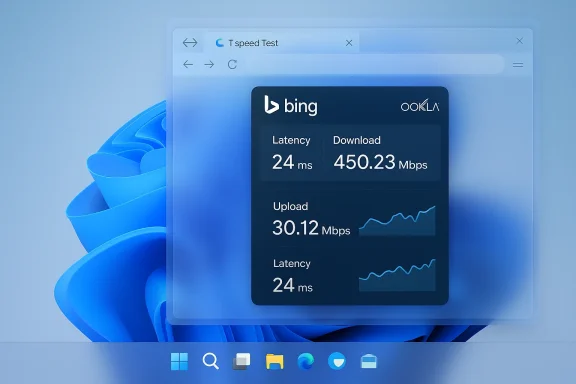
  • Clicking it opens your default web browser and navigates to Bing’s speed‑test page or widget.
  • The Bing widget, in turn, calls a conventional speed‑test backend (commonly the Ookla/Speedtest service) to measure latency, download, and upload throughput.

Where this appears in Windows​

  • The control is visible when you right‑click the network icon in the system tray.
  • It’s also surfaced inside the Wi‑Fi or Cellular Quick Settings pane for easier discoverability.
  • Microsoft added the UI affordance in build releases 26100.7918 and 26200.7918 (KB5077241) to Release Preview Insiders; broader rollouts to production channels typically follow Release Preview validation.

Why Microsoft likely chose this design​

  • Web‑hosted widgets are easy to update independently of OS servicing cycles. Microsoft can iterate on the Bing speed UI and measurement backend without shipping a Windows update.
  • It avoids increasing the OS footprint with another native diagnostic engine and reduces maintenance complexity for Microsoft.
  • For everyday users, a single, discoverable control in the place they already look for connectivity (the taskbar) is a clear usability win.

Strengths: what it does well​

1. Discoverability and convenience​

For many users, the primary barrier to running a quick speed check is simply remembering a URL or opening a browser to the right page. The taskbar placement removes that friction and makes a connectivity sanity check one click or right‑click away, which helps in fast triage during troubleshooting. Microsoft explicitly positioned it as a convenience aimed at everyday troubleshooting.

2. Low maintenance and updatability​

Because the actual measurement runs in a browser widget, Microsoft (and Bing/Ookla) can update the measurement experience, server selection, or UI without pushing a Windows feature update. That means fixes, UI iterations, and backend improvements arrive faster than a full OS servicing cycle. This modern web‑first approach aligns with how many OS vendors are moving lightweight utilities out of the kernel/OS surface and into cloud‑backed experiences.

3. Familiar measurement engine​

The Bing speed widget delegates to a tried‑and‑tested backend (Ookla’s Speedtest) — a measurement engine many users and technicians already know and trust for simple throughput checks. That familiarity reduces the learning curve for interpreting results. Multiple outlets confirm this linkage between Bing and Speedtest.

Risks, limitations, and realistic expectations​

It is not a native diagnostic — and that matters​

Labeling the control as a “built‑in network speed test” is technically accurate only in the narrow sense that Windows surfaces the control. The test itself is performed by a web widget hosted by Bing. Enterprises, security teams, and power users should not assume this provides a deeper, offline, or OS‑level diagnostic. For example, it won’t run tests across network adapters in the same way an on‑device tool such as iperf3 can, nor will it provide persistent, local telemetry that an admin can easily ingest without additional tooling. The official release notes are explicit that the test opens in the default browser.

Accuracy and variability of web‑based speed tests​

Speed test results can vary substantially depending on test methodology, server selection, network path, and even browser behavior. Independent research shows measurable variance among popular speed‑test services and between re‑runs on the same connection. For mission‑critical measurements or capacity planning, web widgets are a useful quick check but not a replacement for controlled tests (e.g., iperf3 against a known server or WAN‑side monitoring infrastructure). If accurate, repeatable data is needed — for SLAs, forensics, or ISP disputes — rely on validated measurement methods and multiple runs across different backends.

Privacy and telemetry concerns​

When a browser opens a web service to run a speed test, standard web telemetry flows apply: the page and its backend may collect IP addresses, client headers, and other metadata required to select test servers and assemble results. Microsoft’s Insider release notes do not provide granular telemetry disclosures for the taskbar control itself; they simply indicate the browser‑hosted test opens from the UI. Because the measurement runs via Bing and a third‑party backend, organizations with strict data‑handling requirements should evaluate whether that outward call is acceptable in their environment. At present there is no documented in‑OS setting specifically to disable the speed‑test menu item; administrators should monitor group‑policy and MDM controls for future additions.

Brand and design optics​

Critics argue that presenting a browser‑hosted Bing test as a built‑in feature looks like product bundling — especially when the widget is hosted by Microsoft’s search property rather than a neutral in‑OS diagnostic. This design choice invites scrutiny given the company’s broader efforts to surface web‑first experiences from the taskbar and Start menu; some see it as a lightweight form of funneling users toward Microsoft’s web services. Outlets such as TechRadar, Tom’s Hardware, and WindowsLatest called attention to the “shortcut vs native feature” framing.

What IT administrators and power users should know​

Quick checklist for IT pros​

  • Confirm whether KB5077241 (Builds 26100.7918/26200.7918) has reached your environment via Windows Update for Business or WSUS; the feature started in the Release Preview channel and may not be present on all machines yet.
  • Validate whether the taskbar control appears on a sample machine and test its behavior in your browser and network environment. Document what the widget calls back to (Bing/Ookla endpoints) and whether your network firewall or proxy logs reflect those calls.
  • If data sovereignty is a concern, treat the widget as an external service: the test will expose the client’s public IP to the measurement backend and Bing. Consider blocking or redirecting the URL via proxy policy where necessary.
  • Add a known, repeatable measurement method (iperf3, Speedtest CLI to a corporate endpoint, or dedicated monitoring) to your troubleshooting playbook; use the taskbar speed test only for quick checks and user education.
  • Watch for future group‑policy controls or MDM configuration options from Microsoft that may allow hiding or disabling the menu item if needed. At the time of release, Microsoft’s notes do not document a management toggle.

Recommended internal rollout guidance​

  • Communicate to helpdesk staff that the taskbar control is a browser launcher, not a deep diagnostic. Educate support scripts to follow up a “one‑click” test with controlled checks (repeat tests, compare to alternative backends, run local throughput monitors).
  • Train support personnel to interpret common variance: browser‑based tests can be influenced by background updates, CDN routing, Wi‑Fi contention, and VPNs.
  • For desktops in locked‑down or disconnected environments, preapprove or block the test’s web endpoints depending on policy and compliance posture.

Alternatives and complementary tools​

If you want reliable, auditable network measurements or the ability to script and automate tests, consider these options instead of relying solely on the taskbar shortcut:
  • Speedtest by Ookla — native desktop app and CLI versions for scripted tests; useful for consistent server selection and automation. (Browser widget often uses the same backend but the native/CLI tools provide more control.)
  • Fast.com — Netflix’s measurement tool; useful as a second opinion when checking download throughput to CDN‑heavy providers.
  • iperf3 — the de facto standard for controlled point‑to‑point throughput tests; ideal for lab validation against a known server.
  • Managed monitoring/observability tools — SaaS or on‑prem appliances that measure end‑to‑end user experience on a schedule and generate alerts for SLA deviations.
These alternatives provide controlled, repeatable environments and often produce logs and artifacts better suited for enterprise troubleshooting and compliance.

Why the reaction is mixed — a closer look at the debate​

Convenience vs. substance​

The user experience win is real: many helpdesk calls start with “Is my internet down?” — removing the friction of a manual test is valuable. But for PC enthusiasts, sysadmins, and skeptical reporters, the distinction between a “built‑in” tool and a “built‑in launcher” is important. The former suggests an OS‑level capability with richer integration; the latter is a UX shortcut. Media outlets were quick to make that differentiation — labeling the feature as “just a link” — and that framing has shaped early reactions.

Ecosystem implications​

Microsoft’s continued trend of surfacing web‑hosted experiences in the taskbar and other OS surfaces creates a subtle shift in how users perceive “native.” When the appearance and discoverability are identical to an OS feature, users may assume deeper integration or offline resilience that simply isn’t there. The longer‑term question is whether Microsoft will convert more diagnostic workflows into web‑hosted widgets — a model that reduces some engineering burden but increases dependency on remote services.

The privacy calculus​

Because the widget operates via the browser and a third‑party backend, the privacy implications are different than a local test. For typical consumer use this may not be a material concern, but for regulated industries or privacy‑sensitive deployments, a review of telemetry and endpoint connections is necessary before allowing the feature in production environments. Microsoft’s release notes don’t include telemetry detail for the widget beyond the UX callout, so administrators should assume standard web flows and validate against their network logs.

Practical advice: how to use the taskbar speed test responsibly​

  • Use it as a quick triage step: if a user complains about slow browsing or streaming, a single launch can confirm whether throughput is grossly below expectations.
  • Always follow up with at least one repeat test and one alternate backend (e.g., run Speedtest CLI or Fast.com) to rule out transient routing issues.
  • For Wi‑Fi troubleshooting, pair the taskbar check with local Wi‑Fi diagnostics (signal strength, channel congestion, drivet alone rarely tells the whole story.
  • Document and reproduce: if disputing ISP claims, favor controlled, time‑stamped logs from a known tool (CLI, native app, or dedicated monitoring) rather than a single browser test.

Final assessment — is the new speed test “just a glorified shortcut”?​

Short answer: yes, in practical terms. Microsoft introduced a discoverable, convenient UI element that punts the actual measurement to a browser‑hosted Bing widget. That design choice brings clear usability benefits and simplifies Microsoft’s maintenance model, but it does not create a native measurement engine within Windows. For casual users this is an uncontroversial quality‑of‑life improvement; for IT pros, privacy‑conscious organizations, and precision testers, it is neither a replacement for robust diagnostics nor a substitute for controlled measurement workflows. Multiple independent outlets and Microsoft’s own Release Preview notes corroborate the exact behavior: taskbar control → default browser → Bing speed widget (Ookla backend).
If your organization needs deterministic, auditable network measurements or you want to avoid any external callbacks to Bing/Ookla from managed machines, treat this feature as optional UX sugar and continue to rely on enterprise‑grade tools and policies for network validation. For end users who simply want a quick sanity check, however, the one‑click path is likely to be welcomed — if sometimes criticized for the marketing optics of starring Bing in the experience.

Quick reference: key facts at a glance​

  • Feature appearance: surfaced in Windows 11 Release Preview builds 26100.7918 and 26200.7918 (KB5077241).
  • Behavior: opens default browser and navigates to Bing’s internet speed test widget.
  • Measurement backend: Bing’s widget leverages the Ookla/Speedtest engine for measurements.
  • Intended value: discoverable, quick triage for users and helpdesk personnel.
  • Notable limitations: not a native offline diagnostic; results will vary by test methodology; potential privacy/telemetry considerations for regulated environments.

Windows’ role in everyday connectivity troubleshooting is evolving — Microsoft is making quick checks more discoverable while keeping measurement logic in web services that are easier to update. That pragmatic choice trades OS‑level depth for agility and convenience. Whether you call that integration or shortcutting depends on your expectations: casual users will probably praise the convenience; IT professionals will keep their toolkits and monitoring in place. Either way, it’s an important reminder that “built‑in” can mean different things in a web‑first OS ecosystem — and that the last mile of diagnostic rigor still belongs to deliberate, controlled testing rather than a single browser widget.

Source: Neowin The new Internet Speed Test in Windows 11 is just a glorified shortcut for Bing.com
 

Back
Top