
Windows 11 25H2 is the current mainstream feature update for existing Windows 11 PCs, released on September 30, 2025, and the upgrade decision in mid-2026 depends less on new features than on support deadlines, hardware readiness, and how much risk your machine can tolerate. For most supported home users already on 24H2, the answer is yes: take the update after basic preparation. For businesses, creative workstations, and anything with fragile drivers or line-of-business software, 25H2 is less a shiny upgrade than a servicing event that deserves a controlled rollout. The trap is treating it like either a revolution or a routine monthly patch; it is neither.
The most important fact about Windows 11 25H2 is also the least exciting one: if you are already on Windows 11 24H2, this is not a traditional reinstall-style leap. Microsoft built 24H2 and 25H2 on the same servicing branch, which means many of the files needed for 25H2 may already be present on a fully patched 24H2 PC. The final move can be an enablement package, essentially a small switch that turns on the new version identity and any dormant features governed by that release.
That changes the risk calculation. A 24H2-to-25H2 update should usually be faster and less disruptive than a move from 23H2 or Windows 10. It is closer to a controlled servicing transition than the old Windows feature-update drama that could leave users watching spinning dots for an afternoon.
But “smaller” is not the same as “risk-free.” Windows still has to validate drivers, firmware, disk layout, recovery partitions, encryption state, and application compatibility. A feature update that takes only minutes on one laptop can still expose years of neglected maintenance on another.
This is why the checklist matters. The smart question is not simply “Should I upgrade?” It is “What state is this PC in before I let Windows rewrite its servicing baseline?”
If the machine says 24H2, the path to 25H2 is usually the cleanest one. You are on the same broad platform generation, and Windows Update can often deliver the change as a relatively lightweight enablement package once Microsoft decides your device is eligible.
If the machine says 23H2, the situation is more urgent for Home and Pro users. Windows 11 23H2 Home and Pro reached end of servicing on November 11, 2025, which means those editions are no longer where ordinary users should be parking production PCs. Enterprise and Education editions have a longer runway, but even there, the direction of travel is obvious: 23H2 is an older branch and should be treated as a migration project, not a comfort zone.
If the machine is still on Windows 10, the question is broader. You are not merely applying 25H2; you are crossing the Windows 11 hardware and support boundary. TPM 2.0, Secure Boot, supported CPU lists, firmware mode, RAM, storage, and driver support all become part of the decision.
That is the first place many upgrade guides become too casual. A 24H2 user and a Windows 10 user may both see “Windows 11 25H2” at the end of the journey, but they are not taking the same trip.
That does not make 25H2 irrelevant. For Windows 11 Home and Pro, 25H2 extends support until October 12, 2027. Windows 11 24H2 Home and Pro remain supported until October 13, 2026, but that deadline is now visible on the calendar. If you run unmanaged consumer PCs, staying reasonably current is the safest default.
The feature story is more meaningful for IT departments than for casual users. Microsoft added or carried forward enterprise-relevant changes around policy-based removal of some preinstalled Microsoft Store apps, Windows Backup for Organizations, Quick Machine Recovery, taskbar policy improvements, energy saver controls, and Wi-Fi 7 enterprise access point support. Copilot+ PCs also sit in a separate lane, with AI-heavy features that depend on specific NPU hardware and Microsoft’s staged rollout decisions.
For ordinary users, the practical gain is simpler: a supported Windows branch, cumulative fixes, and a cleaner path to future updates. That is not glamorous, but it is the basis of modern Windows maintenance.
But that argument weakens over time. As of June 2026, Windows 11 25H2 is no longer a mystery release. It has been in general availability since September 2025 and has received months of cumulative updates. The “wait for the first wave to pass” phase is different from “avoid the supported branch indefinitely.”
The better approach is staged adoption. Upgrade one less-critical machine first. Watch for driver behavior, VPN connectivity, sleep and resume reliability, printing, docking station performance, and any application that talks directly to hardware. If that machine behaves, expand the rollout.
For home users, the same principle applies at smaller scale. Do not start the upgrade five minutes before work, travel, school submission, or a gaming session with friends. Start it when you have time to recover.
Some users bypass those checks. The internet has no shortage of registry edits, modified installers, and ISO workarounds. They may work in the narrow sense that Windows installs and boots. That does not make the machine supported, predictable, or a good candidate for someone else’s production workload.
Unsupported hardware creates two kinds of risk. The first is obvious: drivers, firmware, and recovery behavior may be flaky. The second is quieter: Microsoft’s willingness to service unsupported configurations is not the same as a support promise. If an update fails, you are standing outside the guardrails.
That does not mean every older PC becomes trash overnight. A stable unsupported machine can still be useful for offline tasks, lab work, secondary use, Linux experimentation, or noncritical computing. But anyone choosing that route should understand the trade: they are taking ownership of the edge cases.
A proper pre-update backup means your documents, photos, desktop files, browser data, project folders, game saves where relevant, and exported application settings are stored somewhere outside the Windows installation being upgraded. Cloud sync is helpful, but it is not the same as a verified backup if you have not checked what is actually syncing.
For workstations, consider a full system image or drive clone. That is especially true if the machine has expensive software activations, specialized device drivers, complex development environments, virtual machines, or project structures that would take days to rebuild. A file backup protects the data; an image protects the working state.
BitLocker deserves special attention. If device encryption or BitLocker is enabled, save the recovery key before the update. Most upgrades will not ask for it, but firmware changes, boot configuration changes, or recovery events can trigger a BitLocker recovery prompt. Discovering that you need the key after the machine is locked is a miserable way to learn about encryption hygiene.
The exact amount of free space needed varies by device and upgrade path, but the practical advice is simple: clear more than the bare minimum. Remove temporary files, uninstall unused games or large apps, empty the recycle bin, and move bulky media to external storage if needed. Storage Sense can help, but manual inspection often finds the real offenders.
Partition layout can also matter. Recovery partitions, EFI system partitions, and OEM layouts sometimes become upgrade blockers, particularly on machines that have been cloned, resized, dual-booted, or heavily modified. Users often do not think about partition tables until Windows Update throws an error code that looks like it escaped from a firmware lab.
Third-party partition tools can be useful here, including commercial utilities such as 4DDiG Partition Manager, but they should not be treated as magic compatibility machines. A partition manager can help resize, clone, inspect, or reorganize disks. It cannot make every unsupported CPU supported, and it cannot convert a fundamentally unstable PC into a trustworthy production system by clicking through a wizard.
Gamers and creators should pay particular attention to GPU drivers. A feature update can change scheduling behavior, display stack interactions, HDR handling, capture software compatibility, or performance characteristics in ways that expose outdated graphics packages. If your work depends on NVIDIA Studio drivers, AMD professional drivers, Intel graphics packages, or vendor-certified versions, do not casually replace them with whatever Windows happens to offer.
VPN and security software also deserve suspicion. Products that install network filters, endpoint hooks, credential providers, browser inspection components, or disk encryption layers operate close to the system. If those tools are old, unsupported, or managed by an employer, they can turn a simple update into a troubleshooting session.
Printers remain printers, which is to say they remain capable of making any Windows migration feel like archaeology. If you rely on a specific printer, scanner, label maker, smart card reader, capture device, audio interface, or USB serial adapter, verify support before upgrading the machine that pays the bills.
A missing 25H2 offer does not automatically mean something is broken. Microsoft staggers feature updates. Devices can be held back because of hardware, drivers, firmware, regional rollout timing, app compatibility, or known issues. Managed PCs may also be governed by Windows Update for Business, Intune, Configuration Manager, WSUS, or group policy.
The worst reaction is to assume that because Windows Update is silent, an ISO from a random site must be the solution. If you use an ISO, get it from Microsoft. The risk of unofficial Windows images is not theoretical; an operating system installer is one of the most privileged pieces of software you can run.
Power users and admins may still prefer ISO-based in-place upgrades. They provide more control, can help when Windows Update is damaged, and are useful for repair installs. But control cuts both ways: you are taking responsibility for choosing the right media, preserving apps and files, and understanding why the automatic path did not offer the update in the first place.
That is why 25H2 can feel anticlimactic. The version number changes, support dates move forward, and some policy-gated or dormant functionality may become available, but users expecting a dramatically different desktop may wonder what happened. What happened is that Windows has become less theatrical.
For IT, this is a feature, not a flaw. Smaller feature updates reduce deployment risk, shrink maintenance windows, and make annual servicing less disruptive. The old cadence of “big Windows release, big breakage potential” has been replaced by a more continuous model where features seep into the OS over time.
There is a trade-off, though. Continuous delivery makes it harder for admins and users to understand what changed when. The feature update is no longer the only moment of change; it is one marker in a year-long stream of cumulative updates, controlled rollouts, app updates, and hardware-specific features.
But an ISO should not be used to bulldoze past every warning. If Windows Update is withholding 25H2 because of a safeguard hold, forcing the installation may land you directly on the problem Microsoft was trying to avoid. If the machine has failing storage, firmware bugs, or outdated drivers, an ISO will not absolve you from those facts.
For in-place upgrades, choose the option that keeps personal files and apps only when that is really what you want. For clean installs, make sure your backups, license status, recovery keys, installer files, and application credentials are ready before wiping anything. The cleanest Windows installation in the world is not helpful if the user discovers afterward that an old accounting package cannot be reinstalled.
The ISO path is power-user territory. It rewards preparation and punishes impatience.
Start with version and edition. Confirm whether the device is on 23H2, 24H2, 25H2, Windows 10, Home, Pro, Enterprise, or Education. Support timelines and deployment controls differ, and vague statements like “I’m on Windows 11” are no longer enough.
Then check activation and hardware compatibility. A properly activated Windows installation on supported hardware is the cleanest baseline. If Secure Boot is off, TPM is disabled in firmware, or the system drive is partitioned in an odd legacy configuration, solve that before the upgrade rather than during it.
Next, update the boring stuff. Install current firmware where appropriate, update chipset and storage drivers, confirm graphics drivers, and make sure Wi-Fi and Bluetooth are not relying on ancient OEM packages. If the PC uses a dock, update the dock firmware too.
Finally, reduce variables. Disconnect unnecessary USB devices, remove SD cards, pause nonessential background tools, plug laptops into power, and avoid performing the update while the machine is thermally stressed, low on battery, or in the middle of other maintenance.
The Windows.old folder is another underappreciated detail. After a feature update, Windows keeps rollback files for a limited time unless the user deletes them or cleanup tools remove them. Do not rush to delete Windows.old immediately after the first successful boot. Use the machine for a few days, test core apps and devices, and only then reclaim the space.
If the machine boots to BitLocker recovery, do not panic. Use the recovery key you saved before the update. If you did not save it, your options narrow quickly, especially if the key is not stored in a Microsoft account, Entra ID, Active Directory, or printed recovery record.
If the upgrade rolls back, read that as a signal. Repeating the same failed install five times rarely makes Windows more cooperative. Check storage, drivers, firmware, logs, and known issues before trying again.
The enterprise upside is not only longer support. Windows Backup for Organizations, Quick Machine Recovery, app removal policies, taskbar pinning improvements, energy controls, and Wi-Fi 7 enterprise support are the kinds of changes that matter in fleets. They are not headline candy, but they can reduce provisioning friction and incident response pain.
The correct enterprise answer is not “install everywhere today.” It is rings. Pilot with IT-owned hardware, expand to friendly users, then move through departments based on application risk. Watch telemetry, update compliance dashboards, driver failure rates, VPN tickets, BitLocker recovery events, and help desk call volume.
Managed devices should also respect the difference between consumer enthusiasm and business control. If Intune, Windows Update for Business, Configuration Manager, or WSUS is in charge, let policy be in charge. Manual one-off upgrades are how fleets become mysteries.
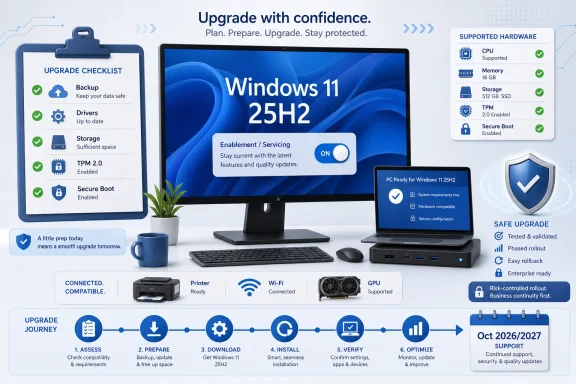 Microsoft Turned the Feature Update Into a Servicing Switch
The most important fact about Windows 11 25H2 is also the least exciting one: if you are already on Windows 11 24H2, this is not a traditional reinstall-style leap. Microsoft built 24H2 and 25H2 on the same servicing branch, which means many of the files needed for 25H2 may already be present on a fully patched 24H2 PC. The final move can be an enablement package, essentially a small switch that turns on the new version identity and any dormant features governed by that release.That changes the risk calculation. A 24H2-to-25H2 update should usually be faster and less disruptive than a move from 23H2 or Windows 10. It is closer to a controlled servicing transition than the old Windows feature-update drama that could leave users watching spinning dots for an afternoon.
But “smaller” is not the same as “risk-free.” Windows still has to validate drivers, firmware, disk layout, recovery partitions, encryption state, and application compatibility. A feature update that takes only minutes on one laptop can still expose years of neglected maintenance on another.
This is why the checklist matters. The smart question is not simply “Should I upgrade?” It is “What state is this PC in before I let Windows rewrite its servicing baseline?”
The Version Number Tells You Which Road You Are On
Before doing anything else, check the Windows version currently installed. Open Settings, go to System, then About, and look for the version number. Alternatively, press Windows + R, typewinver, and press Enter.If the machine says 24H2, the path to 25H2 is usually the cleanest one. You are on the same broad platform generation, and Windows Update can often deliver the change as a relatively lightweight enablement package once Microsoft decides your device is eligible.
If the machine says 23H2, the situation is more urgent for Home and Pro users. Windows 11 23H2 Home and Pro reached end of servicing on November 11, 2025, which means those editions are no longer where ordinary users should be parking production PCs. Enterprise and Education editions have a longer runway, but even there, the direction of travel is obvious: 23H2 is an older branch and should be treated as a migration project, not a comfort zone.
If the machine is still on Windows 10, the question is broader. You are not merely applying 25H2; you are crossing the Windows 11 hardware and support boundary. TPM 2.0, Secure Boot, supported CPU lists, firmware mode, RAM, storage, and driver support all become part of the decision.
That is the first place many upgrade guides become too casual. A 24H2 user and a Windows 10 user may both see “Windows 11 25H2” at the end of the journey, but they are not taking the same trip.
The Best Reason to Upgrade Is Support, Not Novelty
Windows 11 25H2 is not the sort of release that justifies breathless feature hunting. Microsoft’s newer Windows strategy spreads features through cumulative updates, controlled rollouts, Copilot+ PC capabilities, Store app updates, and policy-gated enterprise changes. The annual feature update now increasingly acts as a support marker and a packaging moment.That does not make 25H2 irrelevant. For Windows 11 Home and Pro, 25H2 extends support until October 12, 2027. Windows 11 24H2 Home and Pro remain supported until October 13, 2026, but that deadline is now visible on the calendar. If you run unmanaged consumer PCs, staying reasonably current is the safest default.
The feature story is more meaningful for IT departments than for casual users. Microsoft added or carried forward enterprise-relevant changes around policy-based removal of some preinstalled Microsoft Store apps, Windows Backup for Organizations, Quick Machine Recovery, taskbar policy improvements, energy saver controls, and Wi-Fi 7 enterprise access point support. Copilot+ PCs also sit in a separate lane, with AI-heavy features that depend on specific NPU hardware and Microsoft’s staged rollout decisions.
For ordinary users, the practical gain is simpler: a supported Windows branch, cumulative fixes, and a cleaner path to future updates. That is not glamorous, but it is the basis of modern Windows maintenance.
Waiting Is Sensible, But Waiting Forever Is Not a Strategy
There is a respectable case for not installing a feature update on day one. Early rollout waves can reveal driver conflicts, app quirks, performance regressions, VPN weirdness, printer failures, and corner cases that Microsoft and OEMs did not catch in testing. If your PC is a business-critical workstation, a video editing machine, a CAD box, a lab controller, or the only computer you have before a deadline, caution is not cowardice.But that argument weakens over time. As of June 2026, Windows 11 25H2 is no longer a mystery release. It has been in general availability since September 2025 and has received months of cumulative updates. The “wait for the first wave to pass” phase is different from “avoid the supported branch indefinitely.”
The better approach is staged adoption. Upgrade one less-critical machine first. Watch for driver behavior, VPN connectivity, sleep and resume reliability, printing, docking station performance, and any application that talks directly to hardware. If that machine behaves, expand the rollout.
For home users, the same principle applies at smaller scale. Do not start the upgrade five minutes before work, travel, school submission, or a gaming session with friends. Start it when you have time to recover.
Hardware Compatibility Is Still the Gatekeeper Microsoft Will Not Abandon
Windows 11’s hardware requirements remain the dividing line between supported and improvised computing. TPM 2.0, Secure Boot, UEFI firmware, a supported processor, adequate RAM, and sufficient storage are not decorative checkboxes. They are the assumptions Microsoft uses when it designs, tests, and services Windows 11.Some users bypass those checks. The internet has no shortage of registry edits, modified installers, and ISO workarounds. They may work in the narrow sense that Windows installs and boots. That does not make the machine supported, predictable, or a good candidate for someone else’s production workload.
Unsupported hardware creates two kinds of risk. The first is obvious: drivers, firmware, and recovery behavior may be flaky. The second is quieter: Microsoft’s willingness to service unsupported configurations is not the same as a support promise. If an update fails, you are standing outside the guardrails.
That does not mean every older PC becomes trash overnight. A stable unsupported machine can still be useful for offline tasks, lab work, secondary use, Linux experimentation, or noncritical computing. But anyone choosing that route should understand the trade: they are taking ownership of the edge cases.
Backups Are the Difference Between an Upgrade and a Gamble
The most boring advice in Windows is still the most important: back up your files before the upgrade. Feature updates rarely destroy data when everything works correctly, but the entire point of preparation is that you do not know in advance whether your machine is one of the exceptions.A proper pre-update backup means your documents, photos, desktop files, browser data, project folders, game saves where relevant, and exported application settings are stored somewhere outside the Windows installation being upgraded. Cloud sync is helpful, but it is not the same as a verified backup if you have not checked what is actually syncing.
For workstations, consider a full system image or drive clone. That is especially true if the machine has expensive software activations, specialized device drivers, complex development environments, virtual machines, or project structures that would take days to rebuild. A file backup protects the data; an image protects the working state.
BitLocker deserves special attention. If device encryption or BitLocker is enabled, save the recovery key before the update. Most upgrades will not ask for it, but firmware changes, boot configuration changes, or recovery events can trigger a BitLocker recovery prompt. Discovering that you need the key after the machine is locked is a miserable way to learn about encryption hygiene.
Free Space and Partitions Are Not Cosmetic Details
Windows feature updates need room to breathe. They require space for downloads, staging, temporary files, rollback data, driver migration, and the Windows.old folder that can let you revert for a limited time. A PC running with a nearly full system drive is already in a poor state; asking it to perform a feature update is tempting fate.The exact amount of free space needed varies by device and upgrade path, but the practical advice is simple: clear more than the bare minimum. Remove temporary files, uninstall unused games or large apps, empty the recycle bin, and move bulky media to external storage if needed. Storage Sense can help, but manual inspection often finds the real offenders.
Partition layout can also matter. Recovery partitions, EFI system partitions, and OEM layouts sometimes become upgrade blockers, particularly on machines that have been cloned, resized, dual-booted, or heavily modified. Users often do not think about partition tables until Windows Update throws an error code that looks like it escaped from a firmware lab.
Third-party partition tools can be useful here, including commercial utilities such as 4DDiG Partition Manager, but they should not be treated as magic compatibility machines. A partition manager can help resize, clone, inspect, or reorganize disks. It cannot make every unsupported CPU supported, and it cannot convert a fundamentally unstable PC into a trustworthy production system by clicking through a wizard.
Drivers Decide Whether the Upgrade Feels Smooth
Windows Update is good at delivering broad compatibility, but it is not omniscient. Graphics drivers, Wi-Fi and Bluetooth drivers, storage controller drivers, chipset packages, audio stacks, docking station firmware, and printer packages can all shape the post-upgrade experience.Gamers and creators should pay particular attention to GPU drivers. A feature update can change scheduling behavior, display stack interactions, HDR handling, capture software compatibility, or performance characteristics in ways that expose outdated graphics packages. If your work depends on NVIDIA Studio drivers, AMD professional drivers, Intel graphics packages, or vendor-certified versions, do not casually replace them with whatever Windows happens to offer.
VPN and security software also deserve suspicion. Products that install network filters, endpoint hooks, credential providers, browser inspection components, or disk encryption layers operate close to the system. If those tools are old, unsupported, or managed by an employer, they can turn a simple update into a troubleshooting session.
Printers remain printers, which is to say they remain capable of making any Windows migration feel like archaeology. If you rely on a specific printer, scanner, label maker, smart card reader, capture device, audio interface, or USB serial adapter, verify support before upgrading the machine that pays the bills.
Windows Update Is the Default Because It Knows When to Say No
For most users, Windows Update is the best installation path. It checks eligibility, applies Microsoft’s rollout logic, respects safeguard holds, and usually avoids offering the feature update to machines with known blocking problems. That can be frustrating when you want the new version immediately, but the delay may be protecting you from a known issue.A missing 25H2 offer does not automatically mean something is broken. Microsoft staggers feature updates. Devices can be held back because of hardware, drivers, firmware, regional rollout timing, app compatibility, or known issues. Managed PCs may also be governed by Windows Update for Business, Intune, Configuration Manager, WSUS, or group policy.
The worst reaction is to assume that because Windows Update is silent, an ISO from a random site must be the solution. If you use an ISO, get it from Microsoft. The risk of unofficial Windows images is not theoretical; an operating system installer is one of the most privileged pieces of software you can run.
Power users and admins may still prefer ISO-based in-place upgrades. They provide more control, can help when Windows Update is damaged, and are useful for repair installs. But control cuts both ways: you are taking responsibility for choosing the right media, preserving apps and files, and understanding why the automatic path did not offer the update in the first place.
The Enablement Package Is the Quiet Upgrade Path 24H2 Users Want
If your PC is already on 24H2 and fully patched, the enablement package is the elegant route. It is small, fast, and aligned with Microsoft’s shared servicing model. Instead of replacing the operating system in the old sense, it activates the 25H2 state on a system that already contains much of the underlying code.That is why 25H2 can feel anticlimactic. The version number changes, support dates move forward, and some policy-gated or dormant functionality may become available, but users expecting a dramatically different desktop may wonder what happened. What happened is that Windows has become less theatrical.
For IT, this is a feature, not a flaw. Smaller feature updates reduce deployment risk, shrink maintenance windows, and make annual servicing less disruptive. The old cadence of “big Windows release, big breakage potential” has been replaced by a more continuous model where features seep into the OS over time.
There is a trade-off, though. Continuous delivery makes it harder for admins and users to understand what changed when. The feature update is no longer the only moment of change; it is one marker in a year-long stream of cumulative updates, controlled rollouts, app updates, and hardware-specific features.
The ISO Is a Tool, Not a Shortcut Around Judgment
An ISO-based upgrade remains useful when Windows Update is stuck, when you need repeatable media, when you are repairing a damaged installation, or when you are managing machines without reliable internet access. It can also be the right choice for enthusiasts who want to perform a clean installation rather than carry years of cruft forward.But an ISO should not be used to bulldoze past every warning. If Windows Update is withholding 25H2 because of a safeguard hold, forcing the installation may land you directly on the problem Microsoft was trying to avoid. If the machine has failing storage, firmware bugs, or outdated drivers, an ISO will not absolve you from those facts.
For in-place upgrades, choose the option that keeps personal files and apps only when that is really what you want. For clean installs, make sure your backups, license status, recovery keys, installer files, and application credentials are ready before wiping anything. The cleanest Windows installation in the world is not helpful if the user discovers afterward that an old accounting package cannot be reinstalled.
The ISO path is power-user territory. It rewards preparation and punishes impatience.
The 25H2 Checklist Is Really a Test of PC Hygiene
A good pre-update checklist is not a ritual. It is a way to find problems while Windows still boots normally. If a machine cannot pass basic readiness checks, that is not an argument against the checklist; it is proof that the checklist worked.Start with version and edition. Confirm whether the device is on 23H2, 24H2, 25H2, Windows 10, Home, Pro, Enterprise, or Education. Support timelines and deployment controls differ, and vague statements like “I’m on Windows 11” are no longer enough.
Then check activation and hardware compatibility. A properly activated Windows installation on supported hardware is the cleanest baseline. If Secure Boot is off, TPM is disabled in firmware, or the system drive is partitioned in an odd legacy configuration, solve that before the upgrade rather than during it.
Next, update the boring stuff. Install current firmware where appropriate, update chipset and storage drivers, confirm graphics drivers, and make sure Wi-Fi and Bluetooth are not relying on ancient OEM packages. If the PC uses a dock, update the dock firmware too.
Finally, reduce variables. Disconnect unnecessary USB devices, remove SD cards, pause nonessential background tools, plug laptops into power, and avoid performing the update while the machine is thermally stressed, low on battery, or in the middle of other maintenance.
The Upgrade Errors Usually Have a Backstory
When 25H2 fails to appear or install, the visible error is often only the last domino. A stuck download, a frozen install percentage, a rollback, or an unsupported hardware warning usually reflects something underneath: insufficient storage, a driver block, a damaged Windows Update component, a pending reboot, encryption recovery, or incompatible software.The Windows.old folder is another underappreciated detail. After a feature update, Windows keeps rollback files for a limited time unless the user deletes them or cleanup tools remove them. Do not rush to delete Windows.old immediately after the first successful boot. Use the machine for a few days, test core apps and devices, and only then reclaim the space.
If the machine boots to BitLocker recovery, do not panic. Use the recovery key you saved before the update. If you did not save it, your options narrow quickly, especially if the key is not stored in a Microsoft account, Entra ID, Active Directory, or printed recovery record.
If the upgrade rolls back, read that as a signal. Repeating the same failed install five times rarely makes Windows more cooperative. Check storage, drivers, firmware, logs, and known issues before trying again.
Businesses Should Treat 25H2 as a Deadline With Benefits
For organizations, the 25H2 decision is governed by lifecycle, compliance, and operational risk. Windows 11 24H2 remains supported into October 2026 for Home and Pro and longer for Enterprise and Education, but 25H2 extends the runway. That extra time matters for audit planning, hardware refresh cycles, application certification, and help desk capacity.The enterprise upside is not only longer support. Windows Backup for Organizations, Quick Machine Recovery, app removal policies, taskbar pinning improvements, energy controls, and Wi-Fi 7 enterprise support are the kinds of changes that matter in fleets. They are not headline candy, but they can reduce provisioning friction and incident response pain.
The correct enterprise answer is not “install everywhere today.” It is rings. Pilot with IT-owned hardware, expand to friendly users, then move through departments based on application risk. Watch telemetry, update compliance dashboards, driver failure rates, VPN tickets, BitLocker recovery events, and help desk call volume.
Managed devices should also respect the difference between consumer enthusiasm and business control. If Intune, Windows Update for Business, Configuration Manager, or WSUS is in charge, let policy be in charge. Manual one-off upgrades are how fleets become mysteries.
The Real Upgrade Decision Fits on One Page
By mid-2026, Windows 11 25H2 is the conservative choice for many supported PCs, not the reckless one. The remaining question is whether your specific machine is ready to move cleanly. If you reduce the decision to concrete checks, the answer usually becomes obvious.- If your PC is already running Windows 11 24H2, fully patched, backed up, and not blocked by Windows Update, upgrading to 25H2 is usually the right move.
- If your PC is still running Windows 11 23H2 Home or Pro, you should treat the upgrade as overdue because that branch reached end of servicing on November 11, 2025.
- If your PC runs business-critical software, specialized hardware, VPN clients, security tools, or creative workflows, test 25H2 on a less critical device before upgrading your main machine.
- If Windows Update does not offer 25H2, check for safeguard holds, outdated drivers, firmware issues, policy settings, and storage problems before forcing the upgrade with an ISO.
- If your PC does not meet Windows 11 requirements, bypass methods may work, but they move you outside the support assumptions Microsoft uses for servicing and reliability.
- If you cannot afford to lose the current installation, make a real backup or full image before clicking Install.
References
- Primary source: tycoonstory.com
Published: 2026-06-24T05:10:10.421398
Should You Upgrade to Windows 11 25H2 Now? What to Check First
Learn how to prepare for the Windows 11 25H2 update. Check compatibility, Windows 11 requirements, storage, and avoid common upgrade issues.www.tycoonstory.com - Related coverage: techradar.com
Microsoft confirms Windows 11 26H2 is another boring update that does nothing — but here's why I'm happy about that | TechRadar
It's all about avoiding a repeat of the bug-fest that was 24H2www.techradar.com - Official source: learn.microsoft.com
What's new in Windows 11, version 25H2 for IT pros | Microsoft Learn
Learn more about what's new in Windows 11 version 25H2, including servicing updates.learn.microsoft.com - Related coverage: windowscentral.com
Microsoft pulls the plug on Windows 11 23H2 — here’s what you need to do before November 11 | Windows Central
Windows 11 version 23H2 reaches end-of-life next month. If you’re still running it, it’s time to move to 24H2 or 25H2 to stay protected.www.windowscentral.com - Official source: blogs.windows.com
Releasing Windows 11, version 25H2 to the Release Preview Channel
Hello Windows Insiders! Today, we are making this year’s annual feature update Windows 11, version 25H2 (Build 26200.5074) available in the Release Preview Channel for customers to preview ahead of general availability later thblogs.windows.com - Related coverage: windowslatest.com
Microsoft is force-installing Windows 11 25H2 on every PC before 26H2, but it's actually painless
Microsoft is force installing Windows 11 25H2 on all eligible Home and Pro PCs, as it clears the decks ahead of the 26H2 release this fall. www.windowslatest.com
- Official source: support.microsoft.com
- Related coverage: pcworld.com
Still on Windows 11 23H2? Act soon! Your update deadline is almost here | PCWorld
Both Home and Pro editions of Windows 11 23H2 will reach end of support this November. Here's what you need to know.www.pcworld.com - Related coverage: allthings.how
Windows 11 support end dates — Home, Pro, Enterprise, and more
There’s no single cutoff; support depends on your edition and the specific Windows 11 version you’re running.allthings.how - Related coverage: tomshardware.com
Microsoft to force updates to Windows 11 25H2 for PCs with older Windows 11 OS versions — 'intelligent' update system uses machine learning to determine when a device is ready | Tom's Hardware
Microsoft forces 25H2 rollout ahead of 24H2 end-of-supportwww.tomshardware.com - Related coverage: tomsguide.com
Microsoft's next big Windows 11 25H2 update isn't going to make anyone happy — here's why | Tom's Guide
Microsoft has revealed its big Windows 11 25H2 update, but don't expect a full OS upgrade, as it doesn't add any new features. It actually takes some away.www.tomsguide.com - Official source: microsoft.com
- Official source: techcommunity.microsoft.com
