
Microsoft account lockouts that display “Your account is temporarily locked to prevent unauthorized use” are resolved by verifying the account owner, resetting or changing credentials when prompted, reviewing recent sign-in activity, and using administrator-side unblock tools when the address belongs to a work or school tenant. The mistake is treating the message like an ordinary bad-password error. It is not a login puzzle to brute-force with another tab, another browser, and another half-remembered password. It is Microsoft’s identity system telling the user, and sometimes the organization, that the account must be brought back through the front door.
The most important thing about this Microsoft sign-in error is what it does not say. It does not prove that someone successfully took over the account. It also does not prove that the user forgot the password, even though a password reset is often part of the recovery path.
Microsoft uses account locks as a pause in the authentication flow when the service sees something it wants checked before normal access resumes. That may be unusual traffic, repeated failed sign-ins, suspicious activity, missing verification, a security-code problem, or behavior that looks risky under Microsoft’s account-protection rules. To the user, all of those causes can collapse into the same blunt message.
That bluntness is partly the point. A lock screen that explained too much would help attackers tune their next attempt. The practical downside is that legitimate users are left guessing whether they are dealing with a typo, a stolen password, a VPN false positive, a broken phone number, or an administrator policy.
For WindowsForum readers, the useful framing is this: the lock is not the whole incident. It is the visible symptom. The fix is to identify which identity system owns the account, complete the supported verification path, and then clean up the conditions that caused the lock in the first place.
The first move should be boring: stop. Close duplicate Microsoft sign-in tabs, quit Office apps that are repeatedly prompting for credentials, close Outlook or Teams retry loops, and stop submitting the same password or SMS code. If a mobile mail app or old Windows session is hammering the account with stale credentials, leave it disconnected until the main recovery is complete.
Then make one clean attempt from a normal device and browser. Ideally, use the device and network Microsoft has seen before rather than a fresh VPN exit node, a borrowed laptop, or an unfamiliar browser profile. This is not superstition; modern sign-in risk systems heavily weigh device familiarity, location, and session history.
The goal of that clean attempt is not to “get lucky.” It is to read the lock screen carefully and identify the account type. That decision determines whether the user should go through Microsoft’s consumer recovery tools or hand the case to an organization’s administrator.
A work or school account is different even when the error text looks familiar. These accounts are governed by the organization’s Microsoft Entra ID and Microsoft 365 settings. A company can block sign-in, require password reset, enforce multifactor authentication, apply Conditional Access rules, or quarantine risky users in ways that a consumer recovery form cannot override.
This distinction is where many users waste hours. A locked corporate account cannot necessarily be fixed by the same path that unlocks a Hotmail account. Conversely, a personal Xbox or OneDrive account is not something a company help desk can unblock unless that organization actually owns the tenant behind the identity.
The lock screen usually gives clues. If it points to account.microsoft.com, security codes, password reset, or Microsoft’s sign-in helper, treat it as a personal Microsoft account. If it says to contact an administrator, references an organization, or uses a company or school domain, assume the tenant controls the next step.
If Microsoft offers “Forgot password?” on the locked-account screen, use it. Enter the exact locked identifier — email address, phone number, or Skype name — rather than a similar alias or a secondary address. Choose a verification method that is currently accessible, not the one that used to work years ago.
One detail often surprises users: in some unlock flows, the phone number receiving a temporary code does not always have to be a number already saved on the account. What matters is that it can receive the message and that the newest code is entered correctly. Old SMS codes should be discarded; repeatedly entering expired codes can look like another failed recovery attempt.
If Microsoft asks for a new password, create one that has not been reused anywhere else. A lock triggered by credential stuffing is often the first visible sign that a reused password has appeared in a breach corpus. Changing the Microsoft password to a fresh, unique one is not administrative busywork; it is the point of the reset.
Recent activity can show successful sign-ins, failed attempts, device types, browser or app clues, approximate locations, and security challenges. It is not a forensic-grade incident report, and location data can be misleading when VPNs, mobile carriers, or cloud infrastructure are involved. But it is good enough to answer the first operational question: was this probably the user, or probably not?
A sign-in from a new laptop while traveling, followed by a few failed password attempts, tells one story. Repeated failures from unfamiliar regions, odd protocols, or a successful sign-in that the user does not recognize tells another. The former is often a risk-model false alarm; the latter is a credential incident until proven otherwise.
Users should also be careful with security-alert emails. If a message arrives claiming to be from Microsoft, the safer route is to go directly to the Microsoft account security page rather than clicking links in an unexpected email. Attackers know that account-lock anxiety is a powerful lure.
When Microsoft offers “This wasn’t me” or “Secure your account,” use those controls honestly. Marking unknown activity as yours just to clear a warning may reduce friction for the moment, but it can also leave the account exposed.
Next, sign out other sessions. Microsoft provides a sign-out-everywhere option for Microsoft accounts that can push browsers and apps off the account across devices. It may take time to complete and may not cover every Xbox console state perfectly, but it is still a valuable cleanup step after suspicious activity.
This matters because the password is not always the only credential. Browsers, apps, and devices can hold tokens that keep a session alive after a password change. A user who unlocks the account and then walks away may leave an attacker with a stale but still-useful session.
Windows users should also examine the machine where the password was entered. If there is any suspicion that the password was stolen by malware, an untrusted browser extension, a fake support page, or a compromised PC, run a security scan before trusting the endpoint again. Rotating a password from an infected machine is a classic way to hand over the new password immediately after replacing the old one.
If self-service password reset is enabled, the user can start there. The familiar route is the organization’s Microsoft sign-in or security-info page, where “Can’t access your account?” may launch a tenant-approved recovery flow. That path uses the security information the organization has on file, not whatever recovery methods the user has attached to a personal account.
If the screen says to contact an administrator, that is not a suggestion to try harder. The user should send the help desk the exact error message, the affected address, the time the lock occurred, and any context such as recent travel, new device setup, phone replacement, or repeated MFA prompts. Good incident notes shorten the distance between “I’m locked out” and “we found the stale credential or policy trigger.”
For Microsoft 365 administrators, the obvious first check is whether sign-in is blocked for the user in the admin center. If it is, unblock only after confirming that the block was not intentionally placed for compromise response. Resetting the password and requiring a change at next sign-in may be appropriate, but it should be paired with a look at risky sign-ins, authentication methods, Conditional Access outcomes, and device or app retry loops.
Repeated lockouts in a tenant are often not solved by resetting the password again. They are solved by finding the old iPhone mail profile, the cached Outlook credential, the Windows Credential Manager entry, the copier SMTP account, the legacy protocol, or the automation script that keeps submitting yesterday’s password.
For personal accounts, this is why recovery information must be maintained before disaster. A Microsoft account tied to an old phone number and a dead email address is not merely inconvenient; it is fragile. If two-step verification was enabled and every second factor is gone, the recovery path can become much narrower.
For work accounts, the administrator’s role becomes more important. A tenant admin can require users to re-register authentication methods, reset MFA registration in some scenarios, or guide the user through approved recovery steps. That power is also a risk, which is why help desks should verify identity carefully before changing MFA methods for a locked user.
Security teams should treat repeated MFA prompts and lockouts as signal, not noise. A user who keeps receiving prompts they did not initiate may be under password-spray, credential-stuffing, or adversary-in-the-middle pressure. Unlocking the account without investigating the prompt pattern is like resetting a smoke alarm without looking for smoke.
That situation calls for patience and precision. Submit the requested form once with accurate information. Do not spray multiple inconsistent submissions, do not invent details, and do not pay “account unlock” services that promise magic access. At best, those services are useless. At worst, they are phishing operations dressed as customer support.
Users should gather the locked account address, recovery email, reachable phone number, recent sign-in locations, device history, approximate account-creation details, and any support case number. Recovery systems are designed to match evidence. Conflicting guesses make the user look less like the owner, not more.
The uncomfortable truth is that some accounts are hard to recover because they were never maintained as recoverable. If a user has no access to recovery methods, cannot prove account history, and had strong verification enabled, Microsoft may not have a safe way to distinguish the owner from an attacker. That is frustrating, but it is also the security model doing what it was built to do.
Windows users should separate local device access from Microsoft account access. If the user can still sign into Windows with a PIN, Windows Hello, or cached credentials, use that access to open a clean browser and complete account recovery. If the user cannot access the device at all, recovery becomes more delicate, especially when BitLocker, device encryption, or recovery keys are tied to the Microsoft account.
This is one reason account security matters before the lockout. A Microsoft account is often the keyring for OneDrive, Store purchases, Windows activation state, recovery keys, Xbox identity, Office licensing, and email. Losing it is not like losing a forum password.
For families and small businesses, that dependency argues for basic hygiene: keep recovery methods current, store BitLocker recovery keys where they can be reached, use a password manager, and avoid making one consumer Microsoft account the undocumented backbone of every device and subscription.
Scammers thrive on the gap between a frightening error and a confused user. They buy search ads, imitate support pages, promise instant unlocks, and ask for exactly the secrets Microsoft tells users not to share. A locked account can become a compromised account because the user panicked and trusted the wrong helper.
The safest pattern is direct navigation. Type the Microsoft account site yourself, use saved bookmarks you trust, or go through the organization’s known help-desk portal. For work accounts, use the company’s published IT support channel, not a phone number found in a random search result.
This is also where administrators should educate users in advance. A short internal note explaining what lockout messages look like, what information to send to the help desk, and what never to share can prevent a routine account-risk event from becoming an actual breach.
From Microsoft’s side, a vague lockout is easier to defend than a verbose one. Attackers should not be told exactly which signal tripped the wire. From the user’s side, the opacity can be infuriating, especially when the account is tied to email, subscriptions, Windows sign-in, or work access.
The practical answer is to treat the message as a workflow, not a mystery. First, stop the retry loop. Second, identify whether the identity is personal or managed. Third, use the correct recovery path. Fourth, inspect recent activity and sessions. Fifth, fix the stale credentials or policies that could trigger another lock.
That workflow is less glamorous than “try these six tricks,” but it is the only approach that matches how Microsoft identity actually works in 2026.
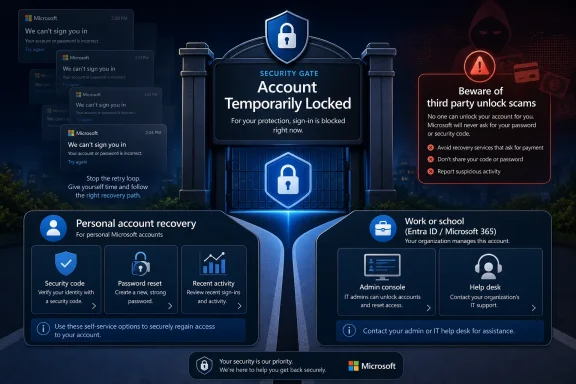 The Lock Screen Is a Security Gate, Not a Verdict
The most important thing about this Microsoft sign-in error is what it does not say. It does not prove that someone successfully took over the account. It also does not prove that the user forgot the password, even though a password reset is often part of the recovery path.Microsoft uses account locks as a pause in the authentication flow when the service sees something it wants checked before normal access resumes. That may be unusual traffic, repeated failed sign-ins, suspicious activity, missing verification, a security-code problem, or behavior that looks risky under Microsoft’s account-protection rules. To the user, all of those causes can collapse into the same blunt message.
That bluntness is partly the point. A lock screen that explained too much would help attackers tune their next attempt. The practical downside is that legitimate users are left guessing whether they are dealing with a typo, a stolen password, a VPN false positive, a broken phone number, or an administrator policy.
For WindowsForum readers, the useful framing is this: the lock is not the whole incident. It is the visible symptom. The fix is to identify which identity system owns the account, complete the supported verification path, and then clean up the conditions that caused the lock in the first place.
The First Fix Is to Stop Making the Lock Worse
The worst instinct after seeing the message is to keep trying. Users open Outlook in one window, Microsoft 365 in another, Xbox on a console, OneDrive on a phone, and the same sign-in loop continues in the background. By the time a real recovery attempt begins, the account has accumulated more failed attempts and more suspicious-looking traffic.The first move should be boring: stop. Close duplicate Microsoft sign-in tabs, quit Office apps that are repeatedly prompting for credentials, close Outlook or Teams retry loops, and stop submitting the same password or SMS code. If a mobile mail app or old Windows session is hammering the account with stale credentials, leave it disconnected until the main recovery is complete.
Then make one clean attempt from a normal device and browser. Ideally, use the device and network Microsoft has seen before rather than a fresh VPN exit node, a borrowed laptop, or an unfamiliar browser profile. This is not superstition; modern sign-in risk systems heavily weigh device familiarity, location, and session history.
The goal of that clean attempt is not to “get lucky.” It is to read the lock screen carefully and identify the account type. That decision determines whether the user should go through Microsoft’s consumer recovery tools or hand the case to an organization’s administrator.
Personal Microsoft Accounts and Work Accounts Live in Different Worlds
A personal Microsoft account is the identity most people use for Outlook.com, Hotmail, Xbox, OneDrive, Skype-era accounts, Microsoft Store purchases, and Windows consumer sign-in. It may end in Outlook.com, Hotmail.com, Live.com, MSN.com, or a custom email address used as a Microsoft account. Recovery for this kind of account runs through Microsoft’s own consumer account flows.A work or school account is different even when the error text looks familiar. These accounts are governed by the organization’s Microsoft Entra ID and Microsoft 365 settings. A company can block sign-in, require password reset, enforce multifactor authentication, apply Conditional Access rules, or quarantine risky users in ways that a consumer recovery form cannot override.
This distinction is where many users waste hours. A locked corporate account cannot necessarily be fixed by the same path that unlocks a Hotmail account. Conversely, a personal Xbox or OneDrive account is not something a company help desk can unblock unless that organization actually owns the tenant behind the identity.
The lock screen usually gives clues. If it points to account.microsoft.com, security codes, password reset, or Microsoft’s sign-in helper, treat it as a personal Microsoft account. If it says to contact an administrator, references an organization, or uses a company or school domain, assume the tenant controls the next step.
The Consumer Route Runs Through Verification, Not Guesswork
For a personal Microsoft account, the supported route is Microsoft’s own unlock or password-reset flow. The user may be asked for a security code, a password reset, another verification method, or a reinstatement review if the normal unlock path is unavailable. The exact prompts vary, but the principle is consistent: prove control of the account through a channel Microsoft accepts.If Microsoft offers “Forgot password?” on the locked-account screen, use it. Enter the exact locked identifier — email address, phone number, or Skype name — rather than a similar alias or a secondary address. Choose a verification method that is currently accessible, not the one that used to work years ago.
One detail often surprises users: in some unlock flows, the phone number receiving a temporary code does not always have to be a number already saved on the account. What matters is that it can receive the message and that the newest code is entered correctly. Old SMS codes should be discarded; repeatedly entering expired codes can look like another failed recovery attempt.
If Microsoft asks for a new password, create one that has not been reused anywhere else. A lock triggered by credential stuffing is often the first visible sign that a reused password has appeared in a breach corpus. Changing the Microsoft password to a fresh, unique one is not administrative busywork; it is the point of the reset.
Recent Activity Separates a False Alarm From a Compromise
A successful unlock is not the finish line. Once the user can reach the Microsoft account security dashboard, the next stop should be recent activity. This is where the lock stops being a mystery and becomes evidence.Recent activity can show successful sign-ins, failed attempts, device types, browser or app clues, approximate locations, and security challenges. It is not a forensic-grade incident report, and location data can be misleading when VPNs, mobile carriers, or cloud infrastructure are involved. But it is good enough to answer the first operational question: was this probably the user, or probably not?
A sign-in from a new laptop while traveling, followed by a few failed password attempts, tells one story. Repeated failures from unfamiliar regions, odd protocols, or a successful sign-in that the user does not recognize tells another. The former is often a risk-model false alarm; the latter is a credential incident until proven otherwise.
Users should also be careful with security-alert emails. If a message arrives claiming to be from Microsoft, the safer route is to go directly to the Microsoft account security page rather than clicking links in an unexpected email. Attackers know that account-lock anxiety is a powerful lure.
When Microsoft offers “This wasn’t me” or “Secure your account,” use those controls honestly. Marking unknown activity as yours just to clear a warning may reduce friction for the moment, but it can also leave the account exposed.
The Real Cleanup Begins After the Door Opens
After unlocking a personal account, change the password if that was not already required. Then update recovery information: phone numbers, recovery email addresses, authenticator methods, and any backup codes. Recovery data is only useful if it points to devices and inboxes the user still controls.Next, sign out other sessions. Microsoft provides a sign-out-everywhere option for Microsoft accounts that can push browsers and apps off the account across devices. It may take time to complete and may not cover every Xbox console state perfectly, but it is still a valuable cleanup step after suspicious activity.
This matters because the password is not always the only credential. Browsers, apps, and devices can hold tokens that keep a session alive after a password change. A user who unlocks the account and then walks away may leave an attacker with a stale but still-useful session.
Windows users should also examine the machine where the password was entered. If there is any suspicion that the password was stolen by malware, an untrusted browser extension, a fake support page, or a compromised PC, run a security scan before trusting the endpoint again. Rotating a password from an infected machine is a classic way to hand over the new password immediately after replacing the old one.
Work and School Accounts Are an Admin Problem by Design
When the locked identity is a work or school account, the user should not keep feeding information into consumer recovery forms. The organization owns the policy plane. Microsoft Entra ID, Microsoft 365 admin settings, multifactor authentication configuration, risk detections, Conditional Access, and sign-in block settings may all be involved.If self-service password reset is enabled, the user can start there. The familiar route is the organization’s Microsoft sign-in or security-info page, where “Can’t access your account?” may launch a tenant-approved recovery flow. That path uses the security information the organization has on file, not whatever recovery methods the user has attached to a personal account.
If the screen says to contact an administrator, that is not a suggestion to try harder. The user should send the help desk the exact error message, the affected address, the time the lock occurred, and any context such as recent travel, new device setup, phone replacement, or repeated MFA prompts. Good incident notes shorten the distance between “I’m locked out” and “we found the stale credential or policy trigger.”
For Microsoft 365 administrators, the obvious first check is whether sign-in is blocked for the user in the admin center. If it is, unblock only after confirming that the block was not intentionally placed for compromise response. Resetting the password and requiring a change at next sign-in may be appropriate, but it should be paired with a look at risky sign-ins, authentication methods, Conditional Access outcomes, and device or app retry loops.
Repeated lockouts in a tenant are often not solved by resetting the password again. They are solved by finding the old iPhone mail profile, the cached Outlook credential, the Windows Credential Manager entry, the copier SMTP account, the legacy protocol, or the automation script that keeps submitting yesterday’s password.
Multifactor Authentication Can Be Both the Lifeline and the Trap
Multifactor authentication is usually the user’s best protection against account takeover, but it can complicate recovery when the second factor is missing. A phone replacement, lost authenticator app, changed number, or abandoned recovery email can turn a routine unlock into a full account-recovery problem.For personal accounts, this is why recovery information must be maintained before disaster. A Microsoft account tied to an old phone number and a dead email address is not merely inconvenient; it is fragile. If two-step verification was enabled and every second factor is gone, the recovery path can become much narrower.
For work accounts, the administrator’s role becomes more important. A tenant admin can require users to re-register authentication methods, reset MFA registration in some scenarios, or guide the user through approved recovery steps. That power is also a risk, which is why help desks should verify identity carefully before changing MFA methods for a locked user.
Security teams should treat repeated MFA prompts and lockouts as signal, not noise. A user who keeps receiving prompts they did not initiate may be under password-spray, credential-stuffing, or adversary-in-the-middle pressure. Unlocking the account without investigating the prompt pattern is like resetting a smoke alarm without looking for smoke.
The Reinstatement Form Is for the Cases the Normal Path Cannot Handle
Some personal Microsoft account locks do not show the usual next step. Instead of a straightforward security-code prompt, the user may see a reinstatement route or be directed through Microsoft’s sign-in helper. This typically means the account needs a review-style path rather than a normal password retry.That situation calls for patience and precision. Submit the requested form once with accurate information. Do not spray multiple inconsistent submissions, do not invent details, and do not pay “account unlock” services that promise magic access. At best, those services are useless. At worst, they are phishing operations dressed as customer support.
Users should gather the locked account address, recovery email, reachable phone number, recent sign-in locations, device history, approximate account-creation details, and any support case number. Recovery systems are designed to match evidence. Conflicting guesses make the user look less like the owner, not more.
The uncomfortable truth is that some accounts are hard to recover because they were never maintained as recoverable. If a user has no access to recovery methods, cannot prove account history, and had strong verification enabled, Microsoft may not have a safe way to distinguish the owner from an attacker. That is frustrating, but it is also the security model doing what it was built to do.
Windows Sign-In Adds a Local Layer of Confusion
The same Microsoft account can be tied to Windows sign-in, which makes the lock feel more severe. A user may see account trouble while signing into Windows, opening the Microsoft Store, syncing OneDrive, or launching Office. The lock may appear to be a Windows problem when the root issue is really the cloud identity behind the session.Windows users should separate local device access from Microsoft account access. If the user can still sign into Windows with a PIN, Windows Hello, or cached credentials, use that access to open a clean browser and complete account recovery. If the user cannot access the device at all, recovery becomes more delicate, especially when BitLocker, device encryption, or recovery keys are tied to the Microsoft account.
This is one reason account security matters before the lockout. A Microsoft account is often the keyring for OneDrive, Store purchases, Windows activation state, recovery keys, Xbox identity, Office licensing, and email. Losing it is not like losing a forum password.
For families and small businesses, that dependency argues for basic hygiene: keep recovery methods current, store BitLocker recovery keys where they can be reached, use a password manager, and avoid making one consumer Microsoft account the undocumented backbone of every device and subscription.
The Scam Economy Feeds on Account-Lock Panic
Every account-lock article needs to say the quiet part loudly: do not hand your Microsoft password, SMS codes, authenticator approvals, recovery codes, government ID, or remote desktop access to a third-party “unlock” service. The legitimate recovery paths are run by Microsoft or, for work and school accounts, the organization’s administrator.Scammers thrive on the gap between a frightening error and a confused user. They buy search ads, imitate support pages, promise instant unlocks, and ask for exactly the secrets Microsoft tells users not to share. A locked account can become a compromised account because the user panicked and trusted the wrong helper.
The safest pattern is direct navigation. Type the Microsoft account site yourself, use saved bookmarks you trust, or go through the organization’s known help-desk portal. For work accounts, use the company’s published IT support channel, not a phone number found in a random search result.
This is also where administrators should educate users in advance. A short internal note explaining what lockout messages look like, what information to send to the help desk, and what never to share can prevent a routine account-risk event from becoming an actual breach.
Microsoft’s Account Lock Is Annoying Because It Is Doing Several Jobs
The lock screen is a single message doing too much work. It is a fraud-control measure, a password-spray brake, a recovery checkpoint, a consumer-account warning, and sometimes a tenant-admin escalation. That makes it imprecise by design.From Microsoft’s side, a vague lockout is easier to defend than a verbose one. Attackers should not be told exactly which signal tripped the wire. From the user’s side, the opacity can be infuriating, especially when the account is tied to email, subscriptions, Windows sign-in, or work access.
The practical answer is to treat the message as a workflow, not a mystery. First, stop the retry loop. Second, identify whether the identity is personal or managed. Third, use the correct recovery path. Fourth, inspect recent activity and sessions. Fifth, fix the stale credentials or policies that could trigger another lock.
That workflow is less glamorous than “try these six tricks,” but it is the only approach that matches how Microsoft identity actually works in 2026.
The Lockout Playbook Worth Keeping Nearby
The durable lesson is that Microsoft account recovery is not one button; it is a sequence of decisions. The faster the user separates personal-account recovery from work-account administration, the faster the lockout becomes solvable.- Stop repeated sign-in attempts before doing anything else, because background retries can reinforce the same risk signal that caused the lock.
- Treat Outlook.com, Hotmail, Xbox, OneDrive, and consumer Windows accounts as personal Microsoft accounts unless the sign-in page clearly says an organization controls them.
- Treat company and school addresses as Microsoft Entra or Microsoft 365 identities, because tenant policy may block sign-in even when the user knows the correct password.
- After unlocking a personal account, review recent activity, change reused passwords, update recovery methods, and sign out other sessions.
- For repeated work-account lockouts, administrators should look for stale saved passwords, risky sign-ins, MFA problems, Conditional Access failures, and old app credentials.
- Never use third-party unlock services or share security codes, authenticator approvals, recovery codes, or passwords with anyone claiming to bypass Microsoft recovery.
References
- Primary source: Appuals
Published: 2026-06-27T11:12:07.416064
How to Fix "Your Account Is Temporarily Locked to Prevent Unauthorized Use" on Microsoft Sign-In
If Microsoft shows Your account is temporarily locked to prevent unauthorized use, the sign-in system has paused access because the account needs aappuals.com
