

Microsoft began rolling out Windows 11 KB5095093 on June 23, 2026, as an optional preview update for versions 24H2 and 25H2, bringing File Explorer performance improvements, faster disk-image mounting, and more modern interface work to one of the operating system’s most visible daily tools. The update matters because File Explorer is not a niche utility; it is the front door to the file system, cloud sync, archives, removable media, ISOs, network shares, and the mundane workflows that make Windows feel either instant or tired. Microsoft is not merely polishing a window frame here. It is trying to repair a trust problem that Windows 11 created when it made core shell surfaces look newer while too often making them feel heavier.
Windows 11 has always had a strange relationship with speed. The operating system can be technically efficient in places, especially on recent hardware, yet still feel sluggish because the parts users touch most often hesitate at the wrong moments. File Explorer has been the clearest example: a core utility that should disappear into muscle memory but instead has repeatedly drawn attention to itself.
That is why this preview update lands with more significance than its changelog might suggest. A faster File Explorer is not a flashy AI button, a redesigned Start menu experiment, or another cloud-adjacent integration. It is the sort of improvement that only becomes news because users have spent years noticing its absence.
The central complaint was never that File Explorer lacked visual ambition. Microsoft gave it tabs, a refreshed command bar, a new Home experience, Gallery integration, OneDrive hooks, and a more Windows 11-shaped interface. The problem was that the modernization often felt like a layer placed over older machinery, with new UI frameworks, legacy dialogs, shell extensions, network enumeration, search indexing, and cloud state all competing inside a process users expect to behave like a light switch.
That mismatch has consequences. When a file manager pauses before opening a folder, when a context menu takes a beat too long, or when mounting an ISO causes Explorer to look frozen, users do not think about architectural complexity. They think Windows is slow.
Mounting a disk image is the kind of task Windows should have mastered long ago. It is not a speculative future workload. It is a decades-old workflow baked into software distribution, OS installation, forensic analysis, virtual machines, recovery media, and enterprise deployment.
When that process stalls for minutes, the annoyance is disproportionate. A user may tolerate a large application taking time to install, but not the file manager freezing while presenting a virtual drive. On fast NVMe storage and modern CPUs, the delay feels less like a hardware bottleneck and more like the shell getting in its own way.
That is why the reported disk-image improvement matters more than the average feature bullet. It addresses a moment when Windows 11 has looked uniquely bad: not because it lacks capability, but because a built-in operation behaves as though the machine has suddenly lost confidence.
Preloading is not inherently illegitimate. Operating systems have always played tricks with caching, prediction, and background preparation. A responsive desktop is partly an illusion maintained by smart resource management.
But File Explorer needed more than illusion. Users were not only complaining about the first launch of the window. They were complaining about navigation, Home loading, tabs, modern surfaces, cloud-linked content, context menus, and operations that should not jam the shell. If KB5095093 really improves those paths underneath, it represents a more meaningful course correction.
That matters because Windows 11’s credibility problem has not been “Microsoft cannot make new things.” It has been “Microsoft keeps adding new things before fixing the old pain.” A faster Explorer suggests a different priority: stabilize the daily experience first, then ask users to care about the next interface idea.
In practice, Home can turn the act of opening a file manager into a miniature aggregation workload. It may need to query recent items, resolve cloud status, populate pinned folders, check availability metadata, and render a modern interface that is doing much more than listing local drives. That is useful when it works instantly. It is infuriating when it turns the first Explorer window of the day into a loading screen.
This is one of the recurring tensions of modern Windows design. Microsoft wants the shell to be aware of your files across devices, your cloud account, your recent activity, and your productivity context. Many users simply want the window to open to a directory and get out of the way.
Performance fixes in this area are therefore not just engineering hygiene. They are a referendum on whether Microsoft can make a connected Windows experience without making local Windows feel remote-controlled.
WinUI 3 is part of Microsoft’s answer. It promises a modern native interface stack for Windows apps and shell experiences, with contemporary controls, theming, accessibility, and consistency. If Windows 11 is ever going to feel coherent, Microsoft cannot leave every important panel trapped in a different design decade.
The trouble is that WinUI has also become a suspect whenever users talk about sluggishness. Whether fairly or not, modern Windows UI components are often blamed for heavier memory use, delayed rendering, and slower interactions compared with older shell surfaces. The user perception is simple: the old thing looked dated but responded quickly; the new thing looks modern but hesitates.
Microsoft’s challenge is to prove that this tradeoff is not permanent. A modern Properties dialog is welcome only if it does not become another pretty surface that makes users miss the ugly one. Windows cannot win by asking people to choose between 1995 responsiveness and 2026 aesthetics.
That means Microsoft cannot treat it like a mere design refresh. The old dialog persisted for so long because it was dense, familiar, extensible, and deeply wired into Windows behavior. Replacing or modernizing it requires respect for everything power users expect to be there.
This is where Windows modernization often gets difficult. A clean new UI can look better in screenshots while hiding advanced settings, increasing click depth, or breaking third-party extension assumptions. Enthusiasts notice immediately. Administrators notice the first time a help-desk instruction no longer matches the screen. Developers notice when shell integration behaves differently.
If the new Properties work preserves capability while improving consistency, it will be a genuine win. If it reduces friction for ordinary users while keeping the expert paths intact, it will be the sort of modernization Windows needs more of. But if Microsoft ships a prettier shell that loses information density or reliability, the backlash will be deserved.
This model has benefits. It gives Microsoft more telemetry and gives users a chance to obtain non-security fixes sooner. For problems like File Explorer responsiveness, waiting another month can feel unnecessary when the fix is ready.
But optional previews also occupy an awkward trust zone. They are not Insider builds, and they are not supposed to be experimental in the same sense. Yet they are still previews, and Windows users have learned to treat the word “preview” with caution when the machine in question is needed for work.
That caution is rational. A faster File Explorer is attractive, but a regression in networking, printing, VPN behavior, GPU stability, BitLocker handling, or shell extensions can be far more costly than a slow Home tab. For consumers, the risk is annoyance. For managed environments, it is multiplied across fleets and support tickets.
That reputation did not appear out of nowhere. Windows servicing is extraordinarily difficult, and Microsoft has to support a hardware and software ecosystem larger and messier than anything Apple or Valve has to manage. Even so, the lived experience of many users is that Windows updates sometimes arrive with side effects that feel unrelated to the thing being changed.
File Explorer itself has seen regressions over the Windows 11 era, from performance complaints to visual inconsistencies to shell behavior that shifts across builds. GPU users have also had moments where Windows updates, driver interactions, and vendor fixes blurred into a single frustrating support problem. The average user does not care whether the root cause sits with Microsoft, Nvidia, an OEM image, or a third-party overlay. They only see that the PC worked yesterday and behaves differently today.
This is why performance improvements need durability. A one-month speed boost followed by another regression is not progress; it is churn. Microsoft’s real job is not merely to make File Explorer faster in KB5095093. It is to keep it faster through the next six months of cumulative updates, feature enablement packages, app updates, driver changes, and cloud integrations.
That context matters, but it does not absolve Microsoft. Users do not experience operating systems in architectural footnotes. They compare them by how quickly windows open, how smoothly folders populate, how often the shell hangs, and how confidently the system responds under pressure.
Windows 11’s deeper competitor is not macOS Finder or a Linux file manager. It is the memory of Windows feeling snappy on older hardware doing simpler things. It is the muscle memory of Windows 7-era Explorer opening instantly. It is the suspicion that modern software has converted hardware gains into animation budgets and telemetry layers.
That is the perception Microsoft has to beat. Every File Explorer delay becomes evidence for the prosecution. Every instant folder load becomes a small rebuttal.
But Windows 11’s File Explorer complaints have persisted even on high-end systems with fast SSDs. That weakens the easy hardware explanation. When a modern desktop with a fast NVMe drive pauses while opening common folders, the user reasonably expects Microsoft to look at the shell, not the spec sheet.
This distinction matters for IT departments. If File Explorer performance is primarily environmental, administrators can remediate with policy, cleanup, indexing configuration, storage replacement, or extension audits. If the shell itself is doing too much work inefficiently, the fix has to come from Microsoft.
KB5095093 suggests Microsoft knows the shell itself needed work. That is good. It also means Microsoft cannot hide future regressions behind generic advice about rebooting, checking disks, or disabling add-ons. Once the vendor acknowledges a performance path in Explorer can be improved, users will expect continued ownership.
File Explorer is not only an app. It is a shell surface, a launcher, a previewer, a compression front end, a permissions viewer, a network browser, a cloud sync window, and the place where users drag the artifacts of their work into shape. It touches almost every local productivity workflow that has not been absorbed into a browser.
That is why small delays compound. A designer opening asset folders, a developer navigating build outputs, an admin browsing logs, a student extracting archives, or a gamer mounting an ISO does not use Explorer once. They use it dozens or hundreds of times in a session. A half-second hesitation repeated all day becomes a mood.
Windows has always won partly because it made file manipulation feel direct. You could see the hierarchy, move the object, rename the thing, right-click for tools, and trust the system to reflect changes quickly. If File Explorer becomes sluggish, Windows loses some of that tactile advantage.
A purely local folder can be listed from disk. A cloud-aware folder may have to represent what is present, what is online-only, what is syncing, what has conflicts, and what is available to other apps. That extra intelligence is useful, but it makes Explorer dependent on services beyond the file system.
The challenge is that Microsoft wants cloud integration to feel native rather than bolted on. That is the right ambition. But native integration has to meet native performance expectations. If a cloud badge or recent-file query makes Explorer feel less responsive, users will blame Windows, not the abstraction.
This is especially sensitive in enterprises, where OneDrive, SharePoint, Known Folder Move, retention policies, and endpoint security tools can all converge on the same files. Explorer becomes the place where policy meets impatience. A faster shell gives administrators one fewer daily complaint to triage.
Windows 11 users have been unusually sensitive to this because the operating system already contains many surfaces that feel like they serve Microsoft’s priorities alongside the user’s. Search, Widgets, Edge prompts, OneDrive upsells, account reminders, and Copilot placements have all contributed to the impression that Windows is sometimes negotiating with the person who owns the PC.
File Explorer is too important to be treated that way. If Microsoft makes it faster, cleaner, and more consistent, users will reward the restraint. If Microsoft uses the regained goodwill as headroom for more clutter, the backlash will be swift.
The best File Explorer update is one that users stop thinking about. The worst is one that improves benchmarkable launch time while adding more visual noise to the place people go to get work done.
The prudent path is staged validation. Put the update on representative hardware, include machines with OneDrive and network shares, test ISO mounting, test archive extraction, test right-click extensions, test properties and permissions workflows, and watch for unexpected Explorer crashes. The right question is not simply whether Explorer opens faster on a clean machine. It is whether Explorer remains stable in the messy environment users actually inhabit.
This is also a moment for IT teams to separate Microsoft’s fixes from local drag. If KB5095093 improves baseline Explorer performance, lingering slowness may expose other culprits: overloaded sync clients, stale network mappings, third-party shell extensions, aggressive security scanning, or storage health problems. A vendor fix can make local bottlenecks more visible.
That is not a reason to dismiss the update. It is a reason to treat it as part of a broader shell-performance audit. File Explorer is where many separate subsystems meet, and administrators should use this release to understand which delays Microsoft has reduced and which ones remain self-inflicted.
The less generous reading is that Windows 11 is still paying down debt created by its own redesign. Microsoft modernized the shell before fully solving the performance cost of that modernization, and users spent years living inside the compromise. This update is welcome partly because it should not have taken this long.
Both readings can be true. Software platforms evolve by shipping imperfect transitions and then sanding them down. The problem for Windows is that its users are not beta testers by temperament, even when they love tinkering. They expect the boring parts to work.
For Microsoft, the path forward is obvious but difficult: fewer dramatic shell promises, more measurable reductions in latency, fewer half-modern surfaces, more consistency, and a servicing process that does not make every fix feel temporary. The company does not need to make File Explorer exciting. It needs to make it trustworthy.
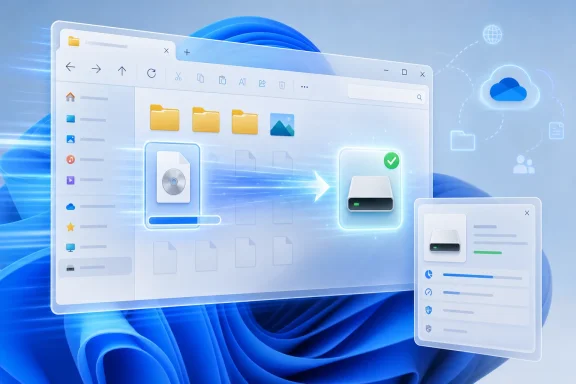 File Explorer Became the Symbol of Windows 11’s Uneven Modernization
Windows 11 has always had a strange relationship with speed. The operating system can be technically efficient in places, especially on recent hardware, yet still feel sluggish because the parts users touch most often hesitate at the wrong moments. File Explorer has been the clearest example: a core utility that should disappear into muscle memory but instead has repeatedly drawn attention to itself.That is why this preview update lands with more significance than its changelog might suggest. A faster File Explorer is not a flashy AI button, a redesigned Start menu experiment, or another cloud-adjacent integration. It is the sort of improvement that only becomes news because users have spent years noticing its absence.
The central complaint was never that File Explorer lacked visual ambition. Microsoft gave it tabs, a refreshed command bar, a new Home experience, Gallery integration, OneDrive hooks, and a more Windows 11-shaped interface. The problem was that the modernization often felt like a layer placed over older machinery, with new UI frameworks, legacy dialogs, shell extensions, network enumeration, search indexing, and cloud state all competing inside a process users expect to behave like a light switch.
That mismatch has consequences. When a file manager pauses before opening a folder, when a context menu takes a beat too long, or when mounting an ISO causes Explorer to look frozen, users do not think about architectural complexity. They think Windows is slow.
The KB5095093 Fix Is Small Only If You Never Mount an ISO
The most immediately useful part of KB5095093 is reportedly improved responsiveness in File Explorer, including when mounting disk images. That may sound like a corner case until you remember who still uses Windows as a workstation operating system. Developers, IT pros, homelab users, repair technicians, gamers, and sysadmins all handle ISO images with some regularity.Mounting a disk image is the kind of task Windows should have mastered long ago. It is not a speculative future workload. It is a decades-old workflow baked into software distribution, OS installation, forensic analysis, virtual machines, recovery media, and enterprise deployment.
When that process stalls for minutes, the annoyance is disproportionate. A user may tolerate a large application taking time to install, but not the file manager freezing while presenting a virtual drive. On fast NVMe storage and modern CPUs, the delay feels less like a hardware bottleneck and more like the shell getting in its own way.
That is why the reported disk-image improvement matters more than the average feature bullet. It addresses a moment when Windows 11 has looked uniquely bad: not because it lacks capability, but because a built-in operation behaves as though the machine has suddenly lost confidence.
Microsoft Is Finally Choosing Repair Over Disguise
The important distinction in this update is that the speed improvement is not simply preloading. Microsoft has separately tested ways to make File Explorer appear faster by keeping more of it ready in the background, a technique that can help perceived launch time but also invites a fair complaint: if the cure for sluggish software is to keep it running all the time, the software has not really become leaner.Preloading is not inherently illegitimate. Operating systems have always played tricks with caching, prediction, and background preparation. A responsive desktop is partly an illusion maintained by smart resource management.
But File Explorer needed more than illusion. Users were not only complaining about the first launch of the window. They were complaining about navigation, Home loading, tabs, modern surfaces, cloud-linked content, context menus, and operations that should not jam the shell. If KB5095093 really improves those paths underneath, it represents a more meaningful course correction.
That matters because Windows 11’s credibility problem has not been “Microsoft cannot make new things.” It has been “Microsoft keeps adding new things before fixing the old pain.” A faster Explorer suggests a different priority: stabilize the daily experience first, then ask users to care about the next interface idea.
The Home Tab Became a Performance Tax
One of the quiet villains in Windows 11 File Explorer has been the Home view. In concept, Home is sensible. It offers quick access, recent files, favorites, cloud-backed documents, and a more personalized entry point than the old “This PC” default.In practice, Home can turn the act of opening a file manager into a miniature aggregation workload. It may need to query recent items, resolve cloud status, populate pinned folders, check availability metadata, and render a modern interface that is doing much more than listing local drives. That is useful when it works instantly. It is infuriating when it turns the first Explorer window of the day into a loading screen.
This is one of the recurring tensions of modern Windows design. Microsoft wants the shell to be aware of your files across devices, your cloud account, your recent activity, and your productivity context. Many users simply want the window to open to a directory and get out of the way.
Performance fixes in this area are therefore not just engineering hygiene. They are a referendum on whether Microsoft can make a connected Windows experience without making local Windows feel remote-controlled.
WinUI 3 Is Both the Future and the Suspect
The reported visual overhaul of the file Properties interface points to another front in the same war: Microsoft’s long, uneven migration away from ancient Windows UI surfaces. Nobody can seriously defend every leftover dialog from the Windows 95 era as an aesthetic triumph. The old Properties windows, Control Panel remnants, legacy pickers, and mixed-theme dialogs have made Windows 11 feel like a staged home with the basement door left open.WinUI 3 is part of Microsoft’s answer. It promises a modern native interface stack for Windows apps and shell experiences, with contemporary controls, theming, accessibility, and consistency. If Windows 11 is ever going to feel coherent, Microsoft cannot leave every important panel trapped in a different design decade.
The trouble is that WinUI has also become a suspect whenever users talk about sluggishness. Whether fairly or not, modern Windows UI components are often blamed for heavier memory use, delayed rendering, and slower interactions compared with older shell surfaces. The user perception is simple: the old thing looked dated but responded quickly; the new thing looks modern but hesitates.
Microsoft’s challenge is to prove that this tradeoff is not permanent. A modern Properties dialog is welcome only if it does not become another pretty surface that makes users miss the ugly one. Windows cannot win by asking people to choose between 1995 responsiveness and 2026 aesthetics.
The Properties Dialog Is a Test of Microsoft’s Discipline
A revamped Properties experience sounds minor, but it is exactly the kind of change that reveals whether Microsoft has learned from Windows 11’s rougher transitions. Properties is not a decorative screen. It is where users check file size, location, permissions, attributes, hashes through extensions, compatibility settings, digital signatures, previous versions, and security details.That means Microsoft cannot treat it like a mere design refresh. The old dialog persisted for so long because it was dense, familiar, extensible, and deeply wired into Windows behavior. Replacing or modernizing it requires respect for everything power users expect to be there.
This is where Windows modernization often gets difficult. A clean new UI can look better in screenshots while hiding advanced settings, increasing click depth, or breaking third-party extension assumptions. Enthusiasts notice immediately. Administrators notice the first time a help-desk instruction no longer matches the screen. Developers notice when shell integration behaves differently.
If the new Properties work preserves capability while improving consistency, it will be a genuine win. If it reduces friction for ordinary users while keeping the expert paths intact, it will be the sort of modernization Windows needs more of. But if Microsoft ships a prettier shell that loses information density or reliability, the backlash will be deserved.
Optional Preview Updates Are Microsoft’s Public Dress Rehearsals
KB5095093 is an optional preview update, which is Microsoft’s way of putting production-quality changes into the world before they become part of the next cumulative security release. In practical terms, that means adventurous users and some IT teams can install the update early, while broader deployment typically follows later through the regular Patch Tuesday pipeline.This model has benefits. It gives Microsoft more telemetry and gives users a chance to obtain non-security fixes sooner. For problems like File Explorer responsiveness, waiting another month can feel unnecessary when the fix is ready.
But optional previews also occupy an awkward trust zone. They are not Insider builds, and they are not supposed to be experimental in the same sense. Yet they are still previews, and Windows users have learned to treat the word “preview” with caution when the machine in question is needed for work.
That caution is rational. A faster File Explorer is attractive, but a regression in networking, printing, VPN behavior, GPU stability, BitLocker handling, or shell extensions can be far more costly than a slow Home tab. For consumers, the risk is annoyance. For managed environments, it is multiplied across fleets and support tickets.
The Fear of the Next Update Is Now Part of the Windows Experience
TechRadar’s caveat — hoping a future update does not undo the work — reflects a broader Windows reality. Users no longer judge an update only by what it fixes. They judge it by what it might break next.That reputation did not appear out of nowhere. Windows servicing is extraordinarily difficult, and Microsoft has to support a hardware and software ecosystem larger and messier than anything Apple or Valve has to manage. Even so, the lived experience of many users is that Windows updates sometimes arrive with side effects that feel unrelated to the thing being changed.
File Explorer itself has seen regressions over the Windows 11 era, from performance complaints to visual inconsistencies to shell behavior that shifts across builds. GPU users have also had moments where Windows updates, driver interactions, and vendor fixes blurred into a single frustrating support problem. The average user does not care whether the root cause sits with Microsoft, Nvidia, an OEM image, or a third-party overlay. They only see that the PC worked yesterday and behaves differently today.
This is why performance improvements need durability. A one-month speed boost followed by another regression is not progress; it is churn. Microsoft’s real job is not merely to make File Explorer faster in KB5095093. It is to keep it faster through the next six months of cumulative updates, feature enablement packages, app updates, driver changes, and cloud integrations.
Windows 11 Is Competing Against Memory, Not Just macOS
Comparisons with macOS and SteamOS are inevitable, but they can be misleading if treated as simple scoreboard items. Apple controls a much narrower hardware and software stack. SteamOS is optimized around a more focused device and workload model. Windows is the general-purpose compatibility monster that has to run enterprise line-of-business apps, ancient shell extensions, network drives from forgotten appliances, and the newest consumer hardware in the same universe.That context matters, but it does not absolve Microsoft. Users do not experience operating systems in architectural footnotes. They compare them by how quickly windows open, how smoothly folders populate, how often the shell hangs, and how confidently the system responds under pressure.
Windows 11’s deeper competitor is not macOS Finder or a Linux file manager. It is the memory of Windows feeling snappy on older hardware doing simpler things. It is the muscle memory of Windows 7-era Explorer opening instantly. It is the suspicion that modern software has converted hardware gains into animation budgets and telemetry layers.
That is the perception Microsoft has to beat. Every File Explorer delay becomes evidence for the prosecution. Every instant folder load becomes a small rebuttal.
Hardware Is Not the Alibi Microsoft Needs
It is true that storage speed, drive health, indexing state, antivirus behavior, cloud sync, network mappings, and shell extensions can dramatically affect File Explorer performance. A failing disk, overloaded OneDrive client, or misbehaving context-menu extension can make any file manager look guilty.But Windows 11’s File Explorer complaints have persisted even on high-end systems with fast SSDs. That weakens the easy hardware explanation. When a modern desktop with a fast NVMe drive pauses while opening common folders, the user reasonably expects Microsoft to look at the shell, not the spec sheet.
This distinction matters for IT departments. If File Explorer performance is primarily environmental, administrators can remediate with policy, cleanup, indexing configuration, storage replacement, or extension audits. If the shell itself is doing too much work inefficiently, the fix has to come from Microsoft.
KB5095093 suggests Microsoft knows the shell itself needed work. That is good. It also means Microsoft cannot hide future regressions behind generic advice about rebooting, checking disks, or disabling add-ons. Once the vendor acknowledges a performance path in Explorer can be improved, users will expect continued ownership.
The File Manager Is Still Windows’ Productivity Contract
A file manager sounds old-fashioned until it breaks. Then it becomes obvious how much of the desktop still depends on it.File Explorer is not only an app. It is a shell surface, a launcher, a previewer, a compression front end, a permissions viewer, a network browser, a cloud sync window, and the place where users drag the artifacts of their work into shape. It touches almost every local productivity workflow that has not been absorbed into a browser.
That is why small delays compound. A designer opening asset folders, a developer navigating build outputs, an admin browsing logs, a student extracting archives, or a gamer mounting an ISO does not use Explorer once. They use it dozens or hundreds of times in a session. A half-second hesitation repeated all day becomes a mood.
Windows has always won partly because it made file manipulation feel direct. You could see the hierarchy, move the object, rename the thing, right-click for tools, and trust the system to reflect changes quickly. If File Explorer becomes sluggish, Windows loses some of that tactile advantage.
The Cloud Made Explorer Smarter and More Fragile
OneDrive integration is another reason File Explorer has become harder to keep fast. Cloud placeholders, sync status, sharing metadata, recent document awareness, and cross-device availability all add value. They also add state.A purely local folder can be listed from disk. A cloud-aware folder may have to represent what is present, what is online-only, what is syncing, what has conflicts, and what is available to other apps. That extra intelligence is useful, but it makes Explorer dependent on services beyond the file system.
The challenge is that Microsoft wants cloud integration to feel native rather than bolted on. That is the right ambition. But native integration has to meet native performance expectations. If a cloud badge or recent-file query makes Explorer feel less responsive, users will blame Windows, not the abstraction.
This is especially sensitive in enterprises, where OneDrive, SharePoint, Known Folder Move, retention policies, and endpoint security tools can all converge on the same files. Explorer becomes the place where policy meets impatience. A faster shell gives administrators one fewer daily complaint to triage.
The Shell Cannot Become a Billboard
There is also a philosophical line Microsoft keeps approaching. File Explorer should be helpful, modern, and aware of user context. It should not become another surface where Microsoft experiments too aggressively with promotion, account nudges, or AI affordances that compete with the core task.Windows 11 users have been unusually sensitive to this because the operating system already contains many surfaces that feel like they serve Microsoft’s priorities alongside the user’s. Search, Widgets, Edge prompts, OneDrive upsells, account reminders, and Copilot placements have all contributed to the impression that Windows is sometimes negotiating with the person who owns the PC.
File Explorer is too important to be treated that way. If Microsoft makes it faster, cleaner, and more consistent, users will reward the restraint. If Microsoft uses the regained goodwill as headroom for more clutter, the backlash will be swift.
The best File Explorer update is one that users stop thinking about. The worst is one that improves benchmarkable launch time while adding more visual noise to the place people go to get work done.
The Enterprise Reading Is Cautious Optimism
For managed environments, KB5095093 is worth watching rather than blindly installing. Optional preview updates can be useful in test rings, especially when they contain fixes for user-visible pain points. But the same update also needs to be evaluated against line-of-business applications, shell extensions, endpoint security products, storage configurations, and remote access workflows.The prudent path is staged validation. Put the update on representative hardware, include machines with OneDrive and network shares, test ISO mounting, test archive extraction, test right-click extensions, test properties and permissions workflows, and watch for unexpected Explorer crashes. The right question is not simply whether Explorer opens faster on a clean machine. It is whether Explorer remains stable in the messy environment users actually inhabit.
This is also a moment for IT teams to separate Microsoft’s fixes from local drag. If KB5095093 improves baseline Explorer performance, lingering slowness may expose other culprits: overloaded sync clients, stale network mappings, third-party shell extensions, aggressive security scanning, or storage health problems. A vendor fix can make local bottlenecks more visible.
That is not a reason to dismiss the update. It is a reason to treat it as part of a broader shell-performance audit. File Explorer is where many separate subsystems meet, and administrators should use this release to understand which delays Microsoft has reduced and which ones remain self-inflicted.
Microsoft’s Real Test Begins After the Speed Boost Ships
The most generous reading of KB5095093 is that Microsoft has heard the criticism and is doing the unglamorous work. It is improving a core tool, modernizing an old dialog, and addressing a specific workflow that made Windows 11 feel worse than it should. That deserves credit.The less generous reading is that Windows 11 is still paying down debt created by its own redesign. Microsoft modernized the shell before fully solving the performance cost of that modernization, and users spent years living inside the compromise. This update is welcome partly because it should not have taken this long.
Both readings can be true. Software platforms evolve by shipping imperfect transitions and then sanding them down. The problem for Windows is that its users are not beta testers by temperament, even when they love tinkering. They expect the boring parts to work.
For Microsoft, the path forward is obvious but difficult: fewer dramatic shell promises, more measurable reductions in latency, fewer half-modern surfaces, more consistency, and a servicing process that does not make every fix feel temporary. The company does not need to make File Explorer exciting. It needs to make it trustworthy.
The Explorer Fix Windows Users Should Actually Remember
KB5095093 is not just another cumulative preview if it makes File Explorer feel meaningfully faster on real machines. It is a sign that Microsoft may finally be treating shell performance as a first-order feature rather than an afterthought.- Windows 11 KB5095093 began rolling out on June 23, 2026, as an optional preview update for Windows 11 versions 24H2 and 25H2.
- The update reportedly improves File Explorer responsiveness, including faster behavior when mounting disk images such as ISO files.
- The change appears more meaningful because it is not merely a preloading trick designed to make the first launch look faster.
- A modernized Properties experience could be a major usability win if Microsoft preserves the density and power-user functions of the legacy dialog.
- Users and administrators should still treat the preview update with normal caution, because Windows servicing history makes regression testing essential.
- The long-term success of this work depends on whether Microsoft can keep File Explorer fast across future cumulative updates, feature rollouts, and shell changes.
References
- Primary source: TechRadar
Published: Mon, 29 Jun 2026 14:00:00 GMT
Loading…
www.techradar.com - Related coverage: windowslatest.com
Microsoft begins rolling out a faster File Explorer on Windows 11, and no, it's not preloading
Microsoft has quietly confirmed that it's rolling out a faster File Explorer on Windows 11, and a faster context menu is coming. www.windowslatest.com
- Related coverage: notebookcheck.net
Windows 11 KB5095093 Preview adds Point-in-time restore - Notebookcheck News
Microsoft launches Windows 11 optional preview update KB5095093 for versions 24H2 and 25H2, introducing Point-in-time restore and a Recycle Bin display patch. www.notebookcheck.net
- Official source: learn.microsoft.com
Windows 11 Recycle Bin still showing internal filenames after Update KB5095093. Possible fix? - Microsoft Q&A
Hello. I became aware of the Recycle Bin filename issue that was introduced in the Windows update June 9, 2026—KB5094126, as I experienced it myself. I decided to wait until the next update came around to fix it, which has since been released: June 23,…learn.microsoft.com - Related coverage: windowsreport.com
Windows 11 KB5095093 Brings Major File Explorer, Bluetooth, and Networking Improvements
Microsoft's Windows 11 KB5095093 preview update improves File Explorer, Bluetooth, networking, VPN support, voice typing, and more. windowsreport.com
- Related coverage: technobaboy.com
Microsoft rolls out Windows 11 KB5095093 with new features - Technobaboy
Windows 11 KB5095093 released with restore snapshots, widget updates, Bluetooth fixes, and Explorer improvements.www.technobaboy.com
- Related coverage: tomshardware.com
Loading…
www.tomshardware.com - Related coverage: techspot.com
Loading…
www.techspot.com - Related coverage: techindeep.com
Why Is Windows Explorer Slow? A Software Engineer's Deep Dive into the Performance Issues - Tech in Deep
Discover why is Windows Explorer slow in Windows 11 and learn proven solutions from a software engineer. Fix File Explorer lag with WinUI 3 optimization tips, Microsoft's preloading update, and third-party alternatives like Directory Opus and File Pilot.www.techindeep.com