

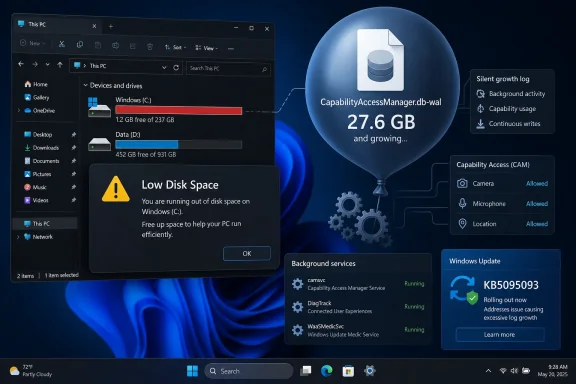
Microsoft added a storage fix to the June 23, 2026 Windows 11 preview update KB5095093 after users reported that the default Capability Access Manager service could inflate the CapabilityAccessManager.db-wal file by tens or even hundreds of gigabytes on Windows 11 24H2 and 25H2 systems. The admission matters less because one obscure database file got too large than because it reveals how much of modern Windows now runs through always-on background plumbing that most users never see until a drive fills up. This is not a dramatic blue-screen failure or a headline-grabbing security flaw; it is the quieter kind of Windows problem that turns into lost work, failed updates, and confused support threads. Microsoft has a fix rolling out, but the episode is a reminder that “default” does not always mean “invisible.”
KB5095093 began life as a normal late-month Windows preview release for Windows 11 versions 24H2 and 25H2, moving systems to OS builds 26100.8737 and 26200.8737 respectively. Like most C-release updates, it was optional, non-security, and aimed at testing quality fixes before broader Patch Tuesday distribution.
The interesting part came later. Microsoft updated the changelog on June 29, 2026 to say the update “improves disk space usage” for the CapabilityAccessManager.db-wal file. That line is short, sterile, and easy to miss, but it is the first official acknowledgement of a problem users had already been diagnosing in public for weeks.
The file in question lives under ProgramData in the CapabilityAccessManager folder, far away from the places ordinary users usually inspect. By the time many people noticed it, Windows Settings was already showing mysterious “System files” growth, cleanup tools were not helping, and the C: drive was disappearing without a clear culprit.
Reports varied from roughly a dozen gigabytes to 58GB, 70GB, and even claims near 200GB. Those numbers should not all be treated as lab-confirmed measurements, but the pattern was consistent enough: a write-ahead log tied to a built-in Windows service was not being kept under control.
That makes the bug more awkward. The service exists in the privacy-and-permissions part of Windows, the area users are supposed to trust precisely because it arbitrates access to sensitive hardware and data. When its database log becomes the thing silently consuming the disk, the failure feels less like an ordinary cache problem and more like a breach of the operating system’s promise to stay out of the way.
The “db-wal” suffix is also a clue. WAL usually means write-ahead log, a common database technique that records changes before they are folded into the main database file. It is not inherently suspicious; in fact, it is a normal way to improve reliability and performance.
The problem is that a log file is supposed to be managed. It can grow during activity, but it should be checkpointed, compacted, or otherwise brought back to earth. When it becomes a multi-gigabyte permanent resident, the implementation has stopped behaving like a log and started behaving like a leak.
Together, they create a city of background state. Most of the time, that city keeps the OS coherent: apps remember permissions, settings roam, updates roll back, the Start menu knows what it is supposed to show, and File Explorer can talk to cloud-backed locations without asking the user to understand the scaffolding.
But every hidden store is also a hidden liability. If a database grows without bounds, gets locked, fails to compact, or is hammered by a misbehaving client, the user does not see a neat error explaining the chain of causality. They see a full drive.
That is why this bug resonated beyond the literal size of the file. Enthusiasts and sysadmins are accustomed to Windows Update oddities, driver regressions, and post-upgrade cleanup debris. A protected service quietly writing a giant WAL file is different because it makes the operating system’s invisible maintenance layer look unmanaged.
That path is not reassuring. Windows has improved its storage UI over the years, but it still often collapses important distinctions into vague buckets such as system files, temporary files, or “other.” A user can lose 70GB and be told, effectively, that Windows is using it.
The reports also exposed the support gap around obscure system components. If frontline support cannot identify why a Microsoft-owned service is expanding a Microsoft-owned database file under ProgramData, the user is left in the uncomfortable position of trusting forum archaeology over official help.
To be fair, this is how many edge bugs are discovered. Public complaints, Reddit threads, Microsoft Community posts, admin scripts, and power-user investigations often provide the first useful telemetry before the vendor puts the fix into a release note. But when the bug affects disk capacity, the cost of waiting is immediate.
A drive with 15GB free can become a drive with 0GB free. Once that happens, Windows Update may fail, applications may crash, browser profiles may corrupt, and recovery options may become harder to use. Disk exhaustion is not cosmetic; it is one of the fastest ways for a healthy PC to start behaving broken.
That phrasing is typical Microsoft servicing language, and it may be technically precise. It also leaves administrators with practical questions. Does the update prevent future growth, compact existing WAL files, or merely improve checkpoint behavior over time? Should users with already-bloated files expect instant relief after reboot?
For home users, the likely answer is simple: install KB5095093 if it is offered, or wait for the same fix to arrive through the next cumulative update path. For IT shops, the answer is more complicated because optional preview updates are not usually deployed broadly without testing.
That tension is exactly why late-month preview releases occupy an odd place in the Windows ecosystem. They are production-quality in Microsoft’s language, but many organizations treat them as a proving ground. When a preview update contains a fix for a severe annoyance, admins have to decide whether the cure is worth adopting ahead of the regular security update cadence.
That does not make it a good default recommendation. The folder sits in a system-owned location for a reason, and the service is tied to app permissions. Deleting the wrong file, corrupting the main database, or racing Windows while the service is writing could create new problems that are harder to diagnose than a full drive.
The safer path now is to install the update and let Windows handle its own bookkeeping. If disk space remains missing afterward, users can check the file size again and decide whether more invasive cleanup is necessary. But the existence of a vendor fix changes the risk calculation.
For administrators, the better move is monitoring rather than improvised deletion. A quick inventory script that flags oversized CapabilityAccessManager.db-wal files across Windows 11 24H2 and 25H2 machines is reasonable. A fleet-wide script that stops services and deletes system database logs without testing is asking for a different incident.
That distinction matters because it shows Microsoft triaging features and fixes through different pipes. Responsiveness when mounting ISO or disk image files is useful, especially for power users and admins, but it is an experience improvement. A runaway database log eating the system drive is operationally more urgent.
Gradual rollout is now part of the Windows 11 bargain. Microsoft can stage changes, watch telemetry, and pull back if something misbehaves. Users, meanwhile, can be on the same build number and still have different features enabled.
That model is defensible for interface polish and behavioral changes. It is harder to explain when users are trying to understand whether a bug has been fixed. Microsoft’s changelog at least separates the two cases here: File Explorer is gradual, CapabilityAccessManager.db-wal is normal rollout.
Placed next to a storage fix for a runaway system log, it becomes a perfect Windows update moment. One part of the OS is changing how people find animated GIFs; another part is fixing a background database that may have consumed a laptop’s remaining free space. Both ship in the same cumulative package.
That is not hypocrisy or incompetence. It is the reality of a monolithic client operating system serving consumers, gamers, developers, schools, enterprises, and kiosk fleets all at once. The same update can contain emoji panel tweaks, File Explorer latency improvements, recovery features, and a fix for an obscure service database.
Still, the juxtaposition underlines why Windows release notes can feel surreal. Users read them looking for the one line that explains their pain, and that line may sit beside a change that feels almost comically unrelated.
On a 256GB machine, a 70GB system log is not an annoyance; it is a crisis. It can crowd out Windows Update, break app installs, interrupt virtual machines, and turn ordinary browser caching into an error condition. For students and home users, it may look like they need a new computer when they really need one bad file fixed.
For IT departments, the issue is less about one dramatic screenshot and more about variance. A fleet can tolerate a predictable Windows footprint. It cannot easily tolerate random machines losing tens of gigabytes because a permissions database log expands beyond its expected life.
That unpredictability complicates support. Help desks do not want to tell users to install disk analyzers and inspect ProgramData. Admins do not want to create emergency remediation scripts for a service most employees have never heard of. Storage should be boring infrastructure, not a recurring incident channel.
If a built-in service consumes 50GB in a system directory, Windows should be able to say so in plain language. Storage Settings should not require users to infer from vague categories. Event Viewer should not be the only place where clues might exist, and even then only for people who know what to search for.
Microsoft has been moving Windows toward more self-healing behavior, including repair installs through Windows Update and more recovery-oriented servicing. Those are useful features. But self-healing works best when the operating system can also explain what it is healing.
There is a product lesson here: modern Windows needs a first-class “large system files” view that identifies Microsoft-owned stores, caches, logs, and databases by service and safety level. Users should not have to guess whether a 70GB file is safe to delete, dangerous to touch, or about to be fixed by a cumulative update.
The conservative answer is to wait for the fix to land in the next security cumulative update unless the environment is actively suffering. That keeps update rings clean and avoids deploying optional preview code widely. It also means accepting that some machines may keep wasting disk space until the normal patch cycle catches up.
The more aggressive answer is to test KB5095093 in pilot rings immediately and promote it if the issue is present across the fleet. That approach fits organizations already comfortable with Windows Update for Business rings and staged validation. It is less attractive in brittle environments with legacy apps or narrow maintenance windows.
Neither answer is universally right. The practical dividing line is impact. If monitoring shows the WAL file is normal across endpoints, there is no reason to panic. If machines are losing tens of gigabytes and tickets are rising, the preview update becomes less optional in practice.
That sequence is not unusual, but it erodes confidence. Windows enthusiasts can live with bugs; many even enjoy the detective work. What they dislike is the feeling that the operating system is opaque until enough users complain loudly enough to force a changelog line.
Microsoft’s challenge is not simply to prevent every service database from growing too large. That is impossible at Windows scale. The challenge is to make failures legible, bounded, and reversible before they become folklore.
A hidden 70GB log file is the kind of problem that turns ordinary users into amateur forensic analysts. That may be flattering to the community, but it is not a sustainable support model.
 Microsoft Fixed the Symptom After Users Found the Evidence
KB5095093 began life as a normal late-month Windows preview release for Windows 11 versions 24H2 and 25H2, moving systems to OS builds 26100.8737 and 26200.8737 respectively. Like most C-release updates, it was optional, non-security, and aimed at testing quality fixes before broader Patch Tuesday distribution.The interesting part came later. Microsoft updated the changelog on June 29, 2026 to say the update “improves disk space usage” for the CapabilityAccessManager.db-wal file. That line is short, sterile, and easy to miss, but it is the first official acknowledgement of a problem users had already been diagnosing in public for weeks.
The file in question lives under ProgramData in the CapabilityAccessManager folder, far away from the places ordinary users usually inspect. By the time many people noticed it, Windows Settings was already showing mysterious “System files” growth, cleanup tools were not helping, and the C: drive was disappearing without a clear culprit.
Reports varied from roughly a dozen gigabytes to 58GB, 70GB, and even claims near 200GB. Those numbers should not all be treated as lab-confirmed measurements, but the pattern was consistent enough: a write-ahead log tied to a built-in Windows service was not being kept under control.
The Boring File Name Is the Whole Story
Capability Access Manager is not malware, not bloatware in the usual sense, and not a random OEM add-on. It is part of Windows’ permission machinery, the layer that helps manage whether apps can use sensitive capabilities such as the camera, microphone, location, and other protected resources.That makes the bug more awkward. The service exists in the privacy-and-permissions part of Windows, the area users are supposed to trust precisely because it arbitrates access to sensitive hardware and data. When its database log becomes the thing silently consuming the disk, the failure feels less like an ordinary cache problem and more like a breach of the operating system’s promise to stay out of the way.
The “db-wal” suffix is also a clue. WAL usually means write-ahead log, a common database technique that records changes before they are folded into the main database file. It is not inherently suspicious; in fact, it is a normal way to improve reliability and performance.
The problem is that a log file is supposed to be managed. It can grow during activity, but it should be checkpointed, compacted, or otherwise brought back to earth. When it becomes a multi-gigabyte permanent resident, the implementation has stopped behaving like a log and started behaving like a leak.
Windows Has Become a City of Small Databases
This is the sort of bug that explains why Windows can feel both more robust and more fragile than it used to. Modern Windows is full of small databases, brokers, telemetry stores, notification caches, search indexes, permission records, package catalogs, update histories, and service journals. Each one is rational in isolation.Together, they create a city of background state. Most of the time, that city keeps the OS coherent: apps remember permissions, settings roam, updates roll back, the Start menu knows what it is supposed to show, and File Explorer can talk to cloud-backed locations without asking the user to understand the scaffolding.
But every hidden store is also a hidden liability. If a database grows without bounds, gets locked, fails to compact, or is hammered by a misbehaving client, the user does not see a neat error explaining the chain of causality. They see a full drive.
That is why this bug resonated beyond the literal size of the file. Enthusiasts and sysadmins are accustomed to Windows Update oddities, driver regressions, and post-upgrade cleanup debris. A protected service quietly writing a giant WAL file is different because it makes the operating system’s invisible maintenance layer look unmanaged.
The Support Gap Arrived Before the Patch
The earliest public reports followed a familiar Windows troubleshooting arc. A user notices disappearing storage, checks Disk Cleanup or Storage Sense, finds nothing useful, and eventually turns to third-party disk mapping tools. Only then does the culprit appear: CapabilityAccessManager.db-wal.That path is not reassuring. Windows has improved its storage UI over the years, but it still often collapses important distinctions into vague buckets such as system files, temporary files, or “other.” A user can lose 70GB and be told, effectively, that Windows is using it.
The reports also exposed the support gap around obscure system components. If frontline support cannot identify why a Microsoft-owned service is expanding a Microsoft-owned database file under ProgramData, the user is left in the uncomfortable position of trusting forum archaeology over official help.
To be fair, this is how many edge bugs are discovered. Public complaints, Reddit threads, Microsoft Community posts, admin scripts, and power-user investigations often provide the first useful telemetry before the vendor puts the fix into a release note. But when the bug affects disk capacity, the cost of waiting is immediate.
A drive with 15GB free can become a drive with 0GB free. Once that happens, Windows Update may fail, applications may crash, browser profiles may corrupt, and recovery options may become harder to use. Disk exhaustion is not cosmetic; it is one of the fastest ways for a healthy PC to start behaving broken.
The Fix Is Welcome, But the Wording Is Carefully Narrow
Microsoft’s changelog does not say the company found a runaway log bug. It does not say which conditions triggered the growth, whether all affected systems recover space automatically, or whether the file will be reduced immediately after installation. It says the update improves disk space usage for that specific file.That phrasing is typical Microsoft servicing language, and it may be technically precise. It also leaves administrators with practical questions. Does the update prevent future growth, compact existing WAL files, or merely improve checkpoint behavior over time? Should users with already-bloated files expect instant relief after reboot?
For home users, the likely answer is simple: install KB5095093 if it is offered, or wait for the same fix to arrive through the next cumulative update path. For IT shops, the answer is more complicated because optional preview updates are not usually deployed broadly without testing.
That tension is exactly why late-month preview releases occupy an odd place in the Windows ecosystem. They are production-quality in Microsoft’s language, but many organizations treat them as a proving ground. When a preview update contains a fix for a severe annoyance, admins have to decide whether the cure is worth adopting ahead of the regular security update cadence.
The Manual Workarounds Were Always a Little Dangerous
Before Microsoft’s fix appeared, some users stopped the Capability Access Manager service and deleted or renamed the WAL file. Others used Safe Mode, recovery environments, command-line ownership changes, or system-level tools to force the file loose. Some reported that Windows recreated the log at a normal size afterward.That does not make it a good default recommendation. The folder sits in a system-owned location for a reason, and the service is tied to app permissions. Deleting the wrong file, corrupting the main database, or racing Windows while the service is writing could create new problems that are harder to diagnose than a full drive.
The safer path now is to install the update and let Windows handle its own bookkeeping. If disk space remains missing afterward, users can check the file size again and decide whether more invasive cleanup is necessary. But the existence of a vendor fix changes the risk calculation.
For administrators, the better move is monitoring rather than improvised deletion. A quick inventory script that flags oversized CapabilityAccessManager.db-wal files across Windows 11 24H2 and 25H2 machines is reasonable. A fleet-wide script that stops services and deletes system database logs without testing is asking for a different incident.
The File Explorer Fix Shows Microsoft’s Split Rollout Philosophy
The same KB5095093 changelog also mentions a File Explorer improvement for mounting disk images, but with a different rollout status. That change is gradual, meaning not every user who installs the update will see it immediately. The storage improvement, by contrast, is listed as a normal rollout.That distinction matters because it shows Microsoft triaging features and fixes through different pipes. Responsiveness when mounting ISO or disk image files is useful, especially for power users and admins, but it is an experience improvement. A runaway database log eating the system drive is operationally more urgent.
Gradual rollout is now part of the Windows 11 bargain. Microsoft can stage changes, watch telemetry, and pull back if something misbehaves. Users, meanwhile, can be on the same build number and still have different features enabled.
That model is defensible for interface polish and behavioral changes. It is harder to explain when users are trying to understand whether a bug has been fixed. Microsoft’s changelog at least separates the two cases here: File Explorer is gradual, CapabilityAccessManager.db-wal is normal rollout.
The GIF Provider Change Is the Comic Relief
KB5095093 also swaps the Windows Emoji Panel’s GIF provider from Tenor to GIPHY. In a vacuum, that is a small consumer-facing change, the kind of line item that would normally get a shrug unless someone’s favorite reaction GIF vanished.Placed next to a storage fix for a runaway system log, it becomes a perfect Windows update moment. One part of the OS is changing how people find animated GIFs; another part is fixing a background database that may have consumed a laptop’s remaining free space. Both ship in the same cumulative package.
That is not hypocrisy or incompetence. It is the reality of a monolithic client operating system serving consumers, gamers, developers, schools, enterprises, and kiosk fleets all at once. The same update can contain emoji panel tweaks, File Explorer latency improvements, recovery features, and a fix for an obscure service database.
Still, the juxtaposition underlines why Windows release notes can feel surreal. Users read them looking for the one line that explains their pain, and that line may sit beside a change that feels almost comically unrelated.
Storage Bugs Hit Harder in the SSD Era
A 70GB leak means something different in 2026 than it did in the age of spacious desktop hard drives. Many modern laptops still ship with 256GB or 512GB SSDs, and a meaningful share of that space is already consumed by Windows, recovery partitions, hibernation files, app caches, games, developer tools, OneDrive placeholders, and update reserves.On a 256GB machine, a 70GB system log is not an annoyance; it is a crisis. It can crowd out Windows Update, break app installs, interrupt virtual machines, and turn ordinary browser caching into an error condition. For students and home users, it may look like they need a new computer when they really need one bad file fixed.
For IT departments, the issue is less about one dramatic screenshot and more about variance. A fleet can tolerate a predictable Windows footprint. It cannot easily tolerate random machines losing tens of gigabytes because a permissions database log expands beyond its expected life.
That unpredictability complicates support. Help desks do not want to tell users to install disk analyzers and inspect ProgramData. Admins do not want to create emergency remediation scripts for a service most employees have never heard of. Storage should be boring infrastructure, not a recurring incident channel.
The Real Failure Was Observability
The most damning part of this episode is not that a file grew. Bugs happen. The failure is that Windows did not make the cause obvious enough soon enough.If a built-in service consumes 50GB in a system directory, Windows should be able to say so in plain language. Storage Settings should not require users to infer from vague categories. Event Viewer should not be the only place where clues might exist, and even then only for people who know what to search for.
Microsoft has been moving Windows toward more self-healing behavior, including repair installs through Windows Update and more recovery-oriented servicing. Those are useful features. But self-healing works best when the operating system can also explain what it is healing.
There is a product lesson here: modern Windows needs a first-class “large system files” view that identifies Microsoft-owned stores, caches, logs, and databases by service and safety level. Users should not have to guess whether a 70GB file is safe to delete, dangerous to touch, or about to be fixed by a cumulative update.
Enterprises Will Treat This as a Servicing Signal
For managed environments, KB5095093 is not merely a storage patch. It is a data point in the long-running argument over how aggressively organizations should adopt Windows 11 preview updates, how much telemetry they should collect from endpoints, and how quickly they should respond to community-discovered bugs.The conservative answer is to wait for the fix to land in the next security cumulative update unless the environment is actively suffering. That keeps update rings clean and avoids deploying optional preview code widely. It also means accepting that some machines may keep wasting disk space until the normal patch cycle catches up.
The more aggressive answer is to test KB5095093 in pilot rings immediately and promote it if the issue is present across the fleet. That approach fits organizations already comfortable with Windows Update for Business rings and staged validation. It is less attractive in brittle environments with legacy apps or narrow maintenance windows.
Neither answer is universally right. The practical dividing line is impact. If monitoring shows the WAL file is normal across endpoints, there is no reason to panic. If machines are losing tens of gigabytes and tickets are rising, the preview update becomes less optional in practice.
The Patch Solves More Than One Problem, But Not the Trust Problem
KB5095093 appears to resolve the immediate disk usage behavior Microsoft has acknowledged. That is the good news. The less comfortable news is that Microsoft’s admission came only after users had already assembled the story in public.That sequence is not unusual, but it erodes confidence. Windows enthusiasts can live with bugs; many even enjoy the detective work. What they dislike is the feeling that the operating system is opaque until enough users complain loudly enough to force a changelog line.
Microsoft’s challenge is not simply to prevent every service database from growing too large. That is impossible at Windows scale. The challenge is to make failures legible, bounded, and reversible before they become folklore.
A hidden 70GB log file is the kind of problem that turns ordinary users into amateur forensic analysts. That may be flattering to the community, but it is not a sustainable support model.
The Practical Read on KB5095093
The important thing about this update is that it converts a messy community workaround into an official servicing fix. Users still need to think about timing, especially because KB5095093 is a preview release, but the direction is clear.- Windows 11 24H2 and 25H2 users affected by unexplained C: drive growth should check whether CapabilityAccessManager.db-wal is unusually large before deleting random files.
- KB5095093 includes Microsoft’s official improvement for disk space usage tied to CapabilityAccessManager.db-wal.
- The storage fix is listed as a normal rollout, while the File Explorer disk-image responsiveness improvement is being released gradually.
- Organizations should test the preview update if the issue is causing active incidents, but they may reasonably wait for the fix to arrive through the normal cumulative update cadence if their fleets are stable.
- Manual deletion of Capability Access Manager database files should be treated as a last resort, not routine maintenance.
References
- Primary source: Neowin
Published: 2026-07-01T09:10:49.125675
Loading…
www.neowin.net - Related coverage: notebookcheck.net
Windows 11 KB5095093 Preview adds Point-in-time restore - Notebookcheck News
Microsoft launches Windows 11 optional preview update KB5095093 for versions 24H2 and 25H2, introducing Point-in-time restore and a Recycle Bin display patch. www.notebookcheck.net
- Related coverage: notebookcheck.org
Loading…
www.notebookcheck.org - Official source: support.microsoft.com
- Related coverage: notebookcheck.com
Loading…
www.notebookcheck.com - Related coverage: notebookcheck.biz
Loading…
www.notebookcheck.biz

- Related coverage: notebookcheck-cn.com
Windows 11 KB5095093 预览版新增了“特定时间点还原”功能 - Notebookcheck-cn.com News
微软为 Windows 11 的 24H2 和 25H2 版本发布了可选预览更新 KB5095093,引入了“特定时间点还原”功能以及“回收站显示”修复程序。 www.notebookcheck-cn.com
- Related coverage: razorman.net
Loading…
www.razorman.net - Related coverage: windowsreport.com
Windows 11 KB5095093 Adds Windows Ready Print, AI Improvements, and GIF Changes
Microsoft has released Windows 11 KB5095093, bringing Windows Ready Print improvements, WSL fixes, AI enhancements, and reliability updates. windowsreport.com
- Official source: techcommunity.microsoft.com
- Official source: learn.microsoft.com
Loading…
learn.microsoft.com - Official source: microsoft.com
Loading…
www.microsoft.com - Related coverage: arcpu.com
Loading…
arcpu.com