

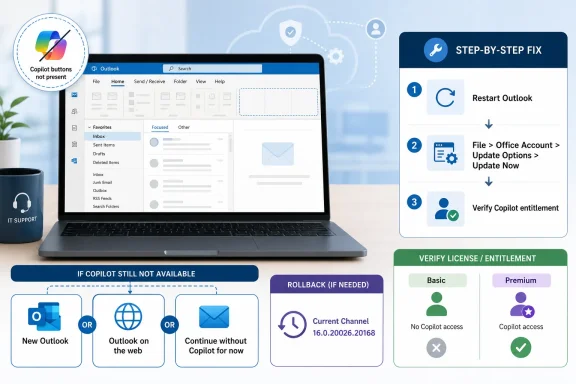
Microsoft says its service-side fix for missing Copilot buttons in classic Outlook for Windows landed on June 29, 2026, and affected users should first restart Outlook, then use File > Office Account > Update Options > Update Now to pull the latest Microsoft 365 Apps build. If the button still does not return, the practical short-term path is not another round of random ribbon tweaking. Admins should verify the user’s Copilot entitlement, confirm Outlook is on a corrected build path, and decide quickly between new Outlook, Outlook on the web, or a temporary Current Channel rollback to 16.0.20026.20168.
That is the operational story hiding inside what looks like a small UI bug. Microsoft fixed the service condition, but the user sitting in front of a missing button does not care whether the root cause lived in the cloud, the client, or the licensing layer. The job now is to move from “Microsoft says it is fixed” to “this mailbox is usable again.”
The first move is to restart classic Outlook completely. Do not merely close the message window or switch folders; exit Outlook, make sure the process is gone, and reopen it. Microsoft’s guidance is explicit that if the service-side change does not appear immediately, Outlook should be restarted.
For most users, that is the cleanest possible outcome. A service-side fix often needs a client refresh before the interface rehydrates correctly, especially when the missing object is not a local add-in but a cloud-backed entry point surfaced inside the app. If the Copilot button returns after a restart, stop troubleshooting and do not “fix” anything else.
If a restart does not work, the next step is to force Microsoft 365 Apps to update. In classic Outlook for Windows, go to File > Office Account > Update Options > Update Now. If your tenant branding or Office layout differs slightly, the same update control can usually be reached from another Microsoft 365 desktop app, such as Word, via File > Account > Update Options > Update Now.
After the update completes, restart Outlook again. This matters because the update state and the service state are two separate checkpoints. An app can have received fresh service data while still running an affected build, and it can also be updated without having fully refreshed the UI surface that exposes Copilot.
Start by confirming the symptom in classic Outlook for Windows. Microsoft’s known issue concerned Copilot Chat and Copilot entry points disappearing in classic Outlook after affected builds, with examples including the button above the ribbon and the Copilot icon in the left app bar or More Apps area. If the user is describing Teams, Word, Excel, or a web-only symptom, keep that in a separate lane until you establish whether Outlook is actually affected.
Next, confirm whether the user has the Copilot Chat Basic entitlement or a paid Microsoft 365 Copilot Premium license. Microsoft’s description of this specific Outlook issue says it occurred when users had only the Copilot Chat Basic license and did not occur for users with the paid Microsoft 365 Copilot license. That distinction is not trivia; it changes how aggressively you should chase client-side fixes.
Then verify the app state. In Outlook, use File > Office Account and check the product and update information. If Update Now is available, run it. If update controls are hidden because your organization manages Microsoft 365 Apps centrally, the help desk or endpoint team needs to check the deployment ring rather than asking the user to reinstall Office.
Finally, decide whether to use a workaround. Microsoft listed new Outlook, Outlook on the web, and a rollback of Current Channel to 16.0.20026.20168 as workarounds if needed. That gives admins three very different levers: move the user to a different client surface, move them to the browser, or move the installed Office build backward.
This bug sat at the intersection of classic Outlook for Windows, Microsoft 365 Apps build behavior, and Copilot licensing state. Microsoft’s own workaround list makes that clear. If the browser and new Outlook remain viable while classic Outlook loses entry points, the failure is not simply “the user does not have Copilot.”
That matters for admins because the wrong mental model wastes time. If the service says the user is entitled, and Copilot appears elsewhere, repeatedly rebuilding Outlook profiles is unlikely to be the fastest path. The better question is whether the affected user is on the client and channel combination that exposed the regression.
It also matters because users often describe all Copilot failures the same way. “Copilot is gone” can mean a missing chat button, a missing summarize action, a disabled ribbon command, a licensing downgrade, or an admin policy block. In this case, the defining feature is narrower: Copilot entry points vanished from classic Outlook for Windows even though alternatives such as Outlook on the web could still be used.
For a power user, switching to Outlook on the web may be a five-minute inconvenience. For a department running complex mailbox workflows, it may be a productivity tax. That is why the “just use new Outlook” answer lands differently depending on whether the user is triaging a few messages or running a heavily customized desk setup all day.
Admins should therefore treat the workaround choice as a business decision, not a moral referendum on the future of Outlook. If the user only needs Copilot Chat to summarize a thread or draft a reply, Outlook on the web may be the quickest bridge. If the user’s day depends on classic Outlook features or add-ins, a temporary rollback may be less disruptive.
The larger pattern will feel familiar to WindowsForum readers. Microsoft’s Copilot rollout has already produced moments where the assistant was unexpectedly removed, reintroduced, moved, or surfaced in ways that surprised users. WindowsForum has tracked those earlier Windows-side Copilot removal incidents closely, and this Outlook bug belongs to the same broader era: AI features are now woven into the shell and productivity stack deeply enough that a small delivery mistake becomes a visible workflow break.
The rollback makes the most sense when three conditions are true. The user is on Current Channel, the missing Copilot entry point is materially blocking work, and new Outlook or Outlook on the web is not an acceptable short-term substitute. If any one of those is false, the rollback becomes less attractive.
For managed environments, the rollback should be handled centrally or at least documented. A one-off command copied into a user session may solve today’s ticket while creating tomorrow’s inventory mystery. If you roll back, record who was rolled back, why, and when you expect them to return to the normal update path.
The safer operational posture is to view rollback as a timed exception. Once the service-side fix and current builds behave correctly in your tenant, move the device back into its intended update flow. Copilot bugs are frustrating, but staying behind indefinitely is not a strategy.
For this specific bug, Microsoft identified the impacted group as users with only the Copilot Chat Basic license. It also said the issue did not occur for users with the Microsoft 365 paid Copilot Premium license. That should shape triage: if a Premium-licensed user reports the same symptom, do not automatically assume this known issue is the explanation.
The practical check is straightforward. Confirm the signed-in account in Outlook, confirm the license assignment in your Microsoft 365 admin tooling, and confirm the user is not testing with a different account than the one that owns the entitlement. Multi-account Outlook profiles are common enough that this step is worth doing even when the user is certain.
Power users should also understand when to stop self-troubleshooting. If Copilot appears in Outlook on the web but not classic Outlook, that is useful evidence for IT. If Copilot is missing everywhere, including the web, the problem may be licensing, tenant configuration, or service availability rather than this classic Outlook regression.
The key is sequencing. Do not spend the first hour spelunking through policy if the user is on the known affected path and has not restarted or updated. Do not push a rollback before confirming the user is actually entitled to the feature. Do not escalate to Microsoft with a vague “Copilot gone” report when you have not captured the client, license, channel, and web-client behavior.
A useful escalation packet should include the Outlook client type, the Microsoft 365 Apps build shown under File > Office Account, whether Update Now has been run, whether restarting Outlook changed anything, whether the user has Basic or Premium Copilot licensing, and whether Copilot appears in new Outlook or Outlook on the web. That is the difference between a ticket and a troubleshooting diary.
This is also where admins should be careful with user-facing language. “Microsoft fixed it” is not the same as “your client has refreshed and your button is back.” The first is a vendor status. The second is a verified outcome.
A good message would say that Microsoft has applied a fix for missing Copilot buttons in classic Outlook for Windows, and users should restart Outlook first. If the button is still missing, they should run File > Office Account > Update Options > Update Now, then restart Outlook again. If the button remains missing after that, they should contact IT and report whether Copilot works in Outlook on the web.
That last sentence matters. It turns a complaint into a diagnostic signal. If the web version works, IT can focus on the classic Outlook client and update path. If the web version does not work, IT should widen the investigation to license and tenant controls.
Power users can follow the same logic. Do not uninstall Office as a first response. Do not assume ribbon customization will fix a disabled command. Do not burn time creating new profiles until the basic service, update, and license checks are complete.
The fair reading is narrower. In this incident, new Outlook and Outlook on the web are good short-term routes to restore Copilot access. They are not evidence that every affected organization should accelerate migration overnight. They are pressure valves.
For admins, the better policy is to classify users by tolerance. A user who only needs Copilot occasionally can be sent to the web while the fix propagates. A user who relies on classic Outlook all day may need a rollback or a more hands-on remediation. A pilot group already testing new Outlook may be a good candidate for temporary switching, but a skeptical finance or legal team probably is not.
This kind of segmentation is the difference between IT service and IT theater. The user does not care whether the workaround is strategically aligned with Microsoft’s roadmap. The user cares whether they can finish the message in front of them.
That makes UI reliability part of operational reliability. If an AI entry point disappears, the underlying mailbox still works, but a workflow the user has adopted may be gone. The closer Copilot gets to daily work, the less credible it is to dismiss these incidents as mere button bugs.
It also raises the stakes for change communication. Microsoft can patch the service quickly, as it did here, but administrators still need to translate that into local instructions. Restart Outlook. Update Office. Check the license. Use the web client if needed. Roll back only when the business case is strong.
The WindowsForum angle is not that Copilot vanished again and everyone should panic. It is that Microsoft’s AI features now sit inside a moving stack of service flags, app channels, licensing tiers, and interface decisions. Enthusiasts notice the weirdness first; sysadmins have to make it boring enough to support.
Admins should escalate internally when multiple users on the same channel and license state show the same failure after restart and update. That pattern suggests a deployment-ring issue, a tenant-specific condition, or a need for a temporary workaround decision. It is no longer a single-user productivity complaint.
Admins should escalate to Microsoft when they can show that the user is entitled, on the expected build path, not blocked by policy, and still missing Copilot in the affected client after the documented remediation. A ticket with those facts is far more useful than a screenshot of an empty ribbon.
The important discipline is to avoid mixing unrelated Copilot complaints into the same case. Missing Teams buttons, missing Outlook summarize actions, missing web access, and missing classic Outlook app-bar icons may share a brand name without sharing a cause. Treat the known Outlook bug as a specific incident, not a universal explanation.
That is the operational story hiding inside what looks like a small UI bug. Microsoft fixed the service condition, but the user sitting in front of a missing button does not care whether the root cause lived in the cloud, the client, or the licensing layer. The job now is to move from “Microsoft says it is fixed” to “this mailbox is usable again.”
 The Fastest Fix Is Boring, Which Is Why It Should Come First
The first move is to restart classic Outlook completely. Do not merely close the message window or switch folders; exit Outlook, make sure the process is gone, and reopen it. Microsoft’s guidance is explicit that if the service-side change does not appear immediately, Outlook should be restarted.For most users, that is the cleanest possible outcome. A service-side fix often needs a client refresh before the interface rehydrates correctly, especially when the missing object is not a local add-in but a cloud-backed entry point surfaced inside the app. If the Copilot button returns after a restart, stop troubleshooting and do not “fix” anything else.
If a restart does not work, the next step is to force Microsoft 365 Apps to update. In classic Outlook for Windows, go to File > Office Account > Update Options > Update Now. If your tenant branding or Office layout differs slightly, the same update control can usually be reached from another Microsoft 365 desktop app, such as Word, via File > Account > Update Options > Update Now.
After the update completes, restart Outlook again. This matters because the update state and the service state are two separate checkpoints. An app can have received fresh service data while still running an affected build, and it can also be updated without having fully refreshed the UI surface that exposes Copilot.
The Runbook for Admins Starts With Proof, Not Hope
The clean admin workflow is simple: reproduce, verify, remediate, then escalate only when the evidence says this is not the known issue. That sounds obvious, but Copilot has become a perfect trap for shotgun troubleshooting because its buttons depend on licensing, app channel, cloud policy, and UI rollout behavior.Start by confirming the symptom in classic Outlook for Windows. Microsoft’s known issue concerned Copilot Chat and Copilot entry points disappearing in classic Outlook after affected builds, with examples including the button above the ribbon and the Copilot icon in the left app bar or More Apps area. If the user is describing Teams, Word, Excel, or a web-only symptom, keep that in a separate lane until you establish whether Outlook is actually affected.
Next, confirm whether the user has the Copilot Chat Basic entitlement or a paid Microsoft 365 Copilot Premium license. Microsoft’s description of this specific Outlook issue says it occurred when users had only the Copilot Chat Basic license and did not occur for users with the paid Microsoft 365 Copilot license. That distinction is not trivia; it changes how aggressively you should chase client-side fixes.
Then verify the app state. In Outlook, use File > Office Account and check the product and update information. If Update Now is available, run it. If update controls are hidden because your organization manages Microsoft 365 Apps centrally, the help desk or endpoint team needs to check the deployment ring rather than asking the user to reinstall Office.
Finally, decide whether to use a workaround. Microsoft listed new Outlook, Outlook on the web, and a rollback of Current Channel to 16.0.20026.20168 as workarounds if needed. That gives admins three very different levers: move the user to a different client surface, move them to the browser, or move the installed Office build backward.
This Was Not a Normal “Missing Button” Problem
The temptation is to treat any missing Copilot button like a personalization issue. Maybe the ribbon was customized. Maybe the user hid the app bar. Maybe privacy settings disabled connected experiences. Those are valid checks in the wider Copilot universe, but they are not the heart of this particular incident.This bug sat at the intersection of classic Outlook for Windows, Microsoft 365 Apps build behavior, and Copilot licensing state. Microsoft’s own workaround list makes that clear. If the browser and new Outlook remain viable while classic Outlook loses entry points, the failure is not simply “the user does not have Copilot.”
That matters for admins because the wrong mental model wastes time. If the service says the user is entitled, and Copilot appears elsewhere, repeatedly rebuilding Outlook profiles is unlikely to be the fastest path. The better question is whether the affected user is on the client and channel combination that exposed the regression.
It also matters because users often describe all Copilot failures the same way. “Copilot is gone” can mean a missing chat button, a missing summarize action, a disabled ribbon command, a licensing downgrade, or an admin policy block. In this case, the defining feature is narrower: Copilot entry points vanished from classic Outlook for Windows even though alternatives such as Outlook on the web could still be used.
Classic Outlook Is Still Where Enterprise Reality Lives
The workaround list says a lot about Microsoft’s transition problem. New Outlook and Outlook on the web are Microsoft’s preferred escape hatches for many modern Outlook experiences, but classic Outlook remains deeply embedded in business workflows. Users do not live in architecture diagrams; they live in shared mailboxes, add-ins, cached mode, line-of-business integrations, and years of muscle memory.For a power user, switching to Outlook on the web may be a five-minute inconvenience. For a department running complex mailbox workflows, it may be a productivity tax. That is why the “just use new Outlook” answer lands differently depending on whether the user is triaging a few messages or running a heavily customized desk setup all day.
Admins should therefore treat the workaround choice as a business decision, not a moral referendum on the future of Outlook. If the user only needs Copilot Chat to summarize a thread or draft a reply, Outlook on the web may be the quickest bridge. If the user’s day depends on classic Outlook features or add-ins, a temporary rollback may be less disruptive.
The larger pattern will feel familiar to WindowsForum readers. Microsoft’s Copilot rollout has already produced moments where the assistant was unexpectedly removed, reintroduced, moved, or surfaced in ways that surprised users. WindowsForum has tracked those earlier Windows-side Copilot removal incidents closely, and this Outlook bug belongs to the same broader era: AI features are now woven into the shell and productivity stack deeply enough that a small delivery mistake becomes a visible workflow break.
The Rollback Is a Tool, Not a Lifestyle
Microsoft’s listed rollback target for Current Channel is 16.0.20026.20168. That is a useful escape hatch when a user or team cannot wait for the normal update path to settle, but it should not become the default reflex. Rolling Office backward trades one known annoyance for the possibility of living longer on an older build than your patching model intended.The rollback makes the most sense when three conditions are true. The user is on Current Channel, the missing Copilot entry point is materially blocking work, and new Outlook or Outlook on the web is not an acceptable short-term substitute. If any one of those is false, the rollback becomes less attractive.
For managed environments, the rollback should be handled centrally or at least documented. A one-off command copied into a user session may solve today’s ticket while creating tomorrow’s inventory mystery. If you roll back, record who was rolled back, why, and when you expect them to return to the normal update path.
The safer operational posture is to view rollback as a timed exception. Once the service-side fix and current builds behave correctly in your tenant, move the device back into its intended update flow. Copilot bugs are frustrating, but staying behind indefinitely is not a strategy.
Licensing Is the First Place to Catch False Positives
This incident is a reminder that Copilot is not one thing from an admin perspective. A user may have Copilot Chat Basic, another may have a paid Microsoft 365 Copilot license, and a third may have no relevant entitlement at all. The Outlook UI does not always communicate those distinctions in a way that makes sense to the person filing the ticket.For this specific bug, Microsoft identified the impacted group as users with only the Copilot Chat Basic license. It also said the issue did not occur for users with the Microsoft 365 paid Copilot Premium license. That should shape triage: if a Premium-licensed user reports the same symptom, do not automatically assume this known issue is the explanation.
The practical check is straightforward. Confirm the signed-in account in Outlook, confirm the license assignment in your Microsoft 365 admin tooling, and confirm the user is not testing with a different account than the one that owns the entitlement. Multi-account Outlook profiles are common enough that this step is worth doing even when the user is certain.
Power users should also understand when to stop self-troubleshooting. If Copilot appears in Outlook on the web but not classic Outlook, that is useful evidence for IT. If Copilot is missing everywhere, including the web, the problem may be licensing, tenant configuration, or service availability rather than this classic Outlook regression.
Tenant Policy Still Belongs in the Triage Tree
The verified facts around this incident point to a Microsoft-side fix and client update path, not a tenant policy change. Still, enterprise admins should not ignore policy entirely. Copilot availability is shaped by license assignment and organizational controls, and those controls can create symptoms that look similar to a product bug.The key is sequencing. Do not spend the first hour spelunking through policy if the user is on the known affected path and has not restarted or updated. Do not push a rollback before confirming the user is actually entitled to the feature. Do not escalate to Microsoft with a vague “Copilot gone” report when you have not captured the client, license, channel, and web-client behavior.
A useful escalation packet should include the Outlook client type, the Microsoft 365 Apps build shown under File > Office Account, whether Update Now has been run, whether restarting Outlook changed anything, whether the user has Basic or Premium Copilot licensing, and whether Copilot appears in new Outlook or Outlook on the web. That is the difference between a ticket and a troubleshooting diary.
This is also where admins should be careful with user-facing language. “Microsoft fixed it” is not the same as “your client has refreshed and your button is back.” The first is a vendor status. The second is a verified outcome.
The User Message Should Be Short and Concrete
For help desks, the best user-facing guidance is not a long explanation of service-side regressions. It is a short set of steps and a clear escalation trigger. The goal is to reduce duplicate tickets without making users feel blamed for a Microsoft bug.A good message would say that Microsoft has applied a fix for missing Copilot buttons in classic Outlook for Windows, and users should restart Outlook first. If the button is still missing, they should run File > Office Account > Update Options > Update Now, then restart Outlook again. If the button remains missing after that, they should contact IT and report whether Copilot works in Outlook on the web.
That last sentence matters. It turns a complaint into a diagnostic signal. If the web version works, IT can focus on the classic Outlook client and update path. If the web version does not work, IT should widen the investigation to license and tenant controls.
Power users can follow the same logic. Do not uninstall Office as a first response. Do not assume ribbon customization will fix a disabled command. Do not burn time creating new profiles until the basic service, update, and license checks are complete.
New Outlook and OWA Are Workarounds, Not Proof That Classic Outlook Is Dead
Microsoft’s workaround list predictably nudges users toward new Outlook and Outlook on the web. That is sensible from Microsoft’s perspective because those clients can bypass some classic Outlook-specific failure modes. It is also politically loaded because many enterprise users still regard new Outlook as an unfinished replacement rather than a drop-in successor.The fair reading is narrower. In this incident, new Outlook and Outlook on the web are good short-term routes to restore Copilot access. They are not evidence that every affected organization should accelerate migration overnight. They are pressure valves.
For admins, the better policy is to classify users by tolerance. A user who only needs Copilot occasionally can be sent to the web while the fix propagates. A user who relies on classic Outlook all day may need a rollback or a more hands-on remediation. A pilot group already testing new Outlook may be a good candidate for temporary switching, but a skeptical finance or legal team probably is not.
This kind of segmentation is the difference between IT service and IT theater. The user does not care whether the workaround is strategically aligned with Microsoft’s roadmap. The user cares whether they can finish the message in front of them.
The Copilot Era Makes UI Reliability an Admin Concern
There was a time when a missing assistant button would have been a cosmetic annoyance. That time is passing. Microsoft is positioning Copilot as a work surface across Microsoft 365, and users are beginning to build habits around summarization, drafting, meeting prep, and search-adjacent workflows.That makes UI reliability part of operational reliability. If an AI entry point disappears, the underlying mailbox still works, but a workflow the user has adopted may be gone. The closer Copilot gets to daily work, the less credible it is to dismiss these incidents as mere button bugs.
It also raises the stakes for change communication. Microsoft can patch the service quickly, as it did here, but administrators still need to translate that into local instructions. Restart Outlook. Update Office. Check the license. Use the web client if needed. Roll back only when the business case is strong.
The WindowsForum angle is not that Copilot vanished again and everyone should panic. It is that Microsoft’s AI features now sit inside a moving stack of service flags, app channels, licensing tiers, and interface decisions. Enthusiasts notice the weirdness first; sysadmins have to make it boring enough to support.
Where to Draw the Escalation Line
Users should escalate to IT after they have restarted Outlook, run Update Now if available, restarted again, and checked whether Copilot appears in Outlook on the web. That is the clean boundary between self-service and admin work. Anything beyond that usually requires license visibility, update-channel control, or tenant-level knowledge.Admins should escalate internally when multiple users on the same channel and license state show the same failure after restart and update. That pattern suggests a deployment-ring issue, a tenant-specific condition, or a need for a temporary workaround decision. It is no longer a single-user productivity complaint.
Admins should escalate to Microsoft when they can show that the user is entitled, on the expected build path, not blocked by policy, and still missing Copilot in the affected client after the documented remediation. A ticket with those facts is far more useful than a screenshot of an empty ribbon.
The important discipline is to avoid mixing unrelated Copilot complaints into the same case. Missing Teams buttons, missing Outlook summarize actions, missing web access, and missing classic Outlook app-bar icons may share a brand name without sharing a cause. Treat the known Outlook bug as a specific incident, not a universal explanation.
The June 29 Fix Still Leaves a Local Job to Do
Microsoft’s June 29, 2026 service-side fix is the turning point, but it is not the end of the admin story. The remaining work is local verification: restart the app, update the build, confirm licensing, and choose a workaround only when the normal path fails.- Restart classic Outlook for Windows first, because Microsoft says the fixed service change may not appear immediately until the client is reopened.
- Use File > Office Account > Update Options > Update Now to bring Microsoft 365 Apps onto the latest available build before trying heavier repairs.
- Check whether the affected user has Copilot Chat Basic or a paid Microsoft 365 Copilot Premium license, because Microsoft tied this specific issue to Basic-license users.
- Test new Outlook or Outlook on the web before rebuilding profiles, because Microsoft listed those clients as available workarounds.
- Consider rolling Current Channel back to 16.0.20026.20168 only when the user cannot wait and the alternate clients are not acceptable.
- Escalate to IT when Copilot remains missing after restart and update, especially if the user cannot confirm licensing or update-channel status.
References
- Primary source: learn.microsoft.com
Copilot launch button is missing from Outlook and teams - Microsoft Q&A
Copilot launch button is missing from Oultlook and teams.learn.microsoft.com - Independent coverage: support.microsoft.com
Copilot buttons are missing in classic Outlook for Windows | Microsoft Support
This article describes the issue regarding Copilit buttons missing in classic Outlook for Windowssupport.microsoft.com - Primary source: WindowsForum
Microsoft Fixes Copilot Bug in March 2025 Windows Update | Windows Forum
Microsoft has swiftly addressed a bug in its March 2025 Windows cumulative updates that mistakenly uninstalled the AI-powered Copilot digital assistant from...windowsforum.com