

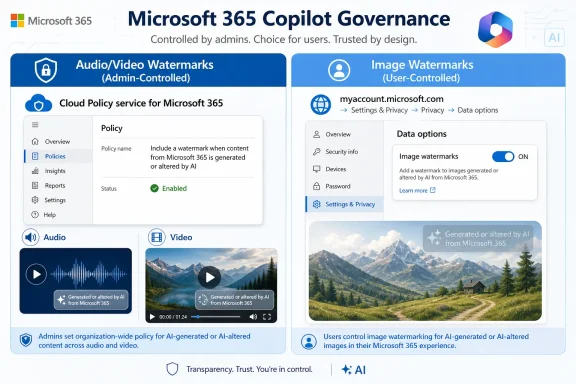
Verdict: Microsoft 365 admins should enable Copilot watermarks for AI-generated or AI-altered audio and video through Cloud Policy, then document the separate user-controlled path for image watermarks at myaccount.microsoft.com. The operational catch is simple: one transparency setting does not cover every output type. Admins can centrally control audio and video watermarking, but Microsoft leaves image watermarking to individual users, so a tenant can look protected in policy while still relying on users to label AI-generated images.
Images are the exception that should stop admins from announcing, too broadly, that “Copilot watermarking is enabled.” Microsoft’s release-note language says the Cloud Policy setting does not apply to images. Instead, users turn image watermarks on themselves by going to Settings & Privacy, then Privacy, then Data options at myaccount.microsoft.com.
That is the real rollout decision. Admins can centrally require watermarks for AI-generated or AI-altered video and audio where the feature is available, but they cannot use the same control to require image watermarks. If communications, legal, HR, marketing, training, or executive teams generate images through Microsoft 365 experiences, the policy story is incomplete unless the organization accounts for that user-controlled image setting.
WindowsForum’s own Copilot coverage has been tracking this pattern for months: Microsoft keeps expanding Copilot capability while giving admins partial, workload-specific controls rather than one universal governance switch. In the WindowsForum report on Microsoft 365 Copilot Wave 2: AI Agents, Image Generator & Admin Controls Upgrade, the emphasis was not just on new AI features, but on the way image generation and admin controls were arriving together. In the later WindowsForum report on Microsoft 365 Copilot August 2025 Updates: Enhanced AI Tools for Admins and Users, the same theme appeared again: Copilot is growing on both the user-experience side and the management side, but admins still have to stitch the controls into a coherent operating model.
This watermark setting fits that arc exactly. It is useful, but it is not universal. Treat it as a targeted media-transparency control, not as a full Copilot labeling strategy.
The release note names Microsoft 365 Copilot support across Android, Windows, iOS, Mac, and the web, but admins should not start with the platform list. Start with the people and workflows. Which departments generate media? Which outputs leave the tenant? Which teams create customer-facing images, videos, presentations, training clips, or executive briefings? The policy matters most where AI-generated media can be mistaken for ordinary human-created content or can be forwarded outside its original context.
Once scope is clear, enable the Cloud Policy setting for the pilot population. The exact policy name matters because this is the string your admin team will search for: “Include a watermark when content from Microsoft 365 is generated or altered by AI.” Microsoft identifies Cloud Policy service for Microsoft 365 as the location for this setting, so do not waste time looking for a generic Copilot watermark switch in the Microsoft 365 admin center.
After enabling it, test with real output types rather than assuming policy success from the console. Generate or alter video content with AI in a supported Microsoft 365 flow and verify that a visual watermark is added. Generate a Copilot audio overview from a Word document and verify that an audio watermark is added. Keep the test language this narrow: Microsoft documents that an audio watermark is added; do not build runbooks around an assumed position in the audio unless your tenant’s own testing and Microsoft’s current documentation support that wording.
Then test the image exception deliberately. Have a pilot user go to Settings & Privacy, Privacy, Data options at myaccount.microsoft.com and turn on image watermarks. Generate a new image or alter an existing image using AI in Microsoft 365, then verify the result. The important finding for your runbook is not merely whether the watermark appears; it is that the action belonged to the user, not the tenant admin.
Admins should treat Disabled and Not configured as functionally equivalent for visible or audible watermarking. Microsoft’s wording is direct: if the policy is Disabled or Not configured, a visual or audio watermark is not added. That matters in tenants where policy drift is common and where “we never disabled it” can be mistaken for “we enabled it.”
The practical rollout model is staged enablement. Start with a pilot group that includes people most likely to create externally shared audio and video, then expand once you have examples, internal screenshots, support notes, and communications guidance. The public release-note material does not provide a full licensing or eligibility matrix for the watermark control, so admins should avoid over-specific claims about exactly which licensed users are covered. The safer operational statement is that the policy controls supported Microsoft 365 experiences where the watermark feature is available.
WindowsForum readers have seen this before in Copilot coverage. The WindowsForum article on Microsoft 365 Copilot June 2025 Update: Enhanced AI Features for Productivity & Management described Microsoft’s fast pace of feature expansion across productivity and management surfaces. The practical lesson was that admins cannot assume a new Copilot capability arrives with a single matching governance switch. The watermark policy is another example: one control handles audio and video, while image labeling remains a separate user action.
Microsoft’s documentation says image watermarks can be turned on by users under the Privacy and Data options area of myaccount.microsoft.com. If users enable the setting, new images they generate or existing images they alter using AI in Microsoft 365 can have a visual watermark added. Microsoft gives examples including Microsoft Designer and image generation capabilities in Word or PowerPoint that use Designer capabilities.
That matters because image generation is often the most casually adopted form of workplace AI. A user may create a slide visual, poster, mockup, icon, social graphic, or internal banner without thinking of it as “AI media governance.” If the organization’s public promise is that AI-generated media is labeled, image output is where that promise can fail first.
Admins have one related lever, but it is not image watermark enforcement. Microsoft says that if you do not want users to generate images using AI in Microsoft 365, you can use the “Control access to Designer Image Generation” policy in Cloud Policy. That is a disablement path for image generation capabilities, not a tenant-wide image watermark mandate.
So the image decision becomes a business-policy decision. If user-controlled image watermarking is acceptable, document the steps and make them part of onboarding, Copilot training, communications guidance, and publishing checklists. If it is not acceptable, evaluate whether restricting Designer Image Generation is the better fit for the organization’s risk posture. Do not confuse those two choices. One asks users to label image output; the other limits access to image generation.
The distinction is simple. A disclaimer tells users that AI-generated content may be inaccurate while they are working in supported Microsoft 365 apps. A watermark travels with certain generated or altered media outputs and signals that the content was generated or changed using AI. One shapes user interpretation inside the app; the other affects downstream consumption of the artifact.
For admins, the right move is to deploy them as a pair where appropriate. Turn on the AI disclaimer if the organization wants a persistent reminder in the supported apps. Enable the Cloud Policy watermark setting for audio and video if the organization wants generated media visibly or audibly labeled. Then write separate guidance for images, because Microsoft’s current control model puts that choice in the user’s hands.
WindowsForum’s report on Microsoft 365 Copilot Under Scrutiny: Ensuring Transparent AI Productivity Claims framed the larger trust problem well: Copilot adoption is not just about new productivity features, but about whether organizations can explain, validate, and govern what AI is doing. Watermarks and disclaimers belong in that trust layer. They do not prove that AI output is accurate, safe, or approved, but they help users and recipients recognize that AI was involved.
The first test should be policy state. Confirm that the Cloud Policy setting is explicitly Enabled, not merely absent from a Disabled list. In a tenant with multiple policy groups, document the target users and confirm that the relevant pilot users receive the setting.
The second test should be output behavior. Use a known Copilot-capable workflow to generate or alter video and confirm the visible marker. Use a Word document to create a Copilot audio overview and confirm that an audio watermark is added. Keep the test files as internal examples for help desk, compliance, communications, and security teams.
The third test should be image education. Ask a pilot user to enable image watermarks through myaccount.microsoft.com, then generate or alter an image and confirm the result. Ask a second pilot user who has not enabled the setting to perform the same kind of image task, so stakeholders can see the difference between admin-enforced media labeling and user-controlled image labeling.
The fourth test should be support handling. Give the help desk a simple decision tree:
That matrix should drive your communication plan. Do not tell users “Copilot watermarks are now on” unless you specify audio and video. Do not tell auditors “AI output is labeled” unless you distinguish disclaimers, audio/video watermarks, image watermarks, and metadata. Do not tell department heads that image watermarking is centrally enforced through the same Cloud Policy unless Microsoft changes that control model.
This is where WindowsForum’s past Copilot reporting is especially relevant. The WindowsForum article on Microsoft 365 Copilot Preview 2026: AI Agents, Word Edits, and OneDrive Governance highlighted the same administrative reality in a different area: Microsoft is weaving Copilot and AI agents into everyday work while governance controls keep evolving around them. The lesson for admins is consistent. New Copilot features should be reviewed as workflow changes and governance changes, not merely as app updates.
Metadata is not the same as a visible or audible watermark. It may help downstream systems, audits, or provenance-aware workflows, but ordinary recipients rarely inspect metadata before trusting a video, audio clip, or image. In a workplace context, that difference matters because transparency has to work for humans, not just file parsers.
This is also where administrators should be precise in policy language. If your internal AI policy says “AI-generated content must be labeled,” define whether metadata counts, whether visible or audible watermarks are required, whether user-controlled image settings are acceptable, and whether certain AI-generated media may be used externally at all. Ambiguous language will create inconsistent behavior across departments.
A practical internal standard might separate three categories:
Here is the practical sequence:
Troubleshooting should follow the same split. If audio or video lacks a watermark, check whether the Cloud Policy is Enabled for the user and whether the content was generated or altered through an eligible Microsoft 365 AI flow. If an image lacks a watermark, check the user’s myaccount.microsoft.com privacy setting before blaming Cloud Policy. If a disclaimer is missing, check the Microsoft 365 admin center configuration and verify that the user is working in a supported app.
The harder part is that transparency now depends on several product settings with different owners. Cloud Policy governs audio and video watermarks. The Microsoft 365 admin center governs the Copilot AI disclaimer. The user’s account privacy settings govern image watermarks. Designer Image Generation can be controlled separately if the organization chooses to limit image creation itself.
That structure is not unusual in Microsoft 365, but Copilot raises the stakes because output can move quickly from draft to presentation to public artifact. A generated slide image, a narrated audio overview, or an AI-produced video can leave the tenant’s original context. If the label does not travel with the artifact, the receiving audience loses the signal.
This is why admins should treat Copilot watermarking as a rollout decision rather than a feature announcement. The setting should be part of a broader AI content-handling policy that defines when AI-generated media may be used, how it must be labeled, which workflows are approved for external distribution, and who owns exceptions. The control is useful, but it is not the policy by itself.
WindowsForum’s recent Copilot coverage has repeatedly landed on this point. The August 2025 update coverage described a platform becoming more capable for both admins and users. The Wave 2 coverage emphasized AI agents, image generation, and admin controls advancing together. The scrutiny piece focused on transparency and trust. The preview coverage tied Copilot expansion to governance in Word, OneDrive, Teams, and related Microsoft 365 services. Put together, those user-facing reports form the right frame for this watermark rollout: Copilot governance is no longer a single security checklist. It is a moving set of workload-specific controls that admins must map to real user behavior.
 Quick Action Box for Admins
| Item | What to do |
|---|---|
| Policy name | Include a watermark when content from Microsoft 365 is generated or altered by AI |
| Where to set it | Cloud Policy service for Microsoft 365 |
| What it covers | AI-generated or AI-altered audio and video in eligible Microsoft 365 experiences |
| What it does not cover | Images; the same Cloud Policy setting does not apply to image watermarks |
| User path for images | Users go to myaccount.microsoft.com → Settings & Privacy → Privacy → Data options and turn on image watermarks |
| Related admin lever for images | Admins can use Control access to Designer Image Generation if they want to restrict image generation capabilities, but that is not the same as enforcing image watermarks |
| Verification focus | Test video, test audio, then separately test the image setting with a pilot user |
Microsoft’s Watermark Rollout Is an Admin Control With a User-Controlled Hole
The concrete setup is straightforward for audio and video. In Cloud Policy service for Microsoft 365, configure the policy named “Include a watermark when content from Microsoft 365 is generated or altered by AI” and set it to Enabled. Microsoft says that if this policy is Disabled or Not configured, a visual or audio watermark is not added to video or audio content generated or altered by AI in Microsoft 365.Images are the exception that should stop admins from announcing, too broadly, that “Copilot watermarking is enabled.” Microsoft’s release-note language says the Cloud Policy setting does not apply to images. Instead, users turn image watermarks on themselves by going to Settings & Privacy, then Privacy, then Data options at myaccount.microsoft.com.
That is the real rollout decision. Admins can centrally require watermarks for AI-generated or AI-altered video and audio where the feature is available, but they cannot use the same control to require image watermarks. If communications, legal, HR, marketing, training, or executive teams generate images through Microsoft 365 experiences, the policy story is incomplete unless the organization accounts for that user-controlled image setting.
WindowsForum’s own Copilot coverage has been tracking this pattern for months: Microsoft keeps expanding Copilot capability while giving admins partial, workload-specific controls rather than one universal governance switch. In the WindowsForum report on Microsoft 365 Copilot Wave 2: AI Agents, Image Generator & Admin Controls Upgrade, the emphasis was not just on new AI features, but on the way image generation and admin controls were arriving together. In the later WindowsForum report on Microsoft 365 Copilot August 2025 Updates: Enhanced AI Tools for Admins and Users, the same theme appeared again: Copilot is growing on both the user-experience side and the management side, but admins still have to stitch the controls into a coherent operating model.
This watermark setting fits that arc exactly. It is useful, but it is not universal. Treat it as a targeted media-transparency control, not as a full Copilot labeling strategy.
The Exact Admin Path Comes First
The shortest safe rollout path is:- Open Cloud Policy service for Microsoft 365.
- Find “Include a watermark when content from Microsoft 365 is generated or altered by AI.”
- Set the policy to Enabled for the intended users.
- Generate or alter video content through an eligible Microsoft 365 AI flow and verify that a visual watermark is added.
- Generate a Copilot audio overview from a Word document and verify that an audio watermark is added.
- Separately test image watermarking by having a pilot user enable the setting at myaccount.microsoft.com under Settings & Privacy → Privacy → Data options.
- Update user guidance so nobody assumes the admin policy covers images.
The release note names Microsoft 365 Copilot support across Android, Windows, iOS, Mac, and the web, but admins should not start with the platform list. Start with the people and workflows. Which departments generate media? Which outputs leave the tenant? Which teams create customer-facing images, videos, presentations, training clips, or executive briefings? The policy matters most where AI-generated media can be mistaken for ordinary human-created content or can be forwarded outside its original context.
Once scope is clear, enable the Cloud Policy setting for the pilot population. The exact policy name matters because this is the string your admin team will search for: “Include a watermark when content from Microsoft 365 is generated or altered by AI.” Microsoft identifies Cloud Policy service for Microsoft 365 as the location for this setting, so do not waste time looking for a generic Copilot watermark switch in the Microsoft 365 admin center.
After enabling it, test with real output types rather than assuming policy success from the console. Generate or alter video content with AI in a supported Microsoft 365 flow and verify that a visual watermark is added. Generate a Copilot audio overview from a Word document and verify that an audio watermark is added. Keep the test language this narrow: Microsoft documents that an audio watermark is added; do not build runbooks around an assumed position in the audio unless your tenant’s own testing and Microsoft’s current documentation support that wording.
Then test the image exception deliberately. Have a pilot user go to Settings & Privacy, Privacy, Data options at myaccount.microsoft.com and turn on image watermarks. Generate a new image or alter an existing image using AI in Microsoft 365, then verify the result. The important finding for your runbook is not merely whether the watermark appears; it is that the action belonged to the user, not the tenant admin.
Cloud Policy Is the Enforcement Line for Audio and Video
Microsoft’s choice of Cloud Policy service is important. It puts the audio and video watermark decision in the same administrative neighborhood as other Microsoft 365 Apps policy controls, which makes sense for a setting that needs to follow users across Microsoft 365 experiences. It also means this is a governance decision that should be assigned, reviewed, and tested like a policy, not treated as a one-off Copilot preference.Admins should treat Disabled and Not configured as functionally equivalent for visible or audible watermarking. Microsoft’s wording is direct: if the policy is Disabled or Not configured, a visual or audio watermark is not added. That matters in tenants where policy drift is common and where “we never disabled it” can be mistaken for “we enabled it.”
The practical rollout model is staged enablement. Start with a pilot group that includes people most likely to create externally shared audio and video, then expand once you have examples, internal screenshots, support notes, and communications guidance. The public release-note material does not provide a full licensing or eligibility matrix for the watermark control, so admins should avoid over-specific claims about exactly which licensed users are covered. The safer operational statement is that the policy controls supported Microsoft 365 experiences where the watermark feature is available.
WindowsForum readers have seen this before in Copilot coverage. The WindowsForum article on Microsoft 365 Copilot June 2025 Update: Enhanced AI Features for Productivity & Management described Microsoft’s fast pace of feature expansion across productivity and management surfaces. The practical lesson was that admins cannot assume a new Copilot capability arrives with a single matching governance switch. The watermark policy is another example: one control handles audio and video, while image labeling remains a separate user action.
Images Are the Exception That Needs Its Own Runbook
The image carve-out is the part most likely to surprise business stakeholders. The same organization that can centrally enforce audio and video watermarking must ask, train, or require users through process to turn on image watermarks themselves. That does not make the feature useless. It means the image path needs its own operating procedure.Microsoft’s documentation says image watermarks can be turned on by users under the Privacy and Data options area of myaccount.microsoft.com. If users enable the setting, new images they generate or existing images they alter using AI in Microsoft 365 can have a visual watermark added. Microsoft gives examples including Microsoft Designer and image generation capabilities in Word or PowerPoint that use Designer capabilities.
That matters because image generation is often the most casually adopted form of workplace AI. A user may create a slide visual, poster, mockup, icon, social graphic, or internal banner without thinking of it as “AI media governance.” If the organization’s public promise is that AI-generated media is labeled, image output is where that promise can fail first.
Admins have one related lever, but it is not image watermark enforcement. Microsoft says that if you do not want users to generate images using AI in Microsoft 365, you can use the “Control access to Designer Image Generation” policy in Cloud Policy. That is a disablement path for image generation capabilities, not a tenant-wide image watermark mandate.
So the image decision becomes a business-policy decision. If user-controlled image watermarking is acceptable, document the steps and make them part of onboarding, Copilot training, communications guidance, and publishing checklists. If it is not acceptable, evaluate whether restricting Designer Image Generation is the better fit for the organization’s risk posture. Do not confuse those two choices. One asks users to label image output; the other limits access to image generation.
Watermarks and Disclaimers Solve Different Problems
The companion AI disclaimer control is already admin-configurable in the Microsoft 365 admin center, and it appears in Word, Excel, PowerPoint, Outlook, OneNote, and the Microsoft 365 Copilot app. Microsoft says admins can turn on the disclaimer from Copilot settings, choose a Standard or Bold font treatment, optionally add a link to an internal AI policy, and save the setting. That is a useful control, but it is not a substitute for media watermarks.The distinction is simple. A disclaimer tells users that AI-generated content may be inaccurate while they are working in supported Microsoft 365 apps. A watermark travels with certain generated or altered media outputs and signals that the content was generated or changed using AI. One shapes user interpretation inside the app; the other affects downstream consumption of the artifact.
For admins, the right move is to deploy them as a pair where appropriate. Turn on the AI disclaimer if the organization wants a persistent reminder in the supported apps. Enable the Cloud Policy watermark setting for audio and video if the organization wants generated media visibly or audibly labeled. Then write separate guidance for images, because Microsoft’s current control model puts that choice in the user’s hands.
WindowsForum’s report on Microsoft 365 Copilot Under Scrutiny: Ensuring Transparent AI Productivity Claims framed the larger trust problem well: Copilot adoption is not just about new productivity features, but about whether organizations can explain, validate, and govern what AI is doing. Watermarks and disclaimers belong in that trust layer. They do not prove that AI output is accurate, safe, or approved, but they help users and recipients recognize that AI was involved.
The Verification Plan Should Be Part of the Rollout
A watermark policy that nobody verifies is just a console screenshot. Admins should build a small acceptance test before broad deployment, because Microsoft’s own wording points to different behaviors by content type.The first test should be policy state. Confirm that the Cloud Policy setting is explicitly Enabled, not merely absent from a Disabled list. In a tenant with multiple policy groups, document the target users and confirm that the relevant pilot users receive the setting.
The second test should be output behavior. Use a known Copilot-capable workflow to generate or alter video and confirm the visible marker. Use a Word document to create a Copilot audio overview and confirm that an audio watermark is added. Keep the test files as internal examples for help desk, compliance, communications, and security teams.
The third test should be image education. Ask a pilot user to enable image watermarks through myaccount.microsoft.com, then generate or alter an image and confirm the result. Ask a second pilot user who has not enabled the setting to perform the same kind of image task, so stakeholders can see the difference between admin-enforced media labeling and user-controlled image labeling.
The fourth test should be support handling. Give the help desk a simple decision tree:
- If audio or video lacks a watermark, check whether the Cloud Policy setting is Enabled for that user.
- If the policy is Enabled, confirm that the content was generated or altered through a supported Microsoft 365 AI flow.
- If an image lacks a watermark, check the user’s myaccount.microsoft.com image watermark setting.
- If users should not be generating images at all, review the Control access to Designer Image Generation policy.
- If the issue is an AI disclaimer rather than a media watermark, check the Microsoft 365 admin center Copilot settings.
The Impact Matrix Admins Actually Need
The operational map is clearer if you separate content type from control plane.| Area | Control plane | Admin or user? | Practical result |
|---|---|---|---|
| Video watermarking | Cloud Policy service for Microsoft 365 | Admin | Visual watermark can be added to eligible AI-generated or AI-altered video |
| Audio watermarking | Cloud Policy service for Microsoft 365 | Admin | Audio watermark can be added to eligible AI-generated or AI-altered audio, including Copilot audio overviews created from Word documents |
| Image watermarking | myaccount.microsoft.com → Settings & Privacy → Privacy → Data options | User | User enables image watermarks for images generated or altered using AI in Microsoft 365 |
| Image generation access | Cloud Policy service for Microsoft 365 | Admin | Admin can restrict access to Designer Image Generation capabilities |
| AI disclaimer | Microsoft 365 admin center → Copilot settings | Admin | Disclaimer appears in supported Microsoft 365 apps such as Word, Excel, PowerPoint, Outlook, OneNote, and the Microsoft 365 Copilot app |
This is where WindowsForum’s past Copilot reporting is especially relevant. The WindowsForum article on Microsoft 365 Copilot Preview 2026: AI Agents, Word Edits, and OneDrive Governance highlighted the same administrative reality in a different area: Microsoft is weaving Copilot and AI agents into everyday work while governance controls keep evolving around them. The lesson for admins is consistent. New Copilot features should be reviewed as workflow changes and governance changes, not merely as app updates.
Metadata Is Helpful, but It Is Not a Visible Label
Microsoft says additional information is added to metadata for content generated or altered by AI in Microsoft 365, even when watermarks are not turned on. It also says that, currently, this additional information is added only to image metadata, while Microsoft is working on adding it to video and audio content without a specific timeframe. That is a useful provenance direction, but it should not be oversold.Metadata is not the same as a visible or audible watermark. It may help downstream systems, audits, or provenance-aware workflows, but ordinary recipients rarely inspect metadata before trusting a video, audio clip, or image. In a workplace context, that difference matters because transparency has to work for humans, not just file parsers.
This is also where administrators should be precise in policy language. If your internal AI policy says “AI-generated content must be labeled,” define whether metadata counts, whether visible or audible watermarks are required, whether user-controlled image settings are acceptable, and whether certain AI-generated media may be used externally at all. Ambiguous language will create inconsistent behavior across departments.
A practical internal standard might separate three categories:
- Draft-only AI content, where internal use is permitted and no external publication is allowed without review.
- Labeled AI media, where audio, video, or image output must carry a visible or audible signal when the technology supports it.
- Restricted AI media, where certain uses, such as customer-facing imagery or executive impersonation risk, require approval or are prohibited.
The Admin Checklist Microsoft Did Not Put in the Release Note
Microsoft’s release note tells admins what changed, but it does not provide the rollout checklist most tenants need. The missing work is not technical wizardry; it is administrative hygiene. Someone has to decide scope, ownership, verification, user education, exception handling, and records.Here is the practical sequence:
- Decide the policy goal. Is the organization trying to label all AI-generated media, only externally shared media, or only specific high-risk media?
- Identify affected teams. Start with communications, marketing, HR, legal, training, sales enablement, executive support, and any group producing public or semi-public assets.
- Enable the Cloud Policy setting. Use “Include a watermark when content from Microsoft 365 is generated or altered by AI” for audio and video.
- Test with pilot users. Verify policy state and output behavior for video and audio.
- Document the image exception. Tell users exactly where to enable image watermarks at myaccount.microsoft.com.
- Decide whether image generation should remain available. If user-controlled image watermarking is not acceptable, review Control access to Designer Image Generation.
- Align disclaimers. If the organization wants app-level AI reminders, configure the Copilot AI disclaimer in the Microsoft 365 admin center.
- Update internal AI policy. Define what counts as acceptable labeling and who approves external use.
- Train support staff. Give the help desk a content-type decision tree.
- Keep sample files. Preserve known-good examples of watermarked audio and video, plus image examples with the user setting enabled.
Troubleshooting should follow the same split. If audio or video lacks a watermark, check whether the Cloud Policy is Enabled for the user and whether the content was generated or altered through an eligible Microsoft 365 AI flow. If an image lacks a watermark, check the user’s myaccount.microsoft.com privacy setting before blaming Cloud Policy. If a disclaimer is missing, check the Microsoft 365 admin center configuration and verify that the user is working in a supported app.
Transparency Is Now a Product Setting, Not a Press Release
The business rationale is easy to endorse. Labeling AI-generated or AI-altered content helps prevent misuse, misattribution, and confusion. Few admins will argue against more transparency in principle.The harder part is that transparency now depends on several product settings with different owners. Cloud Policy governs audio and video watermarks. The Microsoft 365 admin center governs the Copilot AI disclaimer. The user’s account privacy settings govern image watermarks. Designer Image Generation can be controlled separately if the organization chooses to limit image creation itself.
That structure is not unusual in Microsoft 365, but Copilot raises the stakes because output can move quickly from draft to presentation to public artifact. A generated slide image, a narrated audio overview, or an AI-produced video can leave the tenant’s original context. If the label does not travel with the artifact, the receiving audience loses the signal.
This is why admins should treat Copilot watermarking as a rollout decision rather than a feature announcement. The setting should be part of a broader AI content-handling policy that defines when AI-generated media may be used, how it must be labeled, which workflows are approved for external distribution, and who owns exceptions. The control is useful, but it is not the policy by itself.
WindowsForum’s recent Copilot coverage has repeatedly landed on this point. The August 2025 update coverage described a platform becoming more capable for both admins and users. The Wave 2 coverage emphasized AI agents, image generation, and admin controls advancing together. The scrutiny piece focused on transparency and trust. The preview coverage tied Copilot expansion to governance in Word, OneDrive, Teams, and related Microsoft 365 services. Put together, those user-facing reports form the right frame for this watermark rollout: Copilot governance is no longer a single security checklist. It is a moving set of workload-specific controls that admins must map to real user behavior.
The Copilot Watermark Choice Comes Down to Five Operational Facts
For WindowsForum’s IT-pro audience, the value of this release note is not that Microsoft added another Copilot feature. It is that Microsoft exposed where tenant control begins and ends. The policy can help, but only if admins deploy it with the image exception in mind.- Microsoft’s roadmap ID 547831 covers watermark support for AI-generated content in Microsoft 365 Copilot across Android, Windows, iOS, Mac, and the web.
- Admins enable audio and video watermarks through Cloud Policy service for Microsoft 365 by setting “Include a watermark when content from Microsoft 365 is generated or altered by AI” to Enabled.
- The same Cloud Policy setting does not apply to images, because image watermarks are turned on by users under Settings & Privacy → Privacy → Data options at myaccount.microsoft.com.
- Copilot audio overviews created from Word documents can receive an audio watermark, and AI-generated videos can receive visual watermarks.
- The separate Copilot AI disclaimer is configured in the Microsoft 365 admin center and appears in Word, Excel, PowerPoint, Outlook, OneNote, and the Microsoft 365 Copilot app.
Frequently Asked Questions
Does the Cloud Policy watermark setting cover images?
No. The Cloud Policy setting named “Include a watermark when content from Microsoft 365 is generated or altered by AI” applies to audio and video, not images. Image watermarks are controlled by users at myaccount.microsoft.com under Settings & Privacy → Privacy → Data options.Where do admins enable Copilot watermarks for audio and video?
Admins enable the setting in Cloud Policy service for Microsoft 365. The policy name to search for is “Include a watermark when content from Microsoft 365 is generated or altered by AI.”What happens if the policy is Disabled or Not configured?
Microsoft says that if the policy is Disabled or Not configured, a visual or audio watermark is not added to video or audio content generated or altered by AI in Microsoft 365.Can admins centrally force image watermarks?
Not through the same Cloud Policy setting. Image watermarking is controlled by the user through myaccount.microsoft.com. Admins can separately control access to Designer Image Generation, but restricting image generation is different from enforcing image watermarking.What should admins test after enabling the policy?
Test at least three things: policy assignment, video output, and audio output. Then separately test image watermarking with a pilot user who has enabled the image setting at myaccount.microsoft.com.Is the Copilot AI disclaimer the same as a watermark?
No. The disclaimer is an in-app reminder that AI-generated content may be inaccurate. A watermark is a visible or audible marker associated with certain generated or altered media outputs. Both can be useful, but they solve different problems.Should admins say “Copilot watermarks are enabled” to users?
Only with qualification. A safer message is: “Watermarks are enabled for supported AI-generated or AI-altered audio and video. Image watermarking requires a separate user setting at myaccount.microsoft.com.”What is the biggest deployment risk?
The biggest risk is overclaiming coverage. If admins enable the Cloud Policy setting and then tell the business that AI-generated media is fully watermarked, users may assume images are covered too. They are not covered by that same admin policy path.References
- Primary source: learn.microsoft.com
Release Notes for Microsoft 365 Copilot | Microsoft Learn
Lists the features that reach General Availability in each release of Microsoft 365 Copilot.learn.microsoft.com - Independent coverage: microsoft.com
Announcing Copilot for Microsoft 365 general availability and Microsoft 365 Chat | Microsoft 365 Blog
Discover the latest AI innovations across Microsoft 365 Copilot, Bing Chat Enterprise, and Windows.www.microsoft.com - Independent coverage: techcommunity.microsoft.com
- Primary source: WindowsForum
Microsoft 365 Copilot August 2025 Updates: Enhanced AI Tools for Admins and Users | Windows Forum
Microsoft 365 Copilot has introduced a suite of enhancements in July 2025, aimed at improving both administrative oversight and user experience. These...windowsforum.com