

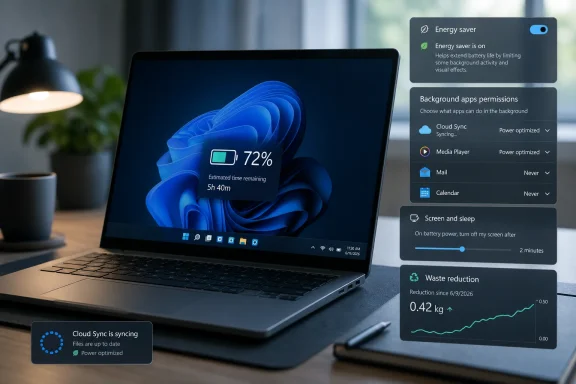
Windows 11 battery life in 2026 is less about one miracle toggle than about stopping the operating system, apps, and display from spending power while you are not looking, typing, or actively asking the machine to work. The DigitBin test that kicked this off found the largest practical gains from Energy saver and background app permissions, not from the louder folklore around dark mode or extreme performance throttling. That result lines up with Microsoft’s own guidance: modern Windows power management is increasingly about background activity, idle behavior, screen policy, and app discipline. The uncomfortable lesson is that the biggest battery wins are boring, cumulative, and easy to ignore until a laptop starts dying before the workday does.
For years, Windows battery advice sounded like it belonged to a simpler machine: dim the screen, use Battery Saver, close a few windows, and hope for the best. That advice was not wrong, but it was incomplete even then. In 2026, the laptop sitting on a desk with the lid open is not idle in any meaningful sense if three sync clients, two chat apps, a browser full of sleeping-but-not-quite-dead tabs, search indexing, cloud backup, telemetry, widgets, and update services are all negotiating for time.
That is why the DigitBin test is useful despite being anecdotal. The author changed settings over ten days and found that Windows 11’s Energy saver and background app permissions added roughly ninety minutes on a mixed-use day, while Best power efficiency mode produced a more modest fifteen-to-twenty-minute improvement. The exact numbers will vary wildly by laptop, battery wear, panel type, processor generation, workload, and installed software, but the hierarchy is plausible.
Microsoft’s own Windows support pages now point users toward Energy recommendations, Energy saver, screen brightness, sleep timing, and background activity settings. That framing matters. Windows is no longer treating battery life as a single CPU governor problem; it is treating it as a system behavior problem.
The old mental model was, “Make the processor slower and the battery lasts longer.” The newer one is, “Make the machine do less unnecessary work.” That second model is the one that actually explains why some popular tweaks barely move the meter.
That distinction is easy to miss. Many users leave Energy saver configured to turn on only when the battery is already low, which means Windows spends most of the day behaving as though endurance is someone else’s problem. By the time the leaf icon appears, the machine has already spent hours letting background work proceed at full comfort.
DigitBin’s test found the biggest improvement after Energy saver was set to stay on rather than waiting for the default low-battery threshold. That makes intuitive sense. A setting that limits background syncing and reduces display brightness will do more if it operates during the whole work session rather than during the final anxious sprint to an outlet.
The usual objection is that Energy saver will make the laptop feel slow. In practice, that depends on the workload and the hardware. For writing, browsing, email, administration consoles, documentation, and chat, the bigger visible change is often brightness rather than responsiveness. For development builds, local virtual machines, video rendering, gaming, or large spreadsheet work, Energy saver can be more noticeable.
The key is that Energy saver is not a moral commitment. It is a toggle. If a laptop spends six hours a day in Outlook, Edge, Teams, a browser-based ticket queue, and a text editor, leaving Energy saver on is not deprivation; it is common sense.
Power mode does matter. Microsoft describes it as a way to choose between better battery life, better performance, or a balanced experience. Under the hood, it affects how aggressively the system pursues performance, including processor and platform behavior. On some laptops, particularly thin-and-light machines with aggressive boost behavior, the difference can be visible.
But Power mode is not a janitor. It does not look at a poorly behaved sync client and decide the app has no business waking the system every few minutes. It does not clean up chat clients configured to run forever in the background. It does not shorten the time the display remains lit after you walk away.
That explains why DigitBin saw only a modest gain from Best power efficiency compared with the much larger effect of Energy saver and background permissions. If a laptop’s biggest drain is needless background activity, a CPU policy tweak is attacking the symptom rather than the cause. The processor may sprint less eagerly, but the same apps are still lining up for work.
There is also a usability cost. Best performance can make scrolling, app switching, compilation, and interactive workloads feel snappier. Best power efficiency can stretch runtime, but users notice latency faster than they notice a ten-minute gain. Balanced remains the sane default for many people because it preserves flexibility, while Energy saver and app permissions target waste more directly.
This is where the DigitBin test becomes most relevant to real users. The author found a note-taking app, a cloud backup client, and a chat app set to Always without a compelling reason. Switching them to Power optimized stopped idle fan activity. That is the kind of change a benchmark may flatten into statistical noise but a human notices immediately.
The broader lesson is that Windows laptops rarely have one villain. They have a cast of small background actors, each individually defensible. A notes app syncs because instant availability is convenient. A cloud backup client scans because backup reliability matters. A chat client stays awake because missed messages are unacceptable. The battery pays for all of those assumptions at once.
This is especially true on work machines, where endpoint management, VPN clients, security agents, device management tools, collaboration apps, cloud storage, and browser extensions all pile into the same runtime budget. IT departments tend to optimize for manageability and security first, which is understandable. Users experience the resulting stack as a laptop that seems to age six months in a week.
The fix is not to disable everything. It is to sort apps by consequence. Messaging and security tools may need background privileges. A notes app, shopping helper, secondary launcher, RGB utility, printer assistant, or rarely used cloud client probably does not. Windows gives users the lever; the problem is that the lever is buried where battery guides often arrive last.
The reality is more nuanced. Microsoft has described Windows efficiency behavior as limiting resources for processes or process groups when appropriate, while Microsoft Edge has its own browser-level efficiency features designed to save resources and extend battery life. These overlapping names create confusion. Windows Efficiency mode in Task Manager, Edge efficiency settings, and Windows Energy saver are related in spirit but not identical in control or effect.
DigitBin’s result is the right practical takeaway: Efficiency mode helped on one background sync client but made a browser feel slightly worse when applied there. That is exactly the kind of trade-off users should expect. Throttling a utility that quietly waits for work can be painless. Throttling the app where you switch tabs, type, scroll, run web apps, and join calls can turn a battery tweak into a daily annoyance.
Browsers deserve special caution because they are no longer just document viewers. They are operating environments. A browser may be running video calls, office suites, AI tools, dashboards, admin consoles, media playback, password managers, extensions, and dozens of tabs with their own timers and scripts. Treating all of that as a background process is asking for friction.
The better approach is selective. Use Efficiency mode on helpers that must stay open but do not need to be fast: sync clients, launchers, update assistants, peripheral utilities, and background dashboards. For browsers, use the browser’s own sleeping-tab and efficiency features first. Microsoft Edge, for example, has specific performance and energy-saving settings that are less blunt than forcing the entire browser process into a constrained state.
Shortening the screen-off timer is the least glamorous fix and one of the easiest. If the display stays lit for five or ten unnecessary minutes every time you step away, the machine is spending power on an empty chair. Cutting that timeout does not slow the laptop, change app behavior, or require a new workflow. It merely stops waste.
Refresh rate is similarly practical. Dropping a 120Hz or 144Hz panel to 60Hz can reduce power use, though the size of the gain depends on the panel, graphics path, workload, and firmware. The cost is visual smoothness. Some users notice it every minute; others notice it for an hour and then forget.
Brightness still matters more than many people want to admit. Energy saver’s automatic brightness reduction is part of why it works. A laptop running at maximum brightness indoors is often burning battery for aesthetics rather than usability. The best battery setting may be the one your eyes complain about for five minutes and then accept.
Dark mode, however, is where the mythology needs pruning. On OLED displays, dark pixels can consume substantially less power because the display lights pixels individually. On a conventional LCD, the backlight remains on regardless of whether the pixel is showing white, black, or charcoal gray. That is why DigitBin’s LCD laptop saw no measurable dark-mode improvement, and why blanket claims that dark mode “saves battery” are incomplete at best.
That is an important philosophical change. A user who writes in Word, checks email, keeps a few web apps open, and attends a meeting should not need to become a power-management engineer. The operating system should prevent obvious waste by default. When it cannot, it should show the user where the waste lives.
Windows is still uneven here. The Battery usage page can show app-level consumption, but it does not always explain causality clearly. Background permissions are useful but buried. Task Manager exposes process behavior but assumes the user understands which processes are safe to constrain. Energy recommendations are helpful, but recommendations are not the same as accountability.
This is where Windows still trails the ideal experience. Users should not need a ten-day experiment to discover that three background apps are quietly draining runtime. Nor should admins have to reverse-engineer which collaboration tools are turning a fleet of business laptops into outlet-dependent desktops. The data exists. The presentation remains too fragmented.
In enterprise environments, that fragmentation becomes policy pain. IT can standardize power modes, browser settings, sleep behavior, update timing, and device compliance, but user-installed apps and line-of-business tools complicate the picture. The battery story of a Windows laptop is not just Windows. It is Windows plus the software culture of the organization that owns it.
The trap is starting with the setting that feels most powerful rather than the setting most likely to address the actual drain. Best power efficiency sounds decisive. Dark mode looks dramatic. Closing a few windows feels virtuous. But a laptop can still burn battery efficiently doing work that never needed to happen.
For most Windows 11 users in 2026, the best first pass looks like this:
 Windows Battery Life Is Now an App-Discipline Problem
For years, Windows battery advice sounded like it belonged to a simpler machine: dim the screen, use Battery Saver, close a few windows, and hope for the best. That advice was not wrong, but it was incomplete even then. In 2026, the laptop sitting on a desk with the lid open is not idle in any meaningful sense if three sync clients, two chat apps, a browser full of sleeping-but-not-quite-dead tabs, search indexing, cloud backup, telemetry, widgets, and update services are all negotiating for time.That is why the DigitBin test is useful despite being anecdotal. The author changed settings over ten days and found that Windows 11’s Energy saver and background app permissions added roughly ninety minutes on a mixed-use day, while Best power efficiency mode produced a more modest fifteen-to-twenty-minute improvement. The exact numbers will vary wildly by laptop, battery wear, panel type, processor generation, workload, and installed software, but the hierarchy is plausible.
Microsoft’s own Windows support pages now point users toward Energy recommendations, Energy saver, screen brightness, sleep timing, and background activity settings. That framing matters. Windows is no longer treating battery life as a single CPU governor problem; it is treating it as a system behavior problem.
The old mental model was, “Make the processor slower and the battery lasts longer.” The newer one is, “Make the machine do less unnecessary work.” That second model is the one that actually explains why some popular tweaks barely move the meter.
Energy Saver Became the First Real Toggle to Try
Energy saver is the renamed and expanded successor to the older Battery Saver behavior in current Windows 11 releases, including the Windows 11 24H2 generation. It can be turned on from Settings, under System, then Power & battery, and Microsoft presents it as a way to reduce power consumption by limiting background activity and adjusting display behavior. The important change is not just the name; it is the expectation that power saving can be a normal operating state rather than an emergency mode reserved for the last 20 percent.That distinction is easy to miss. Many users leave Energy saver configured to turn on only when the battery is already low, which means Windows spends most of the day behaving as though endurance is someone else’s problem. By the time the leaf icon appears, the machine has already spent hours letting background work proceed at full comfort.
DigitBin’s test found the biggest improvement after Energy saver was set to stay on rather than waiting for the default low-battery threshold. That makes intuitive sense. A setting that limits background syncing and reduces display brightness will do more if it operates during the whole work session rather than during the final anxious sprint to an outlet.
The usual objection is that Energy saver will make the laptop feel slow. In practice, that depends on the workload and the hardware. For writing, browsing, email, administration consoles, documentation, and chat, the bigger visible change is often brightness rather than responsiveness. For development builds, local virtual machines, video rendering, gaming, or large spreadsheet work, Energy saver can be more noticeable.
The key is that Energy saver is not a moral commitment. It is a toggle. If a laptop spends six hours a day in Outlook, Edge, Teams, a browser-based ticket queue, and a text editor, leaving Energy saver on is not deprivation; it is common sense.
Power Mode Was Oversold Because It Sounds More Important
Windows 11’s Power mode setting looks like the obvious place to start because it offers the familiar ladder: Best power efficiency, Balanced, and Best performance. The labels are clear, the trade-off feels mechanical, and the setting sits exactly where users expect battery magic to live. That is partly why it is overrepresented in forum advice.Power mode does matter. Microsoft describes it as a way to choose between better battery life, better performance, or a balanced experience. Under the hood, it affects how aggressively the system pursues performance, including processor and platform behavior. On some laptops, particularly thin-and-light machines with aggressive boost behavior, the difference can be visible.
But Power mode is not a janitor. It does not look at a poorly behaved sync client and decide the app has no business waking the system every few minutes. It does not clean up chat clients configured to run forever in the background. It does not shorten the time the display remains lit after you walk away.
That explains why DigitBin saw only a modest gain from Best power efficiency compared with the much larger effect of Energy saver and background permissions. If a laptop’s biggest drain is needless background activity, a CPU policy tweak is attacking the symptom rather than the cause. The processor may sprint less eagerly, but the same apps are still lining up for work.
There is also a usability cost. Best performance can make scrolling, app switching, compilation, and interactive workloads feel snappier. Best power efficiency can stretch runtime, but users notice latency faster than they notice a ten-minute gain. Balanced remains the sane default for many people because it preserves flexibility, while Energy saver and app permissions target waste more directly.
Background Permissions Are the Battery Setting Hiding in Plain Sight
The most underrated Windows 11 battery setting lives under Apps, not Power & battery. Installed apps can be allowed to run in the background, and in many cases Windows exposes options such as Always, Power optimized, and Never. The names sound administrative, but the consequences are physical: fan spin-up, idle CPU, network wakeups, disk activity, and battery drain.This is where the DigitBin test becomes most relevant to real users. The author found a note-taking app, a cloud backup client, and a chat app set to Always without a compelling reason. Switching them to Power optimized stopped idle fan activity. That is the kind of change a benchmark may flatten into statistical noise but a human notices immediately.
The broader lesson is that Windows laptops rarely have one villain. They have a cast of small background actors, each individually defensible. A notes app syncs because instant availability is convenient. A cloud backup client scans because backup reliability matters. A chat client stays awake because missed messages are unacceptable. The battery pays for all of those assumptions at once.
This is especially true on work machines, where endpoint management, VPN clients, security agents, device management tools, collaboration apps, cloud storage, and browser extensions all pile into the same runtime budget. IT departments tend to optimize for manageability and security first, which is understandable. Users experience the resulting stack as a laptop that seems to age six months in a week.
The fix is not to disable everything. It is to sort apps by consequence. Messaging and security tools may need background privileges. A notes app, shopping helper, secondary launcher, RGB utility, printer assistant, or rarely used cloud client probably does not. Windows gives users the lever; the problem is that the lever is buried where battery guides often arrive last.
Efficiency Mode Is a Scalpel, Not a Blanket
Task Manager’s Efficiency mode is often discussed as though it were a universal battery patch. Right-click a process, enable Efficiency mode, and the process should use fewer resources. That sounds satisfyingly direct, especially for users who can see a noisy process in Task Manager and want to discipline it immediately.The reality is more nuanced. Microsoft has described Windows efficiency behavior as limiting resources for processes or process groups when appropriate, while Microsoft Edge has its own browser-level efficiency features designed to save resources and extend battery life. These overlapping names create confusion. Windows Efficiency mode in Task Manager, Edge efficiency settings, and Windows Energy saver are related in spirit but not identical in control or effect.
DigitBin’s result is the right practical takeaway: Efficiency mode helped on one background sync client but made a browser feel slightly worse when applied there. That is exactly the kind of trade-off users should expect. Throttling a utility that quietly waits for work can be painless. Throttling the app where you switch tabs, type, scroll, run web apps, and join calls can turn a battery tweak into a daily annoyance.
Browsers deserve special caution because they are no longer just document viewers. They are operating environments. A browser may be running video calls, office suites, AI tools, dashboards, admin consoles, media playback, password managers, extensions, and dozens of tabs with their own timers and scripts. Treating all of that as a background process is asking for friction.
The better approach is selective. Use Efficiency mode on helpers that must stay open but do not need to be fast: sync clients, launchers, update assistants, peripheral utilities, and background dashboards. For browsers, use the browser’s own sleeping-tab and efficiency features first. Microsoft Edge, for example, has specific performance and energy-saving settings that are less blunt than forcing the entire browser process into a constrained state.
The Screen Still Matters, Just Not in the Way Forum Folklore Says
The display remains one of the largest power consumers in a laptop, but the advice around screens has become strangely distorted. Brightness, timeout, and refresh rate matter. Dark mode may matter, but only on the right kind of panel. Treating all screen tweaks as equivalent is how bad battery advice keeps reproducing.Shortening the screen-off timer is the least glamorous fix and one of the easiest. If the display stays lit for five or ten unnecessary minutes every time you step away, the machine is spending power on an empty chair. Cutting that timeout does not slow the laptop, change app behavior, or require a new workflow. It merely stops waste.
Refresh rate is similarly practical. Dropping a 120Hz or 144Hz panel to 60Hz can reduce power use, though the size of the gain depends on the panel, graphics path, workload, and firmware. The cost is visual smoothness. Some users notice it every minute; others notice it for an hour and then forget.
Brightness still matters more than many people want to admit. Energy saver’s automatic brightness reduction is part of why it works. A laptop running at maximum brightness indoors is often burning battery for aesthetics rather than usability. The best battery setting may be the one your eyes complain about for five minutes and then accept.
Dark mode, however, is where the mythology needs pruning. On OLED displays, dark pixels can consume substantially less power because the display lights pixels individually. On a conventional LCD, the backlight remains on regardless of whether the pixel is showing white, black, or charcoal gray. That is why DigitBin’s LCD laptop saw no measurable dark-mode improvement, and why blanket claims that dark mode “saves battery” are incomplete at best.
Windows 11’s Best Battery Feature May Be Admitting the User Is Not the Problem
The most interesting part of Microsoft’s direction is not any single setting. It is the shift from blaming the user for battery drain to exposing more of the machine’s hidden behavior. Energy recommendations, app background controls, process efficiency indicators, and browser sleeping-tab features all acknowledge that modern battery drain often happens in the margins.That is an important philosophical change. A user who writes in Word, checks email, keeps a few web apps open, and attends a meeting should not need to become a power-management engineer. The operating system should prevent obvious waste by default. When it cannot, it should show the user where the waste lives.
Windows is still uneven here. The Battery usage page can show app-level consumption, but it does not always explain causality clearly. Background permissions are useful but buried. Task Manager exposes process behavior but assumes the user understands which processes are safe to constrain. Energy recommendations are helpful, but recommendations are not the same as accountability.
This is where Windows still trails the ideal experience. Users should not need a ten-day experiment to discover that three background apps are quietly draining runtime. Nor should admins have to reverse-engineer which collaboration tools are turning a fleet of business laptops into outlet-dependent desktops. The data exists. The presentation remains too fragmented.
In enterprise environments, that fragmentation becomes policy pain. IT can standardize power modes, browser settings, sleep behavior, update timing, and device compliance, but user-installed apps and line-of-business tools complicate the picture. The battery story of a Windows laptop is not just Windows. It is Windows plus the software culture of the organization that owns it.
The 2026 Battery Playbook Starts With Waste, Not Throttling
The practical order of operations is now clear enough. Start with the settings that prevent needless background work, then tune performance, then tune the display, and only then worry about cosmetic changes such as dark mode. That order produces fewer compromises and better odds of a visible result.The trap is starting with the setting that feels most powerful rather than the setting most likely to address the actual drain. Best power efficiency sounds decisive. Dark mode looks dramatic. Closing a few windows feels virtuous. But a laptop can still burn battery efficiently doing work that never needed to happen.
For most Windows 11 users in 2026, the best first pass looks like this:
- Turn on Energy saver earlier than the default low-battery threshold, and consider leaving it on during light workdays if responsiveness remains acceptable.
- Audit background app permissions and move nonessential apps from Always to Power optimized or Never.
- Use Best power efficiency when runtime matters more than responsiveness, but do not expect it to fix noisy background apps by itself.
- Apply Efficiency mode only to background utilities that do not need instant responsiveness.
- Reduce screen timeout and consider lowering refresh rate when unplugged, especially on high-refresh laptops.
- Treat dark mode as a battery feature only if the laptop has an OLED display; on most LCD laptops, it is mainly a preference.
References
- Primary source: DigitBin
Published: 2026-07-06T13:10:12.672159
Loading…
www.digitbin.com - Official source: support.microsoft.com
Loading…
support.microsoft.com - Related coverage: windowscentral.com
Loading…
www.windowscentral.com - Official source: learn.microsoft.com
Loading…
learn.microsoft.com - Related coverage: pudgycat.io
Loading…
pudgycat.io - Related coverage: techxplore.com
Loading…
techxplore.com