

Deleting a file on Windows in 2026 can send it to the local Recycle Bin, a cloud service’s web trash, a backup snapshot, an Office recovery cache, or nowhere obvious at all, depending on where the file lived and how it was removed. The practical answer is not “run recovery software” but “follow the deletion path.” As Technobezz’s recovery guide lays out, the fastest rescue usually comes from Windows’ own undo and restore layers before you reach for command-line recovery. Microsoft’s own support material backs the same hierarchy: check reversible locations first, then backups, then lower-level recovery.
The mistake many users still make is treating file deletion as one Windows feature. It is now a stack of overlapping behaviors: File Explorer, OneDrive sync, SharePoint, Teams, Office AutoRecover, File History, Windows.old, removable media, and the NTFS file system itself. That stack gives users more safety nets than the Windows XP era ever did, but it also makes recovery more confusing when the missing file was “on the Desktop” only because OneDrive had silently moved Desktop into the cloud.
The best recovery move is still the least dramatic one: stop. If the deletion happened moments ago in File Explorer, the first step is not opening a browser, installing a utility, or searching the whole disk. It is staying in the same File Explorer context and pressing Ctrl+Z.
That works because Windows shell actions keep an undo history for many ordinary file operations. Microsoft documents Ctrl+Z as the standard Undo command, and in File Explorer it can reverse a recent delete, move, rename, or copy operation while that context is still intact. The catch is that this is a fragile safety net. The more you click around, rename things, move files, or continue working, the less likely that undo path is to be the simple answer.
This is where the folk advice about “do not use the computer” still has force, but not for mystical reasons. On a modern SSD, deleted data may become unrecoverable quickly because of TRIM behavior and normal system writes. Even before we get that low-level, routine Windows activity can erase the easy breadcrumbs: undo history, temporary Office recovery files, synced cloud state, and cached thumbnails.
For ordinary local files, the Recycle Bin remains the next stop. Open it, select the missing item, and choose Restore. That sends the file back to its original location, which matters because a restored file can appear to vanish again if you are looking in the wrong folder.
But the Recycle Bin is not a universal deleted-file warehouse. Shift+Delete bypasses it. Some removable-drive deletions never use it. Very large files may skip it. An emptied bin is no longer a normal restore point. And, increasingly, files users think of as “Windows files” may actually be cloud-managed objects whose authoritative trash can lives somewhere else.
Microsoft says deleted files in a personal OneDrive recycle bin are automatically removed after 30 days. For work or school accounts, the default retention is 93 days unless an administrator changes the setting. SharePoint uses a similar business-retention model, with deleted items recoverable from recycle bins before they age out or require administrator intervention.
That distinction is no longer academic. Windows Central reported earlier this year that Microsoft was changing OneDrive behavior so files deleted from OneDrive cloud storage would no longer appear in the local Windows Recycle Bin or macOS Trash, with recovery instead routed through the OneDrive or SharePoint web recycle bin. The stated goal was more predictable recovery and less sync churn, but the user-facing result is blunt: if a cloud file disappears, the browser may now be the real recovery console.
For home users, that means the OneDrive website’s Recycle bin is mandatory territory. For IT admins, it means user education matters more than ever, because “check the Recycle Bin” is no longer specific enough. A user might check the local bin, find nothing, and conclude the file is gone while the recoverable copy is sitting in OneDrive online.
The same principle applies beyond Microsoft. Google Drive, Dropbox, iCloud Drive, and Box all maintain their own deleted-item areas with their own retention periods. Technobezz’s guide usefully corrals those consumer paths: Drive Trash, Dropbox Deleted files, iCloud Drive Recently Deleted, and Box Trash. The broader lesson is that the storage provider owns the restore path. Windows may only be the window through which the deletion was performed.
That is why recovering a Teams file often means leaving Teams’ chat view and following the storage backend. For chat files, Microsoft routes users toward the OneDrive recycle bin. For channel files, the path typically runs through the channel’s files area into SharePoint, where the site Recycle bin holds deleted content.
This architecture is sensible if you administer Microsoft 365, but it is opaque to the person who just lost a budget workbook. To them, the file was “in Teams.” To Microsoft 365, the file was in a OneDrive or SharePoint library with retention settings, version history, permissions, and possibly a second-stage recycle bin.
That second-stage concept is where admins become important. If a user cannot see an item in the first recycle bin, a site collection administrator or SharePoint administrator may still be able to recover it before the retention window closes. In a business environment, escalating quickly can be the difference between a routine restore and a compliance incident.
The practical rule is simple: identify the system of record. If the file lived in a local folder, check Windows. If it lived in OneDrive, check OneDrive. If it lived in a Teams channel, check SharePoint. If it lived in a synced folder, check both the local path and the cloud backend before declaring it lost.
When configured, File History can restore earlier versions from libraries and selected folders to an external drive or network location. The right-click “Restore previous versions” path is still one of Windows’ most underrated recovery features because it helps with more than deletion. It can also recover a usable copy after a bad edit, a mistaken overwrite, or a file corruption event.
The problem is that Windows no longer pushes File History with the same clarity that backup deserves. Microsoft’s consumer story has drifted toward OneDrive backup for known folders, while File History remains available but under-promoted in Control Panel. That leaves many users discovering the feature only after they need it.
For enthusiasts and admins, the answer is to treat File History as a layer, not a relic. OneDrive protects against some device failures and user mistakes, but sync is not the same as backup. If deletion or corruption syncs everywhere, you need version history or an independent backup target. File History can fill part of that role for local Windows data, especially when paired with a real external or network destination.
But Windows.old is temporary by design. Microsoft says most of its content is automatically deleted after 10 days. That deadline matters because users often notice missing files only after the new installation “seems stable,” which is exactly when Windows may be preparing to reclaim the space.
Windows.old also is not a clean substitute for backup. It can be replaced or removed by later reset, refresh, cleanup, or installation attempts. It may not contain exactly what the user expects, particularly if files were already stored in OneDrive or another redirected location before the upgrade. And it is easy to confuse an old profile folder with the active profile, leading to duplicated or misplaced files during manual recovery.
Still, for post-upgrade panic, it belongs high on the checklist. Sign in as an administrator, browse the old Users folder, and copy what you need out to the current profile. Do not move items blindly. Copy first, verify later, and only then clean up.
That last point is crucial. Windows File Recovery is not going to pull back a deleted OneDrive cloud object from Microsoft’s servers. It is trying to recover data from a storage device. If the missing file was cloud-only, SharePoint-hosted, or never physically present on the local disk,
The command also demands discipline. Microsoft’s examples use a source drive and a different destination drive, such as recovering from C: to E:. That is not bureaucratic neatness; it reduces the risk of overwriting recoverable data while the tool is trying to save it. Installing recovery tools, downloading large files, or saving recovered data back to the same disk can make the outcome worse.
For many users, the command-line interface will be intimidating. But there is an argument for Microsoft keeping this tool relatively sober rather than dressing it up as a one-click miracle. File recovery at this layer is probabilistic. The file may be partially overwritten, metadata may be gone, SSD behavior may have invalidated the old blocks, and the original folder structure may not be recoverable. A cheerful wizard would not change those facts.
The right mental model is triage. Use Windows File Recovery after Recycle Bin, cloud trash, File History, Windows.old, and app-specific recovery have failed. Run it as soon as possible. Recover to another drive. Accept that success is not guaranteed.
That does not make Office AutoRecover a general deleted-file solution. It is designed around unsaved or interrupted editing sessions, not around restoring a file intentionally deleted from disk two days ago. If you had a saved document and deleted it, you still need the file-system, cloud, or backup paths.
The distinction matters because users often describe every loss as “deleted.” In practice, there are at least three different cases. A file can be deleted from storage. A file can be overwritten with bad content. Or a file can never have been saved in the first place after an app crash. Each failure has a different best remedy.
For admins and help-desk staff, that means the first diagnostic question should not be “Did you check the Recycle Bin?” It should be “Was the file ever saved, where was it saved, and what happened immediately before it disappeared?” That phrasing separates deletion, sync, overwrite, crash, and profile migration problems before the wrong recovery path burns precious time.
That makes it a poor first move for a missing document. It may not restore the file, and it can introduce side effects by changing drivers, registry state, installed applications, and system configuration. It answers a different question: “How do I undo a bad system change?” not “Where is my deleted folder?”
System Image Recovery is even heavier. Restoring an image can be appropriate after a catastrophic drive failure or system loss, but using it to rescue one missing file is like demolishing a wall to retrieve a dropped screw. It can overwrite newer files and reset the machine to an older state, which may create a larger recovery problem than the one it solves.
This is the trap in many old Windows recovery guides. They reach for powerful system tools because those tools sound serious. In 2026, the more professional answer is narrower and more evidence-based: find the storage layer that owned the file, use its least destructive restore mechanism, and escalate only when the gentler paths fail.
That order matters because every later step tends to be slower, riskier, or less certain. Ctrl+Z is nearly instant. Recycle Bin restore preserves the original location. Cloud recycle bins keep provider-side state intact. File History can recover older versions without scanning raw disk blocks. Windows File Recovery is valuable, but it is what you use when the neat metadata-driven paths have failed.
There is also a security angle here. Organizations increasingly care about retention, legal hold, audit trails, and data loss prevention. A file that appears “deleted” to a user may still exist in a retention system. Conversely, a file that a user assumes is recoverable may be permanently gone if retention windows expired or an admin policy purged it. Recovery is now part user support, part records management.
For home users, the lesson is less formal but just as important. If the file mattered, there should be more than one copy before anything goes wrong. OneDrive alone is not a backup strategy if every mistake syncs immediately. File History alone is not enough if the backup drive is never connected. A USB copy alone is not enough if it lives in the same bag as the laptop.
The practical rules are now concrete enough to teach:
The mistake many users still make is treating file deletion as one Windows feature. It is now a stack of overlapping behaviors: File Explorer, OneDrive sync, SharePoint, Teams, Office AutoRecover, File History, Windows.old, removable media, and the NTFS file system itself. That stack gives users more safety nets than the Windows XP era ever did, but it also makes recovery more confusing when the missing file was “on the Desktop” only because OneDrive had silently moved Desktop into the cloud.
 The First Five Minutes Matter More Than the Tool You Pick
The best recovery move is still the least dramatic one: stop. If the deletion happened moments ago in File Explorer, the first step is not opening a browser, installing a utility, or searching the whole disk. It is staying in the same File Explorer context and pressing Ctrl+Z.That works because Windows shell actions keep an undo history for many ordinary file operations. Microsoft documents Ctrl+Z as the standard Undo command, and in File Explorer it can reverse a recent delete, move, rename, or copy operation while that context is still intact. The catch is that this is a fragile safety net. The more you click around, rename things, move files, or continue working, the less likely that undo path is to be the simple answer.
This is where the folk advice about “do not use the computer” still has force, but not for mystical reasons. On a modern SSD, deleted data may become unrecoverable quickly because of TRIM behavior and normal system writes. Even before we get that low-level, routine Windows activity can erase the easy breadcrumbs: undo history, temporary Office recovery files, synced cloud state, and cached thumbnails.
For ordinary local files, the Recycle Bin remains the next stop. Open it, select the missing item, and choose Restore. That sends the file back to its original location, which matters because a restored file can appear to vanish again if you are looking in the wrong folder.
But the Recycle Bin is not a universal deleted-file warehouse. Shift+Delete bypasses it. Some removable-drive deletions never use it. Very large files may skip it. An emptied bin is no longer a normal restore point. And, increasingly, files users think of as “Windows files” may actually be cloud-managed objects whose authoritative trash can lives somewhere else.
OneDrive Turned File Recovery Into a Cloud Problem
The most important change for many Windows users is that OneDrive is no longer a side feature. For millions of PCs, it is the thing quietly mediating the Desktop, Documents, Pictures, and work folders. That means a file can appear in File Explorer while being governed by OneDrive retention rules rather than by the local Recycle Bin alone.Microsoft says deleted files in a personal OneDrive recycle bin are automatically removed after 30 days. For work or school accounts, the default retention is 93 days unless an administrator changes the setting. SharePoint uses a similar business-retention model, with deleted items recoverable from recycle bins before they age out or require administrator intervention.
That distinction is no longer academic. Windows Central reported earlier this year that Microsoft was changing OneDrive behavior so files deleted from OneDrive cloud storage would no longer appear in the local Windows Recycle Bin or macOS Trash, with recovery instead routed through the OneDrive or SharePoint web recycle bin. The stated goal was more predictable recovery and less sync churn, but the user-facing result is blunt: if a cloud file disappears, the browser may now be the real recovery console.
For home users, that means the OneDrive website’s Recycle bin is mandatory territory. For IT admins, it means user education matters more than ever, because “check the Recycle Bin” is no longer specific enough. A user might check the local bin, find nothing, and conclude the file is gone while the recoverable copy is sitting in OneDrive online.
The same principle applies beyond Microsoft. Google Drive, Dropbox, iCloud Drive, and Box all maintain their own deleted-item areas with their own retention periods. Technobezz’s guide usefully corrals those consumer paths: Drive Trash, Dropbox Deleted files, iCloud Drive Recently Deleted, and Box Trash. The broader lesson is that the storage provider owns the restore path. Windows may only be the window through which the deletion was performed.
Teams and SharePoint Make “Where Was the File?” the Central Question
Work files raise the stakes because Teams is not really a file system. A file shared in a Teams chat usually lives in OneDrive. A file shared in a channel usually lives in SharePoint. The Teams interface is the social layer on top.That is why recovering a Teams file often means leaving Teams’ chat view and following the storage backend. For chat files, Microsoft routes users toward the OneDrive recycle bin. For channel files, the path typically runs through the channel’s files area into SharePoint, where the site Recycle bin holds deleted content.
This architecture is sensible if you administer Microsoft 365, but it is opaque to the person who just lost a budget workbook. To them, the file was “in Teams.” To Microsoft 365, the file was in a OneDrive or SharePoint library with retention settings, version history, permissions, and possibly a second-stage recycle bin.
That second-stage concept is where admins become important. If a user cannot see an item in the first recycle bin, a site collection administrator or SharePoint administrator may still be able to recover it before the retention window closes. In a business environment, escalating quickly can be the difference between a routine restore and a compliance incident.
The practical rule is simple: identify the system of record. If the file lived in a local folder, check Windows. If it lived in OneDrive, check OneDrive. If it lived in a Teams channel, check SharePoint. If it lived in a synced folder, check both the local path and the cloud backend before declaring it lost.
File History Is Powerful, but Only for the Users Who Prepared Yesterday
File History is the most Windows-native answer to “I deleted it last week,” but it has a brutal limitation: it only helps if it was enabled before the deletion. Microsoft describes File History as a way to recover previous versions of files and folders from backed-up locations. It is not a time machine that activates after disaster.When configured, File History can restore earlier versions from libraries and selected folders to an external drive or network location. The right-click “Restore previous versions” path is still one of Windows’ most underrated recovery features because it helps with more than deletion. It can also recover a usable copy after a bad edit, a mistaken overwrite, or a file corruption event.
The problem is that Windows no longer pushes File History with the same clarity that backup deserves. Microsoft’s consumer story has drifted toward OneDrive backup for known folders, while File History remains available but under-promoted in Control Panel. That leaves many users discovering the feature only after they need it.
For enthusiasts and admins, the answer is to treat File History as a layer, not a relic. OneDrive protects against some device failures and user mistakes, but sync is not the same as backup. If deletion or corruption syncs everywhere, you need version history or an independent backup target. File History can fill part of that role for local Windows data, especially when paired with a real external or network destination.
Windows.old Is a Grace Period, Not a Backup Strategy
After a Windows upgrade, missing files may be hiding in Windows.old. Microsoft documents the Windows.old folder as a place to retrieve files from the previous Windows installation after an upgrade, typically under C:\Windows.old\Users. It is the kind of rescue path that feels miraculous when it works, especially after a major upgrade or reinstall leaves a familiar profile looking empty.But Windows.old is temporary by design. Microsoft says most of its content is automatically deleted after 10 days. That deadline matters because users often notice missing files only after the new installation “seems stable,” which is exactly when Windows may be preparing to reclaim the space.
Windows.old also is not a clean substitute for backup. It can be replaced or removed by later reset, refresh, cleanup, or installation attempts. It may not contain exactly what the user expects, particularly if files were already stored in OneDrive or another redirected location before the upgrade. And it is easy to confuse an old profile folder with the active profile, leading to duplicated or misplaced files during manual recovery.
Still, for post-upgrade panic, it belongs high on the checklist. Sign in as an administrator, browse the old Users folder, and copy what you need out to the current profile. Do not move items blindly. Copy first, verify later, and only then clean up.
Windows File Recovery Is the Last Official Door Before Forensics
Microsoft’s Windows File Recovery remains the official command-line option when the obvious restore paths fail. It is available from the Microsoft Store for Windows 10 version 2004 or later and Windows 11, and it runs with thewinfr command. It supports local internal drives, external drives, USB devices, and SD cards, but Microsoft does not position it as a cloud or network-share recovery tool.That last point is crucial. Windows File Recovery is not going to pull back a deleted OneDrive cloud object from Microsoft’s servers. It is trying to recover data from a storage device. If the missing file was cloud-only, SharePoint-hosted, or never physically present on the local disk,
winfr is the wrong instrument.The command also demands discipline. Microsoft’s examples use a source drive and a different destination drive, such as recovering from C: to E:. That is not bureaucratic neatness; it reduces the risk of overwriting recoverable data while the tool is trying to save it. Installing recovery tools, downloading large files, or saving recovered data back to the same disk can make the outcome worse.
For many users, the command-line interface will be intimidating. But there is an argument for Microsoft keeping this tool relatively sober rather than dressing it up as a one-click miracle. File recovery at this layer is probabilistic. The file may be partially overwritten, metadata may be gone, SSD behavior may have invalidated the old blocks, and the original folder structure may not be recoverable. A cheerful wizard would not change those facts.
The right mental model is triage. Use Windows File Recovery after Recycle Bin, cloud trash, File History, Windows.old, and app-specific recovery have failed. Run it as soon as possible. Recover to another drive. Accept that success is not guaranteed.
Office Recovery Solves a Different Failure Than File Deletion
Microsoft 365 apps add another recovery layer, but it is often misunderstood. Word, Excel, and PowerPoint can recover unsaved drafts after a crash or an accidental close, and the Document Recovery pane can be a lifesaver. Excel and PowerPoint also expose unsaved-workbook and unsaved-presentation recovery through the File menu.That does not make Office AutoRecover a general deleted-file solution. It is designed around unsaved or interrupted editing sessions, not around restoring a file intentionally deleted from disk two days ago. If you had a saved document and deleted it, you still need the file-system, cloud, or backup paths.
The distinction matters because users often describe every loss as “deleted.” In practice, there are at least three different cases. A file can be deleted from storage. A file can be overwritten with bad content. Or a file can never have been saved in the first place after an app crash. Each failure has a different best remedy.
For admins and help-desk staff, that means the first diagnostic question should not be “Did you check the Recycle Bin?” It should be “Was the file ever saved, where was it saved, and what happened immediately before it disappeared?” That phrasing separates deletion, sync, overwrite, crash, and profile migration problems before the wrong recovery path burns precious time.
System Restore Is the Wrong Hero for Personal Files
System Restore occupies a strange place in Windows folklore. Users remember it as a “go back in time” button, so it is tempting to recommend it for lost photos, spreadsheets, or documents. Microsoft’s description is narrower: System Restore rolls back system files and settings. It is aimed at system malfunction, not personal-file undelete.That makes it a poor first move for a missing document. It may not restore the file, and it can introduce side effects by changing drivers, registry state, installed applications, and system configuration. It answers a different question: “How do I undo a bad system change?” not “Where is my deleted folder?”
System Image Recovery is even heavier. Restoring an image can be appropriate after a catastrophic drive failure or system loss, but using it to rescue one missing file is like demolishing a wall to retrieve a dropped screw. It can overwrite newer files and reset the machine to an older state, which may create a larger recovery problem than the one it solves.
This is the trap in many old Windows recovery guides. They reach for powerful system tools because those tools sound serious. In 2026, the more professional answer is narrower and more evidence-based: find the storage layer that owned the file, use its least destructive restore mechanism, and escalate only when the gentler paths fail.
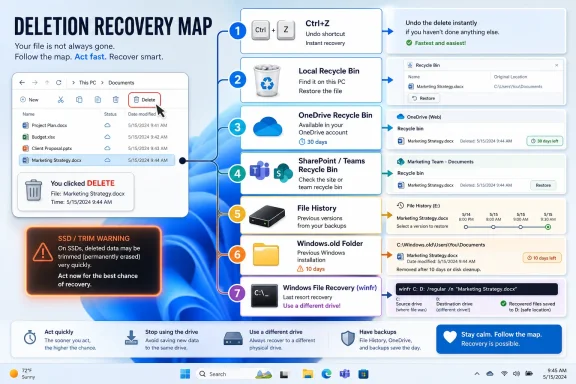
The Recovery Map Windows Users Actually Need
The useful recovery checklist is not a long menu of utilities. It is a decision tree built around location, timing, and deletion method. Technobezz’s guide gets the ordering mostly right: undo first, Recycle Bin second, cloud trash next, then backups, upgrade remnants, app recovery, collaboration-platform recovery, and finally Windows File Recovery when ordinary restore points are gone.That order matters because every later step tends to be slower, riskier, or less certain. Ctrl+Z is nearly instant. Recycle Bin restore preserves the original location. Cloud recycle bins keep provider-side state intact. File History can recover older versions without scanning raw disk blocks. Windows File Recovery is valuable, but it is what you use when the neat metadata-driven paths have failed.
There is also a security angle here. Organizations increasingly care about retention, legal hold, audit trails, and data loss prevention. A file that appears “deleted” to a user may still exist in a retention system. Conversely, a file that a user assumes is recoverable may be permanently gone if retention windows expired or an admin policy purged it. Recovery is now part user support, part records management.
For home users, the lesson is less formal but just as important. If the file mattered, there should be more than one copy before anything goes wrong. OneDrive alone is not a backup strategy if every mistake syncs immediately. File History alone is not enough if the backup drive is never connected. A USB copy alone is not enough if it lives in the same bag as the laptop.
The 2026 Rulebook Is Written by the Storage Layer
The cleanest way to think about deleted-file recovery in modern Windows is to stop treating Windows as the sole authority. File Explorer may be where you clicked Delete, but the file’s real owner might be NTFS, OneDrive, SharePoint, Dropbox, Google Drive, iCloud, Box, Office, or a backup target. Recovery succeeds when you ask the right owner.The practical rules are now concrete enough to teach:
- Press Ctrl+Z immediately if the deletion just happened in File Explorer and you have not moved on to other work.
- Check the local Recycle Bin for ordinary local deletions, but do not assume it covers Shift+Delete, cloud-only files, removable media, or oversized items.
- Restore cloud files from the provider’s web recycle bin, especially OneDrive and SharePoint files that may no longer appear in the local Windows Recycle Bin.
- Use File History and previous versions only if backup was enabled before the deletion and the missing file lived in a protected location.
- Look in Windows.old quickly after an upgrade because Microsoft’s normal cleanup window is measured in days, not months.
- Run Windows File Recovery only after the normal restore locations fail, and recover to a different drive to avoid overwriting what you are trying to save.
References
- Primary source: Technobezz
Published: 2026-07-07T17:20:11.817124
How to Recover Deleted Files on Windows (2026) | Technobezz
How to recover deleted files on Windows using Recycle Bin, File History, OneDrive, cloud trash, and Windows File Recovery.www.technobezz.com - Official source: support.microsoft.com
Restore deleted files or folders in OneDrive | Microsoft Support
Learn how to delete and restore files in OneDrive. Recover deleted files or folders from the OneDrive recycle bin.support.microsoft.com - Official source: learn.microsoft.com
Restore a deleted OneDrive - SharePoint in Microsoft 365 | Microsoft Learn
Learn how to restore a deleted user's OneDrive when the deleted user no longer appears in the Microsoft 365 admin center.learn.microsoft.com - Related coverage: uab.edu
- Related coverage: peacehealth.org
- Related coverage: frostburg.edu
