

Microsoft’s Intune Certificate Connector is now a recurring maintenance item, not background plumbing you can forget. Each connector release has a six-month support lifecycle, an out-of-support connector may continue to function for up to 18 months after a newer version ships, and automatic updates require outbound HTTPS access on port 443 from the connector server to
The action is straightforward: verify every connector version in the Microsoft Intune admin center, prove the outbound update path from each connector server, and put any server that cannot auto-update into a six-month manual maintenance cycle.
The connector status and version are visible here:
Microsoft Intune admin center > Tenant administration > Connectors and tokens > Certificate connectors
Select each connector to view its status and version. That path belongs in every runbook that owns SCEP, PKCS, imported certificates, certificate revocation, Wi-Fi authentication, VPN authentication, S/MIME, or certificate-backed device access.
This is not a “panic today” change. A connector does not necessarily stop working the day it exits support. The risk is that certificate infrastructure can look healthy after it is already outside the supported window. If automatic update is blocked by a firewall, proxy, TLS inspection rule, or locked-down server segment, the connector can quietly age into an avoidable outage.
Microsoft’s current Certificate Connector release list makes the cadence visible. It lists version 6.2510.3.3007, released on May 18, 2026, with bug fixes and security improvements. It also lists version 6.2510.3.2002, released on February 18, 2026, with improved SCEP validation that blocks unknown OID extensions. The operational lesson is bigger than either build: the Intune Certificate Connector now needs lifecycle ownership.
The Intune Certificate Connector runs on Windows Server and connects Microsoft Intune to on-premises certificate infrastructure. It supports certificate workflows that users usually notice only when something fails.
Those workflows can be business-critical. Depending on the environment, the connector can be part of certificate issuance and management for:
Microsoft’s lifecycle language changes the administrative posture around that component. Certificate Connector updates are released periodically and are supported for six months. Microsoft also says administrators should update the connector automatically or manually to ensure uninterrupted certificate issuance and management.
That turns the connector from “install and monitor” middleware into a scheduled maintenance object.
The nuance is the 18-month continuation period. Microsoft says out-of-support connectors can continue functioning for up to 18 months after a newer version ships, but after that they may stop communicating with Intune because of service-side improvements, updates, or security work.
In plain English: unsupported does not mean dead immediately, but it does mean you are outside the supported lane.
For operations teams, the lifecycle rules should be written as short, extractable checks:
Use this path:
Microsoft Intune admin center > Tenant administration > Connectors and tokens > Certificate connectors
Then record the basics:
The admin-center view is the first stop, but it is not the whole control. A connector can be visible and still be dependent on an update path that nobody has tested from the actual server.
Automatic updates require the Windows Server hosting the connector to access:
over outbound HTTPS on port 443.
That matters because connector servers often sit in conservative network zones. Security teams may restrict outbound traffic. Proxy rules may differ from workstation rules. TLS inspection can behave differently for servers. A firewall allowlist can drift. A server can move into a tighter segment. Any of those changes can turn automatic update into an assumption rather than a control.
Do not test from an admin workstation and assume the server has the same access. Do not test DNS only and call it done. Do not rely on “internet access is generally allowed” if the connector host sits in a restricted zone.
There should be only two acceptable operating models:
Run the test from each Windows Server that hosts the Intune Certificate Connector, using the same network segment, proxy configuration, and security controls the connector actually uses.
From an elevated PowerShell session on the connector server, test outbound TCP 443:
Record the result. At minimum, capture:
The value of this second test is not the webpage content. The value is proving that the connector server can initiate an outbound HTTPS session to the update host through the real network path. Record the HTTP result, any proxy authentication behavior, and any TLS or inspection errors.
If the test fails, the remediation record should identify the cause as precisely as possible:
The download starts in the Intune admin center:
Microsoft Intune admin center > Tenant administration > Connectors and tokens > Certificate connectors > Add
From the Install the certificate connector pane, select the certificate connector link to download the connector software.
The operational path should be:
The goal is not to create a complicated reinstall ritual. The goal is to make sure a blocked auto-update path does not become an unowned lifecycle gap.
The six-month period is the support lifecycle for a connector release. The longer continuation period means an out-of-support connector may keep functioning for some time. It does not mean administrators should plan to run unsupported connector versions for 18 months.
Use these lifecycle states in tickets and risk registers:
The rule is simple: whenever Microsoft posts a new Certificate Connector release, start a six-month support timer and verify that every connector server can either auto-update or has a manual update task assigned.
If the connector fails, the symptom may not say “Certificate Connector lifecycle problem.” It may look like:
The February 18, 2026 connector release, version 6.2510.3.2002, improved SCEP validation by blocking unknown OID extensions. That is a useful reminder that connector releases can carry security behavior changes, not just housekeeping.
There is no need to invent a dramatic vulnerability to justify caring about this. Microsoft’s lifecycle and release notes are enough. Cloud services evolve. Validation rules change. Security baselines move. A connector that once communicated properly with Intune may eventually be too old to participate safely or reliably.
A stale connector is not just an old binary. It is an under-governed dependency in certificate-based access.
In the WindowsForum discussion of Secure Boot 2023 Certificate Transition: Intune Deployment, Reboots, and Monitoring, the concern was not simply that Microsoft was changing certificate trust. The operational issue was how administrators would inventory affected machines, manage reboots, monitor completion, and avoid compliance exposure during a staged transition.
That same lesson applies here. The Intune Certificate Connector is a smaller component than a Secure Boot certificate transition, but the operating pattern is similar: inventory first, prove readiness, stage changes, monitor completion, and keep evidence.
WindowsForum’s coverage of Secure Boot Certificate Refresh 2023: Intune Opt Out and OS Side Deployment Guide made the same point from another angle. Certificate transitions become patch-planning events because trust anchors, firmware behavior, Intune policy, and reboot timing all intersect. The Intune Certificate Connector sits in a different layer of the stack, but it also touches trust, certificates, Intune policy, and operational timing.
The WindowsForum report on Intune MAM Enforcement: Update SDKs and Company Portal by Jan 19 2026 shows a broader Microsoft cloud-management trend: older components increasingly face dated enforcement windows. The Certificate Connector lifecycle is quieter and more infrastructure-focused, but it belongs in the same calendar discipline.
Even the WindowsForum user question about Auto-update vs. manual update in Windows captures a familiar admin frustration: automatic and manual update paths do not always behave identically in real environments. That is exactly why Certificate Connector maintenance should not be left to assumption. If auto-update is expected, prove it from the server. If manual update is required, schedule it.
The distinct operational insight from those WindowsForum reports is this: Microsoft may provide the update mechanism, but the enterprise still owns the path, timing, validation, and evidence.
If automatic update works on one server and fails on another, the connector estate can become inconsistent while certificate processing still appears healthy. That is the dangerous part: nothing may look broken until a certificate workflow fails.
Treat multiple connectors as a small fleet:
This is also where WindowsForum’s broader Intune Suite coverage is relevant. As Microsoft expands Intune’s role as a control plane for endpoint security, the reliability of that control plane depends on the bridge components that connect cloud policy to on-premises infrastructure. The Certificate Connector is one of those bridge components.
Organizations need a version-by-version support calendar.
A practical tracker should include:
When certificate issuance fails, the first question should not be, “Do we still have a connector somewhere?” It should be, “Which connector version is active, is it supported, and did the update path work as designed?”
Use this path:
Microsoft Intune admin center > Tenant administration > Connectors and tokens > Certificate connectors
If automatic update is blocked, create a manual update task inside the six-month support window.
The test must be run from the connector server, not from an administrator’s workstation.
Record the server name, date and time, command, target host, target port,
If required by your environment, also test HTTPS behavior from the server:
Record any proxy, TLS, authentication, or inspection errors.
Tenant administration > Connectors and tokens > Certificate connectors > Add
Use the Install the certificate connector pane to download the connector software.
Do not wait for certificate issuance to fail. Check the connector version, test outbound 443 to
The clean operating rule is simple: every connector must have a supported version, a tested update path, an owner, and evidence.
autoupdate.msappproxy.net.The action is straightforward: verify every connector version in the Microsoft Intune admin center, prove the outbound update path from each connector server, and put any server that cannot auto-update into a six-month manual maintenance cycle.
The connector status and version are visible here:
Microsoft Intune admin center > Tenant administration > Connectors and tokens > Certificate connectors
Select each connector to view its status and version. That path belongs in every runbook that owns SCEP, PKCS, imported certificates, certificate revocation, Wi-Fi authentication, VPN authentication, S/MIME, or certificate-backed device access.
This is not a “panic today” change. A connector does not necessarily stop working the day it exits support. The risk is that certificate infrastructure can look healthy after it is already outside the supported window. If automatic update is blocked by a firewall, proxy, TLS inspection rule, or locked-down server segment, the connector can quietly age into an avoidable outage.
Microsoft’s current Certificate Connector release list makes the cadence visible. It lists version 6.2510.3.3007, released on May 18, 2026, with bug fixes and security improvements. It also lists version 6.2510.3.2002, released on February 18, 2026, with improved SCEP validation that blocks unknown OID extensions. The operational lesson is bigger than either build: the Intune Certificate Connector now needs lifecycle ownership.
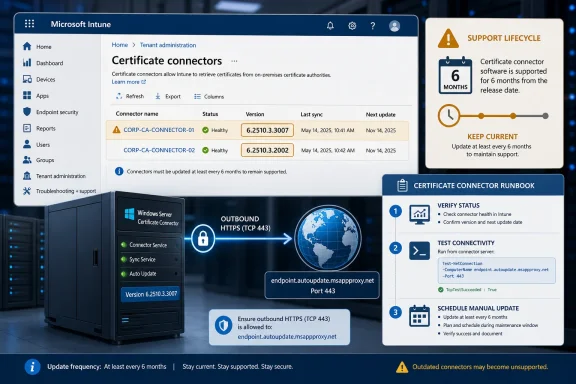 Microsoft Has Turned a Background Connector Into a Calendar Item
The Intune Certificate Connector runs on Windows Server and connects Microsoft Intune to on-premises certificate infrastructure. It supports certificate workflows that users usually notice only when something fails.Those workflows can be business-critical. Depending on the environment, the connector can be part of certificate issuance and management for:
- SCEP certificates
- PKCS certificates
- Imported certificates
- Certificate revocation
- Wi-Fi authentication
- VPN authentication
- S/MIME
- Certificate-backed device access
- Enrollment and compliance workflows that depend on certificates
Microsoft’s lifecycle language changes the administrative posture around that component. Certificate Connector updates are released periodically and are supported for six months. Microsoft also says administrators should update the connector automatically or manually to ensure uninterrupted certificate issuance and management.
That turns the connector from “install and monitor” middleware into a scheduled maintenance object.
The nuance is the 18-month continuation period. Microsoft says out-of-support connectors can continue functioning for up to 18 months after a newer version ships, but after that they may stop communicating with Intune because of service-side improvements, updates, or security work.
In plain English: unsupported does not mean dead immediately, but it does mean you are outside the supported lane.
For operations teams, the lifecycle rules should be written as short, extractable checks:
- Entity: Microsoft Intune Certificate Connector
- Support window: Six months per connector release
- Functional tail: Up to 18 months after a newer version ships
- Automatic update requirement: Connector server must reach
autoupdate.msappproxy.netover outbound HTTPS on port 443 - Manual update requirement: Required when automatic update is blocked or not used
- Admin center location: Tenant administration > Connectors and tokens > Certificate connectors
- Runbook owner: Intune, certificate infrastructure, server, network, and security teams must agree who owns the update path
Check the Connector in the Intune Admin Center First
Before changing anything, confirm what Intune sees.Use this path:
Microsoft Intune admin center > Tenant administration > Connectors and tokens > Certificate connectors
Then record the basics:
- Connector name
- Connector status
- Connector version
- Hosting Windows Server, if reflected in the name
- Certificate workflows the connector supports
- Whether automatic update is expected
- Whether manual update is required
- Last validation date
- Next review date
The admin-center view is the first stop, but it is not the whole control. A connector can be visible and still be dependent on an update path that nobody has tested from the actual server.
The Real Failure Mode Is a Blocked Auto-Update Path
The most important setting may not be in Intune. It may be in the network path between the connector host and Microsoft’s update service.Automatic updates require the Windows Server hosting the connector to access:
autoupdate.msappproxy.netover outbound HTTPS on port 443.
That matters because connector servers often sit in conservative network zones. Security teams may restrict outbound traffic. Proxy rules may differ from workstation rules. TLS inspection can behave differently for servers. A firewall allowlist can drift. A server can move into a tighter segment. Any of those changes can turn automatic update into an assumption rather than a control.
Do not test from an admin workstation and assume the server has the same access. Do not test DNS only and call it done. Do not rely on “internet access is generally allowed” if the connector host sits in a restricted zone.
There should be only two acceptable operating models:
- Automatic update is allowed, tested, and documented.
- Automatic update is blocked, and manual update is scheduled inside the six-month support window.
How to Test the Outbound Path From the Connector Server
For the blocked-auto-update case, remediation starts with evidence from the connector server itself.Run the test from each Windows Server that hosts the Intune Certificate Connector, using the same network segment, proxy configuration, and security controls the connector actually uses.
From an elevated PowerShell session on the connector server, test outbound TCP 443:
Test-NetConnection autoupdate.msappproxy.net -Port 443Record the result. At minimum, capture:
- Server name
- Date and time of test
- Command used
- Target host:
autoupdate.msappproxy.net - Target port:
443 TcpTestSucceededresult- Source address reported by the test
- Resolved remote address
- Proxy path, if applicable
- Firewall or proxy rule ID, if the environment tracks one
- Screenshot or exported text output for the change record
Invoke-WebRequest [url]https://autoupdate.msappproxy.net[/url] -UseBasicParsingThe value of this second test is not the webpage content. The value is proving that the connector server can initiate an outbound HTTPS session to the update host through the real network path. Record the HTTP result, any proxy authentication behavior, and any TLS or inspection errors.
If the test fails, the remediation record should identify the cause as precisely as possible:
- DNS resolution failure
- TCP 443 blocked
- Proxy route missing
- Proxy authentication failure
- TLS inspection failure
- Server in restricted segment
- Firewall allowlist missing
- Hardening policy removed required outbound access
Manual Update Should Be Treated as Certificate Infrastructure Maintenance
If automatic update is not available, the connector has to be updated manually. Keep the runbook tight and avoid making the process more elaborate than the verified documentation supports.The download starts in the Intune admin center:
Microsoft Intune admin center > Tenant administration > Connectors and tokens > Certificate connectors > Add
From the Install the certificate connector pane, select the certificate connector link to download the connector software.
The operational path should be:
- Inventory: Record connector name, status, version, hosting server, and supported certificate workflows.
- Download: Get the current connector software from the Intune admin center.
- Prepare: Confirm the Windows Server host, certificate authority dependencies, and maintenance window.
- Update: Run the connector software on the connector server according to Microsoft’s connector setup process.
- Validate: Return to Tenant administration > Connectors and tokens > Certificate connectors and confirm status and version.
- Test workflows: Validate the certificate scenarios your environment actually uses, such as SCEP, PKCS, imported certificates, revocation, Wi-Fi, VPN, S/MIME, or enrollment.
- Record: Store the installed version, update date, validation result, owner, evidence, and next review date.
The goal is not to create a complicated reinstall ritual. The goal is to make sure a blocked auto-update path does not become an unowned lifecycle gap.
Six Months of Support Does Not Mean Eighteen Months of Safety
The 18-month language is easy to misread as a generous operating runway. It is not.The six-month period is the support lifecycle for a connector release. The longer continuation period means an out-of-support connector may keep functioning for some time. It does not mean administrators should plan to run unsupported connector versions for 18 months.
Use these lifecycle states in tickets and risk registers:
- Supported: Installed connector release is inside its six-month support lifecycle.
- Unsupported but operational: Connector is beyond the support window but still appears to work.
- High operational risk: Connector is old enough that continued communication with Intune should not be assumed.
- Remediation required: Automatic update failed or is blocked, and manual update ownership must be assigned.
The rule is simple: whenever Microsoft posts a new Certificate Connector release, start a six-month support timer and verify that every connector server can either auto-update or has a manual update task assigned.
Why This Matters: Certificate Plumbing Fails Sideways
Certificate connectors rarely receive the executive attention given to endpoint detection, conditional access, zero-trust dashboards, or vulnerability reporting. Yet certificate issuance and revocation are part of the same trust fabric.If the connector fails, the symptom may not say “Certificate Connector lifecycle problem.” It may look like:
- Wi-Fi authentication failure
- VPN authentication failure
- S/MIME signing or encryption issue
- Device enrollment failure
- Certificate issuance delay
- Certificate revocation failure
- Compliance gap
- Conditional access failure caused by missing certificate state
- Help desk tickets that appear unrelated until certificate workflows are traced
The February 18, 2026 connector release, version 6.2510.3.2002, improved SCEP validation by blocking unknown OID extensions. That is a useful reminder that connector releases can carry security behavior changes, not just housekeeping.
There is no need to invent a dramatic vulnerability to justify caring about this. Microsoft’s lifecycle and release notes are enough. Cloud services evolve. Validation rules change. Security baselines move. A connector that once communicated properly with Intune may eventually be too old to participate safely or reliably.
A stale connector is not just an old binary. It is an under-governed dependency in certificate-based access.
WindowsForum User Reports Point to the Same Operational Pattern
WindowsForum readers have been reporting the same enterprise pattern across Microsoft endpoint changes: cloud-managed security features still depend on local execution, local timing, and local evidence.In the WindowsForum discussion of Secure Boot 2023 Certificate Transition: Intune Deployment, Reboots, and Monitoring, the concern was not simply that Microsoft was changing certificate trust. The operational issue was how administrators would inventory affected machines, manage reboots, monitor completion, and avoid compliance exposure during a staged transition.
That same lesson applies here. The Intune Certificate Connector is a smaller component than a Secure Boot certificate transition, but the operating pattern is similar: inventory first, prove readiness, stage changes, monitor completion, and keep evidence.
WindowsForum’s coverage of Secure Boot Certificate Refresh 2023: Intune Opt Out and OS Side Deployment Guide made the same point from another angle. Certificate transitions become patch-planning events because trust anchors, firmware behavior, Intune policy, and reboot timing all intersect. The Intune Certificate Connector sits in a different layer of the stack, but it also touches trust, certificates, Intune policy, and operational timing.
The WindowsForum report on Intune MAM Enforcement: Update SDKs and Company Portal by Jan 19 2026 shows a broader Microsoft cloud-management trend: older components increasingly face dated enforcement windows. The Certificate Connector lifecycle is quieter and more infrastructure-focused, but it belongs in the same calendar discipline.
Even the WindowsForum user question about Auto-update vs. manual update in Windows captures a familiar admin frustration: automatic and manual update paths do not always behave identically in real environments. That is exactly why Certificate Connector maintenance should not be left to assumption. If auto-update is expected, prove it from the server. If manual update is required, schedule it.
The distinct operational insight from those WindowsForum reports is this: Microsoft may provide the update mechanism, but the enterprise still owns the path, timing, validation, and evidence.
Operator Checklist for Intune Certificate Connector Lifecycle
Use this as the concise runbook.Lifecycle Rules
- Product: Certificate Connector for Microsoft Intune
- Release support: Six months
- Out-of-support function: May continue for up to 18 months after a newer version ships
- Risk: Unsupported connector can appear healthy until service-side changes break communication
- Current documented versions in this article:
- 6.2510.3.3007, released May 18, 2026: bug fixes and security improvements
- 6.2510.3.2002, released February 18, 2026: improved SCEP validation by blocking unknown OID extensions
- Required habit: Convert each new Microsoft connector release into a six-month support deadline
Admin Center Location
- Go to Microsoft Intune admin center
- Open Tenant administration
- Open Connectors and tokens
- Select Certificate connectors
- Select each connector
- Record status and version
Update Path
- Automatic update path: Connector server to
autoupdate.msappproxy.net - Protocol: HTTPS
- Port: 443
- Test location: The connector server itself
- Basic test:
Test-NetConnection autoupdate.msappproxy.net -Port 443 - Evidence to retain: Server name, date, command, result, source address, remote address, proxy path, and screenshot or exported output
- If blocked: Assign manual update owner and deadline inside the six-month support window
Inventory
- [ ] Record every connector name.
- [ ] Record every connector version.
- [ ] Record every connector status.
- [ ] Map each connector to its hosting Windows Server.
- [ ] Identify which workflows each connector supports.
- [ ] Identify the business owner for each certificate-dependent workflow.
- [ ] Identify the technical owner for connector maintenance.
Auto-Update Validation
- [ ] Test outbound TCP 443 from each connector server.
- [ ] Confirm the target is
autoupdate.msappproxy.net. - [ ] Confirm the server’s real proxy route, if used.
- [ ] Record whether
TcpTestSucceededis true. - [ ] Capture test evidence.
- [ ] Record firewall or proxy rule details where available.
- [ ] Retest after proxy migrations, firewall changes, server moves, or hardening projects.
Manual Update Control
- [ ] Use manual update when automatic update is blocked or not approved.
- [ ] Download the connector software from the Intune admin center.
- [ ] Plan the work as certificate infrastructure maintenance.
- [ ] Validate connector status and version after the update.
- [ ] Test the certificate workflows used in the environment.
- [ ] Record installed version, update date, validation result, and next review date.
Unsupported Connector Remediation
- [ ] Determine whether the connector is unsupported but operational or already failing.
- [ ] If operational, schedule update to a supported version.
- [ ] If failing, make supported-version remediation an early incident action.
- [ ] If auto-update was expected, investigate why it did not occur.
- [ ] If auto-update is intentionally blocked, verify that manual update ownership exists.
- [ ] Update the runbook so the same lifecycle miss does not repeat.
Multiple Connectors Reduce Outage Risk but Increase Drift Risk
Multiple connector instances can help with redundancy and scale, but they also create drift risk.If automatic update works on one server and fails on another, the connector estate can become inconsistent while certificate processing still appears healthy. That is the dangerous part: nothing may look broken until a certificate workflow fails.
Treat multiple connectors as a small fleet:
- Keep every connector inventoried.
- Name connectors so they map to hosting servers or roles.
- Track installed versions.
- Track update method: automatic or manual.
- Test outbound 443 from every connector server.
- Update in a controlled maintenance sequence.
- Validate certificate workflows after maintenance.
- Return the estate to a known-good state after updates.
This is also where WindowsForum’s broader Intune Suite coverage is relevant. As Microsoft expands Intune’s role as a control plane for endpoint security, the reliability of that control plane depends on the bridge components that connect cloud policy to on-premises infrastructure. The Certificate Connector is one of those bridge components.
The Version Timeline Belongs in the Patch Calendar
The basic facts are straightforward: the connector supports automatic updates, manual updates are possible, and connector versions have a short support lifecycle. Those facts are necessary, but not enough for an enterprise plan.Organizations need a version-by-version support calendar.
A practical tracker should include:
- Connector name
- Hosting Windows Server
- Installed version
- Connector status in Intune
- Release date for the installed version
- Whether automatic update is expected
- Whether outbound 443 to
autoupdate.msappproxy.netis allowed - Proxy path, if applicable
- Last outbound-path test date
- Last connector update date
- Last certificate workflow validation date
- Next review date
- Manual update deadline, if applicable
- Certificate workflows supported
- Business owner
- Technical owner
- Evidence location for test output and change records
When certificate issuance fails, the first question should not be, “Do we still have a connector somewhere?” It should be, “Which connector version is active, is it supported, and did the update path work as designed?”
Frequently Asked Questions
What is the immediate action for Intune administrators?
Check every Intune Certificate Connector in the Microsoft Intune admin center, record its version and status, and verify whether the connector server can reachautoupdate.msappproxy.net over outbound HTTPS on port 443.Use this path:
Microsoft Intune admin center > Tenant administration > Connectors and tokens > Certificate connectors
If automatic update is blocked, create a manual update task inside the six-month support window.
How long is each Intune Certificate Connector release supported?
Each Certificate Connector release has a six-month support lifecycle.Does an unsupported connector stop working immediately?
Not necessarily. Microsoft says an out-of-support connector may continue to function for up to 18 months after a newer version ships. That continuation period should not be treated as a support window. It is a temporary functional tail, not a safe operating model.What endpoint is required for automatic connector updates?
Automatic updates require outbound HTTPS access on port 443 from the connector server to:autoupdate.msappproxy.netThe test must be run from the connector server, not from an administrator’s workstation.
How should I test whether auto-update is blocked?
Run this from the connector server:Test-NetConnection autoupdate.msappproxy.net -Port 443Record the server name, date and time, command, target host, target port,
TcpTestSucceeded value, source address, remote address, proxy path, and evidence such as a screenshot or exported output.If required by your environment, also test HTTPS behavior from the server:
Invoke-WebRequest [url]https://autoupdate.msappproxy.net[/url] -UseBasicParsingRecord any proxy, TLS, authentication, or inspection errors.
What should we do if outbound 443 is intentionally blocked?
Document the security decision and create a manual update obligation. The manual update task should have an owner, evidence, and a deadline inside the six-month support window.Where do I download the connector for manual update?
In the Microsoft Intune admin center, go to:Tenant administration > Connectors and tokens > Certificate connectors > Add
Use the Install the certificate connector pane to download the connector software.
Which versions are called out in the current Microsoft release list?
The two versions used in this article are:- 6.2510.3.3007, released May 18, 2026, with bug fixes and security improvements
- 6.2510.3.2002, released February 18, 2026, with improved SCEP validation that blocks unknown OID extensions
Is the February 18, 2026 date confirmed?
Yes. Microsoft’s current Certificate Connector release list identifies February 18, 2026 as the release date for version 6.2510.3.2002.Why does this matter if certificates are still issuing?
Because “working” is not the same as “supported.” A connector can continue issuing or managing certificates while already outside the six-month support lifecycle. That creates a hidden dependency that may break later because of service-side improvements, updates, or security work.What certificate workflows should be validated after an update?
Validate the workflows your organization actually uses. Common examples include:- SCEP issuance
- PKCS issuance
- Imported certificates
- Certificate revocation
- Wi-Fi authentication
- VPN authentication
- S/MIME
- Device enrollment
- Certificate-backed compliance or access flows
Who should own the connector lifecycle?
Ownership should be explicit. In many organizations:- Intune administrators own connector visibility and Intune configuration.
- Certificate infrastructure owners own CA and NDES dependencies.
- Network teams own outbound access and proxy behavior.
- Server teams own the Windows Server host.
- Security teams own risk classification and exception handling.
Bottom Line
The Intune Certificate Connector now needs the same discipline as any other security-sensitive infrastructure dependency.Do not wait for certificate issuance to fail. Check the connector version, test outbound 443 to
autoupdate.msappproxy.net from the connector server, and decide whether each host is auto-update validated or manual-update required.The clean operating rule is simple: every connector must have a supported version, a tested update path, an owner, and evidence.
References
- Primary source: learn.microsoft.com
Overview of Certificate Connector for Microsoft Intune - Microsoft Intune | Microsoft Learn
Learn about the unified Certificate Connector for Microsoft Intune, which supports SCEP, PKCS, imported PKCS, and certificate revocation.learn.microsoft.com - Primary source: WindowsForum
Secure Boot 2023 Certificate Transition: Intune Deployment, Reboots, and Monitoring | Windows Forum
Background Microsoft’s Secure Boot certificate transition is not a simple “flip the switch” update. It is a staged trust-chain renewal for the UEFI Secure...windowsforum.com