

Verdict: pilot Visual Studio Code 1.128 on Windows 11 development machines now if you have a concrete need for OS-level VS Code shortcuts or better browser-tab placement. If VS Code is mostly a conventional editor in your environment, keep it in your normal validation cycle rather than rushing a broad rollout.
What to do now:
The headline reason for Windows 11 developers to look at VS Code 1.128 is OS-level keyboard shortcuts. The important behavior is that a configured shortcut can work even when VS Code is not the focused application.
That matters because many developers no longer spend the whole day inside a single editor pane. They move between a browser, terminal, ticketing system, chat app, documentation, remote desktop, database tool, and local shell. A shortcut that can reach VS Code from outside the active editor window can remove a small but repeated interruption.
The setup belongs in
This example is illustrative, not a recommendation that every team should bind that exact command or key combination. The important syntax point is the
For an individual developer, this can be liberating. For a team, it can also be messy. Global shortcuts are valuable precisely because they compete with everything else running on the machine: Windows itself, PowerToys, Teams, browsers, password managers, screen capture tools, remote access software, accessibility utilities, and vendor-specific laptop hotkey agents.
That means the upgrade decision should begin with an inventory question: do you have a repeated VS Code action that is so central to your day that it deserves an operating-system-level shortcut? If the answer is yes, VS Code 1.128 is worth testing. If the answer is no, the feature may be interesting without being urgent.
WindowsForum’s own coverage gives useful context here. A recent WindowsForum report on Windows 11 adding system-wide en dash and em dash keyboard shortcuts focused on a different feature, but it highlighted the same desktop-level issue: once a shortcut works across the operating system, it becomes part of the whole Windows experience, not just one app’s preferences. That is the right lens for VS Code 1.128 as well.
The fact that the feature lives in
The safest first move is to pick one or two candidate workflows. These should be frequent, low-risk actions such as opening a command, toggling a panel, or moving to a common workspace action. Avoid shortcuts that trigger destructive operations. Also avoid shortcuts that would be confusing if VS Code responds while another application is active.
Then test on two kinds of systems:
Teams should also be careful with muscle memory. A global shortcut that feels clever on Monday can become a support ticket by Friday if it steals a combination someone already uses in another tool. The best shared global shortcut is boring, memorable, and rare enough that it does not collide with normal Windows navigation.
That may sound minor, but it can matter for teams that use browser tabs or previews as part of normal development work. Not everyone wants browser content in the same place.
A front-end developer validating a UI may want browser content beside the editor. A documentation writer may prefer browser content in the active group while editing related files. A developer with multiple monitors may want a separate window. A developer on a small laptop display may want a different setup entirely.
That is the real upgrade test: does your team lose time rearranging browser tabs, previews, and editor groups during normal work? If yes, VS Code 1.128 offers a concrete quality-of-life improvement. If no, this feature is unlikely to justify immediate deployment by itself.
For Windows 11 users with large monitors, ultrawides, or multi-display setups, the
WindowsForum has repeatedly covered VS Code releases through the lens of workflow polish rather than version numbers alone. Its reports on VS Code 1.97 described new features for Windows developers, AI additions, palette flexibility, and security-related improvements. Its VS Code 1.100 review framed that release around AI-powered enhancements and workflow improvements. Those earlier reports are useful because they show that WindowsForum readers have been given a release-by-release view of how VS Code changes can affect daily development habits. For 1.128, the grounded, specific changes to evaluate are simpler: global shortcut scope and browser placement.
Windows has always been a keyboard-heavy platform for power users. System-wide shortcuts are part of that culture, but they are also a shared resource. A shortcut that works globally does not belong only to the application that registered it. It becomes part of the user’s desktop behavior.
That is why VS Code’s new shortcut scope should be evaluated carefully on managed Windows 11 systems. The question is not only “does this work?” The better question is “who gets to decide what this key combination means?”
Individual developers can keep their own
If a shortcut is important enough to be global, it is important enough to be written down.
A short internal note can be enough:
The second group is teams using browser tabs or previews inside VS Code. Configurable placement with
Everyone else can be calmer. If your team uses VS Code as a straightforward editor, does not rely on integrated browser surfaces, and has no obvious candidate for a system-wide shortcut, 1.128 is probably a normal scheduled update rather than an urgent deployment.
That is not a criticism of the release. Mature tools often deliver updates that matter intensely to some users and barely register for others. The trick is knowing which camp you are in.
WindowsForum’s earlier VS Code coverage helps underline this point. Reports on VS Code 1.96 and 1.97 emphasized AI-related additions and developer-facing refinements. The 1.100 review focused on AI-powered enhancements and workflow improvements. Those were broader stories about how the editor was changing for some workflows. VS Code 1.128, based on the verified facts here, is narrower: it gives users more control over shortcut reach and browser placement. That narrower scope is still valuable, but it should be evaluated for fit rather than treated as a universal must-install moment.
A shortcut might work on one laptop and not another. It might collide with a utility installed by the OEM. It might behave differently during a remote session. It might be intercepted by another application that already registered the same combination. It might work when the developer is local but not when working through a virtual desktop or remote access tool.
That is why teams should resist the temptation to publish a dozen global shortcuts as a productivity pack. Start with one. Measure whether anyone actually uses it. Ask whether it conflicts with existing Windows 11 habits.
A reasonable test plan is simple:
VS Code’s strength has always been that it adapts to the person using it. Enterprise IT’s job is to preserve that flexibility while reducing avoidable chaos.
The verified 1.128 details in this article support OS-level shortcuts and browser-tab placement. They do not, by themselves, support treating agent sessions as a new 1.128 feature. They also do not justify broad claims that VS Code is becoming a universal command center or that this release changes Microsoft’s broader release strategy.
That distinction matters because practical upgrade advice should be based on the features administrators and developers can actually test.
You can test whether a
You do not need to attach a larger narrative to make the release useful. In fact, the safer recommendation is stronger because it is narrower: pilot VS Code 1.128 if global shortcuts or browser placement solve a problem you already have.
First, install it on a handful of real developer machines. Do not rely only on clean test images. The feature most likely to produce friction, OS-level shortcuts, depends heavily on what else is installed and how the user works.
Second, add one proposed
Third, validate that the shortcut works when VS Code is not focused. Test it from a browser, chat client, terminal, and any remote access environment your team uses.
Fourth, check for conflicts with common Windows utilities. PowerToys is an obvious one, but it is not the only candidate. Screen capture tools, password managers, video conferencing software, clipboard managers, keyboard remappers, and OEM utilities can all matter.
Fifth, test browser-tab placement. Have developers try
Finally, decide whether the result is worth documenting. If the pilot produces a shortcut or browser layout recommendation that multiple people want, write it down. If the pilot produces mixed reactions, leave the feature as an individual preference.
That history is useful, but it should not be stretched beyond the facts of 1.128. The earlier stories show that VS Code changes can matter to Windows developers when they affect daily workflow. They do not prove that every new VS Code release requires immediate deployment.
For 1.128, the clearest WindowsForum-style takeaway is practical: this release is worth attention if it reduces friction at the boundary between VS Code and the rest of the Windows desktop.
That boundary is exactly where system-wide shortcuts live. It is also where browser placement can matter, especially on multi-monitor workstations or compact laptop setups. Those are ordinary, testable workflow issues. They do not need hype.
Upgrade now if browser tabs or previews are part of your daily VS Code workflow and placement options such as
Wait for your normal validation cycle if VS Code is mostly a conventional editor in your environment.
Do not roll out shared global shortcuts broadly until you have tested for conflicts on real Windows 11 machines.
That is the decision in plain terms. VS Code 1.128 is not a panic update based on the verified facts available here. It is a targeted workflow update. The teams that benefit most will be the teams that can name the exact friction it removes.
The best reason to upgrade now is not that the version is new. The best reason is that your team has a specific workflow problem the release can solve.
That is useful for keyboard-heavy developers, but it also requires care because global shortcuts can collide with other Windows applications and utilities.
How does
In
An illustrative entry looks like this:
Teams should treat this as an example of the documented shape, not as a universal recommendation. Choose a command and key combination only after testing for conflicts.
Start with one low-risk shortcut. If it proves useful and conflict-free, consider adding more.
VS Code 1.128’s placement options —
That approach gives early adopters the benefit of VS Code 1.128 without forcing a shortcut policy or layout preference on everyone else.
What to do now:
- Test VS Code 1.128 on a small set of real Windows 11 developer machines.
- Try one non-destructive OS-level shortcut before adding more.
- Check that the shortcut does not collide with Windows, PowerToys, Teams, browser shortcuts, screen capture tools, remote access software, or OEM utilities.
- Test browser-tab placement options if your team uses browser tabs or previews inside VS Code.
- Document any shared
systemWidekeybindings before recommending them to a team.
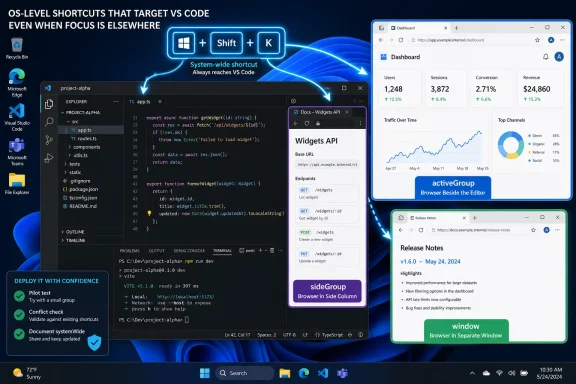 The Upgrade Case Starts With a Shortcut That Escapes the Editor
The headline reason for Windows 11 developers to look at VS Code 1.128 is OS-level keyboard shortcuts. The important behavior is that a configured shortcut can work even when VS Code is not the focused application.That matters because many developers no longer spend the whole day inside a single editor pane. They move between a browser, terminal, ticketing system, chat app, documentation, remote desktop, database tool, and local shell. A shortcut that can reach VS Code from outside the active editor window can remove a small but repeated interruption.
The setup belongs in
keybindings.json. To make a keybinding system-wide, the keybinding definition uses the systemWide property. An illustrative example looks like this:
Code:
{
  "key": "ctrl+alt+shift+t",
  "command": "workbench.action.terminal.toggleTerminal",
  "systemWide": true
}systemWide property set to true inside a keybinding entry. The actual command and key combination should be chosen only after testing on your Windows 11 build.For an individual developer, this can be liberating. For a team, it can also be messy. Global shortcuts are valuable precisely because they compete with everything else running on the machine: Windows itself, PowerToys, Teams, browsers, password managers, screen capture tools, remote access software, accessibility utilities, and vendor-specific laptop hotkey agents.
That means the upgrade decision should begin with an inventory question: do you have a repeated VS Code action that is so central to your day that it deserves an operating-system-level shortcut? If the answer is yes, VS Code 1.128 is worth testing. If the answer is no, the feature may be interesting without being urgent.
WindowsForum’s own coverage gives useful context here. A recent WindowsForum report on Windows 11 adding system-wide en dash and em dash keyboard shortcuts focused on a different feature, but it highlighted the same desktop-level issue: once a shortcut works across the operating system, it becomes part of the whole Windows experience, not just one app’s preferences. That is the right lens for VS Code 1.128 as well.
Start With a Pilot, Not a Fleet-Wide Shortcut Policy
Windows 11 shops should treat OS-level VS Code shortcuts the same way they treat any other global keyboard behavior: small test group first, documented bindings second, wider rollout third.The fact that the feature lives in
keybindings.json makes it approachable, but it also makes inconsistency easy. One developer may pick a shortcut that feels natural on a compact laptop keyboard. Another may use a full-size keyboard with media keys, custom firmware, or vendor utilities. A third may work through Remote Desktop or a virtual desktop where key handling differs again.The safest first move is to pick one or two candidate workflows. These should be frequent, low-risk actions such as opening a command, toggling a panel, or moving to a common workspace action. Avoid shortcuts that trigger destructive operations. Also avoid shortcuts that would be confusing if VS Code responds while another application is active.
Then test on two kinds of systems:
- A clean or lightly configured Windows 11 machine.
- A normal corporate developer machine with the real utilities, security software, VPN, collaboration apps, and device tools your team actually uses.
Teams should also be careful with muscle memory. A global shortcut that feels clever on Monday can become a support ticket by Friday if it steals a combination someone already uses in another tool. The best shared global shortcut is boring, memorable, and rare enough that it does not collide with normal Windows navigation.
Browser-Tab Placement Is the Quiet Feature That May Decide the Upgrade
The second practical reason to look at VS Code 1.128 is configurable browser-tab placement. The relevant placement options areactiveGroup, sideGroup, and window.That may sound minor, but it can matter for teams that use browser tabs or previews as part of normal development work. Not everyone wants browser content in the same place.
A front-end developer validating a UI may want browser content beside the editor. A documentation writer may prefer browser content in the active group while editing related files. A developer with multiple monitors may want a separate window. A developer on a small laptop display may want a different setup entirely.
That is the real upgrade test: does your team lose time rearranging browser tabs, previews, and editor groups during normal work? If yes, VS Code 1.128 offers a concrete quality-of-life improvement. If no, this feature is unlikely to justify immediate deployment by itself.
For Windows 11 users with large monitors, ultrawides, or multi-display setups, the
window option may be the most interesting because it lets browser content live outside the main editor layout. For laptop-first users, activeGroup or sideGroup may be more practical. The point is not that one placement is best. The point is that the setting lets the layout match the way the developer actually works.WindowsForum has repeatedly covered VS Code releases through the lens of workflow polish rather than version numbers alone. Its reports on VS Code 1.97 described new features for Windows developers, AI additions, palette flexibility, and security-related improvements. Its VS Code 1.100 review framed that release around AI-powered enhancements and workflow improvements. Those earlier reports are useful because they show that WindowsForum readers have been given a release-by-release view of how VS Code changes can affect daily development habits. For 1.128, the grounded, specific changes to evaluate are simpler: global shortcut scope and browser placement.
The Windows 11 Angle Is About Control, Not Compatibility
Nothing in the provided facts suggests that Windows 11 users face a special compatibility crisis with VS Code 1.128. The Windows-specific angle is instead about desktop control.Windows has always been a keyboard-heavy platform for power users. System-wide shortcuts are part of that culture, but they are also a shared resource. A shortcut that works globally does not belong only to the application that registered it. It becomes part of the user’s desktop behavior.
That is why VS Code’s new shortcut scope should be evaluated carefully on managed Windows 11 systems. The question is not only “does this work?” The better question is “who gets to decide what this key combination means?”
Individual developers can keep their own
keybindings.json, and many teams will leave the feature entirely to personal preference. But teams that depend on shared pairing, common onboarding, standard training materials, or managed workstation images should document any recommended systemWide bindings.If a shortcut is important enough to be global, it is important enough to be written down.
A short internal note can be enough:
- What key combination is being used.
- What VS Code command it triggers.
- Why the team recommends it.
- Which common Windows tools were checked for conflicts.
- How a developer can remove or change it.
The Case for Upgrading Now Is Strongest for Two Groups
The first group is keyboard-heavy VS Code users. If your developers already rely on the command palette, integrated terminal, quick navigation, and custom keybindings, OS-level shortcuts are not a gimmick. They are a way to bring VS Code back into reach while another application is active.The second group is teams using browser tabs or previews inside VS Code. Configurable placement with
activeGroup, sideGroup, and window is exactly the kind of small option that prevents daily irritation. It will not make a bad workflow good, but it can make a good workflow feel less cramped.Everyone else can be calmer. If your team uses VS Code as a straightforward editor, does not rely on integrated browser surfaces, and has no obvious candidate for a system-wide shortcut, 1.128 is probably a normal scheduled update rather than an urgent deployment.
That is not a criticism of the release. Mature tools often deliver updates that matter intensely to some users and barely register for others. The trick is knowing which camp you are in.
WindowsForum’s earlier VS Code coverage helps underline this point. Reports on VS Code 1.96 and 1.97 emphasized AI-related additions and developer-facing refinements. The 1.100 review focused on AI-powered enhancements and workflow improvements. Those were broader stories about how the editor was changing for some workflows. VS Code 1.128, based on the verified facts here, is narrower: it gives users more control over shortcut reach and browser placement. That narrower scope is still valuable, but it should be evaluated for fit rather than treated as a universal must-install moment.
The Risk Is Not the Feature, but the Invisible Collision
The biggest practical risk in VS Code 1.128 is not that OS-level shortcuts exist. It is that global keyboard behavior can fail in ways that feel random to users.A shortcut might work on one laptop and not another. It might collide with a utility installed by the OEM. It might behave differently during a remote session. It might be intercepted by another application that already registered the same combination. It might work when the developer is local but not when working through a virtual desktop or remote access tool.
That is why teams should resist the temptation to publish a dozen global shortcuts as a productivity pack. Start with one. Measure whether anyone actually uses it. Ask whether it conflicts with existing Windows 11 habits.
A reasonable test plan is simple:
- Choose one proposed system-wide keybinding.
- Confirm the command is non-destructive.
- Test it when VS Code is focused.
- Test it when a browser is focused.
- Test it when Teams or another collaboration app is focused.
- Test it during a remote or virtual desktop session if your team uses one.
- Ask pilot users whether the shortcut helped or merely surprised them.
VS Code’s strength has always been that it adapts to the person using it. Enterprise IT’s job is to preserve that flexibility while reducing avoidable chaos.
Do Not Overread the 1.128 Feature Set
It is worth being precise about what is and is not supported by the verified facts.The verified 1.128 details in this article support OS-level shortcuts and browser-tab placement. They do not, by themselves, support treating agent sessions as a new 1.128 feature. They also do not justify broad claims that VS Code is becoming a universal command center or that this release changes Microsoft’s broader release strategy.
That distinction matters because practical upgrade advice should be based on the features administrators and developers can actually test.
You can test whether a
systemWide shortcut works outside the focused VS Code window. You can test whether browser placement options reduce layout friction. You can test whether those changes are worth adopting on your machines.You do not need to attach a larger narrative to make the release useful. In fact, the safer recommendation is stronger because it is narrower: pilot VS Code 1.128 if global shortcuts or browser placement solve a problem you already have.
Practical Rollout Guidance for Windows 11 Teams
A sensible Windows 11 rollout plan for VS Code 1.128 can be short and concrete.First, install it on a handful of real developer machines. Do not rely only on clean test images. The feature most likely to produce friction, OS-level shortcuts, depends heavily on what else is installed and how the user works.
Second, add one proposed
systemWide shortcut in keybindings.json. Pick something useful but safe. Avoid commands that close windows, delete files, run deployments, reset environments, or perform actions that would be startling if triggered from another app.Third, validate that the shortcut works when VS Code is not focused. Test it from a browser, chat client, terminal, and any remote access environment your team uses.
Fourth, check for conflicts with common Windows utilities. PowerToys is an obvious one, but it is not the only candidate. Screen capture tools, password managers, video conferencing software, clipboard managers, keyboard remappers, and OEM utilities can all matter.
Fifth, test browser-tab placement. Have developers try
activeGroup, sideGroup, and window in the contexts where they actually use browser content. The right answer may differ by role and hardware setup.Finally, decide whether the result is worth documenting. If the pilot produces a shortcut or browser layout recommendation that multiple people want, write it down. If the pilot produces mixed reactions, leave the feature as an individual preference.
Where WindowsForum’s VS Code Coverage Fits
WindowsForum has followed several recent VS Code updates as practical developer stories rather than abstract changelogs. Its VS Code 1.96 coverage described AI enhancements and coding-experience changes. Its VS Code 1.97 reports highlighted new features for Windows developers, AI features, a flexible palette, and security improvements. Its VS Code 1.100 review presented that release as a mix of AI-powered enhancements and workflow improvements.That history is useful, but it should not be stretched beyond the facts of 1.128. The earlier stories show that VS Code changes can matter to Windows developers when they affect daily workflow. They do not prove that every new VS Code release requires immediate deployment.
For 1.128, the clearest WindowsForum-style takeaway is practical: this release is worth attention if it reduces friction at the boundary between VS Code and the rest of the Windows desktop.
That boundary is exactly where system-wide shortcuts live. It is also where browser placement can matter, especially on multi-monitor workstations or compact laptop setups. Those are ordinary, testable workflow issues. They do not need hype.
Upgrade Now or Wait?
Upgrade now if your team has a repeated VS Code action that deserves an OS-level shortcut and you are willing to test and document the chosen binding.Upgrade now if browser tabs or previews are part of your daily VS Code workflow and placement options such as
activeGroup, sideGroup, or window would reduce layout friction.Wait for your normal validation cycle if VS Code is mostly a conventional editor in your environment.
Do not roll out shared global shortcuts broadly until you have tested for conflicts on real Windows 11 machines.
That is the decision in plain terms. VS Code 1.128 is not a panic update based on the verified facts available here. It is a targeted workflow update. The teams that benefit most will be the teams that can name the exact friction it removes.
Frequently Asked Questions
Should Windows 11 developers upgrade to VS Code 1.128 immediately?
Yes, if they can use either OS-level shortcuts or configurable browser-tab placement right away. Otherwise, it is reasonable to keep VS Code 1.128 in the normal editor validation cycle.The best reason to upgrade now is not that the version is new. The best reason is that your team has a specific workflow problem the release can solve.
What is the most important VS Code 1.128 feature for Windows users?
The most important feature for many Windows users is OS-level keyboard shortcut support. It allows a configured VS Code keybinding to work even when VS Code is not the focused app.That is useful for keyboard-heavy developers, but it also requires care because global shortcuts can collide with other Windows applications and utilities.
How does systemWide work in VS Code keybindings?
In keybindings.json, a keybinding can include "systemWide": true to indicate that the shortcut should be registered beyond the focused VS Code window.An illustrative entry looks like this:
Code:
{
  "key": "ctrl+alt+shift+t",
  "command": "workbench.action.terminal.toggleTerminal",
  "systemWide": true
}What should teams avoid when creating system-wide shortcuts?
Avoid destructive or surprising actions. A system-wide shortcut should not trigger a deployment, delete files, close a workspace, reset an environment, or run anything that would be dangerous if pressed accidentally while another app is active.Start with one low-risk shortcut. If it proves useful and conflict-free, consider adding more.
Why does browser-tab placement matter?
Browser-tab placement matters because developers use browser content differently. Some want it beside the editor, some want it in the active editor group, and some want it in a separate window.VS Code 1.128’s placement options —
activeGroup, sideGroup, and window — let teams and individual users better match the editor layout to the way they work.Is VS Code 1.128 mainly an AI or agent-session release?
Based on the verified facts used here, no. The supported 1.128 discussion should stay focused on OS-level shortcuts and browser-tab placement. Earlier WindowsForum coverage has discussed AI-related VS Code updates in versions such as 1.96, 1.97, and 1.100, but that does not make agent sessions a verified 1.128 feature.Is there a Windows 11 compatibility problem with VS Code 1.128?
Nothing in the provided facts indicates a special Windows 11 compatibility problem. The Windows 11 concern is practical control: global keyboard shortcuts interact with the wider desktop environment, so teams should test them on real machines.What is the safest rollout plan?
Use a pilot group. Add one non-destructivesystemWide shortcut. Test it across the applications your developers use every day. Check browser-tab placement on different display setups. Document only the settings that prove useful.That approach gives early adopters the benefit of VS Code 1.128 without forcing a shortcut policy or layout preference on everyone else.
References
- Primary source: learn.microsoft.com
Em dashes, en dashes, hyphens, and minus signs - Microsoft Style Guide | Microsoft Learn
Describes how to use em dashes, en dashes, hyphens, and minus signs the right way, in the right places.learn.microsoft.com - Independent coverage: support.microsoft.com
Keyboard shortcuts in Windows - Microsoft Support
Learn how to navigate Windows using keyboard shortcuts. Explore a full list of taskbar, command prompt, and general Windows shortcuts.support.microsoft.com - Primary source: WindowsForum
Exciting New Features in Visual Studio Code 1.97 for Windows Developers | Windows Forum
In today’s fast-paced development environment, staying ahead with the latest tools is non-negotiable. Visual Studio Code (VS Code) has once again pushed the...windowsforum.com