

Microsoft’s current Windows 11 microphone controls put the main fixes under Settings, not the old Control Panel paths, and the practical troubleshooting order is now device selection, input testing, privacy permission, browser or meeting-app selection, then drivers when the device is missing or broken system-wide.
That matters because microphone failures usually look identical to users: Teams is silent, Zoom hears the laptop mic instead of the headset, or a browser-based recorder never sees input. The cause is often not the microphone hardware. It is usually Windows listening to the wrong device, a hardware mute switch, a blocked privacy permission, or an app using its own microphone picker.
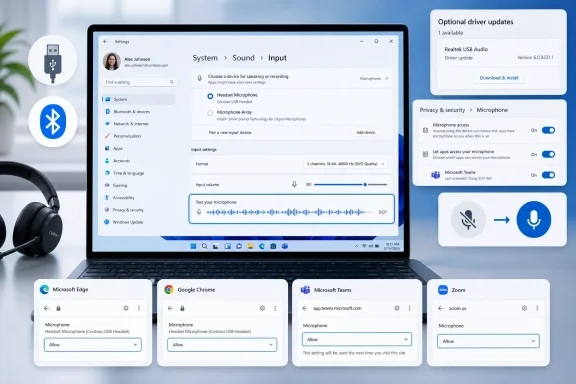
Per Microsoft’s Windows 11 support guidance, the first stop is Settings > System > Sound. Under Input, choose the device Windows should use for speaking or recording. If the mic is connected by USB or 3.5 mm, it should appear there after being plugged in. If it is a Bluetooth headset, pair it first from Settings > Bluetooth & devices > Devices > Add device.
Once the device appears, open its properties from the Sound input page and use the built-in microphone test. Speak normally, stop the test, play the sample, and adjust input volume until the recording is clear. Also check the physical mute button on the headset, webcam, or microphone. Windows can select the right device while the hardware itself is still muted.
If a Bluetooth headset is paired but unreliable, remove it from Bluetooth & devices, restart pairing, and check again in the Sound input list.
Microsoft’s support documentation notes an important split here: Store-style apps can appear with individual toggles, but desktop apps are handled by the broader desktop-app switch and may not show up individually. On managed work or school PCs, these controls can also be locked by policy.
Some packaged apps expose permissions from their own app settings page. In that case, open Settings > Apps > Installed apps, choose the app’s advanced options, and enable microphone permission there if available.
Teams and Zoom have separate device menus as well. In Teams, use Settings > Devices and pick the microphone under audio settings, then place a test call. In Zoom, open Settings > Audio, choose the microphone, and run the test. During a meeting, both apps can use a different microphone than the Windows default, so changing only Windows Sound settings may not fix an active call.
If the microphone is missing from Windows or fails across multiple apps, Device Manager remains a fallback: expand Sound, video and game controllers, update the audio device driver, or uninstall the device and restart so Windows can reinstall it. Surface owners should use Windows Update first, then Microsoft’s official Surface drivers and firmware package for the exact model.
Older guides that lead with Control Panel’s classic Recording tab, “Default Communication Device,” Microphone Boost, or Cortana settings are no longer the best first path for a current Windows 11 PC. The Recording tab can still help if a microphone is disabled, but the main controls are now Windows 11 Sound settings and Microphone privacy settings.
That matters because microphone failures usually look identical to users: Teams is silent, Zoom hears the laptop mic instead of the headset, or a browser-based recorder never sees input. The cause is often not the microphone hardware. It is usually Windows listening to the wrong device, a hardware mute switch, a blocked privacy permission, or an app using its own microphone picker.
 Start with Windows input
Per Microsoft’s Windows 11 support guidance, the first stop is Settings > System > Sound. Under Input, choose the device Windows should use for speaking or recording. If the mic is connected by USB or 3.5 mm, it should appear there after being plugged in. If it is a Bluetooth headset, pair it first from Settings > Bluetooth & devices > Devices > Add device.Once the device appears, open its properties from the Sound input page and use the built-in microphone test. Speak normally, stop the test, play the sample, and adjust input volume until the recording is clear. Also check the physical mute button on the headset, webcam, or microphone. Windows can select the right device while the hardware itself is still muted.
If a Bluetooth headset is paired but unreliable, remove it from Bluetooth & devices, restart pairing, and check again in the Sound input list.
Check microphone privacy
If the selected mic works in Windows but fails in apps, go to Settings > Privacy & security > Microphone. Turn on Microphone access, then turn on Let apps access your microphone. For classic Win32 programs, also enable Let desktop apps access your microphone.Microsoft’s support documentation notes an important split here: Store-style apps can appear with individual toggles, but desktop apps are handled by the broader desktop-app switch and may not show up individually. On managed work or school PCs, these controls can also be locked by policy.
Some packaged apps expose permissions from their own app settings page. In that case, open Settings > Apps > Installed apps, choose the app’s advanced options, and enable microphone permission there if available.
Browsers and meeting apps have their own switches
Windows permission is not the end of the chain. Edge, Chrome, and Firefox each maintain site-level microphone permissions. If a web meeting or recorder still fails, check the browser’s site permissions and make sure the site is allowed to ask for or use the microphone. Chrome also lets users choose a default microphone inside its site-settings page.Teams and Zoom have separate device menus as well. In Teams, use Settings > Devices and pick the microphone under audio settings, then place a test call. In Zoom, open Settings > Audio, choose the microphone, and run the test. During a meeting, both apps can use a different microphone than the Windows default, so changing only Windows Sound settings may not fix an active call.
Use drivers after the basics
Driver work should come after the device has been connected, selected, unmuted, tested, and allowed in privacy settings. Use Settings > Windows Update > Check for updates, then check Advanced options > Optional updates > Driver updates for relevant audio drivers.If the microphone is missing from Windows or fails across multiple apps, Device Manager remains a fallback: expand Sound, video and game controllers, update the audio device driver, or uninstall the device and restart so Windows can reinstall it. Surface owners should use Windows Update first, then Microsoft’s official Surface drivers and firmware package for the exact model.
Older guides that lead with Control Panel’s classic Recording tab, “Default Communication Device,” Microphone Boost, or Cortana settings are no longer the best first path for a current Windows 11 PC. The Recording tab can still help if a microphone is disabled, but the main controls are now Windows 11 Sound settings and Microphone privacy settings.
References
- Primary source: Technobezz
Published: 2026-07-07T17:10:18.598165
How to Manage Audio Input Devices in Windows 11 | Technobezz
Manage audio input devices in Windows 11 by choosing a mic, testing input, fixing permissions, and setting app access.www.technobezz.com - Official source: support.microsoft.com
Windows 10 support has ended on October 14, 2025 | Microsoft Support
Windows 10 support ends on October 14, 2025. Upgrade to Windows 11 now to ensure continued security and feature updates. Learn more about the transition.support.microsoft.com - Official source: learn.microsoft.com
Windows 10 reaching end of support - Microsoft Lifecycle | Microsoft Learn
Announcing Windows 10 reaching end of support.learn.microsoft.com - Related coverage: techcrunch.com
Microsoft kills Cortana in Windows as it focuses on next-gen AI | TechCrunch
Microsoft's shift to Bing Chat from its first-gen assistant Cortana may be later mirrored by other Big Tech companies.techcrunch.com - Related coverage: isc.upenn.edu
- Official source: news.microsoft.com
Alles auf einen Blick: Support für Windows 10 endet im Oktober - Source EMEA
 news.microsoft.com
- Related coverage: tomshardware.com
Windows 10 support ends today — here's who's affected and what you need to do | Tom's Hardware
Update if you can, upgrade if you can't, or at least get the extended support license.www.tomshardware.com - Related coverage: gaming.news
Windows 10 support ended on October 14; $30 ESU available
Windows 10 support ended Oct 14, 2025. $30 ESU runs to Oct 13, 2026, as games and drivers increasingly target Windows 11.gaming.news - Related coverage: windowscentral.com
Windows 10 is dead, Microsoft confirms | Windows Central
Microsoft has confirmed that support for Windows 10 has now come to an end. It has released one final mainstream OS update, but millions of users are still running the now abandoned OS.www.windowscentral.com - Related coverage: pureinfotech.com
Windows 10 support has ended as of October 14, 2025 – What happens next? All the answers. - Pureinfotech
Windows 10 support ends October 14, 2025, with the release of the last security updates, and what happens next? Here are all the answers. pureinfotech.com
- Related coverage: gizmochina.com
Goodbye, Cortana: Microsoft to discontinue support for the virtual assistant on Windows - Gizmochina
Cortana support on Windows comes to an end as Microsoft shifts focus to AI experiences in Windows 11, including Copilot and voice control features. Farewell, Cortana! www.gizmochina.com
- Related coverage: support.accordancebible.com
Windows 10 End of Support on October 14, 2025 – Accordance Support
Microsoft has announced that Windows 10 will reach end of support on October 14, 2025. With the exception of some Microsoft customers...support.accordancebible.com - Related coverage: pcworld.com
RIP Cortana: Microsoft says its Windows AI app will die | PCWorld
Microsoft says that its ongoing AI efforts have made its Cortana AI redundant, and will terminate support for the Cortana app within Windows this fall.www.pcworld.com - Related coverage: techradar.com
Microsoft in 2025: year in review | TechRadar
Microsoft pushed AI even harder this year – and Windows 11 users rebelledwww.techradar.com - Related coverage: atomicdata.com
- Related coverage: transparity.com