

Windows Central is arguing that BleachBit, a free open-source cleanup utility for Windows 11, remains useful in 2026 because Microsoft’s built-in storage tools still leave gaps around app caches, browser traces, privacy cleanup, secure deletion, and automation. The more interesting story is not that Windows needs another “PC cleaner,” but that the few trustworthy ones now survive by refusing to behave like the old ones. BleachBit’s pitch is almost anti-commercial: preview first, delete deliberately, and do not pretend a cache purge is a performance upgrade. That restraint is why the tool deserves attention from Windows users who usually treat cleanup utilities as radioactive.
The phrase Windows cleanup tool still carries baggage. For years, utilities in this category promised faster boot times, miraculous registry repairs, and vague “optimization” wins that were difficult to measure and easy to oversell. Many bundled extras, pushed subscriptions, or encouraged users to treat normal operating-system debris as evidence of looming disaster.
That history matters because Windows 11 already includes respectable storage controls. Microsoft Support describes Storage Sense as a feature that can automatically remove unnecessary temporary files and Recycle Bin contents, while Microsoft Learn presents it as a fleet-management lever for administrators trying to keep devices from running into low-space failures. The Temporary Files page and Cleanup recommendations give ordinary users a first-party way to reclaim space without hunting through hidden folders.
So the burden of proof is higher for any third-party tool. It cannot simply say “Windows leaves junk behind,” because every modern OS does. It has to prove that it gives the user more control without adding more risk.
That is where Windows Central’s recommendation of BleachBit is notable. The article does not frame the utility as a replacement for Windows 11’s own storage system, but as a companion for users who want to see more, choose more, and occasionally clean beyond Microsoft’s default comfort zone. That distinction is the difference between a useful maintenance tool and a digital snake-oil bottle with a progress bar.
That sounds mundane because it is. But mundane is good here. The most useful cleanup jobs are rarely glamorous: trimming browser cache, clearing stale application data, removing old logs, deleting temporary installer files, and reclaiming update leftovers where safe.
Windows Central’s Mauro Huculak puts the emphasis in the right place by describing BleachBit as an additional utility rather than a universal repair kit. That framing matters for WindowsForum readers because it matches how seasoned administrators already think about maintenance. A cleanup tool should be a scalpel, not a wellness program.
The open-source angle also changes the trust equation. Open source is not a magic guarantee of safety, but it does mean the project’s code, issue history, and behavior can be inspected in ways that closed consumer “optimizer” suites often cannot. BleachBit’s GitHub repository lists it as GPLv3 software for Windows and Linux, and its release history shows continued maintenance, with version 6.0.0 marked as a stable release in April 2026.
That is the floor: a safe, supported, Microsoft-managed cleanup path. It is exactly where less technical users should begin, especially on a family laptop or work-issued PC where aggressive deletion can create more support calls than it prevents. Storage Sense is also policy-friendly, which matters in classrooms, frontline-worker fleets, and virtual desktop environments where devices are often storage-constrained.
But Microsoft’s tools are intentionally conservative. They are designed to be broadly safe, not exhaustively granular. They will not necessarily expose every cache created by every application, every browser trace a privacy-conscious user wants removed, or every cleanup action an admin might want to script across machines.
BleachBit lives in those edges. It is for users who want to decide whether a browser cache goes but cookies stay, whether logs should be removed but saved sessions preserved, and whether a sensitive file should be shredded rather than merely deleted. That is not a mass-market need, but it is a real one.
Windows Central rightly recommends running Preview every time, even if the user has run BleachBit before. The reason is simple: cleanup is context-dependent. The same checkbox that is harmless on one machine may remove useful state on another, especially when browsers, developer tools, messaging apps, game launchers, and cloud-sync clients are involved.
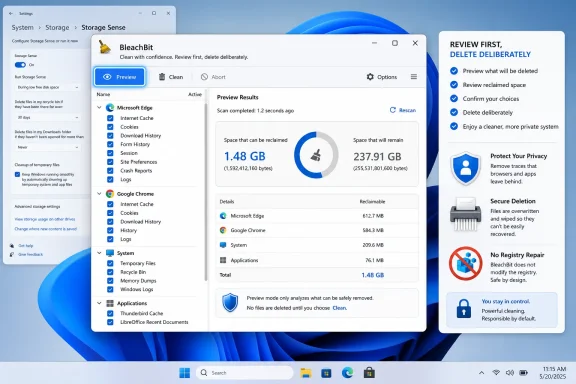
Preview changes the relationship between user and utility. Instead of asking for blind trust, BleachBit shows what it intends to delete and estimates the space that can be reclaimed. That does not make every choice risk-free, but it gives the user a chance to stop, inspect, and rethink.
This is where BleachBit separates itself from the worst of the old optimizer culture. A tool that encourages review is less likely to train users into the dangerous habit of clicking “fix all.” It nudges them toward understanding the system rather than outsourcing judgment to a mascot, meter, or scare-colored warning panel.
For administrators, Preview has another value: repeatability. If a cleanup routine is going to be scripted, documented, or recommended to less technical colleagues, seeing the output first is part of building a defensible process. The correct posture is not “BleachBit found junk.” It is “BleachBit identified these categories, and we decided these are safe for this machine.”
Browser cleanup deserves more caution. Cache files can often be removed with little downside beyond slower first loads afterward. Cookies, session data, saved form entries, and history are different because they affect convenience, sign-in state, and sometimes security workflows.
This is the kind of distinction consumer cleanup tools often blur. “Browser junk” sounds like a single category, but it is really a bundle of trade-offs. Deleting a cache is not the same as deleting cookies, and deleting cookies is not the same as wiping saved sessions before a user has finished work in dozens of tabs.
Application caches are similar. Clearing them is usually safe in the narrow sense that apps can rebuild them, but safe does not mean invisible. A design tool may need to regenerate thumbnails, a launcher may redownload metadata, and a browser may feel slower until its cache warms again. Cleanup always has a cost; the question is whether the reclaimed space or privacy benefit is worth it.
That wording should stay careful. Secure deletion on modern storage is more complicated than the spinning-hard-drive era taught users to believe. Wear leveling, SSD overprovisioning, TRIM behavior, journaling file systems, backups, cloud sync, thumbnails, and app-level caches can all create copies or remnants beyond the obvious file path.
Still, the feature has value when used with realistic expectations. If a user has a local file containing sensitive information and wants to reduce the chance that ordinary recovery software can restore it, shredding is better than sending it to the Recycle Bin. If a drive is being retired, wiping empty space may reduce recoverable remnants from previously deleted files.
But free-space wiping should not become weekly hygiene. It can take a long time, write heavily to the drive, and provide little day-to-day benefit for most people. If the goal is to sell or donate a Windows 11 PC, the better baseline is still a proper reset or secure erase workflow appropriate to the device, account state, and storage type.
That promise was always dubious for most users. The Registry is a configuration database, not a junk drawer where every leftover entry creates measurable drag. Removing the wrong entry can break an application, disrupt file associations, confuse installers, or create strange behavior that is harder to diagnose than the original “problem.”
Microsoft does not ship a Registry cleaner in Windows 11. That omission is not an oversight. It reflects a basic risk calculation: the potential benefit is usually small, while the support cost of overzealous cleanup can be large.
BleachBit’s restraint here is part of its appeal. It can clean some privacy-related traces and application data, and its feature list refers to deleting certain registry keys where recent-use lists may be stored, but it does not present Registry “repair” as a general system-health ritual. That is the right boundary. A cleanup tool should remove files and traces the user understands, not invite casual surgery on the operating system’s configuration spine.
That changes the tool’s role. A GUI cleanup utility is a convenience; a scriptable cleaner can become part of a controlled maintenance workflow. In a lab, kiosk setup, shared workstation pool, or developer environment, predictable cleanup can be useful before imaging, after testing, or during periodic maintenance windows.
But automation raises the stakes. A bad checkbox in the GUI wastes an afternoon. A bad command deployed broadly can wipe browser state or application caches across a fleet before anyone has time to object. The fact that BleachBit can be scripted is a strength only if the selections are tested, documented, and scoped.
This is where Microsoft’s own Storage Sense remains attractive in enterprise settings. It is policy-native and supported as part of Windows. BleachBit is better understood as a supplemental tool for specific scenarios, not as a replacement for first-party device-management controls.
Deleting temporary files can free space. It can resolve problems caused by corrupted caches. It can reduce clutter in some application workflows. On a nearly full system drive, reclaiming several gigabytes may indirectly improve the user’s experience because Windows updates, paging behavior, and application installs have more room to breathe.
But a normal cache is not a disease. Caches exist to make repeated operations faster, and deleting them can briefly make things slower. If a PC feels sluggish because it has too little RAM, too many startup apps, an aging CPU, background malware, a failing SSD, or a bloated security stack, BleachBit is not going to turn it into a new machine.
This is the honesty that the category needs. A good cleanup utility can help with storage pressure and privacy housekeeping. It should not pretend to solve hardware limits, driver issues, malware, or years of software cruft with one purge.
But users do not always want Microsoft’s defaults to define what counts as disposable. Browser history, MRU lists, application caches, logs, and privacy traces sit in a gray zone between system function and personal preference. One user sees convenience; another sees exposure.
BleachBit appeals to the second user. It says: here are the categories, here is what they mean, preview the result, and choose. That is not a revolutionary idea, but it is increasingly rare in software designed for non-experts.
There is also a trust angle. Microsoft’s cleanup tools are first-party and therefore safest in a support sense, but they are also part of the same ecosystem that creates much of the storage behavior users are trying to understand. BleachBit’s independence gives it a different role: not necessarily more authoritative, but less paternalistic.
But the market around it changed. Users became more skeptical of bundled features, telemetry, subscriptions, and optimizer-style claims. Windows itself became better at the basic storage chores. Security expectations rose. A tool that once felt essential can start to feel excessive if its interface shifts from “clean files” to “manage your PC’s entire health.”
BleachBit benefits from that comparison because it looks deliberately narrower. It is not trying to become a security suite, driver updater, browser toolbar, or recurring revenue funnel. Its strongest argument is that it remains a cleaner.
That narrowness will not appeal to everyone. Users who want polished dashboards, automated scheduling, and hand-holding may prefer first-party Windows tools or commercial software. But for enthusiasts and administrators, narrow tools are often better tools. They do fewer things, more predictably, with fewer incentives to invent problems.
The interface explains options, but explanations do not guarantee understanding. A user clearing browser cookies may not anticipate two-factor prompts across every site. Someone deleting logs may later wish they had them for troubleshooting. A developer clearing caches may break assumptions inside a build environment. A privacy-minded user may shred one copy of a document while forgetting cloud sync preserved another.
This is not an argument against BleachBit. It is an argument against treating cleanup as ritual. The healthiest pattern is occasional, intentional use: preview, inspect, clean only the categories that match the goal, and avoid advanced wiping unless there is a specific privacy or disposal reason.
That is why the tool belongs more in the power-user drawer than the everyday “run this every Sunday” routine. Windows 11 does not need constant scrubbing to remain healthy. If it does, the underlying issue is probably not temporary files.
Start with Preview. Read what will be removed. Favor temporary files, logs, Recycle Bin contents, and selected caches before touching anything tied to sign-ins, sessions, saved passwords, or application state. Treat secure deletion and free-space wiping as special-purpose tools, not maintenance habits.
The same discipline applies to portable use. A portable build can be useful on a technician’s USB drive, but it should not become a license to run broad cleanup on machines without consent or documentation. If the PC is not yours, the user’s session data is not yours either.
BleachBit is best when it reinforces good habits: know what is taking space, understand what you are deleting, and preserve the option to troubleshoot later. It is worst when used as a one-click anxiety reliever.
 The PC Cleaner Category Earned Its Bad Reputation
The phrase Windows cleanup tool still carries baggage. For years, utilities in this category promised faster boot times, miraculous registry repairs, and vague “optimization” wins that were difficult to measure and easy to oversell. Many bundled extras, pushed subscriptions, or encouraged users to treat normal operating-system debris as evidence of looming disaster.That history matters because Windows 11 already includes respectable storage controls. Microsoft Support describes Storage Sense as a feature that can automatically remove unnecessary temporary files and Recycle Bin contents, while Microsoft Learn presents it as a fleet-management lever for administrators trying to keep devices from running into low-space failures. The Temporary Files page and Cleanup recommendations give ordinary users a first-party way to reclaim space without hunting through hidden folders.
So the burden of proof is higher for any third-party tool. It cannot simply say “Windows leaves junk behind,” because every modern OS does. It has to prove that it gives the user more control without adding more risk.
That is where Windows Central’s recommendation of BleachBit is notable. The article does not frame the utility as a replacement for Windows 11’s own storage system, but as a companion for users who want to see more, choose more, and occasionally clean beyond Microsoft’s default comfort zone. That distinction is the difference between a useful maintenance tool and a digital snake-oil bottle with a progress bar.
BleachBit Wins by Refusing to Be an Optimizer
BleachBit’s credibility starts with what it does not do. It does not present itself as a magic accelerator for Windows 11, does not lock basic functions behind a premium tier, and does not make Registry cleaning the centerpiece of its identity. Its official documentation describes it as a free and open-source cleaner for removing caches, cookies, logs, recent-file lists, temporary files, and similar debris across Windows and Linux.That sounds mundane because it is. But mundane is good here. The most useful cleanup jobs are rarely glamorous: trimming browser cache, clearing stale application data, removing old logs, deleting temporary installer files, and reclaiming update leftovers where safe.
Windows Central’s Mauro Huculak puts the emphasis in the right place by describing BleachBit as an additional utility rather than a universal repair kit. That framing matters for WindowsForum readers because it matches how seasoned administrators already think about maintenance. A cleanup tool should be a scalpel, not a wellness program.
The open-source angle also changes the trust equation. Open source is not a magic guarantee of safety, but it does mean the project’s code, issue history, and behavior can be inspected in ways that closed consumer “optimizer” suites often cannot. BleachBit’s GitHub repository lists it as GPLv3 software for Windows and Linux, and its release history shows continued maintenance, with version 6.0.0 marked as a stable release in April 2026.
Microsoft’s Tools Handle the Floor, Not the Edges
Windows 11’s built-in cleanup features are good enough that most users should start there. Storage Sense can run automatically when a device is low on space, and Microsoft says it can remove select temporary files and Recycle Bin contents under configured conditions. Cleanup recommendations can surface files that Windows believes are safe candidates for removal, including some large or unused content.That is the floor: a safe, supported, Microsoft-managed cleanup path. It is exactly where less technical users should begin, especially on a family laptop or work-issued PC where aggressive deletion can create more support calls than it prevents. Storage Sense is also policy-friendly, which matters in classrooms, frontline-worker fleets, and virtual desktop environments where devices are often storage-constrained.
But Microsoft’s tools are intentionally conservative. They are designed to be broadly safe, not exhaustively granular. They will not necessarily expose every cache created by every application, every browser trace a privacy-conscious user wants removed, or every cleanup action an admin might want to script across machines.
BleachBit lives in those edges. It is for users who want to decide whether a browser cache goes but cookies stay, whether logs should be removed but saved sessions preserved, and whether a sensitive file should be shredded rather than merely deleted. That is not a mass-market need, but it is a real one.
Preview Is the Feature That Makes the Whole Tool Defensible
The most important button in BleachBit is not Clean. It is Preview.Windows Central rightly recommends running Preview every time, even if the user has run BleachBit before. The reason is simple: cleanup is context-dependent. The same checkbox that is harmless on one machine may remove useful state on another, especially when browsers, developer tools, messaging apps, game launchers, and cloud-sync clients are involved.
Preview changes the relationship between user and utility. Instead of asking for blind trust, BleachBit shows what it intends to delete and estimates the space that can be reclaimed. That does not make every choice risk-free, but it gives the user a chance to stop, inspect, and rethink.
This is where BleachBit separates itself from the worst of the old optimizer culture. A tool that encourages review is less likely to train users into the dangerous habit of clicking “fix all.” It nudges them toward understanding the system rather than outsourcing judgment to a mascot, meter, or scare-colored warning panel.
For administrators, Preview has another value: repeatability. If a cleanup routine is going to be scripted, documented, or recommended to less technical colleagues, seeing the output first is part of building a defensible process. The correct posture is not “BleachBit found junk.” It is “BleachBit identified these categories, and we decided these are safe for this machine.”
The Safe Stuff Is Boring, Which Is Why It Is Safe
The least dramatic BleachBit options are usually the ones most users should consider first. Temporary files, logs, clipboard contents, and Recycle Bin data are classic cleanup targets because they tend to accumulate over time without representing essential user state. Windows Central also mentions update uninstallers among routine candidates, though users should understand that removing rollback-related files can reduce the ability to unwind some updates.Browser cleanup deserves more caution. Cache files can often be removed with little downside beyond slower first loads afterward. Cookies, session data, saved form entries, and history are different because they affect convenience, sign-in state, and sometimes security workflows.
This is the kind of distinction consumer cleanup tools often blur. “Browser junk” sounds like a single category, but it is really a bundle of trade-offs. Deleting a cache is not the same as deleting cookies, and deleting cookies is not the same as wiping saved sessions before a user has finished work in dozens of tabs.
Application caches are similar. Clearing them is usually safe in the narrow sense that apps can rebuild them, but safe does not mean invisible. A design tool may need to regenerate thumbnails, a launcher may redownload metadata, and a browser may feel slower until its cache warms again. Cleanup always has a cost; the question is whether the reclaimed space or privacy benefit is worth it.
Secure Deletion Is Useful, but SSDs Complicate the Old Mental Model
BleachBit includes file shredding and empty-space wiping, two features that speak to privacy rather than storage. The tool’s official materials advertise secure deletion, the ability to wipe free disk space, and command-line support. Windows Central highlights the file shredder as a way to make recovery with standard data-recovery tools more difficult.That wording should stay careful. Secure deletion on modern storage is more complicated than the spinning-hard-drive era taught users to believe. Wear leveling, SSD overprovisioning, TRIM behavior, journaling file systems, backups, cloud sync, thumbnails, and app-level caches can all create copies or remnants beyond the obvious file path.
Still, the feature has value when used with realistic expectations. If a user has a local file containing sensitive information and wants to reduce the chance that ordinary recovery software can restore it, shredding is better than sending it to the Recycle Bin. If a drive is being retired, wiping empty space may reduce recoverable remnants from previously deleted files.
But free-space wiping should not become weekly hygiene. It can take a long time, write heavily to the drive, and provide little day-to-day benefit for most people. If the goal is to sell or donate a Windows 11 PC, the better baseline is still a proper reset or secure erase workflow appropriate to the device, account state, and storage type.
Registry Cleaning Is the Missing Feature That Makes BleachBit Safer
Windows Central calls out a feature BleachBit does not offer as a traditional Registry cleaner, and that absence is more important than it looks. Registry cleaners became the talisman of the old PC tune-up market: scan, alarm, remove, repeat. The implied promise was that orphaned keys and stale entries were weighing Windows down like dust in an engine.That promise was always dubious for most users. The Registry is a configuration database, not a junk drawer where every leftover entry creates measurable drag. Removing the wrong entry can break an application, disrupt file associations, confuse installers, or create strange behavior that is harder to diagnose than the original “problem.”
Microsoft does not ship a Registry cleaner in Windows 11. That omission is not an oversight. It reflects a basic risk calculation: the potential benefit is usually small, while the support cost of overzealous cleanup can be large.
BleachBit’s restraint here is part of its appeal. It can clean some privacy-related traces and application data, and its feature list refers to deleting certain registry keys where recent-use lists may be stored, but it does not present Registry “repair” as a general system-health ritual. That is the right boundary. A cleanup tool should remove files and traces the user understands, not invite casual surgery on the operating system’s configuration spine.
The Command Line Turns a Consumer Tool Into an Admin Instrument
The casual BleachBit user will live in the graphical interface. The more interesting audience for WindowsForum, however, may be the administrator or power user who notices the command-line support. BleachBit’s documentation includes a command-line interface, and the project promotes scripting and automation as part of its value.That changes the tool’s role. A GUI cleanup utility is a convenience; a scriptable cleaner can become part of a controlled maintenance workflow. In a lab, kiosk setup, shared workstation pool, or developer environment, predictable cleanup can be useful before imaging, after testing, or during periodic maintenance windows.
But automation raises the stakes. A bad checkbox in the GUI wastes an afternoon. A bad command deployed broadly can wipe browser state or application caches across a fleet before anyone has time to object. The fact that BleachBit can be scripted is a strength only if the selections are tested, documented, and scoped.
This is where Microsoft’s own Storage Sense remains attractive in enterprise settings. It is policy-native and supported as part of Windows. BleachBit is better understood as a supplemental tool for specific scenarios, not as a replacement for first-party device-management controls.
The Performance Claim Needs to Stay Modest
The Windows Central article answers the obvious question plainly: BleachBit does not directly make Windows 11 faster. That is the right answer, and it deserves to be repeated because cleanup utilities live or die by how honestly they handle performance.Deleting temporary files can free space. It can resolve problems caused by corrupted caches. It can reduce clutter in some application workflows. On a nearly full system drive, reclaiming several gigabytes may indirectly improve the user’s experience because Windows updates, paging behavior, and application installs have more room to breathe.
But a normal cache is not a disease. Caches exist to make repeated operations faster, and deleting them can briefly make things slower. If a PC feels sluggish because it has too little RAM, too many startup apps, an aging CPU, background malware, a failing SSD, or a bloated security stack, BleachBit is not going to turn it into a new machine.
This is the honesty that the category needs. A good cleanup utility can help with storage pressure and privacy housekeeping. It should not pretend to solve hardware limits, driver issues, malware, or years of software cruft with one purge.
Windows 11 Has Made Cleanup Less Magical and More Political
The broader story is that Windows cleanup has become less about technical mystery and more about control. Microsoft wants Windows 11 users to rely on built-in systems: Storage Sense, Cleanup recommendations, OneDrive Files On-Demand, reset workflows, and managed policies. That is reasonable, especially for safety and supportability.But users do not always want Microsoft’s defaults to define what counts as disposable. Browser history, MRU lists, application caches, logs, and privacy traces sit in a gray zone between system function and personal preference. One user sees convenience; another sees exposure.
BleachBit appeals to the second user. It says: here are the categories, here is what they mean, preview the result, and choose. That is not a revolutionary idea, but it is increasingly rare in software designed for non-experts.
There is also a trust angle. Microsoft’s cleanup tools are first-party and therefore safest in a support sense, but they are also part of the same ecosystem that creates much of the storage behavior users are trying to understand. BleachBit’s independence gives it a different role: not necessarily more authoritative, but less paternalistic.
The CCleaner Shadow Still Hangs Over the Market
Any discussion of Windows cleanup utilities inevitably invokes CCleaner, even when the name is not central. For years, CCleaner was the default answer for users who wanted a quick sweep of temporary files, browser traces, and application leftovers. It became part of the Windows power-user furniture.But the market around it changed. Users became more skeptical of bundled features, telemetry, subscriptions, and optimizer-style claims. Windows itself became better at the basic storage chores. Security expectations rose. A tool that once felt essential can start to feel excessive if its interface shifts from “clean files” to “manage your PC’s entire health.”
BleachBit benefits from that comparison because it looks deliberately narrower. It is not trying to become a security suite, driver updater, browser toolbar, or recurring revenue funnel. Its strongest argument is that it remains a cleaner.
That narrowness will not appeal to everyone. Users who want polished dashboards, automated scheduling, and hand-holding may prefer first-party Windows tools or commercial software. But for enthusiasts and administrators, narrow tools are often better tools. They do fewer things, more predictably, with fewer incentives to invent problems.
The Real Risk Is User Overconfidence
BleachBit’s biggest danger is not that it is malicious or gimmicky. It is that it gives users enough power to be confidently careless.The interface explains options, but explanations do not guarantee understanding. A user clearing browser cookies may not anticipate two-factor prompts across every site. Someone deleting logs may later wish they had them for troubleshooting. A developer clearing caches may break assumptions inside a build environment. A privacy-minded user may shred one copy of a document while forgetting cloud sync preserved another.
This is not an argument against BleachBit. It is an argument against treating cleanup as ritual. The healthiest pattern is occasional, intentional use: preview, inspect, clean only the categories that match the goal, and avoid advanced wiping unless there is a specific privacy or disposal reason.
That is why the tool belongs more in the power-user drawer than the everyday “run this every Sunday” routine. Windows 11 does not need constant scrubbing to remain healthy. If it does, the underlying issue is probably not temporary files.
The Sensible BleachBit Workflow Is Narrow and Deliberate
Windows Central’s practical guidance lands on a conservative workflow, and that is the one worth adopting. Install the tool only if Windows’ built-in options are not giving you enough visibility or control. Run it normally for routine user-level cleanup, and elevate only when the task requires it.Start with Preview. Read what will be removed. Favor temporary files, logs, Recycle Bin contents, and selected caches before touching anything tied to sign-ins, sessions, saved passwords, or application state. Treat secure deletion and free-space wiping as special-purpose tools, not maintenance habits.
The same discipline applies to portable use. A portable build can be useful on a technician’s USB drive, but it should not become a license to run broad cleanup on machines without consent or documentation. If the PC is not yours, the user’s session data is not yours either.
BleachBit is best when it reinforces good habits: know what is taking space, understand what you are deleting, and preserve the option to troubleshoot later. It is worst when used as a one-click anxiety reliever.
A Cleaner That Deserves a Place Because It Knows Its Place
The practical lesson from Windows Central’s piece is not that every Windows 11 user should install BleachBit tonight. It is that BleachBit is one of the rare cleanup tools whose value proposition still makes sense in a world where Windows itself has learned to take out much of the trash.- Windows 11 users should try Storage Sense, Temporary Files, and Cleanup recommendations before adding a third-party utility.
- BleachBit is most useful when the goal is granular cleanup of browser data, app caches, logs, privacy traces, or other categories Microsoft does not expose as clearly.
- The Preview button is the safety mechanism that turns BleachBit from a risky delete tool into a reviewable maintenance utility.
- Secure shredding and empty-space wiping are privacy tools for specific situations, not routine performance maintenance.
- The lack of a traditional Registry cleaner is a strength because broad Registry “repair” remains one of the riskiest promises in the old PC optimizer playbook.
- BleachBit should be treated as a controlled instrument for informed users, not a weekly magic button for making Windows faster.
References
- Primary source: Windows Central
Published: Wed, 08 Jul 2026 13:15:28 GMT
Loading…
www.windowscentral.com - Official source: support.microsoft.com
Loading…
support.microsoft.com - Official source: learn.microsoft.com
Configure Storage Sense in Windows | Microsoft Learn
Learn how to configure Storage Sense, a Windows feature that helps manage disk space by automatically cleaning up temporary files and unused content.learn.microsoft.com - Official source: microsoft.com
Loading…
www.microsoft.com - Related coverage: bleachbit.net
Loading…
bleachbit.net - Official source: download.microsoft.com
- Related coverage: welcomehomevetsofnj.org
Loading…
www.welcomehomevetsofnj.org