

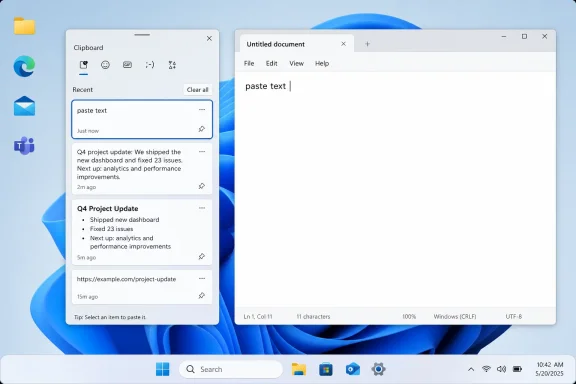
Paul Thurrott’s July 08, 2026 Thurrott.com attachment page, “cbh-paste-text,” points to a small but consequential Windows 11 Field Guide moment: Clipboard history’s “paste text” behavior, the plain-text escape hatch buried inside Microsoft’s increasingly cloud-aware copy-and-paste system for everyday PC users.
That may sound like the smallest possible Windows story: a screenshot attachment, not a build announcement, not a security advisory, not a sweeping redesign. But the humble paste operation is where Windows 11’s productivity story becomes tangible. If Microsoft wants Windows to feel modern without forcing every user through Copilot, widgets, accounts, and subscription prompts, then the OS has to win in places like this: the moment when a copied paragraph from a webpage arrives without dragging half the internet’s formatting into your document.
The source artifact is spare: Thurrott.com lists the attachment title as “cbh-paste-text,” credits Paul Thurrott, and dates it Jul 08, 2026. It appears under the Windows 11 Field Guide’s multitasking area, which is the right neighborhood for a feature that sits between muscle memory and workflow architecture. Clipboard history is not a window manager in the classic sense, but it is absolutely a multitasking tool: it lets a user collect, stage, reuse, and sanitize material while moving among apps.
The important word in the attachment title is not “clipboard.” It is “text.” Windows has had copy and paste forever, but modern work has made formatting contamination one of the most common annoyances in computing. Copy a line from a web page, a Teams message, a Word document, a PDF, or an email signature, and what you often carry is not merely text. You carry fonts, colors, bullets, spacing, hyperlinks, tables, hidden styling, and sometimes enough HTML cruft to make a clean note look like a ransom letter.
Microsoft’s official Windows guidance frames Clipboard history as a way to keep multiple copied items ready for reuse, including text, links, and images. The public pitch is productivity: press Windows logo key + V, review recent items, pin the ones you reuse, and optionally sync clipboard content across devices. That is useful, but it understates the real value of the feature. Clipboard history is not just a queue. It is a buffer between the messy source world and the place where the user is trying to work.
That buffer matters because Windows remains the operating system of mixed contexts. A Windows 11 user may copy from Edge into Word, from a remote session into a ticketing system, from Excel into a browser form, from a developer tool into Teams, or from a password manager into a sign-in prompt. The operating system cannot assume that the source app and destination app agree about formatting, trust boundaries, accessibility, or intent. A paste-as-text action is the user’s way of saying: I want the content, not the baggage.
Windows 11’s Clipboard history changes that contract. Once enabled, the system can preserve a list of recent copied items and present them through the Win+V interface. Microsoft says items can include text, links, and images, and that users can pin items they want to keep after a restart. Microsoft also says the history is limited, with older unpinned items removed as new items arrive.
That shift turns the clipboard from a transient mechanism into a lightweight productivity database. It is still small and intentionally casual, but the conceptual change is large. A copied sentence, a support response, a postal address, a command, a tracking number, or a meeting link can persist long enough to become a reusable object.
This is why the paste-as-text option deserves more respect than it usually gets. Once the clipboard becomes a history, formatting problems also become persistent. A bad paste is no longer just the result of the last copy operation; it may be the result of a copied item selected minutes or hours later from a panel. The system therefore needs not only memory, but judgment. “Paste as text” is that judgment, exposed as a practical command.
Windows Central’s guide to Clipboard history emphasizes the mechanics: enable the feature, use Win+V, select an item, and optionally sync content across devices tied to the same account. That is the consumer-friendly version of the story. The enterprise version is sharper: every retained clipboard item is a potential convenience, a potential leak, or both.
The risks here should not be overstated. Pasting formatted text from a document is not the same thing as executing code. But IT professionals understand that “data” rarely arrives in only one layer. Rich text may include links. HTML may carry structure. Office content may bring styles or embedded elements. Chat and browser content may carry tracking links, invisible characters, or formatting that changes meaning when placed into a different system.
Plain text lowers that ambiguity. When a help desk agent pastes an instruction into a ticket, plain text helps avoid inheriting a customer’s font mess or malformed formatting. When a developer copies a command from a browser, plain text makes it easier to inspect what is actually being inserted. When a user copies a quote into a document, plain text lets the destination app own the formatting instead of letting the source app smuggle it in.
That last point is not merely aesthetic. In structured workflows, formatting is policy. Legal templates, knowledge-base systems, Markdown repositories, CRM notes, case-management tools, and regulated communications often depend on predictable text. The more formatting comes along for the ride, the more cleanup becomes a hidden tax on every employee.
The best Windows features are often those that reduce this tax without demanding that users learn a new philosophy. Win+V is not a reinvention of text editing. It is a panel. Paste-as-text is not a new document model. It is a choice at the moment of insertion. That is why a tiny Field Guide attachment can point to a much larger truth: Microsoft’s best productivity work is sometimes buried in features that look too mundane to market.
In many modern apps, Ctrl+Shift+V is the expected plain-text paste command. In others, it may not work, may conflict with an app-specific command, or may be ignored. Some Microsoft apps historically used different paste models, and some third-party tools treat clipboard formatting in their own way. The result is a familiar Windows pattern: the feature exists, but the user has to remember which layer owns it.
Clipboard history’s paste-as-text option offers a more Windows-centered answer. Instead of depending entirely on the destination app’s shortcut handling, the user can open Win+V and choose how to paste a clipboard item from the history interface. That does not make every edge case disappear, but it gives users a visible, discoverable place to recover from inconsistent app behavior.
PowerToys complicates the story further, though in a useful way. Microsoft’s PowerToys Advanced Paste documentation describes a utility that can transform clipboard content into different formats, including plain text, and can expose a direct shortcut for plain-text pasting. For power users, that may be the better answer. For normal users, however, installing and configuring PowerToys is a different level of commitment than learning Win+V.
This is the Microsoft productivity stack in miniature: built-in features for everyone, official power-user utilities for those who need more, and an app ecosystem that still refuses to behave uniformly. The charitable reading is that Windows gives users multiple paths. The harsher reading is that Windows still makes basic text hygiene too dependent on institutional memory.
Clipboard sync changes the perimeter. A local clipboard history is one thing; a cloud-synced clipboard is another. Microsoft says users can turn on sync through Settings under System > Clipboard and choose automatic syncing of copied text. It also says work or IT policies may limit clipboard features on managed PCs. That sentence is the bridge between consumer convenience and enterprise reality.
The clipboard is a common crossing point for sensitive data because it is frictionless. Users copy customer names, addresses, tokens, internal URLs, error messages, credentials, snippets from contracts, code fragments, meeting details, and screenshots. They often do this legitimately. The problem is not that copying is suspicious; the problem is that copying is so normal that users rarely treat it as data movement.
A synced clipboard deserves the same kind of thinking that admins already apply to browser sync, OneDrive, Teams file sharing, and remote desktop redirection. Which accounts are allowed? Which device classes can participate? Are unmanaged personal PCs part of the flow? Does the organization permit clipboard history but block sync, or disable both for certain roles? Are users trained to clear copied sensitive material when they are done?
The correct answer will differ by organization. A software company, a hospital, a legal practice, a school district, and a call center will not draw the same boundary. But the existence of policy controls means Microsoft knows this is not merely a personalization feature. Clipboard history is part of the user data plane.
Microsoft’s public documentation says pinned items can remain available after restart until removed, while unpinned history is cleared on restart and older items are removed as the list fills. Microsoft also tells users they can clear clipboard data through Settings or from the Win+V interface. These are not trivia. They are the operational model.
For end users, that model creates two habits worth teaching. First, pin only content that is safe and genuinely reusable: boilerplate replies, public URLs, template phrases, non-sensitive addresses, or standard support text. Second, clear the clipboard when it has been used for sensitive work. The clipboard should not become the junk drawer for secrets.
For IT departments, the lesson is broader. If you enable Clipboard history broadly, document how it behaves. If you disable it, explain why. If you permit sync, make sure it aligns with account, device, and data-loss-prevention policies. Users will find copy-and-paste workflows whether admins bless them or not; the goal is to make the approved path less annoying than the workaround.
The “cbh-paste-text” attachment title suggests an image meant to illustrate a specific action in that flow. It is not a broad review of Windows 11, and it should not be treated as one. But as a clue to what deserves attention in a multitasking guide, it is well chosen. The difference between pasting formatted text and pasting plain text is the difference between bringing a source with you and bringing only the message.
That distinction is especially important in Windows 11 because the operating system is trying to serve two masters. On one side is Microsoft’s platform strategy: cloud accounts, synced experiences, Copilot surfaces, Edge integration, Microsoft 365 workflows, and services that follow the user. On the other side is the everyday user’s desire for the OS to get out of the way. Clipboard history succeeds when it satisfies both without making the user feel managed.
Paste-as-text is the “get out of the way” part. It is the escape hatch from over-rich computing. Modern applications want to preserve context, presentation, identity, and metadata. The user often wants a sentence. A system-level plain-text path is Windows admitting that the user’s intent outranks the source app’s styling.
A student composes notes from webpages, PDFs, chats, and lecture slides. A support agent moves between ticket histories, remote sessions, internal knowledge bases, and customer emails. A project manager copies tasks from Teams into a planner and back again. A developer copies commands, JSON, Markdown, error output, and documentation snippets. A lawyer copies clauses between templates and review systems. A recruiter copies names, titles, and scheduling details across platforms that all believe their formatting is the correct formatting.
The operating system cannot make all those apps consistent. It can, however, provide a neutral place where copied material can be reused and normalized. Clipboard history is that neutral place; paste-as-text is the normalization lever.
This is also why PowerToys Advanced Paste is not a niche curiosity. Microsoft’s documentation positions it as a clipboard management and transformation tool, and recent coverage from Windows-focused outlets has emphasized its ability to move beyond plain text into richer transformations. But the foundation is still the same user need: take what is on the clipboard and make it fit the destination.
The risk is that Microsoft turns the clipboard into another site of feature sprawl. There is a clean line from paste-as-text to format conversion, from format conversion to AI rewriting, from AI rewriting to organizational policy, and from policy to user resentment. Microsoft should tread carefully. The more powerful the clipboard becomes, the more important it is that the basic path remain fast, local-feeling, and predictable.
The best pitch is not “Windows can store 25 clipboard entries.” That sounds like trivia. The better pitch is: when you accidentally copy over something, press Win+V. When you need a line you copied earlier, press Win+V. When a paste brings ugly formatting, use the paste-as-text option. When a phrase is reused constantly, pin it. When you have copied something sensitive, clear it.
Those are behaviors, not features. They map directly to pain. Lost clipboard item. Messy paste. Repeated boilerplate. Sensitive residue. Cross-device convenience. These are the moments that decide whether users experience Windows as helpful or merely present.
Microsoft’s own learning-center examples point in this direction, describing Clipboard history as useful for repeat tasks, writing, research, Teams, documents, browsers, forms, spreadsheets, and slides. The examples are mundane because the feature is mundane. That is not a criticism. Mundane features are where operating systems earn trust.
There is also room for better discoverability. Win+V is powerful, but a shortcut hidden behind prior knowledge remains invisible to millions of users. Microsoft’s Settings app can enable Clipboard history, and the panel can invite users to turn it on, but the system could do more contextual teaching. A user who repeatedly undoes formatting after a paste is telling Windows something. A gentle suggestion to try paste-as-text would be more useful than many of the promotional prompts Windows has shown over the years.
Admins need better clarity too. Microsoft’s note that work or IT policies may limit clipboard features is accurate, but organizations need plain-language guidance that separates local history, pinned items, sync, cloud storage, and app behavior. The clipboard touches security, productivity, privacy, and support. Treating it as a small Settings toggle undersells the governance implications.
Finally, Microsoft needs to protect the simplicity of the core clipboard experience as AI features expand around it. There is a place for AI-powered transformation, summarization, translation, and reformatting. But plain text must remain the reliable baseline. The fastest way to ruin a good utility is to make the simple action feel like an entry point into a platform campaign.
For Windows users and IT teams, the concrete reading is simple:
The future of Windows productivity will not be decided only by Copilot panels, cloud PCs, AI models, or new silicon. It will also be decided by whether Microsoft keeps sanding down the daily friction that makes people distrust their tools. Paste-as-text is one of those small sanded edges: modest, practical, and exactly the kind of feature Windows 11 needs more of.
That may sound like the smallest possible Windows story: a screenshot attachment, not a build announcement, not a security advisory, not a sweeping redesign. But the humble paste operation is where Windows 11’s productivity story becomes tangible. If Microsoft wants Windows to feel modern without forcing every user through Copilot, widgets, accounts, and subscription prompts, then the OS has to win in places like this: the moment when a copied paragraph from a webpage arrives without dragging half the internet’s formatting into your document.
 A Screenshot Attachment Says More Than Microsoft’s Feature Marketing
The source artifact is spare: Thurrott.com lists the attachment title as “cbh-paste-text,” credits Paul Thurrott, and dates it Jul 08, 2026. It appears under the Windows 11 Field Guide’s multitasking area, which is the right neighborhood for a feature that sits between muscle memory and workflow architecture. Clipboard history is not a window manager in the classic sense, but it is absolutely a multitasking tool: it lets a user collect, stage, reuse, and sanitize material while moving among apps.The important word in the attachment title is not “clipboard.” It is “text.” Windows has had copy and paste forever, but modern work has made formatting contamination one of the most common annoyances in computing. Copy a line from a web page, a Teams message, a Word document, a PDF, or an email signature, and what you often carry is not merely text. You carry fonts, colors, bullets, spacing, hyperlinks, tables, hidden styling, and sometimes enough HTML cruft to make a clean note look like a ransom letter.
Microsoft’s official Windows guidance frames Clipboard history as a way to keep multiple copied items ready for reuse, including text, links, and images. The public pitch is productivity: press Windows logo key + V, review recent items, pin the ones you reuse, and optionally sync clipboard content across devices. That is useful, but it understates the real value of the feature. Clipboard history is not just a queue. It is a buffer between the messy source world and the place where the user is trying to work.
That buffer matters because Windows remains the operating system of mixed contexts. A Windows 11 user may copy from Edge into Word, from a remote session into a ticketing system, from Excel into a browser form, from a developer tool into Teams, or from a password manager into a sign-in prompt. The operating system cannot assume that the source app and destination app agree about formatting, trust boundaries, accessibility, or intent. A paste-as-text action is the user’s way of saying: I want the content, not the baggage.
Windows 11’s Clipboard Is No Longer Just a Temporary Slot
The old clipboard model was brutally simple. Copy one thing, paste that one thing, and overwrite it the moment something else is copied. It was ephemeral, invisible, and mostly trustworthy because it was so limited. You did not manage it; you merely used it.Windows 11’s Clipboard history changes that contract. Once enabled, the system can preserve a list of recent copied items and present them through the Win+V interface. Microsoft says items can include text, links, and images, and that users can pin items they want to keep after a restart. Microsoft also says the history is limited, with older unpinned items removed as new items arrive.
That shift turns the clipboard from a transient mechanism into a lightweight productivity database. It is still small and intentionally casual, but the conceptual change is large. A copied sentence, a support response, a postal address, a command, a tracking number, or a meeting link can persist long enough to become a reusable object.
This is why the paste-as-text option deserves more respect than it usually gets. Once the clipboard becomes a history, formatting problems also become persistent. A bad paste is no longer just the result of the last copy operation; it may be the result of a copied item selected minutes or hours later from a panel. The system therefore needs not only memory, but judgment. “Paste as text” is that judgment, exposed as a practical command.
Windows Central’s guide to Clipboard history emphasizes the mechanics: enable the feature, use Win+V, select an item, and optionally sync content across devices tied to the same account. That is the consumer-friendly version of the story. The enterprise version is sharper: every retained clipboard item is a potential convenience, a potential leak, or both.
Plain Text Is the Most Underrated Security Boundary in Windows
Paste-as-text is often described as a formatting convenience. That is true, but too narrow. Plain text is also a security and compliance boundary, because it strips away forms of presentation and structure that users may not intend to move.The risks here should not be overstated. Pasting formatted text from a document is not the same thing as executing code. But IT professionals understand that “data” rarely arrives in only one layer. Rich text may include links. HTML may carry structure. Office content may bring styles or embedded elements. Chat and browser content may carry tracking links, invisible characters, or formatting that changes meaning when placed into a different system.
Plain text lowers that ambiguity. When a help desk agent pastes an instruction into a ticket, plain text helps avoid inheriting a customer’s font mess or malformed formatting. When a developer copies a command from a browser, plain text makes it easier to inspect what is actually being inserted. When a user copies a quote into a document, plain text lets the destination app own the formatting instead of letting the source app smuggle it in.
That last point is not merely aesthetic. In structured workflows, formatting is policy. Legal templates, knowledge-base systems, Markdown repositories, CRM notes, case-management tools, and regulated communications often depend on predictable text. The more formatting comes along for the ride, the more cleanup becomes a hidden tax on every employee.
The best Windows features are often those that reduce this tax without demanding that users learn a new philosophy. Win+V is not a reinvention of text editing. It is a panel. Paste-as-text is not a new document model. It is a choice at the moment of insertion. That is why a tiny Field Guide attachment can point to a much larger truth: Microsoft’s best productivity work is sometimes buried in features that look too mundane to market.
Microsoft’s Shortcut Story Is Still Messier Than It Should Be
The awkward part is that Windows now has several ways to paste without formatting, and they do not all mean the same thing in practice. Microsoft’s own keyboard-shortcut documentation lists Ctrl+Shift+V as “paste as plain text,” but also warns that shortcut behavior can vary by application. That caveat is doing a lot of work.In many modern apps, Ctrl+Shift+V is the expected plain-text paste command. In others, it may not work, may conflict with an app-specific command, or may be ignored. Some Microsoft apps historically used different paste models, and some third-party tools treat clipboard formatting in their own way. The result is a familiar Windows pattern: the feature exists, but the user has to remember which layer owns it.
Clipboard history’s paste-as-text option offers a more Windows-centered answer. Instead of depending entirely on the destination app’s shortcut handling, the user can open Win+V and choose how to paste a clipboard item from the history interface. That does not make every edge case disappear, but it gives users a visible, discoverable place to recover from inconsistent app behavior.
PowerToys complicates the story further, though in a useful way. Microsoft’s PowerToys Advanced Paste documentation describes a utility that can transform clipboard content into different formats, including plain text, and can expose a direct shortcut for plain-text pasting. For power users, that may be the better answer. For normal users, however, installing and configuring PowerToys is a different level of commitment than learning Win+V.
| Paste path | Primary action | Best fit | Main limitation |
|---|---|---|---|
| Ctrl+V | Paste the current clipboard item as handled by the app | Fast everyday pasting | May preserve unwanted formatting |
| Ctrl+Shift+V | Paste as plain text where supported | Apps that honor the shortcut | Microsoft warns shortcut behavior can vary by app |
| Win+V | Open Clipboard history and choose a saved item | Reusing recent copied text, links, and images | Requires Clipboard history to be enabled |
| Win+V paste-as-text option | Paste a history item without formatting | Cleaning copied web, email, chat, or document text | Less immediate than a direct shortcut |
| PowerToys Advanced Paste | Transform clipboard content, including plain text | Power users and managed productivity setups | Requires PowerToys deployment and configuration |
The Cloud Clipboard Is Convenient Until It Becomes Governance
Microsoft’s official material also promotes clipboard sync across devices. The idea is easy to understand: copy on one PC, paste on another, using the same Microsoft account or work account. For consumers with a desktop and laptop, this can feel like magic. For admins, it is a policy question wearing a productivity costume.Clipboard sync changes the perimeter. A local clipboard history is one thing; a cloud-synced clipboard is another. Microsoft says users can turn on sync through Settings under System > Clipboard and choose automatic syncing of copied text. It also says work or IT policies may limit clipboard features on managed PCs. That sentence is the bridge between consumer convenience and enterprise reality.
The clipboard is a common crossing point for sensitive data because it is frictionless. Users copy customer names, addresses, tokens, internal URLs, error messages, credentials, snippets from contracts, code fragments, meeting details, and screenshots. They often do this legitimately. The problem is not that copying is suspicious; the problem is that copying is so normal that users rarely treat it as data movement.
A synced clipboard deserves the same kind of thinking that admins already apply to browser sync, OneDrive, Teams file sharing, and remote desktop redirection. Which accounts are allowed? Which device classes can participate? Are unmanaged personal PCs part of the flow? Does the organization permit clipboard history but block sync, or disable both for certain roles? Are users trained to clear copied sensitive material when they are done?
The correct answer will differ by organization. A software company, a hospital, a legal practice, a school district, and a call center will not draw the same boundary. But the existence of policy controls means Microsoft knows this is not merely a personalization feature. Clipboard history is part of the user data plane.
The Feature Works Best When Users Understand Its Limits
Clipboard history is useful precisely because it feels lightweight. That also means users can misunderstand it. It is not a full clipboard manager, not a records system, not a secure vault, and not a replacement for a snippets tool. It is a recent-items panel with pinning, deletion, clearing, and optional sync.Microsoft’s public documentation says pinned items can remain available after restart until removed, while unpinned history is cleared on restart and older items are removed as the list fills. Microsoft also tells users they can clear clipboard data through Settings or from the Win+V interface. These are not trivia. They are the operational model.
For end users, that model creates two habits worth teaching. First, pin only content that is safe and genuinely reusable: boilerplate replies, public URLs, template phrases, non-sensitive addresses, or standard support text. Second, clear the clipboard when it has been used for sensitive work. The clipboard should not become the junk drawer for secrets.
For IT departments, the lesson is broader. If you enable Clipboard history broadly, document how it behaves. If you disable it, explain why. If you permit sync, make sure it aligns with account, device, and data-loss-prevention policies. Users will find copy-and-paste workflows whether admins bless them or not; the goal is to make the approved path less annoying than the workaround.
Action checklist for admins
- Review whether Clipboard history and clipboard sync are allowed on managed Windows 11 devices.
- Decide whether sync across devices should be permitted for work accounts, blocked, or limited by role.
- Train users to use Win+V for reusable items and paste-as-text for content copied from webpages, email, chat, and documents.
- Tell users not to pin credentials, customer data, access tokens, private case notes, or other sensitive material.
- Include clipboard clearing in workflows that involve secrets, regulated records, or shared workstations.
- Consider PowerToys Advanced Paste only where deployment, shortcut configuration, and support ownership are clear.
Thurrott’s Field Guide Framing Gets the Feature Right
Paul Thurrott’s Windows 11 Field Guide has long focused on practical navigation rather than abstract product messaging. That matters here because Clipboard history is one of those features Microsoft can describe accurately and still fail to sell emotionally. “Save recent copied or cut items” is correct. “Stop losing the thing you copied three minutes ago” is the user’s lived experience.The “cbh-paste-text” attachment title suggests an image meant to illustrate a specific action in that flow. It is not a broad review of Windows 11, and it should not be treated as one. But as a clue to what deserves attention in a multitasking guide, it is well chosen. The difference between pasting formatted text and pasting plain text is the difference between bringing a source with you and bringing only the message.
That distinction is especially important in Windows 11 because the operating system is trying to serve two masters. On one side is Microsoft’s platform strategy: cloud accounts, synced experiences, Copilot surfaces, Edge integration, Microsoft 365 workflows, and services that follow the user. On the other side is the everyday user’s desire for the OS to get out of the way. Clipboard history succeeds when it satisfies both without making the user feel managed.
Paste-as-text is the “get out of the way” part. It is the escape hatch from over-rich computing. Modern applications want to preserve context, presentation, identity, and metadata. The user often wants a sentence. A system-level plain-text path is Windows admitting that the user’s intent outranks the source app’s styling.
Why This Matters More in 2026 Than It Did a Decade Ago
Ten years ago, paste without formatting was mostly a writer’s complaint. It mattered in Word, email, blogging systems, and web forms. In 2026, it is everyone’s complaint because everyone’s work is assembled from fragments.A student composes notes from webpages, PDFs, chats, and lecture slides. A support agent moves between ticket histories, remote sessions, internal knowledge bases, and customer emails. A project manager copies tasks from Teams into a planner and back again. A developer copies commands, JSON, Markdown, error output, and documentation snippets. A lawyer copies clauses between templates and review systems. A recruiter copies names, titles, and scheduling details across platforms that all believe their formatting is the correct formatting.
The operating system cannot make all those apps consistent. It can, however, provide a neutral place where copied material can be reused and normalized. Clipboard history is that neutral place; paste-as-text is the normalization lever.
This is also why PowerToys Advanced Paste is not a niche curiosity. Microsoft’s documentation positions it as a clipboard management and transformation tool, and recent coverage from Windows-focused outlets has emphasized its ability to move beyond plain text into richer transformations. But the foundation is still the same user need: take what is on the clipboard and make it fit the destination.
The risk is that Microsoft turns the clipboard into another site of feature sprawl. There is a clean line from paste-as-text to format conversion, from format conversion to AI rewriting, from AI rewriting to organizational policy, and from policy to user resentment. Microsoft should tread carefully. The more powerful the clipboard becomes, the more important it is that the basic path remain fast, local-feeling, and predictable.
The Best Productivity Feature Is the One Users Remember Under Pressure
A productivity feature is only as good as its recall under stress. Users remember Ctrl+C and Ctrl+V because those shortcuts are cultural infrastructure. Win+V is not yet at that level, but it is close enough to be teachable. That is why Windows 11’s Clipboard history deserves more attention in onboarding, help desk scripts, and internal training.The best pitch is not “Windows can store 25 clipboard entries.” That sounds like trivia. The better pitch is: when you accidentally copy over something, press Win+V. When you need a line you copied earlier, press Win+V. When a paste brings ugly formatting, use the paste-as-text option. When a phrase is reused constantly, pin it. When you have copied something sensitive, clear it.
Those are behaviors, not features. They map directly to pain. Lost clipboard item. Messy paste. Repeated boilerplate. Sensitive residue. Cross-device convenience. These are the moments that decide whether users experience Windows as helpful or merely present.
Microsoft’s own learning-center examples point in this direction, describing Clipboard history as useful for repeat tasks, writing, research, Teams, documents, browsers, forms, spreadsheets, and slides. The examples are mundane because the feature is mundane. That is not a criticism. Mundane features are where operating systems earn trust.
Where Windows Still Needs to Improve
The biggest missing piece is consistency. If Ctrl+Shift+V is now documented by Microsoft as the plain-text shortcut but may vary by application, users need clearer signaling. Windows should not require people to know whether the app, the OS, the browser, Office, or PowerToys is currently in charge of plain-text paste.There is also room for better discoverability. Win+V is powerful, but a shortcut hidden behind prior knowledge remains invisible to millions of users. Microsoft’s Settings app can enable Clipboard history, and the panel can invite users to turn it on, but the system could do more contextual teaching. A user who repeatedly undoes formatting after a paste is telling Windows something. A gentle suggestion to try paste-as-text would be more useful than many of the promotional prompts Windows has shown over the years.
Admins need better clarity too. Microsoft’s note that work or IT policies may limit clipboard features is accurate, but organizations need plain-language guidance that separates local history, pinned items, sync, cloud storage, and app behavior. The clipboard touches security, productivity, privacy, and support. Treating it as a small Settings toggle undersells the governance implications.
Finally, Microsoft needs to protect the simplicity of the core clipboard experience as AI features expand around it. There is a place for AI-powered transformation, summarization, translation, and reformatting. But plain text must remain the reliable baseline. The fastest way to ruin a good utility is to make the simple action feel like an entry point into a platform campaign.
The Small Command That Should Be in Every Windows Playbook
The practical lesson from Thurrott’s “cbh-paste-text” artifact is not that Windows 11 has a shiny new headline feature. It is that one of Windows 11’s most useful everyday tools is still under-taught, under-documented in organizations, and too easily confused with app-specific paste shortcuts.For Windows users and IT teams, the concrete reading is simple:
- Win+V is the clipboard shortcut worth teaching, not an enthusiast trick.
- Paste-as-text is both a formatting fix and a data-hygiene habit.
- Ctrl+Shift+V is useful, but app behavior can vary.
- Clipboard sync should be treated as a managed data-flow decision, not just a convenience toggle.
- PowerToys Advanced Paste is the power-user path, not the baseline everyone should be expected to configure.
- Pinned clipboard items should be boring, reusable, and non-sensitive.
The future of Windows productivity will not be decided only by Copilot panels, cloud PCs, AI models, or new silicon. It will also be decided by whether Microsoft keeps sanding down the daily friction that makes people distrust their tools. Paste-as-text is one of those small sanded edges: modest, practical, and exactly the kind of feature Windows 11 needs more of.
References
- Primary source: thurrott.com
Published: 2026-07-08T22:10:08.685979
Loading…
www.thurrott.com - Official source: microsoft.com
Loading…
www.microsoft.com - Related coverage: windowscentral.com
Loading…
www.windowscentral.com - Related coverage: geekrewind.com
Loading…
geekrewind.com - Official source: learn.microsoft.com
Loading…
learn.microsoft.com - Official source: support.microsoft.com
Loading…
support.microsoft.com
- Related coverage: addictivetips.com
Loading…
www.addictivetips.com - Related coverage: theintelligence.com
Loading…
theintelligence.com - Related coverage: windowsforum.com
Loading…
windowsforum.com - Related coverage: screensnap.pro
Loading…
www.screensnap.pro - Related coverage: binaryfork.com
Loading…
binaryfork.com - Related coverage: tomsguide.com
Loading…
www.tomsguide.com - Official source: microsoft-powertoys-3.mintlify.app
Loading…
microsoft-powertoys-3.mintlify.app - Related coverage: turbotasking.com
Loading…
turbotasking.com - Related coverage: techrepublic.com
Loading…
www.techrepublic.com - Related coverage: pcworld.com
Loading…
www.pcworld.com - Related coverage: cheatography.com
Windows + PowerToys Keyboard Shortcuts by MalcolmKindermans - Cheatography.com
PDF documentcheatography.com
- Related coverage: techradar.com
I'm transforming Windows 11 in 2026 using PowerToys – here's how you can too | TechRadar
PowerToys isn't just for power-userswww.techradar.com