

Paul Thurrott published two Windows 11 Field Guide attachment pages on July 8, 2026, one labeled “alt-tab” and the other “snap-assist-4,” and together they point at the ordinary but consequential center of Windows productivity: switching between work and arranging it on screen. That may sound too small to matter in an operating system now crowded by AI branding, cloud accounts, ads, widgets, and service prompts. It is not. For most Windows users, the real interface is still the rapid rhythm of Alt+Tab, Snap Assist, Task View, and the small decisions that determine whether a desktop feels like a tool or a tax.
The oddity of the Thurrott.com source material is that both items are attachment pages rather than full essays. Each carries Paul Thurrott’s byline, the same July 8, 2026 publication date, and a title that reads like a screenshot asset from the Windows 11 Field Guide rather than a standalone post. But that sparseness is revealing in its own way: these are the interface primitives that require illustration because they are learned by sight, muscle memory, interruption, and repetition.
Windows 11’s multitasking story is not about a single grand feature. It is about Microsoft trying to reconcile three constituencies that want different things from the same desktop: new users who need discoverable guidance, power users who want keyboard-driven speed, and IT departments that would prefer both groups stop opening tickets about why “extra” windows, browser tabs, or snapped groups are appearing in places they did not expect.
The Windows desktop has always been judged less by what it can open than by how quickly it lets people move between what is already open. Alt+Tab is the canonical example: simple enough to explain in one sentence, powerful enough to become a reflex, and old enough that any redesign risks angering people who do not think of it as a feature so much as part of the furniture.
Snap Assist sits on the other side of the same problem. Alt+Tab answers the question, “Where is the thing I was using?” Snap Assist answers, “How do I keep two or three things visible without manually dragging borders like it is 1998?” Together, they define much of the day-to-day productivity experience in Windows 11, especially on the increasingly common wide monitors and laptop-plus-external-display setups that now dominate office work.
Microsoft’s own support documentation presents these tools as part of a broader multitasking system: keyboard shortcuts, multiple desktops, Snap layouts, Snap Assist, and Task View. The company’s language is deliberately accessible, emphasizing the ability to organize windows, switch between open applications, and use desktops to separate work contexts. That is the public-facing pitch, and it is basically correct.
But Windows users do not experience multitasking as a product matrix. They experience it as flow or friction. When Alt+Tab shows exactly the thing they expected, Windows disappears. When it includes recent browser tabs, snapped groups, or windows from a different desktop in a way the user did not anticipate, Windows becomes visible again—and visibility is not always a compliment.
Thurrott’s attachment pages matter because the Windows 11 Field Guide exists for the part of the audience Microsoft often underserves: people who need the practical map, not the marketing tour. A screenshot of Alt+Tab is not just a picture of thumbnails. It is a picture of how Windows decides what counts as a task.
Browser tabs can behave like switchable work units. Snapped layouts can produce groups that act like persistent arrangements. Virtual desktops can isolate contexts, or blur them, depending on settings. A user might think they have five applications open, while Windows may decide there are a dozen switchable targets once tabs, groups, and desktops enter the picture.
Microsoft’s support material acknowledges this without turning it into a philosophical issue. It explains that Alt+Tab lets users switch between open applications in the current desktop and that settings can control whether certain recent tabs from apps such as Microsoft Edge appear alongside windows. That is the practical heart of the matter: Windows 11 treats the app boundary as configurable.
For some users, that is progress. A browser tab is often more important than the browser window containing it. If the work is a SharePoint document, a web CRM page, a project board, or a cloud-hosted admin portal, exposing that tab in Alt+Tab can make sense. It reduces the penalty of using the web as the application platform.
For others, it is noise masquerading as intelligence. The more Alt+Tab includes, the less it behaves like a fast switcher and the more it becomes a thumbnail search interface. This is especially punishing for users who rely on muscle memory: the third Alt+Tab target is no longer stable if recent tabs are entering and leaving the list based on browsing activity.
That tension explains why Alt+Tab settings are more important than they look. Microsoft can make the default friendly to web-centric users, but organizations and power users need the ability to restore a stricter interpretation: open windows only, not every transient surface that happens to contain work.
The problem is not that Microsoft added flexibility. The problem is that the Windows desktop now contains too many layers that can all claim to be “the thing you are switching to.” Alt+Tab remains the fastest route through that space, but only if users understand what Windows has been configured to show.
Microsoft’s developer guidance for desktop apps frames Snap layouts as a Windows 11 feature designed to help users discover window snapping. That word—discover—is doing a lot of work. Traditional snapping was powerful but hidden behind gestures and shortcuts. Windows 11 makes it visible by surfacing layout choices when users interact with window controls or drag windows into snapping zones.
For new users, this is a genuine improvement. Manually arranging windows is one of those tasks that feels obvious only after years of using desktop operating systems. A visible layout picker turns a messy spatial problem into a menu: pick halves, thirds, quadrants, or another arrangement, and let Windows handle the geometry.
For experienced users, the same assistive layer can be either welcome or intrusive. If a person is deliberately building a dashboard of Outlook, Teams, a browser, and Excel, Snap Assist can save time. If that person is merely dragging a window upward to maximize it, a flyout that appears too eagerly can feel like Windows is stepping into the mouse path.
That is the recurring Windows 11 design tradeoff. Microsoft wants the operating system to teach. Power users want it to obey. The best Windows features do both, but multitasking features are uniquely fragile because they sit directly on top of physical motion: pointer travel, keyboard rhythm, focus changes, and monitor boundaries.
Windows Central has recently framed some Windows 11 assistive surfaces as examples of Microsoft adding features that can interrupt established workflows. Its critique of top-edge Snap behavior fits a broader complaint from experienced users: the affordance is useful when invoked intentionally and irritating when triggered accidentally. That is not a rejection of Snap Assist. It is a demand that assistance remain subordinate to intent.
The table shows why treating these features separately undersells the design issue. Microsoft is not merely offering three tools. It is building a desktop where context is assembled dynamically: the window you selected, the tabs you used recently, the group you snapped earlier, and the desktop you are currently inhabiting can all shape what Windows presents next.
That is powerful, but it is also a cognitive bargain. Users get fewer manual steps in exchange for accepting more interpretation by the shell. When the interpretation matches the user’s intent, Windows 11 feels modern. When it misses, it feels presumptuous.
The best version of this philosophy is Snap Assist after a deliberate snap. The user has already signaled, “I am arranging my workspace.” Showing thumbnails of other open windows to fill the remaining space is a logical next move. The worst version is any assistive surface that appears during a gesture whose meaning is ambiguous. If the user drags toward the top of the screen, are they arranging, maximizing, moving to another display, or trying to reach something behind the title bar? Windows has to guess, and wrong guesses are memorable.
Alt+Tab has the same problem in miniature. If a user opens several browser tabs, should Windows treat those tabs as independent destinations? For a web-first worker, yes. For someone who uses the browser as a container and relies on Alt+Tab only for app-level switching, no. The right answer depends on workflow, which is exactly why the setting matters.
That distinction matters here because Windows 11 multitasking is discoverable in fragments. A user may learn Alt+Tab from decades of Windows use, Snap layouts from hovering over a maximize button, virtual desktops from a taskbar icon, and Edge tab integration only after wondering why Alt+Tab suddenly got crowded. Microsoft’s documentation covers the pieces, but users encounter the system as a pile of interactions.
The two Thurrott.com attachment pages are almost comically minimal as published source material: a title, a byline, a date, and site navigation. Yet their titles—“alt-tab” and “snap-assist-4”—signal the kinds of images that a practical guide needs. These are not glamour shots. They are explanatory screenshots for features that must be seen before they are understood.
That is one reason screenshots still matter in Windows coverage. A changelog can say “Snap Assist displays thumbnails,” but a screenshot tells users whether those thumbnails appear in the center, at the edge, over the app, or as part of a larger layout prompt. A settings article can say Alt+Tab includes certain recent tabs, but a screenshot conveys the resulting density and whether the switcher still feels navigable.
In a desktop operating system, visual hierarchy is behavior. Where Microsoft places a flyout determines whether it feels like a suggestion or an obstruction. How many items appear in Alt+Tab determines whether it feels like a switcher or a search problem. The interface is the policy.
Consider the common support complaint: “My windows are showing up twice,” “Edge tabs are appearing in Alt+Tab,” “Windows keeps showing a layout thing when I drag a window,” or “I lost the group of apps I was using.” These are not outages, but they consume time. They also shape user sentiment toward Windows 11 migrations, especially among employees moving from older Windows environments with simpler expectations.
The risk is higher in mixed-skill organizations. A power user may disable tab integration or tune Snap settings in under a minute. A less confident user may interpret the same behavior as a bug. A help desk may then waste time troubleshooting what is actually a design default.
There is also a training dimension. If an organization teaches users to use Snap layouts effectively, it can improve real workflows: comparing documents, working from a reference page while writing, monitoring Teams while editing, or keeping a line-of-business app visible beside a browser. But if the feature is never explained, users may only notice it when it gets in the way.
The practical enterprise position is therefore not “turn it all off” or “leave Microsoft’s defaults alone.” It is to decide which multitasking model the organization wants to normalize. A legal office with document comparison workflows may benefit from Snap training. A call center with fixed application layouts may prefer predictable, locked-down arrangements. A developer-heavy workplace may care more about keyboard switching and virtual desktops than visible layout prompts.
Windows 11’s multitasking stack is flexible enough to support all of those patterns. The missing piece is intentionality.
Alt+Tab is the clearest example because it is so deeply tied to rhythm. People do not consciously inspect Alt+Tab every time they use it. They predict the next target, tap the shortcut the required number of times, and release. If Windows changes the contents of that list in ways the user does not understand, the shortcut stops being a reflex and becomes a review step.
Snap Assist is similar for mouse users. Dragging a window is often an unconscious act: move it out of the way, maximize it, compare it, throw it to another monitor. If every edge gesture risks invoking an overlay, the user begins to slow down near the places where speed used to live.
But the answer is not nostalgia for a less capable desktop. Windows 11 has genuinely better layout tools than older Windows releases, especially for users with large displays. Snap layouts are easier to explain than manual resizing. Snap Assist reduces the empty-space problem after the first window is placed. Task View and desktops can make context separation workable for users who previously lived in one chaotic workspace.
The power-user request is narrower: make the assistive layer predictable, configurable, and quiet when disabled. If a user turns off tab inclusion in Alt+Tab, the setting should be respected consistently. If a user disables a Snap prompt, Windows should not resurrect the same behavior under a different name or through a nearby feature. Trust is built by honoring refusal.
That principle applies beyond multitasking. Windows 11’s broader reputation has been shaped by moments when Microsoft’s priorities—account nudges, cloud prompts, search integration, AI surfaces, suggested content—appear ahead of user intent. Multitasking should be the exception. It should be the part of Windows where the user’s immediate action is sacred.
Snap layouts are Microsoft’s admission that users need structure. Task View is an admission that users need context. Alt+Tab’s tab integration is an admission that web work is not secondary work. These are sensible conclusions, even when the implementation irritates some users.
The tension is that Windows remains a general-purpose operating system. Microsoft cannot design only for the single-window novice, the multi-monitor analyst, the keyboard-only developer, the accessibility user, the tablet user, and the corporate desktop administrator all at once without creating settings that sometimes feel like a treaty negotiation.
That is why the Windows 11 Field Guide framing is useful. It implies that the operating system is now something to be navigated, not merely used. You learn the terrain: where Microsoft placed the shortcuts, which prompts are helpful, which defaults should be changed, and which behaviors are actually connected even though they appear in different parts of the interface.
Alt+Tab and Snap Assist are good examples because they occupy opposite ends of user agency. Alt+Tab is explicit and rapid. Snap Assist is guided and visual. A mature Windows desktop needs both, but it also needs clear boundaries between them.
A user with many open windows needs fast recovery. A user on a small laptop display needs efficient tiling. A user working across projects needs desktops or some other separation mechanism. A user who struggles with visual clutter may need fewer Alt+Tab entries, not more. A user who struggles with manual window placement may need Snap Assist more than any AI assistant Microsoft can put on the taskbar.
Microsoft’s support pages appropriately group features like Snap layouts, Task View, virtual desktops, and Alt+Tab under focus and multitasking. That framing is stronger than the usual productivity marketing because it acknowledges the real enemy: attention leakage. The cost of a bad windowing system is not just wasted seconds. It is repeatedly losing the thread.
This is where defaults become delicate. The same feature that reduces attention leakage for one person increases it for another. Including browser tabs in Alt+Tab can make a web app easier to find, or it can flood the switcher with indistinguishable pages. Showing Snap suggestions can help a user build a layout, or it can interrupt the motor pattern of someone who already knows where the window should go.
The most accessible design is not the most assistive design. It is the most controllable one. Windows 11 is at its best when it lets users choose how much the shell should infer, and at its worst when the system behaves as if every user wants the same level of guidance.
Operating systems win or lose trust in the routine. The tenth time a user invokes Alt+Tab in a day matters more than the first time they open a new AI app. The hundredth time a window snaps cleanly to the right half of a monitor matters more than a Start menu animation. The desktop is judged by repetition.
This is why Microsoft’s multitasking work deserves both credit and scrutiny. The company has given Windows 11 users more sophisticated tools for arranging and recovering work. It has also made the shell more interpretive, which means users must sometimes learn why Windows is showing them a thing they did not explicitly ask for.
For journalists and guide writers, that creates a continuing job. The official documentation can describe the feature. The practical coverage has to explain the consequences: when to use it, when to disable it, why it appears, and how it interacts with everything else on the desktop.
Microsoft’s challenge now is to keep improving these tools without turning the desktop into a concierge that interrupts the work it is supposed to support. The July 8, 2026 Thurrott.com attachment pages are tiny artifacts, but they orbit a large truth: Windows productivity is still won in the old places, in the switcher, at the window edge, and in the split second where the operating system either understands the user’s intent or gets in the way.
The oddity of the Thurrott.com source material is that both items are attachment pages rather than full essays. Each carries Paul Thurrott’s byline, the same July 8, 2026 publication date, and a title that reads like a screenshot asset from the Windows 11 Field Guide rather than a standalone post. But that sparseness is revealing in its own way: these are the interface primitives that require illustration because they are learned by sight, muscle memory, interruption, and repetition.
Windows 11’s multitasking story is not about a single grand feature. It is about Microsoft trying to reconcile three constituencies that want different things from the same desktop: new users who need discoverable guidance, power users who want keyboard-driven speed, and IT departments that would prefer both groups stop opening tickets about why “extra” windows, browser tabs, or snapped groups are appearing in places they did not expect.
 The Real Windows Shell Is the Space Between Apps
The Windows desktop has always been judged less by what it can open than by how quickly it lets people move between what is already open. Alt+Tab is the canonical example: simple enough to explain in one sentence, powerful enough to become a reflex, and old enough that any redesign risks angering people who do not think of it as a feature so much as part of the furniture.Snap Assist sits on the other side of the same problem. Alt+Tab answers the question, “Where is the thing I was using?” Snap Assist answers, “How do I keep two or three things visible without manually dragging borders like it is 1998?” Together, they define much of the day-to-day productivity experience in Windows 11, especially on the increasingly common wide monitors and laptop-plus-external-display setups that now dominate office work.
Microsoft’s own support documentation presents these tools as part of a broader multitasking system: keyboard shortcuts, multiple desktops, Snap layouts, Snap Assist, and Task View. The company’s language is deliberately accessible, emphasizing the ability to organize windows, switch between open applications, and use desktops to separate work contexts. That is the public-facing pitch, and it is basically correct.
But Windows users do not experience multitasking as a product matrix. They experience it as flow or friction. When Alt+Tab shows exactly the thing they expected, Windows disappears. When it includes recent browser tabs, snapped groups, or windows from a different desktop in a way the user did not anticipate, Windows becomes visible again—and visibility is not always a compliment.
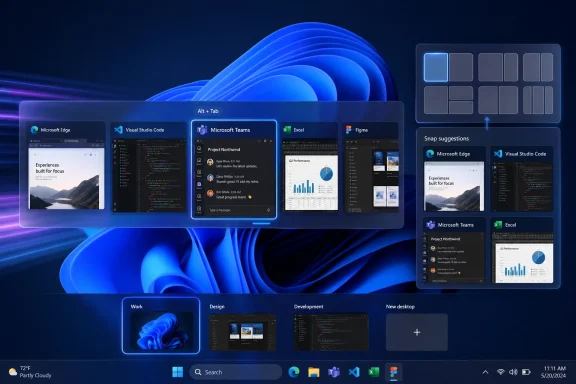
Thurrott’s attachment pages matter because the Windows 11 Field Guide exists for the part of the audience Microsoft often underserves: people who need the practical map, not the marketing tour. A screenshot of Alt+Tab is not just a picture of thumbnails. It is a picture of how Windows decides what counts as a task.
Alt+Tab Is No Longer Just Alt+Tab
Alt+Tab used to be conceptually clean. Hold Alt, tap Tab, cycle through open windows. Release, switch. That model is still there, but Windows 11 complicates it because the modern desktop is no longer made only of windows in the traditional sense.Browser tabs can behave like switchable work units. Snapped layouts can produce groups that act like persistent arrangements. Virtual desktops can isolate contexts, or blur them, depending on settings. A user might think they have five applications open, while Windows may decide there are a dozen switchable targets once tabs, groups, and desktops enter the picture.
Microsoft’s support material acknowledges this without turning it into a philosophical issue. It explains that Alt+Tab lets users switch between open applications in the current desktop and that settings can control whether certain recent tabs from apps such as Microsoft Edge appear alongside windows. That is the practical heart of the matter: Windows 11 treats the app boundary as configurable.
For some users, that is progress. A browser tab is often more important than the browser window containing it. If the work is a SharePoint document, a web CRM page, a project board, or a cloud-hosted admin portal, exposing that tab in Alt+Tab can make sense. It reduces the penalty of using the web as the application platform.
For others, it is noise masquerading as intelligence. The more Alt+Tab includes, the less it behaves like a fast switcher and the more it becomes a thumbnail search interface. This is especially punishing for users who rely on muscle memory: the third Alt+Tab target is no longer stable if recent tabs are entering and leaving the list based on browsing activity.
That tension explains why Alt+Tab settings are more important than they look. Microsoft can make the default friendly to web-centric users, but organizations and power users need the ability to restore a stricter interpretation: open windows only, not every transient surface that happens to contain work.
The problem is not that Microsoft added flexibility. The problem is that the Windows desktop now contains too many layers that can all claim to be “the thing you are switching to.” Alt+Tab remains the fastest route through that space, but only if users understand what Windows has been configured to show.
Snap Assist Is Microsoft’s Bet That Layout Should Be Suggested, Not Merely Allowed
Snap began as a simple gesture: drag a window to an edge and let Windows resize it. Windows 11 turns that into a more ambitious layout system. Snap layouts expose common arrangements, Snap Assist helps fill the remaining zones, and snapped groups can reappear through taskbar or switching experiences.Microsoft’s developer guidance for desktop apps frames Snap layouts as a Windows 11 feature designed to help users discover window snapping. That word—discover—is doing a lot of work. Traditional snapping was powerful but hidden behind gestures and shortcuts. Windows 11 makes it visible by surfacing layout choices when users interact with window controls or drag windows into snapping zones.
For new users, this is a genuine improvement. Manually arranging windows is one of those tasks that feels obvious only after years of using desktop operating systems. A visible layout picker turns a messy spatial problem into a menu: pick halves, thirds, quadrants, or another arrangement, and let Windows handle the geometry.
For experienced users, the same assistive layer can be either welcome or intrusive. If a person is deliberately building a dashboard of Outlook, Teams, a browser, and Excel, Snap Assist can save time. If that person is merely dragging a window upward to maximize it, a flyout that appears too eagerly can feel like Windows is stepping into the mouse path.
That is the recurring Windows 11 design tradeoff. Microsoft wants the operating system to teach. Power users want it to obey. The best Windows features do both, but multitasking features are uniquely fragile because they sit directly on top of physical motion: pointer travel, keyboard rhythm, focus changes, and monitor boundaries.
Windows Central has recently framed some Windows 11 assistive surfaces as examples of Microsoft adding features that can interrupt established workflows. Its critique of top-edge Snap behavior fits a broader complaint from experienced users: the affordance is useful when invoked intentionally and irritating when triggered accidentally. That is not a rejection of Snap Assist. It is a demand that assistance remain subordinate to intent.
Two Features, One Philosophy
Alt+Tab and Snap Assist look different because one is a switcher and the other is an arranger. Underneath, they are governed by the same question: how much should Windows infer?| Windows 11 multitasking surface | Primary job | Typical trigger | What Windows may add | Where friction appears |
|---|---|---|---|---|
| Alt+Tab | Switch between active work | Keyboard shortcut | App windows, eligible tabs, snapped groups depending on settings | The switcher can feel crowded or unpredictable |
| Snap Assist | Arrange visible work | Snapping a window or choosing a layout | Suggested windows to fill remaining space | The assistive UI can appear when users only meant to move or maximize |
| Task View | Review workspaces and open windows | Windows key plus Tab or taskbar entry | Desktops and broader window overview | Users may not understand why items appear across contexts |
That is powerful, but it is also a cognitive bargain. Users get fewer manual steps in exchange for accepting more interpretation by the shell. When the interpretation matches the user’s intent, Windows 11 feels modern. When it misses, it feels presumptuous.
The best version of this philosophy is Snap Assist after a deliberate snap. The user has already signaled, “I am arranging my workspace.” Showing thumbnails of other open windows to fill the remaining space is a logical next move. The worst version is any assistive surface that appears during a gesture whose meaning is ambiguous. If the user drags toward the top of the screen, are they arranging, maximizing, moving to another display, or trying to reach something behind the title bar? Windows has to guess, and wrong guesses are memorable.
Alt+Tab has the same problem in miniature. If a user opens several browser tabs, should Windows treat those tabs as independent destinations? For a web-first worker, yes. For someone who uses the browser as a container and relies on Alt+Tab only for app-level switching, no. The right answer depends on workflow, which is exactly why the setting matters.
The Field Guide Angle: Documentation for the Parts Microsoft Makes Too Casual
Paul Thurrott’s Windows writing has long occupied the space between official documentation and enthusiast complaint. Microsoft explains what features are supposed to do. Forums explain what broke or annoyed someone. A field guide explains how the system actually behaves when a normal person is trying to get work done.That distinction matters here because Windows 11 multitasking is discoverable in fragments. A user may learn Alt+Tab from decades of Windows use, Snap layouts from hovering over a maximize button, virtual desktops from a taskbar icon, and Edge tab integration only after wondering why Alt+Tab suddenly got crowded. Microsoft’s documentation covers the pieces, but users encounter the system as a pile of interactions.
The two Thurrott.com attachment pages are almost comically minimal as published source material: a title, a byline, a date, and site navigation. Yet their titles—“alt-tab” and “snap-assist-4”—signal the kinds of images that a practical guide needs. These are not glamour shots. They are explanatory screenshots for features that must be seen before they are understood.
That is one reason screenshots still matter in Windows coverage. A changelog can say “Snap Assist displays thumbnails,” but a screenshot tells users whether those thumbnails appear in the center, at the edge, over the app, or as part of a larger layout prompt. A settings article can say Alt+Tab includes certain recent tabs, but a screenshot conveys the resulting density and whether the switcher still feels navigable.
In a desktop operating system, visual hierarchy is behavior. Where Microsoft places a flyout determines whether it feels like a suggestion or an obstruction. How many items appear in Alt+Tab determines whether it feels like a switcher or a search problem. The interface is the policy.
Enterprise IT Should Care Because Multitasking Defaults Become Help-Desk Tickets
It is tempting for administrators to dismiss Alt+Tab and Snap Assist as personal preference features, beneath the level of serious endpoint management. That is a mistake. Anything that affects how users find windows, recover work, compare documents, or present screens becomes an operational issue at scale.Consider the common support complaint: “My windows are showing up twice,” “Edge tabs are appearing in Alt+Tab,” “Windows keeps showing a layout thing when I drag a window,” or “I lost the group of apps I was using.” These are not outages, but they consume time. They also shape user sentiment toward Windows 11 migrations, especially among employees moving from older Windows environments with simpler expectations.
The risk is higher in mixed-skill organizations. A power user may disable tab integration or tune Snap settings in under a minute. A less confident user may interpret the same behavior as a bug. A help desk may then waste time troubleshooting what is actually a design default.
There is also a training dimension. If an organization teaches users to use Snap layouts effectively, it can improve real workflows: comparing documents, working from a reference page while writing, monitoring Teams while editing, or keeping a line-of-business app visible beside a browser. But if the feature is never explained, users may only notice it when it gets in the way.
The practical enterprise position is therefore not “turn it all off” or “leave Microsoft’s defaults alone.” It is to decide which multitasking model the organization wants to normalize. A legal office with document comparison workflows may benefit from Snap training. A call center with fixed application layouts may prefer predictable, locked-down arrangements. A developer-heavy workplace may care more about keyboard switching and virtual desktops than visible layout prompts.
Windows 11’s multitasking stack is flexible enough to support all of those patterns. The missing piece is intentionality.
Action checklist for admins
- Review the Windows 11 multitasking settings that govern Snap windows, Snap Assist behavior, Alt+Tab, app tabs, and snapped groups before broad deployment.
- Decide whether users should see browser or app tabs in Alt+Tab, or whether switching should remain limited to open windows.
- Include Snap layouts and Snap Assist in Windows 11 onboarding so users understand the difference between arranging windows and switching tasks.
- Prepare help-desk language for common complaints about “extra” Alt+Tab entries, snapped groups, and layout prompts.
- Test multitasking defaults on the actual hardware profile users have, especially laptops connected to external monitors.
- For power-user groups, document the path to disable unwanted assistive surfaces rather than forcing a one-size-fits-all default.
Power Users Want Fewer Surprises, Not Fewer Features
The strongest criticism of Windows 11 multitasking is not that Microsoft added too much. It is that Microsoft sometimes confuses discoverability with interruption. A feature can be excellent when requested and maddening when ambient.Alt+Tab is the clearest example because it is so deeply tied to rhythm. People do not consciously inspect Alt+Tab every time they use it. They predict the next target, tap the shortcut the required number of times, and release. If Windows changes the contents of that list in ways the user does not understand, the shortcut stops being a reflex and becomes a review step.
Snap Assist is similar for mouse users. Dragging a window is often an unconscious act: move it out of the way, maximize it, compare it, throw it to another monitor. If every edge gesture risks invoking an overlay, the user begins to slow down near the places where speed used to live.
But the answer is not nostalgia for a less capable desktop. Windows 11 has genuinely better layout tools than older Windows releases, especially for users with large displays. Snap layouts are easier to explain than manual resizing. Snap Assist reduces the empty-space problem after the first window is placed. Task View and desktops can make context separation workable for users who previously lived in one chaotic workspace.
The power-user request is narrower: make the assistive layer predictable, configurable, and quiet when disabled. If a user turns off tab inclusion in Alt+Tab, the setting should be respected consistently. If a user disables a Snap prompt, Windows should not resurrect the same behavior under a different name or through a nearby feature. Trust is built by honoring refusal.
That principle applies beyond multitasking. Windows 11’s broader reputation has been shaped by moments when Microsoft’s priorities—account nudges, cloud prompts, search integration, AI surfaces, suggested content—appear ahead of user intent. Multitasking should be the exception. It should be the part of Windows where the user’s immediate action is sacred.
Microsoft’s Best Multitasking Ideas Came From Admitting the Desktop Got Too Big
The modern Windows desktop is a response to abundance. More pixels, more monitors, more browser tabs, more chat windows, more cloud documents, more notifications, more remote work, more everything. Alt+Tab alone cannot solve that. Neither can a bare desktop full of overlapping rectangles.Snap layouts are Microsoft’s admission that users need structure. Task View is an admission that users need context. Alt+Tab’s tab integration is an admission that web work is not secondary work. These are sensible conclusions, even when the implementation irritates some users.
The tension is that Windows remains a general-purpose operating system. Microsoft cannot design only for the single-window novice, the multi-monitor analyst, the keyboard-only developer, the accessibility user, the tablet user, and the corporate desktop administrator all at once without creating settings that sometimes feel like a treaty negotiation.
That is why the Windows 11 Field Guide framing is useful. It implies that the operating system is now something to be navigated, not merely used. You learn the terrain: where Microsoft placed the shortcuts, which prompts are helpful, which defaults should be changed, and which behaviors are actually connected even though they appear in different parts of the interface.
Alt+Tab and Snap Assist are good examples because they occupy opposite ends of user agency. Alt+Tab is explicit and rapid. Snap Assist is guided and visual. A mature Windows desktop needs both, but it also needs clear boundaries between them.
The Hidden Accessibility Story Is Control
There is another way to read Windows 11 multitasking: as an accessibility system for attention. Not accessibility in the narrow compliance sense, but in the everyday sense of making a complex workspace mentally manageable.A user with many open windows needs fast recovery. A user on a small laptop display needs efficient tiling. A user working across projects needs desktops or some other separation mechanism. A user who struggles with visual clutter may need fewer Alt+Tab entries, not more. A user who struggles with manual window placement may need Snap Assist more than any AI assistant Microsoft can put on the taskbar.
Microsoft’s support pages appropriately group features like Snap layouts, Task View, virtual desktops, and Alt+Tab under focus and multitasking. That framing is stronger than the usual productivity marketing because it acknowledges the real enemy: attention leakage. The cost of a bad windowing system is not just wasted seconds. It is repeatedly losing the thread.
This is where defaults become delicate. The same feature that reduces attention leakage for one person increases it for another. Including browser tabs in Alt+Tab can make a web app easier to find, or it can flood the switcher with indistinguishable pages. Showing Snap suggestions can help a user build a layout, or it can interrupt the motor pattern of someone who already knows where the window should go.
The most accessible design is not the most assistive design. It is the most controllable one. Windows 11 is at its best when it lets users choose how much the shell should infer, and at its worst when the system behaves as if every user wants the same level of guidance.
The Screenshots Are Small Because the Stakes Are Routine
The Thurrott.com items are not a breaking news event in the conventional sense. There is no emergency patch, no vulnerability identifier, no crashing update, no product cancellation. They are attachment pages for two pieces of a guide. And yet they point to a more durable Windows story than many louder announcements.Operating systems win or lose trust in the routine. The tenth time a user invokes Alt+Tab in a day matters more than the first time they open a new AI app. The hundredth time a window snaps cleanly to the right half of a monitor matters more than a Start menu animation. The desktop is judged by repetition.
This is why Microsoft’s multitasking work deserves both credit and scrutiny. The company has given Windows 11 users more sophisticated tools for arranging and recovering work. It has also made the shell more interpretive, which means users must sometimes learn why Windows is showing them a thing they did not explicitly ask for.
For journalists and guide writers, that creates a continuing job. The official documentation can describe the feature. The practical coverage has to explain the consequences: when to use it, when to disable it, why it appears, and how it interacts with everything else on the desktop.
What Windows Users Should Actually Change After Seeing This
The immediate lesson from the Alt+Tab and Snap Assist pairing is not that everyone should rush into Settings and disable half of Windows 11. It is that multitasking defaults should be treated as personal workflow choices, not immutable operating-system law.- If Alt+Tab feels crowded, check whether tabs or snapped groups are being included in the switcher.
- If Snap Assist feels helpful, learn the deliberate triggers rather than relying only on accidental edge gestures.
- If Snap prompts feel intrusive, tune the Snap windows settings instead of abandoning snapping entirely.
- If you use multiple desktops, verify whether switching behavior matches the desktop you think you are working in.
- If you support other users, teach the vocabulary: windows, tabs, snap layouts, snap groups, Task View, and desktops are related but not identical.
- If Windows 11 feels “busy,” start with multitasking settings before assuming the whole shell is the problem.
Microsoft’s challenge now is to keep improving these tools without turning the desktop into a concierge that interrupts the work it is supposed to support. The July 8, 2026 Thurrott.com attachment pages are tiny artifacts, but they orbit a large truth: Windows productivity is still won in the old places, in the switcher, at the window edge, and in the split second where the operating system either understands the user’s intent or gets in the way.
References
- Primary source: thurrott.com
Published: 2026-07-08T22:10:08.300242
alt-tab - Thurrott.com
 www.thurrott.com
- Official source: support.microsoft.com
How to Multitask in Windows - Microsoft Support
Learn how to multitask in Windows with this comprehensive guide. Discover the best tips and tricks for using Alt+Tab, Task View (Win+Tab), multiple desktops, and the Snap feature to enhance your productivity and efficiently manage multiple tasks and applications. Whether you're a...support.microsoft.com - Official source: learn.microsoft.com
Support snap layouts for desktop apps on Windows 11 - Windows apps | Microsoft Learn
Support the snap layouts menu in your desktop application.learn.microsoft.com - Official source: blogs.windows.com
Announcing Windows 11 Insider Preview Build 22563
Hello Windows Insiders, today we are releasing Windows 11 Insider Preview Build 22563 to the Dev Channel. TL;DR This build is available for ARM64 PCs. As a reminder, not every build weblogs.windows.com - Official source: microsoft.com
Organize Your Desktop with Snap Layouts | Microsoft Windows
Unlock the full potential of your desktop with Windows 11 snap layouts. Explore custom layouts, shortcuts, and productivity features.www.microsoft.com
- Related coverage: windowscentral.com
Forget PowerToys, Windows 11 needs this feature immediately | Windows Central
Microsoft is testing a new PowerToys utility called AltWindowCycle that brings same-app window switching to Windows.www.windowscentral.com