

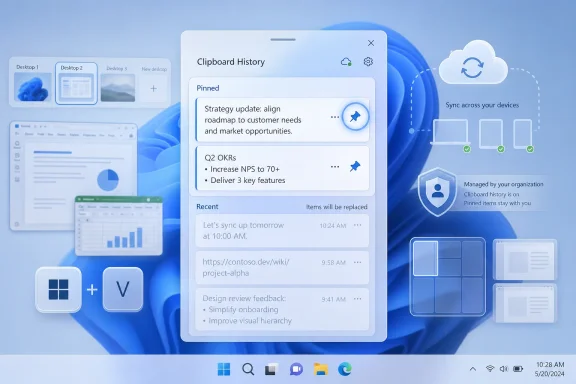
Paul Thurrott’s Jul. 08, 2026 Thurrott.com attachment page titled “cbh-pin” captures a small Windows 11 Clipboard history control—the pin button—that sits inside the broader Windows 11 Field Guide chapter on multitasking. The page itself is tiny, with a 0-share count and little surrounding prose, but the feature it illustrates is not tiny at all. Clipboard pinning is the difference between Windows 11’s clipboard history being a disposable convenience and becoming a lightweight, built-in snippets system. For IT pros, the real story is that this consumer-facing productivity trick also touches cloud sync, policy, retention, and data-handling assumptions that organizations often leave undefined.
The “cbh-pin” page is, on its face, just an attachment page: a screenshot in Paul Thurrott’s Windows 11 Field Guide orbit, published on Jul. 08, 2026, under the multitasking material. But the image lands in a chapter that treats Clipboard, Alt+Tab, Task view, Snap, Do not disturb, Focus, Task Manager, and Desktops as one family of features. That framing matters. Microsoft no longer treats multitasking as just window switching; it treats it as the operating system’s memory of what the user was doing.
Clipboard history is the most literal version of that idea. The old clipboard was a single-slot buffer, useful but forgetful. Copy something new, and the previous item was gone. Restart the PC, and the ordinary clipboard vanished. Windows 11’s Clipboard history changes that bargain by letting users call up a list of recent copied items with Windows key + V, paste from that list, pin useful entries, and optionally sync clipboard text across devices.
Thurrott’s multitasking chapter, per the source material, describes the Windows 11 Clipboard as more advanced than the old one because it can hold multiple items and sync text between multiple PCs. It also points out the basic constraint that explains why the pin icon exists: Clipboard history is useful precisely because it remembers more than one thing, but it is still intentionally bounded. Pinning is the escape hatch for the snippets, commands, boilerplate replies, support URLs, email fragments, and odd bits of text that users need again and again.
Microsoft’s own support material says the same thing in plainer support-language terms. Clipboard history can be turned on with Windows key + V; users can paste multiple items from history; they can pin items they use all the time; and they can sync clipboard history to the cloud. That turns the “cbh-pin” screenshot into a surprisingly good symbol for Windows 11 in 2026: the productivity feature is simple, but the implications are not.
That limitation is easy to mock if you live in third-party utilities all day. But it is also what makes the feature safe enough to ship to hundreds of millions of PCs as a default-adjacent workflow. A clipboard that remembers everything forever becomes a liability quickly. A clipboard that remembers a short working set, clears across restarts except for pinned items, and gives users a visible flyout is a different class of feature.
Thurrott’s treatment is useful because it puts Clipboard history where normal users will actually understand it: not in a privacy white paper or an API reference, but in multitasking. Users do not think, “I need a clipboard persistence layer.” They think, “I just copied three things and need the first one again.” Windows key + V answers that need. The pin icon answers the next one: “I need this one to survive the churn.”
The important distinction is that pinning does not turn Clipboard history into a records-management system. It does not make it a notes app. It does not give administrators a durable audit trail. It simply tells Windows not to evict that item in the normal way and not to clear it with the rest of the temporary clipboard history on reboot. That is useful, but it is also exactly why users and admins need to be taught what not to pin.
That exception is where the feature changes character. Temporary clipboard history is a short-term productivity aid. Pinned clipboard history is stored user intent. If an employee pins a canned support response, a frequently used PowerShell command, a product key placeholder, or a standard meeting note, the feature is doing exactly what it should. If the same employee pins a password, access token, customer record, recovery key, or sensitive medical or financial fragment, the feature becomes a quiet retention problem.
This is not a reason to panic. It is a reason to stop pretending copy and paste is harmless. The clipboard has always been a high-value transit point for sensitive data; password managers, remote desktops, browsers, terminal sessions, and support tools all touch it. What Windows 11 adds is a friendly user interface for keeping some of that material around.
The trade-off is visible in Microsoft’s own design. The system gives users “Clear all,” but clearing clipboard data preserves pinned items. The behavior is intentional: pinned entries are the ones users explicitly said they want to keep. That is convenient when the entry is a support macro. It is dangerous when the entry is a credential.
The 4 MB item limit is equally important. Microsoft says Clipboard history supports text, HTML, and bitmap formats, with a 4 MB per-item size limit. Thurrott’s chapter says Windows 11’s Clipboard history stores text, HTML, and bitmap graphics, though the source material’s stated per-item size differs from Microsoft’s current support page. Where those differ, Microsoft’s current support page should be treated as the operational baseline for support and administration.
That kind of discrepancy is a reminder that Windows behavior is documented in layers. A field guide captures how the system works for users at a moment in time. Microsoft Support captures the vendor’s current consumer-facing documentation. Microsoft Learn captures policies, APIs, and administrative controls. IT pros should read all three differently: Thurrott is excellent for user workflow, Microsoft Support for official behavior, and Microsoft Learn for enforceable management surfaces.
The practical takeaway is simple: do not build business processes around Clipboard history retaining more than it promises. If a help desk script tells users to copy five values and paste them in sequence, Clipboard history can help. If a compliance process assumes an item will remain available days later, use a proper ticketing system, password manager, secure note, or documentation platform instead.
For consumers, this is a nice continuity feature. Copy text on one PC, paste on another. For users who bounce between a desktop, laptop, and travel machine, it removes friction. For organizations, it raises the old question in a new place: when does a productivity feature become data movement?
The answer depends on the environment. In a lightly managed small business, allowing Clipboard history but disabling cross-device sync may be the right compromise. In a heavily regulated environment, even local clipboard history may be too much if users routinely handle sensitive records. In a developer shop, the bigger risk may be API keys, SSH snippets, tokens, and copied environment variables. In a support organization, it may be customer identifiers and one-time reset links.
This is where the “pin” icon again becomes a policy conversation. Users pin things because it saves time. Security teams restrict things because saved time can become saved secrets. The right answer is not necessarily to disable everything. The right answer is to decide deliberately whether Clipboard history and cross-device sync fit the organization’s data classification model.
Microsoft gives admins policy handles for that decision. Microsoft Learn documents an AllowClipboardHistory policy under the Experience Policy CSP, with a default allowed value and an immediate effect when changed. It also documents AllowCrossDeviceClipboard under Privacy Policy CSP, governing whether clipboard contents can synchronize across devices signed in with the same Microsoft account or Microsoft Entra account. Those are not obscure registry curiosities; they are the management boundary between a user convenience and an enterprise data path.
That matters because not every clipboard risk can be solved by telling users to behave better. If a password manager, admin tool, remote-access client, or line-of-business app copies sensitive material to the clipboard, it should consider whether that data belongs in the Windows clipboard history at all. Windows provides a way for applications to say, in effect: this item may be pasteable, but it should not be retained or uploaded.
The ecosystem is uneven here. Some apps are careful about clipboard hygiene. Others assume the clipboard is still the old single-slot buffer. Windows 11’s history and sync features make that assumption obsolete. If software handles secrets and still copies them to the clipboard without considering history and cloud sync, the app is offloading risk to users and admins.
This is a particularly sharp issue for internal enterprise tools. Many organizations build quick utilities for support desks, finance teams, operations staff, or developers. Those tools often include copy buttons for convenience. If the copied value is sensitive, the developer should not assume that “copy” means “temporary.” In modern Windows, copy may mean visible in history, available after reboot if pinned, and potentially synced depending on policy and user settings.
The best version of Clipboard history is a collaboration between Microsoft, admins, developers, and users. Microsoft supplies the feature and controls. Admins decide the allowed shape of use. Developers mark sensitive clipboard content appropriately. Users pin the boring things, not the dangerous ones.
Snap groups restore an arrangement of windows. Desktops separate projects. Task view gives a persistent overview. Alt+Tab jumps through recent work. Focus suppresses interruptions. Task Manager rescues the system when a process misbehaves. Clipboard history restores copied fragments that would otherwise be lost. Each feature is a different answer to the same problem: the user’s working state is fragile.
Windows 11’s productivity story is strongest when these features are used together. A user can keep a research desktop separate from a meeting desktop, snap a browser and notes app side by side, use Clipboard history to paste repeated references, and start a focus session to quiet notifications. None of those features is revolutionary in isolation. Together, they reduce the number of times a user has to rebuild context from scratch.
That is why the pin icon deserves more attention than it gets. It lets the clipboard participate in the same persistence model as the rest of Windows multitasking. The desktop remembers groups. Task view remembers windows. Clipboard history remembers copied items. Pinning says: remember this one more deliberately.
The danger is that Windows 11 often blurs the line between convenience and persistence. Users may not recognize when a transient action becomes saved state. Admins may not inventory these features because they do not look like storage systems. But from a data-governance standpoint, any feature that retains content, syncs content, or survives reboot deserves a place in the policy discussion.
For IT departments, the advice is more structured. Clipboard history is one of those features that can be invisible until there is an incident. It does not announce itself like a new app. It does not require a user to install a browser extension. It is built into Windows, discoverable through a keyboard shortcut, and documented by Microsoft as a supported feature on Windows 11 and Windows 10.
That means the feature belongs in endpoint baselines. Not necessarily disabled everywhere, but considered everywhere. Is Clipboard history allowed on shared kiosks? Is cross-device sync allowed on Entra-joined laptops? Are developers allowed to sync clipboard text from production admin sessions to personal or unmanaged devices? Are support agents trained not to pin customer data? Do internal apps mark copied secrets so they are not included in clipboard history or cloud sync?
The answer in many organizations is probably “we have not thought about it.” That was more defensible when the clipboard was a single volatile slot. It is less defensible when Windows provides history, pinning, sync, and policy controls.
That is not a defect so much as a mismatch between mental models. Windows key + V is a recent-history panel, not an archive. Pinning is a convenience layer, not a database. Sync is text-oriented continuity, not a universal cross-device object pipeline. Once users understand that, the feature becomes easier to trust and easier to use well.
The 25-entry limit is especially clarifying. It nudges users toward keeping Clipboard history as a short working buffer. If an item matters beyond that buffer, pin it—or better, put it in the proper system of record. That might be OneNote, a password manager, a secure vault, a code repository, a ticket, a CRM, or a knowledge base. Clipboard history is for movement, not stewardship.
The same goes for clearing. Microsoft’s support material says users can clear clipboard history from Settings or from the Windows key + V flyout, but pinned items are excluded. That is exactly what users want when they pinned a harmless snippet. It is exactly what they do not want if they pinned something sensitive without thinking. The user interface cannot solve that judgment problem on its own.
As fleets move forward, small features scale. A single user pinning a snippet is not news. Thousands of users pinning snippets, syncing clipboard text, and carrying copied material across devices is an operational pattern. The difference between “feature” and “risk” is no longer technical novelty; it is fleet size.
This is also where Thurrott’s Field Guide format has value. Vendor documentation explains what settings exist. A field guide explains how users actually touch them. IT teams need both views. A policy that disables a feature without understanding why users like it will be routed around. A productivity guide that ignores policy will miss the places where convenience becomes exposure.
The sensible middle ground is to standardize a few recommended patterns. Enable Clipboard history for general productivity devices if the organization’s data profile permits it. Disable cross-device sync where data boundaries matter. Prohibit pinning secrets in training material. Configure stricter policies for shared, regulated, privileged, or production-access machines. For developers and admins, prefer secret managers and secure shells over clipboard-driven workflows.
What it does replace is the need for casual users to install a clipboard manager just to paste the second-to-last thing they copied. That is a meaningful security improvement in its own right. Every unnecessary utility is another update channel, another privacy policy, another potential data collector, and another place sensitive clipboard contents may go. A limited built-in feature can be safer than an overpowered third-party one installed casually.
But the built-in feature’s safety depends on its limits and management. If users need long-term snippet storage, they should use a tool designed for that purpose and approved by the organization. If they need secure secret handling, they should use a password manager or vault, not Clipboard history. If they need cross-device productivity, admins should decide whether Microsoft’s account-tied sync model fits their environment.
The pin icon therefore sits in an awkward but useful middle. It is enough for frequently reused low-risk material. It is not enough for serious knowledge management. It is too persistent for secrets. That middle position is exactly why it needs to be understood rather than ignored.
The “cbh-pin” page may have arrived with a 0-share count, but the workflow it illustrates is one every Windows 11 user should know and every Windows admin should account for. The future of Windows productivity will not be defined only by Copilot panels, new hardware, or annual feature releases; it will also be defined by whether Microsoft and IT departments can make small persistent conveniences like Clipboard pinning powerful without making them careless.
 A Tiny Pin Icon Exposes a Larger Windows 11 Design Philosophy
The “cbh-pin” page is, on its face, just an attachment page: a screenshot in Paul Thurrott’s Windows 11 Field Guide orbit, published on Jul. 08, 2026, under the multitasking material. But the image lands in a chapter that treats Clipboard, Alt+Tab, Task view, Snap, Do not disturb, Focus, Task Manager, and Desktops as one family of features. That framing matters. Microsoft no longer treats multitasking as just window switching; it treats it as the operating system’s memory of what the user was doing.Clipboard history is the most literal version of that idea. The old clipboard was a single-slot buffer, useful but forgetful. Copy something new, and the previous item was gone. Restart the PC, and the ordinary clipboard vanished. Windows 11’s Clipboard history changes that bargain by letting users call up a list of recent copied items with Windows key + V, paste from that list, pin useful entries, and optionally sync clipboard text across devices.
Thurrott’s multitasking chapter, per the source material, describes the Windows 11 Clipboard as more advanced than the old one because it can hold multiple items and sync text between multiple PCs. It also points out the basic constraint that explains why the pin icon exists: Clipboard history is useful precisely because it remembers more than one thing, but it is still intentionally bounded. Pinning is the escape hatch for the snippets, commands, boilerplate replies, support URLs, email fragments, and odd bits of text that users need again and again.
Microsoft’s own support material says the same thing in plainer support-language terms. Clipboard history can be turned on with Windows key + V; users can paste multiple items from history; they can pin items they use all the time; and they can sync clipboard history to the cloud. That turns the “cbh-pin” screenshot into a surprisingly good symbol for Windows 11 in 2026: the productivity feature is simple, but the implications are not.
Clipboard History Is Not a Clipboard Manager, and That Is the Point
A full clipboard manager is usually a power-user tool. It may store hundreds or thousands of entries, search them, tag them, encrypt them, filter them by application, or preserve them indefinitely. Windows 11’s built-in Clipboard history is deliberately narrower. Microsoft documents a 25-entry history limit, a 4 MB per-item limit, and support for text, HTML, and bitmap formats. Older unpinned items are removed automatically as new entries arrive.That limitation is easy to mock if you live in third-party utilities all day. But it is also what makes the feature safe enough to ship to hundreds of millions of PCs as a default-adjacent workflow. A clipboard that remembers everything forever becomes a liability quickly. A clipboard that remembers a short working set, clears across restarts except for pinned items, and gives users a visible flyout is a different class of feature.
Thurrott’s treatment is useful because it puts Clipboard history where normal users will actually understand it: not in a privacy white paper or an API reference, but in multitasking. Users do not think, “I need a clipboard persistence layer.” They think, “I just copied three things and need the first one again.” Windows key + V answers that need. The pin icon answers the next one: “I need this one to survive the churn.”
The important distinction is that pinning does not turn Clipboard history into a records-management system. It does not make it a notes app. It does not give administrators a durable audit trail. It simply tells Windows not to evict that item in the normal way and not to clear it with the rest of the temporary clipboard history on reboot. That is useful, but it is also exactly why users and admins need to be taught what not to pin.
The Pin Button Is Persistence Disguised as Convenience
The screenshot title, “cbh-pin,” is shorthand for the action that matters: open Clipboard history, find an entry, and pin it. Thurrott’s chapter describes pinning as a way to keep an item in Clipboard history so it will not be overwritten and will survive reboots. Microsoft’s support page reinforces the same behavior when it says clipboard history is cleared each time the PC restarts except for pinned items.That exception is where the feature changes character. Temporary clipboard history is a short-term productivity aid. Pinned clipboard history is stored user intent. If an employee pins a canned support response, a frequently used PowerShell command, a product key placeholder, or a standard meeting note, the feature is doing exactly what it should. If the same employee pins a password, access token, customer record, recovery key, or sensitive medical or financial fragment, the feature becomes a quiet retention problem.
This is not a reason to panic. It is a reason to stop pretending copy and paste is harmless. The clipboard has always been a high-value transit point for sensitive data; password managers, remote desktops, browsers, terminal sessions, and support tools all touch it. What Windows 11 adds is a friendly user interface for keeping some of that material around.
The trade-off is visible in Microsoft’s own design. The system gives users “Clear all,” but clearing clipboard data preserves pinned items. The behavior is intentional: pinned entries are the ones users explicitly said they want to keep. That is convenient when the entry is a support macro. It is dangerous when the entry is a credential.
| Clipboard behavior | How users access it | What it stores | Persistence model | Admin concern |
|---|---|---|---|---|
| Standard clipboard | Ctrl+C / Ctrl+V | Most recent copied item | Volatile working memory | Low visibility, still sensitive in transit |
| Clipboard history | Windows key + V | Recent supported copied entries | Limited history; older unpinned items are evicted | User may not realize copied data is retained briefly |
| Pinned Clipboard history | Pin icon in Windows key + V flyout | User-selected history entries | Survives normal clearing and reboot behavior described by Microsoft and Thurrott | Sensitive data can become semi-persistent |
| Cross-device Clipboard sync | Settings > System > Clipboard | Supported clipboard text for signed-in devices | Cloud-mediated sync tied to Microsoft or work account | Data may move beyond the original device boundary |
Microsoft’s Limits Are Product Design, Not Fine Print
The 25-entry cap is not just a trivia item. It defines the kind of tool Clipboard history is supposed to be. Microsoft’s support page says older items are removed automatically to make room for new clipboard items unless they are pinned. Thurrott’s guide, meanwhile, frames the feature as a way to overcome the classic one-item clipboard limitation without turning Windows into a clipboard database.The 4 MB item limit is equally important. Microsoft says Clipboard history supports text, HTML, and bitmap formats, with a 4 MB per-item size limit. Thurrott’s chapter says Windows 11’s Clipboard history stores text, HTML, and bitmap graphics, though the source material’s stated per-item size differs from Microsoft’s current support page. Where those differ, Microsoft’s current support page should be treated as the operational baseline for support and administration.
That kind of discrepancy is a reminder that Windows behavior is documented in layers. A field guide captures how the system works for users at a moment in time. Microsoft Support captures the vendor’s current consumer-facing documentation. Microsoft Learn captures policies, APIs, and administrative controls. IT pros should read all three differently: Thurrott is excellent for user workflow, Microsoft Support for official behavior, and Microsoft Learn for enforceable management surfaces.
The practical takeaway is simple: do not build business processes around Clipboard history retaining more than it promises. If a help desk script tells users to copy five values and paste them in sequence, Clipboard history can help. If a compliance process assumes an item will remain available days later, use a proper ticketing system, password manager, secure note, or documentation platform instead.
Cloud Sync Makes Clipboard History a Boundary Problem
Clipboard history becomes more interesting—and more fraught—when sync is enabled. Microsoft’s support page says clipboard sync is tied to the user’s Microsoft account or work account, and users need to use the same login information on their devices. It also describes automatic and manual sync behavior for copied text. Thurrott’s chapter similarly notes that cross-device Clipboard sync requires signing in to Windows 11 with a Microsoft account.For consumers, this is a nice continuity feature. Copy text on one PC, paste on another. For users who bounce between a desktop, laptop, and travel machine, it removes friction. For organizations, it raises the old question in a new place: when does a productivity feature become data movement?
The answer depends on the environment. In a lightly managed small business, allowing Clipboard history but disabling cross-device sync may be the right compromise. In a heavily regulated environment, even local clipboard history may be too much if users routinely handle sensitive records. In a developer shop, the bigger risk may be API keys, SSH snippets, tokens, and copied environment variables. In a support organization, it may be customer identifiers and one-time reset links.
This is where the “pin” icon again becomes a policy conversation. Users pin things because it saves time. Security teams restrict things because saved time can become saved secrets. The right answer is not necessarily to disable everything. The right answer is to decide deliberately whether Clipboard history and cross-device sync fit the organization’s data classification model.
Microsoft gives admins policy handles for that decision. Microsoft Learn documents an AllowClipboardHistory policy under the Experience Policy CSP, with a default allowed value and an immediate effect when changed. It also documents AllowCrossDeviceClipboard under Privacy Policy CSP, governing whether clipboard contents can synchronize across devices signed in with the same Microsoft account or Microsoft Entra account. Those are not obscure registry curiosities; they are the management boundary between a user convenience and an enterprise data path.
Developers Have a Role in Keeping Secrets Out of Clipboard History
One of the more overlooked parts of Microsoft’s documentation is not aimed at end users at all. Microsoft Learn’s clipboard formats documentation describes registered clipboard formats that applications can use to prevent clipboard content from being included in Clipboard history or synchronized through Cloud Clipboard. That includes mechanisms with names such as ExcludeClipboardContentFromMonitorProcessing, CanIncludeInClipboardHistory, and CanUploadToCloudClipboard.That matters because not every clipboard risk can be solved by telling users to behave better. If a password manager, admin tool, remote-access client, or line-of-business app copies sensitive material to the clipboard, it should consider whether that data belongs in the Windows clipboard history at all. Windows provides a way for applications to say, in effect: this item may be pasteable, but it should not be retained or uploaded.
The ecosystem is uneven here. Some apps are careful about clipboard hygiene. Others assume the clipboard is still the old single-slot buffer. Windows 11’s history and sync features make that assumption obsolete. If software handles secrets and still copies them to the clipboard without considering history and cloud sync, the app is offloading risk to users and admins.
This is a particularly sharp issue for internal enterprise tools. Many organizations build quick utilities for support desks, finance teams, operations staff, or developers. Those tools often include copy buttons for convenience. If the copied value is sensitive, the developer should not assume that “copy” means “temporary.” In modern Windows, copy may mean visible in history, available after reboot if pinned, and potentially synced depending on policy and user settings.
The best version of Clipboard history is a collaboration between Microsoft, admins, developers, and users. Microsoft supplies the feature and controls. Admins decide the allowed shape of use. Developers mark sensitive clipboard content appropriately. Users pin the boring things, not the dangerous ones.
Clipboard Pinning Belongs in the Same Conversation as Snap and Task View
The most interesting editorial choice in Thurrott’s chapter is that Clipboard sits alongside Snap, Alt+Tab, Task view, Focus, Task Manager, and Desktops. That may sound obvious because the chapter is called “Multitasking,” but it is a broader definition than many users have. Multitasking is not only about how windows are arranged; it is about how quickly context can be reconstructed.Snap groups restore an arrangement of windows. Desktops separate projects. Task view gives a persistent overview. Alt+Tab jumps through recent work. Focus suppresses interruptions. Task Manager rescues the system when a process misbehaves. Clipboard history restores copied fragments that would otherwise be lost. Each feature is a different answer to the same problem: the user’s working state is fragile.
Windows 11’s productivity story is strongest when these features are used together. A user can keep a research desktop separate from a meeting desktop, snap a browser and notes app side by side, use Clipboard history to paste repeated references, and start a focus session to quiet notifications. None of those features is revolutionary in isolation. Together, they reduce the number of times a user has to rebuild context from scratch.
That is why the pin icon deserves more attention than it gets. It lets the clipboard participate in the same persistence model as the rest of Windows multitasking. The desktop remembers groups. Task view remembers windows. Clipboard history remembers copied items. Pinning says: remember this one more deliberately.
The danger is that Windows 11 often blurs the line between convenience and persistence. Users may not recognize when a transient action becomes saved state. Admins may not inventory these features because they do not look like storage systems. But from a data-governance standpoint, any feature that retains content, syncs content, or survives reboot deserves a place in the policy discussion.
The Consumer Feature IT Departments Cannot Ignore
For home users, the advice is simple: turn on Clipboard history if you copy and paste frequently, use Windows key + V, and pin the handful of harmless items you reuse. A shipping address, email template, troubleshooting phrase, code snippet, or personal checklist item can make sense. A password, recovery code, private key, tax identifier, medical detail, or customer record does not.For IT departments, the advice is more structured. Clipboard history is one of those features that can be invisible until there is an incident. It does not announce itself like a new app. It does not require a user to install a browser extension. It is built into Windows, discoverable through a keyboard shortcut, and documented by Microsoft as a supported feature on Windows 11 and Windows 10.
That means the feature belongs in endpoint baselines. Not necessarily disabled everywhere, but considered everywhere. Is Clipboard history allowed on shared kiosks? Is cross-device sync allowed on Entra-joined laptops? Are developers allowed to sync clipboard text from production admin sessions to personal or unmanaged devices? Are support agents trained not to pin customer data? Do internal apps mark copied secrets so they are not included in clipboard history or cloud sync?
The answer in many organizations is probably “we have not thought about it.” That was more defensible when the clipboard was a single volatile slot. It is less defensible when Windows provides history, pinning, sync, and policy controls.
Action checklist for admins
- Decide whether Clipboard history is allowed, restricted, or disabled for each device class rather than leaving it to user discovery.
- Use Microsoft’s AllowClipboardHistory policy where local Clipboard history is inappropriate for managed endpoints.
- Use Microsoft’s AllowCrossDeviceClipboard policy where clipboard sync conflicts with data-loss-prevention or device-boundary requirements.
- Update user guidance so employees understand that pinned clipboard items can persist and should not contain secrets or regulated data.
- Review password managers, admin consoles, internal tools, and support utilities that copy sensitive values to the clipboard.
- Ask developers of sensitive apps to use Microsoft’s documented clipboard formats to exclude secret material from history and cloud sync where appropriate.
The Limits Users Will Hit First
Most users will not first encounter Clipboard history as a security issue. They will encounter it as a limitation. They will copy something, expect to find it later, and discover it has been evicted. They will restart and find ordinary history gone. They will try to copy a file and wonder why it does not appear the way text does. They will expect the feature to behave like a full clipboard manager and learn that it does not.That is not a defect so much as a mismatch between mental models. Windows key + V is a recent-history panel, not an archive. Pinning is a convenience layer, not a database. Sync is text-oriented continuity, not a universal cross-device object pipeline. Once users understand that, the feature becomes easier to trust and easier to use well.
The 25-entry limit is especially clarifying. It nudges users toward keeping Clipboard history as a short working buffer. If an item matters beyond that buffer, pin it—or better, put it in the proper system of record. That might be OneNote, a password manager, a secure vault, a code repository, a ticket, a CRM, or a knowledge base. Clipboard history is for movement, not stewardship.
The same goes for clearing. Microsoft’s support material says users can clear clipboard history from Settings or from the Windows key + V flyout, but pinned items are excluded. That is exactly what users want when they pinned a harmless snippet. It is exactly what they do not want if they pinned something sensitive without thinking. The user interface cannot solve that judgment problem on its own.
Why This Matters More After Windows 10 Support Ended
Microsoft’s support page for the clipboard also carries a reminder that support for Windows 10 ended on October 14, 2025, and that Microsoft recommends moving to Windows 11. That note is not specific to the pin icon, but it changes the audience. More organizations are standardizing on Windows 11, which means Windows 11’s built-in behaviors are becoming the default employee experience rather than a pilot curiosity.As fleets move forward, small features scale. A single user pinning a snippet is not news. Thousands of users pinning snippets, syncing clipboard text, and carrying copied material across devices is an operational pattern. The difference between “feature” and “risk” is no longer technical novelty; it is fleet size.
This is also where Thurrott’s Field Guide format has value. Vendor documentation explains what settings exist. A field guide explains how users actually touch them. IT teams need both views. A policy that disables a feature without understanding why users like it will be routed around. A productivity guide that ignores policy will miss the places where convenience becomes exposure.
The sensible middle ground is to standardize a few recommended patterns. Enable Clipboard history for general productivity devices if the organization’s data profile permits it. Disable cross-device sync where data boundaries matter. Prohibit pinning secrets in training material. Configure stricter policies for shared, regulated, privileged, or production-access machines. For developers and admins, prefer secret managers and secure shells over clipboard-driven workflows.
The Quiet Competition With Third-Party Clipboard Tools
Windows 11’s Clipboard history also competes with a long tail of third-party clipboard managers. Those tools still have a place. Writers, developers, researchers, and support agents may need search, categorization, rich persistence, templates, hotkeys, transformations, or encryption. Microsoft’s built-in feature is not trying to replace all of that.What it does replace is the need for casual users to install a clipboard manager just to paste the second-to-last thing they copied. That is a meaningful security improvement in its own right. Every unnecessary utility is another update channel, another privacy policy, another potential data collector, and another place sensitive clipboard contents may go. A limited built-in feature can be safer than an overpowered third-party one installed casually.
But the built-in feature’s safety depends on its limits and management. If users need long-term snippet storage, they should use a tool designed for that purpose and approved by the organization. If they need secure secret handling, they should use a password manager or vault, not Clipboard history. If they need cross-device productivity, admins should decide whether Microsoft’s account-tied sync model fits their environment.
The pin icon therefore sits in an awkward but useful middle. It is enough for frequently reused low-risk material. It is not enough for serious knowledge management. It is too persistent for secrets. That middle position is exactly why it needs to be understood rather than ignored.
What the Pin Icon Really Changes
The practical meaning of Thurrott’s “cbh-pin” attachment is not that Windows 11 has a new headline feature. It is that a mature Windows 11 workflow depends on dozens of small affordances like this one, and some of them quietly alter the system’s data behavior.- Windows key + V turns the clipboard from a single-slot buffer into a short recent-history panel.
- The pin icon turns selected clipboard entries into persistent working material rather than disposable history.
- Microsoft documents clear limits: 25 copied entries, supported formats, and a 4 MB per-item ceiling.
- Clipboard history and cross-device sync are manageable through Microsoft policy surfaces, so admins do not have to treat them as purely personal settings.
- Developers handling sensitive data should prevent copied secrets from entering history or cloud sync where appropriate.
- Users should pin reusable, low-risk snippets—not passwords, keys, customer records, or regulated data.
The “cbh-pin” page may have arrived with a 0-share count, but the workflow it illustrates is one every Windows 11 user should know and every Windows admin should account for. The future of Windows productivity will not be defined only by Copilot panels, new hardware, or annual feature releases; it will also be defined by whether Microsoft and IT departments can make small persistent conveniences like Clipboard pinning powerful without making them careless.
References
- Primary source: thurrott.com
Published: 2026-07-08T22:10:08.299945
Loading…
www.thurrott.com - Official source: support.microsoft.com
Make it easier to focus on tasks | Microsoft Support
Use Windows accessibility features, such as Focus assist, to help improve focus on tasks and minimize distractions.support.microsoft.com - Official source: microsoft.com
Organize Your Desktop with Snap Layouts | Microsoft Windows
Unlock the full potential of your desktop with Windows 11 snap layouts. Explore custom layouts, shortcuts, and productivity features.www.microsoft.com
- Related coverage: computerworld.com
Loading…
www.computerworld.com - Related coverage: guidingtech.com
Loading…
www.guidingtech.com - Related coverage: techradar.com
How to use Snap Layouts in Windows 11 to better manage your apps at once | TechRadar
The revamped Snap Layouts bring great improvementswww.techradar.com
- Related coverage: customguide.com
- Related coverage: admin.nordenson.com
Loading…
admin.nordenson.com - Related coverage: windowscentral.com
How to use Clipboard history on Windows 11 | Windows Central
On Windows 11, you can use the Clipboard history to enhance your copy and paste experience, and in this guide, I will explain how to enable, configure, and get started with the feature.www.windowscentral.com - Official source: answers.microsoft.com
Clipboard History does not record or missing items - Microsoft Q&A
Windows 10, version 22H2 Some problems I've experienced with Clipboard History. Any help will be appreciated. I will copy something (CTRL + C) and paste it (CTRL + V). When I look at the Clipboard History (Windows key + V) I get the message…answers.microsoft.com - Related coverage: pcworld.com
Loading…
www.pcworld.com - Related coverage: windowsforum.com
Loading…
windowsforum.com - Related coverage: msft.chat
Loading…
msft.chat