

Windows 11 volume problems are usually fixed fastest in this order: press Windows key + Ctrl + V to open the sound output page in Quick Settings, confirm the correct output device, and raise the volume. If that does not solve it, use the full path: Start > Settings > System > Sound > Output, select the intended device, raise its Volume slider, and confirm it is not muted. Then check Start > Settings > System > Sound > Volume mixer for per-app volume, hardware mute or volume buttons, microphone Input settings, Communications behavior, Audio enhancements, and only then drivers.
The practical takeaway from TechnoBezz’s “How to Change Volume Settings on Windows” is simple: “volume” on a current Windows PC can mean several different controls. The sound may be globally muted, sent to the wrong output device, lowered for one app, reduced by hardware controls, affected during calls, changed by enhancements, or broken at the driver layer. Treat those as separate checkpoints instead of treating every complaint as one slider problem.
Use this sequence before escalating to driver work. It keeps the simplest, least disruptive checks first.
But the taskbar slider is only one layer. A current Windows setup can have more than one output device, more than one input device, per-app volume controls, app-level mute buttons, device-level controls, call behavior, enhancements, and drivers. Any one of those layers can make audio appear broken.
The useful troubleshooting question is: which part of the audio path is wrong?
If every app is quiet, start with the selected output device and the main volume. If only one app is quiet, use Volume mixer. If other people cannot hear you, check Input instead of Output. If audio drops when a call starts, check Communications. If sound is distorted after the right device is selected, test Audio enhancements. If the visible controls all check out, move to Device Manager and driver updates.
If you want the full Settings route, go to Start > Settings > System > Sound > Output. Select the device you want, raise its Volume slider, and confirm it is not muted.
Then test audio before making more changes.
Use Start > Settings > System > Sound > Volume mixer. Raise the System slider, raise the slider for the affected app, and make sure neither is muted.
This distinction prevents wasted effort. A single app can be muted or lowered even when Windows system volume is fine. In that case, switching output devices or updating drivers may not help because the problem is isolated to the app’s mixer level.
For support teams, the triage question is simple: does the problem affect every sound, or only one app?
Check physical controls after confirming Windows output and mixer settings:
If other people cannot hear you clearly, go to Start > Settings > System > Sound. Under Input, select the microphone you want to use. Under Input settings, select Start test, speak normally, select Stop test, select Play, and then adjust the Input volume slider.
Use this decision point:
Go to Start > Settings > System > Sound > More sound settings > Communications. If you do not want Windows to lower other audio during communications activity, choose Do nothing and select Apply.
Use this only when the symptom fits:
For gaming and recording workflows, press Windows logo key + G, select the Audio widget, and use Mix to choose output speakers and adjust speaker, app, or game volume sliders. This keeps the audio control near the activity rather than forcing the user to leave the current context.
For Microsoft Edge, Ctrl + M mutes the current tab, and pressing Ctrl + M again unmutes it. This matters because a muted browser tab can look like a Windows audio failure. Before changing system settings, check whether the tab itself is muted.
Use these controls as targeted checks:
Go to Start > Settings > System > Sound. Under Output, select the audio device. Select Audio enhancements, turn enhancements off, and test the sound again.
Use this as a reversible diagnostic step:
Use it after the basic controls have been checked:
If the issue continues, use the PC or audio device manufacturer’s official support website for the appropriate driver. That is safer than relying on random driver downloads, because audio behavior can depend on the exact hardware and vendor software involved.
Driver work is appropriate when the device still behaves incorrectly after the visible settings are correct. It is also a reasonable escalation when the device is inconsistent, disappears, or produces distorted output after simpler checks fail.
The mistake is treating drivers as the first answer. If the wrong output device is selected, a driver update does not solve the routing problem. If one app is muted, Device Manager does not solve the mixer problem. If a hardware mute is active, reinstalling software does not raise the device volume.
This order moves from visible state to deeper repair. It avoids driver changes when the problem is a muted app, wrong output device, or hardware control.
The taskbar speaker slider answers the main level question: is the PC muted or too low? It is broad, visible, and fast.
Volume mixer narrows the problem to an app. If one app is quiet while the rest of the system is normal, the mixer is more relevant than Device Manager.
Hardware controls catch a separate layer. A keyboard or connected audio device can still hold volume down even when Windows settings look correct.
Input settings keep microphone problems separate from speaker problems. If the complaint is “people cannot hear me,” output volume is the wrong control.
Communications settings explain audio that changes when calls begin. If the symptom appears only during calls, test that setting before reinstalling anything.
Audio enhancements are a reversible way to test processing. They are worth checking when sound quality is wrong after the correct device is selected.
Device Manager is for escalation. It has a real role, but it should come after the visible controls because it is more disruptive and often unnecessary.
That order solves the most common state problems before moving into deeper repair. It also gives users and support teams a shared script: identify whether the issue is output routing, global volume, one app, hardware control, microphone input, call behavior, sound processing, or driver failure.
The best fix is often small: select the right output device, unmute the system, raise one app in Volume mixer, check the device controls, test the microphone, change Communications behavior, or temporarily disable enhancements. Only after those checks fail should driver work become the next stop.
The practical takeaway from TechnoBezz’s “How to Change Volume Settings on Windows” is simple: “volume” on a current Windows PC can mean several different controls. The sound may be globally muted, sent to the wrong output device, lowered for one app, reduced by hardware controls, affected during calls, changed by enhancements, or broken at the driver layer. Treat those as separate checkpoints instead of treating every complaint as one slider problem.
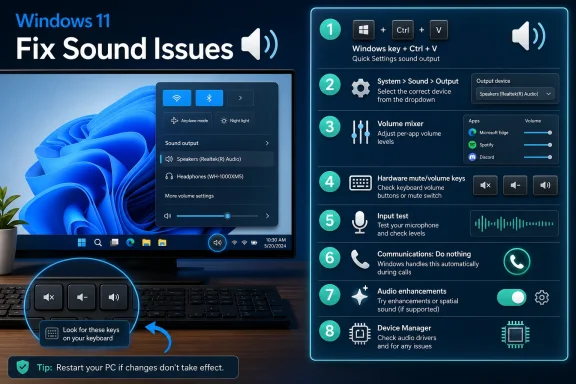 Quick Windows Audio Checklist: Try These in Order
Use this sequence before escalating to driver work. It keeps the simplest, least disruptive checks first.- Windows key + Ctrl + V
- Press Windows key + Ctrl + V.
- On Windows 11, use the sound output page in Quick Settings.
- Confirm the expected output device is selected.
- Raise the volume and test again.
- Settings output path
- Go to Start > Settings > System > Sound > Output.
- Select the output device you want.
- Raise that device’s Volume slider.
- Confirm it is not muted.
- Taskbar speaker icon
- Select the Speakers icon on the right side of the taskbar.
- Raise the Volume slider.
- If muted, select the Unmute speakers icon or raise the slider.
- Volume mixer
- Go to Start > Settings > System > Sound > Volume mixer.
- Raise the System slider.
- Raise the slider for the affected app.
- Make sure neither System nor the affected app is muted.
- Hardware and app controls
- Check keyboard Volume up, Volume down, and Mute keys.
- Check the connected audio device for physical volume or mute controls.
- If the app has its own volume slider, raise it.
- Input test
- Go to Start > Settings > System > Sound.
- Under Input, select the microphone.
- Under Input settings, select Start test.
- Speak normally, select Stop test, then select Play.
- Adjust the Input volume slider if needed.
- Communications behavior
- Go to Start > Settings > System > Sound > More sound settings > Communications.
- If calls are lowering other audio unexpectedly, choose Do nothing.
- Select Apply.
- Audio enhancements
- Go to Start > Settings > System > Sound.
- Under Output, select the audio device.
- Select Audio enhancements.
- Turn enhancements off temporarily and test the sound.
- Device Manager
- Select Start, type Device Manager, and open it.
- Expand Sound, video and game controllers.
- Right-click the audio device.
- Select Update driver.
- Restart the PC.
- If the issue continues, use the PC or audio device manufacturer’s official support site for the correct driver.
What Changed: Windows Audio Is Several Controls, Not One Slider
The old first instinct still has value: click the speaker icon and raise the slider. That remains a good quick check when everything is too loud, too quiet, or silent.But the taskbar slider is only one layer. A current Windows setup can have more than one output device, more than one input device, per-app volume controls, app-level mute buttons, device-level controls, call behavior, enhancements, and drivers. Any one of those layers can make audio appear broken.
The useful troubleshooting question is: which part of the audio path is wrong?
If every app is quiet, start with the selected output device and the main volume. If only one app is quiet, use Volume mixer. If other people cannot hear you, check Input instead of Output. If audio drops when a call starts, check Communications. If sound is distorted after the right device is selected, test Audio enhancements. If the visible controls all check out, move to Device Manager and driver updates.
What To Do Now: Start With Output, Then Narrow the Problem
On Windows 11, start with Windows key + Ctrl + V. This opens the sound output page in Quick Settings, where you can confirm the active output device and adjust volume quickly.If you want the full Settings route, go to Start > Settings > System > Sound > Output. Select the device you want, raise its Volume slider, and confirm it is not muted.
Then test audio before making more changes.
- If all audio works, stop.
- If audio plays from the wrong device, stay in Output and select the intended device.
- If every app is still quiet, check the taskbar speaker slider and hardware controls.
- If only one app is quiet, go to Volume mixer.
- If the problem is microphone volume, go to Input.
- If audio changes only during calls, check Communications.
- If sound quality is odd, test Audio enhancements.
- If all visible controls are correct and audio still fails, use Device Manager.
Volume Mixer Is for One-App Problems
When one browser, game, meeting app, or media player sounds wrong while everything else sounds normal, check Volume mixer.Use Start > Settings > System > Sound > Volume mixer. Raise the System slider, raise the slider for the affected app, and make sure neither is muted.
This distinction prevents wasted effort. A single app can be muted or lowered even when Windows system volume is fine. In that case, switching output devices or updating drivers may not help because the problem is isolated to the app’s mixer level.
For support teams, the triage question is simple: does the problem affect every sound, or only one app?
- Every sound is affected: check output device, main volume, hardware controls, enhancements, and drivers.
- One app is affected: check Volume mixer and the app’s own audio controls.
- Microphone is affected: check Input, not Output.
- Calls change other audio: check Communications.
| Layer of the audio chain | Fastest control to check | Use it when | If skipped |
|---|---|---|---|
| Main PC output | Speakers icon on the right side of the taskbar | Every sound is too loud, too quiet, or muted | A muted system can be mistaken for a deeper problem |
| Output device | Windows key + Ctrl + V, or Start > Settings > System > Sound > Output | Sound comes from the wrong selected device | Audio may be working but routed somewhere unexpected |
| One app’s volume | Start > Settings > System > Sound > Volume mixer | One browser, game, meeting app, or media player is quiet | A single muted app can be misdiagnosed as a Windows issue |
| Hardware controls | Keyboard keys or physical controls on the connected audio device | Windows looks correct but the device is still quiet | A device-level mute or low volume can be missed |
| Microphone input | Start > Settings > System > Sound > Input | Other people cannot hear you clearly | Speaker fixes are applied to a microphone problem |
| Call behavior | Start > Settings > System > Sound > More sound settings > Communications | Other audio drops when calls start | Intended call behavior can look like a random volume drop |
| Audio processing | Audio enhancements under the selected Output device | Sound is distorted, uneven, or unusually processed | Processing remains in the path during troubleshooting |
| Driver layer | Device Manager > Sound, video and game controllers > Update driver | Basic controls are correct but audio still fails | Driver work happens too early or too late |
Hardware Controls Can Override What Windows Appears To Show
Windows is not always the only volume control. A keyboard, connected audio device, or app can keep sound low even after Windows settings look correct.Check physical controls after confirming Windows output and mixer settings:
- Press keyboard Volume up.
- Check keyboard Mute.
- Check the connected audio device for a volume wheel, button, switch, or touch control.
- Check the app’s own volume or mute control.
- Test again before changing drivers.
Microphone Volume Is an Input Problem, Not an Output Problem
Speaker volume controls what you hear. Microphone input volume controls how loud you sound to others. They share the word “volume,” but they are different problems.If other people cannot hear you clearly, go to Start > Settings > System > Sound. Under Input, select the microphone you want to use. Under Input settings, select Start test, speak normally, select Stop test, select Play, and then adjust the Input volume slider.
Use this decision point:
- Windows input test sounds good: check the meeting, recording, or chat app.
- Windows input test is weak or silent: check selected microphone, input level, device connection, driver, or Windows setting.
- Wrong microphone is selected: choose the intended microphone under Input and test again.
Communications Settings Can Lower Other Audio During Calls
If music, video, or game audio drops when a call starts, check the Communications setting.Go to Start > Settings > System > Sound > More sound settings > Communications. If you do not want Windows to lower other audio during communications activity, choose Do nothing and select Apply.
Use this only when the symptom fits:
- Audio is normal before a call starts: check Communications.
- Audio is low all the time: check output, volume, mixer, and hardware controls first.
- Only one app is low: check Volume mixer.
- The microphone is weak: check Input.
Games and Browser Tabs Have Their Own Useful Context Controls
Some audio problems appear inside a specific activity. In those cases, changing global Windows settings may be more disruptive than necessary.For gaming and recording workflows, press Windows logo key + G, select the Audio widget, and use Mix to choose output speakers and adjust speaker, app, or game volume sliders. This keeps the audio control near the activity rather than forcing the user to leave the current context.
For Microsoft Edge, Ctrl + M mutes the current tab, and pressing Ctrl + M again unmutes it. This matters because a muted browser tab can look like a Windows audio failure. Before changing system settings, check whether the tab itself is muted.
Use these controls as targeted checks:
- Problem appears in a game or capture workflow: check Windows logo key + G > Audio > Mix.
- Problem appears in one Edge tab: press Ctrl + M to toggle mute.
- Problem affects all apps: return to Output, taskbar volume, hardware controls, and drivers.
Audio Enhancements Are a Test Step When Sound Quality Is Wrong
If the correct output device is selected, system volume is up, the app is not muted, and hardware controls are not turned down, but sound still seems distorted, uneven, too processed, or otherwise wrong, test Audio enhancements.Go to Start > Settings > System > Sound. Under Output, select the audio device. Select Audio enhancements, turn enhancements off, and test the sound again.
Use this as a reversible diagnostic step:
- Sound improves with enhancements off: keep them off or adjust related audio processing.
- Sound does not change: turn attention to the app, device, connection, driver, or manufacturer software.
- Sound fails entirely: return to output selection, volume, mixer, hardware controls, and Device Manager.
Device Manager Is the Escalation Step
Device Manager still matters, but it should not be the opening move for every audio complaint.Use it after the basic controls have been checked:
- Output device is correct.
- Main volume is raised and unmuted.
- Volume mixer is not muting the affected app.
- Hardware controls are not turned down or muted.
- Microphone input is checked for microphone complaints.
- Communications is checked for call-related volume drops.
- Audio enhancements are tested for sound-quality complaints.
If the issue continues, use the PC or audio device manufacturer’s official support website for the appropriate driver. That is safer than relying on random driver downloads, because audio behavior can depend on the exact hardware and vendor software involved.
Driver work is appropriate when the device still behaves incorrectly after the visible settings are correct. It is also a reasonable escalation when the device is inconsistent, disappears, or produces distorted output after simpler checks fail.
The mistake is treating drivers as the first answer. If the wrong output device is selected, a driver update does not solve the routing problem. If one app is muted, Device Manager does not solve the mixer problem. If a hardware mute is active, reinstalling software does not raise the device volume.
Admin Checklist for Support Teams
For IT teams, the best Windows audio script is an order of operations. It should separate output, app volume, hardware controls, input, call behavior, enhancements, and drivers.- Start with Windows key + Ctrl + V on Windows 11.
- Confirm the active sound output page in Quick Settings.
- Use Start > Settings > System > Sound > Output to confirm the selected output device.
- Use the Speakers icon on the right side of the taskbar to check main volume and mute.
- Ask whether the problem affects all audio or one app.
- Use Start > Settings > System > Sound > Volume mixer when one app is quiet or muted.
- Ask users to check keyboard volume keys and physical controls on the connected audio device.
- Use Start > Settings > System > Sound > Input and the built-in input test for microphone complaints.
- Use Start > Settings > System > Sound > More sound settings > Communications > Do nothing when calls are lowering other audio unexpectedly.
- Use Audio enhancements as a temporary test when sound quality is odd.
- Use Device Manager and official manufacturer support channels only after the simpler checks fail.
- Nothing is audible: check output, main volume, mute, and hardware controls.
- Wrong device is playing: check Windows key + Ctrl + V and Output.
- One app is silent: check Volume mixer and the app’s own controls.
- Microphone is weak: check Input and run the input test.
- Audio drops during calls: check Communications.
- Sound is distorted: test Audio enhancements.
- Visible settings are correct but audio still fails: escalate to Device Manager.
A Practical Timeline for Troubleshooting
Use this as a fast triage path when you do not yet know where the problem is.| Step | Question | Where to go | Stop if |
|---|---|---|---|
| 1 | Is Windows sending audio to the expected device? | Windows key + Ctrl + V, or Settings > System > Sound > Output | The expected device plays correctly |
| 2 | Is the PC globally muted or too low? | Taskbar speaker icon | All audio works after raising volume |
| 3 | Is only one app affected? | Settings > System > Sound > Volume mixer | The affected app works after raising or unmuting it |
| 4 | Is the device itself turned down or muted? | Keyboard keys or physical controls on the connected audio device | Hardware volume or mute was the cause |
| 5 | Is this actually a microphone issue? | Settings > System > Sound > Input | Input test sounds correct |
| 6 | Does audio drop when calls start? | More sound settings > Communications | Do nothing stops unwanted lowering |
| 7 | Does sound quality seem processed or distorted? | Output device > Audio enhancements | Turning enhancements off changes the result |
| 8 | Do visible controls all look correct but audio still fails? | Device Manager | Driver update or manufacturer driver resolves it |
Why This Order Works
The output device setting answers the first routing question: where is the sound going? If Windows is sending sound to the wrong selected device, raising volume may not solve the user’s actual problem.The taskbar speaker slider answers the main level question: is the PC muted or too low? It is broad, visible, and fast.
Volume mixer narrows the problem to an app. If one app is quiet while the rest of the system is normal, the mixer is more relevant than Device Manager.
Hardware controls catch a separate layer. A keyboard or connected audio device can still hold volume down even when Windows settings look correct.
Input settings keep microphone problems separate from speaker problems. If the complaint is “people cannot hear me,” output volume is the wrong control.
Communications settings explain audio that changes when calls begin. If the symptom appears only during calls, test that setting before reinstalling anything.
Audio enhancements are a reversible way to test processing. They are worth checking when sound quality is wrong after the correct device is selected.
Device Manager is for escalation. It has a real role, but it should come after the visible controls because it is more disruptive and often unnecessary.
The Bottom Line
Treat Windows volume as a short path, not a single knob. Start with Windows key + Ctrl + V, then Start > Settings > System > Sound > Output, then the taskbar speaker slider, then Volume mixer, hardware controls, Input, Communications, Audio enhancements, and finally Device Manager.That order solves the most common state problems before moving into deeper repair. It also gives users and support teams a shared script: identify whether the issue is output routing, global volume, one app, hardware control, microphone input, call behavior, sound processing, or driver failure.
The best fix is often small: select the right output device, unmute the system, raise one app in Volume mixer, check the device controls, test the microphone, change Communications behavior, or temporarily disable enhancements. Only after those checks fail should driver work become the next stop.
References
- Primary source: Technobezz
Published: 2026-07-08T18:10:08.326453
How to Change Volume Settings on Windows | Technobezz
Change Windows volume settings for speakers, apps, microphones, calls, and games with current Windows 11 controls.www.technobezz.com - Official source: learn.microsoft.com
Run the Windows audio troubleshooter - Microsoft Q&A
I am facing audio volume problem. Volume is automatically decrease don't know whylearn.microsoft.com - Official source: support.microsoft.com
Keyboard shortcuts in Windows - Microsoft Support
Learn how to navigate Windows using keyboard shortcuts. Explore a full list of taskbar, command prompt, and general Windows shortcuts.support.microsoft.com - Related coverage: windowscentral.com
Windows 11 is finally getting a much better volume mixer and sound settings menu | Windows Central
Mixer control is coming to the sound output menu in Windows 11's quick settings panel!www.windowscentral.com - Related coverage: elevenforum.com
Change Sound Output Volume Level in Windows 11 | Windows 11 Forum
This tutorial will show you how to change the volume level for apps and sound output devices for your account in Windows 11. If the volume level from your...www.elevenforum.com - Related coverage: pureinfotech.com
How to enable new volume mixer in Quick Settings on Windows 11 - Pureinfotech
To enable the new volume mixer on Windows 11, open Command Prompt (admin) and run the "vivetool /enable /id:42106010" command. pureinfotech.com
- Related coverage: thurrott.com
Quick Settings - Thurrott.com
Quick settings provides quick access to commonly needed system settings like Wi-Fi, Bluetooth, Airplane mode, Battery saver, and more.www.thurrott.com - Related coverage: yamsoti.com
- Related coverage: ed.ac.uk
- Related coverage: revsystems.com
- Related coverage: sightforsurrey.org.uk