

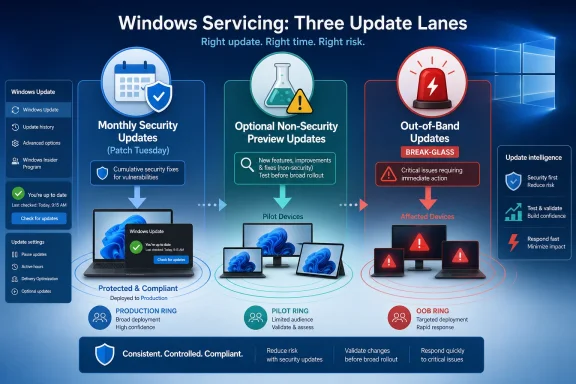
Monthly Windows servicing now has three practical lanes: monthly security updates for almost everyone, optional non-security preview updates for testing upcoming fixes before they become mandatory, and out-of-band updates for exceptional fixes that cannot wait for the normal schedule. Home users should generally install monthly security updates promptly, treat optional previews as “install only if you want to test or need a specific fix,” and pay attention when Microsoft ships an out-of-band update. IT admins should keep monthly security updates on a fast staged rollout, use previews in representative pilot rings, and reserve out-of-band deployment for rapid triage when Microsoft identifies a serious known issue or high-risk security concern.
The important change is not that Windows has suddenly invented new update categories. It is that the labels matter more now because Windows 11 features, fixes, and experience changes can arrive through more than one path: regular monthly servicing, annual feature updates, Microsoft Store updates, and controlled rollouts. The old habit of thinking “big Windows upgrade once a year, security patches every month” no longer explains what users and admins actually see.
For a home user, the simplest rule is this: install regular Windows Update security updates, be cautious with Optional updates, and do not ignore urgent off-cycle fixes if Microsoft offers them for your device. For an IT admin, the simplest rule is this: monthly security updates are the compliance baseline, optional previews are the rehearsal, and out-of-band releases are the exception process.
Patch Tuesday remains the anchor of Windows maintenance. Microsoft’s monthly security updates are the updates most people should install, and they remain the default vehicle for keeping supported Windows devices protected and current. These updates are cumulative, which means the latest applicable monthly security update includes previously released fixes for that supported Windows version.
That cumulative design is the core bargain of modern Windows servicing. Users and administrators do not need to install a long historical chain of individual updates in the correct order. Installing the latest applicable monthly security update brings the device forward to the current patch level for that Windows version.
The action takeaway is straightforward: do not skip monthly security updates unless you have a specific, time-limited compatibility reason and a mitigation plan. Delaying one month may still allow the next cumulative update to catch the device up, but the device remains exposed during the delay. That is the difference between convenience and risk.
For home users, monthly security updates normally arrive through Settings > Windows Update. If Windows says a security update is available, the safest default is to install it and restart when prompted. If the PC is used for work, school, banking, or anything sensitive, postponing updates for long stretches is not a good tradeoff.
For IT, monthly security updates should remain tied to deployment rings. A practical pattern is:
Microsoft’s terminology also matters because Windows admins and users still use overlapping phrases: quality update, security update, cumulative update, latest cumulative update, monthly update, and Patch Tuesday update. In practice, when people ask whether a device is “patched,” the question should mean: has it installed the latest applicable monthly security update for its supported Windows version?
Microsoft describes optional non-security preview updates as a way to preview and validate fixes before they are included in a later monthly security update. In plain English: this is the test-before-it-becomes-mainstream lane.
That does not mean previews are useless. For IT departments, they can be extremely useful. If a non-security fix is likely to become part of a later monthly security update, testing it early gives admins a chance to catch application, driver, printing, VPN, authentication, accessibility, or workflow problems before the broader Patch Tuesday rollout.
For home users, the decision is different. Optional preview updates can be reasonable if:
The click path is concrete: on a Windows 11 PC, go to Settings > Windows Update > Advanced options > Optional updates. If a preview update is listed, you can choose it and select Download and install. If nothing is listed, there may be no optional update available for that device at that time.
For IT-managed devices, the user may not control this path. Admin policies, update rings, deferrals, approval workflows, Windows Autopatch, Intune, WSUS, Configuration Manager, or other management tools may determine whether preview updates appear, install, or remain hidden.
The action takeaway for admins is this: do not let optional previews become random user behavior. Either block them from general users and deploy them only to validation rings, or define clearly who may install them and why. A preview update should be a deliberate test, not an accidental production rollout.
The common mistake is treating “cumulative” as if it means “same urgency.” It does not. A preview update may be cumulative, but it is still optional and intended for validation or early access to fixes. An out-of-band update may also be cumulative, but its off-cycle release is the signal that something unusual is happening. The monthly security update remains the normal broad-deployment baseline.
For small organizations without a dedicated IT department, this distinction matters. A user who clicks every optional preview update may accidentally become the company’s test ring. On the other hand, a small business that ignores an out-of-band update because it appears outside the normal routine may miss an important fix. The better behavior is to read the update description, check whether the issue affects your device or business, and decide based on risk rather than habit.
For enterprise IT, each lane should map to a different workflow:
For users, this explains why Windows can change between annual releases. A Settings page may gain an option, a built-in app may change through the Microsoft Store, or a feature may appear gradually after an update. Two PCs on the same broad Windows 11 release may not behave identically if they differ in monthly update state, Store app state, policy configuration, or rollout eligibility.
For admins, the action takeaway is this: track more than the annual Windows version. A useful support question is not just “What version of Windows 11 are you on?” It is also:
The practical fix is governance, not panic. Admins should define which feature changes are allowed automatically, which require pilot testing, and which are blocked or delayed through policy where Microsoft provides controls. Users should understand that “up to date” can include OS updates, Store app updates, and staged feature availability.
But hotpatching is not the same as never rebooting. It is not a consumer toggle for ordinary home PCs, and it is not a replacement for full baseline updates. Microsoft’s hotpatch model relies on periodic baseline updates that do require a restart. Those baseline updates reset the foundation for later hotpatches.
The key distinction is simple: hotpatching reduces restart frequency; it does not eliminate update management.
That matters because hotpatches are focused on security fixes. They do not replace every feature, enhancement, and non-security change that may arrive through the normal monthly update path. If an organization treats hotpatch status as the same thing as full update currency, it can create drift between security compliance and feature/update baseline state.
Admins should use hotpatching when:
For high-availability environments, hotpatching can be valuable. It can reduce interruption and make patch compliance less painful. But the action takeaway is clear: use hotpatch for eligible managed devices where fewer restarts matter, and keep baseline updates as a required part of the process.
Not every out-of-band update has the same urgency. Some may be optional. Others may be recommended because of security risk or broad operational impact. The first admin task is classification:
For IT, out-of-band updates should be handled like a small incident-response process, not like routine patching and not like a panic button. The correct flow is: classify, scope, validate quickly, deploy to affected devices, monitor results, and update the help desk.
The deployment may use Windows Autopatch, Intune, WSUS, Configuration Manager, Microsoft Update Catalog packages, or another enterprise update tool depending on the environment. The tool matters less than the decision process. The organization should know in advance who can approve an off-cycle deployment, who tests it, who communicates it, and how success or failure is measured.
A mature out-of-band process avoids both extremes. It does not ignore urgent updates because they are inconvenient, and it does not blindly push every off-cycle package to every device without scoping. It treats Microsoft’s decision to release outside the normal cadence as a signal that rapid attention is required.
Modern Windows environments may involve built-in Windows Update, Windows Update for Business, Windows Autopatch, Microsoft Intune, Windows Server Update Services, Microsoft Configuration Manager, Microsoft Update Catalog downloads, and third-party management tools. The same update may reach different devices through different control planes.
That means “did Windows Update install it?” is often too vague. Better questions are:
The practical consequence is that troubleshooting must start with management context. A device might be missing an update because it is paused, deferred, blocked by policy, waiting for a maintenance window, failing to scan, lacking disk space, pending restart, or excluded from a deployment ring. The update title alone rarely tells the whole story.
Admins should keep the Catalog in the toolbox, but not let it become the default answer to every update problem. Policy-driven deployment is easier to audit, easier to repeat, and easier to report. Manual package installation is valuable for exceptions, images, labs, and targeted fixes, but it should not replace a managed servicing strategy.
A good preview ring should represent the real environment, not just pristine IT laptops. Include devices that reflect the workloads most likely to break:
For home users, optional previews are a personal risk decision. If you enjoy early fixes and can troubleshoot, installing them is reasonable. If you want the most stable path and do not need a specific fix, skip the preview and wait for the regular monthly security update.
For IT, the action takeaway is: make preview testing official. Define the devices, owners, acceptance criteria, rollback steps, and reporting channel. If a preview causes problems, document them before the next monthly security update arrives. If it works cleanly, the production rollout can proceed with more confidence.
The Insider Program is for earlier access to future Windows work and feedback. Optional non-security preview updates are part of the servicing track for supported production Windows versions and are useful for validating fixes before they move into the regular monthly update flow.
For enterprises, that distinction matters. A lab device in the Insider Program may help IT understand where Windows is heading, prepare documentation, or spot future compatibility questions. It does not replace a production-representative preview ring that tests the updates likely to affect next month’s managed devices.
The practical guidance is:
For home users, this can be reduced to a simple habit: keep Windows Update current, avoid unnecessary optional previews, and restart when needed. For IT, it becomes a structured operating model: standard rings for monthly updates, representative pilots for previews, an exception workflow for out-of-band releases, and separate governance for feature delivery through monthly updates, Store updates, and controlled rollouts.
The forward-looking lesson is that Windows 11 will keep changing between annual milestones. The organizations that handle that well will be the ones that stop asking only “is the device on the latest Windows version?” and start asking more precise questions: which update lane delivered the change, which policy controlled it, which devices received it, and what should happen next?
The important change is not that Windows has suddenly invented new update categories. It is that the labels matter more now because Windows 11 features, fixes, and experience changes can arrive through more than one path: regular monthly servicing, annual feature updates, Microsoft Store updates, and controlled rollouts. The old habit of thinking “big Windows upgrade once a year, security patches every month” no longer explains what users and admins actually see.
For a home user, the simplest rule is this: install regular Windows Update security updates, be cautious with Optional updates, and do not ignore urgent off-cycle fixes if Microsoft offers them for your device. For an IT admin, the simplest rule is this: monthly security updates are the compliance baseline, optional previews are the rehearsal, and out-of-band releases are the exception process.
 Microsoft Turns Patch Tuesday Into the Center of Gravity
Patch Tuesday remains the anchor of Windows maintenance. Microsoft’s monthly security updates are the updates most people should install, and they remain the default vehicle for keeping supported Windows devices protected and current. These updates are cumulative, which means the latest applicable monthly security update includes previously released fixes for that supported Windows version.That cumulative design is the core bargain of modern Windows servicing. Users and administrators do not need to install a long historical chain of individual updates in the correct order. Installing the latest applicable monthly security update brings the device forward to the current patch level for that Windows version.
The action takeaway is straightforward: do not skip monthly security updates unless you have a specific, time-limited compatibility reason and a mitigation plan. Delaying one month may still allow the next cumulative update to catch the device up, but the device remains exposed during the delay. That is the difference between convenience and risk.
For home users, monthly security updates normally arrive through Settings > Windows Update. If Windows says a security update is available, the safest default is to install it and restart when prompted. If the PC is used for work, school, banking, or anything sensitive, postponing updates for long stretches is not a good tradeoff.
For IT, monthly security updates should remain tied to deployment rings. A practical pattern is:
- A small early ring for IT and known test devices.
- A broader pilot ring containing real business hardware and applications.
- A production ring with restart deadlines and help-desk visibility.
- An exception process for devices that fail, defer, or miss the update.
Microsoft’s terminology also matters because Windows admins and users still use overlapping phrases: quality update, security update, cumulative update, latest cumulative update, monthly update, and Patch Tuesday update. In practice, when people ask whether a device is “patched,” the question should mean: has it installed the latest applicable monthly security update for its supported Windows version?
The Preview Update Is No Longer a Side Quest
The most misunderstood lane is the optional non-security preview update. This is the update users may see under Optional updates rather than as a regular required security update. It is not the same thing as the Windows Insider Program, and it is not the normal patch every user should rush to install.Microsoft describes optional non-security preview updates as a way to preview and validate fixes before they are included in a later monthly security update. In plain English: this is the test-before-it-becomes-mainstream lane.
That does not mean previews are useless. For IT departments, they can be extremely useful. If a non-security fix is likely to become part of a later monthly security update, testing it early gives admins a chance to catch application, driver, printing, VPN, authentication, accessibility, or workflow problems before the broader Patch Tuesday rollout.
For home users, the decision is different. Optional preview updates can be reasonable if:
- You are comfortable testing early fixes.
- You are trying to resolve a specific problem that the preview update addresses.
- You have backups and can tolerate some troubleshooting.
- You understand that optional means you can usually wait.
The click path is concrete: on a Windows 11 PC, go to Settings > Windows Update > Advanced options > Optional updates. If a preview update is listed, you can choose it and select Download and install. If nothing is listed, there may be no optional update available for that device at that time.
For IT-managed devices, the user may not control this path. Admin policies, update rings, deferrals, approval workflows, Windows Autopatch, Intune, WSUS, Configuration Manager, or other management tools may determine whether preview updates appear, install, or remain hidden.
The action takeaway for admins is this: do not let optional previews become random user behavior. Either block them from general users and deploy them only to validation rings, or define clearly who may install them and why. A preview update should be a deliberate test, not an accidental production rollout.
The Servicing Lanes Are Comparable, but They Are Not Interchangeable
The three update lanes may all involve cumulative Windows packages, but they answer different questions. A monthly security update asks: how do we keep the fleet protected and compliant? A preview update asks: what should we test before next month’s broader update? An out-of-band update asks: what problem is serious enough to break the normal schedule?| Update type | When to install | Who should install | What risk it addresses | Typical admin action |
|---|---|---|---|---|
| Monthly security update | As soon as practical through normal staged rollout | Home users, businesses, enterprises, and managed fleets | Known security exposure, compliance gaps, and accumulated fixes | Deploy broadly through update rings with restart planning |
| Optional non-security preview update | Before the next monthly security update when testing is useful, or when a listed fix is needed | Enthusiasts, troubleshooters, IT pilot groups, validation devices | Surprise breakage in the next cumulative update; unresolved non-security bugs | Install only on representative test devices unless there is a specific need |
| Out-of-band update | After rapid triage confirms it applies and should not wait | Affected users or fleets; sometimes broad deployment if security-recommended | Known issue or high-risk security concern that Microsoft addresses outside the normal cadence | Classify, scope, test quickly, deploy intentionally, and monitor |
For small organizations without a dedicated IT department, this distinction matters. A user who clicks every optional preview update may accidentally become the company’s test ring. On the other hand, a small business that ignores an out-of-band update because it appears outside the normal routine may miss an important fix. The better behavior is to read the update description, check whether the issue affects your device or business, and decide based on risk rather than habit.
For enterprise IT, each lane should map to a different workflow:
- Monthly security updates: standard rings, compliance targets, restart deadlines.
- Optional previews: limited validation rings, application testing, early issue discovery.
- Out-of-band updates: incident-style triage, accelerated approvals, targeted deployment.
Windows 11 Feature Delivery Has Escaped the Annual Upgrade
Windows 11 no longer changes only through annual feature updates. New features and experience changes can arrive through monthly updates, Microsoft Store updates, and controlled feature rollouts, depending on the component and management controls involved. The annual feature update still matters, but it no longer owns the whole feature story.For users, this explains why Windows can change between annual releases. A Settings page may gain an option, a built-in app may change through the Microsoft Store, or a feature may appear gradually after an update. Two PCs on the same broad Windows 11 release may not behave identically if they differ in monthly update state, Store app state, policy configuration, or rollout eligibility.
For admins, the action takeaway is this: track more than the annual Windows version. A useful support question is not just “What version of Windows 11 are you on?” It is also:
- Which monthly security update is installed?
- Are optional previews allowed or blocked?
- Are Microsoft Store app updates controlled?
- Are controlled feature rollouts governed by policy?
- Is the device enrolled in a managed update service?
- Has the device received the required baseline update if hotpatching is in use?
The practical fix is governance, not panic. Admins should define which feature changes are allowed automatically, which require pilot testing, and which are blocked or delayed through policy where Microsoft provides controls. Users should understand that “up to date” can include OS updates, Store app updates, and staged feature availability.
Hotpatching Offers Fewer Restarts, Not a Free Pass
Hotpatching is attractive because it targets one of the biggest pain points in Windows administration: restarts. In supported managed scenarios, hotpatching can apply certain security fixes without requiring a restart every month. That can reduce user disruption and help organizations reach security compliance faster.But hotpatching is not the same as never rebooting. It is not a consumer toggle for ordinary home PCs, and it is not a replacement for full baseline updates. Microsoft’s hotpatch model relies on periodic baseline updates that do require a restart. Those baseline updates reset the foundation for later hotpatches.
The key distinction is simple: hotpatching reduces restart frequency; it does not eliminate update management.
That matters because hotpatches are focused on security fixes. They do not replace every feature, enhancement, and non-security change that may arrive through the normal monthly update path. If an organization treats hotpatch status as the same thing as full update currency, it can create drift between security compliance and feature/update baseline state.
Admins should use hotpatching when:
- The environment is eligible.
- Devices are managed through the required Microsoft management path.
- Restart reduction has real business value.
- Reporting can verify which devices are on the correct baseline.
- The team has a plan for devices that miss a baseline or fall out of compliance.
For high-availability environments, hotpatching can be valuable. It can reduce interruption and make patch compliance less painful. But the action takeaway is clear: use hotpatch for eligible managed devices where fewer restarts matter, and keep baseline updates as a required part of the process.
Out-of-Band Updates Are the Calendar Breaking Glass
Out-of-band updates are different because Microsoft releases them outside the normal monthly servicing cadence. That off-cycle timing is the point. It means the update addresses a known issue or an immediate concern that Microsoft does not want to leave entirely to the next regular update window.Not every out-of-band update has the same urgency. Some may be optional. Others may be recommended because of security risk or broad operational impact. The first admin task is classification:
- What issue does the update address?
- Which Windows versions and devices are affected?
- Is it security-recommended or optional?
- Is there a workaround?
- What happens if deployment waits for the next regular update?
- What testing is necessary before deployment?
- Which rings or device groups should receive it first?
For IT, out-of-band updates should be handled like a small incident-response process, not like routine patching and not like a panic button. The correct flow is: classify, scope, validate quickly, deploy to affected devices, monitor results, and update the help desk.
The deployment may use Windows Autopatch, Intune, WSUS, Configuration Manager, Microsoft Update Catalog packages, or another enterprise update tool depending on the environment. The tool matters less than the decision process. The organization should know in advance who can approve an off-cycle deployment, who tests it, who communicates it, and how success or failure is measured.
A mature out-of-band process avoids both extremes. It does not ignore urgent updates because they are inconvenient, and it does not blindly push every off-cycle package to every device without scoping. It treats Microsoft’s decision to release outside the normal cadence as a signal that rapid attention is required.
The Catalog Still Matters, but It Is Not the Whole Story
The Microsoft Update Catalog remains useful, especially for admins who need specific packages, offline workflows, image servicing, troubleshooting, or controlled manual deployment. But it is no longer the whole story of Windows update management.Modern Windows environments may involve built-in Windows Update, Windows Update for Business, Windows Autopatch, Microsoft Intune, Windows Server Update Services, Microsoft Configuration Manager, Microsoft Update Catalog downloads, and third-party management tools. The same update may reach different devices through different control planes.
That means “did Windows Update install it?” is often too vague. Better questions are:
- Was the update approved?
- Through which service or tool?
- Which ring or policy applied?
- Was there a deferral?
- Did the device scan successfully?
- Did it download and install?
- Is a restart pending?
- Did compliance reporting confirm success?
The practical consequence is that troubleshooting must start with management context. A device might be missing an update because it is paused, deferred, blocked by policy, waiting for a maintenance window, failing to scan, lacking disk space, pending restart, or excluded from a deployment ring. The update title alone rarely tells the whole story.
Admins should keep the Catalog in the toolbox, but not let it become the default answer to every update problem. Policy-driven deployment is easier to audit, easier to repeat, and easier to report. Manual package installation is valuable for exceptions, images, labs, and targeted fixes, but it should not replace a managed servicing strategy.
Optional Previews Are the Test Ring Microsoft Wants You to Use
Optional non-security preview updates are most valuable when they are used deliberately. If next month’s monthly security update is expected to include fixes that are available in preview now, then testing the preview gives IT an early warning window. Waiting until the broader security update lands can turn avoidable compatibility issues into production incidents.A good preview ring should represent the real environment, not just pristine IT laptops. Include devices that reflect the workloads most likely to break:
- Finance machines with complex spreadsheets and add-ins.
- Devices using VPN, endpoint security, smart cards, or identity tools.
- Printers and scanners used in daily business workflows.
- Accessibility tools and specialized input devices.
- Industry-specific applications.
- Remote and branch-office hardware.
- Older supported devices that still exist in the fleet.
- Devices with common driver or firmware profiles.
For home users, optional previews are a personal risk decision. If you enjoy early fixes and can troubleshoot, installing them is reasonable. If you want the most stable path and do not need a specific fix, skip the preview and wait for the regular monthly security update.
For IT, the action takeaway is: make preview testing official. Define the devices, owners, acceptance criteria, rollback steps, and reporting channel. If a preview causes problems, document them before the next monthly security update arrives. If it works cleanly, the production rollout can proceed with more confidence.
The Insider Program Is Not a Substitute for Preview Validation
The Windows Insider Program belongs in the broader Windows testing landscape, but it should not be confused with optional non-security preview updates. They serve different purposes.The Insider Program is for earlier access to future Windows work and feedback. Optional non-security preview updates are part of the servicing track for supported production Windows versions and are useful for validating fixes before they move into the regular monthly update flow.
For enterprises, that distinction matters. A lab device in the Insider Program may help IT understand where Windows is heading, prepare documentation, or spot future compatibility questions. It does not replace a production-representative preview ring that tests the updates likely to affect next month’s managed devices.
The practical guidance is:
- Use Insider devices narrowly and intentionally.
- Keep them out of business-critical production roles unless there is a clear reason.
- Use optional preview updates on representative production-track devices for servicing validation.
- Do not assume Insider testing proves monthly update readiness.
- Do not assume preview testing gives the same signal as Insider testing.
Compact Action Guide: What to Do Next
For home users
- Install monthly security updates promptly.
Go to Settings > Windows Update, check for updates, install available security updates, and restart when prompted. - Use Optional updates carefully.
Go to Settings > Windows Update > Advanced options > Optional updates. Install a preview update if you need a specific fix or are comfortable testing early changes. Otherwise, wait for the regular monthly update. - Do not treat every optional item as required.
Optional means you usually have a choice. If your PC is stable and you do not need a listed fix, waiting is reasonable. - Take out-of-band updates seriously.
If Microsoft offers an off-cycle fix through Windows Update and it applies to your device, install it promptly, especially if it addresses a security concern or a problem you are experiencing. - Keep backups.
Before optional previews or major changes, make sure important files are backed up through OneDrive, File History, another backup tool, or an external drive.
For IT admins
- Keep monthly security updates on a fast staged rollout.
Use rings, deadlines, restart policies, and compliance reporting. The monthly security update is the broad baseline. - Use optional previews for validation, not general deployment.
Install previews on representative pilot devices that include real business apps, drivers, peripherals, and remote-user scenarios. - Define an out-of-band playbook before you need it.
Decide who classifies off-cycle updates, who approves accelerated deployment, which tools are used, and how the help desk is briefed. - Deploy out-of-band updates when the risk of waiting is higher than the risk of accelerated rollout.
If Microsoft identifies a high-risk security concern or a serious known issue affecting your environment, compress testing and deploy intentionally. - Use hotpatching where restart reduction is valuable and eligibility is met.
Hotpatching is best for managed environments that can maintain baseline discipline and reporting. It is not a replacement for baseline updates. - Track Store and feature rollout behavior.
Windows 11 changes can arrive outside annual feature updates. Include Store app policy, controlled rollout settings, and monthly update state in support and compliance workflows. - Document the difference between lanes.
Users, help-desk staff, security teams, and change boards should understand that monthly security updates, optional previews, and out-of-band updates are not interchangeable.
The Real Change Is Behavioral
The practical Windows servicing story is not that Microsoft has created a mysterious new update universe. It is that the existing universe now demands clearer decisions. Monthly security updates should be installed broadly and promptly. Optional previews should be used deliberately for testing or specific fixes. Out-of-band updates should trigger rapid triage. Hotpatching should be treated as restart reduction with baseline discipline, not as a way to forget about reboots.For home users, this can be reduced to a simple habit: keep Windows Update current, avoid unnecessary optional previews, and restart when needed. For IT, it becomes a structured operating model: standard rings for monthly updates, representative pilots for previews, an exception workflow for out-of-band releases, and separate governance for feature delivery through monthly updates, Store updates, and controlled rollouts.
The forward-looking lesson is that Windows 11 will keep changing between annual milestones. The organizations that handle that well will be the ones that stop asking only “is the device on the latest Windows version?” and start asking more precise questions: which update lane delivered the change, which policy controlled it, which devices received it, and what should happen next?
References
- Primary source: Windows IT Pro Blog
Published: Thu, 09 Jul 2026 16:00:00 GMT
- Related coverage: windowscentral.com
Windows 11 version 26H2 is packed with surprising upgrades, and these 7 features might change how you use your PC | Windows Central
The Windows 11 2026 Update isn't about a major redesign. It's about giving users more control, better customization, and smarter everyday features.www.windowscentral.com - Official source: learn.microsoft.com
Servicing stack updates | Microsoft Learn
In this article, learn how servicing stack updates improve the code that installs the other updates.learn.microsoft.com - Official source: support.microsoft.com
March 23, 2026—Hotpatch KB5085518 (OS Builds 26200.7985 and 26100.7985) Out-of-band | Microsoft Support
March 23, 2026—Hotpatch KB5085518 (OS Builds 26200.7985 and 26100.7985) Out-of-bandsupport.microsoft.com - Official source: blogs.windows.com
Windows monthly security and quality updates overview
Today’s global cybersecurity threats are both dynamic and sophisticated, and new vulnerabilities are discovered almost every day. We focus on protecting customers from these security threats by providing security updates on a timely basis and with high quality. We strive to help you keep your...blogs.windows.com - Official source: microsoft.com
security-update-guide-improvement-representing-hotpatch-updates
www.microsoft.com