

Palworld 1.0 players can move a local co-op world to a Steam dedicated server while preserving bases, structures, captured Pals, settings, and player progress, but the original host must convert the save tied to GUID
Moving a co-op session to a dedicated server solves one of Palworld’s most irritating multiplayer limitations: friends no longer need the original host’s game and PC running whenever they want to enter the world. A dedicated server becomes the authoritative host, allowing the group to connect independently while keeping the settlement, Pal collection, and progression it has already built.
The world data is the relatively cooperative part. As Nerd’s Chalk reports in its 18-step migration guide, bases, structures, captured Pals, world settings, and non-host player characters can carry across when the relevant world files and
The co-op host is different because local hosting gives that player a special identity. The host save is stored as
That mismatch explains the most confusing migration failure. The server can load the old world and recognize everyone else, yet treat the person who hosted it as a first-time visitor. The buildings are there, the bases are there, and the host’s old character data is still present on disk, but the server-generated player identity does not point to it.
The Palworld Host Save Fix project maintained by xNul describes the same underlying mechanism: player saves are associated with GUIDs, and changing server types can change the identifier used for a player. Its documentation characterizes the tooling as experimental and strongly recommends backups, an important warning for anyone tempted to perform the conversion directly against the only copy of a long-running world.
The practical fix is to let the dedicated server create a new player file for the host, capture the filename it assigns, and remap the original host data to that new identity. According to the Nerd’s Chalk procedure, the conversion produces two files: a converted player save and a converted
The world copy and the host conversion are separate operations. Treating them as one undifferentiated upload is how administrators end up with a perfect world populated by the wrong version of its owner.
The original host should then connect to that fresh server using the same account that hosted the co-op world. Character customization is disposable at this stage; the purpose is to make the server establish a destination identity. The player should enter the world, move, or interact with something so Palworld actually writes a
This generated player file is not unwanted debris. Its filename is the new identity to which the old host character must be mapped. The migration procedure calls for copying the complete generated filename without the
If the server’s
Once that file exists, the player should return to the title screen, close the client, and stop the dedicated server. This sequence matters because Palworld can autosave while running. A live server may write its fresh world back over imported files during the copy, producing a migration that appears successful in the filesystem but disappears when the server shuts down or saves again.
The server should remain stopped throughout file replacement and conversion. It should not be restarted merely to “see if the files are there” until both the world data and converted host data are in their final locations.
This is one of the places where game-server administration differs from copying ordinary documents. Save files are active application state, not passive archives. The authoritative process must be quiesced before its data store can be replaced safely.
The
For a Steam-installed dedicated server, the Nerd’s Chalk guide directs administrators to right-click Palworld Dedicated Server, select Manage, browse its local files, and then navigate through
The co-op source is reached by opening
The most dangerous path error involves configuration rather than saves. The whole-folder migration method requires editing
That distinction is easy to miss because Unreal Engine games often generate parallel configuration trees for clients and servers. The filenames may look authoritative in both places, but only the configuration beneath the server installation controls which world that server boots.
A useful backup is an untouched copy that will not be selected by the server, altered by the converter, or resynchronized during testing. Ideally, the working copy used for conversion should also be separate from both the live source and the backup.
The reason is not merely that a converter might fail. A successful conversion can still be deployed into the wrong world folder, paired with the wrong generated player filename, or overwritten by a running server. Preserving the original gives administrators a known starting point after any of those mistakes.
The xNul host-save-fix documentation explicitly warns of data-loss risk and known bugs in its own workflow. Browser-based converters reduce command-line complexity, but they do not eliminate the underlying risks of editing structured save data. Convenience changes the interface, not the need for rollback.
This is particularly important for mature worlds. The more bases, inventories, Pal collections, guild relationships, and player histories a save contains, the more expensive it becomes to discover that the only “backup” was another modified copy of the same failed conversion.
The server destination should contain
From the local co-op folder, the procedure calls for copying the world files other than
In the server world folder, everything except the generated
The conversion then begins with the local host save,
The converter reportedly returns two downloads. The converted player save replaces the fresh generated file in the server’s
That two-file output reveals why simply renaming
Once both converted outputs are installed, the server can be restarted and the host can rejoin. The expected result is the old world with the host’s previous inventory and progression restored under the server-generated identity.
The validation should go beyond checking whether the correct level number appears. The host should inspect inventory, Pal ownership, base access, structures, and progression, while other players should confirm their own characters and inventories. A migration is not fully proven until both the shared world and several independent player states have been checked.
On Windows, that configuration file is
This route is especially practical on managed hosting, where the upload may take place through FTP or a browser-based file manager. The logic remains the same: put the co-op world beneath the server’s
The whole-folder method should bring across the world and non-host players, but it does not solve the original host’s GUID problem. The host still needs to join the server to generate a destination player save and then have the old host data converted to that identity.
The advantage is operational simplicity. Rather than deciding which world files to retain from the fresh server, the administrator explicitly tells the server to boot the uploaded world.
The disadvantage is that mistakes become harder to diagnose. If the wrong folder is uploaded, the configuration points to a different ID, or the server configuration is edited in the client tree, the server may quietly start a fresh world. By contrast, the file-by-file route forces the operator to inspect
Neither route is inherently immune to error. The safer choice is the one the administrator can audit confidently, back up completely, and reverse without reconstructing the original directory layout from memory.
The first task for those worlds is format conversion. The Xbox or Game Pass world must be transformed into Steam save format before any Steam-style dedicated-server migration is attempted.
Only after that preliminary conversion should the administrator apply the familiar process: create a fresh dedicated-server world, generate the host’s server-side player file, stop the server, install the converted world, and remap the host identity where necessary. Trying to solve the GUID mismatch while the source is still inside
Community tools do exist for extracting or converting Game Pass data, but their compatibility can change with save formats and game updates. The Palworld Pal Editor project, for example, directs Game Pass users toward separate conversion utilities and warns that such tools may become outdated. That makes an untouched source backup even more important than in a Steam-to-Steam migration.
An Xbox-capable dedicated server does not remove this storage-format problem automatically. Pocketpair’s documentation explains how dedicated servers can be configured for Xbox connections, but connection compatibility is not the same thing as direct save-container compatibility. A server being able to accept Xbox players does not mean it can ingest an arbitrary local
Administrators should therefore treat Game Pass migration as a two-stage project: first normalize the save format, then migrate the normalized Steam-style world and identities. If the first stage produces incomplete world or player files, the second stage cannot repair them.
A world that appears correctly while the host starts over usually indicates an identity failure rather than a world failure. The old host save was left as
A missing generated player file means the fresh server session did not save enough player activity. The remedy is not to select another player’s file. The host should rejoin the fresh server, move or interact, and wait until a new
An empty or structurally incomplete world suggests that only character data was copied.
A server that continues starting the fresh world after a whole-folder upload is likely reading another folder. Check
An apparently successful migration that vanishes after restart points toward a running-server overwrite. If the dedicated server remained active while files were copied, its autosave may have restored the fresh state over the imported world. Stop it fully, restore the untouched backup, and repeat the replacement rather than stacking another conversion onto uncertain data.
The discipline here resembles database migration more than ordinary game modding. Identify the source, generate the destination schema and identity, stop writes, take a backup, transform the data, install it once, and validate the result before reopening normal access.
The host should arrive with the expected inventory and progression rather than a character-creation screen. The world should contain the old bases, structures, captured Pals, and settings. Non-host players should subsequently return to their existing characters with inventories and progression intact.
If the host is blank but the world is correct, stop immediately and revisit the GUID conversion. If everyone is blank, confirm that the correct
Administrators should preserve the pre-migration backup even after a successful first login. Some inconsistencies only become apparent when players visit another base, access storage, inspect their Pal collections, or exercise permissions associated with the old world.
It is also sensible to create a new post-migration backup once validation is complete. That gives the server a clean recovery point in its new dedicated format without requiring the entire conversion to be repeated after a later operational failure.
The migration should not be considered complete merely because Palworld reaches the server list. Success means the dedicated server recognizes both the old world and the people who belong to it.
00000000000000000000000000000001 or return as a blank character. The migration is therefore less a world-transfer problem than an identity-transfer problem. Palworld can recognize the old world, yet fail to recognize the person who created it. Getting both halves right requires a clean backup, a fully stopped server, the correct save directories, and a deliberate remapping of the host’s player data.
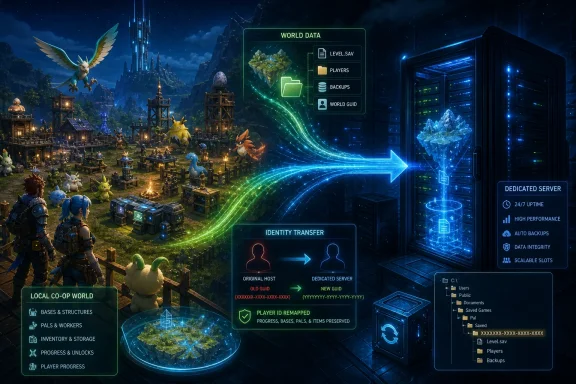 Palworld Preserves the World but Forgets Its Owner
Moving a co-op session to a dedicated server solves one of Palworld’s most irritating multiplayer limitations: friends no longer need the original host’s game and PC running whenever they want to enter the world. A dedicated server becomes the authoritative host, allowing the group to connect independently while keeping the settlement, Pal collection, and progression it has already built.The world data is the relatively cooperative part. As Nerd’s Chalk reports in its 18-step migration guide, bases, structures, captured Pals, world settings, and non-host player characters can carry across when the relevant world files and
Players directory are placed correctly. Non-host players should retain their inventories and progression without requiring the additional identity conversion used for the original host.The co-op host is different because local hosting gives that player a special identity. The host save is stored as
00000000000000000000000000000001.sav, reflecting the local co-op host GUID 00000000000000000000000000000001. A dedicated server generates another player-save identity when the same account connects.That mismatch explains the most confusing migration failure. The server can load the old world and recognize everyone else, yet treat the person who hosted it as a first-time visitor. The buildings are there, the bases are there, and the host’s old character data is still present on disk, but the server-generated player identity does not point to it.
The Palworld Host Save Fix project maintained by xNul describes the same underlying mechanism: player saves are associated with GUIDs, and changing server types can change the identifier used for a player. Its documentation characterizes the tooling as experimental and strongly recommends backups, an important warning for anyone tempted to perform the conversion directly against the only copy of a long-running world.
The practical fix is to let the dedicated server create a new player file for the host, capture the filename it assigns, and remap the original host data to that new identity. According to the Nerd’s Chalk procedure, the conversion produces two files: a converted player save and a converted
Level.sav. Both matter because Palworld’s character relationships are not represented solely by the filename inside Players.The world copy and the host conversion are separate operations. Treating them as one undifferentiated upload is how administrators end up with a perfect world populated by the wrong version of its owner.
The Server Must Create the Destination Before You Replace It
A reliable migration begins by starting the dedicated server once rather than immediately copying the co-op save into an empty installation. Pocketpair’s official dedicated-server documentation similarly establishes that server directories and configuration files are generated after the server has been launched. The server’s first run creates the structure the migration will use and reduces guesswork over paths and filenames.The original host should then connect to that fresh server using the same account that hosted the co-op world. Character customization is disposable at this stage; the purpose is to make the server establish a destination identity. The player should enter the world, move, or interact with something so Palworld actually writes a
.sav file rather than merely accepting the connection.This generated player file is not unwanted debris. Its filename is the new identity to which the old host character must be mapped. The migration procedure calls for copying the complete generated filename without the
.sav extension and entering it into the converter.If the server’s
Players folder is missing or remains empty, the server has not yet written enough state. Rejoin the fresh world, move around, and interact until a .sav appears. Repeatedly restarting the migration or inventing a filename cannot substitute for allowing the server to establish the correct player identity itself.Once that file exists, the player should return to the title screen, close the client, and stop the dedicated server. This sequence matters because Palworld can autosave while running. A live server may write its fresh world back over imported files during the copy, producing a migration that appears successful in the filesystem but disappears when the server shuts down or saves again.
The server should remain stopped throughout file replacement and conversion. It should not be restarted merely to “see if the files are there” until both the world data and converted host data are in their final locations.
This is one of the places where game-server administration differs from copying ordinary documents. Save files are active application state, not passive archives. The authoritative process must be quiesced before its data store can be replaced safely.
Two Save Trees Look Similar Until the Wrong One Gets Overwritten
The local co-op world and dedicated-server world contain familiar filenames, but they live beneath different directory structures. The local Steam save starts under the Windows user profile, while the dedicated server stores its worlds beneath a server-specificSaveGames\0 directory.The
0 in the server path is significant. It is the save-game directory identifier in the stated Steam dedicated-server layout, not the long world ID itself. The long server world folder sits inside it.| Save or configuration target | Format | Verified location | Direct Steam-style migration | Required special handling |
|---|---|---|---|---|
| Local Steam co-op world | Plain .sav files | %LOCALAPPDATA%\Pal\Saved\SaveGames\<SteamID64>\<world-guid> | Yes | Host GUID conversion |
| Steam dedicated-server world | Plain .sav files | Pal\Saved\SaveGames\0\<server-world-guid> | Destination | Generate a fresh host player file first |
| Windows server configuration | .ini | Pal\Saved\Config\WindowsServer\GameUserSettings.ini | Yes | Edit the server copy only |
| Linux server configuration | .ini | Pal\Saved\Config\LinuxServer\GameUserSettings.ini | Yes | Edit the server copy only |
| Xbox or Game Pass world | Encrypted .wgs containers | Xbox/Game Pass save storage | No | Convert to Steam save format first |
Pal > Saved > SaveGames > 0. Inside should be the long server-world folder created during the initial run.The co-op source is reached by opening
%LOCALAPPDATA%\Pal, then moving through Saved > SaveGames and into the Steam or Epic ID folder. Where several world folders exist, sorting by the modified date can help identify the active one, but modification time should not be the only check. Confirm that the selected directory contains the expected world files and Players data before replacing anything.The most dangerous path error involves configuration rather than saves. The whole-folder migration method requires editing
GameUserSettings.ini beneath the dedicated server’s WindowsServer or LinuxServer directory. Editing a similarly named client-side configuration file will not redirect the server to the uploaded world.That distinction is easy to miss because Unreal Engine games often generate parallel configuration trees for clients and servers. The filenames may look authoritative in both places, but only the configuration beneath the server installation controls which world that server boots.
A Backup Is Part of the Migration, Not an Optional Precaution
Before conversion or replacement, copy the entire local world folder to a separate safe location. Do not rely solely on Steam synchronization, the provider’s file manager, or the fact that the original folder still appears in File Explorer. Synchronization can faithfully propagate a damaged or mistakenly replaced save just as readily as a good one.A useful backup is an untouched copy that will not be selected by the server, altered by the converter, or resynchronized during testing. Ideally, the working copy used for conversion should also be separate from both the live source and the backup.
The reason is not merely that a converter might fail. A successful conversion can still be deployed into the wrong world folder, paired with the wrong generated player filename, or overwritten by a running server. Preserving the original gives administrators a known starting point after any of those mistakes.
The xNul host-save-fix documentation explicitly warns of data-loss risk and known bugs in its own workflow. Browser-based converters reduce command-line complexity, but they do not eliminate the underlying risks of editing structured save data. Convenience changes the interface, not the need for rollback.
This is particularly important for mature worlds. The more bases, inventories, Pal collections, guild relationships, and player histories a save contains, the more expensive it becomes to discover that the only “backup” was another modified copy of the same failed conversion.
The File-by-File Route Makes Every Dependency Visible
The Nerd’s Chalk process uses the fresh dedicated-server world as a scaffold. After generating the server world and host player file, the administrator stops the server and opens both the local co-op world and the server world side by side.The server destination should contain
Level.sav and a Players directory. If it lacks the generated player save needed for conversion, the administrator must return to the earlier step and make the host interact in the fresh world until the server writes one.From the local co-op folder, the procedure calls for copying the world files other than
Players and Level.sav during the initial replacement. The specifically listed files include LevelMeta.sav, LocalData.sav, and WorldOption.sav, along with the other applicable world data in that directory.In the server world folder, everything except the generated
Players directory is removed before the copied local world files are pasted. Preserving the generated Players directory at this stage retains the new host identity that will become the target of the conversion.The conversion then begins with the local host save,
00000000000000000000000000000001.sav. The local co-op Level.sav is supplied as the corresponding level input. Finally, the complete filename of the newly generated server player save—minus the .sav extension—is entered as the destination identity.The converter reportedly returns two downloads. The converted player save replaces the fresh generated file in the server’s
Players folder, while the converted Level.sav replaces the server’s level file one directory above.That two-file output reveals why simply renaming
00000000000000000000000000000001.sav is not enough. Palworld’s world state and player state contain references that must agree. A filename-level change alone may leave the server’s internal associations pointing at the wrong identity.Once both converted outputs are installed, the server can be restarted and the host can rejoin. The expected result is the old world with the host’s previous inventory and progression restored under the server-generated identity.
The validation should go beyond checking whether the correct level number appears. The host should inspect inventory, Pal ownership, base access, structures, and progression, while other players should confirm their own characters and inventories. A migration is not fully proven until both the shared world and several independent player states have been checked.
The Whole-Folder Route Is Faster but Less Diagnostic
The alternative method copies the complete co-op world folder into the server’sPal\Saved\SaveGames\0 directory. The administrator then edits the server’s own GameUserSettings.ini and sets DedicatedServerName= to the uploaded folder’s exact long ID.On Windows, that configuration file is
Pal\Saved\Config\WindowsServer\GameUserSettings.ini. On Linux, it is Pal\Saved\Config\LinuxServer\GameUserSettings.ini. The folder ID must be copied exactly; pointing the setting to the generated world, a character folder, or an incorrectly shortened identifier will cause the server to load the wrong data or create another world.This route is especially practical on managed hosting, where the upload may take place through FTP or a browser-based file manager. The logic remains the same: put the co-op world beneath the server’s
SaveGames\0 directory and direct DedicatedServerName= to that world’s folder.The whole-folder method should bring across the world and non-host players, but it does not solve the original host’s GUID problem. The host still needs to join the server to generate a destination player save and then have the old host data converted to that identity.
The advantage is operational simplicity. Rather than deciding which world files to retain from the fresh server, the administrator explicitly tells the server to boot the uploaded world.
The disadvantage is that mistakes become harder to diagnose. If the wrong folder is uploaded, the configuration points to a different ID, or the server configuration is edited in the client tree, the server may quietly start a fresh world. By contrast, the file-by-file route forces the operator to inspect
Level.sav, Players, and the surrounding files at each stage.Neither route is inherently immune to error. The safer choice is the one the administrator can audit confidently, back up completely, and reverse without reconstructing the original directory layout from memory.
Game Pass and Xbox Add a Format Boundary Before the GUID Boundary
The Steam procedure works because both the local world and dedicated server use the plain.sav ecosystem expected by the migration tools. Xbox and Game Pass saves are stored in different, encrypted .wgs containers, so they cannot be copied directly into the Steam dedicated-server save tree.The first task for those worlds is format conversion. The Xbox or Game Pass world must be transformed into Steam save format before any Steam-style dedicated-server migration is attempted.
Only after that preliminary conversion should the administrator apply the familiar process: create a fresh dedicated-server world, generate the host’s server-side player file, stop the server, install the converted world, and remap the host identity where necessary. Trying to solve the GUID mismatch while the source is still inside
.wgs storage confuses two independent incompatibilities.Community tools do exist for extracting or converting Game Pass data, but their compatibility can change with save formats and game updates. The Palworld Pal Editor project, for example, directs Game Pass users toward separate conversion utilities and warns that such tools may become outdated. That makes an untouched source backup even more important than in a Steam-to-Steam migration.
An Xbox-capable dedicated server does not remove this storage-format problem automatically. Pocketpair’s documentation explains how dedicated servers can be configured for Xbox connections, but connection compatibility is not the same thing as direct save-container compatibility. A server being able to accept Xbox players does not mean it can ingest an arbitrary local
.wgs container as its active world.Administrators should therefore treat Game Pass migration as a two-stage project: first normalize the save format, then migrate the normalized Steam-style world and identities. If the first stage produces incomplete world or player files, the second stage cannot repair them.
Most “Corrupt Saves” Are Actually State-Control Failures
A migration that loads a blank world is often blamed on corruption, but the more common causes are wrong paths, a mismatched world ID, or a server that remained active during replacement. Those failures can all produce valid-looking directories that the server simply does not use.A world that appears correctly while the host starts over usually indicates an identity failure rather than a world failure. The old host save was left as
00000000000000000000000000000001.sav, the incorrect generated server filename was entered into the converter, or the converted files were placed in different world directories.A missing generated player file means the fresh server session did not save enough player activity. The remedy is not to select another player’s file. The host should rejoin the fresh server, move or interact, and wait until a new
.sav is written in the server world’s Players folder.An empty or structurally incomplete world suggests that only character data was copied.
Players cannot recreate bases, buildings, and world state by itself; Level.sav and the additional local world files are required.A server that continues starting the fresh world after a whole-folder upload is likely reading another folder. Check
DedicatedServerName= in the dedicated server’s GameUserSettings.ini, verify that its value exactly matches the uploaded long world-folder ID, and confirm that the file resides beneath WindowsServer or LinuxServer.An apparently successful migration that vanishes after restart points toward a running-server overwrite. If the dedicated server remained active while files were copied, its autosave may have restored the fresh state over the imported world. Stop it fully, restore the untouched backup, and repeat the replacement rather than stacking another conversion onto uncertain data.
The discipline here resembles database migration more than ordinary game modding. Identify the source, generate the destination schema and identity, stop writes, take a backup, transform the data, install it once, and validate the result before reopening normal access.
Action checklist for admins
- Copy the entire local co-op world folder to a safe, untouched backup location.
- Start the dedicated server once and have the original host join, move, or interact until a generated player
.savexists. - Record the server world folder and the complete generated player filename before changing anything.
- Fully stop the dedicated server before copying, converting, deleting, or replacing save files.
- Verify that
Level.sav,Players,LevelMeta.sav,LocalData.sav, andWorldOption.savare handled in the intended world folder. - Convert
00000000000000000000000000000001.savusing the server-generated player filename without the.savextension. - Install both converter outputs: the converted player save and converted
Level.sav. - For a whole-folder upload, set
DedicatedServerName=to the uploaded world folder’s exact long ID in the server’sGameUserSettings.ini. - Convert Xbox or Game Pass
.wgsdata to Steam save format before beginning the dedicated-server migration. - Restrict access during the first test and validate the host, non-host players, inventories, Pals, bases, structures, and world settings before declaring success.
A Controlled First Boot Is the Real Finish Line
The first startup after replacement should be treated as a test, not the moment the server is immediately reopened to the entire group. If possible, allow the original host to connect first and verify the converted character before other players generate new state or the server creates additional autosaves.The host should arrive with the expected inventory and progression rather than a character-creation screen. The world should contain the old bases, structures, captured Pals, and settings. Non-host players should subsequently return to their existing characters with inventories and progression intact.
If the host is blank but the world is correct, stop immediately and revisit the GUID conversion. If everyone is blank, confirm that the correct
Players directory was transferred and that the server loaded the intended world folder. If the world itself is fresh, examine DedicatedServerName=, the SaveGames\0 location, and whether an autosave replaced the import.Administrators should preserve the pre-migration backup even after a successful first login. Some inconsistencies only become apparent when players visit another base, access storage, inspect their Pal collections, or exercise permissions associated with the old world.
It is also sensible to create a new post-migration backup once validation is complete. That gives the server a clean recovery point in its new dedicated format without requiring the entire conversion to be repeated after a later operational failure.
The migration should not be considered complete merely because Palworld reaches the server list. Success means the dedicated server recognizes both the old world and the people who belong to it.
The Files That Decide Whether the Move Works
The migration is manageable once each file is assigned a clear role. The server generates the destination identity, the local folder supplies the world, and the converter joins the old host character to the identity the server will accept.- The co-op host starts as
00000000000000000000000000000001.sav. - The dedicated server must generate a new host player
.savbefore conversion. Level.savandPlayersmust be handled together with the surrounding world files.- The server must remain fully stopped during file replacement.
DedicatedServerName=must match the uploaded world folder exactly when using the whole-folder route.- Xbox and Game Pass
.wgssaves require Steam-format conversion before migration.
References
- Primary source: Nerd's Chalk
Published: 2026-07-12T08:19:08.825519
Loading…
nerdschalk.com - Official source: github.com
Loading…
github.com - Related coverage: supercraft.host
Loading…
supercraft.host - Related coverage: winternode.com
Loading…
winternode.com - Related coverage: palworldcompanion.com
Loading…
www.palworldcompanion.com - Related coverage: docdroid.net
Loading…
www.docdroid.net
- Related coverage: docs.palworldgame.com
Loading…
docs.palworldgame.com - Related coverage: palworld.wiki.gg
Loading…
palworld.wiki.gg - Related coverage: switchbladegaming.com
Loading…
www.switchbladegaming.com - Related coverage: freegameservers.org
Loading…
www.freegameservers.org - Related coverage: gamehostbros.com
Loading…
www.gamehostbros.com - Related coverage: dy822md8ge77v.cloudfront.net
Loading…
dy822md8ge77v.cloudfront.net