

Windows 11 can now be installed on Valve’s Steam Machine, but the sensible move is to treat it as a full operating-system migration—not a quick driver update. Valve has published Windows drivers, yet it does not provide Windows-on-Steam-Hardware support and there is no official dual-boot path, so make sure you can recover SteamOS before you erase anything.
Before starting the Windows installer, complete these eight checks:
That makes the driver release important—but it does not make Windows the default recommendation for every Steam Machine owner.
A Windows installation USB is straightforward to create through Microsoft’s standard Windows 11 installation process. The irreversible moment comes later, when setup asks where Windows should be installed. On a conventional self-built PC, that is familiar territory. On a Steam Machine that arrives configured around SteamOS, it is the point where a gaming experiment becomes an operating-system replacement.
Do not enter Windows Setup until the SteamOS recovery USB exists and you have confirmed it is recognized as bootable media. Keep the Windows installer and recovery environment as separate tools with separate purposes: one changes the machine; the other gets you back from a failed change.
The distinction matters because no official dual-boot support is currently available. A user who expects a clean menu between SteamOS and Windows is planning around a capability Valve has not provided. Partitioning experiments may appeal to advanced enthusiasts, but they should not be confused with a vendor-supported coexistence model.
For IT professionals, this is the familiar difference between an approved deployment path and an unsupported but technically possible configuration. The latter can be valuable for testing. It simply needs a rollback procedure written before the test begins.
That is why driver staging belongs before Windows installation rather than after it. Download the complete driver package from Valve’s Windows resources page while SteamOS is still working, retain it on external media, and keep a second way to access documentation if your new Windows desktop is not immediately comfortable to use.
Once Windows has started, install the Valve-supplied package before drawing conclusions about the platform. Then restart and test the basics in a repeatable order: display output, television behavior, controller input, game-launch workflow, and the particular titles that justified leaving SteamOS. Avoid filling the storage with a whole library before that initial acceptance test is complete.
Readers following our coverage of Windows 11 performance on Steam Machine should view promising results as a reason to test—not a reason to skip the boring preparation. Performance comparisons answer only one part of the living-room PC question. A machine that posts a good frame rate but requires a keyboard for routine use, behaves poorly on a television, or cannot quickly return to SteamOS is not necessarily the better console replacement.
Before installing, note the television’s native resolution and the refresh rate you actually expect to use. After Windows is running, open Settings > System > Display and confirm that the selected display resolution and scale are usable from your normal seating distance. Then open Settings > System > Display > Advanced display to check the selected refresh-rate option. The goal is not to select the biggest number available; it is to establish a stable, readable couch workflow.
Run that test with the controller first, then with a keyboard and mouse nearby. Sign in, launch Steam, navigate the library, return to Windows, and adjust an ordinary setting. If the system requires constant desk-style intervention, its real-world fit may be worse than a benchmark implies.
The same restraint applies to 4K. A television may be 4K-capable, but Steam Machine’s stated default and verification focus is 1080p. Treat 1080p as the first successful configuration. Only after controller input, scaling, refresh behavior, and your priority games have passed should higher-resolution tuning become the next project.
That approach prevents the common migration mistake of validating Windows with games that already worked perfectly on SteamOS. If SteamOS covers most of a library and Windows is only being installed for a few outliers, those outliers are the service-level test. Everything else is secondary.
This is also where Microsoft’s broader gaming push will be judged more harshly than by raw performance. WindowsForum readers have been tracking the reported Project K2 effort and the larger question of whether Windows 11 can win back gamers from SteamOS. Valve’s driver package gives Windows an opening on Steam Machine. It does not eliminate the advantage of an operating system designed around a controller-led, appliance-like experience.
For enthusiasts, the answer is to document the machine before touching it: note the current SteamOS state, keep recovery media, preserve driver media, and decide what constitutes a failed trial. For admins evaluating Steam Machine as a niche Windows endpoint, the absence of official Windows support should rule out any deployment that depends on vendor-backed remediation.
The immediate opportunity is real: Windows 11 now has an official driver path onto Steam Machine hardware. The immediate discipline is just as real: until Valve supplies an official dual-boot arrangement and Windows support, every installation should be planned as a reversible migration, with SteamOS recovery media ready before the first Windows partition is changed.
Before starting the Windows installer, complete these eight checks:
- Create SteamOS recovery media first. Valve’s Windows resources page directs owners back to SteamOS recovery instructions when they need to restore the factory OS. Follow those instructions, create the recovery media on a separate USB drive, label it clearly, and keep it disconnected until you need it.
- Verify that the recovery media is usable. A recovery drive you have not tested is only a theory. Confirm that you can reach the Steam Machine’s boot-device selection process and that the recovery USB is detected before changing the internal storage.
- Download Valve’s complete Windows driver package before installation. Save the official package to external media alongside the SteamOS recovery drive or on another accessible device. Do not assume Windows 11 will supply every Steam Machine-specific component by itself after first boot.
- Write down your storage plan. Decide whether Windows will replace SteamOS entirely or whether you are waiting for a future official dual-boot option. Because Valve has not shipped official dual-boot support, users who overwrite the default installation should assume that returning to SteamOS means a recovery process.
- Treat 1080p as the baseline, not 4K. Steam Machine’s default and verification-focused resolution is 1080p. Check that your television accepts the resolution and refresh rate you intend to use, and validate Windows scaling from the couch before chasing 4K benchmark results.
- Test controller-only navigation expectations. Windows 11 is a desktop OS first, even when Steam launches in a living-room-friendly mode. Have a keyboard and mouse available for setup, sign-in, troubleshooting, and any point where controller navigation proves incomplete.
- Make a short exception list for your game library. Identify the games, launchers, mods, peripherals, and account sign-ins that make Windows necessary for you. Test those first after installation rather than declaring the migration successful because one familiar title launches.
- Set a rollback deadline before you begin. Give Windows a defined trial period and keep the SteamOS recovery media untouched until it ends. If the Windows setup does not meet your controller, television, storage, or game-library needs, restore SteamOS rather than accumulating workarounds indefinitely.
That makes the driver release important—but it does not make Windows the default recommendation for every Steam Machine owner.
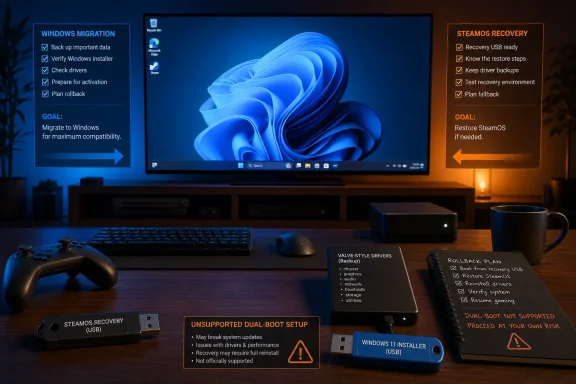 The installation decision starts with recovery, not the Windows USB
A Windows installation USB is straightforward to create through Microsoft’s standard Windows 11 installation process. The irreversible moment comes later, when setup asks where Windows should be installed. On a conventional self-built PC, that is familiar territory. On a Steam Machine that arrives configured around SteamOS, it is the point where a gaming experiment becomes an operating-system replacement.Do not enter Windows Setup until the SteamOS recovery USB exists and you have confirmed it is recognized as bootable media. Keep the Windows installer and recovery environment as separate tools with separate purposes: one changes the machine; the other gets you back from a failed change.
The distinction matters because no official dual-boot support is currently available. A user who expects a clean menu between SteamOS and Windows is planning around a capability Valve has not provided. Partitioning experiments may appeal to advanced enthusiasts, but they should not be confused with a vendor-supported coexistence model.
For IT professionals, this is the familiar difference between an approved deployment path and an unsupported but technically possible configuration. The latter can be valuable for testing. It simply needs a rollback procedure written before the test begins.
Stage the drivers as if the network will not save you
Valve made official Windows drivers available in early July 2026, which removes a major obstacle to installing Windows 11 on the Steam Machine. It does not create a general support obligation. If a device behavior, controller workflow, display issue, or game-specific problem appears after the migration, owners should expect to do the diagnosis themselves.That is why driver staging belongs before Windows installation rather than after it. Download the complete driver package from Valve’s Windows resources page while SteamOS is still working, retain it on external media, and keep a second way to access documentation if your new Windows desktop is not immediately comfortable to use.
Once Windows has started, install the Valve-supplied package before drawing conclusions about the platform. Then restart and test the basics in a repeatable order: display output, television behavior, controller input, game-launch workflow, and the particular titles that justified leaving SteamOS. Avoid filling the storage with a whole library before that initial acceptance test is complete.
Readers following our coverage of Windows 11 performance on Steam Machine should view promising results as a reason to test—not a reason to skip the boring preparation. Performance comparisons answer only one part of the living-room PC question. A machine that posts a good frame rate but requires a keyboard for routine use, behaves poorly on a television, or cannot quickly return to SteamOS is not necessarily the better console replacement.
Your television is part of the Windows deployment
Steam Machine is aimed at a TV-first environment, and Valve’s default, verification-oriented target is 1080p. That changes the practical evaluation. A Windows 11 desktop that seems effortless on a monitor can become awkward when Windows scaling, refresh-rate choices, application dialogs, and controller navigation are judged from across a room.Before installing, note the television’s native resolution and the refresh rate you actually expect to use. After Windows is running, open Settings > System > Display and confirm that the selected display resolution and scale are usable from your normal seating distance. Then open Settings > System > Display > Advanced display to check the selected refresh-rate option. The goal is not to select the biggest number available; it is to establish a stable, readable couch workflow.
Run that test with the controller first, then with a keyboard and mouse nearby. Sign in, launch Steam, navigate the library, return to Windows, and adjust an ordinary setting. If the system requires constant desk-style intervention, its real-world fit may be worse than a benchmark implies.
The same restraint applies to 4K. A television may be 4K-capable, but Steam Machine’s stated default and verification focus is 1080p. Treat 1080p as the first successful configuration. Only after controller input, scaling, refresh behavior, and your priority games have passed should higher-resolution tuning become the next project.
The game-library test should begin with the exceptions
Windows is attractive on Steam Machine precisely because some users have games or software that they prefer to run outside the SteamOS environment. Build your test list around those exceptions: the game that matters most, the launcher that has been troublesome elsewhere, the modded installation, the peripheral-dependent title, or the account flow that makes SteamOS insufficient.That approach prevents the common migration mistake of validating Windows with games that already worked perfectly on SteamOS. If SteamOS covers most of a library and Windows is only being installed for a few outliers, those outliers are the service-level test. Everything else is secondary.
This is also where Microsoft’s broader gaming push will be judged more harshly than by raw performance. WindowsForum readers have been tracking the reported Project K2 effort and the larger question of whether Windows 11 can win back gamers from SteamOS. Valve’s driver package gives Windows an opening on Steam Machine. It does not eliminate the advantage of an operating system designed around a controller-led, appliance-like experience.
The missing dual-boot wizard changes the risk calculation
The most important limitation is not that Windows 11 may have imperfections. It is that the safety net remains manual. Valve tells users that other operating systems can be installed, but it also directs them to SteamOS recovery guidance for a return to the default OS. That is a valid PC-owner model; it is not the frictionless switch-over many living-room users will expect.For enthusiasts, the answer is to document the machine before touching it: note the current SteamOS state, keep recovery media, preserve driver media, and decide what constitutes a failed trial. For admins evaluating Steam Machine as a niche Windows endpoint, the absence of official Windows support should rule out any deployment that depends on vendor-backed remediation.
The immediate opportunity is real: Windows 11 now has an official driver path onto Steam Machine hardware. The immediate discipline is just as real: until Valve supplies an official dual-boot arrangement and Windows support, every installation should be planned as a reversible migration, with SteamOS recovery media ready before the first Windows partition is changed.
Frequently Asked Questions
Can Windows 11 be installed on Steam Machine?
Yes. Valve’s Windows resources state that Steam Machine is a PC on which other operating systems can be installed, and official Windows drivers became available in early July 2026.Does Valve officially support Windows 11 on Steam Machine?
No. Valve provides the drivers but does not offer Windows-on-Steam-Hardware support.Can SteamOS and Windows 11 officially dual-boot on Steam Machine?
No official dual-boot support is currently available. Do not assume that installing Windows will provide a supported boot menu for returning to SteamOS.Should Steam Machine owners configure Windows 11 for 4K first?
No. Start with 1080p, which is Steam Machine’s default and verification-focused resolution, then validate television scaling, refresh behavior, and controller-only navigation before experimenting further.References
- Primary source: techradar.com
- Independent coverage: pcgamer.com
Steam Machine compatibility checks are here, though not every game on the store enjoys a rating | PC Gamer
Apparently Valve is 'still learning' about compatibility for years-old games.www.pcgamer.com - Independent coverage: tomshardware.com
Valve confirms Steam Machine red light overheating warning is showing earlier than it should; BIOS fix on the way — will raise temperature warning threshold to 100 Degrees Celsius | Tom's Hardware
Currently users are seeing this ominous warning sign when the CPU hits 95°C and/or the GPU 90°C.www.tomshardware.com - Independent coverage: gamesradar.com
Best gaming handheld | GamesRadar+
Here are the best gaming handheld options in 2026, including the Nintendo Switch 2, portable PCs like the Steam Deck OLED, and various other great devices.www.gamesradar.com - Independent coverage: windowscentral.com
Valve releases Windows PC drivers for Steam Machine — but official dual-boot support for SteamOS gaming is still missing | Windows Central
Valve still allows Steam hardware owners to install Windows, providing compatible drivers to everyone.www.windowscentral.com - Independent coverage: help.steampowered.com
Steam Support :: Steam Hardware - Windows Resources
help.steampowered.com
