

ZDNET has highlighted Windows 11’s built-in Focus feature as a practical way to cut notification noise without adding another productivity app. The tool, available through the Windows Clock app and Settings, combines a configurable timer with Do Not Disturb, task integration, and optional Spotify playback.
The feature is not new, but it remains easy to miss among Windows 11’s many system utilities. As ZDNET’s Chandraveer Mathur notes, Focus Sessions can replace a basic Pomodoro timer, a lightweight task list, and some habit-tracking routines for people who primarily work at a PC.
Starting a Focus session automatically enables Do Not Disturb by default, silencing most notifications until the timer expires. Windows can also hide notification badges and suppress flashing taskbar icons, reducing the small but persistent interruptions generated by browser tabs, chat clients, web apps, and background software.
Microsoft’s support documentation confirms that users can start a session from the Clock app, Settings under System > Focus, or the notification area. Sessions can include scheduled breaks, and Windows sends a notification when the focus period ends. Notifications that arrive while Do Not Disturb is active remain available in Notification Center.
That makes Focus more useful than a normal timer, particularly for users whose attention is regularly broken by taskbar alerts rather than by a single distracting application.
Focus is intentionally broad rather than restrictive. It does not block websites, prevent apps from opening, or enforce a particular workflow. Someone who needs to stop themselves from opening social media, YouTube, or games will still need browser controls, network policies, or third-party blocking tools.
Admins and power users should also note that priority notifications can still be allowed through Do Not Disturb. That is useful for keeping security alerts, support calls, or line-of-business notifications visible, but it should be configured carefully or it defeats the point of the session.
The feature is not new, but it remains easy to miss among Windows 11’s many system utilities. As ZDNET’s Chandraveer Mathur notes, Focus Sessions can replace a basic Pomodoro timer, a lightweight task list, and some habit-tracking routines for people who primarily work at a PC.
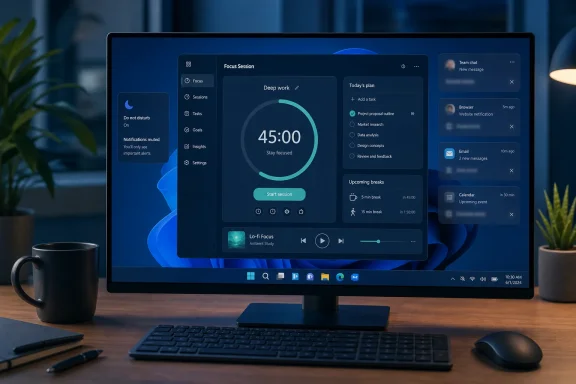 What Focus changes during a session
Starting a Focus session automatically enables Do Not Disturb by default, silencing most notifications until the timer expires. Windows can also hide notification badges and suppress flashing taskbar icons, reducing the small but persistent interruptions generated by browser tabs, chat clients, web apps, and background software.Microsoft’s support documentation confirms that users can start a session from the Clock app, Settings under System > Focus, or the notification area. Sessions can include scheduled breaks, and Windows sends a notification when the focus period ends. Notifications that arrive while Do Not Disturb is active remain available in Notification Center.
That makes Focus more useful than a normal timer, particularly for users whose attention is regularly broken by taskbar alerts rather than by a single distracting application.
Tasks, audio, and limits
The Clock app can connect to Microsoft To Do, letting users select a task before starting a session. It can also link a Spotify account for music or podcasts during focus time. A small timer overlay can remain visible on screen, although users who find countdowns distracting can minimize the interface instead.Focus is intentionally broad rather than restrictive. It does not block websites, prevent apps from opening, or enforce a particular workflow. Someone who needs to stop themselves from opening social media, YouTube, or games will still need browser controls, network policies, or third-party blocking tools.
Admins and power users should also note that priority notifications can still be allowed through Do Not Disturb. That is useful for keeping security alerts, support calls, or line-of-business notifications visible, but it should be configured carefully or it defeats the point of the session.
How to try it
- Open Clock and choose Focus sessions, then set a duration and optional breaks.
- Or go to Settings > System > Focus and select Start focus session.
- Review Settings > System > Notifications to configure priority notifications that can bypass Do Not Disturb.
- Link Microsoft To Do or Spotify in the Clock app only if those integrations fit the workflow.