

YouTube Miniplayer not working usually means you are testing an unsupported video, confusing the in-YouTube Miniplayer with Picture-in-Picture (PiP), or have a browser/app setting interfering with playback. These steps cover YouTube in Chrome, Microsoft Edge, and Firefox on Windows 10 and Windows 11, plus the YouTube app on Android, iPhone, and iPad.
YouTube has two different features:
Before changing any settings, test with a normal long-form YouTube video. YouTube does not offer Miniplayer for:
Do not leave security extensions disabled permanently. Identify the conflicting extension, update it, adjust its YouTube permissions, or remove it if necessary.
In Chrome:
If Firefox’s PiP control does not appear:
For a dependable Windows test, Firefox’s built-in PiP control is useful because it is independent of YouTube’s Miniplayer.
You can then:
This is expected behavior, not an app failure. Keep the player visible when you browse YouTube, or use YouTube Premium if you require background playback.
YouTube states that music content—such as official music videos, Art Tracks, children’s songs, and user-uploaded song covers—requires YouTube Premium for PiP. Test first with a non-music, long-form video.
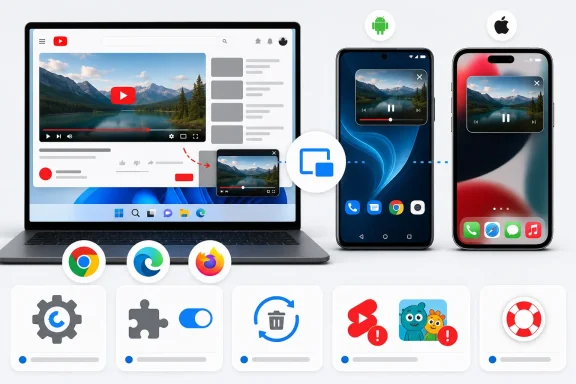 Identify which small player you need
YouTube has two different features:- Miniplayer keeps video playing while you browse inside YouTube. On a Windows PC, it remains in the browser tab. In the mobile app, it remains in the YouTube app.
- Picture-in-Picture (PiP) creates a floating video window that stays visible while you use another app or browser tab.
Before changing any settings, test with a normal long-form YouTube video. YouTube does not offer Miniplayer for:
- Shorts
- Videos marked Made for Kids
Start and reset YouTube Miniplayer on Windows
On a Windows computer, start with YouTube’s own Miniplayer rather than a browser PiP feature.- Open a supported video on YouTube.
- Move the pointer over the player controls.
- Select the Miniplayer button, if it is shown.
- Right-click directly on the video.
- Select Miniplayer.
- Click once in the video player so it has focus.
- Press I.
Fix a stuck or unresponsive Miniplayer
A Miniplayer can appear frozen, stay in an unexpected position, or remain linked to an old video. Close it fully before trying again.- Click the X in the upper-right corner of the Miniplayer, or press Esc.
- If you want to return to the original watch page instead, select Expand on the Miniplayer.
- Reopen the video from its watch page or from History.
- Start Miniplayer again with the player button, right-click menu, or I key.
Rule out a browser extension or damaged site data
Ad blockers, script filters, privacy extensions, video enhancers, and outdated browser data can prevent YouTube controls from loading correctly. Test before removing anything.Test in Chrome Incognito
- In Chrome, press Ctrl + Shift + N.
- Open YouTube in the Incognito window.
- Play a supported long-form video.
- Try Miniplayer.
Disable extensions temporarily
- In Chrome, select More (three dots).
- Select Extensions > Manage extensions.
- Turn off all extensions.
- Close and reopen the YouTube tab.
- Test Miniplayer.
Do not leave security extensions disabled permanently. Identify the conflicting extension, update it, adjust its YouTube permissions, or remove it if necessary.
Clear YouTube browser data
Warning: Clearing cookies signs you out of websites and can remove saved site preferences. It does not delete your YouTube account, subscriptions, playlists, or watch history stored in your Google Account.In Chrome:
- Press Ctrl + Shift + Delete.
- Set a suitable time range, such as All time if the problem persists.
- Select Cookies and other site data and Cached images and files.
- Select Delete data.
- Close Chrome completely, reopen it, sign back in to YouTube, and test Miniplayer.
Use browser Picture-in-Picture when you need video outside YouTube
Browser PiP is a workaround or alternative, not a repair for YouTube’s in-site Miniplayer. It is the right choice when you want a floating video while working in another program.Firefox on Windows
- Open a YouTube video in Firefox.
- Move the pointer over the video.
- Select the Picture-in-Picture control that appears over the player.
If Firefox’s PiP control does not appear:
- Open the Firefox menu.
- Select Settings.
- Open General.
- Scroll to the browsing/media controls area.
- Ensure Enable picture-in-picture video controls is enabled.
Microsoft Edge and Chrome
Both browsers can offer Picture-in-Picture through their media controls or supported extensions, but their controls can change with browser releases. If the browser’s PiP option is unavailable, first confirm that YouTube Miniplayer works in a clean browser profile or in Chrome Incognito. That separates a YouTube problem from a browser-level PiP issue.For a dependable Windows test, Firefox’s built-in PiP control is useful because it is independent of YouTube’s Miniplayer.
Fix Miniplayer in the YouTube mobile app
On Android, iPhone, and iPad, Miniplayer stays inside the YouTube app.- Open the YouTube app.
- Start a supported long-form video.
- Tap the device Back control or swipe down on the playing video.
You can then:
- Tap the Miniplayer to return to the full watch page.
- Tap its play/pause control.
- Tap X to close it.
- Drag it to move it.
- Double-tap or pinch to change its size.
Playback pauses after you hide the Miniplayer
Dragging the mobile Miniplayer to the screen edge hides it. For users without YouTube Premium, YouTube pauses playback immediately when the Miniplayer is hidden. It resumes when you bring the player back from the edge.This is expected behavior, not an app failure. Keep the player visible when you browse YouTube, or use YouTube Premium if you require background playback.
Enable mobile Picture-in-Picture for playback outside YouTube
Use PiP when the video should float over your device’s Home screen or another app.Android
Both Android and the YouTube app must permit PiP.- Open Android Settings.
- Select Apps.
- Select YouTube.
- Open Advanced > Picture-in-picture.
- Turn on Allow picture-in-picture.
- Open the YouTube app.
- Tap your profile picture, then open Settings > Playback.
- Turn on Picture-in-Picture.
- Start a video and leave the YouTube app.
iPhone and iPad
YouTube PiP requires iOS or iPadOS 15.0 or later.- Open iPhone or iPad Settings.
- Select General > Picture in Picture.
- Turn on Start PiP Automatically.
- Open the YouTube app.
- Go to your profile picture > Settings > Playback.
- Turn on Picture-in-Picture.
- Start a video and leave the app.
YouTube states that music content—such as official music videos, Art Tracks, children’s songs, and user-uploaded song covers—requires YouTube Premium for PiP. Test first with a non-music, long-form video.
Refresh the YouTube app
If the mobile Miniplayer controls are missing or the player freezes, refresh the app before reinstalling it.Android
- Open Settings > Apps > YouTube.
- Select Storage or Storage & cache.
- Select Clear cache.
- Reopen YouTube and test again.
- Open the Google Play Store.
- Select your profile picture.
- Select Manage apps & device.
- Install the available YouTube update.
iPhone and iPad
- Open the App Store.
- Select your profile picture.
- Locate YouTube under available updates.
- Select Update.
Verify the fix
The result depends on the feature you selected:- Windows YouTube Miniplayer: Video keeps playing while you browse YouTube in the same browser tab.
- Mobile YouTube Miniplayer: Video shrinks to the bottom of the YouTube app after you go back or swipe down.
- Picture-in-Picture: Video appears in a floating window after leaving the app or using the browser PiP control.
References
- Primary source: Technobezz
Published: 2026-07-16T17:58:59.676000+00:00
Loading…
www.technobezz.com