

Messenger not working on a Windows PC can usually be fixed by updating or repairing the Microsoft Store app, correcting Windows camera and microphone permissions, or switching to Messenger in a browser when the desktop app is unavailable. These steps cover Messenger for Windows on Windows 11 and Windows 10, plus Messenger in Microsoft Edge. Windows 10 support ended on October 14, 2025, so Windows 11 is the supported long-term platform.
Meta’s Messenger for Windows is distributed through the Microsoft Store and uses web-platform technology. Meta has also announced deprecation of the Windows Messenger app, so the browser version at
Before changing settings, identify the symptom:
For Wi-Fi problems:
Then install Windows updates:
Not every installed program displays Repair or Reset. If those buttons are unavailable, move to the reinstall section.
If the web page is blank, loops during sign-in, or repeatedly returns to an old session, first test in an InPrivate window:
If you previously blocked it:
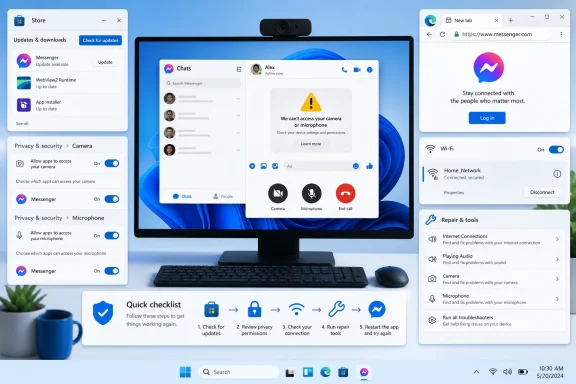 First, confirm which Messenger version you are using
Meta’s Messenger for Windows is distributed through the Microsoft Store and uses web-platform technology. Meta has also announced deprecation of the Windows Messenger app, so the browser version at messenger.com is the practical fallback if the app is missing, will not install, or remains unstable.Before changing settings, identify the symptom:
- App opens then closes, freezes, or remains blank: Repair, reset, or reinstall the app.
- Messages stay unsent or chats never load: Test the network and browser fallback.
- Calls cannot use the camera or microphone: Check Windows privacy controls and the browser’s site permission.
- Microsoft Store cannot install or update Messenger: Check storage, Windows Update, and Store access.
- Only one conversation fails: Check whether that contact, Page, or conversation has restrictions or account-level issues.
Restart Messenger, Windows, and your connection
A restart clears a stuck Messenger process and renews its network connection without removing your account.- Close Messenger.
- Press Ctrl + Shift + Esc to open Task Manager.
- Under Processes, select Messenger if it is listed.
- Select End task.
- Open Messenger again from Start.
- Save open work.
- Select Start > Power > Restart.
- After Windows signs in, open Messenger and test a chat.
For Wi-Fi problems:
- Select the network icon on the taskbar.
- Turn Wi-Fi off, wait a few seconds, then turn it back on.
- Reconnect to your network.
- Open Messenger and send a test message.
Update Messenger and Windows
An outdated Messenger installation can cause sign-in, chat loading, and call problems. Install Messenger only from the Microsoft Store.- Open Microsoft Store.
- Select Library.
- Select Get updates.
- Install any available update for Messenger.
- Restart Messenger after the update completes.
Then install Windows updates:
- Select Start > Settings > Windows Update.
- Select Check for updates.
- Download and install available updates.
- Restart when Windows requests it.
Repair or reset the Messenger app
Use Repair before Reset. Repair attempts to correct the app without removing its data. Reset is stronger and can remove locally stored app data and sign you out.Warning: Before resetting or reinstalling Messenger, make sure you can sign back in and have access to any account recovery method you use. If you use end-to-end encrypted chats, confirm that secure storage is enabled before removing the app, as Meta recommends for preserving encrypted chat history across reinstallations.
Windows 11
- Select Start > Settings > Apps > Installed apps.
- Find Messenger.
- Select the three-dot button beside it.
- Select Advanced options.
- Select Repair.
- Open Messenger and test it.
- Return to Advanced options.
- Select Reset.
- Confirm the reset.
- Open Messenger and sign in again.
Windows 10
- Select Start > Settings > Apps > Apps & features.
- Select Messenger.
- Select Advanced options.
- Select Repair.
- Test Messenger.
Not every installed program displays Repair or Reset. If those buttons are unavailable, move to the reinstall section.
Use Messenger in Microsoft Edge
Using Messenger in a browser is a workaround for a broken or deprecated desktop app, but it is also a supported way to access chats and calls on a Windows PC.- Open Microsoft Edge.
- Go to
messenger.com. - Sign in with your Messenger account.
- Open a conversation and send a test message.
If the web page is blank, loops during sign-in, or repeatedly returns to an old session, first test in an InPrivate window:
- In Edge, select Settings and more (…).
- Select New InPrivate window.
- Open
messenger.comand sign in.
Clear Messenger site data in Edge
Warning: Clearing cookies and site data signs you out of websites. Do not select saved passwords unless you intentionally want to remove them.
- In Edge, select Settings and more > Settings.
- Select Privacy, search, and services.
- Under Clear browsing data, select Choose what to clear.
- Set Time range to a suitable period, such as All time.
- Select Cookies and other site data and Cached images and files.
- Select Clear now.
- Close Edge, reopen it, then sign in to Messenger again.
Restore camera and microphone access for Messenger calls
Messenger calls need permission at two levels: Windows must allow the app or browser to use the device, and the Messenger website must be allowed inside the browser.Windows 11 privacy settings
For the Messenger app or Microsoft Edge:- Select Start > Settings > Privacy & security > Camera.
- Turn on Camera access.
- Turn on Let apps access your camera.
- If Messenger appears in the app list, turn it on.
- Turn on Let desktop apps access your camera when using Messenger in Edge.
- Select Start > Settings > Privacy & security > Microphone.
- Turn on Microphone access.
- Turn on Let apps access your microphone.
- Enable Messenger if it appears.
- Turn on Let desktop apps access your microphone for browser calls.
Windows 10 privacy settings
- Select Start > Settings > Privacy > Camera.
- Ensure Camera access for this device and Allow apps to access your camera are enabled.
- Enable Messenger if listed.
- Enable Allow desktop apps to access your camera for Edge.
Allow Messenger in Edge
When Messenger starts a call, Edge should display a permission prompt. Select Allow for the camera or microphone.If you previously blocked it:
- Open Messenger in Edge.
- Select the padlock or site-information icon beside the address bar.
- Change Camera and Microphone to Allow.
- Reload the page and start the call again.
- Select Settings and more > Settings.
- Select Privacy, search, and services.
- Open Site permissions > All sites.
- Select the Messenger site.
- Change blocked camera or microphone permissions to Allow.
Reinstall Messenger from Microsoft Store
Reinstall only after updating and attempting Repair or Reset.- Select Start > Settings > Apps > Installed apps in Windows 11.
- On Windows 10, use Start > Settings > Apps > Apps & features.
- Find Messenger.
- Select the three-dot menu in Windows 11, or select the app in Windows 10.
- Select Uninstall and confirm.
- Restart Windows.
- Open Microsoft Store.
- Search for Messenger.
- Select Install.
- Open it and sign in.
Reset Windows networking only when other fixes fail
Use Network reset only if Messenger and other internet services fail on the PC, especially if the problem follows a VPN, virtual network adapter, or network configuration change.Warning: Network reset removes installed network adapters and restores their settings to defaults. You may need to reconnect to Wi-Fi, set up VPN software again, or reconfigure virtual networking tools.
Windows 11
- Select Start > Settings > Network & internet > Advanced network settings.
- Select Network reset.
- Select Reset now.
- Select Yes.
- Let Windows restart.
- Reconnect to your network and test Messenger.
Windows 10
- Select Start > Settings > Network & Internet > Status.
- Select Network reset.
- Select Reset now.
- Confirm and allow Windows to restart.
References
- Primary source: Technobezz
Published: 2026-07-16T16:53:35.615000+00:00
Loading…
www.technobezz.com