

Microsoft Foundry and Azure OpenAI developers can reduce AI application latency and scale more predictably by measuring the complete request path, trimming prompt and retrieval work, separating interactive traffic from batch jobs, and sizing capacity from observed demand. This guide applies to applications using Microsoft Foundry, Azure OpenAI in Microsoft Foundry Models, Azure Monitor Application Insights, and standard or provisioned model deployments.
Do not change models before you can show where time is being spent. A slow answer can be caused by prompt construction, retrieval, a serial tool call, queueing, rate limits, application networking, or model generation. Changing the model may hide the issue without fixing it.
Before testing, record:
Warning: Trace data can include prompts, outputs, tool arguments, and retrieval content. Do not place passwords, access keys, bearer tokens, or unnecessary personal data in prompts or tool parameters. Restrict access to the Application Insights and Log Analytics resources. Microsoft documents that users commonly need the Log Analytics Reader role to query telemetry.
For each request trace, classify every step:
Avoid adding multiple agent frameworks or orchestration layers without a measured benefit. Each layer can add network calls, serialization, retries, state handling, and failure modes.
Microsoft Foundry also provides model router, a deployable chat model that selects an underlying model in real time. As of July 16, 2026, its documented routing modes include Balanced, Quality, and Cost.
To create a router deployment:
Use Azure OpenAI Batch for asynchronous high-volume jobs when a 24-hour target turnaround is acceptable. Microsoft documents that Global Batch uses separate enqueued-token quota and requires a deployment with the Global-Batch SKU.
Before using PTUs:
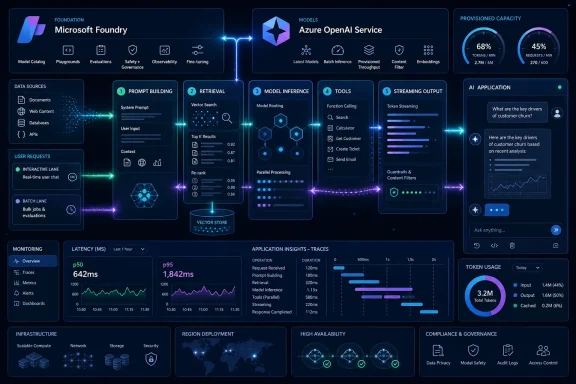 Start with an end-to-end latency baseline
Do not change models before you can show where time is being spent. A slow answer can be caused by prompt construction, retrieval, a serial tool call, queueing, rate limits, application networking, or model generation. Changing the model may hide the issue without fixing it.Before testing, record:
- A representative set of user prompts, including simple, retrieval-heavy, and tool-using requests.
- The expected quality result for each prompt.
- Time to first visible output for streaming requests.
- Total response time.
- p50, p95, and p99 latency rather than only an average.
- Input and output token counts.
- Model, deployment, region, routing path, tool calls, retries, and errors.
Connect Foundry tracing to Application Insights
Microsoft Foundry tracing records agent, model, retrieval, and tool activity so you can identify the slow span rather than guessing.- Sign in to Microsoft Foundry and open the applicable project.
- In the left navigation, select Agents.
- Select Traces at the top of the page.
- Select Connect.
- Select an existing Azure Monitor Application Insights resource, or choose Create new and complete the resource-creation wizard.
- Run a known test request through your application or the Foundry playground.
- Return to Agents > Traces and refresh after a few minutes.
- Open the new trace and review its spans in order. Identify time spent before the model call, in the model call, and after the model call.
Warning: Trace data can include prompts, outputs, tool arguments, and retrieval content. Do not place passwords, access keys, bearer tokens, or unnecessary personal data in prompts or tool parameters. Restrict access to the Application Insights and Log Analytics resources. Microsoft documents that users commonly need the Log Analytics Reader role to query telemetry.
Remove work from the request path
Once traces identify the dominant delay, reduce the work required for each interactive request. This is the primary fix for excess latency and cost; switching models is only a workaround if the application still sends an unnecessarily large request.Tighten instructions and conversation state
- Move stable system instructions into one concise prompt prefix.
- Remove duplicate policy text, examples, and tool descriptions.
- Set a maximum history window for each conversation.
- Summarize older conversation turns into a compact factual state: user goal, confirmed preferences, decisions, and unresolved tasks.
- Send only the recent turns needed to answer the next request.
- Measure the new input token count and compare response quality against the baseline.
Reduce retrieval payloads
A retrieval-augmented generation design should return evidence that is relevant enough to answer the request, not every document that might be related.- Log the search query, result count, selected chunks, chunk sizes, and retrieval duration.
- Start with a single retrieval pass.
- Lower the number of retrieved chunks until answer quality begins to decline.
- Prefer smaller, well-bounded chunks with useful metadata over very large document excerpts.
- Remove duplicate or near-duplicate chunks before constructing the prompt.
- Require citations or source identifiers in the response when your product needs answer verification.
- Add multi-step or agentic retrieval only when traces and evaluation results show that a single pass fails for a defined class of requests.
Cache stable work deliberately
Cache deterministic or slow-changing results outside the model path. Suitable candidates include:- Normalized document metadata.
- Embeddings and search results for common queries.
- User entitlement checks where a short cache lifetime is safe.
- Repeated classifications or extraction results.
- Static reference material and precomputed summaries.
Make the interactive pipeline feel fast
Streaming improves perceived responsiveness because users can begin reading before the complete response is generated. It does not reduce the underlying total work, so use it together with prompt and pipeline reductions.- Enable streaming in the model API path supported by your application.
- Send an immediate interface state such as Searching documents, Checking account details, or Preparing answer while retrieval or a required tool runs.
- Render generated output incrementally.
- Provide a Cancel action that stops the client request and prevents unnecessary follow-on tool calls.
- Preserve a completed response only after the final status confirms success.
- Measure time to first token separately from total response time.
Parallelize only independent operations
A common architecture error is running independent work one call at a time.For each request trace, classify every step:
- Required and dependent: must run after a prior result; keep it serial.
- Required and independent: start concurrently.
- Optional: keep off the interactive critical path.
- Repeated: cache, combine, or remove it.
Avoid adding multiple agent frameworks or orchestration layers without a measured benefit. Each layer can add network calls, serialization, retries, state handling, and failure modes.
Bound retries and establish fallbacks
Retries protect against transient faults, but uncontrolled retries create tail-latency spikes and duplicate cost.- Set a request deadline for the full user operation.
- Give each downstream call a shorter timeout that leaves time for a fallback response.
- Retry only transient, idempotent failures such as throttling or a temporary network error.
- Use a small retry limit and backoff with jitter.
- Record every retry in tracing, including status code, elapsed time, and final outcome.
- Define a fallback for each dependency: cached answer, smaller model path, simplified response, queued job, or a clear user-facing failure message.
- Test the fallback by deliberately disabling a noncritical tool in a staging environment.
Route requests to an appropriate model path
Use separate application routes when task complexity is predictable. For example, classification, extraction, short formatting, and routine question answering may use a smaller or lower-cost deployment, while difficult reasoning or long-form synthesis uses a stronger deployment.Microsoft Foundry also provides model router, a deployable chat model that selects an underlying model in real time. As of July 16, 2026, its documented routing modes include Balanced, Quality, and Cost.
To create a router deployment:
- In Microsoft Foundry, open your project and select the model deployment experience.
- Choose model router.
- Select a routing mode:
- Balanced for general workloads.
- Quality for higher-stakes or difficult tasks.
- Cost for high-volume, simpler tasks.
- If compliance, cost, or performance requirements require it, select Route to a subset of models and choose permitted models.
- Save the deployment.
- Update the application to call the router deployment using the same chat-oriented API pattern used for a single deployment.
- Wait for changes to routing mode or model subset to propagate; Microsoft notes that this can take up to five minutes.
- Compare quality, selected model, token use, and p95 latency against the baseline before moving production traffic.
Separate online requests from batch processing
Interactive chat, support, and user-triggered workflows need low latency. Large-scale enrichment, document extraction, evaluations, and catalog generation usually do not. Mixing them on the same online capacity can cause avoidable queueing and throttling.Use Azure OpenAI Batch for asynchronous high-volume jobs when a 24-hour target turnaround is acceptable. Microsoft documents that Global Batch uses separate enqueued-token quota and requires a deployment with the Global-Batch SKU.
- Create or use a model deployment configured for Global Batch.
- Prepare a JSONL input file where each line is one valid request.
- Give every request a unique custom identifier.
- Upload the file with the
batchpurpose. - Create the batch job for the supported endpoint.
- Poll job status until it is completed, or retrieve failure details if it is failed.
- Download the output file and match results using the custom identifiers.
- Keep batch output out of the user-facing synchronous request path.
Add provisioned throughput only after demand is measured
Provisioned throughput is a capacity decision, not an automatic speed fix. It reserves model processing capacity in Provisioned Throughput Units (PTUs). Microsoft bills deployed PTU capacity hourly whether it is used or idle, and provisioned deployments cannot be paused; deleting the deployment stops billing.Before using PTUs:
- Measure peak concurrent requests, input and output token sizes, p95/p99 latency, throttling, and daily traffic shape.
- Test the candidate model and prompt sizes under realistic concurrency.
- In Foundry, select Operate > Quota.
- Review the Token per minute and Provisioned throughput unit tabs for current allocation and usage.
- Confirm PTU quota is available in the required region and deployment type.
- Create a small hourly provisioned deployment for benchmarking before committing to a reservation.
- Compare latency and throughput with the standard deployment under the same load.
- Increase PTUs only when sustained demand and measured utilization justify the reserved capacity.