

If your Apple Magic Mouse will not wake, connect, move smoothly, scroll, or click correctly, work through the eight Apple-supported checks below in order. These steps cover Magic Mouse on Macs running current macOS versions and on iPads running iPadOS 13.4 or later. You will need a working Mac trackpad, USB mouse, or keyboard for some Mac steps.
A Magic Mouse that appears dead or refuses to reconnect may simply need to be turned off and back on.
If you have no working pointing device but your keyboard is connected:
For rechargeable Magic Mouse models:
After reconnecting the mouse, check its battery level:
For an earlier Apple wireless mouse with removable batteries:
If Magic Mouse is listed but not connected, select it from the Bluetooth controls and choose Connect if that option is shown.
For a rechargeable Magic Mouse, first use the cable-pairing method above. If the problem persists, remove the old Bluetooth entry from the device that currently owns the pairing.
On macOS 13 Ventura or later:
This is a pairing reset, not a hardware repair. It does not erase files or change your Mac account.
To restart a Mac:
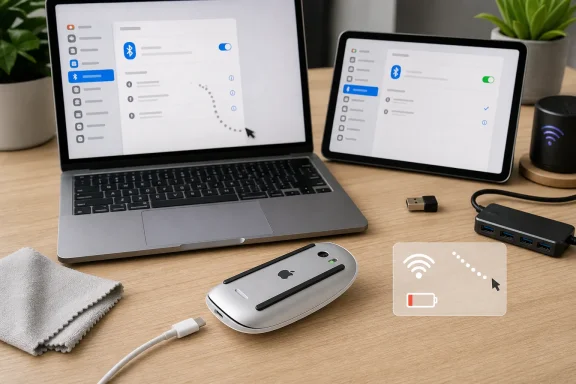 1. Power-cycle the Magic Mouse
A Magic Mouse that appears dead or refuses to reconnect may simply need to be turned off and back on.- Turn the Magic Mouse over.
- Slide the power switch to Off so that no green is visible.
- Wait a few seconds.
- Slide the switch back to On so that green is visible.
- Wait up to a minute for the Mac or iPad to reconnect.
2. Confirm Bluetooth is enabled on the Mac
Magic Mouse communicates through Bluetooth. If Bluetooth is off, the mouse cannot connect regardless of its battery level.- Use your Mac’s built-in trackpad or a USB mouse.
- Choose Apple menu > System Settings > Bluetooth.
- Turn Bluetooth on.
If you have no working pointing device but your keyboard is connected:
- Press Command-Space bar to open Spotlight.
- Type
Bluetooth File Exchange. - Press Return.
- Press Return again to turn Bluetooth on.
- Choose Apple menu > Restart.
- After the Mac starts, return to System Settings > Bluetooth and try again.
3. Charge the mouse or replace its batteries
A low battery can cause delayed movement, dropped connections, or a mouse that does not appear in Bluetooth settings.For rechargeable Magic Mouse models:
- Connect the appropriate USB-C, USB-C to Lightning, or Lightning to USB cable to the charging port on the underside of the mouse.
- Connect the other end to a Mac or USB power adapter.
- Leave the mouse switched on while charging for the fastest charging performance.
- After it has charged, disconnect the cable and test the mouse wirelessly.
After reconnecting the mouse, check its battery level:
- Click Control Center in the menu bar.
- Click Bluetooth.
- Review the battery percentage shown for Magic Mouse.
For an earlier Apple wireless mouse with removable batteries:
- Open the battery compartment.
- Install fresh batteries of the type specified inside the compartment.
- Turn the mouse on.
- Open Apple menu > System Settings > Bluetooth and reconnect it if necessary.
4. Pair a rechargeable Magic Mouse to the Mac with a cable
Connecting a rechargeable Magic Mouse directly to a Mac is the most reliable way to pair it again. Apple supports this method when the mouse is new, has been reset, does not appear in Bluetooth, or will not reconnect.- Connect the Magic Mouse to the Mac using a compatible cable:
- USB-C cable
- USB-C to Lightning cable
- Lightning to USB cable
- Turn the mouse on; green should be visible under the switch.
- Leave it connected for about one minute.
- Open Apple menu > System Settings > Bluetooth.
- Confirm that Magic Mouse appears in the Bluetooth device list.
- Disconnect the cable.
- Test the mouse wirelessly.
If Magic Mouse is listed but not connected, select it from the Bluetooth controls and choose Connect if that option is shown.
5. Remove an old pairing when the mouse is attached to another Mac
A Magic Mouse can be paired with more than one Apple device over time, but it may not be available to connect where you expect if it is still associated with another nearby Mac or iPad.For a rechargeable Magic Mouse, first use the cable-pairing method above. If the problem persists, remove the old Bluetooth entry from the device that currently owns the pairing.
On macOS 13 Ventura or later:
- On the other Mac, choose Apple menu > System Settings > Bluetooth.
- Find the Magic Mouse.
- Control-click its name.
- Choose Forget.
- Turn the mouse off, then on again.
- Connect it to the intended Mac with its cable to pair it automatically.
- Choose Apple menu > System Preferences > Bluetooth.
- Control-click the Magic Mouse.
- Choose Remove.
- Turn the mouse off and back on.
- Pair it again from Bluetooth settings or, for rechargeable models, with a cable.
This is a pairing reset, not a hardware repair. It does not erase files or change your Mac account.
6. Clean the sensor and eliminate Bluetooth interference
If the Magic Mouse is connected but the pointer is jumpy, slow, delayed, or intermittently unresponsive, treat it as a tracking or radio-interference issue.Clean the sensor
- Turn the mouse off.
- Locate the optical sensor on the bottom.
- Use compressed air to clear dust from the sensor, or gently wipe it with a cloth.
- Keep the compressed-air can upright while spraying.
- Clean the exterior with a lint-free cloth lightly moistened with water.
- Keep moisture away from openings.
Reduce wireless interference
Apple identifies nearby wireless and USB equipment as potential sources of Bluetooth interference. Test with the mouse close to the Mac, then temporarily move or disconnect likely sources:- USB 3 or Thunderbolt 3 docks, drives, and hubs
- Unshielded USB cables
- Metal objects between the mouse and Mac
- Power cables close to the Mac or mouse
- Microwave ovens, fluorescent lighting, cordless phones, and wireless video equipment
- Unneeded 2.4 GHz wireless devices
7. Correct pointer settings on Mac or iPad
A working mouse can feel broken when tracking, scrolling, acceleration, or secondary-click settings are unsuitable.On a Mac
- Choose Apple menu > System Settings > Mouse.
- Open Point & Click.
- Adjust Tracking speed and test the pointer after each adjustment.
- If the pointer feels unpredictable, open Advanced and turn Pointer acceleration off.
- Choose Apple menu > System Settings > Accessibility > Pointer Control.
- Drag the Double-click speed slider as needed.
- Click Mouse Options.
- Adjust Scroll speed.
On an iPad
- Open Settings > General > Trackpad & Mouse.
- Adjust Tracking Speed.
- Turn Natural Scrolling on or off to match your preference.
- Select Secondary Click and choose the left side, right side, or off.
- Open Settings > Accessibility > Pointer Control.
- Adjust pointer contrast, automatic hiding, color, size, animations, or scrolling speed.
8. Restart, update, and arrange service if the fault remains
Restart only after checking power, charging, Bluetooth, pairing, sensor cleanliness, interference, and settings.To restart a Mac:
- Choose Apple menu > Restart.
- After sign-in, test the Magic Mouse before opening extra apps or reconnecting unnecessary USB accessories.
- Choose Apple menu > System Settings > General > Software Update.
- Install any available update by following the onscreen instructions.
- Restart if macOS requests it.
- Back up the iPad if possible.
- Connect it to power and Wi-Fi.
- Open Settings > General > Software Update.
- Tap Download and Install if an update is available.
- Turn on and charge the mouse.
- Open Settings > Bluetooth.
- Turn Bluetooth on.
- Select Magic Mouse under Other Devices.
- If prompted for a PIN, enter
0000, then tap Pair.