

If Wi‑Fi is not working but Ethernet is, your internet service and wired network are probably working; the fault is usually your Windows wireless adapter, saved Wi‑Fi profile, radio settings, or the router’s wireless configuration. These steps apply to Windows 11 and Windows 10 PCs. Work through them in order, stopping when Wi‑Fi reconnects.
Before resetting anything, test the same Wi‑Fi network with another phone, tablet, or computer.
Next, check Airplane mode:
Also check for an unintended proxy:
For repeated dropouts rather than a complete failure:
For deeper PC-side evidence, open an elevated Command Prompt and run:
Windows creates a wireless report summarizing recent Wi‑Fi sessions, adapter information, and connection failures. Review the report for adapter errors, repeated authentication failures, or evidence that Windows cannot see networks. If the adapter does not appear in Device Manager after driver reinstall and restart, the issue may be a failed wireless card or an internal connection that requires hardware service.
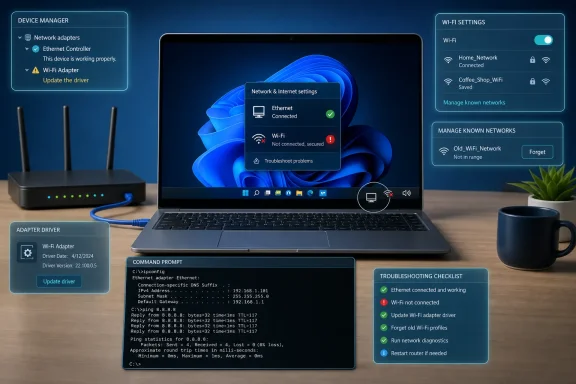 Confirm whether the problem is the PC or the Wi‑Fi network
Before resetting anything, test the same Wi‑Fi network with another phone, tablet, or computer.- Other devices connect normally: focus on the affected Windows PC.
- No wireless device connects, but Ethernet works: restart and inspect the modem/router. The router’s Wi‑Fi radio, wireless settings, or firmware is the likely cause.
- Your PC sees the network and says “No internet”: it may be connected to Wi‑Fi but failing to obtain an IP address, reach DNS, or complete a sign-in page.
- The Wi‑Fi option is missing entirely: the adapter may be disabled, its driver may have failed, or the laptop’s wireless switch may be off.
Turn Wi‑Fi on and reconnect
- Select the Network, Sound, or Battery icon at the far right of the taskbar.
- Make sure Wi‑Fi is enabled.
- In Windows 11, select the arrow beside Wi‑Fi to open Manage Wi‑Fi connections. In Windows 10, select the available Wi‑Fi network from the flyout.
- Select your network, choose Connect, enter the password, and select Next.
Next, check Airplane mode:
- Open Start > Settings > Network & internet > Airplane mode.
- Turn Airplane mode off.
- Return to Wi‑Fi settings and try connecting again.
Restart the router and modem correctly
Use this method when multiple wireless devices cannot connect, or when they connect but have no internet access.- Unplug the router power cable.
- Unplug the modem power cable.
- Wait at least 30 seconds.
- If the modem has a battery backup and its lights remain on, remove the battery temporarily.
- Plug the modem back in first. Wait until its normal status lights stop changing.
- Plug the router back in.
- Wait a few minutes for Wi‑Fi and internet indicators to return to their normal state.
- On the Windows PC, try joining Wi‑Fi again.
Forget the saved Wi‑Fi network and join it again
A stored Wi‑Fi profile can become invalid after a password change, router replacement, security-mode change, or configuration update.- Open Start > Settings.
- Go to Network & internet > Wi‑Fi > Manage known networks.
- Select the affected network.
- Select Forget.
- Select the taskbar network icon, choose the network, select Connect, and enter the current password.
Run Windows diagnostics and check the adapter state
On Windows 11, Microsoft’s current supported starting point is the automated troubleshooter in the Get Help app.- Open Start and search for Get Help.
- Open the app and run the Network and Internet troubleshooter.
- Complete any prompted diagnostic or repair steps.
- Restart the PC if prompted, then test Wi‑Fi again.
- Open Start > Settings > Network & Internet > Status.
- Scroll down and select Network troubleshooter.
- Follow the prompts in the Troubleshoot Problems window.
- Right-click Start and select Device Manager.
- Expand Network adapters.
- Locate the wireless adapter. Its name commonly includes terms such as Wi‑Fi, Wireless, WLAN, Intel, Realtek, MediaTek, or Qualcomm.
- If it is disabled, right-click it and select Enable device.
- If it shows a warning symbol, open Properties and note the Device Manager error code before proceeding.
- Press Win + R.
- Type
services.mscand press Enter. - Find WLAN AutoConfig.
- Right-click it and select Restart.
Repair an active Wi‑Fi connection with no internet
If Windows shows that you are connected to Wi‑Fi but displays No internet, first disconnect Ethernet so you can test the wireless connection by itself.- Open Command Prompt as administrator: search for Command Prompt, select Run as administrator, then approve the prompt.
- Run the following commands one at a time:
Code:
ipconfig /release
ipconfig /renew
ipconfig /flushdns- Reconnect to Wi‑Fi and test a few websites.
ipconfig shows an address beginning with 169.254, Windows did not receive a usable IP address from the router. Restart the router, verify that DHCP is enabled in the router configuration, and test another wireless device.Also check for an unintended proxy:
- Open Start > Settings > Network & internet > Proxy.
- Under Manual proxy setup, turn off a manually configured proxy unless your employer, school, or network administrator requires it.
Reset the Windows network stack
This is a repair step for a PC that sees Wi‑Fi but cannot connect reliably or cannot reach the internet after connecting.Warning: These commands reset network components and can affect custom network settings. If you use a workplace VPN, static IP address, special DNS server, or network virtualization software, record those settings first.
- Open Command Prompt as administrator.
- Run these commands in this order:
Code:
netsh winsock reset
netsh int ip reset
ipconfig /release
ipconfig /renew
ipconfig /flushdns- Restart the PC.
- Connect to Wi‑Fi and test the connection.
Update or reinstall the wireless adapter driver
Start with Windows Update, especially if Wi‑Fi failed after an update, sleep/resume issue, or sudden driver crash.- Open Start > Settings > Windows Update.
- Select Check for updates.
- Install available updates.
- Open Advanced options > Optional updates and install any offered wireless or network-adapter driver update.
- Restart the PC.
Warning: Before uninstalling the adapter, download the correct Wi‑Fi driver from your PC manufacturer’s support site using Ethernet or another computer. Save it locally or to a USB drive. Windows often reinstalls a driver automatically after restart, but it is safer to have the manufacturer driver available.
- Open Device Manager.
- Expand Network adapters.
- Right-click the Wi‑Fi adapter and select Uninstall device.
- If available, select Attempt to remove the driver for this device.
- Select Uninstall.
- Restart Windows.
For repeated dropouts rather than a complete failure:
- In Device Manager, right-click the Wi‑Fi adapter and select Properties.
- Open the Power Management tab.
- Clear Allow the computer to turn off this device to save power.
- Select OK and test again.
Use Network reset only as the final Windows repair
Network reset removes installed network adapters and their settings, then reinstalls adapters after restart. It can fix persistent corruption, but it is more disruptive than forgetting a network or resetting the network stack.Warning: Network reset can require you to reinstall or reconfigure VPN clients, Hyper‑V virtual switches, and other network software. It may also change known networks to the Public profile, which disables PC discoverability on those networks.
- Open Start > Settings > Network & internet.
- In Windows 11, select Advanced network settings > Network reset.
- In Windows 10, select Status > Network reset.
- Select Reset now.
- Select Yes to confirm.
- Allow Windows to restart.
- Rejoin your Wi‑Fi network using its password.
Check the router when the PC is not the only affected device
When Wi‑Fi fails across several devices while Ethernet remains functional, use the router manufacturer’s official app, manual, or support process to check:- Whether the Wi‑Fi radios are enabled.
- Whether the router broadcasts separate 2.4 GHz and 5 GHz networks.
- Whether older devices support the band and security mode in use.
- Whether access control or MAC filtering has blocked the PC.
- Whether the router firmware has an update available.
- Whether DHCP remains enabled.
For deeper PC-side evidence, open an elevated Command Prompt and run:
netsh wlan show wlanreportWindows creates a wireless report summarizing recent Wi‑Fi sessions, adapter information, and connection failures. Review the report for adapter errors, repeated authentication failures, or evidence that Windows cannot see networks. If the adapter does not appear in Device Manager after driver reinstall and restart, the issue may be a failed wireless card or an internal connection that requires hardware service.
References
- Primary source: Technobezz
Published: 2026-07-17T16:43:47.977000+00:00
Wi-Fi Not Working but Ethernet Is? 8 Fixes to Get Back Online | Technobezz
Wi-Fi not working but Ethernet is? Fix router, Windows, Mac, iPhone, Android, and Chromebook connection problems.www.technobezz.com