

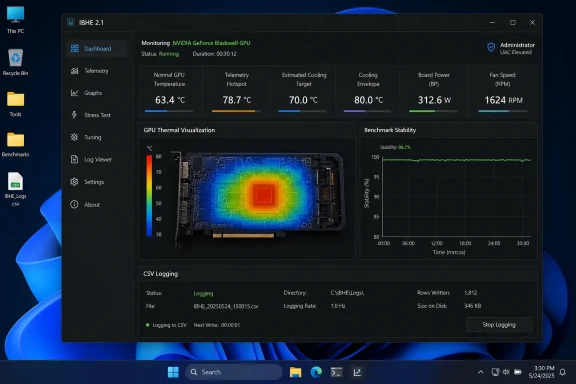
IBHE 2.1 (igor’sLAB Blackwell Hotspot Estimation) can help you monitor and log thermal behavior on NVIDIA GeForce Blackwell GPUs in Windows 10 and Windows 11. Its key benefit is that it separates a directly read Telemetry Hotspot, when available, from calculated Estimated Cooling Target and Cooling Envelope values. Use it to identify repeatable thermal changes—not to treat one temperature reading as proof that a cooler, thermal paste, or GPU is defective.
IBHE 2.1 is aimed at NVIDIA Blackwell consumer graphics cards. It is a complementary diagnostic tool, not a replacement for HWiNFO, GPU-Z, MSI Afterburner, or your card vendor’s software.
Before testing:
Use it as the baseline temperature that lets you compare one test session with another.
However, do not assume that this is a universally documented NVIDIA “true hotspot” specification. Internal sensor data can be filtered, calibrated, validated, or combined by the driver and firmware. Treat it as a useful measured diagnostic value that should be compared over time under similar conditions.
IBHE derives them from data such as the public GPU temperature, board power, fan behavior, fan speed, and the GPU’s heating or cooling trend. The Estimated Cooling Target is the closer comparison model. The Cooling Envelope is intentionally more conservative and accounts for thermal progression and fan-control behavior.
If direct telemetry is unavailable, IBHE can still provide these estimated values. It should display unavailable measurements as unavailable rather than silently presenting an estimate as a sensor reading.
If you decline the UAC prompt, IBHE continues running without direct telemetry. This is expected behavior, not a failed installation.
Warning: Elevation gives the program broader access to Windows and the graphics driver. Do not configure every startup to run elevated unless you need direct telemetry. Right-clicking the executable and choosing Run as administrator is the preferred one-time method.
Do not compare logs casually. Match the following as closely as possible:
For example, NVIDIA lists the GeForce RTX 5080 maximum GPU temperature as 88°C. That specification is the product’s listed maximum GPU temperature, not a guarantee that every software field labeled “hotspot” has the same threshold or meaning. Do not use the RTX 5080 figure for another Blackwell model.
A result is worth investigating when all of the following are true:
Telemetry Hotspot shows
For a clean comparison:
First, download the current IBHE 2.1 package again from the publisher and replace the older program files.
If the window is still too tall:
 Before you start
IBHE 2.1 is aimed at NVIDIA Blackwell consumer graphics cards. It is a complementary diagnostic tool, not a replacement for HWiNFO, GPU-Z, MSI Afterburner, or your card vendor’s software.Before testing:
- Download IBHE only from the igor’sLAB publication/download page.
- Use a current NVIDIA graphics driver.
- Close or temporarily disable manual fan-control features in MSI Afterburner, ASUS GPU Tweak, FanControl, or similar utilities for the baseline test.
- Keep your normal case configuration in place: side panels installed, normal room temperature, and usual fan curves.
- Do not change power limits, voltages, VBIOS settings, or cooler mounting solely because of an initial IBHE result.
- Have an administrator account available if you want the direct Telemetry Hotspot reading.
Understand the three temperature categories
The most important step is reading IBHE’s labels correctly.Normal GPU temperature
This is the familiar public GPU temperature reported through the driver. It is useful, but it is not necessarily the warmest sensor location on the GPU die.Use it as the baseline temperature that lets you compare one test session with another.
Telemetry Hotspot
A value labeled Telemetry Hotspot is the directly read measurement IBHE obtained from available internal GPU telemetry. It is not an estimated number.However, do not assume that this is a universally documented NVIDIA “true hotspot” specification. Internal sensor data can be filtered, calibrated, validated, or combined by the driver and firmware. Treat it as a useful measured diagnostic value that should be compared over time under similar conditions.
Estimated Cooling Target and Cooling Envelope
These are model values, not sensors.IBHE derives them from data such as the public GPU temperature, board power, fan behavior, fan speed, and the GPU’s heating or cooling trend. The Estimated Cooling Target is the closer comparison model. The Cooling Envelope is intentionally more conservative and accounts for thermal progression and fan-control behavior.
If direct telemetry is unavailable, IBHE can still provide these estimated values. It should display unavailable measurements as unavailable rather than silently presenting an estimate as a sensor reading.
Start IBHE with the correct permissions
You can run IBHE normally for live monitoring, estimates, overlay use, and logging. Administrator elevation is required only when you want the direct Telemetry Hotspot reading.- Start IBHE normally.
- Select the intended NVIDIA GPU if more than one GPU is listed.
- Check the status area.
- If IBHE shows Restart as Administrator, select it.
- Approve the Windows User Account Control prompt.
If you decline the UAC prompt, IBHE continues running without direct telemetry. This is expected behavior, not a failed installation.
Warning: Elevation gives the program broader access to Windows and the graphics driver. Do not configure every startup to run elevated unless you need direct telemetry. Right-clicking the executable and choosing Run as administrator is the preferred one-time method.
Configure a clean baseline test
A single maximum value after a game menu, shader compilation event, or brief benchmark spike is not a useful thermal assessment. Build a repeatable baseline instead.- Start IBHE and allow the system to sit at idle until GPU temperatures and fan behavior settle.
- Leave the polling interval at its default unless you have a specific reason to change it. The published IBHE example uses a 1,000 ms interval.
- Note the active GPU, normal GPU temperature, memory temperature, board power, fan percentage, fan RPM, and telemetry status.
- Start a repeatable load. Use the same game area, benchmark loop, rendering workload, or stress test each time.
- Let the load continue long enough for GPU temperature and fan speed to stabilize.
- Maintain the stable workload for several minutes.
- Stop the workload.
- Keep IBHE open until the card has completed its cooldown phase.
- Stable idle.
- Load start.
- Warm-up.
- Thermal stabilization.
- Sustained steady load.
- Load end.
- Full cooldown.
Record a CSV log for comparison
CSV logging is the practical way to investigate a suspected change in cooling performance.- In IBHE, select Start logging.
- Choose a save location and a descriptive filename, such as
RTX5080_baseline_caseclosed.csv. - Run the complete baseline test.
- Select the logging control again to stop recording.
- Wait for IBHE to finish and close the CSV file cleanly before moving or opening it.
Do not compare logs casually. Match the following as closely as possible:
- Same GPU driver.
- Same game, benchmark, scene, resolution, and graphics settings.
- Same power target and fan-control setup.
- Similar ambient room temperature.
- Same case panel position and case-fan configuration.
- Similar test duration and warm-up time.
Read the results without overreacting
Use the values together.- Normal GPU temperature: Public driver-reported baseline.
- Telemetry Hotspot: Direct measurement, where IBHE identifies it as such.
- Estimated Cooling Target: Model-based comparison to the normal GPU temperature.
- Cooling Envelope: More conservative thermal interpretation.
- Board Power: Required context for any temperature comparison.
- Fan percentage and RPM: Show how much cooling response the card is using.
- Temperature change: Indicates whether the GPU is heating, stable, or cooling.
- Sample count and model coverage: Indicate how much data supports the estimate.
- Estimation error: Telemetry Hotspot minus Estimated Cooling Target.
For example, NVIDIA lists the GeForce RTX 5080 maximum GPU temperature as 88°C. That specification is the product’s listed maximum GPU temperature, not a guarantee that every software field labeled “hotspot” has the same threshold or meaning. Do not use the RTX 5080 figure for another Blackwell model.
Check for a meaningful long-term trend
IBHE can track thermal cycles and compare hotspot deltas at similar GPU temperatures. This may help identify a change in local heat transfer, but only after enough comparable tests.A result is worth investigating when all of the following are true:
- The same test produces a consistently higher Telemetry Hotspot or cooling-envelope result.
- Board power and normal GPU temperature are comparable to prior logs.
- Fan RPM or fan percentage rises substantially to maintain the same load temperature.
- The trend repeats across multiple complete heat-and-cool cycles.
- The difference persists after restoring default fan and power settings.
Fix common IBHE problems
Telemetry Hotspot shows n/a or is missing
- Confirm that IBHE is elevated.
- Use Restart as Administrator or close IBHE and reopen it with Run as administrator.
- Confirm that the detected GPU is a supported Blackwell consumer card.
- Update the NVIDIA graphics driver if the problem began after a driver or Windows change.
- Continue with the estimation fields if telemetry remains unavailable.
The estimated values look implausible
Check whether external software is controlling fan speed, power, or voltage. Manual fixed fan speeds, custom fan curves, liquid cooling, and zero-RPM behavior can reduce the usefulness of the model.For a clean comparison:
- Restore the graphics card to its normal/default operating profile.
- Close competing fan-control tools.
- Select Reset model in IBHE.
- Repeat a full idle-to-load-to-cooldown recording.
The lower IBHE controls are hidden behind the taskbar
This was reported with high Windows display scaling on high-resolution displays. The issue was addressed in the revised IBHE 2.1 release published July 17, 2026.First, download the current IBHE 2.1 package again from the publisher and replace the older program files.
If the window is still too tall:
- In Windows 11, open Settings > System > Display > Scale.
- In Windows 10, open Settings > System > Display > Scale and layout.
- Temporarily choose a lower scaling value, reopen IBHE, and check whether the overlay and logging controls are visible.
The GPU runs hot in every tool
Confirm the issue outside IBHE before considering a hardware change:- Restore default GPU tuning and fan settings.
- Check that all card fans spin under load.
- Remove dust from intake filters, heatsink fins, and case vents.
- Verify that case airflow has not been obstructed by a new panel, cable arrangement, or front-mounted radiator.
- Repeat the same workload with the case closed and then, briefly, with the side panel removed.
References
- Primary source: igor´sLAB
Published: 2026-07-16T20:15:56+00:00
IBHE 2.1 for Blackwell GPUs: Hotspot Guide
IBHE 2.1 reads Blackwell GPU thermal data, estimates cooling demand, and helps assess Hotspot changes and TIM degradation over time.www.igorslab.de