

Install the July 14, 2026 Windows security updates normally on systems without suspected third-party transport dependencies, place uncertain systems in a compatibility ring, and use a time-limited deferral only for systems with a repeatable, operationally significant failure. Microsoft’s documented default setting blocks and logs unregistered third-party Transport Driver Interface providers; do not use an undocumented registry workaround to bypass that behavior.
The verified affected product families are:
Two systems on the same Windows release can therefore have different outcomes because they run different applications, drivers, or network components. Avoid creating a static list of supposedly incompatible products without test evidence or confirmation from their vendors.
Under the documented default setting of
If testing confirms that an application depends on an unregistered third-party transport, a vendor-supported update, replacement, or confirmed configuration is the expected remediation route. Depending on the product, its supplier may need to correct the transport’s registration, provide a compatible component, replace the transport, or confirm another supported configuration.
That vendor-remediation approach is WindowsForum operational guidance based on the enforcement behavior Microsoft documents. The supplied Microsoft material establishes blocking, logging, and the registration requirement; it does not itself contain a general recommendation to update or replace every affected transport.
Do not assume that every network problem appearing after the update is caused by TDI enforcement. DNS failures, firewall policies, certificates, routing, authentication, service startup problems, endpoint outages, and application configuration can produce similar symptoms. Confirmation requires testing the application’s real workflow and comparing evidence from before and after installation.
For a standalone pilot, open Settings > Windows Update > Check for updates, install the applicable security update, complete any requested restart, and then run the verification procedure below. Managed devices should receive the update through the organization’s existing Windows Update for Business, WSUS, or Configuration Manager approval ring. Do not bypass established approval, maintenance-window, or recovery controls merely to accelerate a pilot.
Ordinary systems can proceed through normal deployment rings when there is no suspected third-party transport dependency and representative workflows pass. Systems running specialized networking, security, monitoring, filtering, communications, industrial, laboratory, or appliance-integration software should enter a compatibility ring when the status of their network components is uncertain.
WindowsForum user discussions about previous Windows Server patch failures illustrate why administrators should separate affected roles and configurations rather than react fleet-wide to a network-related symptom. That operational principle applies here without treating those earlier incidents as evidence about the July 2026 TDI change.
First, record the exact time, operation, destination, and application error. Confirm that the update installed successfully and that the operating system remains responsive. Check required services, then investigate DNS, routing, firewalls, certificates, authentication, endpoint availability, and application configuration.
If it is safe to do so, reproduce the failure once under controlled conditions. Compare the result with the pre-update baseline and identify recently loaded or installed third-party network components. Give the resulting evidence to the software or driver vendor and ask specifically about TDI use and registration.
Do not make an undocumented registry change to weaken or bypass the default validation behavior. The supplied Microsoft material establishes that the default setting is
A temporary deferral is appropriate only when the failure is repeatable, affects a required workflow, survives ordinary connectivity troubleshooting, and lacks an immediately available supported correction. Keep unaffected systems on their normal deployment schedule.
Review the exception on its scheduled date rather than leaving the update indefinitely unapproved. Retest as soon as the vendor supplies a candidate correction or confirms a supported configuration.
Removal may still be necessary for emergency recovery when an essential production system cannot operate and no supported correction is available. If so, treat it as a temporary rollback:
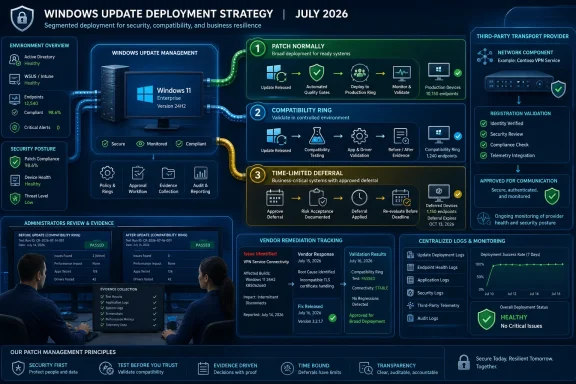
The appropriate July 2026 strategy is segmented deployment rather than a fleet-wide patch freeze: patch ordinary systems normally, test uncertain systems in a compatibility ring, and defer only confirmed failures until a vendor-supported update, replacement, or configuration passes the same representative workflow.
| Decision | Entry criteria | Required test | Exit condition |
|---|---|---|---|
| Patch normally | No known or suspected third-party transport dependency | Representative application and network workflow succeeds after installation | Continue through normal deployment rings |
| Compatibility ring | Specialized networking software, unfamiliar network drivers, uncertain transport registration, or no vendor compatibility statement | Install on a representative system and test the complete business workflow | Promote after a pass; move only confirmed failures to a controlled deferral |
| Time-limited deferral | Required workflow fails repeatably after installation and ordinary connectivity causes have been investigated | Preserve before-and-after evidence and work with the software or driver vendor | End the deferral when a vendor-supported update, replacement, or confirmed configuration passes testing |
 Affected Windows versions and impact condition
The verified affected product families are:- Windows 10, version 1607 and corresponding LTSC releases
- Windows 10, version 1809 and corresponding LTSC releases
- Windows 10 ESU and Windows 10 Enterprise LTSC 2021
- Windows 11, versions 23H2 through 26H1
- Windows Server 2016 through Windows Server 2025
Two systems on the same Windows release can therefore have different outcomes because they run different applications, drivers, or network components. Avoid creating a static list of supposedly incompatible products without test evidence or confirmation from their vendors.
Why July’s TDI behavior is different
This is an intentional security-hardening change, not necessarily an update defect. Microsoft says Windows security updates released on or after July 14, 2026 prevent sockets from using third-party Transport Driver Interface providers that have not registered with TDI.Under the documented default setting of
2, Windows blocks and logs unregistered providers. Registered transports can continue to work.If testing confirms that an application depends on an unregistered third-party transport, a vendor-supported update, replacement, or confirmed configuration is the expected remediation route. Depending on the product, its supplier may need to correct the transport’s registration, provide a compatible component, replace the transport, or confirm another supported configuration.
That vendor-remediation approach is WindowsForum operational guidance based on the enforcement behavior Microsoft documents. The supplied Microsoft material establishes blocking, logging, and the registration requirement; it does not itself contain a general recommendation to update or replace every affected transport.
Do not assume that every network problem appearing after the update is caused by TDI enforcement. DNS failures, firewall policies, certificates, routing, authentication, service startup problems, endpoint outages, and application configuration can produce similar symptoms. Confirmation requires testing the application’s real workflow and comparing evidence from before and after installation.
What administrators should do now
Use segmented deployment instead of approving or withholding the update across the entire organization.For a standalone pilot, open Settings > Windows Update > Check for updates, install the applicable security update, complete any requested restart, and then run the verification procedure below. Managed devices should receive the update through the organization’s existing Windows Update for Business, WSUS, or Configuration Manager approval ring. Do not bypass established approval, maintenance-window, or recovery controls merely to accelerate a pilot.
Ordinary systems can proceed through normal deployment rings when there is no suspected third-party transport dependency and representative workflows pass. Systems running specialized networking, security, monitoring, filtering, communications, industrial, laboratory, or appliance-integration software should enter a compatibility ring when the status of their network components is uncertain.
WindowsForum user discussions about previous Windows Server patch failures illustrate why administrators should separate affected roles and configurations rather than react fleet-wide to a network-related symptom. That operational principle applies here without treating those earlier incidents as evidence about the July 2026 TDI change.
Exact compatibility-ring procedure
Use this complete procedure for each application group with a suspected dependency. Later verification and troubleshooting sections build on these steps rather than replacing them.- Define the test group. Select at least one representative system for each relevant combination of Windows release, application version, and third-party driver or network component.
- Prefer nonproduction testing. Use a staging system when it accurately represents production. If no equivalent environment exists, schedule a controlled production pilot with an approved recovery plan and maintenance window.
- Record the baseline. Document the Windows version, application version, relevant driver versions, service state, update status, and required business workflow.
- Test before updating. Run the application’s normal network workflow. Record the time and result, and preserve relevant application and Windows System logs as baseline evidence.
- Install the update. On a standalone pilot, use Settings > Windows Update > Check for updates. For a managed pilot, approve and deploy it through the existing Windows Update for Business, WSUS, or Configuration Manager compatibility ring.
- Complete servicing requirements. Follow Windows Update’s prompts, perform any requested restart, and confirm that Windows reports the update as successfully installed.
- Check service health. Verify that required Windows and application services start and remain running.
- Exercise the real workflow. Test connection establishment, authentication, meaningful data transfer, reconnection, and any application-specific communications. A ping test alone does not validate the application.
- Collect evidence. Save application errors, relevant Windows System and service logs, timestamps, test actions, and the names and versions of suspected third-party components.
- Compare with the baseline. Determine whether the failure appeared only after installation, whether it is repeatable, and whether the same operation worked before the update.
- Exclude ordinary causes. Check DNS resolution, routing, firewall access, certificates, authentication, endpoint availability, application configuration, and service state.
- Escalate to the vendor. Ask whether the product uses a third-party TDI provider, whether that provider is registered, and whether a compatible update, replacement, or supported configuration is available.
- Make the deployment decision. Promote systems that pass. Defer only systems with a repeatable, operationally significant incompatibility tied to the updated configuration.
- Document any exception. Assign an owner, business justification, review date, recovery plan, vendor case number, and explicit condition for ending the deferral.
- Retest remediation. When the vendor supplies a supported update, replacement, or configuration, repeat the complete workflow before broader deployment.
How to verify a successful deployment
Verification must cover the installed update, services, networking, and the business application.- Confirm that Windows reports the applicable security update as installed.
- Confirm that any required restart or servicing action completed.
- Verify that required Windows and application services are running.
- Launch the application in its normal user or service context.
- Connect to the real destination or an accurate test endpoint.
- Complete a meaningful data transaction rather than stopping at sign-in or basic connectivity.
- Disconnect and reconnect if that is part of normal operation.
- Review the application’s logs for errors at the test time.
- Review relevant Windows System and service logs for correlated errors.
- Monitor the system for the period required by the organization’s change plan.
Troubleshooting a failed workflow
If the post-update test fails, return to the baseline and evidence collected during the compatibility-ring procedure.First, record the exact time, operation, destination, and application error. Confirm that the update installed successfully and that the operating system remains responsive. Check required services, then investigate DNS, routing, firewalls, certificates, authentication, endpoint availability, and application configuration.
If it is safe to do so, reproduce the failure once under controlled conditions. Compare the result with the pre-update baseline and identify recently loaded or installed third-party network components. Give the resulting evidence to the software or driver vendor and ask specifically about TDI use and registration.
Do not make an undocumented registry change to weaken or bypass the default validation behavior. The supplied Microsoft material establishes that the default setting is
2 and that it blocks and logs unregistered providers, but it does not establish a Microsoft-supported registry exception procedure.A temporary deferral is appropriate only when the failure is repeatable, affects a required workflow, survives ordinary connectivity troubleshooting, and lacks an immediately available supported correction. Keep unaffected systems on their normal deployment schedule.
What evidence should go into a vendor case?
Provide enough information for the vendor to distinguish a transport compatibility issue from a general connectivity failure:- Affected Windows product and version
- Installed July 14, 2026 or later security update
- Third-party product and driver versions
- Date and time of the failed test
- Exact application operation that fails
- Destination, protocol, and port when appropriate to disclose
- Relevant application error text
- Relevant Windows System and service logs collected as diagnostic evidence
- Results of DNS, routing, firewall, certificate, authentication, and endpoint checks
- Before-and-after workflow results
- Whether another system with the same application and driver combination reproduces the problem
Managing a temporary deferral
A deferral is risk acceptance, not remediation. Limit it to the confirmed affected system or application group, and record:- The repeatable failure and its business impact
- Troubleshooting already completed
- The affected devices or deployment collection
- The exception owner
- The vendor case number
- The approval and review date
- The recovery plan
- The condition that will end the deferral
Review the exception on its scheduled date rather than leaving the update indefinitely unapproved. Retest as soon as the vendor supplies a candidate correction or confirms a supported configuration.
Why uninstalling the update is usually the weaker response
Uninstalling may restore previous behavior on a confirmed affected system, but it also removes the installed security update. The supplied information does not establish which individual protections would be removed, so administrators should assess the applicable security bulletin and their own exposure rather than making broader assumptions.Removal may still be necessary for emergency recovery when an essential production system cannot operate and no supported correction is available. If so, treat it as a temporary rollback:
- Obtain change approval.
- Record the confirmed business impact.
- Preserve logs and test evidence.
- Remove the update only from the affected system or group.
- Verify that the required workflow is restored.
- Open or update the vendor case.
- Set a deadline for review and retesting.
- Reinstall the update after a supported resolution passes compatibility testing.
Frequently Asked Questions
Is Microsoft treating this as a defect that will be reverted?
Microsoft describes the behavior as an intentional security-hardening change. Administrators should not assume that a later Windows update will restore acceptance of unregistered transports. Use the compatibility procedure and pursue a vendor-supported remediation route for confirmed failures.Are all applications using sockets affected?
No. The documented change concerns sockets using an unregistered third-party TDI transport. Running an affected Windows version, using sockets, or encountering a general network error does not by itself prove incompatibility.Is there a Microsoft-supported registry workaround?
The supplied Microsoft information establishes that the default setting is2, which blocks and logs unregistered providers. It does not document a supported registry exception procedure. Use a vendor-supported correction or a controlled, time-limited update deferral instead of relying on an undocumented configuration change.How can administrators identify the responsible provider?
Follow the compatibility-ring procedure: reproduce the real workflow, preserve before-and-after application and Windows System logs, inventory relevant third-party network components, and work with the software or driver vendor. Do not rely on a specific event ID or exact message unless Microsoft guidance available to your organization documents it.Should every system with older software be deferred?
No. Age, product category, and Windows version do not confirm an incompatibility. Put systems with suspected third-party transport dependencies into a compatibility ring and decide from representative test results.What is the safest short-term response to a confirmed failure?
Defer or roll back only the confirmed affected system under change control, preserve the evidence, and open a vendor case. Keep unaffected systems moving through their normal Windows Update for Business, WSUS, or Configuration Manager approval rings.How should a standalone system be tested immediately?
Use Settings > Windows Update > Check for updates, install the applicable security update, complete any requested restart, and then perform the installation, service, and real-workflow checks in the verification section. If the workflow fails, use the troubleshooting process before deciding on rollback or deferral.The appropriate July 2026 strategy is segmented deployment rather than a fleet-wide patch freeze: patch ordinary systems normally, test uncertain systems in a compatibility ring, and defer only confirmed failures until a vendor-supported update, replacement, or configuration passes the same representative workflow.
References
- Primary source: learn.microsoft.com
TdiRegisterProvider function (Windows Drivers) | Microsoft Learn
learn.microsoft.com - Independent coverage: support.microsoft.com
July 14, 2026—KB5101649 (OS Build 28000.2525) | Microsoft Support
July 14, 2026—KB5101649 (OS Build 28000.2525)support.microsoft.com - Independent coverage: scudra.ca
- Independent coverage: networkencyclopedia.com
Transport Driver Interface (TDI) - NETWORK ENCYCLOPEDIA
Explore the evolving role of the Transport Driver Interface (TDI) in Microsoft Windows. A layer between file systems and network protocols.networkencyclopedia.com - Independent coverage: betaarchive.com
- Independent coverage: techcommunity.microsoft.com
