

WhatsApp Desktop calls that fail to connect, have no microphone audio, play through the wrong speakers, or show a black camera feed on Windows are usually fixed by restoring Windows camera/microphone access and selecting the correct audio devices. This guide covers WhatsApp Desktop on Windows 11; Windows 10 paths are included where they differ. Microsoft ended Windows 10 support on October 14, 2025, so use Windows 11 where possible.
Before changing permissions or reinstalling anything, rule out a temporary app, device, or network problem.
For persistent speaker routing problems:
A camera indicator light, or the microphone icon in the notification area of the taskbar, can help identify when Windows believes a device is in use.
A successful call on another connection points to the original network, firewall, VPN, proxy, or captive-portal setup rather than the WhatsApp installation.
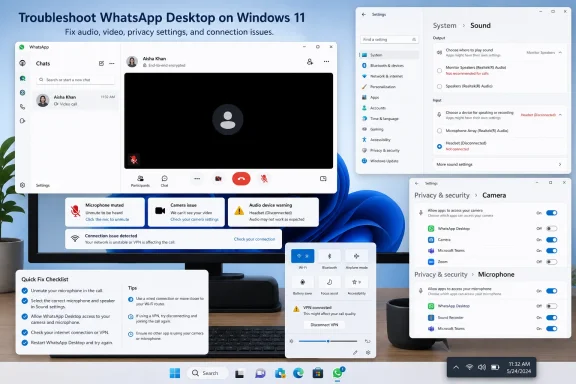 Start with a quick call reset
Before changing permissions or reinstalling anything, rule out a temporary app, device, or network problem.- End the WhatsApp call and close WhatsApp.
- Disconnect and reconnect any USB headset, webcam, dock, or Bluetooth headset you are using.
- Restart Windows:
- Select Start > Power > Restart.
- Open WhatsApp Desktop and place a test voice call.
Confirm Windows can use your microphone and camera
A connected call with no voice usually indicates microphone access or input-device trouble. A black video preview usually indicates camera access or a camera already in use.Windows 11
- Select Start > Settings > Privacy & security > Microphone.
- Turn on:
- Microphone access
- Let apps access your microphone
- Let desktop apps access your microphone
- Return to Privacy & security, then select Camera.
- Turn on:
- Camera access
- Let apps access your camera
- Let desktop apps access your camera
- Close and reopen WhatsApp, then start another call.
Windows 10
- Select Start > Settings > Privacy > Microphone.
- Turn on Microphone access for this device and Allow apps to access your microphone.
- Scroll down and turn on Allow desktop apps to access your microphone.
- Select Privacy > Camera.
- Turn on Camera access for this device, Allow apps to access your camera, and Allow desktop apps to access your camera.
Select and test the right microphone and speakers
Windows may send WhatsApp call audio to a monitor, Bluetooth device, docking station, or virtual audio driver. Set the correct devices in Windows first.- Select Start > Settings > System > Sound.
- Under Output, choose the speakers or headset you want to hear calls through.
- Raise the output volume and confirm it is not muted.
- Under Input, choose the microphone you want WhatsApp to use.
- Select the > button beside the chosen microphone.
- Under Input settings, select Start test, speak normally, then select Stop test.
- Select Play to hear the recorded sample.
For persistent speaker routing problems:
- Open Start > Settings > System > Sound.
- Select More sound settings.
- On the Playback tab, right-click the intended speaker or headset.
- Select Set as Default.
- On the Recording tab, right-click the intended microphone and select Set as Default.
- Select OK, then restart WhatsApp.
Release hardware being used by another app
Only one application can sometimes reliably control a camera, headset, or audio driver at a time. This is common with virtual cameras, screen-recording software, Teams, Zoom, Discord, browser tabs, and manufacturer audio utilities.- End the WhatsApp call.
- Close any app that could be using the webcam or microphone.
- In a web browser, close tabs open to meeting, recording, or social-media sites.
- Press Ctrl + Shift + Esc to open Task Manager.
- Under Processes, select an app that may still be using the camera or audio hardware and choose End task.
- Open WhatsApp and test the call again.
A camera indicator light, or the microphone icon in the notification area of the taskbar, can help identify when Windows believes a device is in use.
Check the connection without changing Windows networking
If WhatsApp displays a calling error, remains on “Connecting,” or works on a different network, test the network before resetting Windows.- If you are on Wi-Fi, temporarily connect the PC to a different trusted network, such as a phone hotspot.
- Place one WhatsApp call.
- If it works on the hotspot but not the original connection, reconnect to the normal network and restart its router if you control it.
- Disconnect a VPN temporarily, then test again.
- If the PC is on a corporate, school, hotel, or public network, ask the network administrator whether voice/video calling traffic is restricted.
A successful call on another connection points to the original network, firewall, VPN, proxy, or captive-portal setup rather than the WhatsApp installation.
Repair WhatsApp Desktop before resetting it
Windows can repair certain apps without removing their data. Use Repair first.- Close WhatsApp.
- Select Start > Settings > Apps > Installed apps.
- Find WhatsApp.
- Select the More button beside it, then select Advanced options.
- Select Repair, if available.
- Open WhatsApp and place a test call.
Warning: Reset can remove WhatsApp app data and preferences on this PC. You may need to sign in or link the desktop app to your WhatsApp account again. Do not use Reset merely to fix a wrong speaker or blocked microphone; complete the earlier checks first.
- Return to Settings > Apps > Installed apps > WhatsApp > Advanced options.
- Select Reset and confirm the prompt.
- Open WhatsApp.
- Complete any sign-in or device-linking prompts.
- Test a call.
Update or reinstall WhatsApp Desktop
If the application opens but calls consistently freeze, crash, or fail after the repair/reset steps, update it. If an update does not help, reinstall it.- Open Microsoft Store.
- Select Library.
- Select Get updates.
- Install any available WhatsApp update.
- Restart Windows and test another call.
- Select Start > Settings > Apps > Installed apps.
- Find WhatsApp, select More, then select Uninstall.
- Confirm the removal.
- Restart Windows.
- Install WhatsApp again from Microsoft Store or the official WhatsApp download source.
- Open the app and follow the account-linking steps shown by WhatsApp.
- Recheck Windows microphone and camera access, then place a test call.
Use the result to identify the remaining fault
Use these outcomes to narrow the next step:- Windows microphone test is silent: Fix the headset, microphone selection, driver, or physical connection before troubleshooting WhatsApp further.
- Microphone test works, but WhatsApp has no voice: Recheck Privacy & security > Microphone and the desktop-app access setting; then repair WhatsApp.
- You can hear the caller but they cannot hear you: The wrong input device, a muted headset, or denied microphone access is most likely.
- The caller cannot hear you and you cannot hear them: Check the active network, VPN, security software, and selected input/output devices.
- Voice calls work but video is black: Close competing camera apps and recheck Privacy & security > Camera.
- Calls work on a hotspot but not office or home Wi-Fi: The original network is the likely cause.
- Settings are locked or say they are managed: Contact the device administrator.
References
- Primary source: Technobezz
Published: 2026-07-17T17:31:18.172000+00:00
Loading…
www.technobezz.com