

Windows 11 administrators should inventory every production print queue before enabling Windows Protected Print Mode, because the change does more than prefer a Microsoft driver. On Windows 11 version 24H2, enabling the mode uninstalls printers that use third-party drivers, deletes those drivers from the print-driver store, and can reveal unsupported finishing, scanning, accounting, secure-release, and line-of-business workflows.
Microsoft has not announced when Windows Protected Print Mode will become the default, but its documentation says that default-on transition is planned for a future date. The absence of a deadline is not a reason to wait: it is the window organizations have to identify which queues already work through Windows Ready Print and which remain dependent on legacy components.
Windows Ready Print and Windows Protected Print Mode are connected, but they are not interchangeable names for the same setting.
Windows Ready Print is Microsoft's modern, driverless printing path. In its Windows Insider release notes, Microsoft describes it as the preferred installation method for supported printers, using technologies including IPP rather than requiring a third-party printer driver. An eligible printer can therefore use Windows Ready Print without the PC being placed into Windows Protected Print Mode.
Windows Protected Print Mode is the enforcement boundary. Available in Windows 11 version 24H2, it exclusively uses Windows Ready Print and prevents incompatible, driver-dependent printers from remaining installed.
That distinction changes how enterprises should interpret a successful Ready Print test. Printing a document through an IPP-installed queue proves that the basic path works, but it does not prove that every existing queue, finishing option, scanner endpoint, accounting tool, or release station will survive Protected Print Mode.
Microsoft's setup behavior makes the stakes unusually concrete. When the mode is enabled, printers using third-party drivers are uninstalled, and their drivers are removed from the print-driver store for as long as the mode remains active.
A Mopria-certified printer is not necessarily exempt from that disruption. If it was originally installed using an OEM driver, Windows may remove the existing queue when Protected Print Mode is activated. The administrator must then reinstall the printer so that Windows creates it through Windows Ready Print.
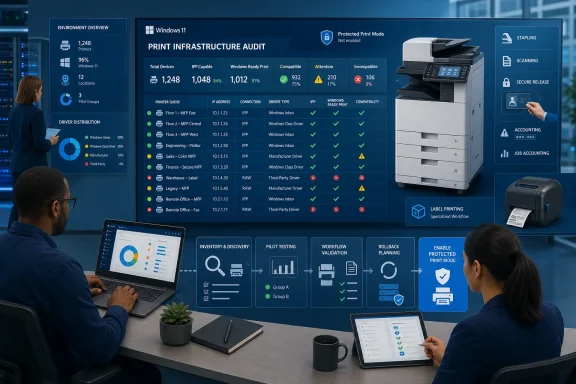
The inventory should record at least the following for every queue:
WindowsForum’s broader coverage of Windows 11 print infrastructure has repeatedly shown why printer compatibility cannot be reduced to whether a test page emerges. For enterprise IT, the real unit of migration is the complete workflow from application to queue, device, finishing stage, and any scanning or document-management system attached to it.
A sensible pilot group includes a standard office printer, a shared multifunction device, a device with finishing hardware, a secure-release or accounting queue, and any specialist label or production printer considered for eventual migration. If a category cannot be represented safely in the pilot, that omission should be logged as an unresolved deployment risk rather than treated as implicit compatibility.
Enable Windows Protected Print Mode only on controlled Windows 11 version 24H2 systems. Before activation, export or otherwise document queue configurations, driver names, device addresses, defaults, and installation sources according to the organization’s existing recovery procedures.
After enabling the mode, compare the resulting printer list with the baseline. A removed Mopria-certified device may simply need to be added again so Windows installs it through Windows Ready Print, but that reinstallation should be treated as a new queue implementation rather than assumed to be equivalent to the old one.
Testing should cover the complete path:
This is where a print-only inventory creates false confidence. Administrators need separate results for printing and scanning, even when both functions belong to the same physical appliance.
Scan testing should include the precise applications and destinations used in production. A generic scan application recognizing the device does not establish that desktop software, records systems, document-routing tools, or established scan profiles will behave as expected.
The same caution applies to fax and other multifunction capabilities. Windows Ready Print compatibility is a baseline for the modern printing model, not a blanket certification that every OEM feature or endpoint has an equivalent implementation.
A finisher may expose stapling, folding, punching, or booklet controls through vendor-specific software. An accounting environment may require user or department identifiers to be inserted into each job. Secure-release platforms may depend on client components, queue redirection, or authentication behavior that must be validated independently.
Label printers present a different risk. Their workflows may depend on exact media dimensions, application-selected stock, device language handling, cutting behavior, or saved driver presets. A successful Windows test page says little about whether a warehouse application can produce the correct label repeatedly.
These devices should not automatically be declared incompatible, but neither should they be placed at the end of the assessment. Finding a specialist-device gap shortly before Protected Print Mode becomes the default would leave fewer choices: replace the device, redesign the workflow, seek a modern vendor solution, or retain an exception where Microsoft still permits one.
Microsoft states that non-compatible printers cannot be reinstalled while the mode is enabled. After the mode is disabled, those printers must be reinstalled manually; Windows does not simply reconstruct every removed queue and dependency.
That makes rollback preparation part of the migration, not an emergency task performed afterward. Installation packages, approved drivers, queue settings, device addresses, permissions, defaults, and vendor utilities should remain available until the organization has completed validation.
The same principle applies to compatible printers that were formerly installed with OEM drivers. Once reinstalled through Windows Ready Print, they use the modern path. Disabling Protected Print Mode does not by itself convert those queues back to their previous OEM-driver configuration.
For managed fleets, the safest sequence is inventory, compatibility classification, controlled Ready Print testing, Protected Print Mode pilot, workflow remediation, and then staged expansion. Broad enablement should follow evidence from each device and workflow category, not simply a low help desk ticket count during a basic printing trial.
First, will the device remain installed, require reinstallation through Windows Ready Print, or become unavailable under Protected Print Mode? Second, which required functions have been tested after that transition? Third, what exact recovery or replacement path exists if the answer is incomplete?
Mopria certification is an important compatibility signal, but it does not preserve a queue installed with a third-party driver and does not guarantee every scanning scenario. Likewise, turning Protected Print Mode off permits legacy devices to return, but only after manual reinstallation.
Microsoft has left the default-on date unspecified. The practical deadline is therefore internal: organizations need a verified print and scan inventory before a future Windows change turns an undocumented dependency into a removed queue.
Microsoft has not announced when Windows Protected Print Mode will become the default, but its documentation says that default-on transition is planned for a future date. The absence of a deadline is not a reason to wait: it is the window organizations have to identify which queues already work through Windows Ready Print and which remain dependent on legacy components.
 Ready Print Is the Baseline, Not the Enforcement Switch
Windows Ready Print and Windows Protected Print Mode are connected, but they are not interchangeable names for the same setting.Windows Ready Print is Microsoft's modern, driverless printing path. In its Windows Insider release notes, Microsoft describes it as the preferred installation method for supported printers, using technologies including IPP rather than requiring a third-party printer driver. An eligible printer can therefore use Windows Ready Print without the PC being placed into Windows Protected Print Mode.
Windows Protected Print Mode is the enforcement boundary. Available in Windows 11 version 24H2, it exclusively uses Windows Ready Print and prevents incompatible, driver-dependent printers from remaining installed.
That distinction changes how enterprises should interpret a successful Ready Print test. Printing a document through an IPP-installed queue proves that the basic path works, but it does not prove that every existing queue, finishing option, scanner endpoint, accounting tool, or release station will survive Protected Print Mode.
Microsoft's setup behavior makes the stakes unusually concrete. When the mode is enabled, printers using third-party drivers are uninstalled, and their drivers are removed from the print-driver store for as long as the mode remains active.
A Mopria-certified printer is not necessarily exempt from that disruption. If it was originally installed using an OEM driver, Windows may remove the existing queue when Protected Print Mode is activated. The administrator must then reinstall the printer so that Windows creates it through Windows Ready Print.
Build the Queue Inventory Before Running a Pilot
A useful audit must cover more than printer model names. Two queues pointing to the same physical multifunction device may have different drivers, ports, defaults, permissions, finishing configurations, or application dependencies.The inventory should record at least the following for every queue:
- Record the queue name, physical device model, location, owner, and business function. A departmental copier and a shipping-label printer should not receive the same migration priority merely because both appear under Printers & scanners.
- Identify whether the queue currently uses Windows Ready Print or a third-party OEM driver. Mopria certification indicates compatibility potential, but it does not prove that the installed queue is already using the modern Windows path.
- Record the connection and port arrangement. Note whether users connect directly to the device, through a shared queue, or through another managed printing service, because the migration can affect both endpoint configuration and operational ownership.
- Capture the options users actually depend on, not merely the capabilities listed by the hardware vendor. Test duplexing, color controls, paper trays, custom media, stapling, punching, booklet creation, folding, watermarking, and other finishing operations relevant to the site.
- Document authentication, accounting, and release dependencies. Department codes, user billing, badge release, PIN release, pull-print systems, and usage reporting may rely on an OEM driver, companion software, or an intermediary workflow.
- Treat scanning as a separate service. Record scan-to-PC, application-initiated scanning, document-routing software, address-book integration, and any workflow that expects a specific scanner endpoint.
- Identify applications that generate specialized output. Shipping, pharmacy, manufacturing, records management, finance, and design applications can depend on queue names, custom paper sizes, device fonts, finishing presets, or driver-specific settings.
- Establish the queue’s recovery method before changing it. Administrators should know how to reinstall the original printer and driver if Protected Print Mode must be disabled.
WindowsForum’s broader coverage of Windows 11 print infrastructure has repeatedly shown why printer compatibility cannot be reduced to whether a test page emerges. For enterprise IT, the real unit of migration is the complete workflow from application to queue, device, finishing stage, and any scanning or document-management system attached to it.
Pilot the Workflows That Would Hurt Most
The first pilot should not consist solely of IT staff printing ordinary office documents. It should include representative devices and the users most likely to notice missing functionality.A sensible pilot group includes a standard office printer, a shared multifunction device, a device with finishing hardware, a secure-release or accounting queue, and any specialist label or production printer considered for eventual migration. If a category cannot be represented safely in the pilot, that omission should be logged as an unresolved deployment risk rather than treated as implicit compatibility.
Enable Windows Protected Print Mode only on controlled Windows 11 version 24H2 systems. Before activation, export or otherwise document queue configurations, driver names, device addresses, defaults, and installation sources according to the organization’s existing recovery procedures.
After enabling the mode, compare the resulting printer list with the baseline. A removed Mopria-certified device may simply need to be added again so Windows installs it through Windows Ready Print, but that reinstallation should be treated as a new queue implementation rather than assumed to be equivalent to the old one.
Testing should cover the complete path:
- Users should print from the applications that produce business-critical output.
- Administrators should verify required trays, media sizes, color modes, and finishing operations.
- Secure-release, accounting, and departmental charging should be tested with real policy assignments.
- Multifunction devices should be tested for every required scanning scenario, not only printing.
- Help desk staff should validate discovery, installation, removal, and recovery procedures.
Multifunction Devices Need Two Compatibility Decisions
Microsoft specifically warns that scanner availability in Windows Protected Print Mode depends on Mopria certification and supported scan endpoints. A multifunction device that prints successfully through Windows Ready Print may therefore still fail part of an organization’s scanning workload.This is where a print-only inventory creates false confidence. Administrators need separate results for printing and scanning, even when both functions belong to the same physical appliance.
Scan testing should include the precise applications and destinations used in production. A generic scan application recognizing the device does not establish that desktop software, records systems, document-routing tools, or established scan profiles will behave as expected.
The same caution applies to fax and other multifunction capabilities. Windows Ready Print compatibility is a baseline for the modern printing model, not a blanket certification that every OEM feature or endpoint has an equivalent implementation.
Specialized Queues Are the Likely Holdouts
Finishers, accounting systems, secure release, and label printers deserve early attention because their value often comes from behavior beyond ordinary document rendering.A finisher may expose stapling, folding, punching, or booklet controls through vendor-specific software. An accounting environment may require user or department identifiers to be inserted into each job. Secure-release platforms may depend on client components, queue redirection, or authentication behavior that must be validated independently.
Label printers present a different risk. Their workflows may depend on exact media dimensions, application-selected stock, device language handling, cutting behavior, or saved driver presets. A successful Windows test page says little about whether a warehouse application can produce the correct label repeatedly.
These devices should not automatically be declared incompatible, but neither should they be placed at the end of the assessment. Finding a specialist-device gap shortly before Protected Print Mode becomes the default would leave fewer choices: replace the device, redesign the workflow, seek a modern vendor solution, or retain an exception where Microsoft still permits one.
Rollback Means Rebuilding, Not Flipping Back
Protected Print Mode can be disabled, but administrators should not mistake that control for an instant restoration mechanism.Microsoft states that non-compatible printers cannot be reinstalled while the mode is enabled. After the mode is disabled, those printers must be reinstalled manually; Windows does not simply reconstruct every removed queue and dependency.
That makes rollback preparation part of the migration, not an emergency task performed afterward. Installation packages, approved drivers, queue settings, device addresses, permissions, defaults, and vendor utilities should remain available until the organization has completed validation.
The same principle applies to compatible printers that were formerly installed with OEM drivers. Once reinstalled through Windows Ready Print, they use the modern path. Disabling Protected Print Mode does not by itself convert those queues back to their previous OEM-driver configuration.
For managed fleets, the safest sequence is inventory, compatibility classification, controlled Ready Print testing, Protected Print Mode pilot, workflow remediation, and then staged expansion. Broad enablement should follow evidence from each device and workflow category, not simply a low help desk ticket count during a basic printing trial.
Decisions to Document Before Wider Deployment
Administrators should be able to answer three questions for every important queue.First, will the device remain installed, require reinstallation through Windows Ready Print, or become unavailable under Protected Print Mode? Second, which required functions have been tested after that transition? Third, what exact recovery or replacement path exists if the answer is incomplete?
Mopria certification is an important compatibility signal, but it does not preserve a queue installed with a third-party driver and does not guarantee every scanning scenario. Likewise, turning Protected Print Mode off permits legacy devices to return, but only after manual reinstallation.
Microsoft has left the default-on date unspecified. The practical deadline is therefore internal: organizations need a verified print and scan inventory before a future Windows change turns an undocumented dependency into a removed queue.
References
- Primary source: learn.microsoft.com
Windows 11 Insider Beta Preview Build 26220.8544 - Windows Insider Program | Microsoft Learn
Release notes for Windows 11 Insider Beta Preview Build 26220.8544learn.microsoft.com - Independent coverage: techcommunity.microsoft.com
- Primary source: WindowsForum
Windows 11 Ready Print (July 2026): IPP Default Printing With OEM Escape Hatch | Windows Forum
Microsoft is preparing Windows 11 to prefer its built-in IPP-based Windows Ready Print path for new eligible printer installations starting in July 2026...windowsforum.com