

Claude Code on Windows can be set up for reliable, low-friction agentic programming by installing it in the same environment as your project, recording project rules in
Use the environment where your repository and development tools already live.
If you installed Git for Windows but Claude Code cannot locate Git Bash, add this to
Keep the main file focused. For large repositories, create separate files in
For example, create
Use
For a new or unfamiliar project, start in Plan mode:
Plan mode allows exploration and a proposed change plan, but blocks edits until you approve the plan.
During a CLI session, press Shift+Tab to cycle through the normal modes:
After you understand the project and want faster iteration, switch to Accept edits. Review changes with Git rather than accepting a long sequence of individual file-edit prompts.
Warning: Do not use
Start narrow. Pre-approve routine read, test, and lint commands, but continue prompting for pushes and block access to secrets.
Adjust the command list to your project. For a .NET application, for example, allow only the commands you genuinely run repeatedly:
Deny rules take precedence over broader allow rules. That makes it reasonable to allow normal reading while explicitly blocking sensitive files.
Do not commit personal API keys, tokens, or machine-specific paths to
This example blocks a few destructive shell patterns before they run.
Use subagents for parallel research first. Do not let several agents edit the same files unless you use isolated Git worktrees and have a clear merge and test plan.
Then start a new session and verify that:
CLAUDE.md, and using carefully scoped permissions instead of bypassing safeguards. This guide covers native Windows 10 version 1809 or later, Windows 11, and WSL 2 projects using Claude Code.
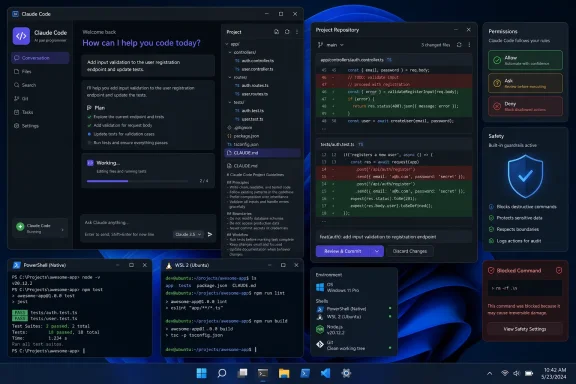 Choose native Windows or WSL before installing
Use the environment where your repository and development tools already live.- Native Windows is usually best for projects built with Visual Studio, .NET, PowerShell, Windows SDKs, or tools installed under
C:\. - WSL 2 is usually best for Linux-first projects, Docker/Linux toolchains, and sandboxed command execution.
- Avoid opening a repository from Windows in one environment and running Claude Code against a second copy in another. You can otherwise end up with different Git state, dependencies, and build outputs.
Install and verify Claude Code
You need an eligible Claude account: Pro, Max, Team, Enterprise, or a Console/API account. The free Claude.ai plan does not include Claude Code access.- Open Windows PowerShell. You do not need to run it as Administrator.
- Install with Anthropic’s native installer:
irm [url]https://claude.ai/install.ps1[/url] | iex
Alternatively, use WinGet:
winget install Anthropic.ClaudeCode - Close PowerShell, open a new PowerShell window, then confirm the command is available:
claude --version - Run the built-in diagnostic check:
claude doctor - Change to an actual Git project folder before starting your first session:
Code:cd C:\Projects\MyApp claude - Complete the browser sign-in when prompted.
winget upgrade Anthropic.ClaudeCodeIf you installed Git for Windows but Claude Code cannot locate Git Bash, add this to
%USERPROFILE%\.claude\settings.json:
Code:
{
  "env": {
    "CLAUDE_CODE_GIT_BASH_PATH": "C:\\Program Files\\Git\\bin\\bash.exe"
  }
}
Create durable project instructions with CLAUDE.md
A long chat history is not dependable project documentation. Put rules that must survive a new session,/clear, or context compaction into CLAUDE.md.- From the project root, start Claude Code:
claude - Run:
/init - Review the generated
CLAUDE.md. Claude Code uses it to capture discovered build commands, test commands, and project conventions. - Add the details Claude cannot safely infer, such as:
- Required test and lint commands.
- Supported Node, .NET, Python, or Java versions.
- Branch and pull-request rules.
- Architecture boundaries.
- Files that must not be edited.
- Security and secret-handling expectations.
Code:
# Project instructions

## Commands
- Install: `npm ci`
- Test: `npm test`
- Lint: `npm run lint`
- Build: `npm run build`

## Working rules
- Do not modify lock files unless dependencies changed.
- Do not edit deployment workflows without explaining the effect first.
- Keep changes limited to the requested feature or bug.
- Before finishing, run relevant tests and report failures plainly.

## Review requirements
- Review `git diff` before claiming a task is complete.
- Do not commit, push, create pull requests, or publish packages unless explicitly requested..claude\rules\. Path-specific rules load when Claude works on matching files, reducing irrelevant context.For example, create
.claude\rules\api.md:
Code:
---
paths:
  - "src/api/**/*.ts"
---

# API rules

- Validate external input.
- Preserve the existing error-response format.
- Add or update API tests for behavior changes.CLAUDE.local.md at the repository root for private preferences that should not be committed. Add it to .gitignore.Set a safe default permission mode
Claude Code permission modes control whether it pauses before editing files, running commands, or making network requests.For a new or unfamiliar project, start in Plan mode:
claude --permission-mode planPlan mode allows exploration and a proposed change plan, but blocks edits until you approve the plan.
During a CLI session, press Shift+Tab to cycle through the normal modes:
- Manual/default: reads are allowed; edits and commands prompt.
- Accept edits: edits in the working directory are approved automatically, while more consequential commands still prompt.
- Plan: investigate and propose without modifying source files.
.claude\settings.json:
Code:
{
  "permissions": {
    "defaultMode": "plan"
  }
}claude --permission-mode acceptEditsWarning: Do not use
bypassPermissions for normal development on your primary Windows installation. Anthropic documents it for isolated containers and virtual machines, not for repositories containing credentials, personal files, production access, or uncommitted work.Reduce repeated prompts with project permissions
Permission rules belong in.claude\settings.json for shareable project policy or %USERPROFILE%\.claude\settings.json for your personal defaults.Start narrow. Pre-approve routine read, test, and lint commands, but continue prompting for pushes and block access to secrets.
Code:
{
  "permissions": {
    "allow": [
      "Read(**)",
      "Bash(npm test:*)",
      "Bash(npm run lint:*)",
      "Bash(npm run build:*)"
    ],
    "ask": [
      "Bash(git push:*)",
      "Bash(git commit:*)"
    ],
    "deny": [
      "Read(.env)",
      "Read(.env.*)",
      "Read(**/*.pem)",
      "Read(**/*id_rsa*)",
      "Bash(sudo:*)",
      "Bash(rm -rf:*)"
    ]
  }
}
Code:
{
  "permissions": {
    "allow": [
      "Bash(dotnet test:*)",
      "Bash(dotnet build:*)",
      "Bash(dotnet format:*)"
    ]
  }
}Do not commit personal API keys, tokens, or machine-specific paths to
.claude\settings.json. Put personal overrides in .claude\settings.local.json, which is intended to remain local and should be ignored by Git.Add one Windows-friendly safety hook
Hooks run commands before or after Claude Code tool calls. They are powerful, but they run with your Windows user account permissions. Treat a hook like any other script you download or add to a repository: read it, test it, and keep it under source control.This example blocks a few destructive shell patterns before they run.
- Create the hooks folder:
New-Item -ItemType Directory -Force .claude\hooks - Create
.claude\hooks\block-dangerous-command.ps1with this content:
Code:$inputJson = [Console]::In.ReadToEnd() | ConvertFrom-Json $command = [string]$inputJson.tool_input.command $blocked = @( 'rm\s+.*-[a-z]*r[a-z]*f', 'Remove-Item\s+.*-Recurse.*-Force', 'git\s+push\s+.*--force.*main', 'git\s+reset\s+--hard' ) foreach ($pattern in $blocked) { if ($command -match $pattern) { @{ hookSpecificOutput = @{ hookEventName = "PreToolUse" permissionDecision = "deny" permissionDecisionReason = "Blocked by the project safety hook." } } | ConvertTo-Json -Depth 5 exit 0 } } - Add the hook to
.claude\settings.json:
Code:{ "hooks": { "PreToolUse": [ { "matcher": "Bash|PowerShell", "hooks": [ { "type": "command", "command": "powershell.exe -NoProfile -ExecutionPolicy Bypass -File \"${CLAUDE_PROJECT_DIR}\\.claude\\hooks\\block-dangerous-command.ps1\"", "shell": "powershell" } ] } ] } } - Restart Claude Code or begin a new session.
- Run
/hooksto confirm that Claude Code sees the project hook.
Use the few session commands that prevent drift
You do not need to memorize every slash command. These are the commands that matter most during sustained work:/contextshows how much context is in use./compactsummarizes the conversation to free context space. Add a focus, such as/compact preserve the test failures and implementation plan./clearstarts a fresh conversation while retaining project instructions./planrequests a read-only plan before making edits./diffreviews the changes from the current session./code-reviewreviews the current diff for correctness issues./security-reviewreviews the current diff for security concerns./permissionsdisplays and manages permission rules./hooksshows configured hooks and their source settings file./agentsmanages specialized subagents./doctordiagnoses installation and configuration problems.
/diff before accepting a claim that a task is complete. Then run the real test command yourself or ask Claude Code to run it, and inspect the command output.Use subagents for isolated investigation, not blind parallel edits
Subagents have separate context and can return a concise finding to the main session. They are useful for tasks such as:- Mapping an unfamiliar codebase.
- Reviewing a diff without editing it.
- Locating relevant tests.
- Checking dependency usage.
- Investigating an error while the main session works on a separate, non-overlapping task.
.claude\agents\code-reviewer.md:
Code:
---
name: code-reviewer
description: Review current changes for correctness, regressions, and missing tests.
tools: Read, Glob, Grep, Bash
disallowedTools: Edit, Write
---

Review the current Git diff and affected code. Identify concrete correctness risks,
regressions, and missing tests. Do not modify files. Report findings with file paths
and explain the impact of each issue.Verify the setup before relying on it
From the project root, confirm the baseline:
Code:
claude doctor
git status- Claude Code recognizes the repository instructions from
CLAUDE.md. - Plan mode is active if you configured it as the default.
- Routine test or lint commands follow your configured permission policy.
- Requests to read
.envfiles still fail or prompt according to your deny rules. /hookslists the safety hook from.claude\settings.json./diffshows only the changes you intended before you commit anything.
.claude\settings.json; personal settings belong in %USERPROFILE%\.claude\settings.json. Do not place permissions or hooks in ~\.claude.json, which is application state rather than the supported settings location.References
- Primary source: KDnuggets
Published: Mon, 20 Jul 2026 14:09:25 GMT
Loading…
www.kdnuggets.com - Official source: code.claude.com
Loading…
code.claude.com - Official source: docs.anthropic.com
Advanced setup - Claude Code Docs
System requirements, platform-specific installation, version management, and uninstallation for Claude Code.docs.anthropic.com