

OneNote remains one of Microsoft’s most flexible productivity tools in 2026, but that flexibility can make the first blank notebook surprisingly intimidating. The most effective approach is to establish a simple notebook structure, capture information with the tool best suited to each source, convert actionable lines into tasks, and let OneDrive or SharePoint handle synchronization. Just as importantly, Windows users should now rely on the supported desktop app named OneNote, not the retired OneNote for Windows 10 application or other capture workflows Microsoft has discontinued.
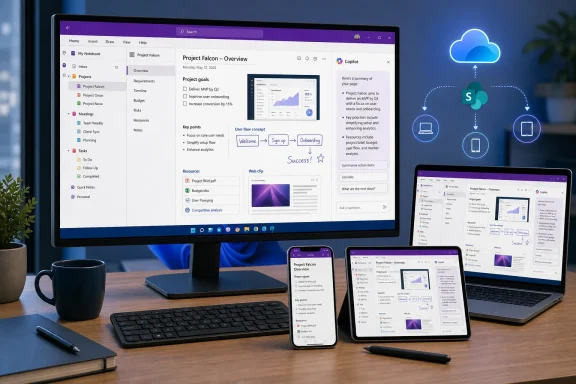
OneNote is best understood as a digital binder rather than a conventional word processor. A notebook contains sections, sections contain pages, and pages provide an open canvas where text, handwriting, images, tables, files, links, audio, and other material can coexist.
That model has changed relatively little since Microsoft introduced OneNote in the early 2000s. What has changed is the surrounding platform: notebooks now routinely move between PCs, phones, tablets, browsers, and shared Microsoft 365 workspaces, while Copilot can analyze selected notes for eligible users.
A better system starts small and evolves around actual use. If a category repeatedly appears, give it a section; if it remains hypothetical, do not build it yet.
OneNote is also available for macOS, iPhone, iPad, Android, and the web. The core notebook model remains consistent, but menus, capture tools, and advanced features differ by platform.
To update the Microsoft 365 desktop edition:
Anyone who still has the old app should verify that every notebook has synchronized before removing it. Unsynchronized material may not automatically appear in the current desktop application.
A cautious migration process is:
The web edition does not reproduce every desktop command. It is nevertheless capable enough for ordinary typing, editing, collaboration, and reviewing synchronized notes.
For most people, OneDrive should be the default location for new personal notebooks. Organizations normally use OneDrive for Business or SharePoint, depending on ownership and collaboration requirements.
Cloud storage adds convenience but also introduces account, security, retention, and access considerations. A personal notebook should be stored in a personal account, while company information should remain inside the organization’s approved Microsoft 365 environment.
Depending on the desktop build, use File > Share or File > Save a Copy, choose a OneDrive location, provide the notebook name, and allow OneNote to upload and reconnect it. Afterward, check File > Info > View Sync Status and verify that the new cloud copy is current before deleting or archiving the old local version.
For example, a household notebook could contain sections for finances, maintenance, medical reference, travel, and important purchases. A project notebook could contain planning, meetings, research, decisions, testing, and delivery.
Subpages work well when one subject has a primary page and a few tightly related supporting pages. Excessive nesting, however, makes pages harder to find on mobile devices and can hide important information.
On Windows, right-click the section area and choose New Section Group. Use this feature only after the section bar becomes genuinely crowded; it should solve a navigation problem rather than create another layer to maintain.
When reorganizing a shared notebook, communicate substantial changes before moving large groups of pages. Other participants may depend on familiar section names, links, or workflows.
That freedom is useful for brainstorming and visual planning, but uncontrolled placement can become messy. For ordinary records, start near the top left, use headings consistently, and keep the page in a mostly vertical reading order.
An attached file is a copy, not a live link to the original. Editing the source document elsewhere will not automatically update the copy embedded in OneNote.
Tables are useful for compact comparisons, inventories, schedules, or structured meeting records. Select Insert > Table, choose the initial grid size, and then use the table commands that appear when the cursor is inside a cell.
OneNote tables are less powerful than Excel. If calculations, sorting, extensive filtering, or formal data validation are required, Excel should remain the source of truth.
On Windows, handwritten content can be selected with Lasso Select and converted through Ink to Text where the feature is available. Handwriting recognition depends on language, writing clarity, spacing, and the quality of the original ink.
OneNote for Mac supports drawing and handwriting, but its conversion capabilities do not always match the Windows desktop app. Cross-platform users should test the specific workflow before relying on automatic conversion for critical records.
Audio recording is useful for lectures, interviews, and meetings, but consent and organizational policy matter. A recording may capture confidential information, personal data, or participants who have not agreed to be recorded.
Some OneNote builds expose recording directly through Home > Record Audio, while others place related controls under Home > Transcribe. Availability varies by platform, account type, deployment channel, and Microsoft 365 license.
Different sources require different tools. A web article benefits from the Web Clipper, a visual interface may require a screenshot, and a document being reviewed may be more useful as a printout.
The main capture choices are:
A clip is a snapshot, not a live mirror of the website. The original page can later change or disappear, so important research should include a capture date and enough context to explain why the material was saved.
Screenshots should not become a substitute for written explanation. Add a short caption identifying the application, version, problem, or reason the image matters.
This workflow is useful when an application lacks a direct OneNote command. It creates a visual printout, which is suitable for markup but may significantly increase notebook size when the source contains hundreds of pages or high-resolution graphics.
Optical character recognition is convenient, not infallible. Always verify names, numbers, commands, dates, and contractual wording against the image before using extracted text in consequential work.
For material intended specifically for notes, the camera and capture controls inside OneNote may still provide the quickest route. For document archiving, open OneDrive, tap the add button, choose the scanning option, and save the result in the appropriate cloud location.
OneNote provides checkbox tags for lightweight task tracking and Outlook task integration for work that requires dates, reminders, or broader task management.
Tag summaries are strongest in the desktop edition. Mobile and web applications can display and edit common tags, but users who depend on comprehensive cross-notebook reviews should build that review process around OneNote on Windows.
With compatible Outlook desktop software installed and licensed on the same Windows PC, place the cursor in the task line and choose Home > Outlook Tasks. Select a due-date preset or create a custom task.
Use Outlook integration selectively:
A lightweight daily process is usually more sustainable than an elaborate productivity methodology.
The Windows desktop app supports page templates more extensively than other OneNote editions. Where templates are unavailable, keep a master page named “Meeting Template” or “Project Template,” copy it, and rename the duplicate.
Internal links are valuable for dashboards and project index pages. They reduce duplication while preserving the richer detail in its original context.
For ongoing collaboration, store the notebook in OneDrive or SharePoint and use OneNote’s sharing controls. Avoid sending detached notebook files back and forth by email.
Conflicts can still occur when users simultaneously change the same content, work offline for long periods, or move sections during active editing. Shared teams should use predictable page names and avoid reorganizing the notebook during high-activity periods.
Teams should determine:
Synchronization is normally automatic, but it should still be monitored before travel, device replacement, account removal, or application migration.
Before shutting down a computer for replacement or reset, verify that important notebooks report an up-to-date state. Opening the same recent pages in OneNote for the web provides an additional confirmation that changes reached the cloud.
Availability remains dependent on account type, subscription, platform, deployment stage, administrative policy, and connected-experience settings. The absence of a Copilot button does not necessarily indicate an installation problem.
Useful prompts include:
For legal, financial, medical, personnel, security, or contractual notes, compare every generated claim with the source material. Copilot should accelerate review, not replace accountable judgment.
That approach can reduce irrelevant context, but permissions still matter. Collaborators need access to referenced material, and organizations must apply their existing governance rules to the files and pages included in the workspace.
Its integration with Windows and Microsoft 365 gives it particular value in environments already using Outlook, Teams, OneDrive, SharePoint, and Office.
Cloud synchronization also means that account configuration and permissions are central to reliability. A perfectly organized notebook is still vulnerable if it resides in the wrong account or never finishes synchronizing.
The key question is not whether OneNote gains more AI, but whether Microsoft can introduce those capabilities without making licensing, privacy controls, and platform differences harder to understand.
Microsoft will still need to make boundaries visible. Users should be able to tell what information Copilot can access, which permissions apply, and whether generated output came from selected references, organizational data, or the wider web.
Microsoft has an opportunity to reduce the gap by improving automatic cropping, cleanup, multi-page scanning, text extraction, and direct notebook filing inside OneNote itself.
Until then, users should explicitly decide which application owns the task. OneNote should preserve context, while a task manager should control deadlines and status when the action matters beyond the page.
The best OneNote system in 2026 is not the one with the most notebooks, colors, tags, or AI prompts. It is the one that makes capture effortless, gives every important page a recognizable home, separates reference material from actionable work, and synchronizes reliably through the correct Microsoft account. Start with a small cloud notebook, use descriptive sections and page titles, review the Inbox and tagged tasks regularly, confirm synchronization before changing devices, and introduce Copilot only where it saves time without weakening accuracy, privacy, or human oversight.
 Overview
OneNote is best understood as a digital binder rather than a conventional word processor. A notebook contains sections, sections contain pages, and pages provide an open canvas where text, handwriting, images, tables, files, links, audio, and other material can coexist.That model has changed relatively little since Microsoft introduced OneNote in the early 2000s. What has changed is the surrounding platform: notebooks now routinely move between PCs, phones, tablets, browsers, and shared Microsoft 365 workspaces, while Copilot can analyze selected notes for eligible users.
The three-level structure
Every practical OneNote system begins with three organizational levels:- Notebooks represent broad areas of responsibility, such as work, school, household administration, or personal projects.
- Sections divide each notebook into meaningful categories, such as meetings, research, finances, travel, or reference material.
- Pages contain individual topics, records, plans, or sets of notes.
Why a simple system works better
The temptation is to design a comprehensive hierarchy before adding any information. That often produces empty sections, duplicated categories, and uncertainty about where each new note belongs.A better system starts small and evolves around actual use. If a category repeatedly appears, give it a section; if it remains hypothetical, do not build it yet.
Choose the Right OneNote App
Microsoft’s consolidation of OneNote on Windows is effectively complete. The supported Windows desktop application is called OneNote, although it was previously known as OneNote 2016 and still resembles the traditional Office desktop program.OneNote is also available for macOS, iPhone, iPad, Android, and the web. The core notebook model remains consistent, but menus, capture tools, and advanced features differ by platform.
The correct app for Windows
Windows users should open the application whose ribbon includes a File menu. It may be installed through Microsoft 365, Office, the Microsoft Store, or Microsoft’s standalone OneNote installer.To update the Microsoft 365 desktop edition:
- Open OneNote.
- Select File > Account.
- Open Update Options.
- Select Update Now.
- Restart OneNote if the update process requests it.
OneNote for Windows 10 is no longer the working app
OneNote for Windows 10 reached end of support on October 14, 2025. Microsoft moved it into read-only status, ending supported creation, editing, and synchronization.Anyone who still has the old app should verify that every notebook has synchronized before removing it. Unsynchronized material may not automatically appear in the current desktop application.
A cautious migration process is:
- Open every notebook in OneNote for Windows 10.
- Confirm that each notebook reports a current synchronization state.
- Install and sign in to the current OneNote desktop app.
- Open the same notebooks from OneDrive or SharePoint.
- Compare recent pages and attachments.
- Uninstall the retired app only after confirming that the content is present.
OneNote for the web
The browser version is useful on shared computers, managed devices, Chromebooks, or systems where installing Office is impractical. After signing in, users can create, edit, and share cloud notebooks without installing a desktop application.The web edition does not reproduce every desktop command. It is nevertheless capable enough for ordinary typing, editing, collaboration, and reviewing synchronized notes.
Create a Notebook That Can Sync
A notebook’s storage location determines whether it can follow the user between devices. A notebook stored in OneDrive or SharePoint can synchronize across supported OneNote clients, while a notebook stored only on a Windows drive remains tied to that computer.For most people, OneDrive should be the default location for new personal notebooks. Organizations normally use OneDrive for Business or SharePoint, depending on ownership and collaboration requirements.
Creating a notebook on Windows
In the desktop application:- Select File > New.
- Choose the appropriate OneDrive, SharePoint, or local location.
- Enter a descriptive notebook name.
- Select Create Notebook.
- Wait for OneNote to finish creating and opening it.
Cloud notebook or local notebook?
A local Windows notebook can be appropriate for a controlled archive that must never leave a specific computer. It is a poor choice for anything that must be available on a phone, tablet, Mac, browser, or second PC.Cloud storage adds convenience but also introduces account, security, retention, and access considerations. A personal notebook should be stored in a personal account, while company information should remain inside the organization’s approved Microsoft 365 environment.
Moving a local notebook to OneDrive
Do not treat a OneNote notebook like an ordinary folder and drag it into the locally synchronized OneDrive directory. OneNote has its own synchronization logic and should perform the move.Depending on the desktop build, use File > Share or File > Save a Copy, choose a OneDrive location, provide the notebook name, and allow OneNote to upload and reconnect it. Afterward, check File > Info > View Sync Status and verify that the new cloud copy is current before deleting or archiving the old local version.
Build a Practical Notebook Structure
A productive structure mirrors decisions and responsibilities rather than software features. Sections should describe the work being performed, while pages should describe individual subjects or outcomes.For example, a household notebook could contain sections for finances, maintenance, medical reference, travel, and important purchases. A project notebook could contain planning, meetings, research, decisions, testing, and delivery.
A reliable starter layout
A useful general-purpose notebook can begin with these sections:- Inbox holds uncategorized material that has not yet been reviewed.
- Projects contains active work with identifiable outcomes.
- Meetings stores agendas, notes, decisions, and follow-up items.
- Reference contains information that may be useful again.
- Archive receives completed or inactive material.
Sections, pages, and subpages
Create one page for one recognizable topic. A page titled “July 20 Planning Meeting” is more useful than one titled “Meeting,” and “Router Replacement Options” is easier to search than “Research.”Subpages work well when one subject has a primary page and a few tightly related supporting pages. Excessive nesting, however, makes pages harder to find on mobile devices and can hide important information.
Section groups for larger notebooks
A section group behaves like a folder containing sections. It can separate years, clients, courses, departments, or major programs without requiring an entirely new notebook.On Windows, right-click the section area and choose New Section Group. Use this feature only after the section bar becomes genuinely crowded; it should solve a navigation problem rather than create another layer to maintain.
Rearranging and consolidating content
Sections and pages can be dragged into a more logical order. The desktop app also provides Move or Copy commands for transferring pages or sections between locations.When reorganizing a shared notebook, communicate substantial changes before moving large groups of pages. Other participants may depend on familiar section names, links, or workflows.
Capture Text, Files, Images, Ink, and Audio
OneNote pages are free-form canvases. Clicking almost anywhere creates a note container, making it possible to position text and media without the rigid page flow of Word.That freedom is useful for brainstorming and visual planning, but uncontrolled placement can become messy. For ordinary records, start near the top left, use headings consistently, and keep the page in a mostly vertical reading order.
Attachments versus printouts
OneNote offers two distinct ways to add a document:- File Attachment places a copy of the file on the page as an icon.
- File Printout renders the document’s pages as images that can be viewed and annotated inside OneNote.
An attached file is a copy, not a live link to the original. Editing the source document elsewhere will not automatically update the copy embedded in OneNote.
Pictures and tables
Use Insert > Pictures to add photos, diagrams, scans, and screenshots. Pictures can be resized and annotated, and recognizable text may be extracted through OneNote’s optical character recognition functions.Tables are useful for compact comparisons, inventories, schedules, or structured meeting records. Select Insert > Table, choose the initial grid size, and then use the table commands that appear when the cursor is inside a cell.
OneNote tables are less powerful than Excel. If calculations, sorting, extensive filtering, or formal data validation are required, Excel should remain the source of truth.
Handwriting and ink
Open the Draw tab to select pens, pencils, or highlighters. A stylus provides the best experience, but touch and mouse input are also supported.On Windows, handwritten content can be selected with Lasso Select and converted through Ink to Text where the feature is available. Handwriting recognition depends on language, writing clarity, spacing, and the quality of the original ink.
OneNote for Mac supports drawing and handwriting, but its conversion capabilities do not always match the Windows desktop app. Cross-platform users should test the specific workflow before relying on automatic conversion for critical records.
Dictation, audio, and transcription
Eligible Microsoft 365 users can select Home > Dictate and speak into a connected microphone. Dictation requires an internet connection and enabled connected experiences.Audio recording is useful for lectures, interviews, and meetings, but consent and organizational policy matter. A recording may capture confidential information, personal data, or participants who have not agreed to be recorded.
Some OneNote builds expose recording directly through Home > Record Audio, while others place related controls under Home > Transcribe. Availability varies by platform, account type, deployment channel, and Microsoft 365 license.
Capture Web Pages, Screenshots, PDFs, and Scans
The most sustainable capture system uses the fewest steps possible. The user should be able to collect information immediately without abandoning the task already in progress.Different sources require different tools. A web article benefits from the Web Clipper, a visual interface may require a screenshot, and a document being reviewed may be more useful as a printout.
OneNote Web Clipper
The OneNote Web Clipper is available for supported browsers such as Microsoft Edge and Google Chrome. After installing the extension and signing in, open a webpage and select the Clipper icon.The main capture choices are:
- Article attempts to save the principal text and images in an editable, reader-friendly format.
- Full Page captures the visible webpage presentation as a static image.
- Region lets the user select a specific portion of the page.
- Bookmark, where offered, records a compact link and page information rather than the full content.
A clip is a snapshot, not a live mirror of the website. The original page can later change or disappear, so important research should include a capture date and enough context to explain why the material was saved.
Windows screen clippings
In OneNote desktop, select Insert > Screen Clipping to capture part of the screen. Another reliable method is to press Windows key + Shift + S, select an area with the Windows Snipping Tool, and paste the result into OneNote with Ctrl + V.Screenshots should not become a substitute for written explanation. Add a short caption identifying the application, version, problem, or reason the image matters.
Printing documents and PDFs to OneNote
On Windows, open the document in its native application, select Print, and choose OneNote (Desktop) or the protected desktop printer where appropriate. After printing, select the notebook section or page destination.This workflow is useful when an application lacks a direct OneNote command. It creates a visual printout, which is suitable for markup but may significantly increase notebook size when the source contains hundreds of pages or high-resolution graphics.
Extracting text from pictures
Right-click a picture and select Copy Text from Picture. For document printouts, use Copy Text from This Page of the Printout or Copy Text from All the Pages of the Printout, then paste the result into an editable area.Optical character recognition is convenient, not infallible. Always verify names, numbers, commands, dates, and contractual wording against the image before using extracted text in consequential work.
Mobile scanning after Microsoft Lens
The standalone Microsoft Lens app was retired on iOS and Android during 2026, with support ending in February and new scanning ending in March. Microsoft recommends the scanner built into OneDrive as its primary replacement.For material intended specifically for notes, the camera and capture controls inside OneNote may still provide the quickest route. For document archiving, open OneDrive, tap the add button, choose the scanning option, and save the result in the appropriate cloud location.
Turn Notes into Tasks
A note records information; a task defines an action. Mixing the two without a clear marker makes follow-up items easy to overlook, particularly on long meeting pages.OneNote provides checkbox tags for lightweight task tracking and Outlook task integration for work that requires dates, reminders, or broader task management.
Create a OneNote to-do item
To create a simple task:- Type the action as a complete, specific sentence.
- Select the line.
- Choose Home > To Do.
- Add a due date in the text if the date matters.
- Select the checkbox when the action is complete.
Find tagged notes
The Windows desktop app provides Home > Find Tags, which can collect tagged lines from the selected scope. This is useful for reviewing tasks scattered across meeting pages and project sections.Tag summaries are strongest in the desktop edition. Mobile and web applications can display and edit common tags, but users who depend on comprehensive cross-notebook reviews should build that review process around OneNote on Windows.
OneNote tasks versus Outlook tasks
A OneNote checkbox is a visual tag stored on the page. It does not automatically become an Outlook task, acquire a reminder, or appear in Microsoft To Do.With compatible Outlook desktop software installed and licensed on the same Windows PC, place the cursor in the task line and choose Home > Outlook Tasks. Select a due-date preset or create a custom task.
Use Outlook integration selectively:
- Use a OneNote checkbox for contextual actions that belong with the notes.
- Use an Outlook task when deadlines, reminders, assignment, or a centralized task list matter.
- Use a dedicated project management system when work requires dependencies, reporting, capacity planning, or team-wide status tracking.
Develop a Daily OneNote Workflow
A notebook becomes useful through review, not capture alone. Without a routine, the Inbox fills up, tasks become stale, and pages disappear into an expanding archive.A lightweight daily process is usually more sustainable than an elaborate productivity methodology.
The capture-review-organize cycle
A practical sequence is:- Capture information immediately in an Inbox or obvious project section.
- Clarify what the material means and whether it requires action.
- Organize the page into the correct section and rename it clearly.
- Tag any follow-up line that must be revisited.
- Review open tasks and recently modified pages.
- Archive completed material without deleting useful history.
Reusable page templates
Repeated activities benefit from a consistent page format. A meeting page might contain fields for date, attendees, purpose, agenda, discussion, decisions, and actions.The Windows desktop app supports page templates more extensively than other OneNote editions. Where templates are unavailable, keep a master page named “Meeting Template” or “Project Template,” copy it, and rename the duplicate.
Link related notes
OneNote can create links to notebooks, sections, pages, and paragraphs. Right-click the relevant item and use the copy-link command, then paste the link into another page.Internal links are valuable for dashboards and project index pages. They reduce duplication while preserving the richer detail in its original context.
Share and Collaborate Safely
A cloud notebook can become a shared workspace, but sharing the entire notebook exposes considerably more information than sending a single page or exported document. Permissions should therefore be treated as a design decision, not an afterthought.For ongoing collaboration, store the notebook in OneDrive or SharePoint and use OneNote’s sharing controls. Avoid sending detached notebook files back and forth by email.
Sharing a notebook
In supported versions of OneNote:- Open the notebook.
- Select Share.
- Choose the option to share the entire notebook.
- Enter the recipients’ names or email addresses.
- Assign view or edit permission.
- Add an explanatory message.
- Send the invitation.
Collaboration behavior
Multiple people can edit a shared notebook, and OneNote attempts to merge their changes. Pages may display author indicators so participants can identify contributions.Conflicts can still occur when users simultaneously change the same content, work offline for long periods, or move sections during active editing. Shared teams should use predictable page names and avoid reorganizing the notebook during high-activity periods.
Enterprise ownership
A shared business notebook should normally be stored in an organizational location that survives staff turnover. A project notebook held solely in one employee’s personal OneDrive may become difficult to govern when that employee changes roles or leaves.Teams should determine:
- Who owns the notebook and its storage location.
- Which groups receive edit or view access.
- How sensitive pages are separated.
- How long completed notebooks must be retained.
- Who archives or deletes the notebook after the project ends.
Understand Synchronization and Offline Work
OneNote maintains a local working cache and synchronizes changes with OneDrive or SharePoint. This allows cloud notebooks to remain usable during short connectivity interruptions and then merge changes when a connection returns.Synchronization is normally automatic, but it should still be monitored before travel, device replacement, account removal, or application migration.
Check synchronization status
On Windows desktop, select File > Info > View Sync Status. Use Sync All to update every open notebook or Sync Now beside a specific notebook.Before shutting down a computer for replacement or reset, verify that important notebooks report an up-to-date state. Opening the same recent pages in OneNote for the web provides an additional confirmation that changes reached the cloud.
Troubleshoot missing notes
If notes fail to appear on another device, check the following in order:- Confirm that both devices use the same Microsoft, work, or school account.
- Verify that the notebook is stored in OneDrive or SharePoint rather than only on the PC.
- Check View Sync Status for errors.
- Confirm that the destination device has opened the correct notebook.
- Verify available cloud storage and organizational access.
- Check for misplaced pages, conflicting changes, or deleted sections.
- Avoid signing out or uninstalling OneNote until unsynchronized content is secured.
Use Copilot Carefully
Copilot can summarize notes, draft plans, create task lists, rewrite selected text, and answer questions about available content. In 2026, Microsoft is also expanding Copilot Notebooks, which collect selected files, pages, links, and chats into a focused, AI-grounded workspace.Availability remains dependent on account type, subscription, platform, deployment stage, administrative policy, and connected-experience settings. The absence of a Copilot button does not necessarily indicate an installation problem.
Common Copilot workflows
Open Home > Copilot, provide a precise request, and review the generated response before copying it into the notebook.Useful prompts include:
- “Summarize these meeting notes into decisions, unresolved questions, and action items.”
- “Create a prioritized task list from this page and preserve every stated deadline.”
- “Rewrite the selected text as a concise technical explanation for a non-specialist.”
- “Identify contradictions or missing information in these project notes.”
- “Draft a project plan based only on the content in this section.”
Copilot is not the final authority
AI-generated summaries can omit caveats, combine unrelated points, or infer tasks that nobody actually assigned. Rewriting may also change tone or meaning.For legal, financial, medical, personnel, security, or contractual notes, compare every generated claim with the source material. Copilot should accelerate review, not replace accountable judgment.
Copilot Notebooks versus ordinary OneNote notebooks
Despite the similar terminology, a Copilot Notebook is not merely an ordinary OneNote notebook with an AI button. It is a focused Microsoft 365 workspace grounded in references selected for a particular task or project.That approach can reduce irrelevant context, but permissions still matter. Collaborators need access to referenced material, and organizations must apply their existing governance rules to the files and pages included in the workspace.
Strengths and Opportunities
OneNote’s enduring advantage is that it accepts information in many forms without forcing every user into a rigid database or document template. It can serve as a personal notebook, project binder, meeting archive, research collection, or lightweight team knowledge base.Its integration with Windows and Microsoft 365 gives it particular value in environments already using Outlook, Teams, OneDrive, SharePoint, and Office.
- The free-form canvas accommodates mixed material. Text, screenshots, ink, printouts, tables, recordings, and attachments can remain together on one contextual page.
- Cross-platform synchronization supports continuous work. A note created on a phone can be expanded on a PC and reviewed later in a browser.
- Search and optical character recognition improve retrieval. OneNote can often find words inside pictures and document printouts, although recognition accuracy varies.
- Outlook integration bridges notes and formal tasks. Windows users can promote selected actions into deadline-driven Outlook tasks.
- Shared notebooks preserve project history. Decisions and supporting evidence can remain available after a meeting or project phase ends.
- Copilot can reduce processing time. Summaries, rewrites, plans, and task extraction can accelerate work when their output is carefully verified.
- The core hierarchy remains approachable. Notebooks, sections, and pages are familiar concepts that do not require database design skills.
Risks and Concerns
OneNote’s flexibility can become a weakness when notebooks lack ownership, naming rules, review routines, or retention policies. The product makes capture easy, but it cannot decide which information remains authoritative.Cloud synchronization also means that account configuration and permissions are central to reliability. A perfectly organized notebook is still vulnerable if it resides in the wrong account or never finishes synchronizing.
- Uncontrolled capture creates an information landfill. An Inbox must be reviewed, or it becomes another place where material is forgotten.
- Attachments can consume substantial storage. Large PDFs, images, videos, and duplicate files can make notebooks slower and more difficult to synchronize.
- Copies can diverge from original documents. An attached file or printout does not automatically track edits made to the source.
- Broad sharing can expose sensitive information. Notebook-level permissions may reveal sections a recipient did not need.
- Cross-platform feature differences can disrupt workflows. Templates, tags, handwriting conversion, recording, and Copilot capabilities are not identical everywhere.
- Offline edits can create conflicts. Long periods without synchronization increase the chance of duplicate or conflicting pages.
- AI output can introduce errors. Copilot summaries and task lists require human verification.
- Retired tools create migration traps. OneNote for Windows 10, email-to-OneNote through the old special address, and the standalone Microsoft Lens workflow should no longer anchor a new system.
What to Watch Next
Microsoft’s immediate direction is clear: one supported Windows desktop application, cloud-based notebooks, tighter Microsoft 365 integration, and more AI-assisted processing. Copilot features are likely to become more context-aware, while Copilot Notebooks may increasingly overlap with traditional project binders and research collections.The key question is not whether OneNote gains more AI, but whether Microsoft can introduce those capabilities without making licensing, privacy controls, and platform differences harder to understand.
AI grounded in selected information
Copilot Notebooks point toward a model in which users deliberately assemble the documents and notes an AI assistant may analyze. This can be more useful and governable than asking a general assistant to search an entire account.Microsoft will still need to make boundaries visible. Users should be able to tell what information Copilot can access, which permissions apply, and whether generated output came from selected references, organizational data, or the wider web.
Mobile capture after Lens
The retirement of Microsoft Lens leaves OneDrive scanning and built-in mobile capture as the main Microsoft-supported alternatives. OneDrive is the stronger document scanner, while OneNote remains the natural destination for images that need immediate annotation and context.Microsoft has an opportunity to reduce the gap by improving automatic cropping, cleanup, multi-page scanning, text extraction, and direct notebook filing inside OneNote itself.
Better task integration
OneNote tags remain useful but lightweight, while Outlook and Microsoft To Do provide stronger scheduling. A more coherent relationship among OneNote, Outlook, Planner, and To Do would help users convert meeting actions into managed work without duplicating items.Until then, users should explicitly decide which application owns the task. OneNote should preserve context, while a task manager should control deadlines and status when the action matters beyond the page.
The best OneNote system in 2026 is not the one with the most notebooks, colors, tags, or AI prompts. It is the one that makes capture effortless, gives every important page a recognizable home, separates reference material from actionable work, and synchronizes reliably through the correct Microsoft account. Start with a small cloud notebook, use descriptive sections and page titles, review the Inbox and tagged tasks regularly, confirm synchronization before changing devices, and introduce Copilot only where it saves time without weakening accuracy, privacy, or human oversight.
References
- Primary source: Technobezz
Published: 2026-07-20T16:16:52.595000+00:00
How to Use OneNote for Notes, Tasks, and Sync in 2026 | Technobezz
How to use OneNote to create notebooks, organize notes, capture files, sync devices, share pages, and avoid outdated tools.www.technobezz.com - Official source: support.microsoft.com
Sync a notebook in OneNote | Microsoft Support
Learn about how OneNote automatically syncs notes and find out how you can sync your notes manually if you need to.support.microsoft.com
