

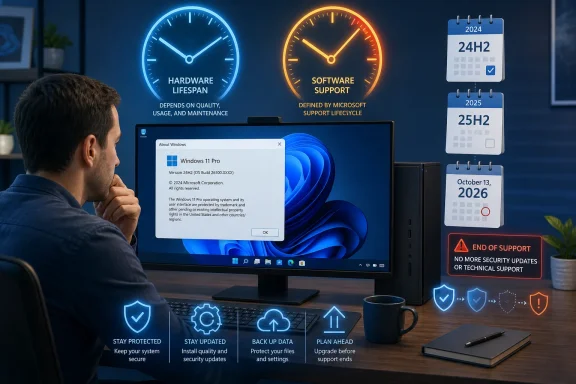
Every Windows PC carries at least two clocks: the physical lifespan of its hardware and the support lifespan of the Windows release installed on it. The second clock is easier to overlook because an expired Windows installation does not suddenly stop booting, erase files, or lock its owner out. Instead, monthly security fixes, reliability updates, and official support come to an end, quietly turning a computer that appears normal into one that becomes harder and riskier to maintain with every passing month.
Microsoft no longer treats mainstream Windows releases as static products that receive a decade of identical support. Windows 11 follows an annual feature-update model in which each version, such as 23H2, 24H2, or 25H2, receives updates for a defined period before users must move forward.
That means “I have Windows 11” is not enough information to determine whether a PC remains supported. The edition, version, build, update channel, and sometimes the organization managing the machine all help determine its real servicing status.
A Windows 11 PC running version 23H2 Home, for example, crossed its end-of-updates date on November 11, 2025. A Windows 11 Enterprise computer running the same 23H2 version remains on a different servicing timetable, with updates scheduled through November 10, 2026.
Those policies create different deadlines for installations that may look almost identical to the user. Two computers can show the same version and even the same underlying OS build family while having different support dates because one runs Pro and the other runs Enterprise.
The expiration applies to the servicing commitment for a particular Windows release. Hardware warranties, application support, antivirus coverage, driver availability, and Windows servicing are related but separate lifecycles.
This approach lets Microsoft modernize core components, retire outdated code, and concentrate testing on a smaller number of supported configurations. It also means users and administrators cannot assume that an installed release will remain patched indefinitely.
Consequently, a PC can be running a current operating-system brand while still using an obsolete release. That possibility is especially important on machines where feature updates have been paused, blocked, deferred by policy, or prevented by compatibility issues.
The trade-off is that every annual release starts another countdown. Users who remain on Home or Pro cannot install a version once and reasonably expect it to receive five or ten years of ordinary security maintenance.
However, cumulative servicing still depends on Microsoft producing packages for the installed version. Once a release leaves support, the update mechanism may continue working, but it will have no ordinary monthly security package to retrieve for that obsolete Windows branch.
Version 26H1 also exists, but it requires careful explanation. Microsoft scoped it for new devices introduced in early 2026 rather than as a conventional in-place feature update for existing 24H2 and 25H2 computers.
The distinction matters because a user checking version tables might incorrectly conclude that a 25H2 PC is behind. Microsoft does not offer 26H1 as an ordinary in-place upgrade from 24H2 or 25H2, so its higher number does not make it the expected destination for every existing machine.
The quickest method is the built-in
The full build revision changes as monthly updates arrive, so the digits after the main build number help reveal patch status. The feature-release label, however, is the primary value needed for checking the broad support deadline.
This method is often better when documenting several machines because the edition and version appear in clearly labeled fields. The same page also identifies whether the system uses a 64-bit processor and reports other hardware details relevant to Windows 11 eligibility.
The challenge is interpreting the results correctly. Product-name fields can occasionally reflect historical upgrade paths, while display-version and build values provide a more reliable picture of the active Windows release.
Lifecycle pages can change as Microsoft publishes new releases or clarifies servicing arrangements. The date displayed by a current official table should take precedence over old screenshots and memory.
The safest practice is to use external coverage for explanation and Microsoft’s own table for the final date. For businesses, that date should then feed into formal deployment schedules rather than remain an item someone hopes to remember.
Users should examine Settings > Windows Update > Update history and compare the most recent successful quality update with the current monthly release. Persistent failure codes, repeated rollbacks, or a lack of updates over several months deserve investigation even when the feature version remains within its lifecycle.
The danger comes from what no longer arrives. Once ordinary servicing ends, newly discovered vulnerabilities and reliability problems may remain unresolved on that version.
An unsupported release generally stops receiving those ordinary cumulative security updates. Attackers can analyze fixes issued for supported versions, identify the underlying weakness, and test whether older Windows branches contain similar vulnerable code.
Risk instead accumulates. Each newly disclosed vulnerability, unsupported driver, abandoned application dependency, and compatibility change widens the gap between the obsolete system and the actively maintained Windows ecosystem.
Running a current antivirus product on unsupported Windows is better than running none, but it does not restore Microsoft’s missing security maintenance. Defense-in-depth depends on every important layer being maintained.
Eventually, vendors tend to drop obsolete Windows releases because testing them consumes resources and because the underlying platform no longer receives security fixes. The PC can therefore pass through several stages: unsupported Windows, then partially supported applications, then mounting incompatibility.
A missing update is not automatically evidence that the PC has been abandoned. It can signal a temporary deployment restriction, an administrative policy, insufficient storage, or failed prerequisites.
Users should generally resist attempts to bypass a safeguard hold unless they understand the underlying issue and have reliable backups. Forcing an installation can exchange a servicing deadline for crashes, broken peripherals, or an unbootable system.
That delay can be intentional and sensible. Enterprises often validate line-of-business software, security agents, VPN components, and device drivers before approving a new Windows release across the fleet.
The plan becomes dangerous only when deferral turns into neglect. A selected version needs a migration deadline comfortably ahead of Microsoft’s final servicing date.
A Windows 10 PC still functions, but it now needs a supported migration path or special security coverage. Simply checking that it runs the final 22H2 feature version is no longer enough.
ESU does not ordinarily include feature improvements, broad reliability work, or standard technical support. It is best understood as a temporary security bridge for users who need more time to replace hardware, resolve application dependencies, or plan a migration.
Organizations have separate ESU licensing arrangements and planning considerations, but the strategic principle remains unchanged. Extended updates postpone the exposure; they do not eliminate the need to modernize.
Some apparently incompatible PCs merely have TPM or Secure Boot disabled in firmware. Others contain processors outside the supported list and do not have a fully supported upgrade path, even if unofficial installation workarounds exist.
For a secondary experimentation machine, an informed user may accept that uncertainty. For banking, healthcare, business records, identity management, or other sensitive work, a supported platform is the more defensible choice.
The practical response does not require constant technical attention. It requires knowing the installed release, allowing routine updates to complete, and responding before the version reaches its deadline.
A home desktop behind a router is not immune, however. Malicious documents, compromised websites, browser exploits, stolen credentials, remote-access tools, and vulnerable applications do not require the user to sit in an airport lounge.
A proper backup protects against more than Windows Update. The same copy can save files after ransomware, theft, accidental deletion, or hardware failure, making it one of the most valuable preparations before any major operating-system change.
Enterprises should treat Windows release dates as operational milestones comparable to certificate expiration, hardware warranty renewal, and server-platform retirement.
A practical sequence is:
Exceptions may be necessary for laboratory systems, industrial equipment, medical devices, or specialized software. Those exceptions need documented business justification, network isolation, compensating controls, ownership, and a retirement date.
LTSC should not be treated as a universal method for escaping annual Windows management. Licensing, application expectations, hardware support, Store-related components, and organizational use cases all influence whether it is appropriate.
That convergence will place pressure on both groups: Windows 11 users who have postponed 25H2 and Windows 10 users who used ESU to delay a hardware or platform decision.
Anyone who depends on specialized hardware or software should test now rather than wait for a forced timetable. A few months provide room to update drivers, replace incompatible utilities, or determine why Windows Update is withholding the release.
Linux can be a practical option for some older hardware, particularly for web browsing, documents, media, and lightweight tasks. It is not a drop-in answer for every Windows application, peripheral, game, accessibility workflow, or business dependency, so compatibility testing remains essential.
It also means functioning computers can reach a point where their hardware remains physically useful but no longer has a straightforward supported Windows path. Responsible reuse, secure data erasure, donation, recycling, or conversion to another maintained platform should take priority over simply discarding those systems.
Businesses can automate that awareness through inventory reports, compliance policies, and deployment dashboards. Home users can accomplish nearly the same result by opening
A Windows PC does not die when its installed release reaches the end of servicing, but the security assumptions surrounding it do begin to expire. Checking the edition and version, confirming the official deadline, reviewing update history, and planning the next upgrade turns an invisible countdown into a manageable maintenance task. The best time to discover that Windows is nearing the end of updates is months before the deadline—not months after the patches have stopped.
 Overview
Microsoft no longer treats mainstream Windows releases as static products that receive a decade of identical support. Windows 11 follows an annual feature-update model in which each version, such as 23H2, 24H2, or 25H2, receives updates for a defined period before users must move forward.That means “I have Windows 11” is not enough information to determine whether a PC remains supported. The edition, version, build, update channel, and sometimes the organization managing the machine all help determine its real servicing status.
Windows itself may be supported while your version is not
Windows 11 as a product remains in active development, but individual versions expire. This distinction resembles the difference between a supported web browser and an obsolete release of that browser: the product continues, while the old installation no longer receives the protections delivered to newer releases.A Windows 11 PC running version 23H2 Home, for example, crossed its end-of-updates date on November 11, 2025. A Windows 11 Enterprise computer running the same 23H2 version remains on a different servicing timetable, with updates scheduled through November 10, 2026.
Edition changes the countdown
Microsoft currently gives Windows 11 Home, Pro, Pro Education, and Pro for Workstations releases 24 months of servicing from their general availability date. Enterprise and Education releases ordinarily receive 36 months.Those policies create different deadlines for installations that may look almost identical to the user. Two computers can show the same version and even the same underlying OS build family while having different support dates because one runs Pro and the other runs Enterprise.
The PC has not literally expired
“Expiration date” is a useful warning, but it should not be interpreted literally. The computer’s firmware does not contain a timer that disables it when Windows support ends, and Microsoft does not remotely deactivate ordinary PCs simply because their feature release has aged out.The expiration applies to the servicing commitment for a particular Windows release. Hardware warranties, application support, antivirus coverage, driver availability, and Windows servicing are related but separate lifecycles.
Why Windows Versions Have Servicing Deadlines
Windows once arrived in large, widely spaced releases, followed by service packs and years of incremental updates. Windows 10 introduced a more continuous model, and Windows 11 refined it around one principal feature update per year.This approach lets Microsoft modernize core components, retire outdated code, and concentrate testing on a smaller number of supported configurations. It also means users and administrators cannot assume that an installed release will remain patched indefinitely.
The move from product support to version servicing
Traditional Windows lifecycle discussions focused on the end of support for an entire operating system, such as Windows 7 on January 14, 2020, or Windows 10 on October 14, 2025. Modern Windows introduces another layer: each feature release has its own servicing deadline long before the overall Windows family disappears.Consequently, a PC can be running a current operating-system brand while still using an obsolete release. That possibility is especially important on machines where feature updates have been paused, blocked, deferred by policy, or prevented by compatibility issues.
Annual releases simplify some things and complicate others
Windows 11’s annual feature-update cadence is less frantic than Windows 10’s former twice-yearly rhythm. Consumers generally have more time between significant upgrades, while businesses can plan deployments around a predictable second-half release window.The trade-off is that every annual release starts another countdown. Users who remain on Home or Pro cannot install a version once and reasonably expect it to receive five or ten years of ordinary security maintenance.
Cumulative updates depend on a supported foundation
Monthly Windows updates are cumulative, meaning newer packages generally incorporate earlier security and quality fixes. That design makes fully updated systems easier to establish because administrators do not need to install years of individual patches in sequence.However, cumulative servicing still depends on Microsoft producing packages for the installed version. Once a release leaves support, the update mechanism may continue working, but it will have no ordinary monthly security package to retrieve for that obsolete Windows branch.
The Windows 11 Deadlines That Matter in 2026
As of July 21, 2026, Windows 11 version 25H2 is the principal current feature release for existing Windows 11 PCs. Version 24H2 remains supported, but Home and Pro users are approaching a significant deadline on October 13, 2026.Version 26H1 also exists, but it requires careful explanation. Microsoft scoped it for new devices introduced in early 2026 rather than as a conventional in-place feature update for existing 24H2 and 25H2 computers.
Windows 11 version 23H2
The support position for 23H2 depends heavily on edition:- Home and Pro editions reached the end of updates on November 11, 2025.
- Enterprise and Education editions are scheduled to reach the end of updates on November 10, 2026.
- A consumer PC still running 23H2 is therefore already overdue for a supported upgrade.
- An Enterprise-managed 23H2 device still has a limited migration window, but administrators should already be executing deployment plans.
Windows 11 version 24H2
Version 24H2 reached general availability on October 1, 2024. Its principal deadlines are:- Home and Pro editions reach the end of updates on October 13, 2026.
- Enterprise and Education editions reach the end of updates on October 12, 2027.
- Windows 11 Enterprise LTSC 2024 follows a separate lifecycle rather than the ordinary 24H2 consumer timetable.
- Windows 11 IoT Enterprise LTSC 2024 has an even longer specialized lifecycle intended for fixed-purpose devices.
Windows 11 version 25H2
Version 25H2 became generally available on September 30, 2025. Its standard servicing deadlines are:- Home and Pro editions receive updates through October 12, 2027.
- Enterprise and Education editions receive updates through October 10, 2028.
- Eligible 24H2 installations can move to 25H2 using a relatively lightweight enablement approach because much of the applicable code arrived through preceding cumulative updates.
- Managed organizations can deploy it through established enterprise update and management tools.
What Windows 11 version 26H1 means
Microsoft released Windows 11 version 26H1 on February 10, 2026, but it is not designed as the next routine feature update for existing 24H2 or 25H2 PCs. It is scoped to support new devices entering the market with newer platform requirements.The distinction matters because a user checking version tables might incorrectly conclude that a 25H2 PC is behind. Microsoft does not offer 26H1 as an ordinary in-place upgrade from 24H2 or 25H2, so its higher number does not make it the expected destination for every existing machine.
How to Find Your Installed Version and Edition
Checking a Windows PC takes less than a minute, but the user must record more than the marketing name. “Windows 11” identifies the family; the edition and version identify the servicing deadline.The quickest method is the built-in
winver utility. Settings provides the same essential details in a location that also shows hardware information.Method one: use Winver
Follow these steps:- Press Windows key + R to open the Run dialog.
- Type
winver. - Press Enter or select OK.
- Read the version and OS build shown in the About Windows window.
- Note the edition named in the accompanying licensing text.
The full build revision changes as monthly updates arrive, so the digits after the main build number help reveal patch status. The feature-release label, however, is the primary value needed for checking the broad support deadline.
Method two: use Settings
Open Settings > System > About and scroll to Windows specifications. The page shows the edition, version, installation date, and OS build.This method is often better when documenting several machines because the edition and version appear in clearly labeled fields. The same page also identifies whether the system uses a 64-bit processor and reports other hardware details relevant to Windows 11 eligibility.
Method three: collect the information with PowerShell
Administrators and advanced users can collect operating-system data through PowerShell, Windows Management Instrumentation, device-management platforms, or inventory software. This is far more practical than openingwinver manually on hundreds of endpoints.The challenge is interpreting the results correctly. Product-name fields can occasionally reflect historical upgrade paths, while display-version and build values provide a more reliable picture of the active Windows release.
Do not confuse version, build, and experience pack
Windows presents several identifiers:- Edition indicates the licensing and feature tier, such as Home, Pro, Enterprise, or Education.
- Version identifies the annual release, such as 24H2 or 25H2.
- OS build identifies the underlying Windows branch and installed cumulative-update revision.
- Windows Feature Experience Pack identifies separately serviced experience components and does not determine the operating system’s lifecycle by itself.
How to Determine the Real End-of-Updates Date
After identifying the edition and version, compare them with Microsoft’s Windows release-information and lifecycle tables. Do not rely solely on a search-result snippet, an old article, or a generic statement that a particular version is supported.Lifecycle pages can change as Microsoft publishes new releases or clarifies servicing arrangements. The date displayed by a current official table should take precedence over old screenshots and memory.
Match all relevant fields
A proper lifecycle check uses this sequence:- Identify whether the PC runs Windows 10 or Windows 11.
- Record the exact edition.
- Record the feature version.
- Confirm whether the device belongs to an ordinary consumer, enterprise, LTSC, or IoT servicing category.
- Locate the matching row in Microsoft’s current release-information table.
- Compare the deadline with today’s date.
- Verify that recent monthly cumulative updates are successfully installing.
Treat third-party lifecycle summaries as reminders
Articles, forum posts, and support discussions can alert users to deadlines, but Microsoft’s current lifecycle documentation remains the authoritative reference. A third-party table may have been accurate when published yet become incomplete after a new release, policy clarification, or specialized servicing announcement.The safest practice is to use external coverage for explanation and Microsoft’s own table for the final date. For businesses, that date should then feed into formal deployment schedules rather than remain an item someone hopes to remember.
Check update history as well as lifecycle status
A supported release can still be dangerously out of date if recent monthly patches have failed. Conversely, seeing an old update in the history does not prove the entire version is unsupported.Users should examine Settings > Windows Update > Update history and compare the most recent successful quality update with the current monthly release. Persistent failure codes, repeated rollbacks, or a lack of updates over several months deserve investigation even when the feature version remains within its lifecycle.
What Happens After Support Ends
Nothing theatrical occurs at midnight on the deadline. Windows continues to start, installed applications remain available, and local files stay where they were.The danger comes from what no longer arrives. Once ordinary servicing ends, newly discovered vulnerabilities and reliability problems may remain unresolved on that version.
Monthly security protection stops
Microsoft normally publishes Windows security updates on the second Tuesday of each month, with out-of-band releases used when circumstances require faster action. These packages address vulnerabilities across the operating system and bundled components.An unsupported release generally stops receiving those ordinary cumulative security updates. Attackers can analyze fixes issued for supported versions, identify the underlying weakness, and test whether older Windows branches contain similar vulnerable code.
The risk grows rather than explodes
End of servicing should not be described as instant compromise. A PC does not become infected merely because the calendar advances by one day.Risk instead accumulates. Each newly disclosed vulnerability, unsupported driver, abandoned application dependency, and compatibility change widens the gap between the obsolete system and the actively maintained Windows ecosystem.
Antivirus does not replace operating-system patches
Security software can block malicious files, suspicious behavior, phishing attempts, and known attack patterns. It cannot reliably repair an exploitable defect inside the Windows kernel, networking stack, authentication subsystem, print components, or another privileged operating-system service.Running a current antivirus product on unsupported Windows is better than running none, but it does not restore Microsoft’s missing security maintenance. Defense-in-depth depends on every important layer being maintained.
Application support may erode later
Browsers, productivity suites, game launchers, VPN clients, accounting packages, and hardware utilities establish their own minimum Windows requirements. They may continue working after Windows support ends, sometimes for a considerable period.Eventually, vendors tend to drop obsolete Windows releases because testing them consumes resources and because the underlying platform no longer receives security fixes. The PC can therefore pass through several stages: unsupported Windows, then partially supported applications, then mounting incompatibility.
Why Feature Updates Sometimes Do Not Appear
Pressing Check for updates does not guarantee that Windows will immediately offer the newest release. Microsoft stages rollouts and may apply safeguard holds when known compatibility problems affect specific hardware, drivers, applications, or configurations.A missing update is not automatically evidence that the PC has been abandoned. It can signal a temporary deployment restriction, an administrative policy, insufficient storage, or failed prerequisites.
Safeguard holds protect affected configurations
When Microsoft identifies a serious upgrade problem, it can prevent Windows Update from offering the feature release to machines likely to encounter it. This avoids turning a known incompatibility into a larger incident.Users should generally resist attempts to bypass a safeguard hold unless they understand the underlying issue and have reliable backups. Forcing an installation can exchange a servicing deadline for crashes, broken peripherals, or an unbootable system.
Managed policies can defer upgrades
A workplace PC may receive monthly quality updates while remaining on a selected feature version. Administrators use Windows Update for Business, Intune, Configuration Manager, Windows Server Update Services, or other tools to control deployment timing.That delay can be intentional and sensible. Enterprises often validate line-of-business software, security agents, VPN components, and device drivers before approving a new Windows release across the fleet.
The plan becomes dangerous only when deferral turns into neglect. A selected version needs a migration deadline comfortably ahead of Microsoft’s final servicing date.
Local problems can block installation
Common obstacles include:- The system lacks enough free storage for the upgrade process.
- A driver or application has a known compatibility issue.
- Windows Update components are damaged or stuck.
- The PC is waiting for a required reboot.
- A policy has selected an older target release.
- The hardware does not satisfy the destination version’s requirements.
- The device has been disconnected or powered off during normal maintenance windows.
Windows 10 Changes the Urgency
Windows 10 reached the end of ordinary support on October 14, 2025. Unlike an expiring Windows 11 feature release, this was the end of free mainstream servicing for the overall consumer Windows 10 product.A Windows 10 PC still functions, but it now needs a supported migration path or special security coverage. Simply checking that it runs the final 22H2 feature version is no longer enough.
Windows 10 Extended Security Updates
Microsoft’s consumer Extended Security Updates program provides eligible Windows 10 version 22H2 devices with critical and important security updates through October 13, 2026. It does not turn Windows 10 back into a fully supported, actively developed consumer platform.ESU does not ordinarily include feature improvements, broad reliability work, or standard technical support. It is best understood as a temporary security bridge for users who need more time to replace hardware, resolve application dependencies, or plan a migration.
ESU is not an indefinite escape route
The consumer program’s one-year period means the next deadline is already close. As of July 21, 2026, relying on consumer ESU leaves fewer than three months before the scheduled October 13, 2026 endpoint.Organizations have separate ESU licensing arrangements and planning considerations, but the strategic principle remains unchanged. Extended updates postpone the exposure; they do not eliminate the need to modernize.
Check Windows 11 eligibility carefully
Windows 11’s baseline hardware requirements include a compatible 64-bit processor, Secure Boot capability, and TPM 2.0, among other requirements. Microsoft’s PC Health Check utility can help assess an existing Windows 10 machine.Some apparently incompatible PCs merely have TPM or Secure Boot disabled in firmware. Others contain processors outside the supported list and do not have a fully supported upgrade path, even if unofficial installation workarounds exist.
Unsupported Windows 11 is not the same as supported Windows 11
Installing Windows 11 through a requirement bypass may make an older computer usable, but it does not create the same support position as running Windows 11 on qualifying hardware. Microsoft can decline to guarantee updates, compatibility, or assistance for an unsupported configuration.For a secondary experimentation machine, an informed user may accept that uncertainty. For banking, healthcare, business records, identity management, or other sensitive work, a supported platform is the more defensible choice.
Consumer Impact
For home users, Windows servicing often remains invisible until a large update requests a restart or a warning appears in Settings. That low visibility encourages the belief that Windows Update is optional housekeeping rather than a core part of the computer’s security model.The practical response does not require constant technical attention. It requires knowing the installed release, allowing routine updates to complete, and responding before the version reaches its deadline.
A sensible home-PC maintenance routine
Consumers can use a simple monthly checklist:- Confirm that Windows Update does not show unresolved failures.
- Restart the PC if an update is waiting to complete.
- Review the installed version after a major feature update.
- Maintain a current backup of irreplaceable files.
- Keep browsers, password managers, communication tools, and security software updated.
- Leave enough free storage for cumulative and feature updates.
- Investigate repeated installation failures rather than hiding them indefinitely.
Public Wi-Fi raises the stakes, but it is not the only threat
A frequently traveled laptop encounters untrusted networks, captive portals, removable devices, and a wide range of websites. Keeping that system supported is especially important.A home desktop behind a router is not immune, however. Malicious documents, compromised websites, browser exploits, stolen credentials, remote-access tools, and vulnerable applications do not require the user to sit in an airport lounge.
Backups remain essential during upgrades
Most feature updates complete without data loss, but no upgrade is risk-free. Storage failure, power interruption, driver defects, and pre-existing file-system corruption can turn routine maintenance into recovery work.A proper backup protects against more than Windows Update. The same copy can save files after ransomware, theft, accidental deletion, or hardware failure, making it one of the most valuable preparations before any major operating-system change.
Enterprise Impact
Businesses face a larger problem because version expiration affects application certification, compliance evidence, support contracts, security operations, and thousands of users. Discovering obsolete endpoints only after an audit or incident indicates a failure of inventory and lifecycle governance.Enterprises should treat Windows release dates as operational milestones comparable to certificate expiration, hardware warranty renewal, and server-platform retirement.
Inventory must identify more than device names
A useful endpoint inventory records:- Windows edition and feature version.
- Full OS build and recent patch status.
- Hardware model, processor generation, TPM state, and Secure Boot status.
- Ownership, department, location, and primary user.
- Critical application dependencies.
- Upgrade readiness and safeguard holds.
- Replacement or exception status.
- The assigned deployment ring and maintenance window.
Deployment rings reduce upgrade risk
A disciplined organization does not release a feature update to every endpoint simultaneously. It moves through staged groups, beginning with IT and representative test users before expanding to broader populations.A practical sequence is:
- Validate the release in laboratories and virtual machines.
- Deploy it to IT staff and technically capable volunteers.
- Expand to representative hardware and application groups.
- Review help-desk incidents, telemetry, and rollback rates.
- Resolve or isolate compatibility failures.
- Deploy broadly with enough time remaining for remediation.
- Escalate devices that miss the final compliance deadline.
Compliance can make an unsupported endpoint unacceptable
Many security frameworks require timely vulnerability remediation and vendor-supported software. An obsolete Windows version can trigger audit findings even if antivirus remains installed and the endpoint appears operational.Exceptions may be necessary for laboratory systems, industrial equipment, medical devices, or specialized software. Those exceptions need documented business justification, network isolation, compensating controls, ownership, and a retirement date.
Long-term servicing is specialized
Windows Enterprise LTSC serves environments where stability and a reduced rate of feature change outweigh access to the full mainstream Windows experience. It is commonly associated with fixed-purpose or tightly controlled systems rather than general knowledge-worker desktops.LTSC should not be treated as a universal method for escaping annual Windows management. Licensing, application expectations, hardware support, Store-related components, and organizational use cases all influence whether it is appropriate.
Strengths and Opportunities
The servicing model creates recurring work, but it also provides meaningful advantages when updates are managed well.What the model does well
- Predictable annual releases improve planning. IT teams can align testing and deployment with a known cadence rather than react to frequent feature branches.
- Cumulative updates simplify baseline creation. A newly provisioned device can reach a current patch level without installing every historical fix individually.
- Different servicing periods recognize enterprise needs. The additional year for Enterprise and Education provides more time for broad validation and phased deployment.
- Enablement packages can reduce disruption. When two releases share a common servicing foundation, the visible upgrade can be faster and less invasive.
- Safeguard holds prevent some known failures. A delayed offer may protect users from an incompatibility rather than merely inconvenience them.
- Lifecycle checks encourage better asset management. Organizations that track Windows deadlines often improve hardware inventory, application ownership, and replacement planning at the same time.
Risks and Concerns
The model’s greatest weakness is that it can fail silently from the user’s perspective. A PC may look healthy even when its release no longer receives the patches expected of a modern internet-connected system.Where users and organizations can go wrong
- The Windows brand can create false confidence. Seeing “Windows 11” does not prove that the installed feature release remains supported.
- Edition-specific dates are easy to misread. Advice written for Enterprise may be unsafe when applied to Home or Pro.
- Automatic updates are not infallible. Compatibility holds, storage shortages, policies, corruption, and long periods offline can interrupt servicing.
- Deadline-driven upgrades can create avoidable outages. Waiting until the final month leaves little time to solve driver or application failures.
- Unsupported hardware workarounds create uncertainty. A successful installation does not guarantee future servicing or vendor support.
- ESU can encourage procrastination. Temporary coverage is valuable, but only when paired with a funded migration or replacement plan.
- Application support can diverge from Windows support. A supported operating system may still host obsolete software, while an unsupported OS may temporarily run current applications.
- Users may mistake antivirus for full remediation. Endpoint protection cannot substitute for fixes to vulnerabilities inside Windows itself.
What to Watch Next
The most immediate consumer deadline is October 13, 2026. On that date, Windows 11 version 24H2 Home and Pro reaches the end of updates, while the Windows 10 consumer ESU period is also scheduled to conclude.That convergence will place pressure on both groups: Windows 11 users who have postponed 25H2 and Windows 10 users who used ESU to delay a hardware or platform decision.
The 24H2 migration wave
Microsoft is already positioned to move unmanaged eligible 24H2 Home and Pro PCs toward 25H2. Users should expect automatic rollout behavior to intensify as the October deadline approaches, subject to device readiness and compatibility safeguards.Anyone who depends on specialized hardware or software should test now rather than wait for a forced timetable. A few months provide room to update drivers, replace incompatible utilities, or determine why Windows Update is withholding the release.
The end of the Windows 10 consumer bridge
Windows 10 users enrolled in ESU must decide whether to upgrade, replace the PC, repurpose it, disconnect it from sensitive workloads, or install another supported operating system. Continuing unchanged after October 13, 2026 would mean moving beyond even the temporary consumer security extension.Linux can be a practical option for some older hardware, particularly for web browsing, documents, media, and lightweight tasks. It is not a drop-in answer for every Windows application, peripheral, game, accessibility workflow, or business dependency, so compatibility testing remains essential.
Hardware replacement will remain part of the story
The Windows 11 transition has tied operating-system support more closely to hardware security capabilities. That improves the baseline for features built around TPM-backed keys, Secure Boot, virtualization-based security, and modern driver models.It also means functioning computers can reach a point where their hardware remains physically useful but no longer has a straightforward supported Windows path. Responsible reuse, secure data erasure, donation, recycling, or conversion to another maintained platform should take priority over simply discarding those systems.
Lifecycle awareness needs to become routine
Windows users should treat the feature version almost like a vehicle’s registration date or a security certificate’s expiration. It does not need daily attention, but it should be checked periodically and before making assumptions about the machine’s safety.Businesses can automate that awareness through inventory reports, compliance policies, and deployment dashboards. Home users can accomplish nearly the same result by opening
winver every few months and paying attention when Windows Update presents a feature release.A Windows PC does not die when its installed release reaches the end of servicing, but the security assumptions surrounding it do begin to expire. Checking the edition and version, confirming the official deadline, reviewing update history, and planning the next upgrade turns an invisible countdown into a manageable maintenance task. The best time to discover that Windows is nearing the end of updates is months before the deadline—not months after the patches have stopped.
References
- Primary source: How-To Geek
Published: 2026-07-21T11:30:13+00:00
Your Windows PC has an expiration date—here's how to find it
Microsoft quietly retires each version on a set date. www.howtogeek.com
- Official source: support.microsoft.com
Find information about your Windows device | Microsoft Support
Learn how to find basic information about your Windows device, including the device name, version of Windows, hardware details and avaialble storage space.support.microsoft.com