

Microsoft Copilot does not appear to be suffering a confirmed, platform-wide outage as of July 21, 2026, at approximately 18:50 UTC, although individual users and organizations may still encounter blank windows, endless loading, sign-in loops, missing buttons, or “Something went wrong” messages. The crucial point is that “Microsoft Copilot” now describes several connected but operationally distinct services, so a failure in the Windows app, Edge sidebar, Microsoft 365 tenant, network path, account session, or GitHub Copilot can look like a universal outage when it is actually limited to one device or workload. Before deleting profiles or installing third-party repair software, determine which Copilot experience has failed and whether the same account works through another access point.
Microsoft’s Copilot brand has expanded far beyond the assistant originally introduced through Bing and the Windows 11 taskbar. It now covers the standalone Copilot app, the consumer web service, Copilot in Microsoft Edge, Microsoft 365 Copilot Chat, paid productivity features in Office applications, security tools, development products, and organization-built agents.
That breadth creates a troubleshooting problem. Two users can both report that “Copilot is down” while experiencing entirely unrelated failures: one may have a damaged app package, while the other may be blocked by a corporate access policy or an expired Microsoft 365 license.
The visible app is therefore only one link in a longer chain. A problem anywhere in that chain may prevent prompts from loading or completing even when Windows itself is functioning normally.
The reverse is also true. A handful of reports involving one VPN provider or one Edge version does not establish that Microsoft is experiencing a global outage.
That finding should be treated as a snapshot rather than a guarantee. Service health can change rapidly, and Microsoft 365 administrators may see tenant-specific advisories that are not fully described on public consumer-facing status pages.
If neither the app nor the website works on the same PC, test the website on a phone using cellular data. This separates a Microsoft-side failure from a problem involving the computer, router, DNS provider, firewall, or broadband connection.
Microsoft 365 Copilot also relies on more than the chat interface. Failures involving Exchange Online, SharePoint, OneDrive, Teams, Microsoft Graph, or identity services can prevent grounding, file access, meeting summaries, and in-app generation even while basic Copilot Chat remains available.
If GitHub Copilot works in Visual Studio Code, that does not establish that the Windows Copilot app is healthy. Likewise, a GitHub incident does not necessarily affect Copilot in Edge or Word.
Each symptom points toward a different layer of the system. Reinstalling the app will not correct an organizational policy, and changing DNS servers will not restore an expired subscription.
The same feature may also reach tenants at different times because Microsoft uses staged deployments. Administrators should check the Microsoft 365 Message center and current product documentation before rebuilding user profiles.
If it works on a hotspot but not Wi-Fi, concentrate on the router, DNS service, proxy, VPN, or firewall. If it works in a private window, clear only Copilot-related site data before resetting the entire browser.
The real question is whether the active network path can reach all required Microsoft endpoints and complete authentication without requests being altered, blocked, or routed through an unsupported location.
Corporate users should not disable a managed VPN without authorization. The VPN may enforce conditional access, device compliance, DNS resolution, or secure connectivity to organizational services, so disconnecting it can make Microsoft 365 Copilot less functional rather than more functional.
Administrators should review proxy logs, firewall events, DNS filtering, browser policies, and TLS inspection. Allowing only the visible Copilot domain may be insufficient because authentication, content delivery, Microsoft Graph, and application-hosting dependencies can use additional Microsoft services.
Restart Windows after the Winsock reset. This can clear damaged local name-resolution entries and networking catalog problems, but it will not resolve a Microsoft outage or a deliberate firewall block.
Managed devices may receive DNS and proxy settings through policy. Employees should involve IT rather than overriding those controls, particularly where compliance or private network resolution is required.
Before resetting it, confirm that Windows has the latest approved updates and that Microsoft Store application updates have completed.
If updating and resetting do not help, uninstall Copilot through Settings, restart the PC, and reinstall the official app from Microsoft Store. Avoid third-party download portals and repackaged installers.
Update Microsoft Edge and Windows before attempting deeper repair. On managed systems, administrators should also verify that application-control software has not blocked or removed WebView components.
Deleting the entire Edge profile should be a late-stage measure because it can remove local settings and disrupt browser synchronization. More targeted checks are safer and usually faster.
Background Edge processes can preserve a broken session after the visible window closes. Ending them forces the next launch to create fresh processes and reload sidebar components.
A private Edge window is a useful comparison. If Copilot works privately, an extension, cookie, cached script, or ordinary-profile setting is probably responsible.
Do not assume the last installed extension is necessarily responsible. An extension update or a Copilot interface change can expose a conflict in software that previously worked.
Only consider removing the affected profile after confirming that synchronization has completed and important local data is backed up. A new profile is a diagnostic tool; deleting the old one without preparation can turn a Copilot problem into a password, bookmark, or browsing-data problem.
A sign-in loop does not automatically mean the password is wrong. The account may authenticate successfully but fail a subsequent license, age, region, compliance, or consent check.
If personal and work identities are mixed in the same browser profile, test each in a separate profile. This reduces ambiguous account selection and prevents consumer cookies from interfering with an organizational session.
This simple check matters after BIOS resets, dual-boot clock problems, prolonged battery failure, or manual time changes. Even a modest discrepancy can break security-sensitive web sessions.
Work users should confirm that the correct Copilot license is assigned and that it has finished provisioning. Administrators should also review conditional-access results, sign-in logs, device compliance, and application consent policies.
A generic Windows repair tool cannot diagnose most of these dependencies. The investigation belongs in Microsoft 365 application settings, identity logs, service health, and tenant configuration.
Organizations using controlled update channels may receive Copilot capabilities later than other users. A feature missing from one device may therefore reflect application version or rollout timing rather than a service fault.
Administrators should examine cloud-policy settings as well as local Office configuration. Reinstalling Office will not override a tenant policy that deliberately disables connected experiences.
Test with a simple new document saved to the user’s organizational OneDrive. If Copilot works there but not in the original file, investigate that file’s format, permissions, protection, size, and content rather than the entire installation.
This is why a green chat interface does not prove that all Microsoft 365 Copilot features are operational. The prompt may reach the model while the data needed to answer it remains unavailable.
IT teams should gather scope before remediating endpoints. The number of users, locations, account types, networks, and applications affected often reveals the responsible layer.
Use a controlled test group when rolling back policies. Large, improvised changes can weaken security and make the environment harder to diagnose.
If a mobile hotspot restores access, treat that as diagnostic evidence rather than a production workaround. Organizational data should remain on approved networks and managed devices.
The safest troubleshooting process uses built-in Windows controls, official application packages, service-health information, browser diagnostics, and administrator logs.
If genuine Windows corruption is suspected because several built-in components are failing, use supported tools such as System File Checker and Deployment Image Servicing and Management. Even then, run them because the evidence points to operating-system corruption—not merely because Copilot displayed an error.
If the test profile fails in exactly the same way, deleting the original profile is unlikely to help. Focus instead on shared networking, device policy, application version, or service availability.
Repeated reinstalls can also create misleading temporary improvements when the real cause is an intermittent service or expiring session.
Users should also watch whether the failure follows one account, one device, one network, or one Copilot surface. That pattern remains the best guide to the next troubleshooting step.
In that situation, repair the smallest affected component. Clear site data before resetting Edge, repair the Copilot app before reinstalling it, and test firewall rules before redesigning the network.
Enterprise teams should add tenant service health, identity logs, licenses, Microsoft 365 Message center notices, proxy logs, and recent policy changes to that sequence. They should avoid asking every user to perform destructive local fixes until centralized causes have been ruled out.
Microsoft Copilot is not showing clear signs of a universal outage at the time of publication on July 21, 2026, so users experiencing problems should first suspect a partial service issue, account session, application state, or network-control conflict rather than assuming that all Copilot services are offline. VPN testing can be valuable, but it is only one diagnostic step, and deleting an Edge profile should be reserved for cases where a clean test profile proves the original is at fault. The safest route is to isolate the failing Copilot surface, compare devices and networks, use official repair controls, and preserve enough evidence for administrators or Microsoft support to identify the real dependency that has broken.
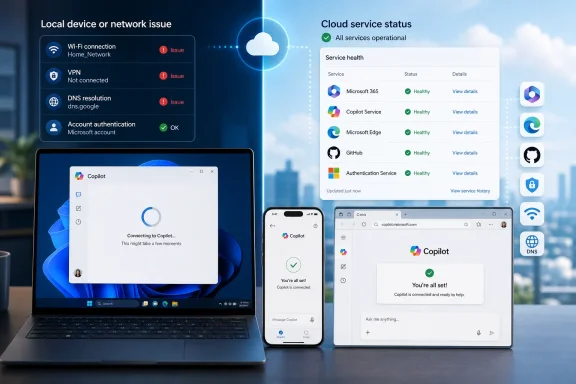 Overview
Microsoft’s Copilot brand has expanded far beyond the assistant originally introduced through Bing and the Windows 11 taskbar. It now covers the standalone Copilot app, the consumer web service, Copilot in Microsoft Edge, Microsoft 365 Copilot Chat, paid productivity features in Office applications, security tools, development products, and organization-built agents.That breadth creates a troubleshooting problem. Two users can both report that “Copilot is down” while experiencing entirely unrelated failures: one may have a damaged app package, while the other may be blocked by a corporate access policy or an expired Microsoft 365 license.
Copilot is a cloud service with multiple front ends
The Windows Copilot app is not a self-contained AI model running entirely on the PC. It depends on internet connectivity, Microsoft identity services, cloud-hosted interfaces, safety systems, model infrastructure, and, in some cases, Microsoft Graph and organizational data services.The visible app is therefore only one link in a longer chain. A problem anywhere in that chain may prevent prompts from loading or completing even when Windows itself is functioning normally.
Why outage reports can be misleading
A successful response from Copilot’s public website does not prove that every Copilot component is healthy. A tenant-specific Microsoft 365 incident, regional routing fault, model-capacity issue, or broken authentication dependency may affect only a subset of users.The reverse is also true. A handful of reports involving one VPN provider or one Edge version does not establish that Microsoft is experiencing a global outage.
Is Microsoft Copilot Down Today?
Current public indicators do not show convincing evidence of a broad Copilot shutdown on July 21, 2026. The consumer Copilot site has remained reachable in external availability checks, while GitHub Copilot’s published service status has shown its core service as healthy.That finding should be treated as a snapshot rather than a guarantee. Service health can change rapidly, and Microsoft 365 administrators may see tenant-specific advisories that are not fully described on public consumer-facing status pages.
Consumer Copilot status
If the standalone Windows app fails, open Copilot in a normal browser window. A working browser session strongly suggests that the account and cloud service are available and that the fault lies with the Windows application, its cached data, WebView components, or local network handling.If neither the app nor the website works on the same PC, test the website on a phone using cellular data. This separates a Microsoft-side failure from a problem involving the computer, router, DNS provider, firewall, or broadband connection.
Microsoft 365 Copilot status
Business and enterprise customers should not rely solely on a public website checker. An administrator should examine Health > Service health in the Microsoft 365 admin center because Microsoft can publish incidents or advisories scoped to affected tenants, regions, applications, or features.Microsoft 365 Copilot also relies on more than the chat interface. Failures involving Exchange Online, SharePoint, OneDrive, Teams, Microsoft Graph, or identity services can prevent grounding, file access, meeting summaries, and in-app generation even while basic Copilot Chat remains available.
GitHub Copilot is a separate service
GitHub Copilot should not be used as a status proxy for consumer Copilot or Microsoft 365 Copilot. It has its own infrastructure, extensions, authentication flows, usage policies, models, and service-health reporting.If GitHub Copilot works in Visual Studio Code, that does not establish that the Windows Copilot app is healthy. Likewise, a GitHub incident does not necessarily affect Copilot in Edge or Word.
Identify Exactly What Is Failing
The fastest repair begins with a precise symptom. “Not working” can mean the app will not launch, the prompt button does nothing, responses stop midway, a feature has disappeared, or the service rejects the signed-in account.Each symptom points toward a different layer of the system. Reinstalling the app will not correct an organizational policy, and changing DNS servers will not restore an expired subscription.
Common failure patterns
Watch for the exact behavior and any error code displayed:- A blank or white Copilot window usually points toward an interface-loading, cached-content, WebView, browser-policy, or network-filtering problem.
- An endless spinner often indicates that the interface loaded but could not complete authentication or reach a required service endpoint.
- “Something went wrong” is a generic failure that can represent a transient server error, session problem, blocked request, or model-capacity condition.
- A repeated sign-in prompt commonly suggests corrupted cookies, an invalid token, conflicting Microsoft accounts, or a conditional-access requirement.
- A missing Copilot button may result from product changes, staged deployment, region or age restrictions, licensing, an administrator policy, or an unsupported interface.
- Copilot works in a browser but not the Windows app points toward the app package, cached app state, Microsoft Store servicing, or a Windows component.
- Copilot works on a phone but not the PC makes a local PC or network problem more likely.
- Copilot works on home Wi-Fi but not the corporate network strongly suggests a proxy, firewall, TLS inspection, DNS filter, or access policy.
- Copilot answers general questions but cannot access work files suggests a Microsoft 365 permission, licensing, indexing, Graph, or data-service issue.
Do not assume every missing feature is broken
Microsoft frequently adjusts Copilot entry points, product names, interfaces, and licensing boundaries. A button disappearing after an update can be an intentional product change rather than a damaged installation.The same feature may also reach tenants at different times because Microsoft uses staged deployments. Administrators should check the Microsoft 365 Message center and current product documentation before rebuilding user profiles.
Run a Five-Minute Outage Test
A short isolation test can determine whether the incident is global, account-specific, device-specific, or network-specific. Perform these checks before making disruptive changes.Test in a controlled order
- Open Copilot in a private browser window. This bypasses most existing cookies and reduces interference from an old session.
- Sign in with the same Microsoft account. If the private session works, the ordinary browser profile likely contains damaged site data or a conflicting extension.
- Test another supported browser. A successful result elsewhere isolates the problem to the original browser or its policies.
- Try another network. A mobile hotspot is especially useful because it bypasses the local router, broadband DNS, corporate proxy, and most network security appliances.
- Try another device. Use the same account on a phone or second PC to separate account problems from device problems.
- Try another account, if permitted. This can identify a license, age, region, tenant, or account-policy issue.
- Check official service health. Enterprise users should ask an administrator to review active incidents and advisories for their tenant.
How to interpret the result
If Copilot fails on multiple devices and networks for the same account, investigate account eligibility, licensing, or a cloud incident. If it fails for several unrelated accounts across multiple networks, a broader Microsoft-side problem becomes more plausible.If it works on a hotspot but not Wi-Fi, concentrate on the router, DNS service, proxy, VPN, or firewall. If it works in a private window, clear only Copilot-related site data before resetting the entire browser.
Check the Internet, VPN, Proxy, and DNS Path
VPNs can interfere with Copilot, but the claim that they cause most Copilot failures is too broad. Some VPN configurations break the service, some have no effect, and some users require a corporate VPN to satisfy their organization’s security controls.The real question is whether the active network path can reach all required Microsoft endpoints and complete authentication without requests being altered, blocked, or routed through an unsupported location.
Test the VPN rather than blaming it
Temporarily disconnect a personal VPN and retry Copilot. If the service immediately starts working, reconnect the VPN and try a different region, disable threat-blocking features, or review split-tunneling settings.Corporate users should not disable a managed VPN without authorization. The VPN may enforce conditional access, device compliance, DNS resolution, or secure connectivity to organizational services, so disconnecting it can make Microsoft 365 Copilot less functional rather than more functional.
Review proxy and security filtering
Secure web gateways and endpoint-security products may inspect encrypted connections, classify AI sites, block streaming responses, or prevent embedded app interfaces from loading. This often produces a blank pane or endless loading rather than a clear “blocked” message.Administrators should review proxy logs, firewall events, DNS filtering, browser policies, and TLS inspection. Allowing only the visible Copilot domain may be insufficient because authentication, content delivery, Microsoft Graph, and application-hosting dependencies can use additional Microsoft services.
Reset the Windows network stack carefully
For an unmanaged home PC, first restart the router and computer. Then open Terminal or Command Prompt as an administrator and run:
Code:
ipconfig /flushdns
netsh winsock resetTry another DNS resolver only as a diagnostic
A failing or filtered DNS provider can stop Copilot domains from resolving correctly. Testing another trusted DNS resolver may identify that condition, but changing DNS should not be the first response to every Copilot error.Managed devices may receive DNS and proxy settings through policy. Employees should involve IT rather than overriding those controls, particularly where compliance or private network resolution is required.
Repair the Copilot App on Windows 11
The current Copilot experience on Windows is delivered as an application rather than the original deeply integrated taskbar interface found in earlier Windows 11 releases. That separation makes app repair and reinstallation more relevant than older guides sometimes suggest.Before resetting it, confirm that Windows has the latest approved updates and that Microsoft Store application updates have completed.
Terminate, repair, and reset the app
Open Settings > Apps > Installed apps, find Microsoft Copilot, select its advanced options where available, and work through the least destructive controls first:- Select Terminate to stop the application and its background processes.
- Select Repair and test Copilot again.
- Select Reset only if repair fails.
- Sign back in after the reset and verify whether conversations and settings reload.
Update or reinstall Copilot
Open Microsoft Store, go to the library, and check for updates. A mismatch between an old Copilot package and updated Windows components can cause launch or rendering failures.If updating and resetting do not help, uninstall Copilot through Settings, restart the PC, and reinstall the official app from Microsoft Store. Avoid third-party download portals and repackaged installers.
Repair Microsoft Edge WebView2 dependencies
Some Windows applications use Microsoft Edge WebView2 to render web-based interfaces inside an app window. If several web-backed Windows apps display blank content, crash, or fail to authenticate, the WebView2 runtime deserves investigation.Update Microsoft Edge and Windows before attempting deeper repair. On managed systems, administrators should also verify that application-control software has not blocked or removed WebView components.
Fix Copilot in Microsoft Edge
Edge sidebar failures require a different approach from standalone app failures. Microsoft’s own troubleshooting guidance emphasizes account eligibility, connectivity to Copilot service endpoints, authentication state, and policies controlling sidebar applications.Deleting the entire Edge profile should be a late-stage measure because it can remove local settings and disrupt browser synchronization. More targeted checks are safer and usually faster.
Update and fully restart Edge
Open Edge settings and check the browser’s About page for updates. After the update completes, close all Edge windows and confirm in Task Manager that nomsedge.exe processes remain before reopening the browser.Background Edge processes can preserve a broken session after the visible window closes. Ending them forces the next launch to create fresh processes and reload sidebar components.
Clear Copilot site data first
Before removing a profile, clear cookies and cached data associated with Copilot, Microsoft sign-in, and the affected Microsoft service. Then restart Edge and authenticate again.A private Edge window is a useful comparison. If Copilot works privately, an extension, cookie, cached script, or ordinary-profile setting is probably responsible.
Disable extensions selectively
Privacy blockers, script filters, VPN extensions, antivirus browser add-ons, cookie managers, and user-agent modifiers can disrupt Copilot. Disable extensions one at a time or turn them all off briefly, then re-enable them in groups until the conflict returns.Do not assume the last installed extension is necessarily responsible. An extension update or a Copilot interface change can expose a conflict in software that previously worked.
Create a test profile before deleting the original
Add a temporary Edge profile and test Copilot without importing extensions. If it works, the original profile is likely corrupted or misconfigured.Only consider removing the affected profile after confirming that synchronization has completed and important local data is backed up. A new profile is a diagnostic tool; deleting the old one without preparation can turn a Copilot problem into a password, bookmark, or browsing-data problem.
Resolve Sign-In and Microsoft Account Problems
Copilot authentication can involve a personal Microsoft account, a work or school account, an Edge profile, a Windows account, and app-specific sessions. Conflicts arise when these layers use different identities or when an old token remains cached.A sign-in loop does not automatically mean the password is wrong. The account may authenticate successfully but fail a subsequent license, age, region, compliance, or consent check.
Sign out consistently
Sign out of the affected Copilot interface, close it completely, and reopen it before signing back in. For Edge, verify which profile is active and whether Copilot is using the intended account.If personal and work identities are mixed in the same browser profile, test each in a separate profile. This reduces ambiguous account selection and prevents consumer cookies from interfering with an organizational session.
Check time and date settings
Incorrect system time can invalidate authentication tokens and certificates. Enable automatic time and time-zone settings in Windows, select Sync now, and retry the sign-in.This simple check matters after BIOS resets, dual-boot clock problems, prolonged battery failure, or manual time changes. Even a modest discrepancy can break security-sensitive web sessions.
Verify eligibility and restrictions
Copilot availability can depend on account type, age classification, location, product license, and organizational policy. Child accounts and certain restricted or unsupported configurations may not receive the same interface as a standard adult account.Work users should confirm that the correct Copilot license is assigned and that it has finished provisioning. Administrators should also review conditional-access results, sign-in logs, device compliance, and application consent policies.
Troubleshoot Microsoft 365 Copilot
Microsoft 365 Copilot problems often appear inside Word, Excel, PowerPoint, Outlook, or Teams even when basic Copilot Chat works. This distinction matters because in-app capabilities depend on application builds, licensing, connected experiences, file location, data access, and workload health.A generic Windows repair tool cannot diagnose most of these dependencies. The investigation belongs in Microsoft 365 application settings, identity logs, service health, and tenant configuration.
Confirm the license and update channel
Verify that the affected user has the required license and that Office recognizes the correct signed-in account. Open an Office application’s account page to inspect product information and install available updates.Organizations using controlled update channels may receive Copilot capabilities later than other users. A feature missing from one device may therefore reflect application version or rollout timing rather than a service fault.
Check connected experiences
Microsoft 365 privacy controls can disable experiences that analyze content or connect to cloud services. If these controls are disabled by the user or organization, Copilot buttons may disappear or fail to process document context.Administrators should examine cloud-policy settings as well as local Office configuration. Reinstalling Office will not override a tenant policy that deliberately disables connected experiences.
Verify the file and its storage location
Some Copilot operations work best—or only work as expected—when a file is stored in OneDrive or SharePoint and uses a supported modern format. Local files, protected documents, unsupported formats, sensitivity restrictions, or inaccessible external content may limit the result.Test with a simple new document saved to the user’s organizational OneDrive. If Copilot works there but not in the original file, investigate that file’s format, permissions, protection, size, and content rather than the entire installation.
Check workload-specific incidents
If Copilot cannot summarize email, retrieve a document, or use Teams meeting context, inspect the health of the underlying workload. Exchange, SharePoint, OneDrive, Teams, search, and Microsoft Graph issues can selectively degrade grounded answers.This is why a green chat interface does not prove that all Microsoft 365 Copilot features are operational. The prompt may reach the model while the data needed to answer it remains unavailable.
Enterprise Network and Policy Diagnostics
In a managed environment, repeated failures across several devices usually demand centralized investigation. Asking every employee to clear caches or delete profiles wastes time when a firewall change, policy rollout, identity rule, or tenant incident affects the whole organization.IT teams should gather scope before remediating endpoints. The number of users, locations, account types, networks, and applications affected often reveals the responsible layer.
Build an incident matrix
Record the following for representative users:- The exact Copilot product and entry point should be documented rather than using “Copilot” as a catch-all.
- The first observed failure time and time zone should be captured so it can be compared with deployments and service advisories.
- The affected account and license type should be verified without collecting passwords or sensitive prompt content.
- The device, Windows build, Office build, and Edge version should be recorded.
- The network path should identify office LAN, home internet, mobile hotspot, VPN, proxy, and secure web gateway use.
- The precise error message and correlation information should be preserved where available.
- A known-good comparison should show whether another user, device, browser, or network works.
Review recent changes
Correlate the failure with proxy-rule updates, certificate inspection changes, browser policies, Office deployments, Windows updates, endpoint-security releases, conditional-access modifications, and license assignments. A change does not prove causation, but timing can sharply narrow the investigation.Use a controlled test group when rolling back policies. Large, improvised changes can weaken security and make the environment harder to diagnose.
Preserve security controls
Do not permanently bypass TLS inspection, disable endpoint protection, or broadly allow all traffic merely to make Copilot load. The correct solution is to identify the blocked dependency and implement the narrowest supported exception.If a mobile hotspot restores access, treat that as diagnostic evidence rather than a production workaround. Organizational data should remain on approved networks and managed devices.
Avoid Risky and Ineffective Fixes
Copilot errors do not normally prove that Windows system files are corrupted. They also do not justify installing an unrelated registry cleaner, driver updater, or one-click “PC repair” utility.The safest troubleshooting process uses built-in Windows controls, official application packages, service-health information, browser diagnostics, and administrator logs.
Third-party repair software is not required
A cloud connection, account-token, tenant-policy, or service outage cannot be repaired by scanning the Windows registry. Software that claims to “deploy the correct fix” for every Windows error may add cost, introduce unwanted changes, or obscure the original problem.If genuine Windows corruption is suspected because several built-in components are failing, use supported tools such as System File Checker and Deployment Image Servicing and Management. Even then, run them because the evidence points to operating-system corruption—not merely because Copilot displayed an error.
Do not delete profiles prematurely
Removing an Edge or Windows profile is disruptive and may erase unsynchronized data. Create a temporary profile first and verify that the issue disappears.If the test profile fails in exactly the same way, deleting the original profile is unlikely to help. Focus instead on shared networking, device policy, application version, or service availability.
Avoid repeated reinstall cycles
Reinstalling the same app package without changing its dependencies rarely produces a different outcome. If Copilot fails after a clean reinstall, move the investigation to authentication, WebView, Windows servicing, network filtering, or account eligibility.Repeated reinstalls can also create misleading temporary improvements when the real cause is an intermittent service or expiring session.
Strengths and Opportunities
The fragmented Copilot architecture complicates support, but it also provides several useful fallback paths. Users are not necessarily locked out of AI assistance merely because one interface fails.- Multiple access points make isolation easier. The Windows app, web interface, Edge sidebar, mobile app, and Microsoft 365 applications provide practical comparison tests.
- The standalone Windows app can be repaired independently. Users can reset or reinstall it without reinstalling Windows or Microsoft 365.
- Tenant-specific health information helps enterprises. Microsoft 365 administrators can receive service advisories tailored to the organization rather than depending entirely on public outage reports.
- Browser profiles offer a clean diagnostic environment. A temporary profile can expose extension and cookie conflicts without deleting a user’s original data.
- Network switching provides strong evidence. A mobile-hotspot test can quickly reveal whether the problem lies with the PC or the normal network path.
- Workload separation can preserve productivity. Basic Copilot Chat may remain available even when a Microsoft 365 grounding feature or application-specific integration is degraded.
Risks and Concerns
Copilot’s increasing role in Windows and Microsoft 365 means that outages and partial failures can affect more than casual chat. Employees may depend on it for document preparation, meeting review, research, coding, security operations, and access to organizational knowledge.- Users may mistake a partial failure for a global outage. This can delay local remediation and generate unnecessary support traffic.
- Aggressive troubleshooting can destroy useful evidence. Clearing every cache and deleting profiles before collecting logs makes root-cause analysis more difficult.
- Unapproved workarounds can expose data. Employees may move confidential content into consumer AI services when organizational Copilot is unavailable.
- Broad firewall exceptions can weaken security. Troubleshooting should not become a reason to bypass established controls permanently.
- AI dependency can create workflow fragility. Teams that cannot operate without generated summaries or drafts need documented manual alternatives.
- Licensing and rollout changes can resemble technical faults. Missing buttons may lead to wasted repair attempts when the actual cause is entitlement or product design.
- Third-party repair promotions can exploit urgency. A generic Windows scanner is unlikely to correct a cloud service, identity, or tenant problem and may create new issues.
What to Watch Next
The immediate question is whether Microsoft posts a new incident for consumer Copilot or Microsoft 365 Copilot later on July 21, 2026. A service may initially appear healthy while reports accumulate, and tenant-scoped incidents are not always visible to the general public.Users should also watch whether the failure follows one account, one device, one network, or one Copilot surface. That pattern remains the best guide to the next troubleshooting step.
Indicators of a genuine Microsoft outage
A cloud-side incident becomes more likely when all of the following occur together:- Copilot fails on several devices and unrelated networks.
- Multiple accounts show the same error at approximately the same time.
- Other users or organizations report matching symptoms.
- Microsoft publishes an advisory or incident.
- Local configuration changes do not affect the result.
- The service recovers without endpoint remediation.
Indicators of a local problem
A local fault is more likely when Copilot works in another browser, Windows profile, device, or network. Immediate recovery after disabling one extension or changing from Wi-Fi to a hotspot further narrows the cause.In that situation, repair the smallest affected component. Clear site data before resetting Edge, repair the Copilot app before reinstalling it, and test firewall rules before redesigning the network.
The most sensible order of action
For most Windows users, the practical sequence is straightforward: verify service health, test the web version, try a private window, compare another network, sign out and back in, update Windows and relevant apps, repair the Copilot application, and only then consider a reset or reinstall. Edge users should clear targeted site data and test a fresh profile before deleting their established one.Enterprise teams should add tenant service health, identity logs, licenses, Microsoft 365 Message center notices, proxy logs, and recent policy changes to that sequence. They should avoid asking every user to perform destructive local fixes until centralized causes have been ruled out.
Microsoft Copilot is not showing clear signs of a universal outage at the time of publication on July 21, 2026, so users experiencing problems should first suspect a partial service issue, account session, application state, or network-control conflict rather than assuming that all Copilot services are offline. VPN testing can be valuable, but it is only one diagnostic step, and deleting an Edge profile should be reserved for cases where a clean test profile proves the original is at fault. The safest route is to isolate the failing Copilot surface, compare devices and networks, use official repair controls, and preserve enough evidence for administrators or Microsoft support to identify the real dependency that has broken.
References
- Primary source: Windows Report
Published: 2026-07-21T17:15:41+00:00
Loading…
windowsreport.com - Official source: learn.microsoft.com
Loading…
learn.microsoft.com - Official source: support.microsoft.com
Getting started with Copilot on Windows | Microsoft Support
Discover how Microsoft Copilot, your everyday AI companion, can help you achieve anything you can imagine.support.microsoft.com - Related coverage: windowscentral.com
Loading…
www.windowscentral.com - Related coverage: isitdownchecker.com
Loading…
isitdownchecker.com - Related coverage: statusgator.com